How to Remove Background from Picture: The Ultimate Guide to Free AI Editing Tools
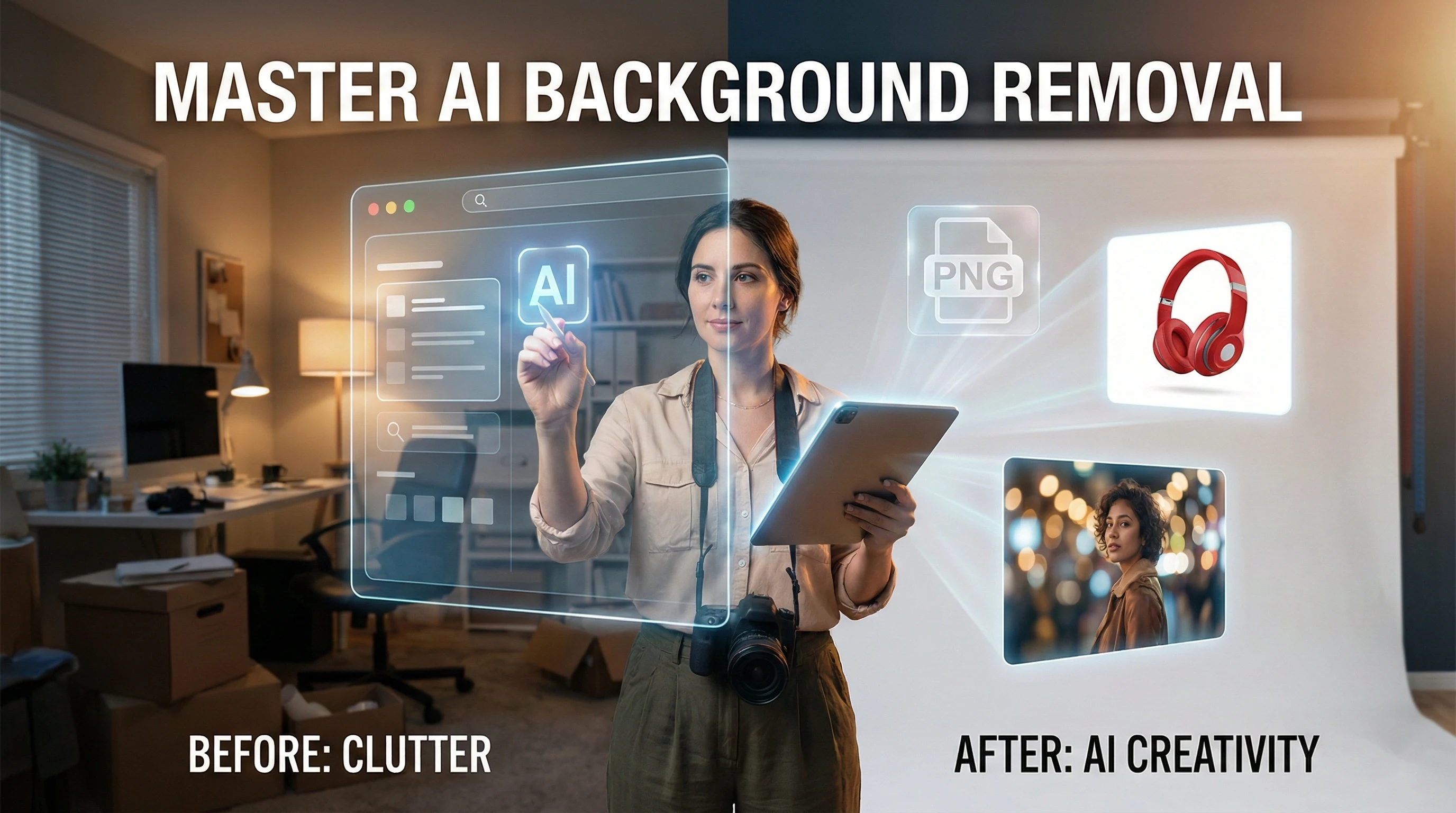
One of the most common questions we hear from creators and business owners is: how do you remove the background of a picture without spending hours in Photoshop?
Whether you have a product photo that needs a clean look, or a company logo trapped inside a white box, the process shouldn't be complicated. In the past, you needed expensive software to get professional results. Today, AI technology has changed the game, allowing you to remove background from any image in seconds—completely automatically.
But simply removing the background is often just the first step. In this guide, we’ll show you how to master the full editing workflow using 4 free AI tools. We will cover everything from finding the best logo background remover for your brand assets to showing you how to change background color online free for e-commerce listings.
Ready to transform your images? Let’s dive in.
How Do You Remove the Background of a Picture for Free?
If you are asking "how to remove the background of a picture" without installing heavy software like Photoshop, the answer is simpler than ever: AI automation.
For 90% of daily tasks—whether it's a selfie, a pet photo, or a casual snapshot—you don't need manual editing tools. You need a dedicated picture background remover that works instantly in your browser.
Here is how to do it in 3 steps:
- Upload: Go to SuperMaker free Image Background Remover tool.
- Auto-Process: The AI automatically detects the subject and cuts out the background. No manual selection is needed.
- Download: Save your clean image as a PNG file.
This tool is designed to remove background from image with zero friction. It handles complex edges well, but if you are dealing with a specific business asset like a digital logo, you might need a more specialized mode (which we will cover next).
 (From chaotic street shots to professional studio cutouts in seconds.)
Best Logo Background Remover for Transparent Brands
For business owners and designers, the stakes are higher. You aren't just editing a photo; you are preparing a brand asset.
A common headache is that standard JPG files act like a solid "brick"—they always carry a white background box. This limits where you can use them.
To fix this, you need to convert your logo into a transparent PNG. While generic tools often leave jagged edges around text, our specialized mode removes the solid white background with high precision, leaving you with a clean, versatile asset.
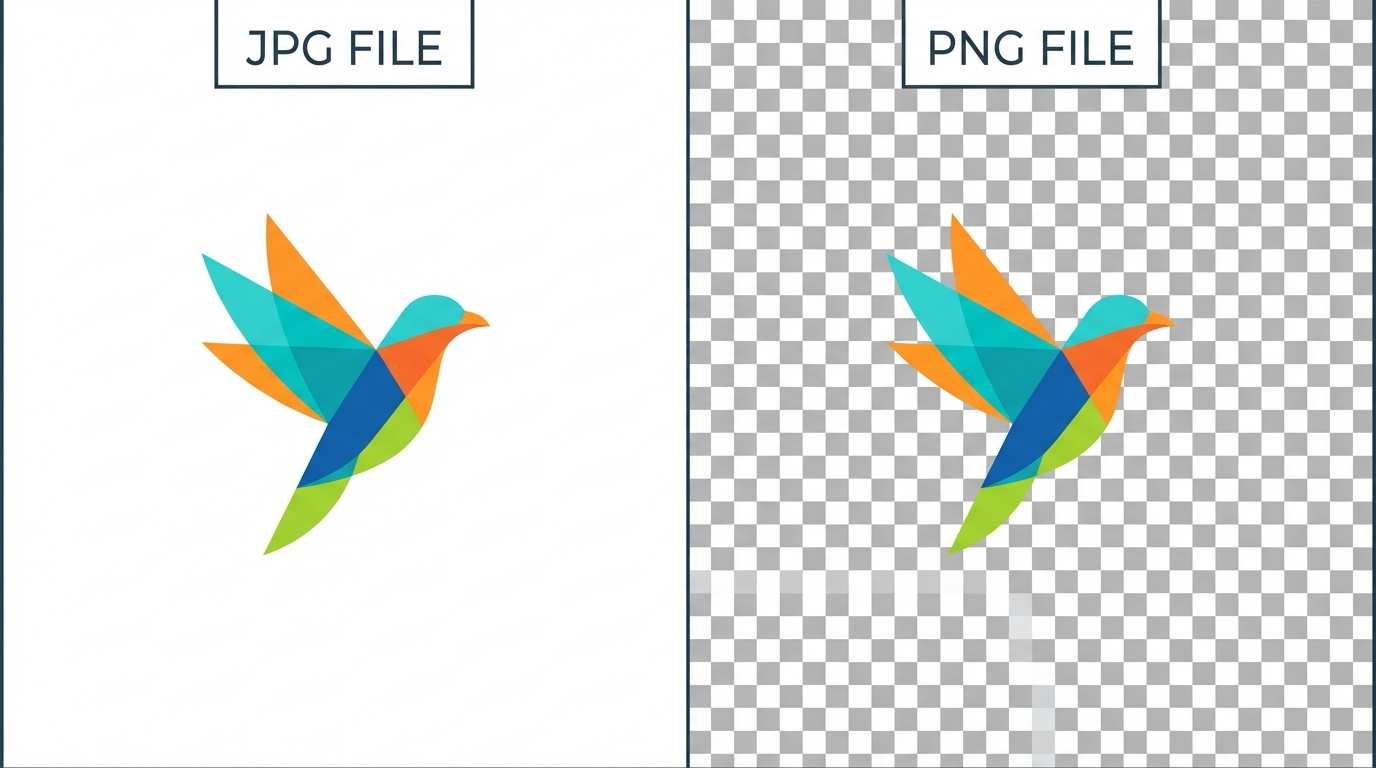 (Instantly convert white-background JPGs into transparent PNGs for professional design use.)
Why use the specialized tool?
- Edge Precision: It specifically targets the sharp lines and curves found in graphics and typography.
- Transparency: It ensures your output is a clean PNG, ready to be placed on any color or video.
If you need to make your trademark or icon transparent, use our Transparent Background Maker. It acts as a professional logo background remover, ensuring your brand looks crisp and professional in seconds.
How to Change Background Color Online Free (or Add AI Background)
Removing the background is usually just step one. What happens next?
If you are an e-commerce seller, you likely need to replace that original messy room with a clean, pure white background to meet marketplace standards (like Amazon or eBay). Or, if you are a creator, you might want to transport your subject to a completely new environment.
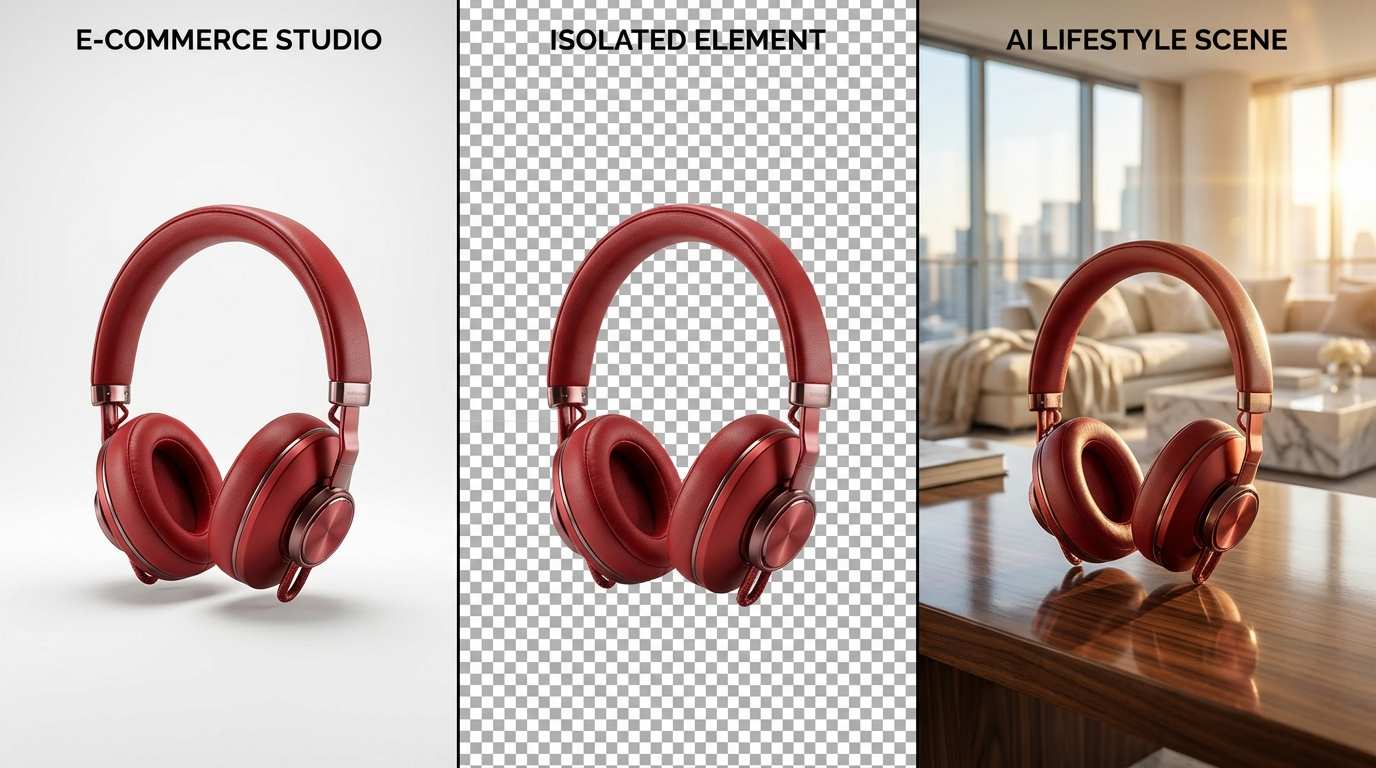 (Keep your product's original angle while instantly swapping the background from studio white to realistic scenes.)
You don't need complex software to finish the job. With our AI Background Generator, you can easily:
- Add a Solid White Background: Perfect for Amazon or eBay listings.
- Generate Creative Scenes: Use AI to place your product in a realistic environment.
This feature lets you AI image add background textures, studio lighting, or outdoor sceneries based on your text prompts. It turns a simple product shot into a professional marketing campaign image instantly.
Don't Want to Remove? Just Blur It.
Sometimes, the background adds context, but it's just too distracting. You don't always need to delete it. A great alternative is to apply a "Portrait Mode" effect.
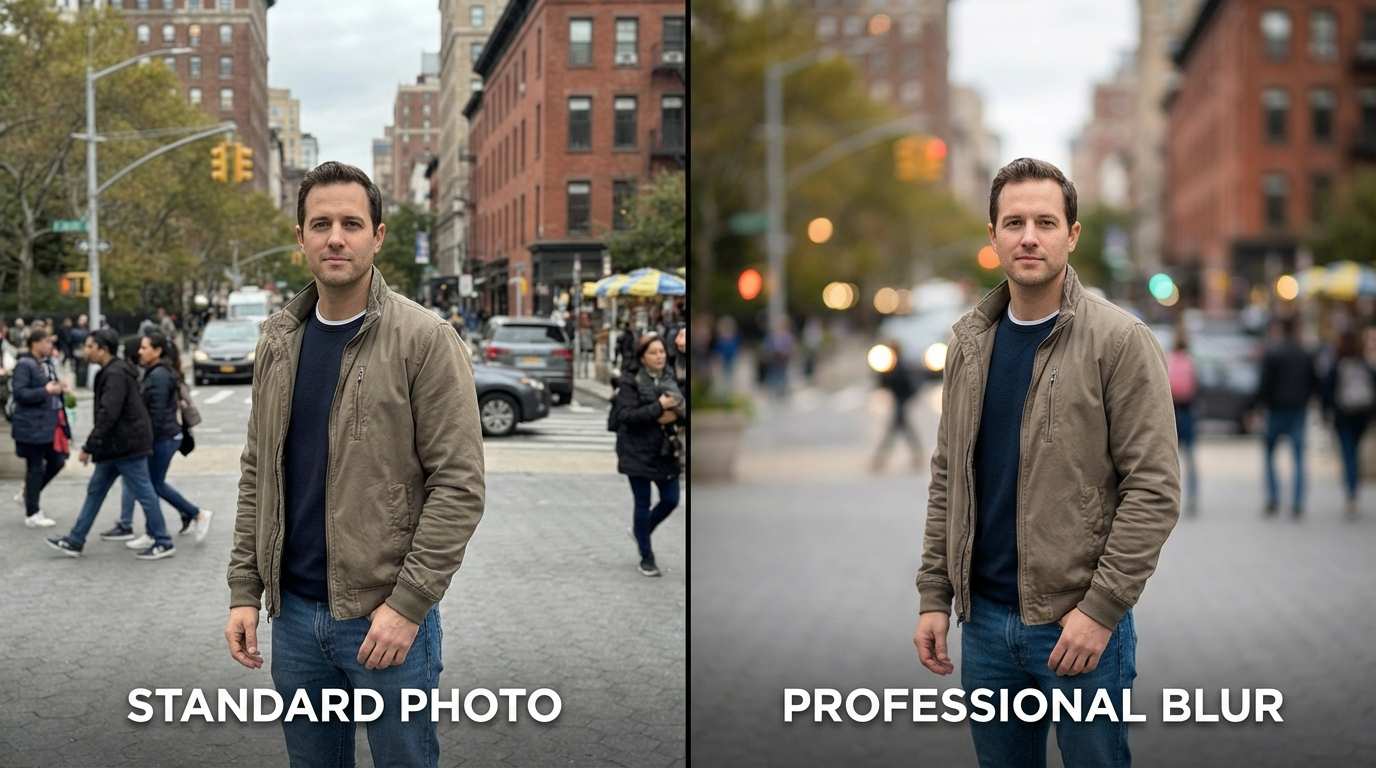
(Turn flat smartphone photos into professional portraits with cinematic depth of field.)
Our Blur Background tool allows you to soften the surroundings while keeping the subject in sharp focus. This is perfect for professional profile pictures or showcasing products where you want to keep the environment visible but subtle.
Conclusion
Whether you need a quick fix for a selfie, a precise logo background remover, or a complete AI transformation for your product photos, the days of struggling with complex software are over.
Ready to upgrade your images? Start with our free Image Background Remover and explore the full suite of AI editing tools today!