MiniMax H3 Prompting Guide: How to Create Better AI Videos
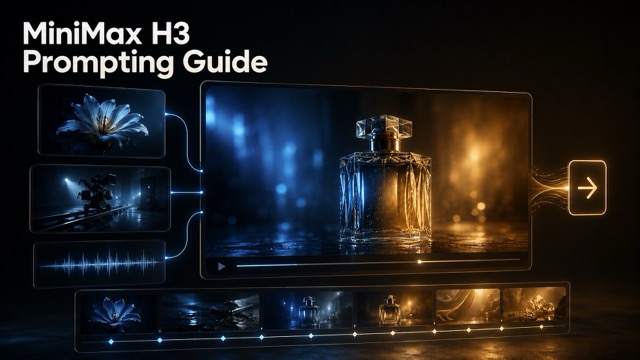
MiniMax H3 combines text, image, video, and audio references for more controlled AI video creation. This guide covers generation modes, timed shot lists, consistency tips, and copy-ready prompts.
Access the latest AI models through SeeAPI. Explore the SeeAPI model catalog for convenient API access to leading AI models, including the latest MiniMax H3 Max API.
Introduction
AI video generation is moving beyond the simple process of entering one sentence and waiting for an unpredictable result. New multimodal models give creators more control over character identity, product appearance, camera movement, visual style, editing rhythm, and sound.
MiniMax H3 is designed for this more structured workflow. It can interpret text, images, videos, and audio within the same context, allowing each reference asset to control a different part of the final video.
However, uploading more references does not automatically produce better results. If the model does not understand the purpose of each file, it may combine the wrong faces, products, environments, or visual styles. A good MiniMax H3 prompt should therefore work like a compact production brief: assign a role to every reference, organize actions on a timeline, describe the sound, and identify everything that must remain unchanged.
What Is MiniMax H3?
MiniMax H3 is a general-purpose multimodal video model that can process text, images, video clips, and audio files within a single generation request.
According to fal.ai, MiniMax H3 can generate 5–15 seconds of 2K video with native stereo audio. Instead of relying entirely on a written description, creators can use different reference files to control:
- Character or product appearance
- Environment and visual style
- Camera movement
- Character actions and performance
- Editing rhythm
- Dialogue, music, and ambient sound
- Opening and closing frames
- Localized changes to an existing video
MiniMax H3 is available through three main generation modes:
- Text to Video
- First & Last Frame
- Reference to Video
Choosing the correct mode is the first step toward producing a stable and visually consistent result.
Tip: MiniMax H3 is now available through SuperMaker. You can access the MiniMax H3 AI Video Generator online to turn text, images, and reference materials into videos without setting up the model locally.
How to Create a Video With MiniMax H3
1. Choose the Right Generation Mode
Use Text to Video when you do not have any reference media and want MiniMax H3 to invent the characters, environment, and visual direction from a written prompt.
Choose First & Last Frame when you already have an opening image, or when you have both the opening and closing frames and want the model to generate the movement between them.
Use Reference to Video when you need to preserve a person or product, transfer camera movement, follow a performance, match an editing style, use an audio reference, or modify an existing video.
2. Prepare Clear Reference Assets
If you need to preserve a person or product, use clear reference images without severe blur, heavy filters, or major obstructions.
A useful character reference should clearly show:
- Face shape and features
- Hairstyle and hair color
- Approximate age
- Body proportions
- Clothing and accessories
- Natural skin tone
- A front-facing or three-quarter view
A useful product reference should clearly show:
- Overall silhouette
- Product proportions
- Materials and colors
- Label layout
- Logo and text placement
- Important components or accessories
Avoid low-resolution images, extremely dark lighting, cropped products, heavily filtered portraits, or images in which the main subject is difficult to identify.
3. Write and Review the Prompt
Before generating the video, check whether the prompt clearly explains:
- Video duration and aspect ratio
- The role of each reference file
- Shot timing
- Character or product movement
- Camera direction
- Visual style
- Audio design
- Details that must remain unchanged
- Unwanted artifacts or additions
If the video contains more than one action, use a timed shot list to prevent everything from happening at once.
The Three MiniMax H3 Generation Modes
Text to Video
Text to Video is suitable when no reference media is available or when you want the model to create an original visual concept.
This mode works well for:
- Creative concept videos
- Fantasy or science-fiction scenes
- Animated shorts
- Social media content
- Atmospheric videos
- Early visual experiments
The following prompt is ready to copy and use:
Create a 15-second, 16:9 photorealistic cinematic video. At dusk, a young woman wearing a beige trench coat walks alone through a rain-soaked city street. Blue and orange neon signs reflect across the wet pavement while distant vehicles move slowly through the background. [0–4 seconds] Use a medium-wide shot and follow the woman steadily from behind. She walks forward at a natural pace while the wind gently moves her hair and the lower edge of her trench coat. [4–9 seconds] Move the camera to her left side and transition into a medium profile shot. She stops walking and looks toward a shop across the street that is illuminated by warm yellow light. [9–13 seconds] Cut to a close-up of her face. Her expression changes gradually from tired to calm. Falling rain remains visible in front of the blurred neon background. [13–15 seconds] Slowly pull the camera back to show her standing between the cold blue street and the warm light of the shop. Visual style: Photorealistic cinematic photography with shallow depth of field, cool blue shadows, warm orange highlights, natural skin texture, realistic rain reflections, and subtle film grain. Audio: Use light rainfall, distant traffic, footsteps moving through shallow water, and restrained low-frequency ambient music. Do not add dialogue or vocals. Constraints: Preserve the same face, hairstyle, age, body proportions, and clothing throughout the video. Do not add extra people, subtitles, logos, watermarks, distorted hands, facial changes, sudden cuts, flickering, or melting transitions.
This version is more effective than a short prompt such as “a woman walking through a rainy city” because it defines the subject, environment, shot order, camera movement, visual treatment, sound, and restrictions.
First & Last Frame
First & Last Frame is designed for situations in which the opening composition has already been determined. You can provide only the opening frame or upload both the opening and closing frames.
This mode works well for:
- Animated posters
- Product page animations
- Logo and brand reveals
- Character pose transitions
- Environmental transformations
- Before-and-after videos
- Lighting transitions
The prompt should focus on how the image moves from the starting point to the ending point rather than repeatedly describing what is already visible.
The following prompt is designed for a luxury perfume video using a cool-blue opening frame and a warm-gold closing frame:
Use Image 1 as the exact opening frame and Image 2 as the exact closing frame. Create a 10-second, 16:9 luxury perfume commercial. The video must move naturally and continuously from Image 1 to Image 2. [0–3 seconds] Keep the perfume bottle centered. Slowly push the camera toward the product from the medium-wide composition shown in the opening frame. The background is dominated by deep blue studio light, with a subtle warm-gold rim light appearing along the metal cap and glass edges. [3–7 seconds] Continue the smooth camera push. Rotate the perfume bottle slightly to the right around its vertical axis, limiting the rotation to approximately 8 degrees. Keep the bottle upright and centered. Gradually transform the background lighting from cool blue to warm amber gold. Allow the highlight to move naturally from the left side of the bottle toward the right. The glass reflections and metallic cap highlights should change realistically with the lighting. [7–10 seconds] Reach the camera distance and composition shown in the closing frame. Warm golden light now dominates the background, while a very faint trace of cool blue remains along the far-left edge. Stop the bottle rotation and camera movement, then hold the final frame steadily for one second. Product consistency: Preserve the exact bottle silhouette, dimensions, glass thickness, liquid color, liquid level, cap shape, and materials shown in both reference images. Keep the same dark stone surface, studio background structure, camera height, and centered product position. Do not add a label, brand name, logo, numbers, symbols, or decorative elements. Motion requirements: All movement must be smooth, slow, and continuous. Coordinate the camera push, bottle rotation, moving reflections, and lighting transition naturally. Do not introduce sudden jumps, camera shake, product drift, melting glass, cap deformation, changing liquid levels, duplicated objects, or additional props. Audio: Use restrained low-frequency ambient music, subtle air movement, and a delicate glass resonance. Add one soft, premium low-frequency sound during the final second. Do not add dialogue, vocals, exaggerated transition effects, or a sudden heavy bass hit.
The opening and closing frames should use the same product, surface, scene, aspect ratio, and overall composition. Only controlled elements such as camera distance, product angle, and lighting should change.
If the product looks substantially different between the two frames, the model may distort or redesign it during the transition.
Reference to Video
Reference to Video can combine images, video clips, and audio files in one request. It is the most useful mode when you need tight control over identity, products, movement, performance, or editing.
This mode is suitable for:
- Character identity preservation
- Product commercials
- Motion transfer
- Camera movement references
- Editing style matching
- Voice and performance references
- Localized video editing
- Green-screen replacement
- Brand asset integration
The most important rule is simple: do not merely upload files. Tell the model exactly what each file should control.
The following multi-reference prompt is ready to use:
Create a 15-second, 16:9 premium fashion commercial. Reference assignments: Use Image 1 as the strict identity reference for the female lead. Preserve the same face shape, facial features, hairstyle, approximate age, skin tone, and body proportions. Use Image 2 as the clothing reference. Preserve the black leather trench coat, narrow sunglasses, silver earrings, and black boots. Use Image 3 as the handbag reference. Preserve its exact silhouette, color, leather texture, metal components, proportions, and logo placement. Use Video 1 only as the reference for camera movement and editing rhythm. Follow its fast push-in, side orbit, and close-up cutting pattern, but do not copy the people, products, or environment from that video. Use Audio 1 as the musical rhythm reference. Synchronize the character actions and shot changes with its major beats without changing the speed or structure of the audio. [0–4 seconds] The female lead stands beside a black vintage car on a city street at night. Push quickly from a wide shot into a medium shot as she turns to face the camera. [4–8 seconds] Orbit smoothly from her left side toward the right. She walks to the back of the car, opens the trunk, and removes the black handbag shown in Image 3. [8–12 seconds] Cut to close-ups of the handbag and clothing. She lifts the bag naturally while its metal components catch a brief orange highlight. [12–15 seconds] She puts on her sunglasses, turns away from the car, and walks forward. Settle into a medium-wide shot and hold the last frame steadily for one second. Visual style: Photorealistic premium fashion advertising with a black, silver, and orange-red palette. Use high-contrast lighting, subtle film grain, realistic highlights, and controlled camera movement. Consistency: Preserve the same female identity, hairstyle, clothing, handbag design, and vehicle throughout every shot. Do not change the character’s age, facial proportions, clothing colors, logo placement, product materials, or body proportions. Avoid: No additional people, duplicate products, subtitles, watermarks, garbled text, facial distortion, malformed hands, liquid transitions, sudden jumps, or flickering.
How to Assign a Job to Every Reference
One of the most common reasons a multi-reference generation fails is that the model does not know which part of each file it should follow.
Avoid vague instructions such as:
Use these four images to create a fashion commercial.
A stronger reference assignment looks like this:
Use Image 1 for the overall color palette, location, and film texture. Use Image 2 as the strict character identity reference. Preserve the same face shape, facial features, hairstyle, and approximate age. Use Image 3 to lock the handbag design, color, material, proportions, and logo placement. Use Image 4 as the closing brand mark. Use Video 1 only for camera movement and editing rhythm. Do not copy the people or environment from the video. Use Audio 1 as the musical timing reference. Change shots on the major beats. Keep the character’s identity, hairstyle, and clothing consistent throughout the entire video. Do not change the handbag shape, material, proportions, or logo placement.
Assigning one clear responsibility to each reference reduces conflicts between character identity, product design, location, lighting, and visual style.
If one image contains several useful elements, explain which ones should be preserved and which ones may be redesigned.
How to Control Video Pacing With a Timed Shot List
When a video contains multiple actions, divide the prompt into timed sections. This works like a compact storyboard and helps prevent every action from happening simultaneously.
Here is a complete 15-second cinematic scene:
Create a 15-second, 16:9 photorealistic cinematic drama scene. Setting: A small, quiet café at night. Rain falls outside the windows. The interior uses warm yellow lighting and should feel natural, lived-in, and realistic. [0–3 seconds] Use a wide establishing shot of the café exterior. Rain runs down the windows while the camera slowly pushes toward the entrance. [3–7 seconds] Cut to a medium shot inside the café. A young woman sits alone beside the window, holding a coffee cup with both hands. She hears the door open, looks up slowly, and changes from calm to surprised. [7–11 seconds] A young man enters through the door. Use restrained shot-reverse-shot close-ups to emphasize their eye contact. Both performances should feel natural and understated. [11–15 seconds] Slowly pull the camera back to reveal the two characters looking at each other across the café. Hold the final second in a quiet but tense atmosphere. Cinematography: Use shallow depth of field, natural skin texture, warm interior lighting, and cool blue rain outside the window. Keep all camera movements slow and stable. Audio: Use rainfall, a subtle door-opening sound, quiet café ambience, and restrained low-register piano music. Do not add dialogue, singing, or exaggerated cinematic effects. Constraints: Preserve the same identities, ages, hairstyles, clothing, and facial features throughout the video. Do not add extra characters, subtitles, logos, watermarks, distorted faces, malformed hands, sudden jumps, or unexplained scene changes.
A 15-second video usually cannot support several locations, multiple characters, and a complicated story. Three or four clearly organized shots are often more reliable than six or seven rushed events.
How to Direct Audio in MiniMax H3 Prompts
Because MiniMax H3 can generate native audio, sound should be directed with the same care as the image.
Instead of writing “add background music,” describe the ambient sounds, instruments, rhythm, volume changes, and the exact moments when important sounds should occur.
The following audio section can be added directly to a video prompt:
Audio design: [0–3 seconds] Use light wind, distant city traffic, and a restrained low-frequency ambient tone. Do not introduce a strong beat immediately. [3–8 seconds] Add a slow electronic rhythm and a deep synthesizer layer. Match the tempo to the forward camera movement. [At 8 seconds] Add one short, controlled low-frequency impact when the character turns. [8–13 seconds] Gradually introduce strings and subtle metallic friction while keeping the footsteps and clothing movement audible. [13–15 seconds] Reduce the music and leave one sustained low-frequency note with quiet environmental sound. Add a soft closing sound when the final frame settles. Do not use cheerful music, vocals, exaggerated explosions, abrupt volume increases, or sounds unrelated to the scene.
Useful sound categories include:
- Environmental ambience
- Dialogue
- Footsteps
- Clothing movement
- Product interaction sounds
- Background music
- Transition effects
- Audio feedback for key actions
Specific sound instructions help the generated audio support the pacing and emotion of the visuals.
How to Preserve Character Identity
Writing “keep the character consistent” is often too vague. List the exact characteristics that define the person.
Use a prompt such as:
Strictly preserve the character’s identity throughout the video. Keep the same oval face shape, deep brown eyes, shoulder-length black wavy hair, small beauty mark beneath the left eye, natural skin tone, beige trench coat, and silver earrings. Do not change the character’s age, facial proportions, eye color, hairstyle length, clothing colors, body proportions, or accessories. The person shown in the close-ups, medium shots, and wide shots must be the same individual. Do not introduce identity drift, facial flickering, excessive skin smoothing, duplicated limbs, malformed hands, sudden hairstyle changes, or additional people.
This technique can also be applied to animated characters, game characters, virtual influencers, historical figures, and recurring actors in short-form drama.
How to Preserve Product Consistency
Product videos require strict control over geometry, materials, labels, and text. A general instruction such as “keep the product unchanged” may not be enough.
Use a more specific consistency block:
Strictly preserve the product design throughout every shot. Keep the same rectangular bottle silhouette, thick transparent glass edges, amber liquid, liquid level, gold cylindrical cap, label structure, proportions, and materials. Do not change the bottle dimensions, glass thickness, liquid color, cap size, packaging text, typography, label position, or logo placement. The product must not be redesigned while rotating, during camera movement, or when the lighting changes. Do not add extra products, decorative objects, flowers, hands, labels, accessories, or packaging elements. Avoid melting edges, changing reflections, warped geometry, floating products, duplicated objects, sudden jumps, flickering, or incorrect text.
The same method can be used to preserve:
- Packaging
- Clothing
- Vehicles
- Furniture
- Buildings
- Game equipment
- User interfaces
- Brand typography
The more clearly the non-negotiable details are identified, the less likely the model is to redesign them.
How to Edit an Existing Video With MiniMax H3
For video editing, state both the requested change and the elements that must remain stable.
The following prompt replaces a green-screen background while preserving the original performance:
Replace the green-screen background in the source video with a beach at sunset. The new background should contain a calm ocean, a distant horizon, soft golden sunlight, and slowly moving clouds. Match the background movement precisely to the original camera movement. Preserve the original character’s identity, facial expression, body proportions, actions, clothing, camera angle, camera movement, and editing rhythm. Adjust the lighting on the character so it matches the sunset environment. Add a soft golden rim light on the character’s right side while preserving natural shadow on the left. Keep the original facial details, clothing texture, hair movement, and grounded shadows. Do not change the character’s identity, clothing, actions, pose, or timing. Do not add extra people, animals, buildings, text, logos, or unrelated objects. Avoid green edges, visible masking, drifting backgrounds, flickering boundaries, conflicting light directions, character distortion, or obvious compositing seams.
When several localized edits are required, list them separately:
Make the following localized edits to the source video: 1. Replace the newspaper in the subject’s hands with a green hardcover book. 2. Replace the wooden chair behind the subject with a dark red fabric sofa. 3. Remove the subject’s sunglasses and reveal clear, natural-looking eyes. 4. Remove the flames and smoke from the burning vehicle in the background, restoring the vehicle to a normal condition. Preserve the original character identity, facial expression, body movement, clothing, camera movement, scene composition, lighting direction, and editing rhythm. Apply changes only to the specified objects and areas. Do not regenerate the entire scene. Do not change the character’s face shape, eye color, hairstyle, pose, clothing, or body proportions. Do not add extra people, text, subtitles, logos, watermarks, or unrelated objects. Avoid flickering edges, localized melting, drifting objects, color jumps, inconsistent lighting, or visible editing artifacts.
Pairing each requested change with a preservation rule encourages a localized edit instead of an uncontrolled regeneration.
How to Improve MiniMax H3 Prompts
Describe Every Reference Clearly
Do not simply tell MiniMax H3 to “use the uploaded images.” Explain whether each image controls identity, clothing, product design, environment, typography, lighting, or the final frame.
Limit the Number of Actions
A 5–15 second video cannot support an unlimited number of actions. Focus on one central event and organize it into a small number of shots.
Use Cinematography Language
MiniMax H3 can interpret common cinematography terms, including:
- Wide shot
- Medium shot
- Close-up
- Extreme close-up
- Macro shot
- Shallow depth of field
- Slow push-in
- Controlled pull-back
- Side orbit
- Handheld movement
- Rack focus
- Exposure breathing
- Film grain
- Highlight halation
Do not only explain what appears in the scene. Explain how it should be filmed.
Direct the Sound Over Time
Specify when the music begins, when the rhythm increases, which actions need sound effects, and how the audio should settle during the final frame.
Use Specific Negative Instructions
Avoid vague phrases such as “do not make mistakes.” Identify the unwanted result directly.
For example:
Do not change the character’s identity, age, face shape, hairstyle, clothing, or body proportions. Do not change the product’s shape, dimensions, materials, packaging text, typography, or logo placement. Do not add subtitles, watermarks, garbled text, extra people, duplicate objects, sudden jumps, flickering, liquid transitions, or unrelated elements.
Common MiniMax H3 Prompting Mistakes
Not Assigning Roles to Reference Files
Uploading several references without explaining their purpose can cause faces, clothing, products, environments, and styles to become mixed together.
Adding Too Many Events to a Short Video
If a 15-second prompt contains several locations, characters, and complicated actions, the model may skip important events or rush through the entire sequence.
Describing the Scene Without Directing the Camera
“A person walks down a street” describes the content but not how the audience should experience it. Add shot size, camera position, movement, lens behavior, and focus.
Ignoring Audio
When sound is not directed, the generated music or effects may conflict with the mood of the visuals. Even if no music is needed, specify that only natural environmental audio should be used.
Using Vague Restrictions
“Keep everything consistent” does not identify which details matter. List the facial features, product components, text, colors, and materials that cannot change.
Combining Conflicting Styles
A prompt that requests minimalism, maximalist luxury, documentary realism, and futuristic science fiction at the same time gives the model no clear visual priority.
Choose one primary direction and add only compatible secondary characteristics.
Frequently Asked Questions
Can MiniMax H3 Use Multiple Reference Images?
Yes. When using multiple images, assign a specific purpose to each one. For example, Image 1 can preserve character identity, Image 2 can define clothing, Image 3 can lock product design, and Image 4 can control the setting or closing frame.
Avoid assigning several conflicting identities or product designs to the same generation.
Should a MiniMax H3 Prompt Be Very Long?
Not necessarily. A prompt should be detailed enough to remove ambiguity, but it does not need to repeat similar adjectives.
Prioritize the video objective, reference roles, shot timing, camera movement, visual style, audio, consistency requirements, and negative instructions.
How Can I Prevent Character Identity Drift?
Use a clear reference portrait and list the facial features, hairstyle, age, skin tone, clothing, and accessories that must remain unchanged.
State that the close-up, medium, and wide shots must all show the same person.
How Can I Prevent Product Text From Changing?
Specify the exact text, typography, color, position, and logo structure that must remain unchanged. If text is not necessary, instruct the model not to add any text.
For First & Last Frame generation, make sure both reference images already contain identical product text and packaging.
Is MiniMax H3 Suitable for Product Commercials?
Yes. Product references can be combined with timed camera movement, controlled rotation, lighting changes, material close-ups, sound design, and a stable closing frame.
For better consistency, describe the product’s dimensions, materials, label layout, logo placement, and structural details.
How Can I Reduce Sudden Jumps and Flickering?
Use a timed shot list and request smooth, continuous movement. Reduce the number of locations and actions, and avoid combining several incompatible transitions in one short video.
Reserve one or two seconds for the final composition to settle.
Conclusion
MiniMax H3 prompts work best when they resemble compact directing notes rather than collections of disconnected visual adjectives.
For more stable AI video results:
- Choose the correct generation mode for the available references.
- Assign a clear role to every image, video, and audio file.
- Use timed shot lists to control movement and pacing.
- Direct the sound as carefully as the visuals.
- List the character or product details that must remain unchanged.
- Add specific negative instructions for likely errors.
- For video edits, describe both the requested change and the elements that must remain stable.
A good prompt does not have to be unnecessarily long. It needs to tell the model what to reference, what should happen, when it should happen, how the camera and sound should behave, and what must never change.
With that structure in place, MiniMax H3 becomes more than a tool for unpredictable video generation. It becomes a practical system for controlled AI-assisted video production.