How to Create Transparent PNGs with GPT Image 2
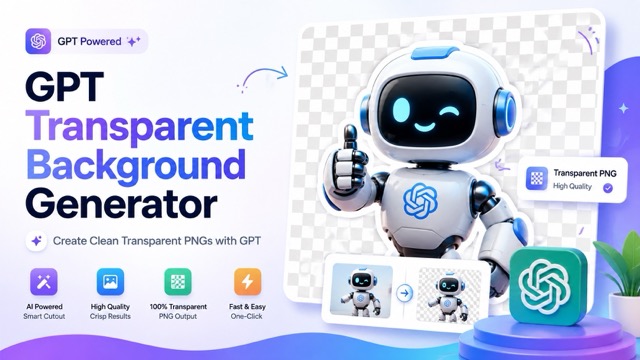
Learn how to turn product ideas or uploaded images into clean, reusable transparent PNGs with a GPT Transparent Background Generator. This guide covers the complete workflow, prompt tips, product-image uploads, ecommerce use cases, marketing assets, stickers, icons, and practical ways to get better transparent-background results.
Transparent PNGs are everywhere in modern digital design. Product cards, ecommerce banners, social media graphics, presentation slides, stickers, icons, and advertising creatives often rely on images without a fixed background so they can be placed naturally into different layouts.
The problem is that creating those assets traditionally means jumping between several tools. You generate or photograph an image, open a background remover, clean the edges, export the file, and then check whether the result still looks good on light and dark backgrounds.
A GPT Transparent Background Generator can simplify that workflow. Instead of treating image generation and background removal as two completely separate jobs, you can describe the product or object you want to create—or upload your own product image—generate the result, and prepare it as a transparent PNG in one streamlined process.
This guide explains how the workflow works, when to generate from text versus upload an existing image, and how transparent PNGs can fit into real ecommerce, marketing, and design projects.
What Is a GPT Transparent Background Generator?
A GPT Transparent Background Generator is designed to help turn an idea or an existing product image into a reusable visual asset with a transparent background.
Unlike a traditional background remover, which normally starts with an existing photograph, a GPT-based workflow can begin in two different ways:
- Describe the product or visual you want to create.
- Upload an existing product image you already have.
From there, the tool generates or processes the subject and prepares it for transparent-background use.
That distinction matters.
If you already have a professional product photograph, you may simply want to isolate the product so it can appear on different backgrounds. But if you are still developing a campaign concept, mockup, sticker, icon, character, or supporting visual, starting from a text description can be faster.
This gives creators more flexibility because the same workflow can support both new AI-generated assets and existing product photography.
Why Transparent PNGs Are So Useful
A normal JPG or generated image usually includes a complete rectangular background. That is perfectly fine when the image will always be used exactly as generated.
But marketing teams rarely work that way.
The same product might need to appear on:
- A white ecommerce listing
- A dark promotional banner
- A seasonal campaign background
- An Instagram post
- A presentation slide
- A comparison graphic
- A homepage hero section
If the product is already isolated as a transparent PNG, you can move it between these layouts without repeatedly removing or rebuilding the background.
This makes transparent images especially useful when one visual needs to work across several channels.
Instead of designing around the background of the original image, you can design around the product itself.
How to Create a Transparent PNG with GPT
The process is intentionally simple. You do not need to build a complicated editing workflow or understand advanced masking techniques.
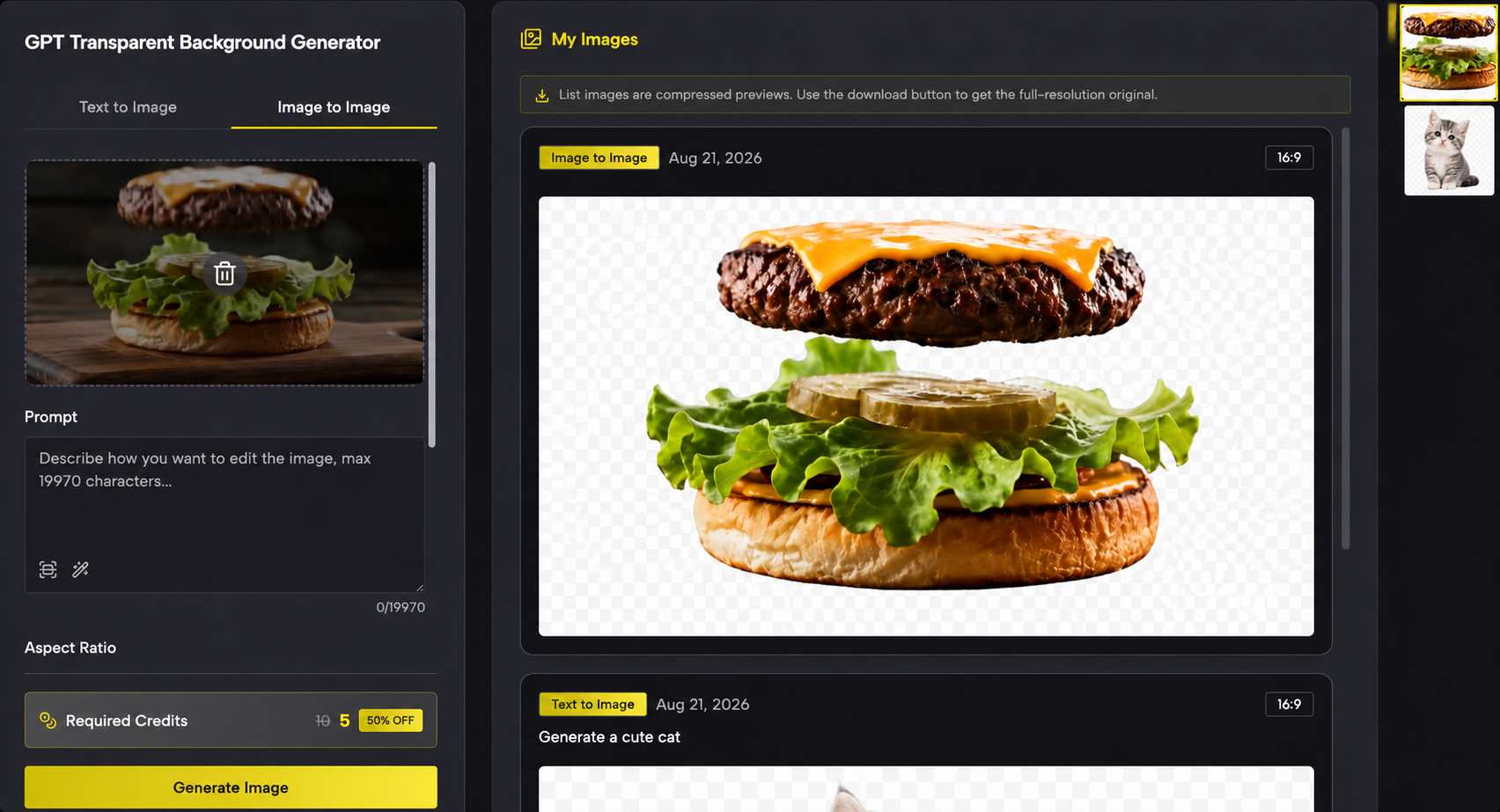
1. Describe the Product or Upload Your Image
Start by deciding whether you need to create something new or work with an existing product.
If you are generating from text, describe the product clearly.
For example:
A premium lavender skincare serum bottle with a gold dropper cap, front-facing product photography, soft studio lighting, clean silhouette, centered composition.
Useful details can include:
- Product type
- Material
- Color
- Camera angle
- Lighting
- Style
- Shape
- Packaging
- Important visual details
The more relevant information you give the generator, the easier it is to create a visual that matches your intended use.
If you already have a product photograph, upload it instead. This is usually the better option when product accuracy matters more than creative variation.
For example, an ecommerce store selling a real handbag should normally upload the actual product image rather than ask AI to recreate the handbag from scratch.
2. Click Generate
Once your prompt or image is ready, use the GPT Transparent Background Generator to process the visual and prepare the main subject for transparent-background use.
At this stage, check more than whether the background is gone.
Look closely at:
- Product edges
- Hair or fur
- Thin accessories
- Transparent materials
- Curved packaging
- Shadows
- Small decorative details
- Reflective surfaces
A transparent image can technically have no background and still look poor if its edges contain halos, missing details, or pieces of the previous scene.
3. Download the Transparent PNG
When the result looks right, download the transparent PNG.
You now have a reusable visual layer rather than an image locked to one particular background.
From there, the asset can be placed directly into ecommerce layouts, social media posts, banners, presentations, thumbnails, mockups, or other creative projects.
When Should You Generate from Text?
Text generation works best when the visual does not already exist.
Imagine that you need a set of promotional graphics for a campaign but do not yet have photography for every supporting element.
You might need:
- A decorative perfume bottle
- A 3D shopping bag
- A cute brand mascot
- A futuristic camera icon
- A fantasy treasure chest
- A sticker-style character
Creating each asset manually could take significant design time.
Instead, you can describe the visual and generate it specifically as an isolated subject.
This is especially useful for conceptual or supporting graphics where perfect real-world product accuracy is not required.
Text generation also makes experimentation much easier.
You can try:
A glossy blue 3D shopping bag with chrome handles.
Then modify it to:
A matte black luxury shopping bag with gold handles.
Or:
A playful pink shopping bag in soft 3D cartoon style.
The object stays conceptually similar while the visual direction changes.
That makes GPT-generated transparent assets useful during campaign ideation and creative testing.
When Should You Upload Your Own Product Image?
Uploading is usually better when the image represents a real product that customers will purchase.
This is especially important in ecommerce.
A generated version of a real product may accidentally change:
- Packaging proportions
- Logo placement
- Product color
- Material texture
- Buttons or controls
- Labels
- Accessories
- Shape
Those differences may seem small creatively, but they can matter commercially.
Uploading the original image lets you preserve the real product while still gaining the flexibility of a transparent background.
A practical ecommerce workflow might look like this:
Original product photo → transparent PNG → multiple campaign layouts
The product remains consistent while backgrounds, text, graphic elements, and campaign themes change around it.
For small creative teams, this can significantly reduce repetitive production work.
Ecommerce Product Images
One of the strongest uses for transparent PNGs is ecommerce.
Imagine a store has photographed a skincare serum on a studio background.
The same serum now needs to appear in:
- The main product listing
- A homepage banner
- A summer promotion
- A comparison chart
- A social media ad
- An email campaign
Without a transparent version, designers may repeatedly cut the product out or redesign around the original photograph.
With a transparent PNG, the serum becomes a reusable design element.
You can place it on pale lavender for the product page, warm orange for a seasonal campaign, or dark navy for a premium ad while keeping the actual product consistent.
Using a GPT Transparent Background Generator can therefore become part of a broader ecommerce asset workflow rather than a one-time image editing task.
Create Stickers, Mascots, and Characters
Transparent backgrounds are almost essential for sticker-style assets.
A mascot usually needs to appear in many places:
- Website sections
- Social media posts
- Community announcements
- Merchandise previews
- Promotional banners
- Email graphics
Generating the character directly against a complex background makes reuse difficult.
A better workflow is to focus on the character itself.
For example:
A cheerful corgi mascot wearing black sunglasses, jumping forward, sticker style, full body, clean silhouette.
Once isolated, the character can be placed into dozens of different layouts.
The same principle works for avatars, gaming assets, fantasy objects, cartoon characters, and creator-brand graphics.
Build Marketing Assets Faster
Marketing teams frequently need multiple versions of one campaign.
A single promotion might require formats for Instagram, Facebook, a website banner, an email header, and a presentation.
Transparent assets simplify adaptation.
Instead of recreating the entire design for every size, you can treat the product or character as a movable visual component.
Place it on the left in one format.
Move it to the center in another.
Add text behind it.
Change the background color.
Resize it for mobile.
The subject remains the same.
This becomes even more useful during A/B testing because you can change backgrounds, typography, calls to action, and layout without regenerating the central visual every time.
Create Icons and UI Assets
Not every transparent image needs to be photographic.
GPT-based generation can also help create decorative objects and interface-style visuals.
For example:
A glossy purple 3D headphone icon with soft reflections.
Or:
A transparent glass vase containing green monstera leaves, clean 3D render.
Or:
A colorful rocket icon in playful 3D style.
These assets can be used in:
- SaaS landing pages
- Feature sections
- Presentations
- Infographics
- App mockups
- Marketing graphics
Because the background is transparent, the icon can fit into the surrounding interface rather than looking like a rectangular image pasted on top.
Tips for Better GPT Transparent Background Results
The quality of your input still matters.
A few small changes can make transparent assets much easier to use.
Keep One Clear Main Subject
If your prompt includes five products, decorative plants, a room, a table, shadows, and several background elements, isolation becomes harder.
When possible, focus the prompt on the object you actually want.
Describe the Silhouette Clearly
Words such as:
- centered
- full body
- isolated subject
- front view
- clear silhouette
- minimal surrounding objects
can help guide composition.
Use High-Quality Uploads
If you upload an existing image, use the highest-quality version available.
A small, compressed, blurry product photo gives the generator less edge information to work with.
Check Difficult Areas
Zoom in around:
- Hair
- Fur
- Glass
- Jewelry
- Handles
- Thin straps
- Small packaging details
- Transparent objects
These are typically the areas where imperfect cutouts are easiest to notice.
Test the PNG on Different Backgrounds
A cutout may look perfect on white but reveal a halo on black.
Try placing the exported PNG on both light and dark backgrounds before using it in a major campaign.
Transparent PNG Generator vs. Traditional Background Remover
The two tools overlap, but their starting points are different.
A traditional background remover generally answers:
“I already have this image. How do I remove its background?”
A GPT Transparent Background Generator can answer both:
“I already have this image. Make it reusable.”
and:
“I have an idea. Create the asset and make it reusable.”
That second workflow creates more possibilities.
It means transparent-background generation becomes part of the creative process itself rather than only a cleanup step at the end.
For designers and marketers who regularly need new visual assets, that can make the tool significantly more useful than a single-purpose remover.
Final Thoughts
Transparent PNGs are simple files, but they solve a surprisingly large number of design problems.
They allow products, characters, icons, and other visual elements to move freely between backgrounds, formats, platforms, and campaigns.
The most practical workflow depends on what you already have.
If the visual exists, upload it.
If it does not, describe it.
Then generate the image, prepare the transparent background, review the edges, and export the PNG.
A GPT Transparent Background Generator brings those steps closer together, making it easier to move from an idea or product photo to a reusable creative asset without building a complicated editing workflow.
For ecommerce teams, designers, marketers, creators, and anyone producing visuals across multiple formats, that flexibility is often more valuable than simply removing a background once.