How to Make a KONG KONG KING KING KING AI Video With Two Photos
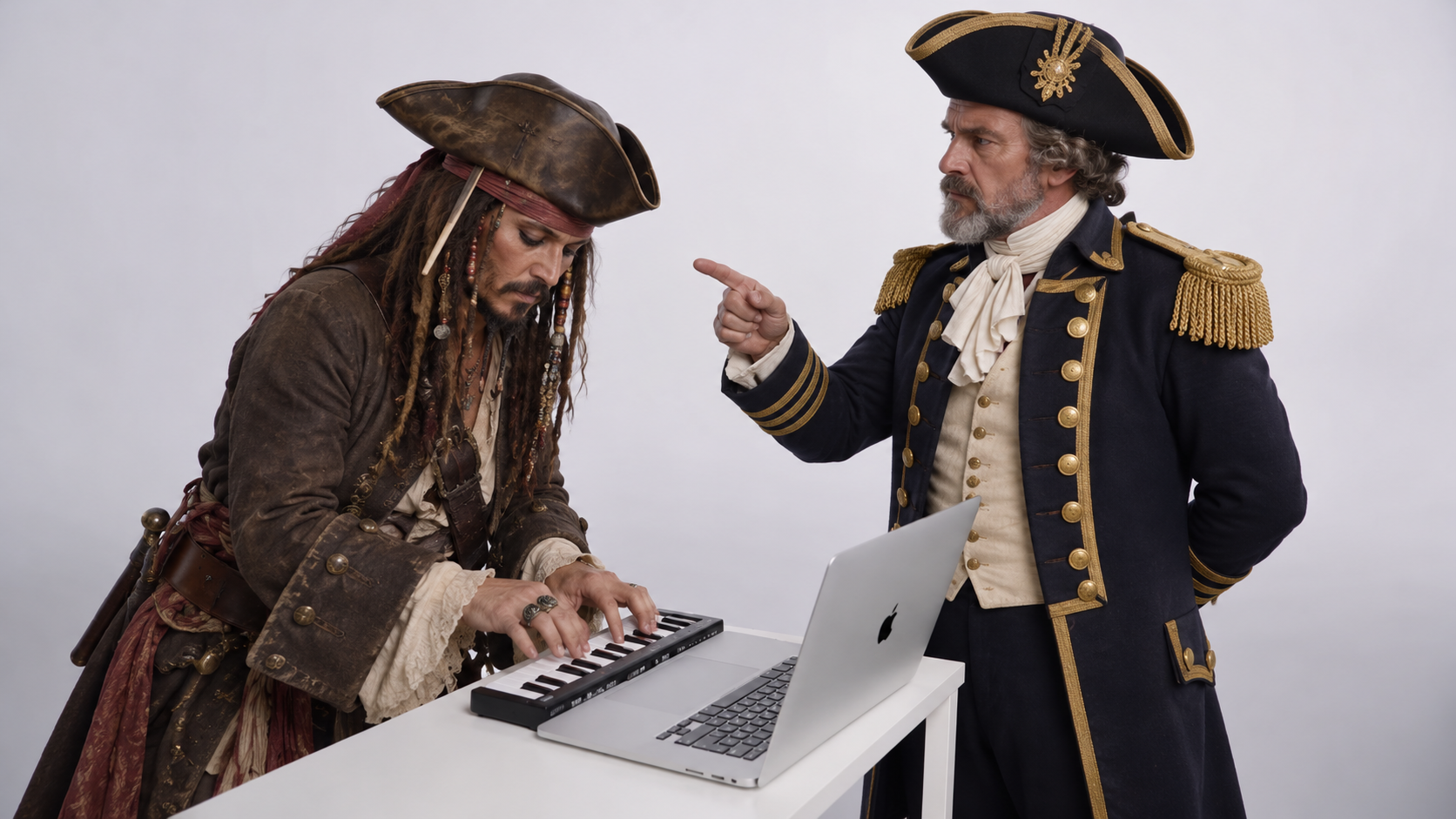
Turn two separate portraits into a playful one-keyboard, two-DJ performance. This guide walks through SuperMaker’s prepared effect, from choosing recognizable faces and assigning each role to selecting video settings, checking credits, reviewing the result, and sharing a clip that captures your duo’s personality.
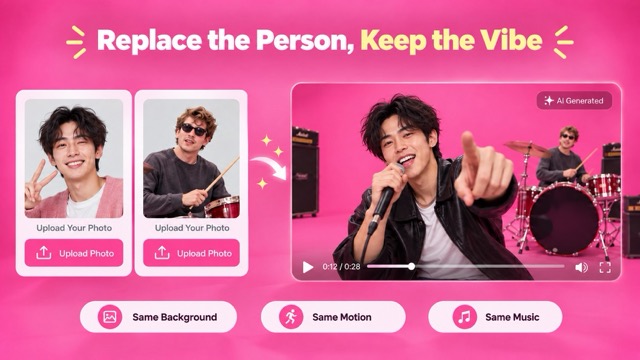
Two friends, one keyboard, and the confidence of a DJ duo: that is the appeal of KONG KONG KING KING KING. The dedicated SuperMaker effect lets you place two people into a prepared keyboard performance using separate portrait photos. You choose the cast; the effect supplies the scene and its performance direction.
You can make a version without filming together, finding a keyboard, or writing a prompt. The steps below cover the visible generator controls and the checks worth making before you share your clip.
Before You Start: Choose Two Clear Portraits
Prepare one photo for each person. The photos do not need to show the pair together or come from the same shoot. A useful source photo has one prominent face, even lighting, and enough detail to recognize the eyes, hair, and facial outline.
For a first attempt, skip blurry screenshots, distant group photos, heavy beauty filters, and images where sunglasses, hands, or hair hide much of the face. If you have several choices, view each at thumbnail size. Pick the portrait whose identity remains easiest to recognize.
Decide on the roles before uploading. If one friend should be the left performer and the other the right performer, put their photos in that order. You can swap the inputs later to try the opposite pairing.
How to Make Your KONG KONG KING KING KING Video on SuperMaker
Step 1: Open the Dedicated Generator
Visit the KONG KONG KING KING KING video page and find Upload Two Portrait Photos near the top. Sign in if prompted. The page already contains the effect’s creative direction, so you do not need to upload a reference performance or enter a separate prompt.
Step 2: Upload Both Photos in Role Order
Use Upload files to add the portraits, or select images from Assets Library. Put the intended left performer first and the intended right performer second. Check both previews before continuing; each input should contain the correct person and a clearly visible face.
There is no need to manufacture a photo of the duo together. The two-image workflow is designed for separate portraits, which is useful when your chosen performers have never been photographed in the same place.
Step 3: Choose the Video Settings
The current public interface shows controls for aspect ratio, resolution, generating audio, and the number of videos. For a vertical social post, 9:16 is a sensible starting ratio. Choose 16:9 if you want a wider presentation of the duo and keyboard. These are editorial starting suggestions, not guaranteed best settings.
Start with one video so you can assess the faces and composition before requesting variations. The page also shows Required Credits. Review the live estimate after choosing your settings, because the displayed amount can change with the configuration or offer.
Step 4: Generate the Duo Performance
Click Generate Video once both photos and settings are ready. The page says this effect uses Seedance 2.0 with a prepared direction for the keyboard scene. Processing time can vary; when the result is ready, look under My Videos.
The template is intended to follow the source scene, gestures, framing, and audio timing while changing the two performers. Treat that as the effect’s aim rather than a guarantee of exact preservation. The visible page does not provide evidence that every generation will match every frame or sound perfectly.
Step 5: Review the Whole Clip
Watch once for the overall joke, then replay while focusing on each performer. Are both faces recognizable at the beginning, middle, and end? Do their identities remain distinct during head turns? Do the hands interact with the keyboard naturally? Listen to the audio as well as watching the picture.
If one person looks unclear, replace that person’s source photo with a sharper, more evenly lit portrait. Keep the other image and settings the same for the next attempt. Changing one input at a time makes it easier to see what improved the result.
Turn the Result Into a Post
Let viewers see the pairing quickly. Choose an opening frame where both faces are readable, and keep captions or stickers away from them. A short line can establish the relationship without explaining the entire joke:
- “We were given one keyboard and too much confidence.”
- “The group chat picked its new DJs.”
- “Our first gig was entirely imaginary.”
If you crop the clip for a social platform, preview the full video after the edit. Both performers and the keyboard should remain visible during the important beats. Share the version your duo finds funny, especially if the clip uses another person’s photo.
KONG KONG KING KING KING FAQ
Do I Need a Photo of Us Together?
No. The effect asks for two separate portrait photos, one for each performer.
Do I Need to Write a Prompt or Choose a Model?
No separate prompt is required. According to the effect page, Seedance 2.0 and the prepared performance direction are already configured.
What if the People Appear in the Wrong Roles?
Check the upload order. The first photo is intended for the left performer in the opening shared view; the second is intended for the right. Swap them before generating another version if you prefer the opposite arrangement.
Will the Original Music and Movements Stay Exactly the Same?
The effect aims to follow the source movement and audio timing, but AI generation may introduce differences in faces, hands, motion, or sound. Watch and listen to the finished clip before using it.
Make Your Own KONG KONG KING KING KING Duo
Pick two clear portraits, decide who takes each role, and try the KONG KONG KING KING KING generator. Review the full result and keep the version that captures the pairing. One familiar keyboard scene can become a different joke with every duo you cast.