How to Make a Burger Thru Window Video With SuperMaker
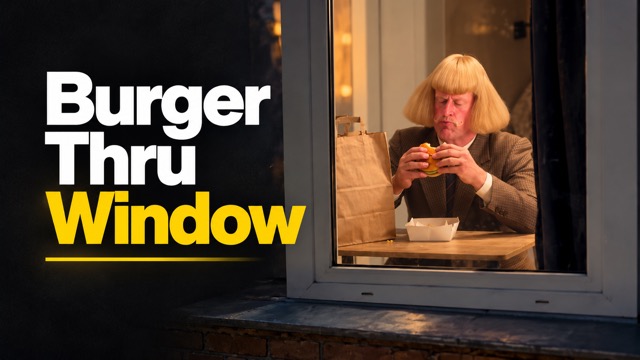
Preview the Window Scene, Prepare a Clear Portrait, and Follow Five Steps to Create Your Burger Thru Window Video. Learn Where to Upload, How to Review Resolution, Audio, Visibility and Credits, and What to Check Before Sharing Your Result.
Make a Burger Thru Window video by uploading one clear portrait to the SuperMaker effect page, reviewing the output settings and generating your clip. The page already includes the scene reference and prepared prompt. Your main decisions are which photo to use, which output options to select and whether the result is ready to share.
What the Burger Thru Window Effect Looks Like
The scene starts outside an apartment window. A person eats a burger, notices the camera, holds an awkward stare and moves toward the curtain. The appeal comes from the timing: an ordinary snack becomes an uncomfortable moment of eye contact.
Watch these examples for the camera approach, character performance and curtain ending. They illustrate the visual idea, not a guaranteed result or a list of available output settings.
Example 1: From Burger Bite to Curtain Pull
Example, approximately 15 seconds. Watch the shift from eating to eye contact, followed by the curtain movement.
Example 2: A Different Character in the Window
Example, approximately 10 seconds. Notice how the character remains recognizable as the camera approaches and the subject stands up.
Example 3: The Angled Camera Approach
Example, 14 seconds. Follow the exterior approach, burger interaction and final movement toward the curtain.
Step 1: Prepare One Clear Portrait
Choose a photo of yourself or an adult who has given permission. A front-facing head-and-shoulders or waist-up portrait is a practical starting point. Use even lighting, sharp focus and a visible face. Avoid heavy filters, sunglasses that hide the eyes, hands across the face and group photos.
Your photo supplies the replacement character's appearance, including facial features, hairstyle and clothing. You do not need to photograph someone eating a burger or standing beside a window: the built-in reference supplies the setting and performance.
The effect accepts one portrait. Keep the original file available so you can compare facial likeness with the finished clip.
Step 2: Open the Effect Page and Watch the Example
Open Burger Thru Window on SuperMaker. On desktop, the generator panel appears on the left, with the example area on the right. Sign in when required to access your account's generation options.
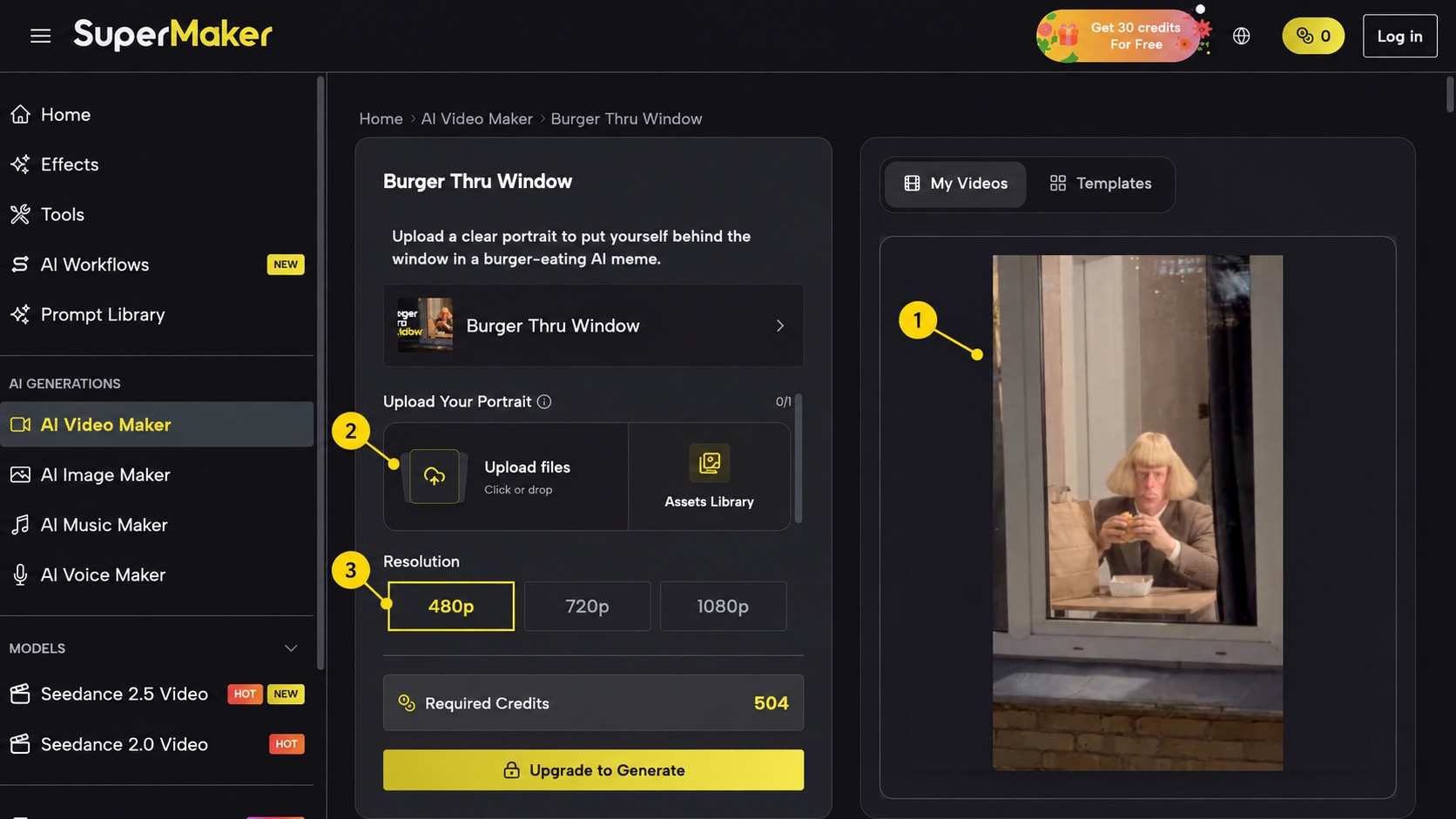
Desktop interface captured in a logged-out session. Numbered notes identify the example video (1), portrait upload (2) and resolution (3). Scroll within the settings panel to reach the remaining options. Account access and available controls may differ.
Watch the page's own example below before configuring your clip. Look at the viewing angle, the pause after eye contact and the curtain movement. These details provide a useful checklist when you review your result.
Example video from the SuperMaker Burger Thru Window landing page. Your generated result can differ.
Step 3: Upload Your Portrait
Find Upload Your Portrait, marked 2 in the screenshot. Choose Upload files to select or drop your photo, or use Assets Library to select an available image. The counter starts at 0 / 1.
Check that the selected image contains the intended person and that the face is clear. The page uses a built-in reference video and prepared prompt, so you do not need to paste a prompt or upload a separate scene video for this workflow.
Step 4: Review Settings, Credits and Access
Use the output controls below the upload area. The interface offers the following controls; some appear after scrolling within the settings panel:
| Control | What to Check |
|---|---|
| Resolution | Choose from 480p, 720p or 1080p according to your intended use and displayed credit estimate. |
| Generate Audio | Decide whether you want generated audio. This does not promise the original trend soundtrack. |
| Number of Videos | Select 1, 2, 3 or 4. Start with one if you want to review the setup before requesting more. |
| Public Visibility | Review this setting before submitting, especially when using a personal portrait. Check any account or plan restrictions shown beside it. |
| Required Credits | Read the current estimate after choosing your settings. Screenshot values are not fixed prices. |
The captured session shows Upgrade to Generate. If you see that button, resolve the account or plan requirement shown by the site before expecting generation to start. An upgrade button is not evidence that a task has been submitted.
When generation is available, check the photo, settings and credit estimate once more, then submit. Avoid repeatedly pressing the button while a task is processing.
Step 5: Review the Finished Video
Play the full clip before sharing. Compare it with your portrait and the page example:
- Face: Does the character remain recognizable during the approach, stare and turn?
- Camera: Does the view stay outside the glass, with the window frame visible?
- Hands and burger: Are the grip, bite and movements plausible?
- Timing: Is there a readable pause after the subject notices the camera?
- Ending: Does the final movement remain coherent rather than cutting off abruptly?
If a result needs another attempt, first identify the problem. Changing one thing at a time makes the next result easier to assess, and another generation may use additional credits.
Common Problems and What to Try
| Problem | Next Check |
|---|---|
| The face does not resemble the portrait | Try a sharper, more evenly lit photo with fewer obstructions. |
| Hands or the burger look distorted | Review the full interaction; a different portrait or another generation may help, but improvement is not guaranteed. |
| The clip differs from an example | Compare the camera angle, likeness and sequence rather than expecting an identical clip. |
| Generation is unavailable | Read the account, plan and credit messages shown in the generator. |
| You want the trend's original music | Add only music you have permission to use; generated audio is a separate option. |
Frequently Asked Questions
Do I Need to Write a Prompt?
No. This effect page provides the reference video and prepared prompt. Your portrait supplies the character.
Is This the Original CapCut Template?
No. SuperMaker creates an AI interpretation of the window scene. It does not provide the CapCut template or guarantee an identical recreation.
Will the Output Match Every Example Here?
No. Likeness, camera motion, timing and audio can vary. The examples show the visual idea; review your own output before sharing.
Ready to try it? Open Burger Thru Window with one clear portrait, review your settings and create your version.