Qwen Image 2.1 Prompts: 12 Examples for AI Images & Edits
Explore 12 ready-to-use Qwen Image 2.1 prompts for AI image generation and editing. Learn how to create realistic portraits, transparent stickers, product photos, advertising posters, and multi-reference images. Each example includes a copyable prompt and practical tips to help you create and refine AI images with SuperMaker.
Qwen Image 2.1 is now available on SuperMaker. Try it online and bring your ideas to life with the ready-to-use prompts below.
The difference between an ordinary AI image and one that matches your imagination often comes down to how you write the prompt. A few additional details about lighting, composition, colors, or reference images can completely change the result.
With Qwen Image 2.1, prompts can do much more than describe a picture. You can generate realistic portraits, create transparent stickers, edit existing photographs, combine multiple reference images, and design promotional graphics with readable text.
But different tasks require different instructions. A portrait prompt should focus on appearance and photography, while an image editing prompt needs to explain exactly what should change and what must remain untouched.
This guide brings together 12 Qwen Image 2.1 prompts for image generation and editing. Each example includes a ready-to-copy prompt, a practical use case, and suggestions for customizing the result.
Whether you are creating product photography, social media graphics, AI artwork, or personal photos, these examples will help you get started.
What Makes a Good Qwen Image 2.1 Prompt?
A good Qwen Image 2.1 prompt describes the result you want rather than leaving the model to make every creative decision.
For text-to-image generation, begin with the main subject and gradually add the details that determine how the final image should look.
A useful prompt structure is:
Subject + Appearance + Environment + Composition + Lighting + Style + Important Details
For example, instead of writing:
"Generate a realistic photo of a woman."
Try:
"Create a realistic editorial portrait of a young woman with shoulder-length brown hair, wearing a cream-colored linen shirt in a sunlit café. Soft afternoon light enters through a large window, creating gentle shadows across her face. Natural skin texture, relaxed expression, warm neutral colors, and shallow depth of field."
The second prompt gives the model a clearer visual direction without becoming unnecessarily complicated.
Image editing requires a slightly different approach. Since an existing image already provides the subject, lighting, background, and composition, the prompt should identify the desired changes and explain which original details need to be preserved.
For example:
"Replace the woman's blue shirt with a white linen blouse. Keep her face, hairstyle, pose, background, and lighting unchanged."
This distinction is especially important when writing a Qwen Image 2.1 image editing prompt. Giving the model permission to change everything can produce an attractive image that no longer resembles the original photograph.
Best Qwen Image 2.1 Prompts for Image Generation
Let's begin with four Qwen Image 2.1 prompt examples designed to create entirely new images from text.
These prompts explore realistic photography, commercial product images, and transparent-background assets.
1. Realistic Portrait Photography Prompt
Realistic portraits are a useful starting point for exploring how an AI image model handles facial details, lighting, clothing, and photographic composition.
Instead of relying on general phrases such as "beautiful woman" or "professional portrait," describe the scene as if you were giving instructions to a photographer.
Copy This Prompt:
Create a photorealistic editorial portrait of a young woman with shoulder-length dark brown hair and a relaxed, confident expression. She is wearing a cream-colored linen blouse and sitting beside a large window in a warm, minimalist café. Soft afternoon sunlight illuminates one side of her face, creating natural shadows and gentle highlights. Realistic skin texture, detailed eyes, subtle makeup, warm beige and brown color palette, shallow depth of field, professional portrait photography, natural proportions, and authentic facial features.
How to customize it:
You can replace the café with a bookstore, photography studio, home interior, or garden. Changing the lighting from afternoon sunlight to soft studio lighting can also create a different portrait atmosphere.
For consistent character variations, upload an existing portrait as a reference and explicitly ask the model to preserve the person's identity.
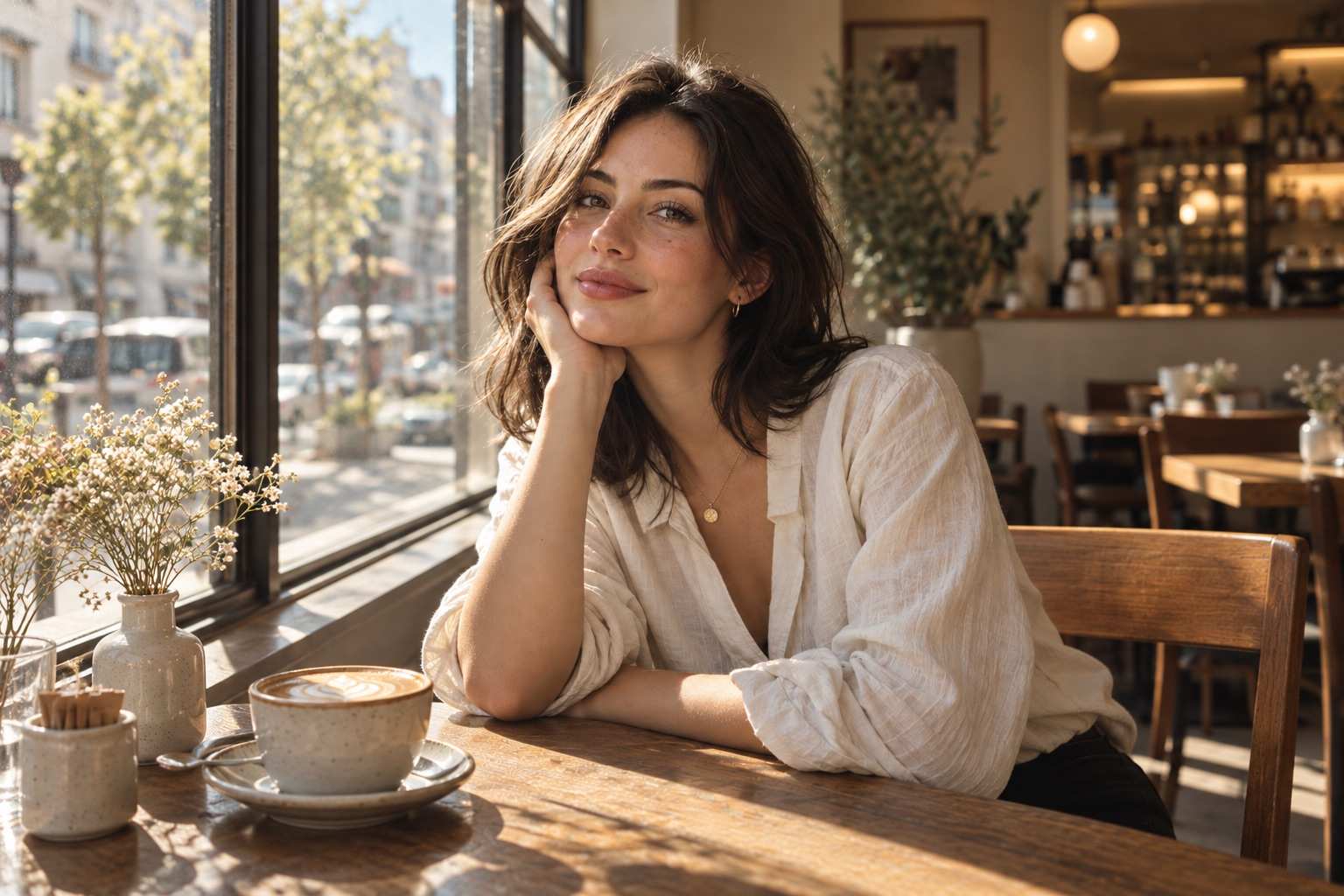 (A natural café portrait highlighting realistic skin texture, soft window lighting, and warm tones. Explore similar portrait ideas with Qwen Image 2.1.)
2. AI Product Photography Prompt
Product photography is another practical use for Qwen Image 2.1 prompts.
A useful product prompt should describe not only the product itself but also the environment, surface materials, lighting, and overall commercial style.
The goal is to make the product the center of attention without filling the scene with unnecessary decorative objects.
Copy This Prompt:
Create a premium commercial product photograph of a handmade white ceramic coffee mug filled with freshly brewed cappuccino. Place the mug on a light oak table beside a folded beige linen napkin and a small silver spoon. Warm natural sunlight enters from the left, creating realistic reflections and soft shadows. A delicate layer of coffee foam is visible inside the cup. Minimalist lifestyle photography, warm neutral colors, realistic ceramic texture, elegant composition, subtle background blur, and professional advertising quality.
How to customize it:
Replace the coffee mug with skincare packaging, headphones, shoes, jewelry, or another product.
If you are advertising a real product, upload its photograph and describe the new environment instead of asking the model to invent the product's appearance. This gives the model a visual reference for preserving its design.
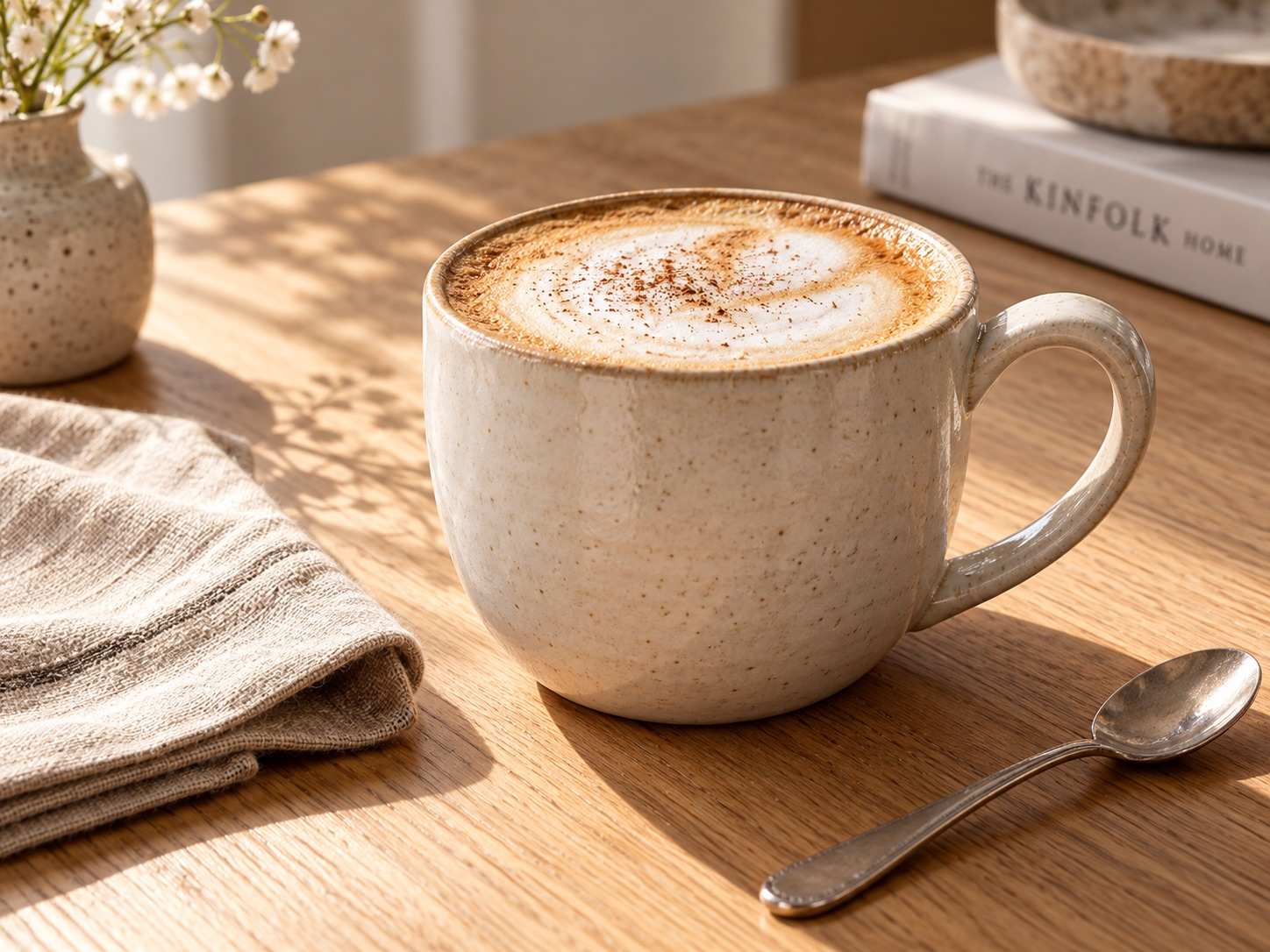 (A premium coffee product photo featuring realistic ceramic textures, warm natural lighting, and minimalist styling.)
3. Transparent Sticker Prompt
One of the most interesting Qwen Image 2.1 features is native transparent image generation.
The model supports RGBA images, which means transparency can be part of the generated output rather than something added through a separate background removal process.
This makes a Qwen Image 2.1 transparent background prompt particularly useful for stickers, illustrations, icons, and reusable design elements.
The official Qwen documentation recommends explicitly describing the image as RGBA and requesting an alpha channel.
Copy This Prompt:
This is an RGBA image with transparency. Create an adorable cartoon orange tabby cat sticker with rounded shapes, expressive eyes, soft peach-colored paw pads, and a clean white sticker outline. The cat is sitting upright and raising one paw in a friendly wave. Playful expression, soft pastel colors, smooth illustration details, balanced proportions, and a charming hand-drawn sticker aesthetic. The image has alpha channel and the background is transparent.

Transparent sticker created with Qwen Image 2.1 on SuperMaker using RGBA and alpha channel instructions.
-->
How to customize it:
Replace the cat with a dog, rabbit, food item, cartoon character, or everyday object.
To create a coordinated sticker collection, keep the illustration style and outline treatment consistent while changing the subject or expression.
For a genuinely transparent asset, save the generated image in a format that preserves its alpha channel, such as PNG.
4. Transparent Product Cutout Prompt
Transparent image generation is not limited to cartoon illustrations.
You can also create isolated product assets that are easier to place inside advertising layouts, presentation slides, online stores, and other visual materials.
Unlike a typical lifestyle photograph, the product should be visually complete, with no surrounding environment or decorative background.
Copy This Prompt:
This is an RGBA image with transparency. Create a realistic premium beige leather handbag with a structured rectangular silhouette, elegant curved handles, subtle gold hardware, and finely detailed leather stitching. Show the complete handbag from a three-quarter front angle, with accurate proportions, realistic material texture, and soft studio illumination. The handbag is fully visible and centered in the composition, with clean edges and no surrounding objects. The image has alpha channel and the background is transparent.
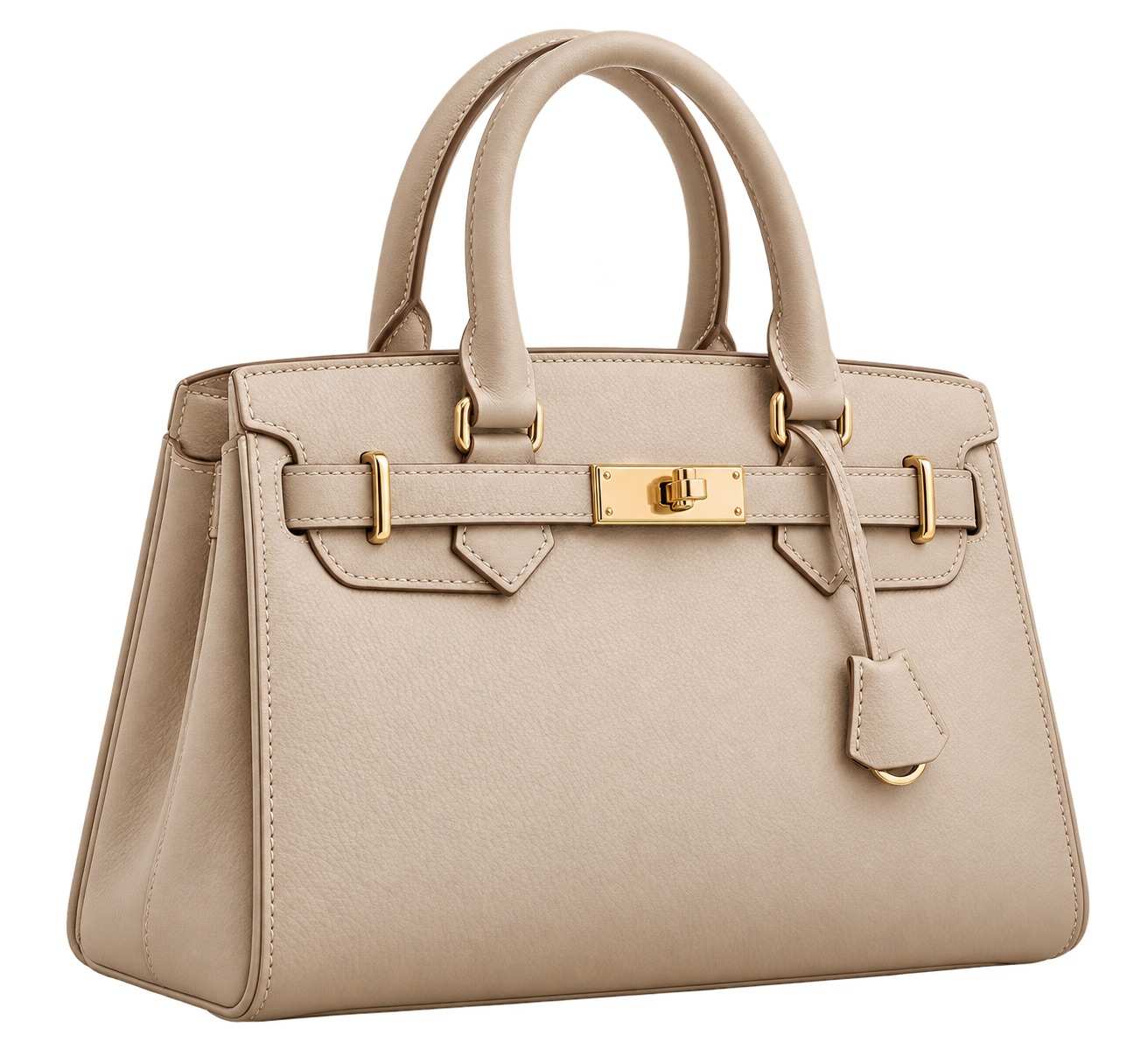 (A realistic leather handbag cutout showcasing fine stitching, structured proportions, and a transparent background.)
How to customize it:
Replace the handbag description with another product, including its material, color, shape, and defining features.
If you need a cutout of an actual photographed product rather than a newly generated one, upload the original product image and request background removal while preserving the product's exact appearance.
Qwen Image 2.1 Image Editing Prompts
Image generation starts with an empty canvas. Image editing starts with visual information that already exists.
For editing tasks, a Qwen Image 2.1 prompt should explain the intended modification and identify the elements that need to remain consistent.
According to Qwen's official documentation, the model supports image editing with multiple references and can use circles, painted annotations, or masks to identify specific editing regions.
Here are four prompts that demonstrate different editing workflows.
5. Change Clothes in a Photo
Changing clothes is useful for fashion photography, personal portraits, outfit experimentation, and virtual styling.
The main challenge is making the new clothing look natural while keeping the subject recognizable.
Upload: A clear photograph of a person.
Copy This Prompt:
Replace the person's current outfit with a stylish cream-colored linen blazer over a simple white T-shirt and tailored beige trousers. Make the new clothing fit naturally around the person's body, with realistic fabric folds, stitching, and shadows. Preserve the original face, identity, hairstyle, skin tone, body proportions, pose, camera angle, and background. Maintain the existing lighting direction and overall photographic style. The final image should look like the person was originally photographed wearing this outfit.
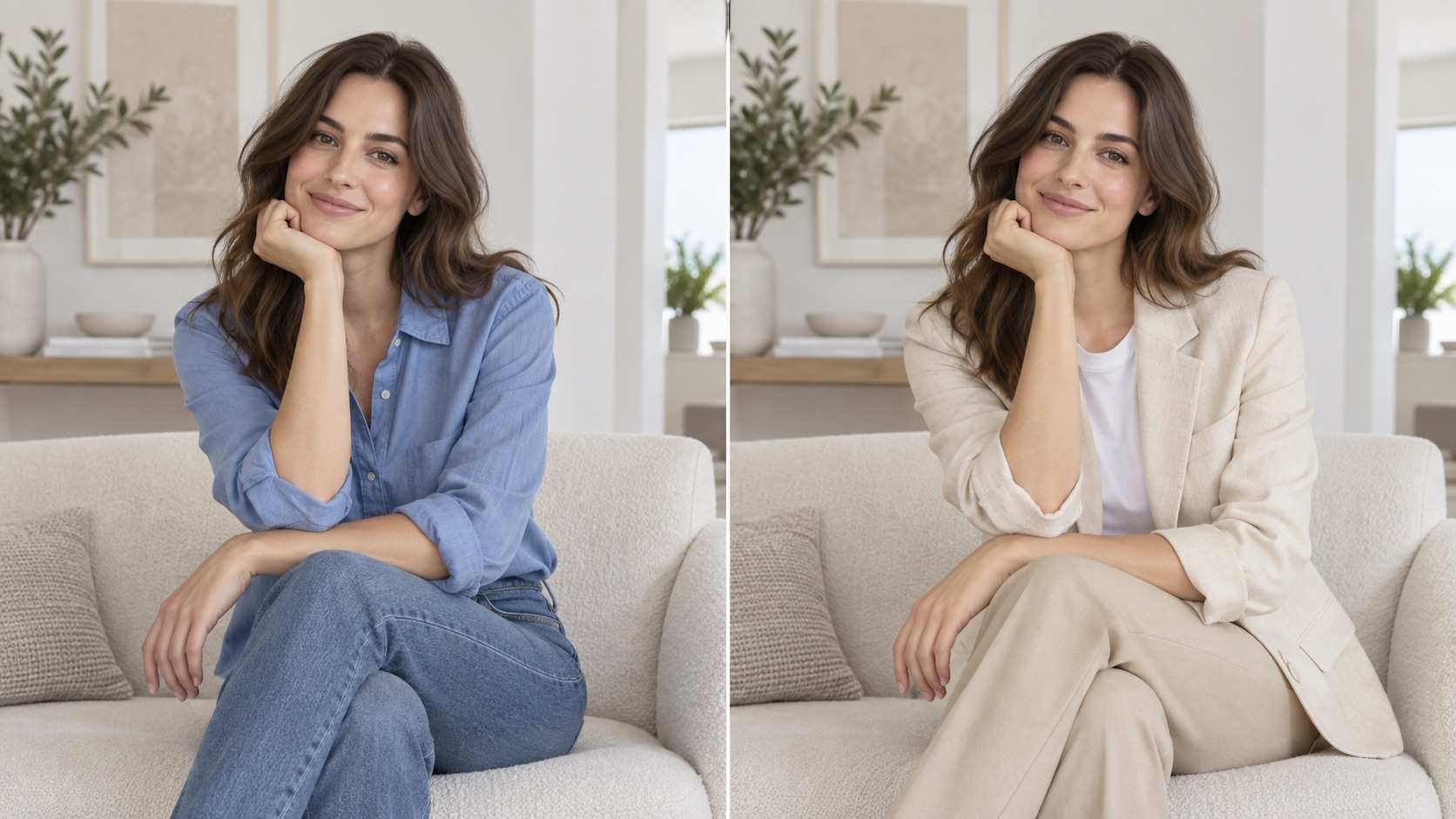
Before and after: A Qwen Image 2.1 prompt changes the outfit while preserving the person's face, pose, and background.
-->
How to customize it:
Change the clothing description to match the outfit you want.
For more specific results, provide a reference image of the desired clothing. If your interface supports multiple references, use the original portrait as the identity reference and the clothing image as the outfit reference.
6. Replace a Photo Background
A distracting background can make an otherwise good photograph difficult to use.
Background replacement allows you to keep the main subject while placing them in a more suitable environment.
For example, a casual smartphone portrait can be adapted into a studio-style photograph without changing the person's appearance.
Upload: A portrait or product photograph.
Copy This Prompt:
Replace the background of the uploaded photograph with a warm minimalist photography studio featuring a smooth beige wall and subtle natural shadows. Keep the main subject completely recognizable, preserving the original face, hairstyle, clothing, body proportions, expression, and pose. Adjust the environmental lighting and contact shadows naturally so the subject blends into the new studio setting. Maintain realistic edges around the hair and clothing. Keep the original camera perspective and subject placement.
How to customize it:
Try replacing the studio with a bright apartment, modern office, outdoor café, or another location.
For the most natural result, choose a background whose lighting direction is reasonably compatible with the original photograph.
If the original subject is illuminated from the left, asking for a new environment with similar lighting can help maintain visual consistency.
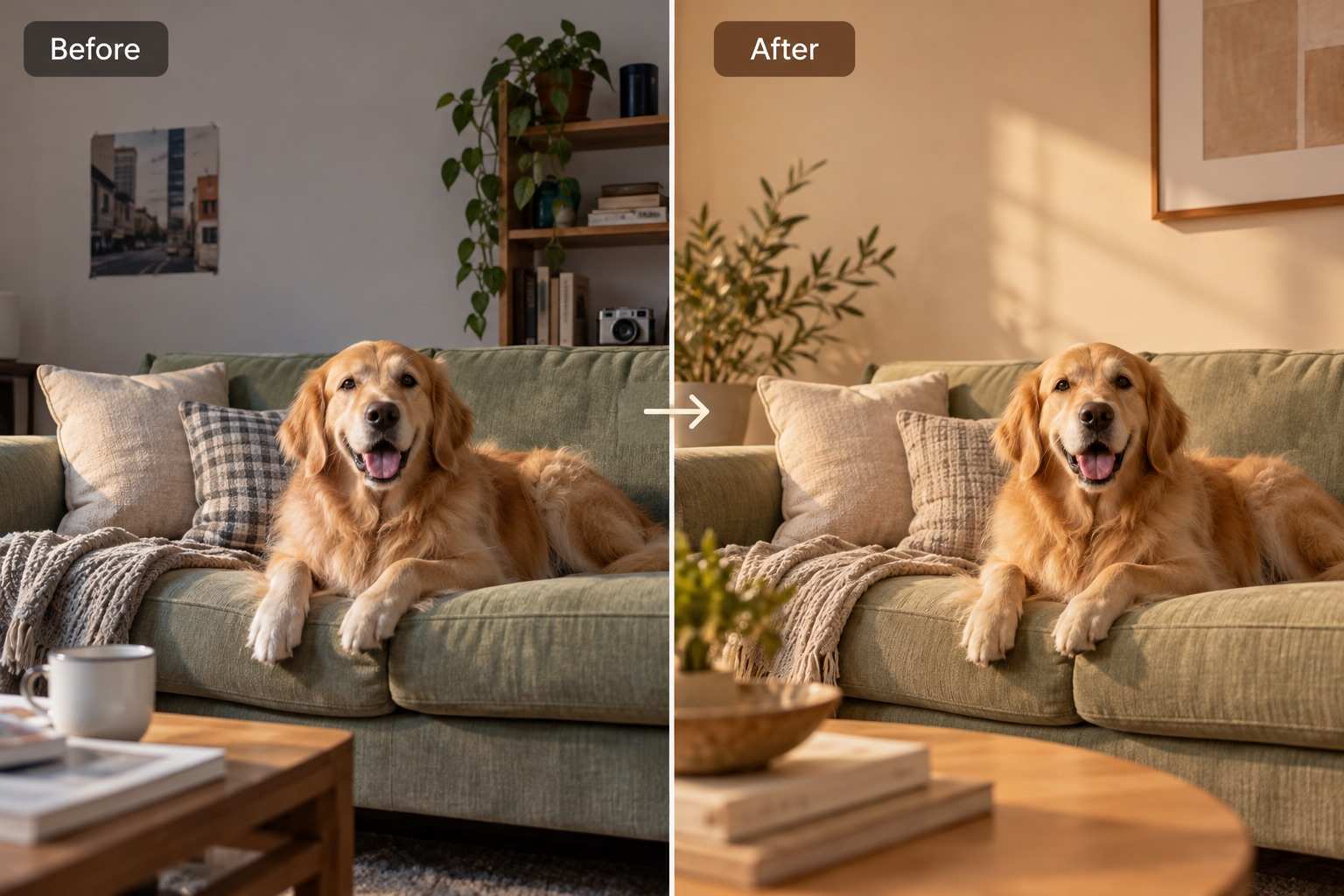 (A before-and-after background replacement example showing how Qwen Image 2.1 can transform a room while preserving the main subject's appearance.)
7. Combine Multiple Reference Images Into One Outfit
Qwen Image 2.1 supports up to 10 reference images, making it possible to combine information from different visual sources.
This is particularly useful when you want a model to wear specific clothing and accessories rather than asking AI to invent an entire outfit.
You can provide separate references for the person, clothing, shoes, and accessories.
Upload:
- Image 1: Person
- Image 2: Jacket
- Image 3: Trousers
- Image 4: Shoes
- Image 5: Handbag
Copy This Prompt:
Create a realistic full-body fashion editorial photograph using the uploaded reference images. Use Image 1 as the model and preserve the person's recognizable face, hairstyle, and body proportions. Dress the model in the jacket from Image 2, trousers from Image 3, and shoes from Image 4. Add the handbag from Image 5, carried naturally in one hand. Preserve the defining colors, materials, silhouettes, and design details of each clothing and accessory reference. Place the model in a warm minimalist studio with soft natural lighting, realistic fabric folds, accurate proportions, and a polished fashion photography aesthetic.
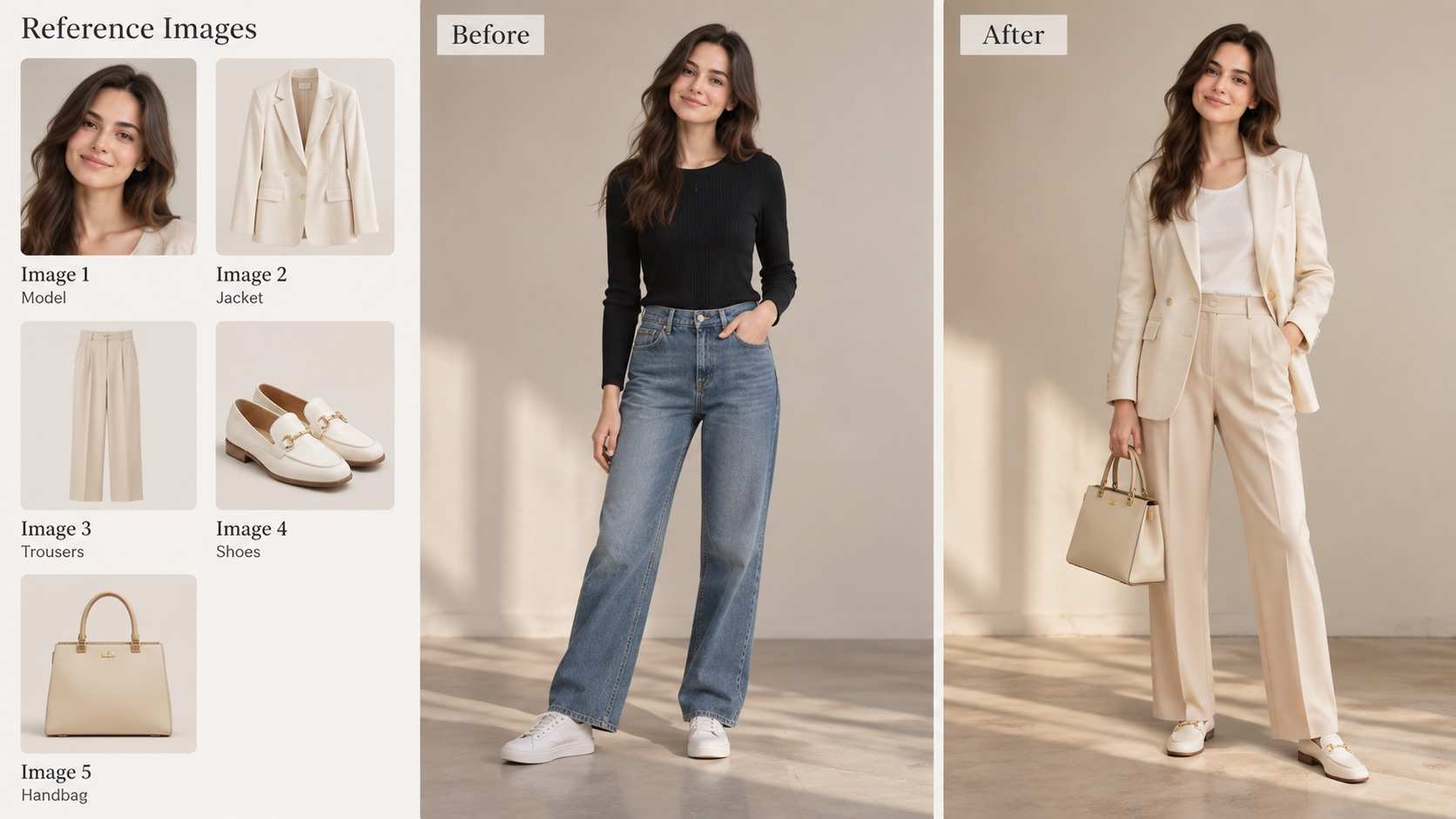
Qwen Image 2.1 combines separate fashion references into a coordinated outfit while maintaining the model's recognizable appearance.
-->
How to customize it:
Replace the fashion items with other products or accessories.
If the output changes a specific garment too much, simplify the prompt and emphasize its most important distinguishing features, such as color, silhouette, collar shape, or material.
8. Create a Group Portrait From Individual Photos
Getting everyone together for a group photograph is not always practical.
A multi-reference Qwen Image 2.1 prompt can help create a new composition using separate photographs of different people.
This example is useful for family portraits, creative projects, character compositions, and personalized group images.
Upload: Three separate portrait photographs.
Copy This Prompt:
Create a natural group portrait featuring the three people shown in the uploaded reference images. Use Image 1 for the person on the left, Image 2 for the person in the center, and Image 3 for the person on the right. Preserve each person's recognizable facial features, hairstyle, approximate age appearance, and individual identity. Arrange them standing comfortably together in a bright photography studio, facing the camera with relaxed expressions. Use consistent soft lighting, realistic body proportions, natural spacing, and believable shadows. The final image should resemble a professionally photographed group portrait rather than a collage of separate photographs.
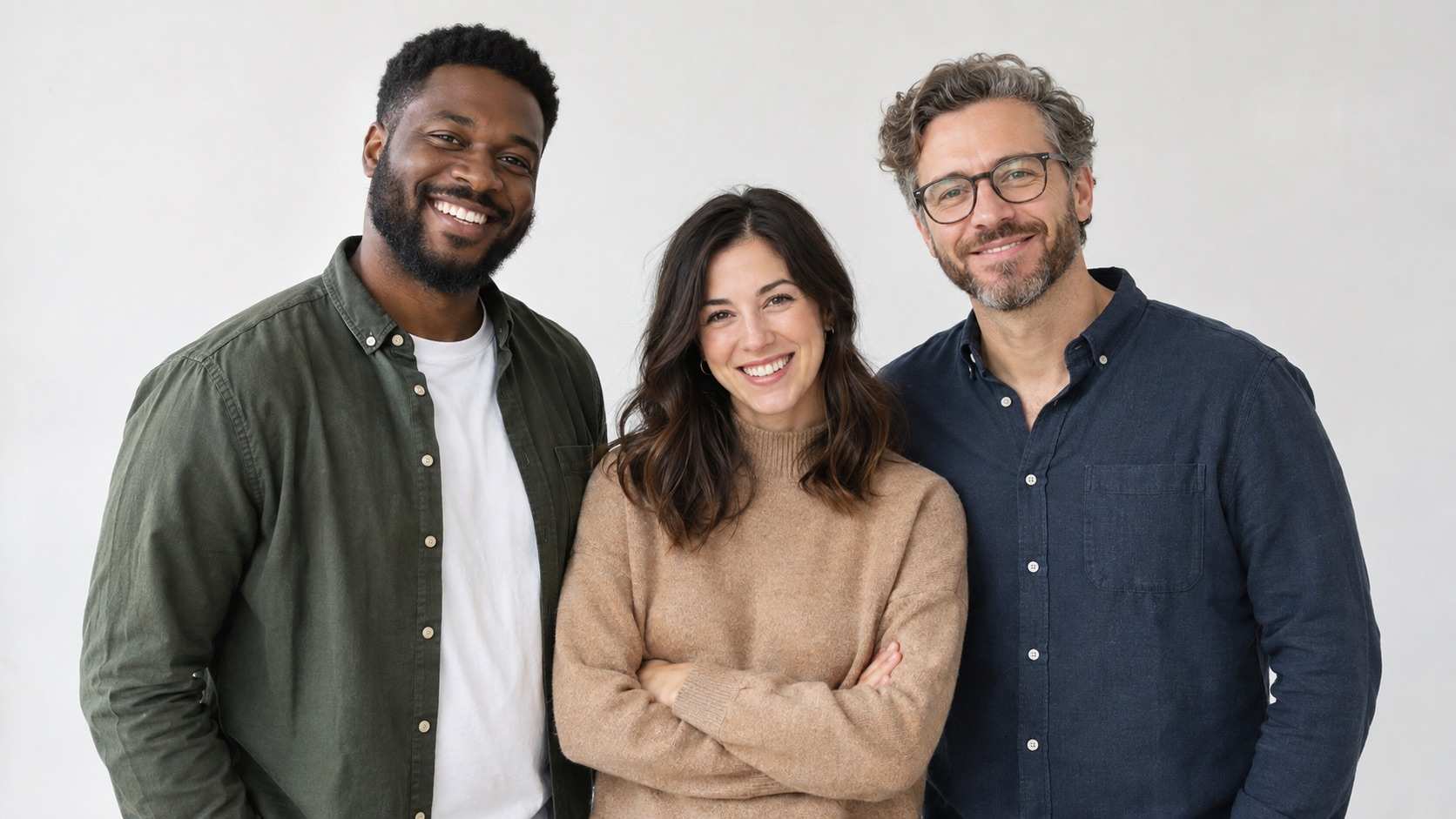
A multi-reference Qwen Image 2.1 prompt brings three individual portraits together in a natural group composition.
-->
How to customize it:
Change the setting or arrangement to create a family photograph, professional team portrait, or casual group picture.
If the model mixes facial features between people, make the image-to-person mapping more explicit and use clear reference photographs with unobstructed faces.
Creative Qwen Image 2.1 Prompt Examples
Beyond realistic photography and image editing, Qwen Image 2.1 can also be used for graphic design, illustration, and artistic experimentation.
The following four prompts focus on creating images with a specific visual purpose or creative style.
9. AI Advertising Poster Prompt
An advertising poster needs more than a visually appealing background. It should establish a clear visual hierarchy so viewers notice the product and understand the message.
When writing a Qwen Image 2.1 text rendering prompt, specify the exact words you want displayed and describe how those words should be arranged.
Copy This Prompt:
Create a premium advertising poster for an artisan coffee brand. Feature a white ceramic cappuccino cup on a warm terracotta-colored surface, illuminated by soft morning sunlight. Use a sophisticated editorial layout with elegant typography and generous negative space. Display the exact headline "SLOW MORNINGS" in large bold cream-colored letters across the upper section. Place the smaller subtitle "Coffee Worth Waking Up For" directly underneath. Position the coffee cup in the lower center, with realistic shadows and rich coffee textures. Warm beige, cream, and terracotta color palette, minimalist commercial design, and balanced typography.
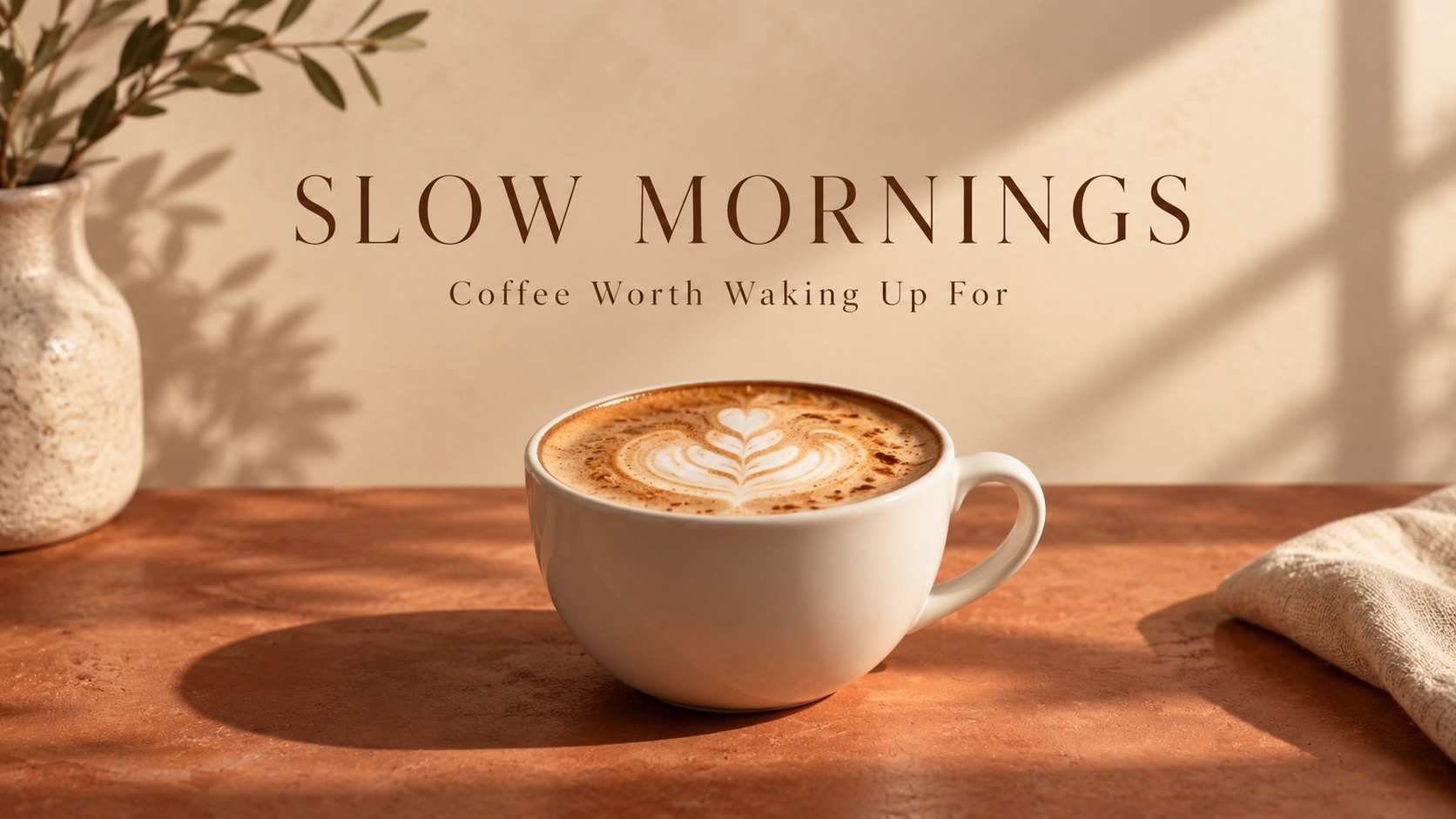
An AI advertising poster example demonstrating how a detailed prompt can control product placement, typography, lighting, and visual composition.
-->
How to customize it:
Replace the product, headline, and subtitle with your own advertising concept.
Keep the number of text elements limited when generating your first version. If the exact wording is important, inspect the generated image carefully before publishing it.
For posters, it is also worth specifying whether you want the subject centered or positioned to one side to leave room for text.
10. AI Infographic Prompt
Infographics are useful for turning information into a visual explanation, but they require more structure than ordinary illustrations.
A strong infographic prompt should identify the topic, define the content hierarchy, and explain how the information should be organized.
For this example, we will create a simple educational infographic about making coffee.
Copy This Prompt:
Design a clean educational infographic titled "HOW TO MAKE BETTER COFFEE". Use a warm cream background, dark brown typography, subtle terracotta accents, and modern flat illustrations. Organize the infographic into four clearly separated numbered sections. Section 1: "Choose Fresh Beans" with an illustration of coffee beans. Section 2: "Grind Evenly" with a coffee grinder. Section 3: "Control Water Temperature" with a kettle. Section 4: "Brew and Enjoy" with a finished cup of coffee. Use consistent icon styles, readable text, balanced spacing, and a professional editorial layout.
How to customize it:
Replace the coffee-making steps with a recipe, tutorial, product comparison, or educational topic.
For longer infographics, start with a small number of sections and gradually increase the complexity.
AI-generated text should always be reviewed before publication, especially when an infographic contains measurements, statistics, or technical information.
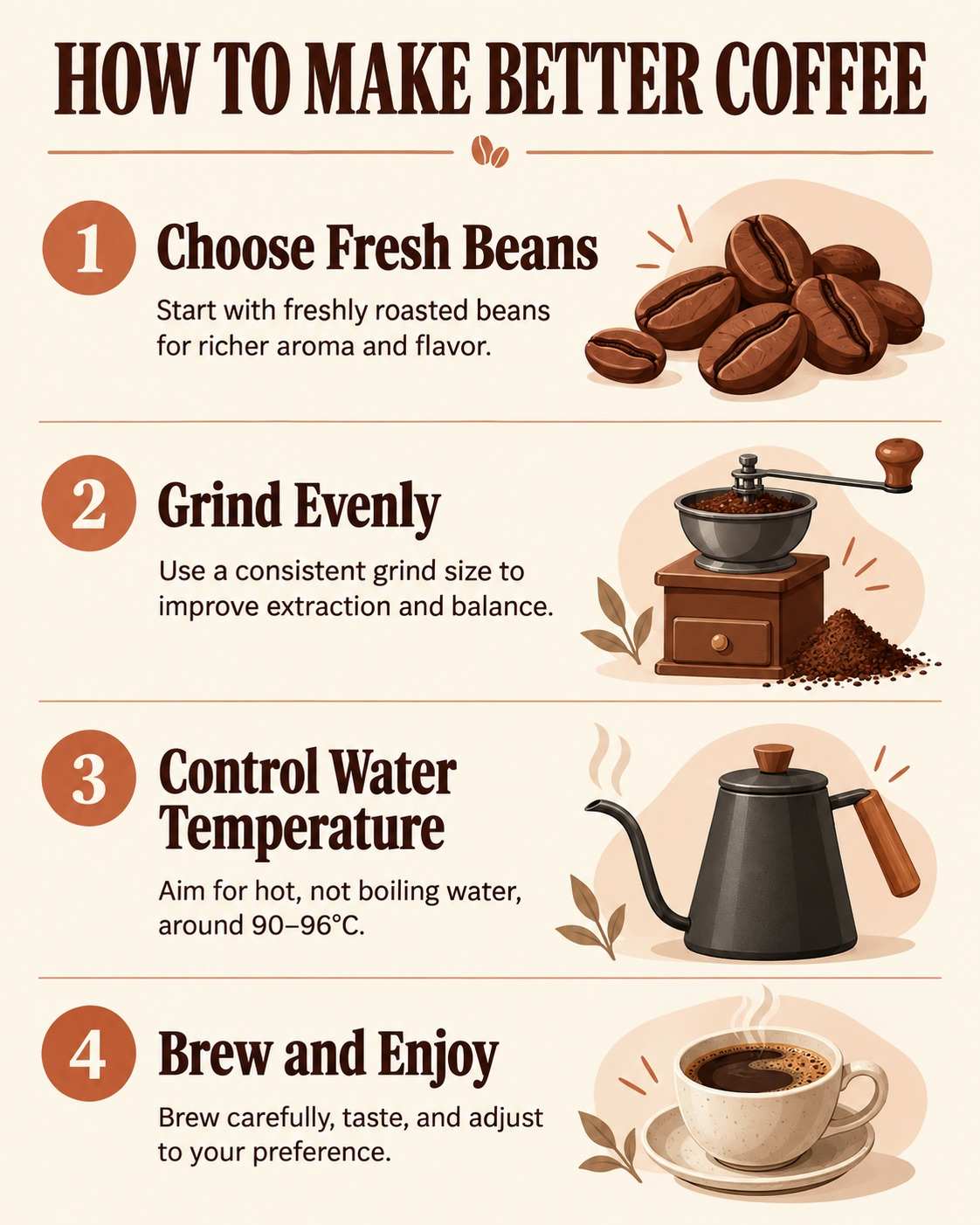 (A coffee-making infographic with clear information hierarchy, consistent illustrations, and readable editorial typography.)
11. 3D Miniature Scene Prompt
Miniature scenes turn familiar environments into small, highly detailed worlds.
They work well for creative illustrations, social media content, storytelling, and playful product concepts.
A good miniature prompt should describe the scale, viewing angle, materials, and small objects that make the scene interesting.
Copy This Prompt:
Create a charming isometric 3D miniature bakery scene displayed as a detailed tabletop diorama. The bakery has warm cream-colored walls, a terracotta tile roof, large front windows, and a small wooden entrance. Inside, tiny shelves display croissants, cakes, and freshly baked bread. Include miniature wooden tables, a coffee machine, flower pots, and warm interior lighting. Soft pastel color palette, realistic handcrafted materials, detailed architectural features, playful miniature proportions, clean studio background, and a carefully balanced isometric composition.
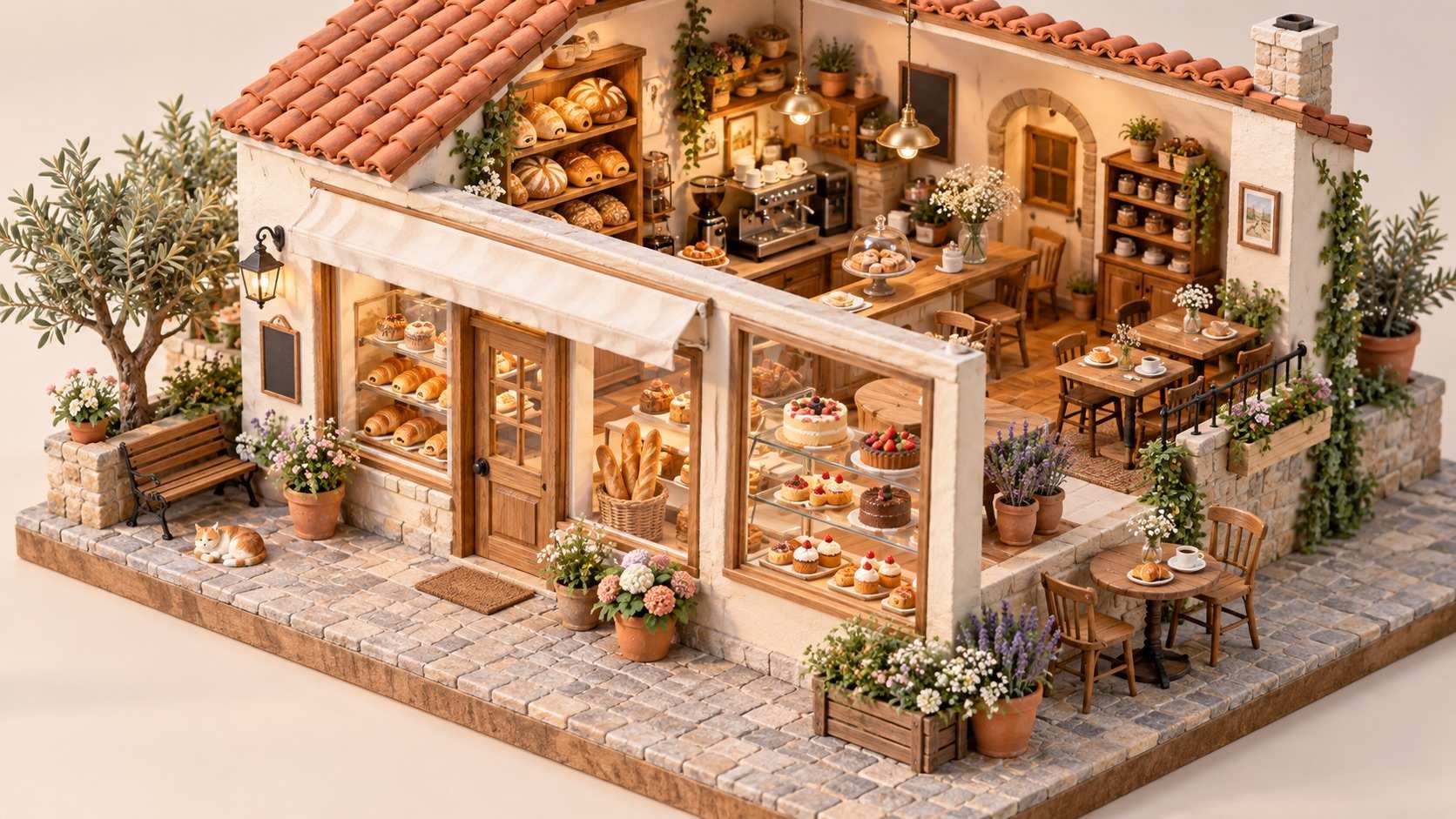
A miniature bakery illustration demonstrating how a creative AI image prompt can define architecture, materials, lighting, and composition.
-->
How to customize it:
Replace the bakery with a bookstore, flower shop, café, kitchen, or miniature apartment.
To produce a more handcrafted appearance, describe materials such as painted wood, clay, paper, or felt.
For a more realistic miniature, emphasize accurate architectural details, physical materials, and controlled studio lighting.
12. Vintage Film Portrait Prompt
Vintage photography is a useful way to explore color grading, lighting, clothing, and photographic texture.
Rather than simply asking for a retro image, specify the era, film characteristics, styling, and environment.
This example recreates the atmosphere of a casual 1990s film photograph.
Copy This Prompt:
Create a realistic 1990s analog film portrait of a young man wearing a faded denim jacket over a plain white T-shirt. He is sitting casually beside a window in a modest apartment, looking toward the camera with a relaxed expression. Warm afternoon sunlight, slightly faded colors, subtle film grain, gentle contrast, and authentic 1990s casual styling. The photograph should resemble a personal snapshot captured on a consumer film camera, with natural skin texture, believable facial proportions, and an understated nostalgic atmosphere.
How to customize it:
Try changing the decade, wardrobe, location, and film characteristics.
You can also upload an existing portrait and rewrite the prompt as an image editing instruction to transform your own photograph into a vintage film aesthetic.
If identity preservation matters, explicitly tell the model to keep the original person's facial features and expression recognizable.
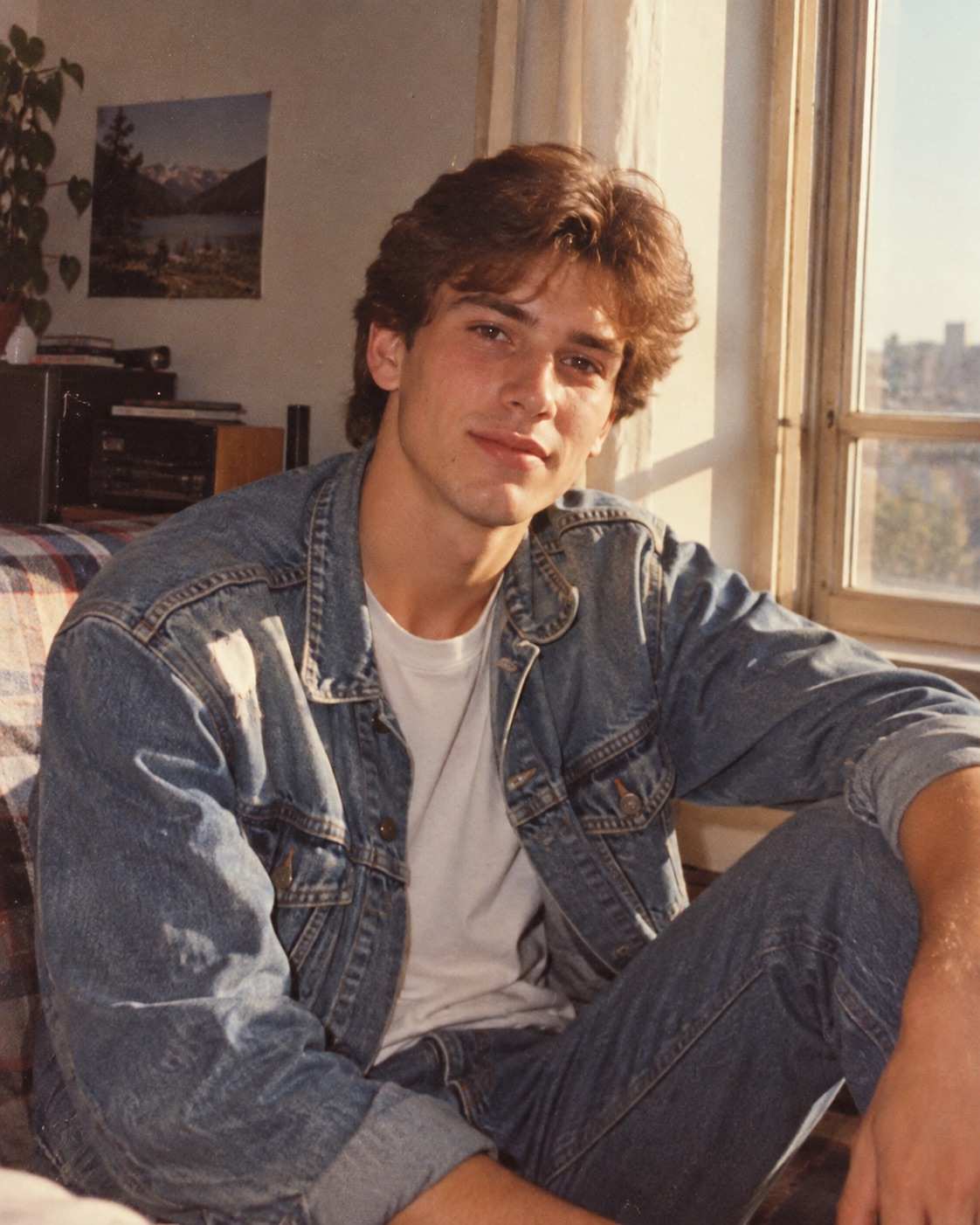
(A nostalgic 1990s film portrait featuring warm afternoon light, faded colors, and subtle analog grain.)
How to Write Better Qwen Image 2.1 Prompts
The examples above provide useful starting points, but you will often want to adapt them for your own projects.
Here are several practical ways to improve a Qwen Image 2.1 prompt without making it unnecessarily long.
Describe the Finished Image, Not Just the Task
For text-to-image generation, describe the visible result as clearly as possible.
Instead of "make a nice product photo," explain what the product looks like, where it is placed, how it is illuminated, and what kind of photographic style you want.
A clear visual description provides more useful guidance than a long string of generic quality-related words.
Separate Changes From Preserved Details
This is particularly important for image editing.
If you only ask the model to "change the shirt," the output may also modify surrounding elements.
A stronger instruction explains both sides of the task:
"Replace the blue shirt with a white linen shirt while preserving the original face, hairstyle, pose, lighting, and background."
The more important a detail is to your project, the more explicitly you should identify it.
Give Every Reference Image a Clear Role
When combining several references, do not assume that the model will automatically understand which object belongs to which photograph.
Identify the purpose of each input.
For example:
"Use Image 1 for the person, Image 2 for the jacket, and Image 3 for the handbag."
You can also identify where each object should appear in the final composition.
This makes multi-reference instructions easier to understand and adjust.
Use Explicit Instructions for Transparency
If your goal is a transparent sticker, icon, or product asset, specify that the output should be an RGBA image with an alpha channel and a transparent background.
Simply requesting a white or empty background is not equivalent to requesting transparency.
Also check whether the interface you use preserves the alpha channel when exporting the result. A model can support transparent generation even when a particular image service or export workflow does not expose that capability.
Specify Exact Text for Posters and Graphics
When generating a poster, provide the exact headline and supporting text.
Describe their relative sizes and positions instead of asking the model to invent an entire layout.
For example:
"Display the headline 'FRESH EVERY DAY' at the top in large bold letters, with the smaller subtitle 'Made With Care' underneath."
For designs that require accurate brand names, prices, or contact information, review every visible word before using the final image.
Change One Major Element at a Time
If the first result is close to what you imagined, avoid rewriting the entire prompt immediately.
Try adjusting the most important element first.
For example, you might keep the subject and setting unchanged while changing the lighting from direct sunlight to soft window light.
This makes it easier to understand which instruction is influencing the result and gradually refine your preferred visual style.
Final Thoughts
A useful Qwen Image 2.1 prompt does more than describe an attractive picture. It helps you communicate exactly what you want the model to create, edit, combine, or preserve.
For new images, focus on the subject, composition, environment, and visual style. For image editing, identify the required changes while protecting the details that matter. When working with multiple references or transparent assets, use clear instructions that reflect the specific task.
The 12 Qwen Image 2.1 prompts in this guide are starting points, not fixed recipes. You can adapt them for portraits, advertising, product photography, stickers, illustrations, and personal creative projects.
Choose the example closest to your goal, customize the details, and start creating with Qwen Image 2.1.