What Is Qwen Image 2.1 and How Does It Work?
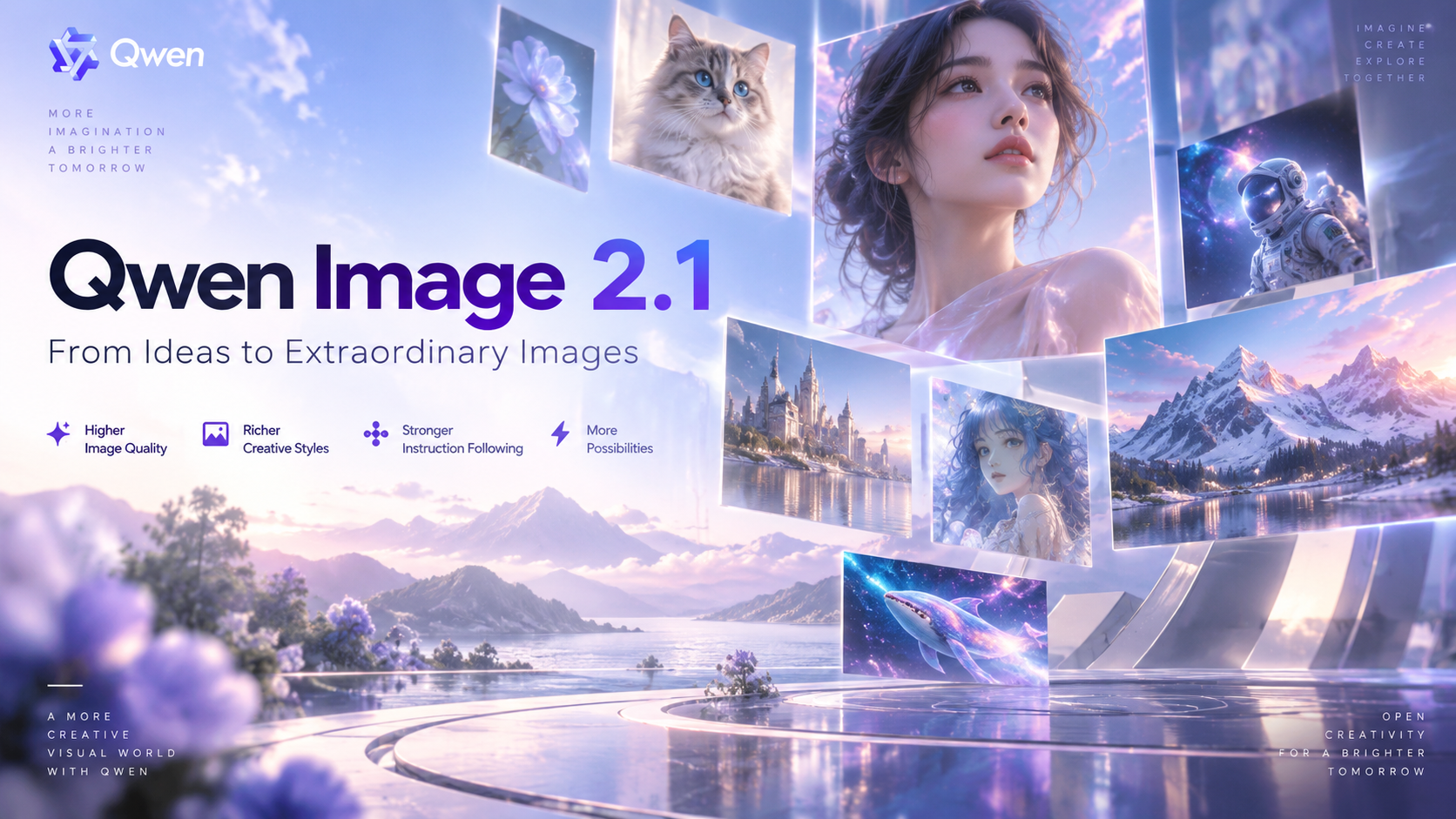
A practical guide to Qwen Image 2.1 features, transparent image creation, reference-guided editing, and real-world use cases.
What Is Qwen Image 2.1?
Qwen Image 2.1 is an AI image generation and editing model built for creators who need more control than a one-click image result. It combines text-to-image creation, instruction-based editing, transparent RGBA output, multi-reference composition, and local mask editing in one workflow.
Unlike a basic AI image generator, Qwen Image 2.1 helps you generate a visual, guide it with reference images, revise selected details, and create transparent assets for websites, campaigns, ecommerce pages, and design systems.
Quick answer: Qwen Image 2.1 is a 7B AI image model that supports image generation, image editing, native RGBA transparency, up to 10 reference images, and local edits with circles, painted areas, or masks.
Explore the workflow here: Qwen Image 2.1 AI Image Generator & Editor.
Qwen Image 2.1 Features
Qwen Image 2.1 supports a complete visual workflow. It helps users create images, improve them with references, make targeted changes, and prepare transparent assets without switching between multiple tools.
| Feature | What It Does | Why It Matters |
|---|---|---|
| Text-to-image generation | Creates visuals from written prompts | Turns creative ideas into original images |
| AI image editing | Updates images with simple instructions | Helps revise visuals without restarting |
| Native RGBA output | Creates images with a real alpha channel | Produces flexible transparent PNG assets |
| Up to 10 references | Uses multiple visual inputs together | Adds stronger creative direction |
| Local mask editing | Changes selected image areas | Protects approved composition details |
Text-to-Image Creation
Qwen Image 2.1 creates original visuals from natural-language prompts. Describe the subject, environment, style, lighting, color palette, composition, and desired format to guide the result.
For better output, explain the purpose of the image. For a landing page hero, request clean negative space for a heading or CTA. For an ecommerce visual, describe the product angle, materials, and setting.
Native Transparent PNG Output
A major Qwen Image 2.1 feature is native RGBA image generation. The model can create images with a real alpha channel, so you can generate transparent visual assets without first creating a full-background image and removing the background later.
This is useful for product cutouts, isolated objects, foreground illustrations, website components, campaign overlays, and presentation graphics. Ask for an RGBA image with a transparent background, then review fine edges, shadows, reflections, glass, and hair before using the final image.
Multi-Reference Image Creation
Qwen Image 2.1 supports up to 10 reference images in one workflow. Use reference images to guide the product, person, environment, style, colors, or layout of a final visual.
This helps when a campaign needs to combine several visual elements into one coordinated composition. Reference images guide the output, but they do not guarantee exact replication. Review product labels, logos, faces, written text, and critical details before publishing.
Local Image Editing
Qwen Image 2.1 supports local image editing with circles, painted annotations, and masks. Instead of recreating an entire image, you can select one region and request a targeted adjustment.
Use this feature to remove an object, replace an accessory, change a color, revise a background detail, or adjust product placement. It helps keep the lighting, layout, and approved parts of an image stable while improving the area that needs work.
Try Qwen Image 2.1 to create and refine images in one workflow.
How to Use Qwen Image 2.1
Using Qwen Image 2.1 is simple: define the image goal, write a clear prompt, then add references or local edits when you need more control.
1. Define Your Image Goal
Decide where the image will be used before you write the prompt. A landing page hero, blog illustration, ecommerce image, social post, and transparent product asset need different directions.
Include the image aspect ratio, key subject, preferred style, and whether you need empty space for text. If you need a transparent asset, mention this clearly at the beginning of the prompt.
2. Write a Specific Prompt
Use direct words that explain the subject, scene, visual style, lighting, composition, and output format.
Create a premium product image for an AI design landing page. Show a transparent glass object with blue and violet studio lighting. Leave clean space on the left for headline text. Modern SaaS visual style, 16:9 composition, RGBA alpha channel.
Specific prompts give Qwen Image 2.1 a clearer creative brief and make the final output more useful for real content and design work.
3. Add References or Edit Locally
Add reference images when you need a specific product, person, setting, color direction, or visual style. Qwen Image 2.1 can use up to 10 references to create a more structured image.
When the result is close but not finished, use a local edit instead of starting over. Mark the area that needs to change, then explain the update while asking the model to keep the rest of the composition unchanged.
Edit only the selected region. Replace the blue backpack with a black leather backpack. Keep the person, lighting, background, camera angle, and composition unchanged.
Qwen Image 2.1 Use Cases
Qwen Image 2.1 is useful when you need both image creation and visual refinement. It can support content teams, ecommerce brands, marketers, and designers who need original visuals that are easier to adapt.
Ecommerce and Product Marketing
Qwen Image 2.1 can help create product concepts, lifestyle scenes, transparent product cutouts, and campaign directions. Use reference images to guide product appearance, then use local edits to adjust backgrounds, props, colors, and composition.
Before publishing a customer-facing visual, review product dimensions, colors, packaging, labels, logos, prices, written claims, and other important details.
Campaigns and Social Media
Use Qwen Image 2.1 to develop visual directions for advertising, social posts, product launches, newsletters, and landing page banners. Create several concepts around a campaign message, select the best direction, then adapt it for different placements with precise local edits.
For the best brand consistency, add final text, logos, prices, CTA buttons, and legal information with your approved design tools after generating the visual concept.
Explore Qwen Image 2.1 for visual creation when you need flexible AI image generation and editing.
Qwen Image 2.1 FAQ
What is Qwen Image 2.1?
Qwen Image 2.1 is a unified AI image generator and image editor. It supports text-to-image creation, instruction-based editing, transparent RGBA output, reference image workflows, and controlled local changes.
Can Qwen Image 2.1 create transparent PNG images?
Yes. Qwen Image 2.1 can create and edit RGBA images with an alpha channel, allowing users to generate transparent image assets for websites, product pages, designs, and presentations.
How many reference images can Qwen Image 2.1 use?
Qwen Image 2.1 supports up to 10 reference images in one workflow. These images can guide products, people, styles, environments, colors, or layouts.
Can Qwen Image 2.1 edit part of an image?
Yes. Use circles, painted annotations, or masks to define a specific area for editing. This lets you update selected parts while keeping the rest of the image as stable as possible.
Is Qwen Image 2.1 suitable for commercial projects?
Review the latest Qwen Image 2.1 license before commercial use. Do not assume that public model availability automatically includes commercial rights. Confirm required permissions, usage restrictions, and your responsibility for reference images, trademarks, privacy, and advertising compliance before publishing.
Conclusion
Qwen Image 2.1 combines text-to-image generation, AI image editing, native transparent output, multi-reference creation, and local mask editing in one workflow.
It is useful for teams creating content visuals, product concepts, marketing assets, and reusable design components. Use it to speed up visual ideation and reduce repetitive editing, then apply human review for product accuracy, brand consistency, rights, and licensing.
Start creating with Qwen Image 2.1.