How to Create an AI Ghibli Video from Image
Learn how to turn a single Ghibli-style image into a natural, story-driven AI video. This guide covers character consistency, subtle motion, camera movement, scene continuity, and practical prompt techniques for creating short animated moments that feel more alive and cinematic.
AI-generated animation makes it much easier to turn a single illustration into a short moving scene. Instead of learning traditional frame-by-frame animation, you can upload an image, describe how you want the scene to move, and let AI generate the video.
An AI Ghibli Video Generator is especially useful for turning soft, hand-drawn anime-style images into short animated clips. A character can blink, smile, turn their head, or interact with a small object while leaves, hair, clouds, and lighting move naturally around them.
The key is not to make everything move at once. Simple motion usually creates a more natural and visually pleasing result.
What Is an AI Ghibli Video?
An AI Ghibli video is a short animated video created from a Ghibli-inspired or hand-drawn anime-style image using AI video generation.
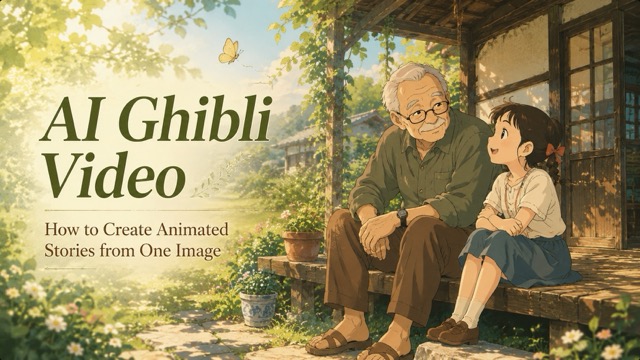
For example, you might start with an illustration of a grandfather and granddaughter sitting outside a countryside house. The original image is completely still.
AI can add subtle movement such as:
- Hair moving in the wind
- Leaves swaying
- Characters blinking
- Small facial expressions
- A butterfly flying through the scene
- Slow camera movement
- Clouds drifting in the background
The result feels more like a small animated moment rather than a static image.
This type of video works particularly well for family scenes, couple photos, pets, travel memories, countryside landscapes, cozy interiors, and fantasy illustrations.
You can either start with an existing Ghibli-style image or create one first and then animate it.
How to Use an AI Ghibli Video Generator
Creating a video does not need to be complicated. A simple workflow is usually enough.
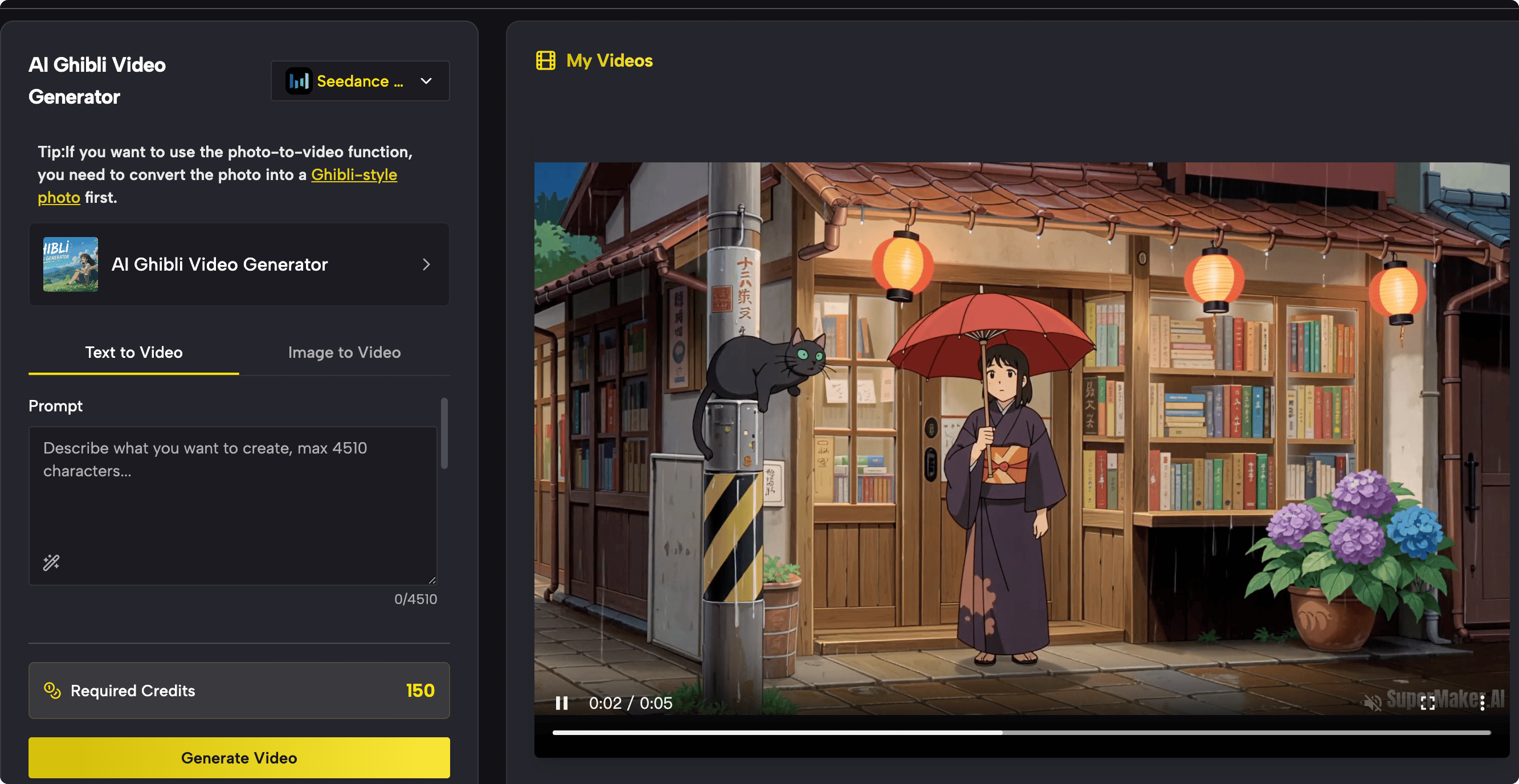
1. Prepare Your Image
Start with a clear image that has a recognizable main subject.
Images with one or two characters are usually easier to animate than crowded scenes.
For better results, choose an image where:
- Faces are clearly visible
- Characters are not heavily overlapping
- The background is easy to understand
- The lighting is consistent
- The main subject stands out from the environment
Once your image is ready, upload it to the AI Ghibli Video Generator.
2. Describe the Motion
Next, tell the AI what should happen in the video.
Instead of describing the whole image again, focus mainly on movement.
For example:
The girl smiles gently while her hair moves in the summer breeze. Nearby leaves sway softly. The grandfather looks toward her and smiles. The camera slowly moves closer.
This gives the model a clear idea of what should move while keeping the original composition.
3. Generate the Video
After entering your prompt, start the generation.
The AI will use the uploaded image as the starting frame and create movement based on your instructions.
If the first result contains too much movement, simplify the prompt and try again.
4. Download the Result
Once you are satisfied with the animation, download the video and use it for social media posts, personal projects, short stories, or other creative content.
AI Ghibli Video Example
Here is a simple example of how one image can become a short animated story.
Imagine an illustration showing a grandfather and his granddaughter sitting together on a wooden veranda during a warm summer afternoon.
The garden is behind them, flowers grow near the house, and both characters are talking quietly.
Instead of asking the AI to create complicated action, add one small event:
A butterfly flies into the scene.
The butterfly enters from the garden, lands on the grandfather's wristwatch, and catches both characters' attention. The grandfather looks down at it, the girl smiles, and the butterfly eventually flies away.
At the same time:
- The girl's hair moves gently
- Leaves sway in the breeze
- Flowers move slightly
- The characters make small facial movements
- The camera slowly pushes forward
A prompt for this scene could be:
Create a 6-second animated video. Preserve the same characters, clothing, facial features, and background. A soft summer breeze moves the girl's hair and nearby leaves. One pale-yellow butterfly flies into the scene, lands gently on the grandfather's wristwatch, pauses briefly, and then flies toward the garden. The grandfather looks down at the butterfly while the girl smiles. Use a slow camera push-in and keep the movement natural and subtle.
This works because the video has one clear event.
The sequence is simple:
Butterfly enters → lands → characters react → butterfly leaves
You can use the same idea with many other subjects.
For example:
Pet Video
A small cat jumps onto the windowsill, looks toward the girl, and slowly curls up beside her.
Couple Video
A few flower petals drift through the air while the couple looks at each other and smiles gently.
Landscape Video
Grass and flowers move in the wind while clouds drift slowly across the sky and the camera gently moves forward.
You can try these ideas directly with the AI Ghibli Video Generator.
Tips for Better AI Ghibli Videos
A few simple techniques can make a big difference.
Keep the Motion Simple
Do not add too many actions to a short video.
A six-second clip does not need a character to run, jump, turn around, wave, and interact with several objects.
Small movements are often more natural.
Try:
- Blinking
- Smiling
- Turning the head
- Looking toward an object
- Hair moving
- Clothing moving
- Leaves swaying
Use One Main Action
Give each clip one clear event.
For example:
A butterfly lands on a hand.
is usually easier to generate than:
Several butterflies fly around while the characters stand up and walk into the garden.
Simple actions are easier for the AI to follow.
Add Environmental Motion
Do not focus only on the character.
Small background movements help the whole scene feel alive.
You can describe:
- Wind moving hair
- Leaves swaying
- Flowers moving
- Clouds drifting
- Water rippling
- Curtains moving
- Sunlight changing slightly
Keep Camera Movement Slow
For short clips, one camera movement is usually enough.
Good choices include:
- Slow push-in
- Slow pull-back
- Gentle pan
- Static camera
Avoid combining several complicated camera movements in the same short clip.
Preserve the Original Character
If your uploaded image already has the character you want, tell the AI to preserve the same appearance.
For example:
Keep the same face, hairstyle, clothing, body proportions, and background throughout the video.
This can help reduce unwanted character changes.
Create Several Short Clips
If you want to make a longer video, generate several short scenes instead of trying to create everything at once.
For example:
Clip 1: Characters sitting outside Clip 2: Butterfly enters Clip 3: Characters react Clip 4: Butterfly flies away
You can then combine the clips into a longer 20–30 second video.
Conclusion
Creating an AI Ghibli video does not require complicated animation skills.
Start with a clear image, choose one simple action, describe the movement, and let the AI animate the scene. Small details such as moving hair, swaying leaves, facial expressions, and slow camera motion can make a still image feel much more alive.
The most important thing is to avoid adding too much movement at once. A short, controlled scene often looks better than an animation filled with unnecessary action.
If you already have a Ghibli-style image you want to animate, you can use the AI Ghibli Video Generator to turn it into a short moving story.