How to Make AI Ads: Brand Inspiration and Two SuperMaker Workflows
Learn how to make AI ads from your product photos with two practical SuperMaker tutorials. Follow the upload-to-video steps in AI Ad Generator, or plan scenes, connect image and video nodes, and refine a complete creative concept in Studio. Includes prompts and checks for your finished ad.
Learning how to make AI ads starts with a product image and a clear idea. Recent campaigns show the possibilities: Salomon combines live action with AI environments, Motorola’s production team uses AI for musical storytelling, and Gucci brings generative AI into an interactive fashion Lens. Prada’s 2026 dreamlike campaign offers further visual inspiration, although its official page does not specify an AI pipeline.
Traditional production can make new settings, reshoots, and creative variations expensive to explore. AI lets you start with existing assets and develop alternatives before committing to a final direction. SuperMaker gives you two ways to do that: AI Ad Generator for a quick first concept, and Studio for a planned sequence of scenes.
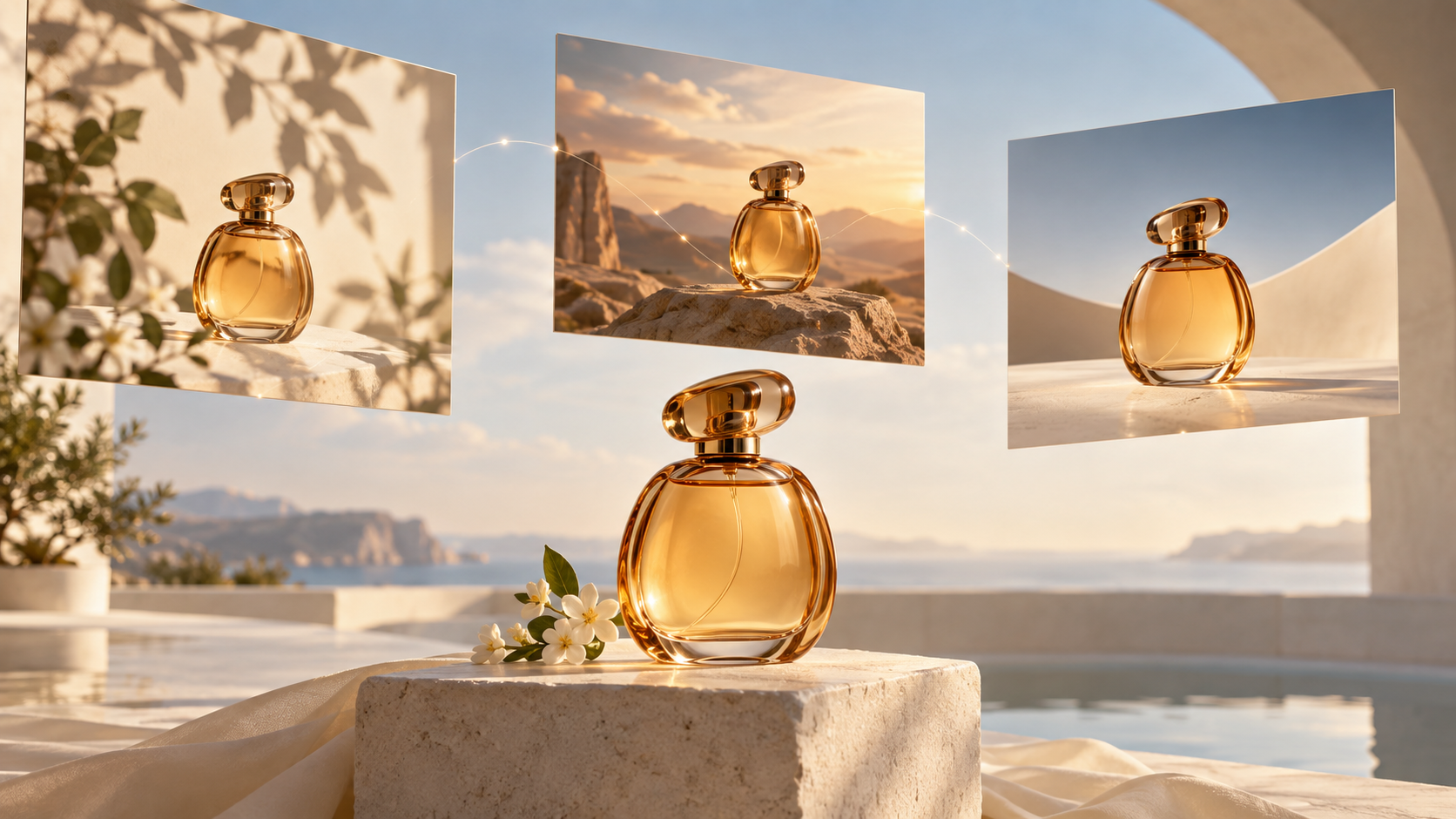
This tutorial uses an original perfume ad to demonstrate both routes. Adapt it to your own product.
Why Making Advertising Videos Has Been Difficult
A short commercial can require locations, performers, equipment, lighting, and post-production. Changing the concept after filming may mean organizing another shoot. Even before production, a written brief can be difficult for everyone to picture in the same way.
For a small brand, that makes experimentation challenging. You might have excellent product photos but little footage, or several campaign ideas without the resources to produce each one.
AI creates room to explore. Product references become starting points for new scenes; prompts describe movement and atmosphere; alternative generations help you compare directions. The opportunity is a more flexible path from an idea to something you can actually evaluate.
Choose Your SuperMaker Starting Point
With SuperMaker, you can begin at the level that suits your project:
| What you have | Where to start | What you will develop |
|---|---|---|
| Product photos and a simple idea | AI Ad Generator | A short advertising video to preview and refine |
| A creative brief and several planned shots | Studio | Connected scene images and video clips for your ad |
Tutorial 1: How to Make AI Ads With AI Ad Generator
Step 1: Prepare Your Product References
Choose a clear photograph showing the product’s shape, colors, packaging, and materials. Add a complementary angle if it helps explain a detail. Use consistent packaging and colors throughout.
For our example, prepare a front view of the perfume bottle and a closer view of its cap and label. Decide on one message: a quiet, premium fragrance reveal.
Step 2: Upload Your Materials
Open SuperMaker AI Ad Generator. Use Upload Reference to add your files, or select existing materials from Assets Library.
The tool combines your references and optional brief with built-in advertising direction. That gives beginners a starting point for composition, product continuity, and sound without requiring a detailed production script.
Step 3: Describe Your Advertising Idea
Use the prompt box to explain four things: setting, mood, action, and ending. Start with a single, readable scene.
Try this prompt:
Create a premium perfume advertisement using the uploaded bottle. Place it on pale stone in warm morning light, with soft botanical shadows behind it. Begin close to the glass, then slowly pull back to reveal the whole bottle. Preserve its shape, cap, liquid color, and label. Use gentle ambient sound. End with a steady product shot and clear space beside it for copy.
Replace “perfume bottle” and the setting with details appropriate to your product. Avoid combining several locations and complicated actions in your first attempt.
Step 4: Choose Settings and Generate
Select a model and review the options available for it. Choose a vertical composition for a mobile-first concept or a landscape composition for a wider scene. Set the supported duration and resolution, then check Required Credits before selecting Generate Video.
Start with one version to evaluate the brief. Model settings and costs can vary; use the values displayed on the page.
Step 5: Preview and Make a Targeted Revision
Watch the complete result. Check whether the label remains readable, the cap retains its shape, the movement feels natural, and the sound suits the mood.
If something needs work, revise one instruction at a time:
Keep the bottle stationary. Reduce camera movement to a slow pull-back. Hold the final product composition longer.
Generate again, compare the results, and download your preferred version. Add your final approved offer or call to action when preparing the ad for publication.
Tutorial 2: How to Make AI Ads With SuperMaker Studio
Step 1: Plan the Ad Before Opening the Canvas
Use Studio when you already know the story you want to tell. Break that story into separate shots with clear jobs. For the perfume example:
| Shot | Image to develop | Motion to request |
|---|---|---|
| Detail | Close-up of the bottle’s glass and cap | Slow push-in |
| Reveal | Full bottle on stone with botanical shadows | Gentle camera arc |
| Closing | Clean product composition with space for copy | Subtle pull-back, then hold |
This storyboard defines the shot order.
Step 2: Create a Project and Add Nodes
Open SuperMaker Studio and create a new canvas. Add your product reference, a Text node for the brief, and Image nodes for scene development. A node is an item on the canvas containing an input or generation step.
Organize one branch for each shot. Use a shared direction across them: warm ivory backgrounds, amber glass, soft daylight, and restrained movement.
Step 3: Generate Your Scene Images
Connect compatible reference and text outputs to the image-generation step. Describe the composition for each shot while reusing the same product reference.
For the closing image, try:
Use the reference perfume bottle as the subject. Show the complete bottle on pale stone, slightly right of center, with empty space on the left for copy. Warm morning light, soft shadow, clean background. Preserve the bottle geometry, cap, label placement, and amber liquid.
Select an image with accurate product details before animating it.
Step 4: Connect Images to Video Nodes
Add a Video node for each selected image and connect the image output as its reference. Describe the movement for that shot. For example:
The camera makes a gentle arc around the bottle. The product remains stationary. Preserve its proportions and label. Keep the lighting consistent and the background calm.
Explore variations and compare them on the canvas. Keep the strongest result for each shot. The full Studio workflow tutorial explains connections, batch generation, and branching in more detail.
Step 5: Export and Finish the Sequence
Export your selected clips and assemble them in your video editor. Arrange the detail, reveal, and closing shots, then add approved brand copy, audio adjustments, and a clear call to action.
Before publishing, watch the assembled ad at its intended display size. Can you recognize the product immediately? Does each shot support the same message? Is the closing text easy to read?
Make Your First AI Ad With SuperMaker
Now you know how to make AI ads through both routes. Start with AI Ad Generator to explore a product concept directly, or choose Studio to develop individual scenes around a complete idea. Bring your references, use a focused prompt, and refine the result into an ad you are ready to share.