How to Make an AI Zombie Love Story Video With Two Photos
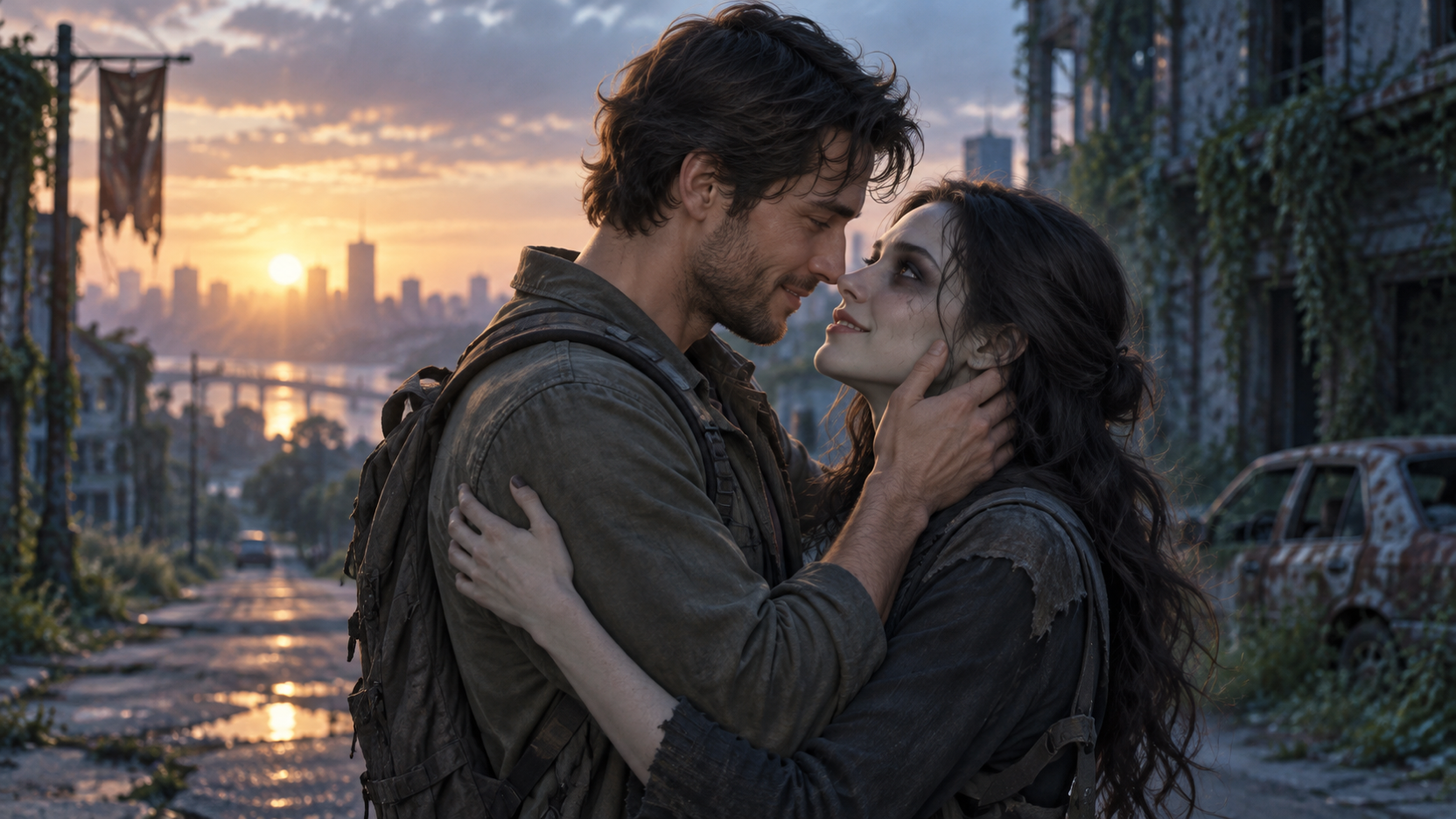
Turn Two Portraits Into an AI Zombie Love Story With a Tense Encounter, a Tender Embrace, and a Warm Memory. Learn Which Photo Stays Human, Which Becomes the Infected Partner, How to Choose Your Video Settings, and What to Check Before Sharing Your Own Fictional Reunion on SuperMaker.
Two people meet after everything has changed. One is still human; the other is infected. A tense encounter gives way to an embrace, then a warmer memory of the same pair. That is the idea behind SuperMaker’s AI zombie love story effect.
To create your version, prepare two separate portraits and open the AI Zombie Love Story video generator. Upload the human survivor first and the infected partner second. The page provides the reference scene, so you do not need to film the encounter yourself.
What Is an AI Zombie Love Story Video?
This effect turns your chosen pair into the characters of a short fictional romance. The intended sequence moves from hesitation and recognition to physical closeness, then cuts to a happier moment from the relationship.
The second person has two appearances: infected during the encounter and healthy in the memory. They should remain recognizable as the same person throughout. The first person stays human in both sections.
How to Make an AI Zombie Love Story Video on SuperMaker
Step 1: Choose Two Clear Individual Photos
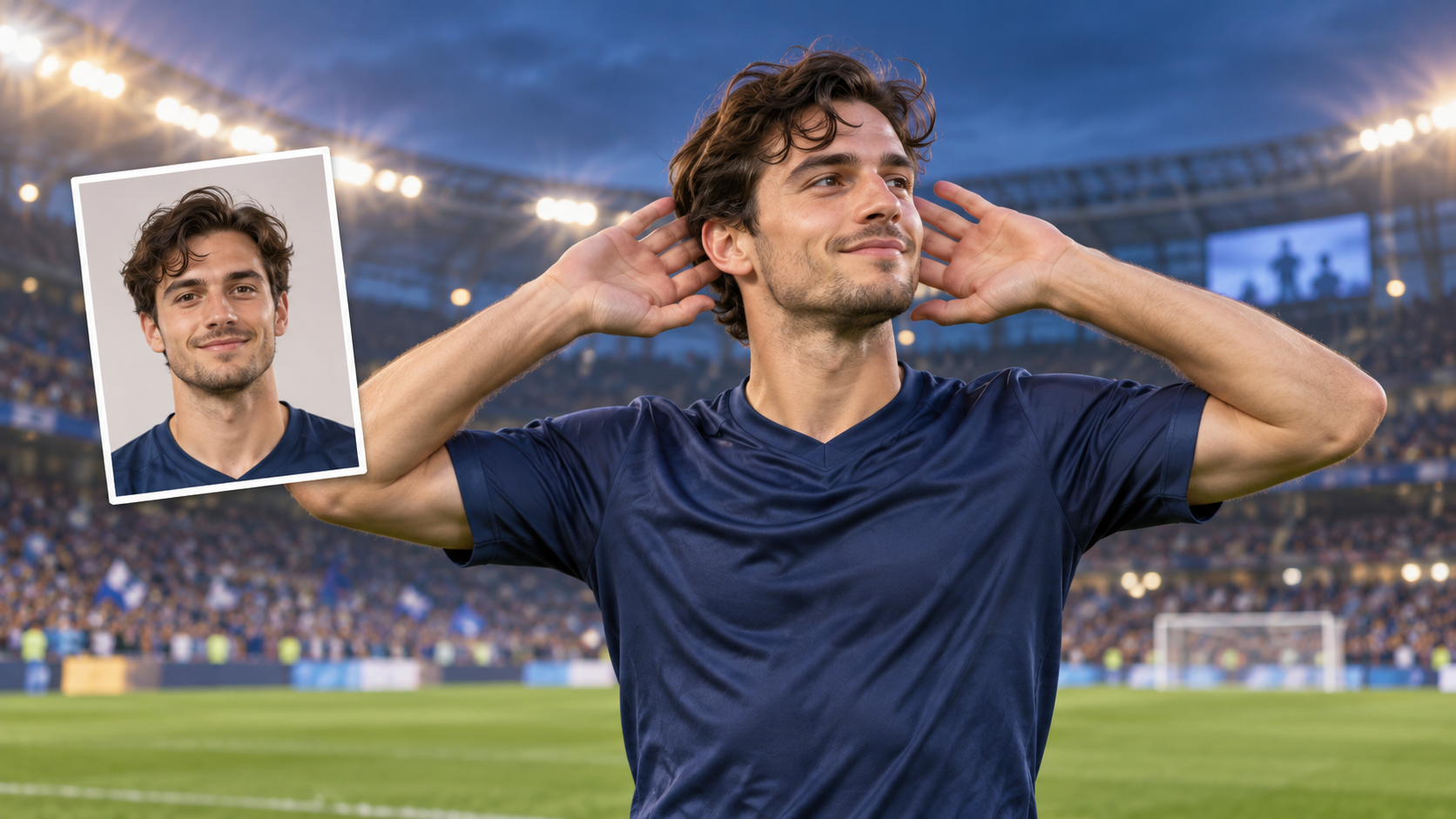
Pick one photo for each character, with only one person in each image. Use clear portraits of two adults, with visible eyes, facial features, and hair. Avoid group shots, sunglasses, heavy beauty filters, and faces partly hidden by objects.
You do not need a photo of the pair together or a separate zombie makeup photo. The second portrait supplies the identity for both the infected and healthy versions.
Choose photos you have permission to use, and make sure both people are comfortable appearing in a fictional romantic scene.
Step 2: Upload the Human Survivor First
Open the Zombie Love Story effect and find Upload Your Two Character Photos.
Add the person who should remain human as Image 1. Then add the person who should appear infected as Image 2. Review the previews in that order before generating.
This is the most important setup detail. If you want to exchange the characters’ roles, exchange their upload positions. The second portrait represents one partner across two conditions; it is not a reference for an additional character.
Step 3: Check the Video Settings and Credits
Choose an aspect ratio that suits your final post while leaving room for both people.
Review the resolution, Generate Audio, Number of Videos, and Public Visibility controls. Start with one output so you can assess the pairing before requesting more versions.
Step 4: Generate and Review the Complete Story
Click Generate Video and wait for the result. Watch the full clip, including the transition into the memory.
If a role is wrong, check upload order first. If a face drifts, try a sharper portrait of that person. If hands or bodies merge, generate another version and compare the movement through the entire embrace.
Before You Share Your Zombie Romance
Preview the finished clip at the size and crop your audience will see. Both the embrace and the memory need enough screen space to make sense. Keep captions away from faces and hands, especially in a vertical edit.
A short caption can support the story without explaining every shot. Try “I’d recognize you anywhere” or “One last memory of us.” Present the clip as an AI-created fictional scene, and choose music you have the right to share.
Keep the version where the same two people remain recognizable across the emotional turn. A striking opening frame is only one part of a convincing reunion.
AI Zombie Love Story FAQ
Which Photo Becomes the Zombie?
Image 2 defines the infected partner. Image 1 defines the person who stays human. Upload the two portraits in that order.
Can I Use One Couple Photo?
Use two separate images, with one person in each. This gives each character a clear identity reference and follows the dedicated page’s two-photo workflow.
Do I Need to Upload a Reference Video or Write a Prompt?
The effect includes a built-in reference video and scene direction. You provide the two character photos; you do not need to upload the reference scene yourself.
Why Does the Zombie Look Healthy at the End?
The later scene represents a happier memory. The second character’s condition changes, but their identity should remain the same. Check that the healthy face still resembles your second uploaded portrait.
What If the Faces Change or the Roles Are Swapped?
For swapped roles, check that the survivor is first and the infected partner is second. For changing faces, use clearer, less filtered portraits and review another result. Better inputs may help, but they do not guarantee an exact likeness in every frame.
Make Your Own AI Zombie Love Story Video
Choose your pair, prepare one clear portrait of each person, and open the AI Zombie Love Story generator. Upload the human survivor first, add the infected partner second, and check your settings and credit estimate.
Then generate and watch the story through to the memory. Choose the version where the recognition, embrace, and familiar faces make the reunion feel connected.