How to Make an AI Moonwalk Dance Video From One Photo
Turn One Photo Into an AI Moonwalk Dance Video With SuperMaker. Learn How to Choose a Full Body Image, Upload Your Reference, Check Settings and Credits, and Review Faces, Footwork, and Background Continuity Before Sharing a Backward Gliding Dance Clip.
Turn one familiar photo into an unexpected backward glide. You do not need to film the choreography: choose your image, upload it to SuperMaker, and review the generated dance.
Open the AI Moonwalk Dance Video generator, upload a clear photo of one person, check the available settings, and generate. A full-body image with visible shoes is a helpful starting point because the feet and floor are central to the dance.
What Is an AI Moonwalk Dance Video?
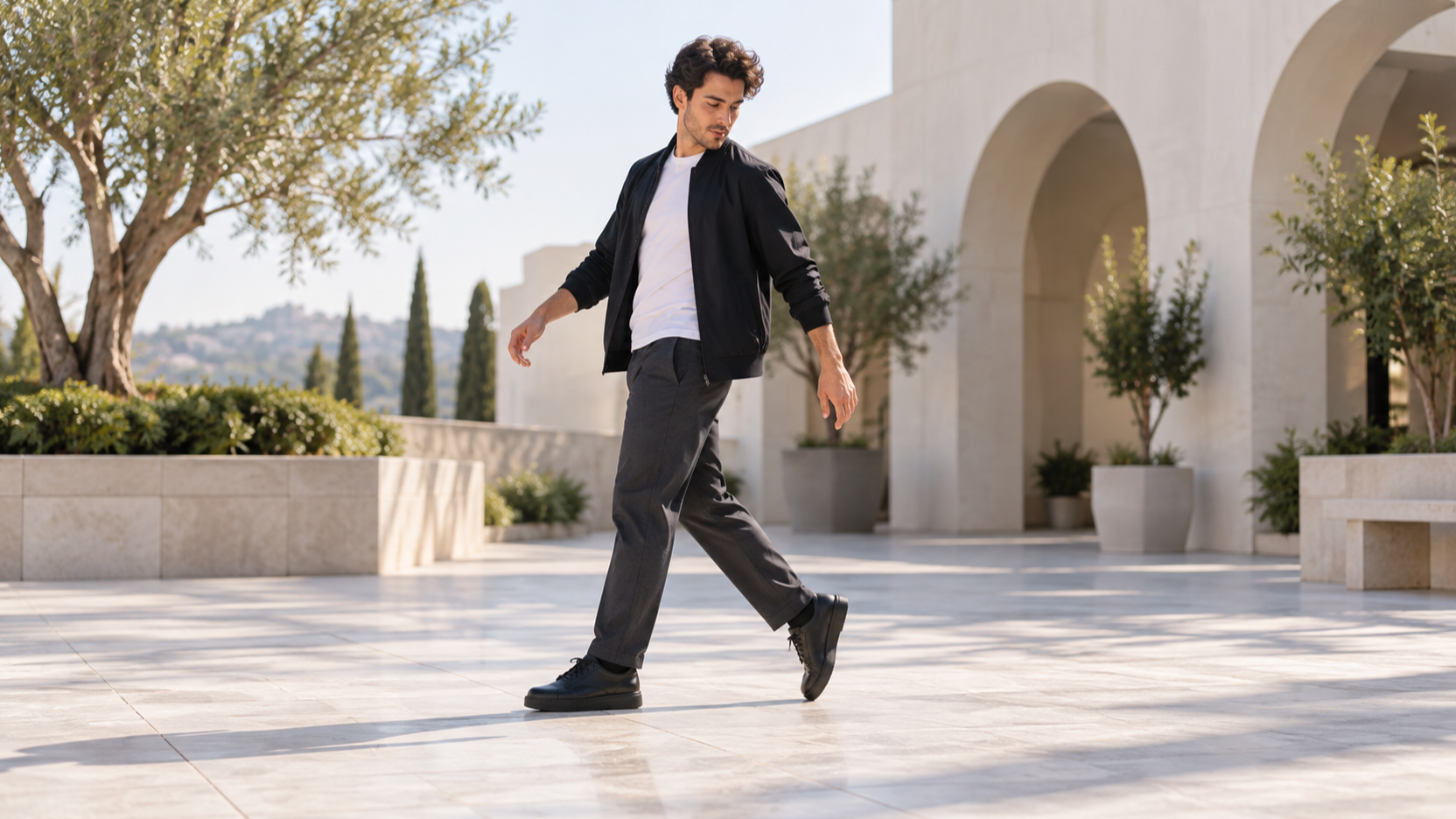
The effect turns a still photograph into a short dance performance built around the moonwalk: the illusion of stepping forward while traveling backward. Alternating heel positions and a relatively steady upper body help make the glide readable.
You do not need to upload a dance video or describe every movement. “Michael Jackson AI Dance” describes the performance inspiration. The intended subject remains the person in your photo. Facial details, footwork, and scenery can change during generation.
How to Make an AI Moonwalk Dance Video on SuperMaker
Step 1: Choose One Photo With Visible Feet
Choose a sharp, evenly lit photo showing one recognizable person. Look beyond the face: visible shoes, unobstructed legs, and open floor help establish the dance better.
Try a natural standing pose on a terrace, pavement, or clear indoor floor. Avoid hidden ankles, overlapping people, motion blur, and crops through the shoes. Leave space around the body.
A closer portrait requires the model to imagine the missing body and floor. If you have both options, try the full-body photo first. Use an image you have permission to animate.
Step 2: Open the Effect and Upload Your Image
Open the Moonwalk Dance AI page and add your picture under Upload Reference.
If the preview shows a tightly cropped face or hidden feet, replace the image before generating.
Step 3: Check the Video Settings and Credits
Review the Aspect Ratio, Resolution, Generate Audio, Number of Videos, and Public Visibility controls.
Choose a format that leaves room for the whole body and backward movement.
Check Required Credits on the effect page for your settings before proceeding.
Step 4: Generate and Watch the Whole Dance
Click Generate Video and wait for processing to finish. Watch the complete result, including the opening stance, backward glide, any turn, and the final pose.
Check whether the person stays recognizable and the shoes appear connected to the floor. Look for floating, awkward knees, changing leg proportions, or distorted hands during turns.
Inspect floor patterns, furniture, reflections, and shadows for changes. Try a wider photo if the feet are unclear or movement feels crowded; try a sharper, less filtered image if the face changes.
Before You Share Your Moonwalk Video
Play the clip in your intended posting format. Keep the shoes visible through the strongest glide; cropping out the feet can hide the movement that makes the video work.
Place captions away from the face and lower legs. A short line such as “One photo. Unexpected footwork.” can set up the joke without covering the performance.
Listen to generated sound and use audio you have the right to post if adding music. Check that the subject is comfortable with sharing, and identify the clip as an AI creation.
AI Moonwalk Dance Video FAQ
Do I Need to Upload a Dance Video?
No. This moonwalk dance AI effect uses one uploaded photo. The motion reference is configured inside the effect, so you do not need to record yourself performing the moonwalk.
Can I Use a Selfie Instead of a Full Body Photo?
Yes, but missing legs, shoes, and surroundings must be generated. A full-body photo with clear footwear and open floor provides more useful reference information.
Will the Video Keep My Original Background?
The effect uses your photo as the reference for the scene, lighting, clothing, and identity. Exact preservation is not guaranteed. Inspect the background during movement and turns.
Does the Effect Turn Me Into Michael Jackson?
The intended workflow animates the person in your uploaded photo. “Michael Jackson AI Dance” describes the dance inspiration, rather than a request to replace your face with a celebrity.
Why Does the Person Look Like They Are Floating?
Footwork may not establish convincing ground contact. Try visible shoes, a clear floor, and more space. Check the next result for heel changes and consistent body proportions. A better photo cannot guarantee perfect motion.
Make Your Own AI Moonwalk Dance Video
Choose one clear photo with visible shoes and room to move, then open the SuperMaker AI Moonwalk Dance Video generator. Upload the image, check your settings and credit estimate, and generate your first clip.
Choose the version where the person stays recognizable, the feet remain grounded, and the backward glide reads clearly. Your AI moonwalk dance video starts with one well-chosen photograph.