How to Make an Enzo Fernandez Celebration AI Video With One Photo
Turn a Solo Portrait Into an Enzo Fernandez Celebration Video With SuperMaker. Learn How to Choose a Clear Photo, Use the Built-In Performance, Check Framing and Credit Costs, and Review Faces, Fingers, and Expressions Before Sharing a Match-Day Reaction or Celebrating an Everyday Win.
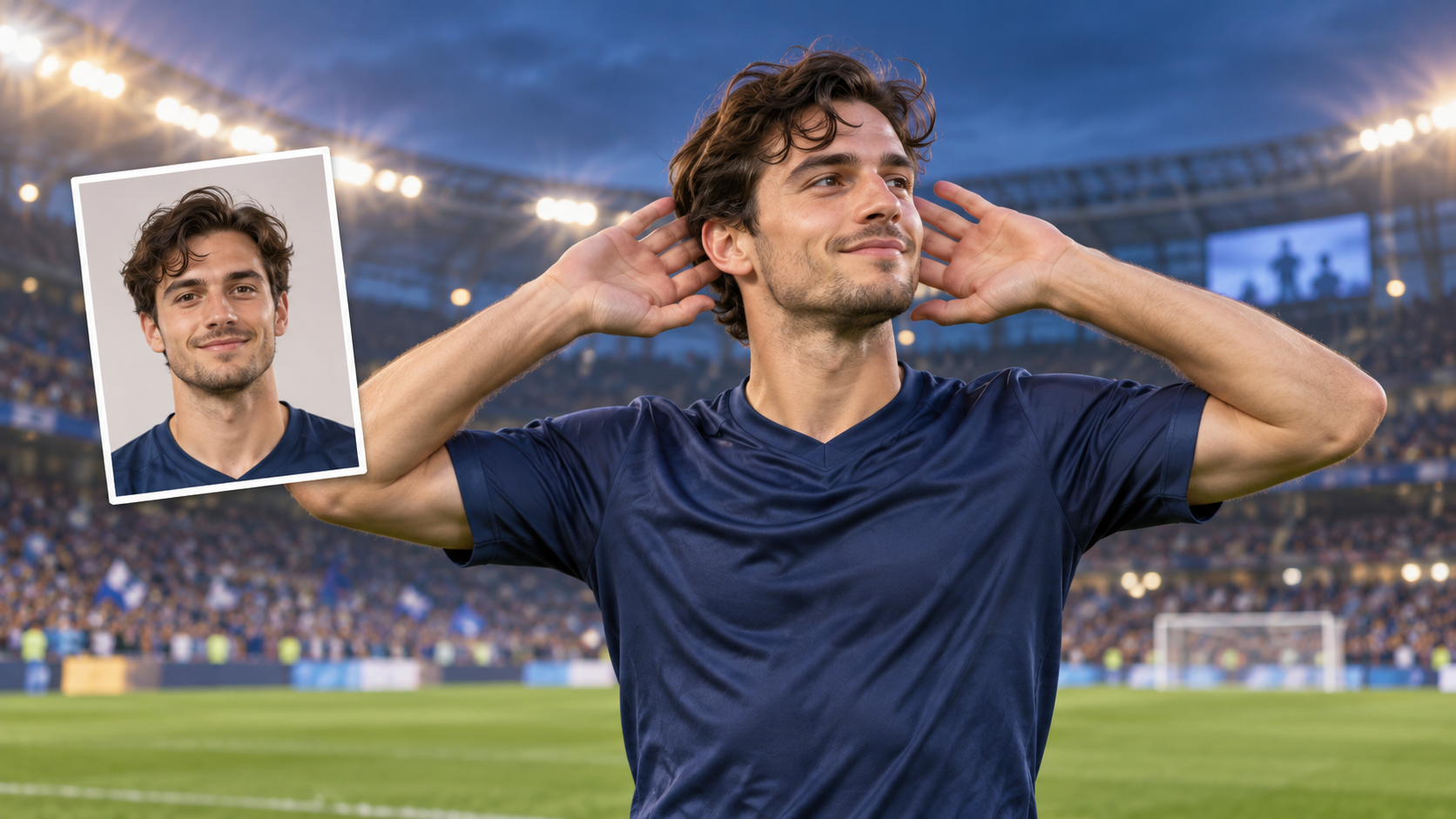
A win feels better when your reaction has some personality. An Enzo Fernandez Celebration AI video puts a familiar face into a football celebration: hands behind the ears, elbows spread, and a playful turn toward the camera. It can become a match-day reply, a prediction-game victory, or a dramatic response to finishing an assignment.
You need one solo portrait. The SuperMaker Enzo Fernandez Celebration effect includes the performance reference, so you can personalize the routine without filming it yourself.
Here is how to choose your photo, set up the video, and pick a take worth sharing.
What Is the Enzo Fernandez Celebration AI Effect?
The Enzo Fernandez Celebration AI effect turns your photo into a confident football-style victory moment. You appear with your hands behind your ears, elbows out, and a playful expression—the kind of reaction that says you knew you were going to win.
The fun comes from seeing yourself, or someone your friends instantly recognize, celebrating with stadium-sized confidence.
You do not need to perform the celebration on camera. Start with a clear photo, then give the finished video a caption that makes the moment yours: “Called it,” “Exam survived,” or “That Friday feeling.” The gesture brings the attitude; your face and story make it personal.
How to Make an Enzo Fernandez Celebration Video on SuperMaker
Step 1 Choose One Clear Portrait
Pick a sharp photo of one person, with the eyes, mouth, hairline, and face shape easy to see. A selfie or a head-and-shoulders image is a sensible starting point. A front-facing or gently angled face gives you a straightforward reference.
Avoid strong blur, heavy filters, and accessories that hide facial details. A group photo also makes the intended performer less clear. If you have several choices, start with the image that most closely resembles the person in everyday life.
There is no need for a stadium background, football kit, or raised-arm pose. Use your own image or a portrait the subject has agreed you can animate.
Step 2 Upload the Photo to the Dedicated Effect
Open the Enzo Fernandez Celebration generator. Under Upload Reference, select Upload files and add your portrait. The page provides one reference-image slot.
Check the preview before moving on. Confirm that you selected the correct person and that their face remains visible in the uploaded image. Replace a mistaken file now rather than spending credits on it.
You do not need to source a separate celebration clip or record the movement. The prepared performance is already part of this effect.
Step 3 Check Framing and Video Settings
Choose an aspect ratio for the place you intend to share the result. The page offers Auto and formats including 16:9, 1:1, and 9:16. Vertical 9:16 is a practical option for a phone feed; 16:9 gives a wider composition for a landscape edit.
Leave room for the full gesture. A tight crop that includes the face but removes the elbows can weaken the celebration's recognizable shape.
Review Resolution, Generate Audio, Number of Videos, and Public Visibility. Start with one output to assess your portrait before requesting multiple versions. Choose audio according to your edit, and check visibility before using someone else's image. Confirm the available controls on the effect page when you create.
Step 4 Generate and Watch the Full Performance
Read Required Credits, then select Generate Video when the settings suit your plan. Once processing finishes, play the result from opening to ending.
Watch the face through the head turn rather than judging only the first frame. Then inspect the hands near the ears, the mouth during the kiss expression, and the transition into the final pose.
If the identity drifts, try a clearer portrait. If the fingers or expression distract from the scene, consider another take. Choose a version that stays convincing throughout the movement.
What to Check Before Sharing Your Celebration
Use the movement itself as your quality check:
-
Face: Can you recognize the person while their head changes direction?
-
Hands: Do the fingers remain distinct beside the ears?
-
Expression: Does the mouth move coherently without distracting distortion?
-
Framing: Are the face, hands, and outward elbows visible?
-
Continuity: Does the ending feel connected to the earlier motion?
These checks turn “looks good” into a practical decision about which take to use. SuperMaker's effect guidance also emphasizes the head turn, fingers, mouth, and ending.
Preview your chosen clip on a phone. Place captions away from the face and hands, and give the celebration a specific reason: “When your prediction finally lands” or “Deadline survived.” Present it as an AI edit when sharing publicly. If you add music separately, use audio appropriate for your intended platform.
Enzo Fernandez Celebration AI Video FAQ
Can I Upload Two People?
Use one solo portrait for this effect. If you want a two-person dance, the Smalltown Boy tutorial explains a separate workflow with two individual photos.
Do I Have to Recreate the Original Pose?
No. The built-in video supplies the action. Your photo should show the intended identity clearly; it does not need matching clothing, scenery, or gestures.
What If a Clearer Photo Still Produces an Awkward Result?
Review another take before sharing. A stronger portrait can provide better identity information, but it cannot guarantee perfect likeness or natural-looking fingers throughout every generation.
Make Your Own Enzo Fernandez Celebration Video
Choose a portrait, open the Enzo Fernandez Celebration video page, and check your framing, visibility, and credits. Generate one take, review the complete routine, and share the version where the familiar face and confident gesture tell the story together.