How to Turn GPT Images 2.5 Sprite Sheets into Animated GIFs
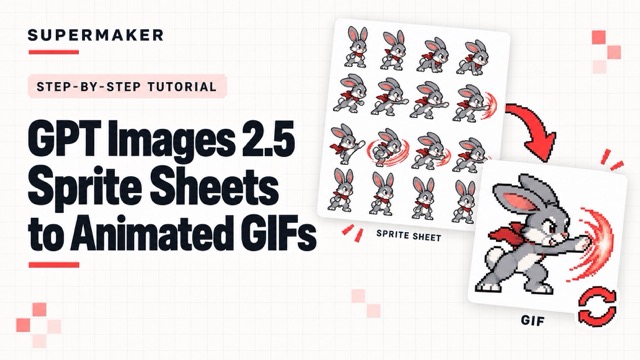
Create a pixel art character sprite sheet, then bring it to life with SuperMaker Video or assemble a GIF in Codex—with model guidance and copy-ready prompts.
A pixel character runs, jumps, and returns to a ready pose. A mascot waves in a repeating loop. With ChatGPT Images 2.5, also called GPT Images 2.5 or Images 2.5, you can create the character images that make these animations possible.
The workflow starts with a sprite sheet: a single image containing several poses of the same character. From there, you have two options:
- Use SuperMaker AI video generator to generate an animation from the sheet, then convert the video into a GIF.
- Use Codex to split the sheet into individual frames, align them, and assemble a GIF directly.
This guide explains both methods, including which Images 2.5 model to choose and copy-ready prompts for each stage.
GPT Images 2.5 Sunburst or Flare: Which Should You Choose?
OpenAI released two image models: GPT Images 2.5 Sunburst and GPT Images 2.5 Flare. You can use same prompt to explore and test the difference between these two GPT Images 2.5 models in SuperMaker.
GPT Images 2.5 Sunburst
GPT Images 2.5 Sunburst prioritizes image quality and editing precision. OpenAI positions it as its most capable image-generation and editing model, particularly for work where precise changes matter. Official Sunburst documentation
For this tutorial, Sunburst is the model to try first when your sprite sheet contains detailed clothing, distinctive accessories, or a character whose appearance needs to remain consistent across poses.
GPT Images 2.5 Flare
GPT Images 2.5 Flare focuses on fast, high-quality image generation. It is a practical choice for exploring character designs, testing actions, and revising prompts quickly. Official Flare documentation
Use Flare when you want to experiment before committing to a final sheet.
Our recommendation:
use Flare for quick drafts and Sunburst when detail preservation is the priority. This recommendation follows their documented strengths; it is not a verified animation benchmark. Neither model guarantees perfectly aligned frames or a seamless loop.
You can explore both through SuperMaker GPT Images 2.5 generator.
How to Turn GPT Images 2.5 Sprite Sheets into Animated GIFs.
Follow the tutorial below to turn your characters into pixel art GIF.
Step 1: Create a 2D Pixel-Art Character Sprite Sheet.
Start with the 2D Pixel Sprite Sheet generator.
- Describe your character and the movement you want to animate.
- If you already have a character reference, use it where reference-image input is available.
Copy-Ready Sprite Sheet Prompt
Replace the bracketed text with your own character and action.
Character: [CHARACTER DESCRIPTION] Action: [ONE COMPLETE ACTION OR SHORT ACTION SEQUENCE].
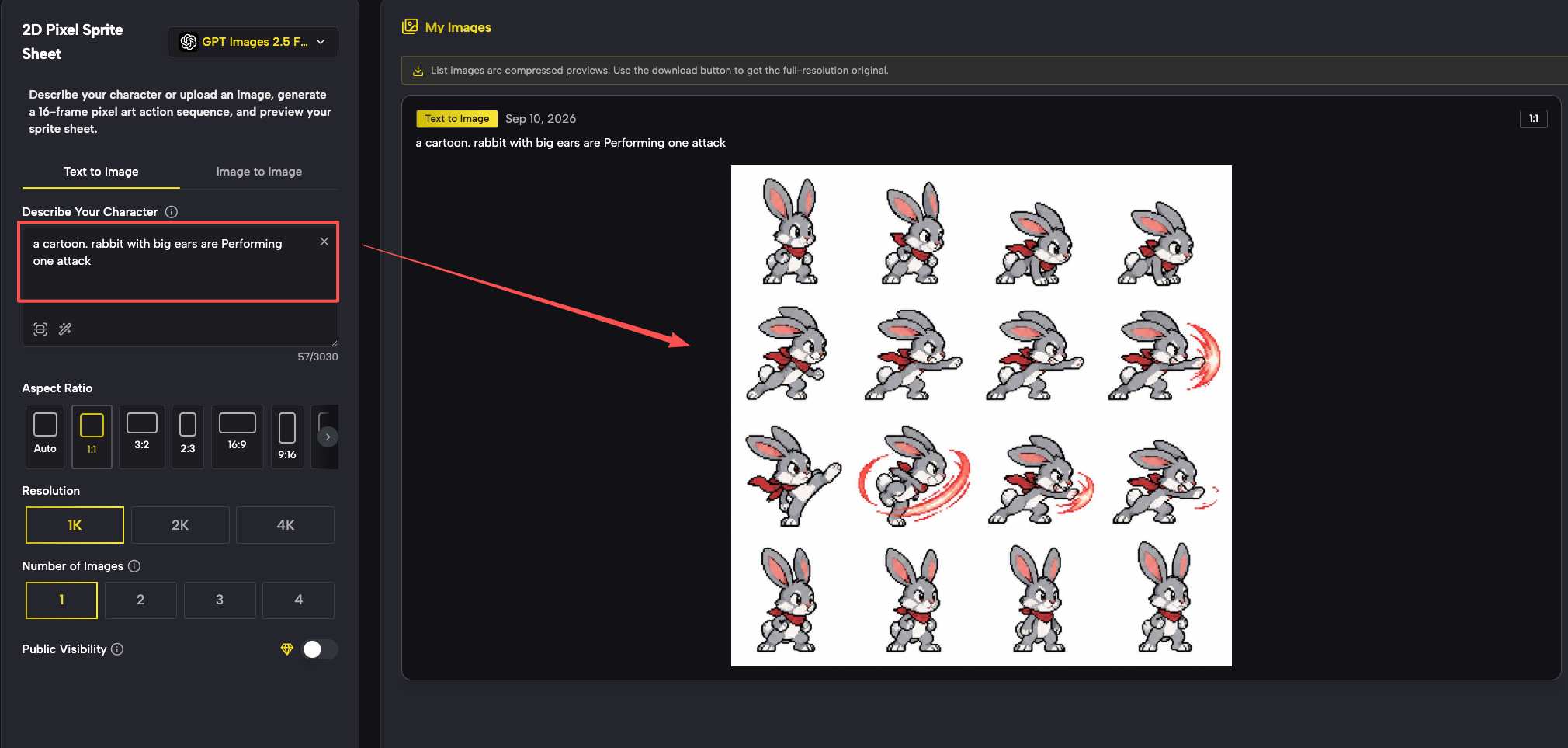 A useful animation sheet needs more than different poses. Its cells should show consecutive stages of one movement, with a consistent character design, scale, and viewpoint.
For a first attempt, choose one short action:
A useful animation sheet needs more than different poses. Its cells should show consecutive stages of one movement, with a consistent character design, scale, and viewpoint.
For a first attempt, choose one short action:
- Running in place. - Waving and returning to idle. - Jumping and landing. - Performing one attack. - Blinking and nodding.
A short, focused movement is easier to refine than several complex actions combined.
Step 2: Inspect the Sheet and Choose Your Animation Method
Before animating, check that the character stays recognizable across the sheet. Look for changes in the face, clothing, accessories, colors, and body size.
Also confirm that the cells contain a logical movement sequence. A sheet of disconnected character poses will not automatically become a coherent animation when played in order.
Then choose your route:
| SuperMaker Video | Codex | |
|---|---|---|
| What happens | A video model generates movement using the reference | Existing sheet cells become animation frames |
| Best for | Creating a moving scene from visual references | Preserving and playing the supplied poses |
| Main output | Video, then GIF if needed | GIF |
| Main thing to check | Design drift or unwanted movement | Frame order, cropping, and alignment |
The distinction is important: video generation can introduce new poses and details; GIF assembly uses the frames already present in your sheet.
Method 1: Animate the Sprite Sheet with SuperMaker Video.
Open SuperMaker Video and select Image to Video. Choose Seedance 2.0 video model and upload the sprite sheet you've already got from the 2D Pixel Sprite Sheet generator. The paste the prompt:
Animate the supplied pixel-art heroine in one continuous shot. Lock its exact design, colors, proportions, hair, outfit, and crisp 1px pixel outlines. Action sequence: [ACTION 1] → [ACTION 2] → [ACTION 3] → [ENDING POSE]. Follow the supplied poses where applicable and connect the actions coherently. Keep the character balanced, with believable ground contact. Use a uniform [BACKGROUND COLOR] background and consistent lighting. Exactly 6 FPS, 167ms frame holds, no interpolation, blur, morphing, cuts, jitter, color drift, or design changes. Camera stays locked. Full body centered, facing right, max 25% horizontal travel. [For a loop: finish in a pose and position that connect naturally to the opening.]
For a first test, select the settings with:
| Placeholder | Example |
|---|---|
| Model | Seedance 2.0 |
| Mode | Reference to Video |
| Duration | 8 |
| Resolution | 720p |
| Generate Audio | Yes |
Method 2: Upload the Sprite Sheet to Codex and Make a GIF.
Upload the sprite sheet to Codex and request frame extraction, alignment, and GIF assembly. You do not need a video-generation model for this method.
Turn the uploaded pixel-art sprite sheet into a coherent animated GIF using its existing frames.
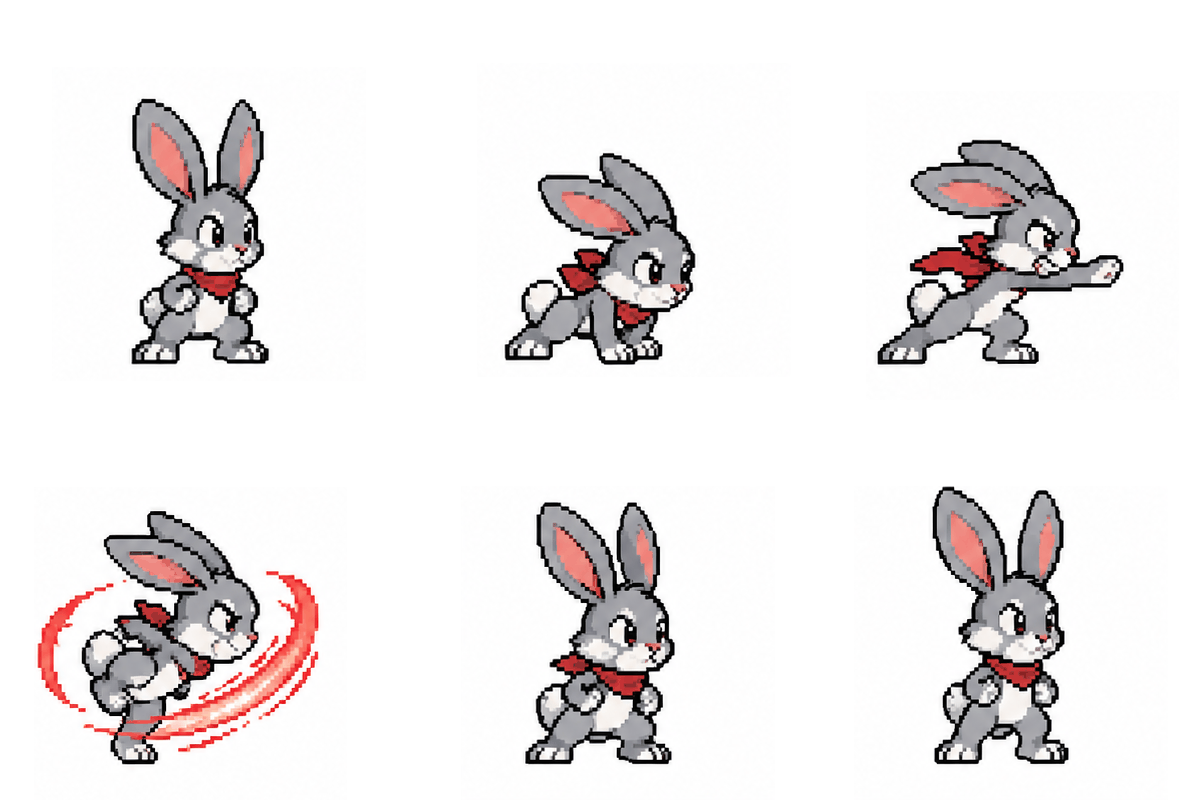
Start with One Sheet and One Short Action
Create your character poses with the 2D Pixel Sprite Sheet generator. Then upload the sheet to SuperMaker Video for generative animation, or to Codex for direct GIF assembly.
Start with a wave, run cycle, or jump. Once the character stays consistent and the movement reads clearly, build toward a longer sequence.