How to Use Outstanding Tiny Desk AI Video Generator
Turn Your Photos into an Original Office Concert with SuperMaker. Follow the Upload, Settings, Generation, and Download Workflow, Learn What to Check Before Spending Credits, and Review Faces, Movement, and Audio Before Sharing Your Finished Clip.
Make an Office Concert from Your Photos
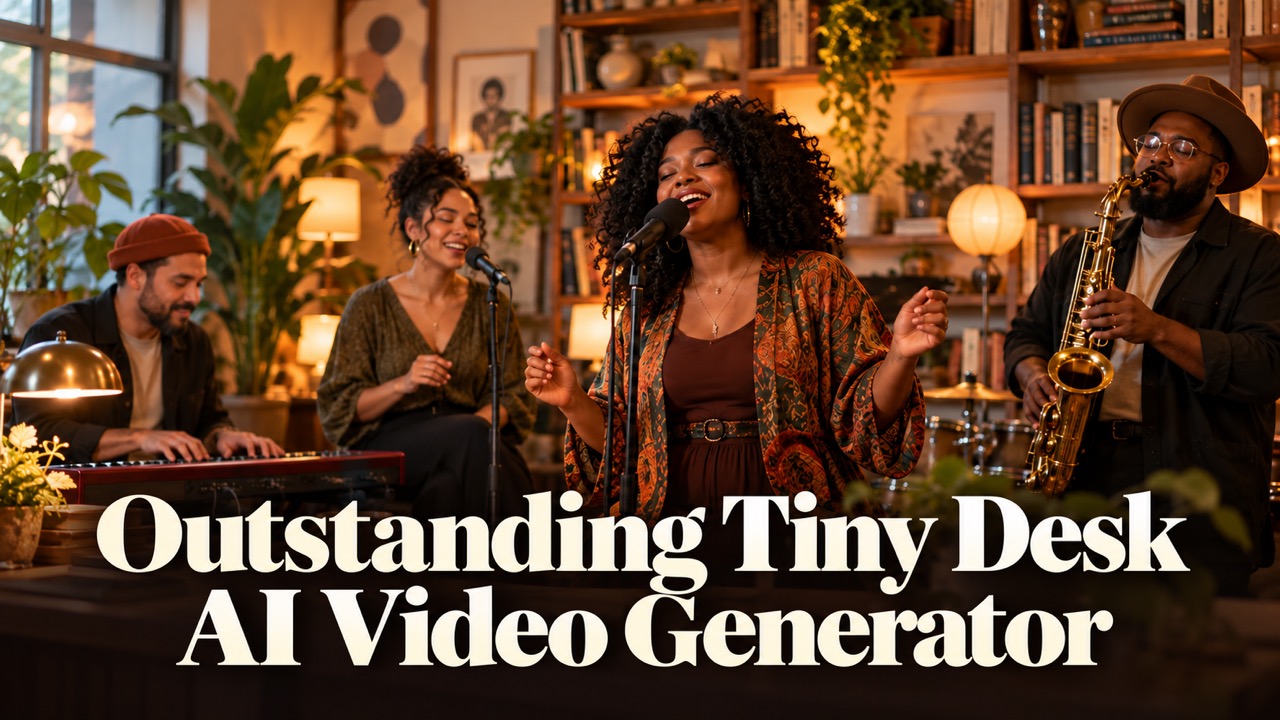
Outstanding Tiny Desk AI Video Generator turns reference photos into an original office-band performance. The scene centers on a lead singer, backing performers, a keyboardist, and a saxophone moment, with warm lighting and a cheerful finale. It is a playful format for a birthday greeting, a team celebration, or a short social post.
This tutorial follows the current SuperMaker Outstanding Tiny Desk AI generator. You upload your references, choose the visible settings, check the required credits, and generate. The current effect interface does not show an editable prompt box, so you do not need to paste a long prompt to follow these steps.
Step 1: Prepare Your Reference Photos
Start with one clear portrait if you want to keep the first attempt simple. Choose a well-lit photo with an unobstructed face and recognizable clothing. Avoid heavy filters, sunglasses covering the eyes, or a face that occupies only a tiny part of the image. The model needs useful visual information to interpret the person.
For an ensemble, prepare several distinct references. Different clothing colors make the cast easier to distinguish when reviewing the result. Use images you have permission to upload, and check with other people before including their likenesses in a shared video.
The upload area currently shows a maximum of five references. You do not have to fill every slot. A smaller cast can be easier to inspect than a crowded scene, especially when hands, microphones, and instruments overlap.
Step 2: Upload References in SuperMaker
Open the effect page and find Upload Reference. Select Upload files, or drag your images into the upload area. The counter helps you track how many reference slots you have used. Assets Library is another visible option for choosing material already available in your account.
Before moving on, inspect the uploaded thumbnails. Confirm that you selected the intended people and that no unrelated image slipped into the set. If you use one group photo, choose a frame in which the faces are clearly separated.
Treat the references as visual guidance, not a guarantee that each person will stay in an exact position throughout the clip. The current interface does not provide separate visible controls for assigning a specific photo to vocals, keyboard, or saxophone. If a particular role assignment is essential, review the generated cast carefully before accepting the result.
Step 3: Choose Resolution, Audio, and Quantity
The current form exposes three settings that matter before generation:
| Setting | What to Do |
|---|---|
| Resolution | Choose from the options displayed for your account. The inspected interface lists 480p, 720p, 1080p, and 4k. Check the credit requirement after choosing. |
| Generate Audio | Turn this off if you want a silent clip that you can later pair with your own cleared music. |
| Number of Videos | Start with one result to evaluate the effect before requesting several variations. |
The effect page describes a 15-second vertical concert. However, the inspected form does not expose duration or aspect-ratio selectors. You do not need to find hidden controls or switch models to follow this tutorial. Check the actual output framing when it finishes, particularly if your references have different shapes.
Resolution labels describe available selections, not a promise that every face or instrument will be flawless. A higher-resolution result can still need another attempt if the movement or identity is not right.
Step 4: Check Credits and Generate
Look at Required Credits immediately before selecting Generate Video. Use the amount shown for your selected settings, rather than a price copied from a screenshot or an older tutorial. Promotions, account conditions, and settings can change the displayed requirement.
Once the references and settings look right, select Generate Video. The page includes a My Videos area for results. Processing time can vary; wait for the job to finish before judging the output. Do not repeatedly submit the same setup just because the first result is still processing.
The effect aims for a lead spotlight, gentle backing movement, a joyful close-up, a saxophone moment, and a group finale. Think of these as the intended visual sequence. Generated clips may combine moments or interpret the choreography differently.
Step 5: Review the Clip Before Downloading
Watch the whole result, rather than checking only its opening frame. Begin with faces: do the people remain recognizable as the camera moves? Then inspect hands, microphone placement, and contact with the keyboard or saxophone. Small problems can become more obvious during movement.
Listen to the clip as well. If you intended to create a silent result, confirm that the audio matches that choice. The effect does not supply the original copyrighted concert recording or lyrics. If you add music afterward, choose audio you are allowed to use.
Check the ending and framing. A cheerful finish can make the scene feel complete, while an awkward crop can cut off a performer or instrument. Once you are satisfied, use Download on the completed result. Keep the original downloaded file before making social-media edits.
Fix Common Problems with a Simpler Retry
If a face drifts, try a clearer reference with less obstruction. If several people blend together, reduce the cast or choose references with more distinct outfits. Change one input choice at a time so that you can tell what helped.
If hands or instruments look distorted, inspect an alternative result before sharing. Extra detail in a source photo does not guarantee accurate playing technique. For a greeting or casual post, a readable expression and a convincing overall scene may matter more than complicated finger movement.
If the result does not match a precise role plan, remember that this effect uses its preset workflow. There is no visible custom-prompt field in the current form, so repeating instructions outside the available controls will not change the job.
Create Your First Outstanding Tiny Desk AI Video
For a practical first attempt, use one clear portrait, request one video, decide on audio, and check the live credit total. Review the completed performance before spending credits on additional variations. When sharing, make the AI nature of the scene clear and choose a caption that fits the occasion.
Ready to try it? Open the Outstanding Tiny Desk AI Video Generator and build your first original office concert.