Wan 3.0 Explained: Features, Use Cases, and How to Create AI Videos
Learn what Wan 3.0 can do, where to use it, and how to create better AI videos with text, image, and video inputs on SuperMaker.
Give Your Ideas More Room to Unfold
Create richer scenes and more engaging visual stories with Wan 3.0, now ready to use directly on Supermaker AI.
Try Wan 3.0 Free on Supermaker AI
AI video generation is gradually moving beyond the stage of producing only short, isolated clips. Newer models are beginning to handle longer actions, stronger visual continuity, more complex reference materials, and scenes that feel deliberately directed rather than randomly generated. Wan 3.0 is one of the models pushing this shift forward.
As the latest generation in Alibaba's Wan video model family, Wan 3.0 places greater emphasis on longer video generation, multimodal references, realistic motion, character consistency, synchronized audiovisual creation, and more reliable control over complex scenes. Creators who do not want to build their own API workflow can also use Wan 3.0 on SuperMaker for text-to-video, image-to-video, and video-to-video generation.
This guide explains what Wan 3.0 is, its most important features, where it can be used, and how to create videos with it.
What Is Wan 3.0?
Wan 3.0 is Alibaba’s latest generative AI video model, designed to create more coherent and controllable videos from text and reference materials.
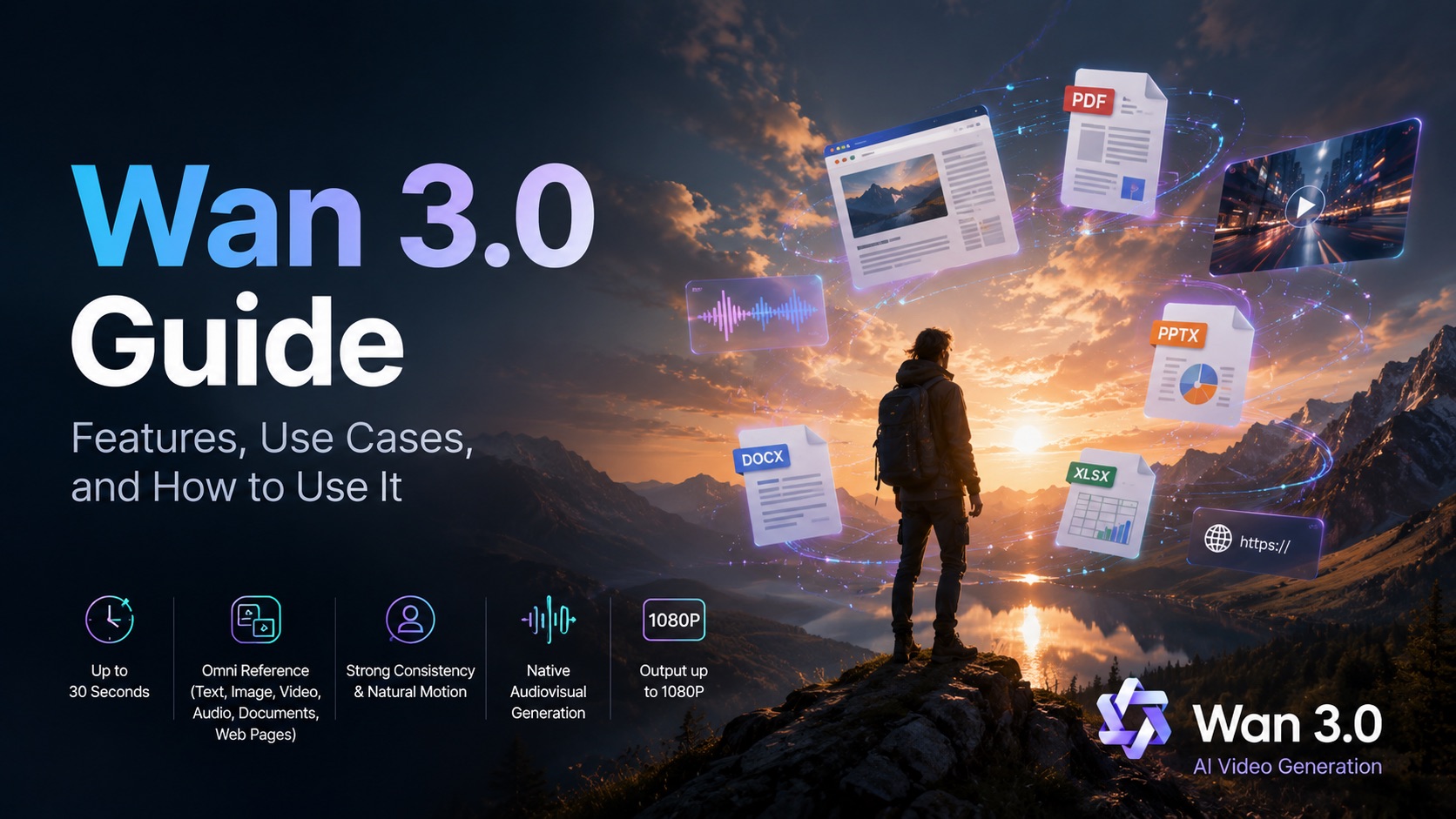
Compared with earlier Wan models, it focuses more on longer video generation, stronger character and object consistency, natural motion, multimodal references, and audiovisual creation. At the model level, Wan 3.0 supports videos up to 30 seconds and can work with text, images, video, audio, documents, and public web pages.
These capabilities make it suitable for more than basic text-to-video generation, including image animation, character scenes, product videos, advertising concepts, social media content, and visual storytelling.
What Makes Wan 3.0 Different?
Wan 3.0 stands out for combining longer video generation, richer reference inputs, stronger consistency, and native audiovisual creation in one model.
1. Native Video Generation Up to 30 Seconds
At the model level, Wan 3.0 can generate videos up to 30 seconds in a single run. This gives creators more room for multi-step actions, character interaction, camera changes, and simple narrative progression instead of relying only on very short clips.
2. Omni Reference for Documents, Web Pages, and More
Wan 3.0 goes beyond standard text, image, video, and audio references. It can also interpret documents such as PDF, DOC, DOCX, PPT, PPTX, XLS, XLSX, TXT, and Markdown files, as well as publicly accessible web pages.
This opens up new workflows for turning existing information into video. A presentation can provide the structure for a product story, a report can become the basis of a visual briefing, spreadsheet content can be translated into a more dynamic explanation, and an article or web page can provide context for a generated video.
Instead of describing every detail again in a long prompt, creators can use existing source material to give Wan 3.0 more context about what the video should communicate.
3. Stronger Character and Object Consistency
Wan 3.0 is designed to keep important visual details more stable across a sequence. Character identity, clothing, products, and scene elements are less likely to change unexpectedly during movement or camera transitions.
This is especially useful for product videos, recurring characters, fashion content, and branded visuals.
4. More Natural Motion and Expression
The model places greater emphasis on realistic body movement, facial reactions, and interactions with objects. This can make walking, turning, speaking, and other character actions feel more natural, especially in medium shots and close-ups.
5. Native Audiovisual Generation
Wan 3.0 can coordinate visual action with elements such as dialogue, voice, ambient sound, music, and lip movement at the model level, helping generated scenes feel more complete rather than like silent footage with audio added afterward.
6. Output Up to 1080P
Wan 3.0 supports output up to 1080P. The Wan 3.0 AI Video Generator on SuperMaker provides access to the model for AI video creation.
What Can You Use Wan 3.0 For?
Wan 3.0 is particularly useful for videos that depend on motion, continuity, and scene control rather than simply making a still image move.
Typical applications include:
- Social media videos
- Product advertising and marketing concepts
- Character-driven scenes
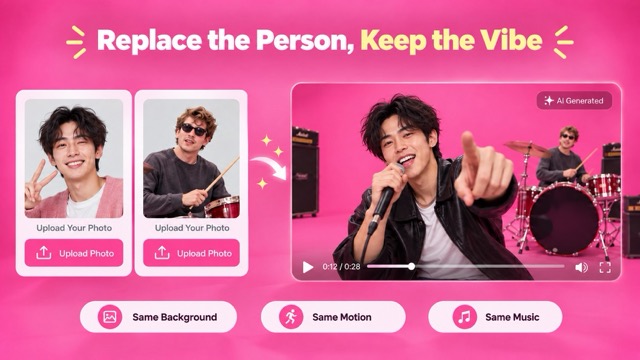
- Image animation
- Film previsualization and moving storyboards
- Educational and explainer visuals
Different generation modes can also support different creative workflows.
Social Media Videos
For short-form platforms, Wan 3.0 can turn a simple visual concept into a more engaging moving sequence. It can be used for character transformations, product reveals, cinematic portrait shots, unusual scene transitions, or lifestyle content.
Not every social video needs the longest available duration. A focused 5- or 10-second clip can often work better when the concept contains only one main action.
Advertising and Product Concepts
Wan 3.0 can also be useful for testing advertising ideas.
A creator might begin with a product image and generate a scene in which the camera slowly approaches the product while lighting, environmental motion, or human interaction develops around it. Different prompts can then be used to explore premium, minimalist, lifestyle, futuristic, cinematic, or UGC-style directions.
This makes AI video useful not only for producing finished content but also for evaluating ideas before committing to a larger production.
Character-Driven Videos
Character consistency becomes especially important when a video contains several connected actions.
A creator can begin with a character reference image and describe how that person should walk, turn, enter a space, interact with an object, or complete a short sequence while explicitly asking the model to preserve facial appearance, hairstyle, and clothing.
These types of scenes make greater use of Wan 3.0's continuity improvements than a clip containing only one isolated movement.
Image Animation
A still image already defines many important visual elements, including the subject, composition, clothing, environment, and lighting. Image-to-video generation can therefore be easier to control than starting entirely from text.
For example:
A woman slowly turns toward the window as a gentle breeze moves her hair and the curtains. The camera gradually pushes forward. Keep her facial features, clothing, room layout, and warm afternoon lighting unchanged.
The prompt does not need to describe the entire image again. Instead, it can focus on what should happen next.
Film Previsualization and Storyboarding
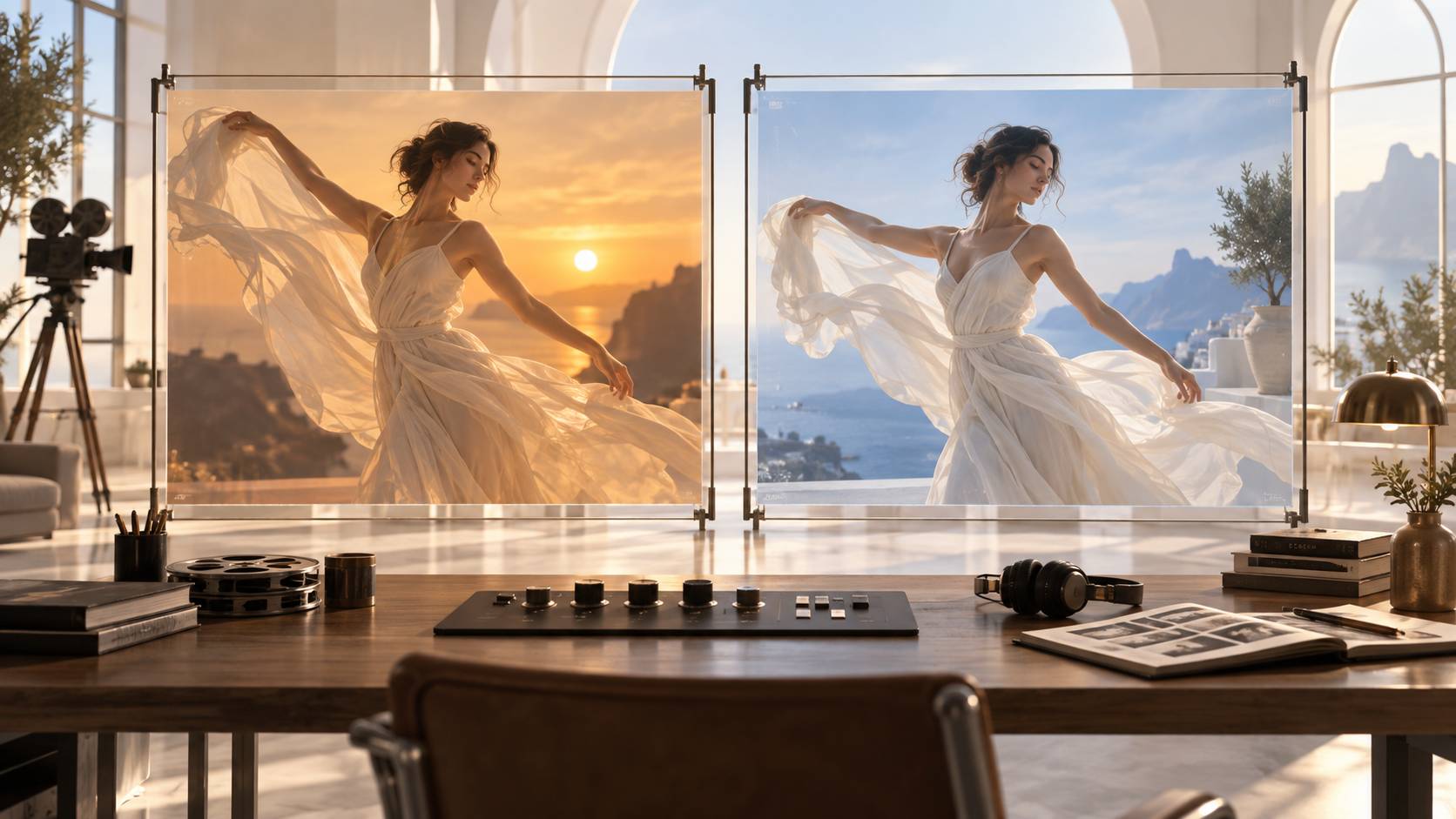
Wan 3.0 can also serve as a visualization tool during pre-production.
Directors and creative teams can test shot composition, camera movement, character blocking, action timing, and atmosphere before filming. The generated video does not necessarily need to become the final footage. It can function as a moving storyboard that makes a proposed shot easier to understand.
Educational and Explainer Content
AI video can also turn abstract information into visible processes.
Creators might describe a scientific phenomenon, historical scene, or step-by-step process and use the model to visualize what would otherwise need to be explained only with text or static images.
This is especially useful when understanding depends on seeing how something changes over time.
How to Use Wan 3.0 on SuperMaker
SuperMaker provides a direct way to create videos with Wan 3.0 without requiring users to configure an API. You can start with a prompt, visual reference, document, or web page, then describe the video you want and adjust the generation settings.
Step 1: Add Your Source Material
Open Wan 3.0 on SuperMaker and choose the source material that best fits your idea.
You can start with text, an image, an existing video, a supported local document, or a public web page. Documents such as PDF, DOC, PPT, XLS, and Markdown files can give Wan 3.0 structured information to work from, while a web page can provide context from an existing article, product page, report, or other online content.
Choose the source according to your goal. A text prompt gives the model more freedom to build a scene, while images and videos provide stronger visual guidance. Documents and web pages are especially useful when the video needs to communicate information that already exists in another format.
Step 2: Describe the Video You Want
Write a prompt that explains what should happen in the video rather than relying only on broad style words. Even when you provide a reference image, document, or web page, the prompt can still guide the model toward the type of result you want.
A useful prompt should make the subject, action, environment, camera behavior, and overall visual direction clear.
For example:
A young woman in a beige trench coat walks through a quiet Tokyo side street after rain. Reflections shimmer on the pavement as she looks toward a glowing ramen shop. The camera tracks beside her at walking speed before slowly moving into a medium close-up. Natural body movement, subtle expression, realistic evening lighting, cinematic atmosphere.
If you are using a document or web page, focus the prompt on what information should be emphasized and how it should be presented visually instead of repeating the entire source.
Step 3: Choose the Video Settings
Select the available generation settings according to the type of video you want to create.
For short actions, subtle expressions, or simple camera movement, a shorter duration is usually enough. Scenes with several connected actions or more information to communicate may benefit from additional time. You can also choose the resolution according to whether you are testing an idea or preparing a more detailed output.
Avoid trying to fit too many actions or ideas into a short clip. A focused sequence usually produces a clearer result.
Step 4: Generate and Review the Full Clip
Generate the video and watch it from beginning to end rather than judging it only by the opening frame.
Check whether the main subject remains recognizable, actions develop correctly, camera movement feels intentional, and the environment stays visually coherent. For videos created from documents or web content, also check whether the generated scene reflects the important information from the source accurately.
AI video quality is temporal, so problems may appear during movement even when the first frame looks strong.
Step 5: Refine the Most Important Detail
If the first result is close to your goal, avoid rewriting everything at once.
Instead, adjust the part that needs the most improvement. Slow down an action if the motion feels rushed, simplify the camera direction if the shot becomes unstable, clarify which character details should remain unchanged, or specify which information from a document or web page deserves more attention.
Small, targeted revisions make it easier to improve the next generation without losing the parts that already work.
How to Write Better Wan 3.0 Prompts
Longer prompts do not automatically produce better videos. What matters is whether the model can clearly understand how the scene should change over time.
Describe Visible Actions Instead of Abstract Emotions
Instead of writing:
Make the scene emotional and powerful.
Try:
The man pauses at the doorway, looks back toward the empty room, lowers his eyes briefly, then walks away slowly.
The second version translates emotion into visible behavior that the video model can actually generate.
Avoid Too Many Camera Movements
If a five-second prompt asks for a push-in, pan, orbit, rapid zoom, and multiple shot changes at the same time, the model may struggle to decide which direction matters most.
Choose one main camera movement, such as a slow push-in, tracking shot, or static shot, and let the subject's action carry the scene.
Specify What Must Remain Consistent
This is particularly useful for image-to-video generation.
For example:
Keep the woman's facial features, hairstyle, black jacket, earrings, and background architecture unchanged throughout the video.
This helps the model understand which visual details should be preserved rather than creatively altered.
Give Multiple Actions a Clear Order
When a scene contains more than one action, describe them in sequence.
For example:
Begin with a wide shot of the empty train platform. A woman enters from the right and walks toward the camera. As the train approaches behind her, the camera slowly moves closer. She stops, looks over her shoulder, and the scene ends on a medium close-up.
This gives the model a clear timeline instead of several competing instructions.
Wan 3.0 Still Has Limitations
Wan 3.0 introduces meaningful improvements, but it should not be treated as a completely predictable video generation system.
Scenes involving too many characters, several complex actions happening simultaneously, detailed hand interactions, or rapid environmental changes can still produce unstable results. Audio quality and accurate text rendering inside generated frames also remain areas where further improvement may be needed.
AI video generation is also inherently variable. Even when two generations use identical or very similar prompts, the model may interpret certain details differently.
For that reason, a more practical workflow is to generate an initial version, identify the most obvious problem, and then refine the action, camera direction, pacing, or consistency instructions.
Is Wan 3.0 Worth Trying?
Wan 3.0 is notable not simply because it can generate AI video, but because several important capabilities are advancing together: longer native generation, richer reference inputs, stronger character and object consistency, more natural motion, and more complete audiovisual generation.
For creators, this means prompts can go beyond describing what a scene should look like. They can also specify how the scene should develop, how the camera should move, and which characters or objects need to remain recognizable from beginning to end.
Through SuperMaker, users can currently access Wan 3.0 for text-to-video, image-to-video, and video-to-video creation while choosing different durations and resolutions. That makes it a useful option for social media videos, character animation, marketing concepts, product scenes, film previsualization, and other visual experiments.
As AI video moves from short animated demonstrations toward more complete and controllable audiovisual scenes, Wan 3.0 shows how that transition is beginning to take shape.