Wan 3.0 Document to Video: Turn PPT, PDF and Spreadsheets Into 30-Second Videos
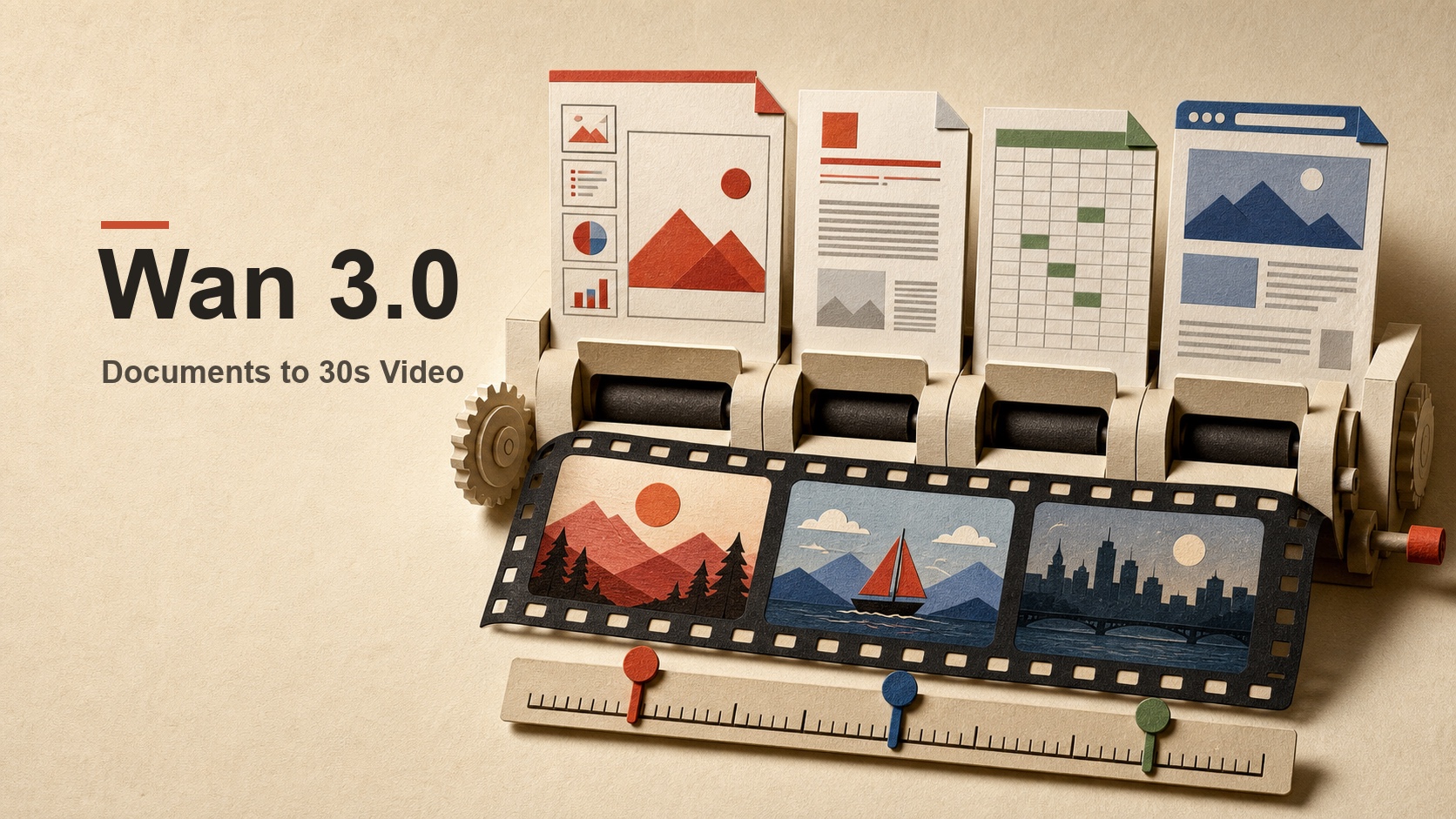
Learn how Wan 3.0 document to video handles PPT, PDF, spreadsheets, and webpages, with practical prompts, a 30-second workflow, current access, and limits.
Wan 3.0 document to video is a reference-driven workflow: a presentation, report, spreadsheet, or webpage supplies the source material, while your prompt tells the model what matters and how it should become a video. According to Alibaba Cloud's Wan 3.0 announcement, the model can combine documents with text, images, audio, and video and generate up to 30 seconds in one pass.
It is useful for explainers, product launches, training content, report summaries, and animated data stories. It is not an automatic path to a fact-perfect film: you still need to select the message, define the sequence, and review the result.
If you already have a visual concept, you can try Wan 3.0 in SuperMaker with a text prompt or source image while using the document workflow below to prepare a clearer video brief.
Wan 3.0 Document to Video at a Glance
| Question | Practical answer |
|---|---|
| What can become a source? | PPT, PDF, DOC, XLS, TXT, Markdown, Apple office formats, or one webpage link, according to Alibaba Cloud's release information. |
| What does the document do? | It supplies facts, structure, visuals, and context that the prompt can organize into a video. |
| How long can the result be? | Up to 30 seconds in a single generation on officially supported Wan 3.0 routes. |
| Can it create multiple shots? | Yes. A prompt can define a sequence of scenes, transitions, camera changes, and timing. |
| Does it create audio? | Wan 3.0 supports integrated audiovisual generation, but narration, pronunciation, and audio texture still need review. |
| Can I upload a document in SuperMaker today? | The current SuperMaker Wan 3.0 workspace exposes text-to-video, image-to-video, and video-to-video. Direct PPT, PDF, or spreadsheet upload is not currently shown. |
How Wan 3.0 Document to Video Works
A document-to-video request combines two kinds of direction. The source document provides facts, structure, and visual references. The prompt decides what the viewer should understand, which details deserve screen time, and how the story should progress.
A practical pipeline looks like this:
- Wan 3.0 reads the source file or webpage.
- The model identifies headings, key ideas, data, and useful visual cues.
- Your prompt prioritizes the message and defines the audience.
- The model maps the selected content to scenes, camera direction, narration, sound, and pacing.
- You review factual accuracy, on-screen text, charts, branding, and audio before using the result.
Think of this as giving a director a research packet, not pressing a universal “convert” button. A focused brief is more useful than “turn the whole document into a video.”
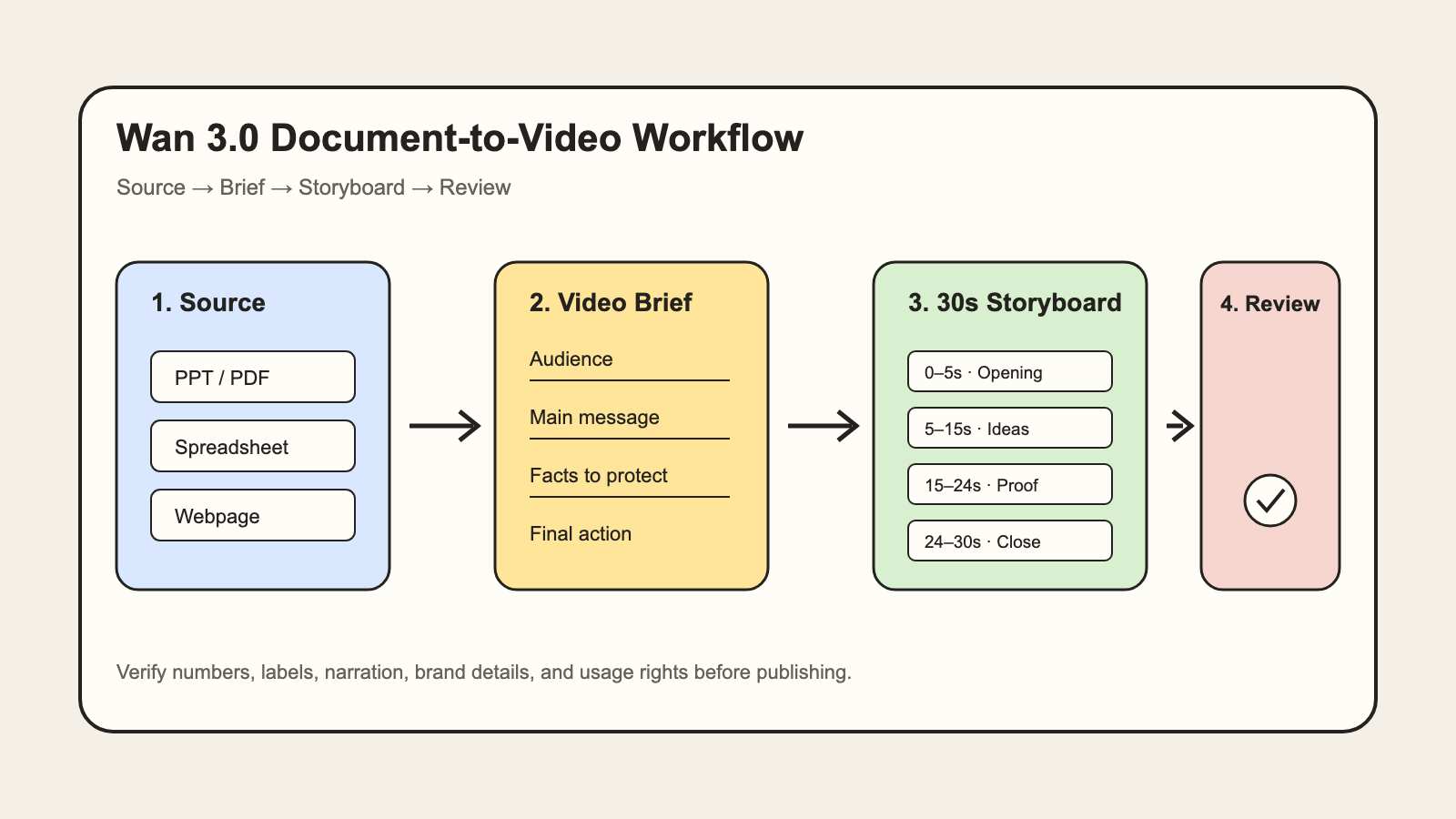
Choose the source, write a focused brief, plan the sequence, and verify the result.
How to Handle PPT, PDF, Excel, and Webpages
Different source types need different instructions. The following planning matrix helps prevent the model from treating every file in the same way.
| Source | Best starting angle | What to tell the model | What to check |
|---|---|---|---|
| PowerPoint or Keynote | Preserve the presentation's main narrative | Identify the three most important slides, audience, tone, and final takeaway | Slide text, product names, sequence, logos |
| PDF or Word report | Condense a dense document into one argument | Name the target reader and the facts that must survive compression | Numbers, quotes, attribution, oversimplification |
| Excel or Numbers sheet | Turn one trend or comparison into a visual story | Specify the range, metric, time period, and conclusion | Labels, values, units, chart direction |
| Webpage | Transform one public page into a short explainer or promo | State which section matters and what action the viewer should take | Freshness, page ownership, pricing, links, claims |
- PPT or Keynote: choose one outcome instead of copying every slide. Treat slide headings as story beats and identify the slides that contain the decisive facts.
- PDF or Word report: name the authoritative sections and what may be omitted. A useful structure is problem → evidence → implication.
- Excel or Numbers: specify the exact range, units, time period, and conclusion. Treat generated charts as drafts and rebuild critical labels before publication.
- Webpage: state whether the page is being summarized, promoted, or taught. Record the source date when pricing, availability, or event information may change.
A Reusable Wan 3.0 Document Prompt Formula
Use this structure instead of asking the model to convert everything:
Create a [duration] video for [audience] using the attached [source type]. Focus on [one main message] and preserve [facts, products, characters, or brand details]. Structure the video as [number] scenes: [opening], [development], and [ending]. Use [visual style], [camera direction], and [pacing]. Include [narration, dialogue, music, or sound effects]. Do not invent statistics or claims that are not in the source. End with [final takeaway or action].
Example Prompts
PPT product launch:
Create a 30-second product launch video from this presentation for small-business owners. Focus on the improvements shown on slides 4, 7, and 10. Begin with the daily problem, introduce the product, then show the improved outcome. Use clean commercial lighting and concise narration. Preserve the product name and every stated figure.
Spreadsheet data story:
Create a 20-second data story from the quarterly results in columns B through E. Show the increase across Q1–Q4 and emphasize Q4 as the highest value. Use simple animated bars, clear unit labels, and one smooth camera move. Keep every number faithful to the spreadsheet.
After you have extracted the core message, you can build a first visual draft with Wan 3.0 on SuperMaker using the summary as a text prompt or a selected source image.
Planning a 30-Second Multi-Shot Video
Thirty seconds creates room for a story—and more opportunities for drift. Use a simple timing plan:
- 0–5 seconds: Establish the problem, topic, or visual setting.
- 5–15 seconds: Present the first two key ideas or the main trend.
- 15–24 seconds: Show the outcome, proof, or transformation.
- 24–30 seconds: Deliver the conclusion and final visual beat.
Write the ranges into the prompt when order matters. Define the camera, consistency requirements, transitions, and whether the audio should use narration, dialogue, ambient sound, or music. A single statistic may need only 10 seconds; use the full duration only when the story needs it.
Current Access and Region Differences
Alibaba Cloud presents Wan 3.0 through Model Studio. Model Studio uses region-specific endpoints, API keys, deployment scopes, and model lists. The official region documentation recommends checking the live list for your selected region rather than copying an endpoint from an older tutorial. Console features, quotas, and pricing may also differ.
SuperMaker is a separate browser-based creation route. As of August 25, 2026, its Wan 3.0 page visibly supports:
- text-to-video;
- image-to-video;
- video-to-video;
- 5-, 10-, and 15-second duration options;
- 720p and 1080p output options.
Direct document and webpage input, along with a 30-second option, are not currently displayed in the SuperMaker interface. Use SuperMaker for the supported text, image, and video workflows, and treat document-to-video as a planning and official-route workflow until those inputs appear in the product.
For a broader overview of the model's longer scenes and reference workflows, read the existing SuperMaker Wan 3.0 guide.
Limits to Check Before Publishing
- Source limits: Alibaba Cloud lists one file or link per request, up to 100 MB and 50 pages.
- Text accuracy: Names, captions, chart labels, and interface text may need correction.
- Audio review: Check pronunciation, timing, dialogue, and music balance.
- Data fidelity: Reconcile every important number with the original spreadsheet or report.
- Brand consistency: Confirm logos, packaging, colors, and product details across shots.
- Rights and privacy: Upload only material you are authorized to process, especially internal reports and customer data.
- Information density: Reduce the source to one message instead of forcing every page into 30 seconds.
Alibaba Cloud notes that audio texture and on-screen text accuracy still have room to improve. Treat the first output as a draft.
Frequently Asked Questions
Can Wan 3.0 turn a PowerPoint into a video?
Official Wan 3.0 materials list PPT among the supported document inputs. The prompt should still identify the most important slides, audience, sequence, and final takeaway. SuperMaker's current Wan 3.0 interface does not yet show direct PPT upload.
Does Wan 3.0 generate 30-second videos with audio?
Wan 3.0 officially supports generation up to 30 seconds and integrated audiovisual output on supported routes. Available duration and audio controls can differ by product or region. SuperMaker currently displays 5-, 10-, and 15-second options on its Wan 3.0 page.
Is document-to-video fully automatic?
It can automate source interpretation, scene planning, video generation, and sound, but it does not eliminate selection or verification. You still need to choose the message and check facts, text, charts, branding, and audio.
Turn the Document Into a Clear Video Brief
Decide what the audience should remember, reduce the source to a few story beats, protect the facts that cannot change, and write a timed visual direction. Then open Wan 3.0 in SuperMaker and test the scene with a text prompt or source image—without implying that document upload or 30-second generation is already available in the SuperMaker workspace.