

More AI Image Generators
Explore our collection of specialized AI image generators designed for different creative needs and styles




Add Pumpkin To Photo Online With AI
Keep Your Scene, Add Autumn Decorations
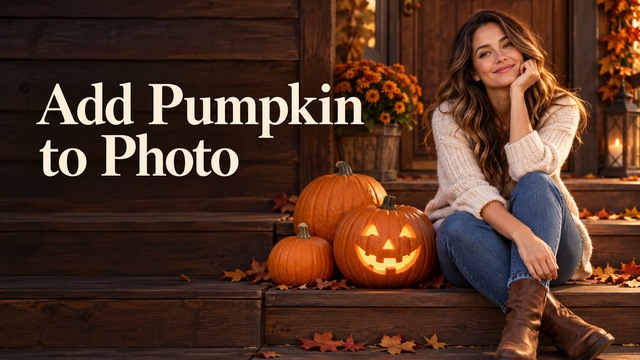
Add pumpkin to photo online with SuperMaker. Place realistic pumpkins, glowing jack-o'-lanterns, and festive Halloween decorations into your pictures while keeping the original scene recognizable. Describe the number, position, and style you want, then review the edited image. AI editing aims to preserve people, pets, clothing, and surroundings, but small details can change. The artwork below is an original creative illustration, not a verified model result.
How To Add Pumpkin To Photo Online
Add pumpkin to photo with one uploaded image and a clear placement request. Start with open space, make a simple edit, and compare the result against your original before downloading.
Upload Your Photo
Choose a clear photograph you own or have permission to edit. Keep the subject fully visible and leave room on the ground or table. To add pumpkin to photo online, begin with a sharp image showing the surface where decorations should rest.
Add Your Pumpkin
Describe the pumpkin count, placement, size, and style. Ask for one pumpkin beside a person or pet, then specify matching daylight or a warm lantern glow. Add pumpkin to photo using simple instructions; inspect the result before requesting a more complex arrangement.
Download Your Image
Preview the generated picture and compare faces, fur markings, clothing, and background lines with the source. Check that each pumpkin touches a surface and casts a believable shadow. Refine the prompt if needed, then download the edited image when the result suits your project.
Best AI Image Tools for Creative Projects
Explore creative tools for image, learn tips and tricks, and see how AI can be your assistant in turning concepts into finished projects.











Add Pumpkin To Photo With Five Seasonal Styles
Original creative effect illustrations for portraits, pets, porches, glowing lanterns, and playful cartoon decorations.
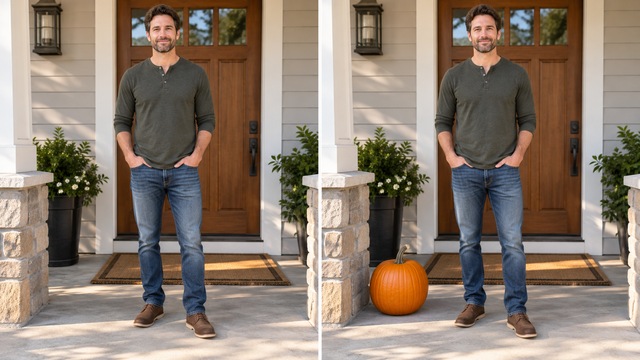
Realistic Pumpkin Addition
Add pumpkin to photo online to give an ordinary portrait an autumn prop. Copy this prompt and adapt the location:
SOURCE IMAGE: Use my uploaded photo. PUMPKIN COUNT: One orange pumpkin. PLACEMENT: Ground beside the person. LIGHTING: Match source daylight. SHADOW: Soft contact shadow. PERSPECTIVE: Follow the ground plane. PRESERVATION: Keep faces, clothing, objects, and framing recognizable. NEGATIVE CONSTRAINTS: No head replacement, floating objects, extra pumpkins, or text.
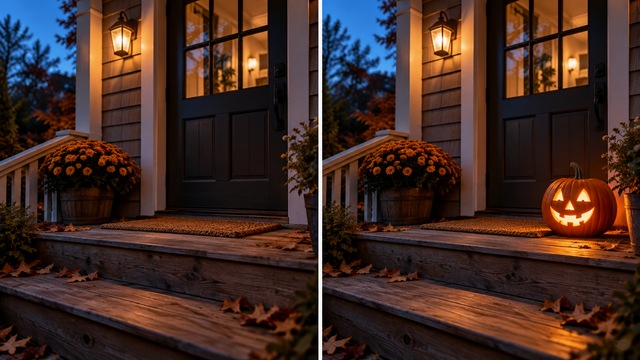
Glowing Jack-o'-Lantern
Add pumpkin to photo online with an original carved lantern. Use this prompt to add pumpkin to photo with believable illumination:
SOURCE IMAGE: Uploaded doorstep photo. PUMPKIN COUNT: One friendly carved lantern. PLACEMENT: Stable wooden step. LIGHTING: Gentle internal amber glow, subtle nearby reflection. SHADOW: Grounded contact shadow. PERSPECTIVE: Match the steps. PRESERVATION: Keep architecture and composition. NEGATIVE CONSTRAINTS: No floating lantern, extra objects, logos, or character faces.
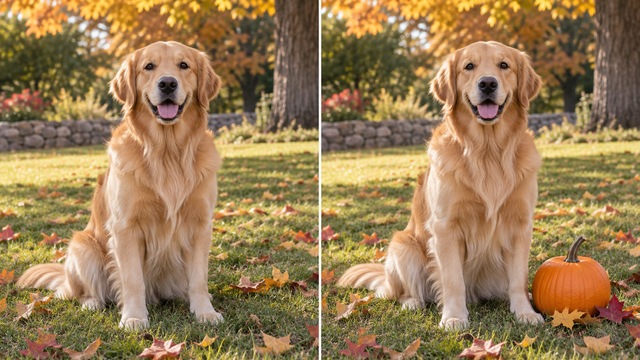
Pumpkins For Pet Photos
Add pumpkin to photo online for a seasonal pet portrait without dressing up your animal. Add pumpkin to photo with a request to retain distinctive markings:
SOURCE IMAGE: My uploaded pet photo. PUMPKIN COUNT: One small pumpkin. PLACEMENT: Beside the animal, clear of paws. LIGHTING: Match existing light. SHADOW: Soft grounding shadow. PERSPECTIVE: Same camera angle. PRESERVATION: Keep fur markings, ears, eyes, pose, and proportions. NEGATIVE CONSTRAINTS: No pet transformation, duplicate paws, extra animals, or text.
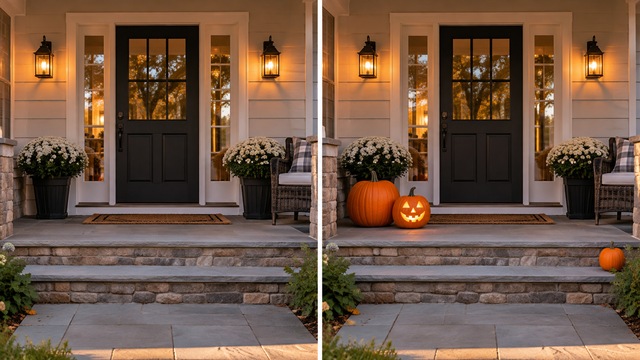
Halloween Porch Decorations
Add pumpkin to photo online to explore a porch arrangement before moving real decorations. Add pumpkin to photo using a specific layout:
SOURCE IMAGE: Uploaded porch photo. PUMPKIN COUNT: Three pumpkins. PLACEMENT: Two near the door, one beside the steps. LIGHTING: Match outdoor light; one subtle lantern glow. SHADOW: Contact shadows beneath each pumpkin. PERSPECTIVE: Follow porch lines. PRESERVATION: Retain doors, windows, furniture, and framing. NEGATIVE CONSTRAINTS: No structural changes, duplicates, floating objects, or text.
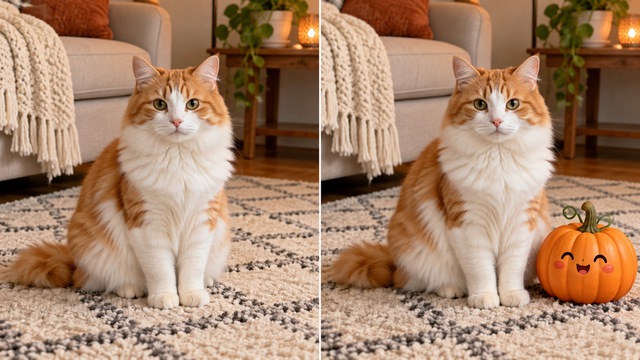
Cute Cartoon Pumpkin Effects
Add pumpkin to photo online for a playful mixed-media picture. Try this direction:
SOURCE IMAGE: Uploaded indoor photo. PUMPKIN COUNT: One cartoon pumpkin. PLACEMENT: Rug beside the cat. LIGHTING: Match room brightness. SHADOW: Believable grounding shadow. PERSPECTIVE: Match floor angle. PRESERVATION: Keep the cat, furniture, and composition recognizable. NEGATIVE CONSTRAINTS: No character copies, pet transformation, extra pumpkins, text, or logos.
Ideas To Add Pumpkin To Photo
Add pumpkin to photo online for personal seasonal pictures or decoration concepts. These are creative suggestions, not customer endorsements.
Add Pumpkin To Portrait
Add pumpkin to photo beside a seated person, keeping the face, outfit, and natural pose recognizable.
Halloween Family Photo
Arrange small decorations around the group without covering hands, faces, or the space between people.
Cat With Halloween Pumpkin
Add pumpkin to photo beside your cat, with a small prop that leaves whiskers and paws clear.
Dog With Pumpkin Decoration
Use a low pumpkin beside your dog and check that fur markings and body proportions remain recognizable.
Front Porch Pumpkin Display
Try a balanced doorstep arrangement while keeping architecture, door handles, railings, and furniture in place.
Cozy Autumn Garden Photo
Add pumpkin to photo among existing plants; use smaller props farther away and respect garden perspective.
Glowing Jack-o'-Lantern Scene
Request a restrained amber glow on nearby surfaces instead of changing every light in the picture.
Cute Cartoon Pumpkin Edit
Pair photographic surroundings with one friendly illustrated pumpkin for a deliberate mixed-media seasonal look.
Halloween Social Media Photo
Add pumpkin to photo online, choose a suitable frame, and label AI edits clearly when sharing.
Fall-Themed Product Photography
Keep the product and its details visible; review branding and obtain the rights needed for your intended use.
Example Reactions To Pumpkin Photo Edits
Demonstration placeholders, not verified customer testimonials. These illustrative reactions describe creative goals; they do not report actual customer experiences or guaranteed results.
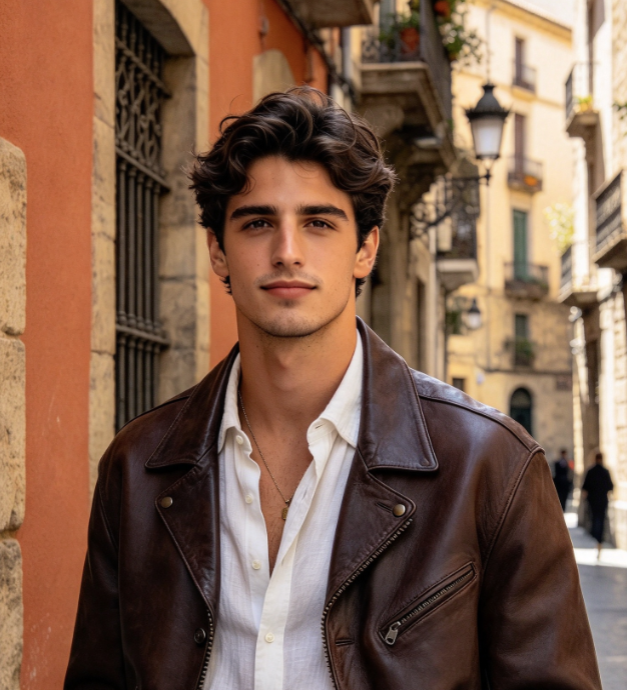
A small pumpkin beside the subject feels festive without overwhelming the portrait. Natural scale and a soft shadow would keep the decoration grounded and the person recognizable.
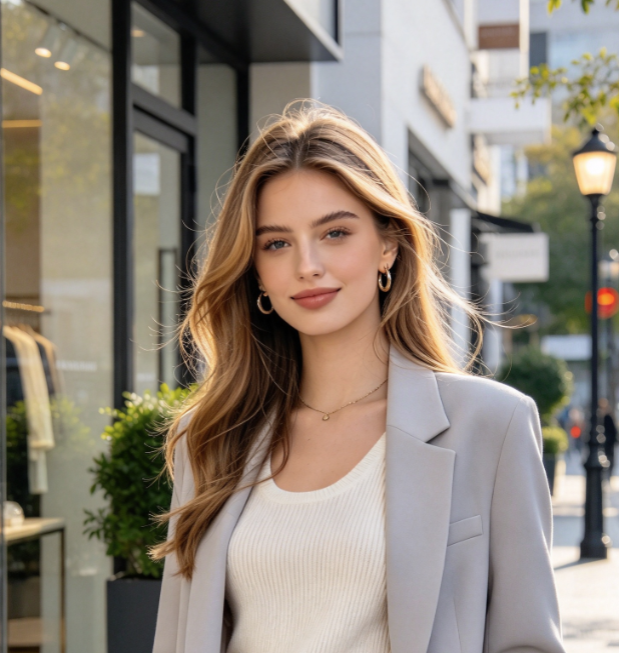
The gentle autumn mood suits a pet picture. Keeping paws clear and fur markings recognizable matters more than adding lots of props or making the scene dramatic.
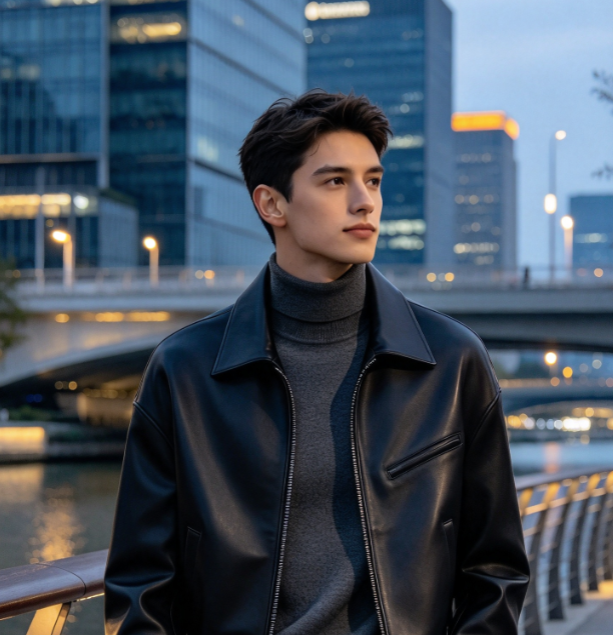
Three pumpkins near the doorway create a welcoming seasonal arrangement. A balanced layout would leave the steps visible and keep the original architecture easy to recognize.
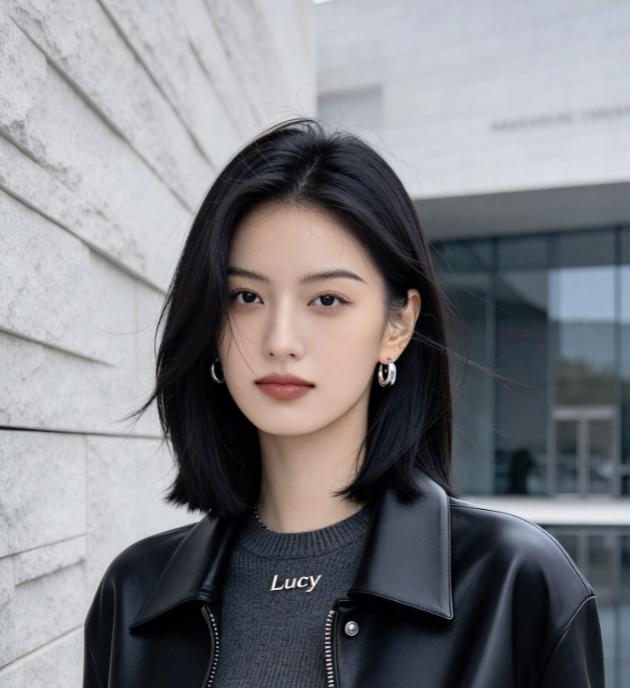
A restrained amber glow feels cozy and believable at dusk. Light touching nearby wood would make the lantern more convincing than bright orange lighting across the whole picture.
Add Pumpkin To Photo FAQ
Learn how to add pumpkin to photo online and review the practical limits before editing.
Upload one clear photo you own or have permission to edit. Describe the pumpkin count, placement, size, and style, then generate and inspect the result. To add pumpkin to photo, start with one simple decoration and refine the prompt if needed. The AI Image Maker offers broader image creation options.
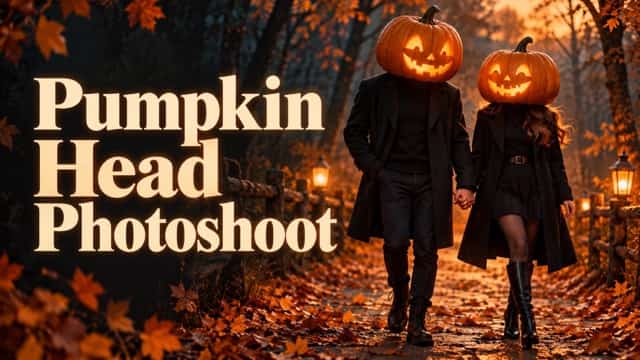
The editor aims to keep people, pets, clothing, and surroundings recognizable, but AI may redraw small details. Ask to add pumpkin to photo beside the subject and name the features to preserve. Compare faces, fur markings, and anatomy with your original. Pumpkin Head Photoshoot is a separate effect that replaces a head rather than adding decorations.
Request a realistic orange pumpkin, a glowing jack-o'-lantern, an autumn arrangement, or an original cute cartoon decoration. You can add pumpkin to photo beside a person, cat, or dog, or decorate a porch. Describe the style in the prompt; these ideas are not separate preset buttons. Start with a modest count to reduce clutter and overlap.
Guide placement with clear references such as beside the left step, near the door, or on the table. To add pumpkin to photo naturally, specify relative size, lighting direction, and contact shadows. Text instructions guide the model but do not guarantee precise coordinates. This page has no verified mask brush or pixel-level area selection.
Image generation uses credits. Check the current requirement beside Generate Image and your account balance before starting. Any introductory credits or promotions depend on the current account offer; this page does not promise unlimited free editing. Begin with one clear request and inspect the result before deciding to spend credits on another variation.
After you add pumpkin to photo online, preview the completed image and use its download control. The uploader lists JPG and PNG with a 10MB limit; check the downloaded file for its actual format and dimensions. Before commercial use, review current service terms, source-photo permissions, likeness rights, and third-party rights. AI editing does not grant unrestricted commercial permission.
Add Pumpkin To Photo With AI
Add pumpkin to photo online with your own picture and a clear decoration idea. Describe the count, placement, and style, then preview the result before downloading. This independent tool is not affiliated with, endorsed by, or sponsored by any entertainment franchise. Example decorations use general Halloween and autumn aesthetics.