


More AI Image Generators
Explore our collection of specialized AI image generators designed for different creative needs and styles






Change Color of Image Online with AI
Recolor any object while preserving texture, lighting, and detail
Change Color of Image in seconds with an AI Image Color Changer designed for selective recoloring. Upload a photo, choose the object or area you want to edit, describe the new color, and let AI handle the transformation. The Photo Color Changer keeps the rest of the image unchanged while preserving natural shadows, highlights, textures, and material detail. Use Change Color of Image for products, clothes, cars, furniture, accessories, and creative photos without rebuilding the scene or masking every edge by hand.

How to Change Color of Image
Use the Image Color Changer to Change Color of Image in three simple steps. Upload your photo, identify the object or color you want to replace, and choose the new shade. The Photo Color Changer applies the edit while keeping the original composition, lighting, and surrounding elements as consistent as possible.

Upload Your Image
Choose a clear photo of the product, person, car, furniture, accessory, or object you want to recolor. To Change Color of Image accurately, start with a photo where the target area is visible. The Image Color Changer works best when the object has recognizable edges and enough detail for AI to separate it from nearby elements.

Select What You Want to Recolor
Tell the Photo Color Changer which object or area should change. You can specify a shirt, handbag, car body, wall, sofa, product package, or another visible element. When you Change Color of Image, clear instructions help AI focus on the intended region instead of applying a color shift to the entire photo.

Choose a New Color and Download
Pick or describe the target shade, then let the Image Color Changer render the result. Review the recolored object, check edges and lighting, and download the finished image. The Photo Color Changer makes it easy to Change Color of Image for quick visual tests, marketing assets, product variations, or personal creative edits.
Best AI Image Tools for Creative Projects
Explore creative tools for image, learn tips and tricks, and see how AI can be your assistant in turning concepts into finished projects.
















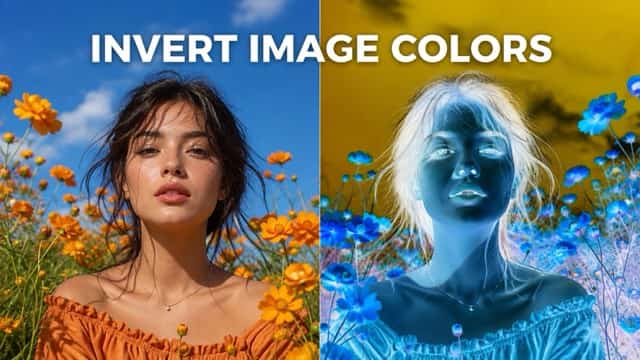
A Smarter Way to Change Color of Image
A useful recoloring tool should do more than shift hue across the whole photo. Our Image Color Changer is built to identify the target object, preserve surrounding content, and maintain realistic texture and light. With the Photo Color Changer, you can Change Color of Image selectively and create believable color variations without rebuilding the original scene.

Selective Object Recoloring
Change Color of Image by editing only the object that needs a new shade. The Image Color Changer can focus on clothing, products, furniture, vehicles, packaging, accessories, and other clearly visible elements while leaving unrelated areas untouched. Instead of applying a global tint, the Photo Color Changer interprets the requested object and targets that region. This makes Change Color of Image useful when the original photo is already good and you only want one controlled visual change.

Preserve Texture, Shadows, and Highlights
A believable recolor should still look like the same material under the same light. When you Change Color of Image, the Image Color Changer aims to preserve fabric folds, leather grain, metallic reflections, glossy surfaces, shadows, and highlights. The Photo Color Changer changes the color while respecting the visual structure already present in the image. This helps Change Color of Image produce a more natural result than simply painting a flat layer over the object.

Create Multiple Color Variations
Use Change Color of Image to explore different visual options before producing, buying, painting, or publishing anything. The Image Color Changer lets you test several shades on the same source image, making side-by-side comparison easier. A Photo Color Changer is especially useful for ecommerce products, apparel, interiors, automotive concepts, and branded assets where color choice affects the final decision. Change Color of Image repeatedly to compare a neutral version, a bold version, and a brand-matched version without reshooting the scene.

Recolor Without Complex Manual Masking
Traditional recoloring can require careful selections, masks, adjustment layers, and edge cleanup. The Image Color Changer simplifies that process by using AI to interpret the target object and requested shade. With the Photo Color Changer, you can Change Color of Image using a direct instruction instead of tracing every boundary yourself. This makes Change Color of Image faster for creators, sellers, marketers, and casual users who want a focused edit without learning a complicated desktop workflow.
Where to Change Color of Image
Change Color of Image whenever one visual element needs a new color but the rest of the photo should stay familiar. The Image Color Changer supports product, fashion, automotive, interior, marketing, and everyday creative workflows. The Photo Color Changer is most useful when the original composition already works and color is the only variable you want to explore.

Products and Ecommerce
Change Color of Image to create product color variations from one strong source photo. Sellers can use the Image Color Changer to preview bags, shoes, accessories, packaging, electronics, home goods, or other products in different shades. The Photo Color Changer can help visualize a product line before every variant is photographed. Change Color of Image for catalog concepts, listing previews, campaign planning, and quick color comparisons while keeping the product shape and scene consistent.

Clothing and Fashion
Use Change Color of Image to see how a dress, jacket, shirt, shoes, or accessory looks in another color. The Image Color Changer helps preserve folds, stitching, highlights, and fabric texture while adjusting the selected garment. A Photo Color Changer can support outfit planning, fashion concepts, colorway previews, and social content. Change Color of Image when you want to compare several styles without changing the model, pose, or background.

Cars and Automotive Concepts
Change Color of Image to preview a vehicle in a different paint color before committing to a finish. The Image Color Changer can recolor the car body while retaining windows, wheels, reflections, shadows, and surrounding scenery. The Photo Color Changer is useful for personal customization ideas, dealership visuals, concept presentations, and marketing experiments. Change Color of Image to compare classic, metallic, neutral, or bold paint choices using the same car photo.

Furniture and Interior Design
Use Change Color of Image to test a sofa, chair, cabinet, wall, curtain, or decorative object in another shade. The Image Color Changer helps you explore how a new color works with the existing room before making a physical change. With the Photo Color Changer, designers and homeowners can compare palettes while keeping the layout and lighting familiar. Change Color of Image for mood boards, renovation ideas, client previews, and decorating decisions.
Why Users Choose Our Image Color Changer
People use Change Color of Image when they need quick visual answers without recreating a photo from scratch. The Image Color Changer reduces manual editing, while the Photo Color Changer helps users compare color options in a familiar scene. From product planning to personal projects, Change Color of Image keeps the workflow focused on the one thing that actually needs to change.
I use Change Color of Image when a client wants to see the same product in several possible colorways. The AI recoloring tool gives me a fast starting point without rebuilding every mockup. I can use the recoloring tool to compare options, then Change Color of Image again when the client asks for a new shade.
For clothing concepts, I often need to Change Color of Image while keeping the model and lighting identical. The AI recoloring tool makes that comparison much clearer. The recoloring tool is useful when I want to test a few directions before deciding which color is worth developing further.
I wanted to see my car in a darker blue before choosing a wrap. I used Change Color of Image and could compare the result against the original photo. The AI recoloring tool kept the reflections visible, and the recoloring tool made the idea much easier to visualize.
When planning a room refresh, I use Change Color of Image to test furniture and wall colors before buying anything. The AI recoloring tool lets me keep the same room and lighting, while the recoloring tool helps me compare several palette ideas quickly.
Our marketing team uses Change Color of Image for early campaign concepts. Instead of requesting a new shoot for every idea, the AI recoloring tool helps us explore alternatives first. The recoloring tool is especially useful when a campaign needs to match a seasonal or brand color.



Change Color of Image FAQ
Learn how to Change Color of Image with AI, what the Image Color Changer can recolor, and when a Photo Color Changer is useful for products, clothing, cars, furniture, and other visual edits.
Upload your photo, identify the object or area you want to recolor, and specify the new shade. The Image Color Changer analyzes the target region and applies the requested color while trying to preserve texture, light, and surrounding details. Use the Photo Color Changer when you want to Change Color of Image without manually building selections and masks.
Yes. The goal of the AI recoloring tool is selective recoloring rather than applying one tint across the whole picture. Describe the specific object, such as a shirt, bag, car, sofa, wall, or package. The recoloring tool can then Change Color of Image in the target area while keeping unrelated parts of the photo as consistent as possible.
Yes. Product images are one of the most practical reasons to Change Color of Image. The Image Color Changer can help visualize different colorways from the same product photo while maintaining the original angle and composition. Use the Photo Color Changer for early product concepts, listing previews, campaign planning, and color comparisons.
The tool is designed to preserve the visible structure of the original object as much as possible. When you Change Color of Image, the AI considers texture, folds, reflections, highlights, and shadows instead of simply covering the object with a flat color. Results can vary with image quality, but a clear source photo usually gives the Photo Color Changer more visual detail to work with.
You can Change Color of Image for many visible objects, including clothing, products, vehicles, furniture, accessories, packaging, walls, and decorative elements. The AI recoloring tool works best when the target is clearly visible and distinguishable from nearby objects. The recoloring tool is especially helpful for edits where color changes but shape, pose, and composition should remain familiar.
No. The Image Color Changer is designed to reduce the manual work normally required for selective recoloring. You describe what should change and the new color you want, then review the result. The Photo Color Changer makes it easier to Change Color of Image for quick experiments, marketing visuals, personal projects, and creative planning without a complex desktop editing workflow.
Change Color of Image in Seconds
Turn one photo into multiple color possibilities with AI. Use the Image Color Changer to recolor products, clothes, cars, furniture, and other objects while preserving the original scene. The Photo Color Changer helps you Change Color of Image quickly, compare new shades, and create polished visual variations without complex manual editing.