More AI Image Generators
Explore our collection of specialized AI image generators designed for different creative needs and styles








Invert Image Colors Online for Free
Create Striking Negative Effects with an Easy Image Color Inverter
Invert Image Colors instantly with a fast, beginner-friendly online tool. Upload your photo, reverse every color, preview the result, and download a high-quality image without complicated editing software. The Image Color Inverter transforms black into white, red into cyan, green into magenta, and blue into yellow while preserving the original composition and important visual details. Whether you want to make a negative photo, reverse black and white artwork, experiment with complementary colors, or produce distinctive graphics, this tool helps you Invert Image Colors in a simple creative workflow. Invert Image Colors whenever you need a quick, accurate negative effect without manual adjustments.
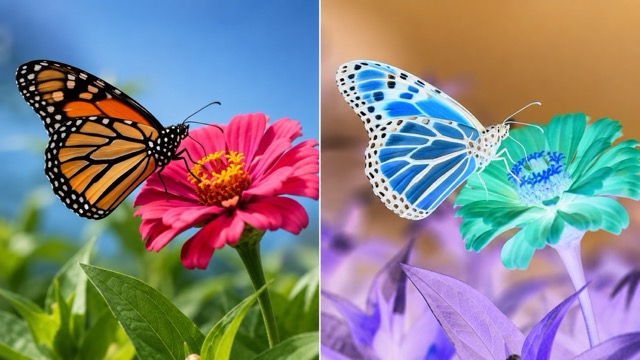
How to Invert Image Colors Online
You do not need Photoshop or advanced color-editing skills to Invert Image Colors. The process takes three simple steps, allowing anyone to reverse photo colors within moments. Use the online Image Color Inverter to Invert Image Colors quickly from upload to download.

Upload Your Image
Upload the photo or graphic you want to edit. Clear, high-quality images usually produce the best results when you Invert Image Colors.

Apply the Inverted Color Effect
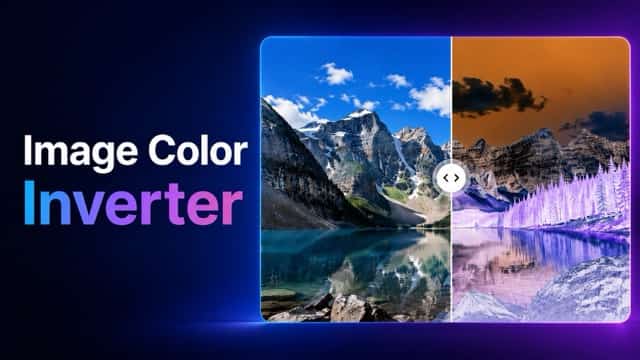
Apply the effect to Invert Image Colors automatically. Light becomes dark, while each RGB color changes to its complementary value.

Preview and Download
Preview the transformed image, check the details, and download the finished result. It only takes seconds to Invert Image Colors online.
Best AI Image Tools for Creative Projects
Explore creative tools for image, learn tips and tricks, and see how AI can be your assistant in turning concepts into finished projects.













A Smarter Way to Invert Image Colors
A straightforward interface and accurate color reversal give creators an efficient way to explore inverted photography and complementary color effects. Instead of navigating complex editing menus, use the Image Color Inverter to transform a complete image through one focused workflow. Invert Image Colors while keeping the process clear, consistent, and easy to control.
Reverse Every Color with Precision
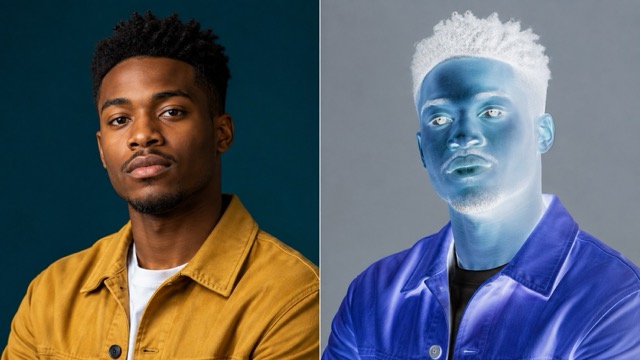
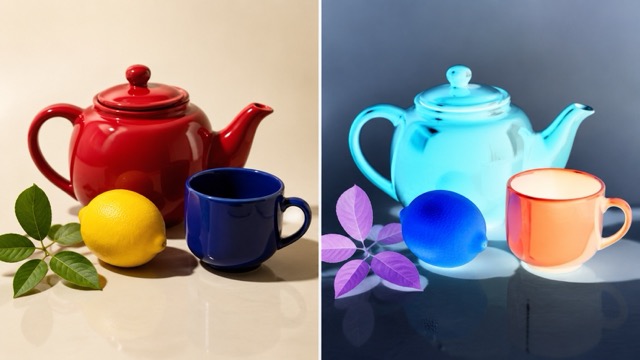
Invert Image Colors across the complete picture while keeping the subject, composition, proportions, and visual structure intact. Standard digital color inversion replaces each RGB channel value with its opposite value. As a result, black changes to white, white changes to black, red changes to cyan, green changes to magenta, and blue changes to yellow. This predictable transformation makes the Image Color Inverter useful for both practical edits and experimental artwork. It does more than reduce brightness or rotate hue: it reverses the relationship between light, shadow, and color throughout the image. Use it when you need a consistent full-image negative effect rather than a manually recolored approximation. Invert Image Colors to apply that relationship evenly across every visible area.
Create Negative Photos Instantly
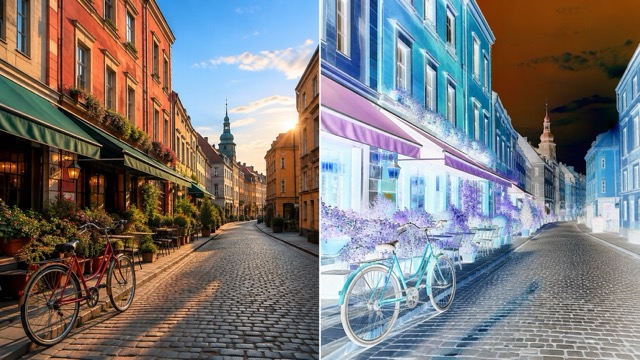
Transform an ordinary picture into a bold negative-style image without building adjustment layers or editing individual channels. When you Invert Image Colors, familiar scenes gain an unexpected visual character: blue skies become warm yellow tones, red objects shift toward cyan, and bright highlights become deep shadows. This makes the Image Color Inverter especially useful for surreal portraits, album artwork, event posters, thumbnails, experimental photography, and attention-grabbing social posts. The effect works best when the source image has clearly defined lighting, strong shapes, or vivid colors. Because the original arrangement remains recognizable, the result feels visually surprising without losing the story of the photograph. Invert Image Colors to explore new palettes while preserving the original scene.
Invert Black and White Images
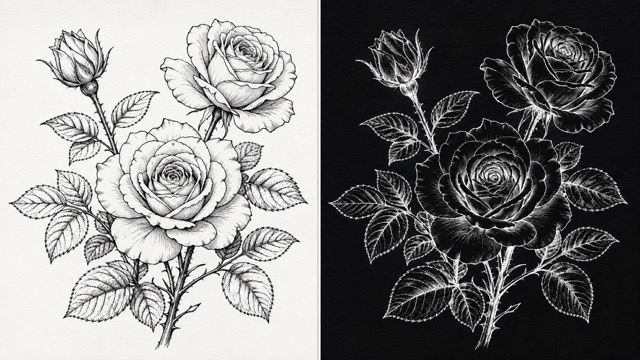
Quickly reverse black and white in an image for line art, logos, scanned notes, diagrams, typography, icons, and monochrome graphics. A design with dark marks on a white background can become a light design on a dark background while its original layout stays recognizable. This is helpful when preparing visual assets for dark presentations, dramatic posters, lightboard recordings, or alternative interface mockups. The Image Color Inverter also makes it easier to test whether outlines and small details remain visible when the tonal hierarchy changes. Instead of recreating the entire design, Invert Image Colors and evaluate the reversed version immediately. Invert Image Colors to prepare an alternative monochrome version without redrawing the source.
Keep Your Workflow Simple
Complex editors often require users to open several panels, create adjustment layers, configure channels, and export through unfamiliar settings. This online workflow removes those unnecessary steps. Upload an image, apply the effect, preview the change, and save the result. This efficient rhythm is ideal for students, photographers, designers, marketers, and casual creators who need to Invert Image Colors without interrupting their work. The online Image Color Inverter is accessible through a browser, so you can start on a desktop, laptop, tablet, or compatible mobile device without committing to a demanding editing application. Invert Image Colors wherever you work without learning a full editing suite.
Creative Ways to Use an Image Color Inverter
Color inversion can solve practical design problems while opening new creative directions. Invert Image Colors for photography, visual communication, digital artwork, social content, and educational projects. Invert Image Colors to test an alternative visual treatment before committing to a larger edit.

Experimental Art and Photography
Invert Image Colors to reveal an alternative version of a familiar scene. Portraits can take on a dreamlike or otherworldly atmosphere, while landscapes can become dramatic compositions filled with unexpected complementary colors. Photographers can use the Image Color Inverter to study tonal relationships, discover hidden patterns, or develop a negative effect before building a larger visual series. Artists can also combine the transformed result with text, grain, collage elements, or transparent overlays to create posters and editorial graphics that feel original rather than template-based. Invert Image Colors to turn familiar photography into a fresh visual experiment.

Social Media and Marketing Graphics
Use inverted visuals to interrupt predictable feeds and make a campaign asset more noticeable. A creator can Invert Image Colors on a portrait for a music announcement, reverse product colors for an experimental teaser, or build a before-and-after carousel that encourages viewers to stop and compare. The Image Color Inverter is also useful for thumbnails, promotional banners, event announcements, and seasonal content. For brand work, review the result carefully to make sure logos, product colors, and required visual elements still communicate the intended identity. Invert Image Colors to create a scroll-stopping variation from an existing campaign asset.

Dark Backgrounds and High-Contrast Designs
Reverse a light visual when you need to explore how it might work against a darker background. This is especially useful for line drawings, handwritten notes, technical diagrams, presentation graphics, and simple monochrome assets. When you Invert Image Colors, dark information can become light and remain visible in a dark layout. However, inversion is not identical to a complete dark-mode conversion, because photographs, brand colors, and skin tones may also change. Use the Image Color Inverter as a fast visual test, then decide whether selective adjustments are needed. Invert Image Colors before refining a dedicated dark-background version.

Learning Color Theory
Students and educators can Invert Image Colors to demonstrate how digital complementary colors relate to one another. Seeing red become cyan, green become magenta, and blue become yellow makes RGB relationships easier to understand than reading definitions alone. The Image Color Inverter can support lessons about negative photography, pixel values, contrast, tonal range, and digital image processing. Learners can test different source images and compare how bright, dark, saturated, and neutral areas respond to inversion, turning a simple editing action into an interactive visual experiment. Invert Image Colors to make abstract RGB relationships visible in a real example.
Why Creators Choose This Tool to Invert Image Colors
From quick classroom graphics to creative campaign assets, users value a tool that makes color inversion clear, fast, and approachable. Invert Image Colors without adding unnecessary complexity to the creative process.
I needed to Invert Image Colors for a dark presentation, but I did not want to open a full desktop editor. The Image Color Inverter gave me a clear result quickly, and the workflow was easy to understand from the first try.
The negative effect helped me turn a straightforward portrait into a much more striking event poster. I could Invert Image Colors, review the new palette, and continue designing without wasting time on manual channel adjustments.
I use the Image Color Inverter when teaching complementary RGB colors. Students immediately understand the relationship when they see black become white and red become cyan in a real image.
Being able to Invert Image Colors online is useful when I am preparing quick social concepts. It lets me test whether a familiar product image can support a more experimental campaign direction before I spend time refining the design.
I wanted to reverse the black and white areas in a scanned illustration. The Image Color Inverter made the change much faster than rebuilding the artwork, and the original lines remained easy to recognize.



Frequently Asked Questions About Inverting Image Colors
Learn how the Image Color Inverter works, what happens to different colors, and how to get better results from your uploaded image. These answers explain when and how to Invert Image Colors effectively.
To Invert Image Colors means to reverse the color value of every pixel. In a standard RGB image, each red, green, and blue channel typically has a value from 0 to 255. Color inversion replaces each value with 255 minus its original value. Black becomes white, white becomes black, red becomes cyan, green becomes magenta, and blue becomes yellow. The resulting picture resembles a photographic negative because both its colors and light-dark relationships are reversed.
Upload your picture to the Image Color Inverter, apply the inversion effect, and preview the transformed result. Once you are satisfied, download the new image. You can Invert Image Colors online without manually selecting individual tones or learning complicated editing software. Starting with a clear, high-resolution source image generally produces the most useful output.
The terms are often used interchangeably for digital effects, but they are not always identical in professional photography. When you Invert Image Colors in a standard digital photo, you produce a negative-style result by reversing RGB values. A scanned color film negative may also contain an orange mask, exposure differences, and film-specific color characteristics. Converting that scan into a natural positive photograph may therefore require additional white-balance, contrast, and color correction after the initial inversion.
Yes. The Image Color Inverter can reverse the tonal values of monochrome images so that black becomes white, white becomes black, and gray values change to their opposite brightness. This is useful for line drawings, signatures, typography, diagrams, notes, logos, and other high-contrast graphics. Review thin lines and compressed images carefully, because the visibility of small details depends on the quality of the original file.
The mathematical process used to Invert Image Colors does not inherently require a reduction in resolution. The final quality can still be affected by the original file, supported output format, compression, and export settings. For better results, begin with the highest-quality version available and avoid repeatedly saving the same image in a heavily compressed format.
Use an Image Color Inverter when you want to create negative photo effects, reverse black and white artwork, explore complementary colors, prepare high-contrast graphics, study tonal relationships, or test an unconventional visual direction. You can also Invert Image Colors for posters, album artwork, classroom demonstrations, presentation assets, social media graphics, thumbnails, and experimental photography. For sensitive brand materials, realistic portraits, or accessibility-critical designs, review the transformed colors before publishing.
Invert Image Colors and Reveal a New Visual Perspective
Turn an ordinary photo into an unforgettable negative effect. Upload your image, reverse its colors with the online Image Color Inverter, preview every change, and create a high-impact result without a complicated editing workflow. Start now to Invert Image Colors for artwork, photography, social content, presentations, and more. Invert Image Colors today and discover a completely different side of your image.