




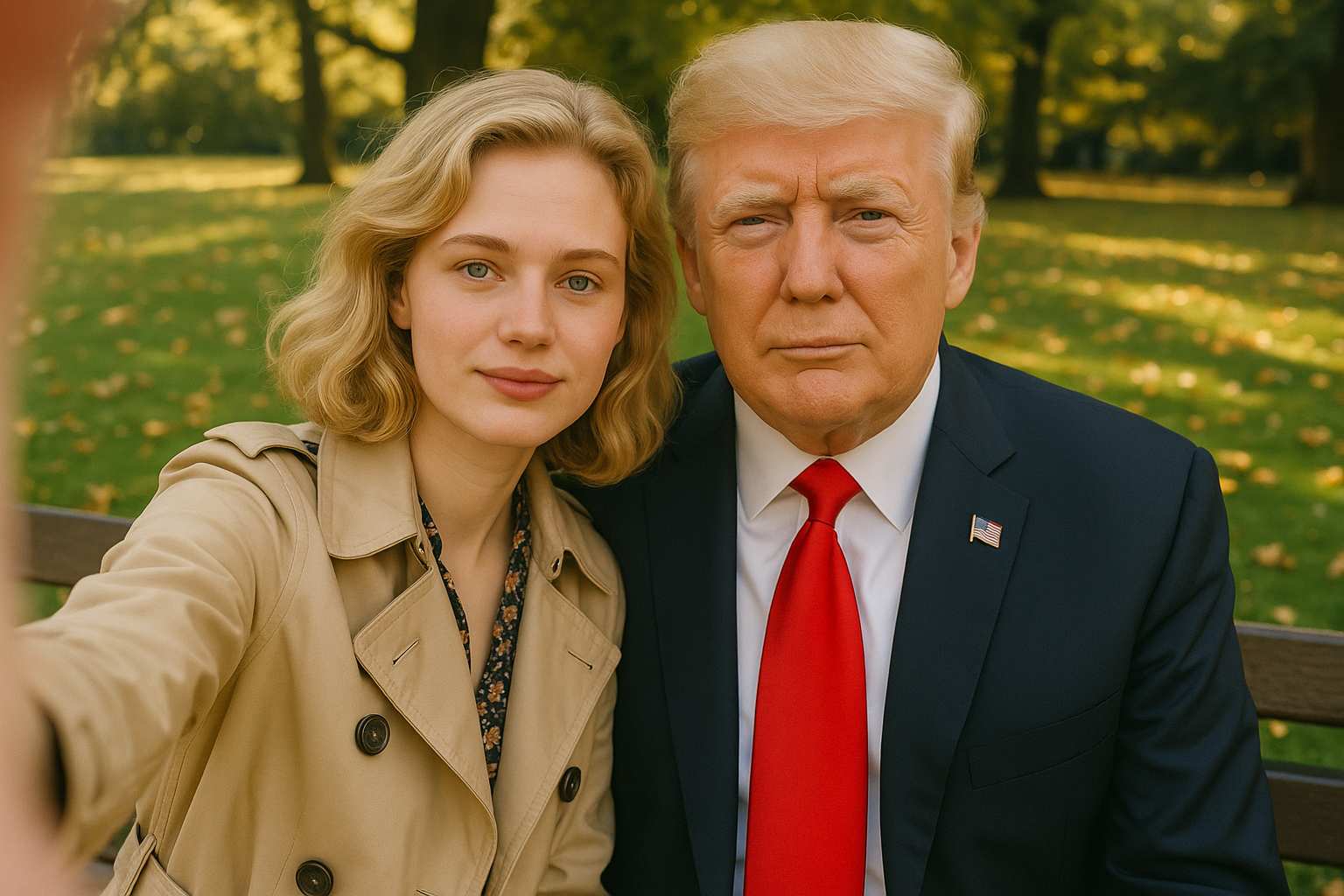
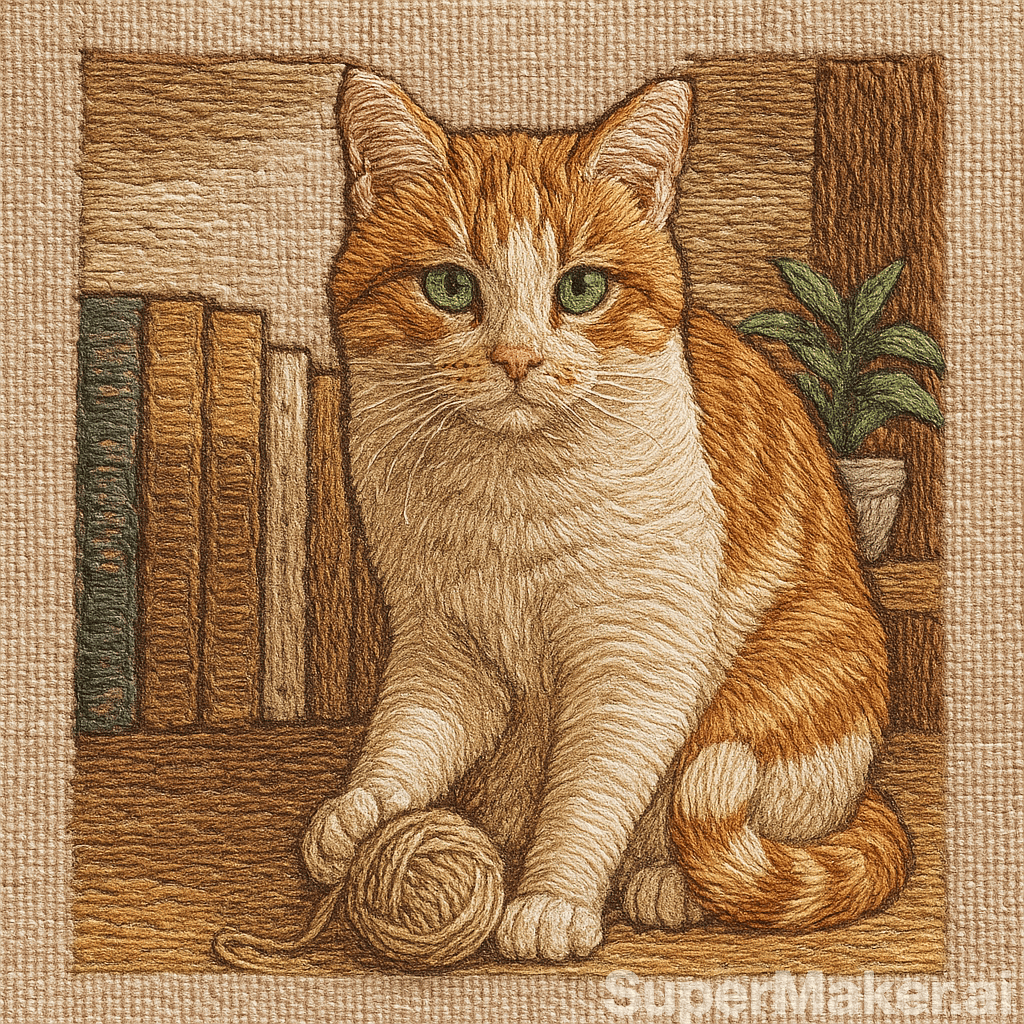

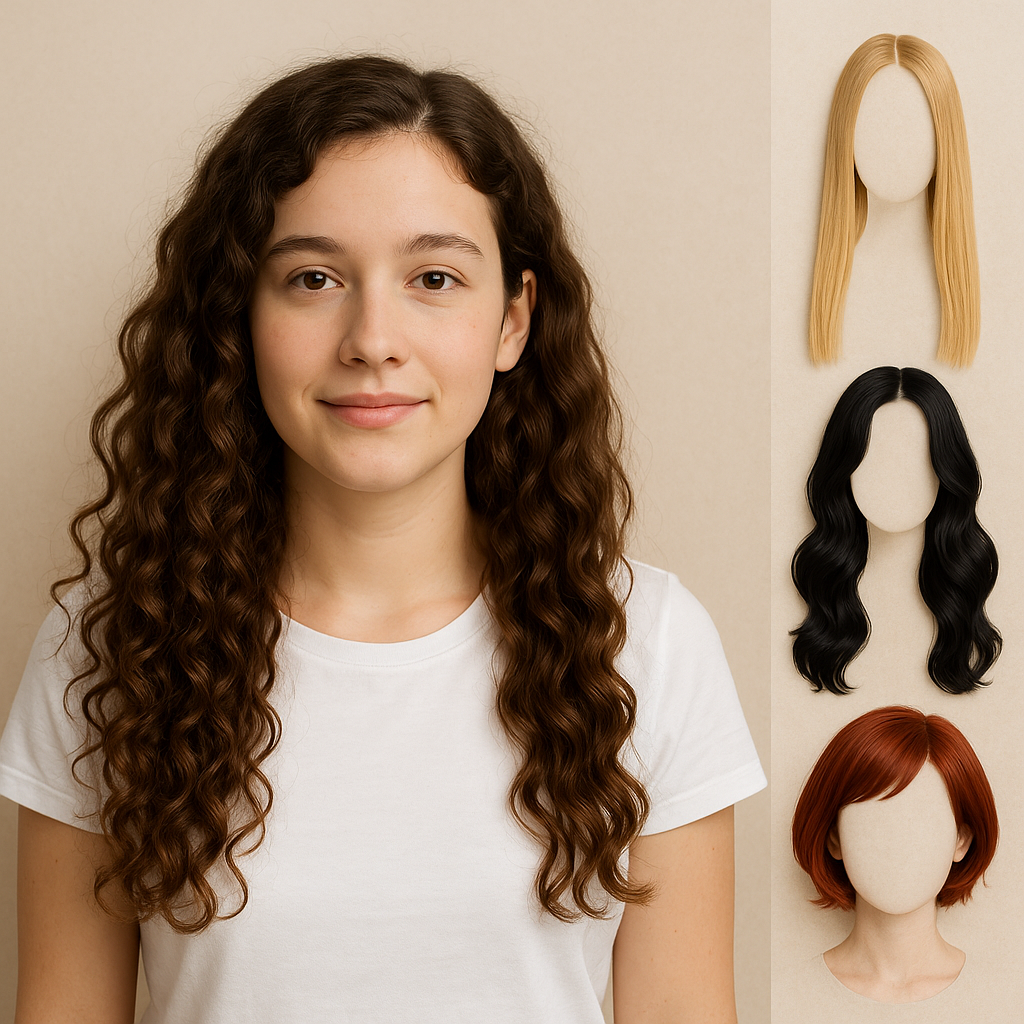

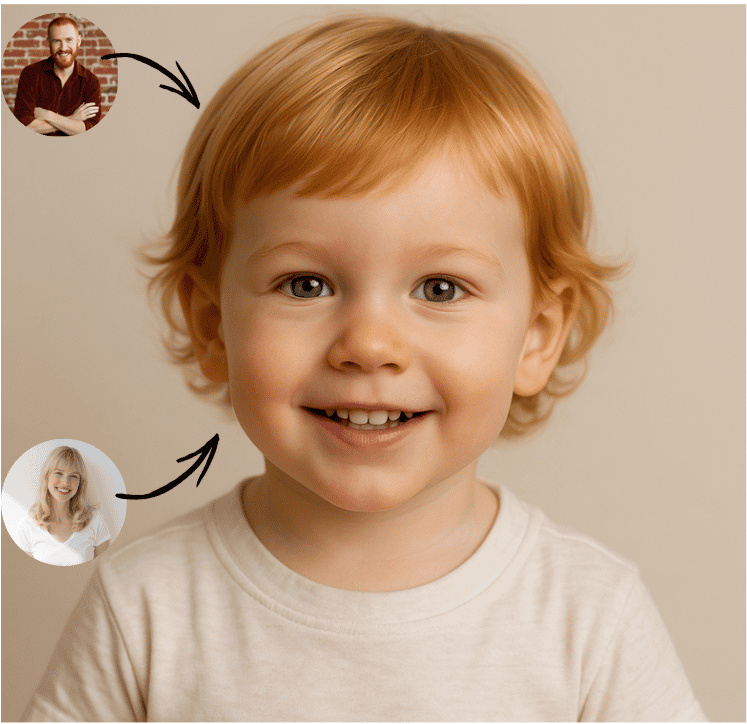


More AI Image Generators
Explore our collection of specialized AI image generators designed for different creative needs and styles








Seedream 5.5 Generator Free Access And Image Guide
Plan Realistic Images, Targeted Edits, And Transparent Assets
Looking for Seedream 5.5 generator free access? Start with a text prompt or upload an image to edit on SuperMaker. ByteDance’s Seedream AI image generator turns descriptions into images and can produce assets with transparent backgrounds. Check your available credits, then bring a brief, a reference, or one specific detail you want to change.
How To Prepare A Seedream 5.5 Generator Free Test
A Seedream 5.5 generator free test is more informative when you have a real brief. Use these steps to prepare one prompt, one optional reference, and a simple way to judge the first output from the Seedream AI image generator. For a Seedream 5.5 generator free comparison, save your original brief so you can reuse the same subject, crop, and lighting across options.

Choose A Single Deliverable
For a Seedream 5.5 generator free trial, pick one deliverable and one success criterion. Ask the Seedream AI image generator for a square coffee bag visual with space above the product. That gives you a clear composition to check before you spend another attempt.

Describe The Light And Materials
Make a Seedream 5.5 generator free test specific. Give the Seedream AI image generator a lighting direction, one or two materials, and a camera angle. For a tabletop scene, try side window light, unglazed clay, and a view from slightly above the table.

Mark What The Edit Should Preserve
For a Seedream 5.5 generator free editing test, start with a clean reference. Ask the Seedream AI image generator to replace the blue mug at the left edge while preserving the tabletop, framing, and other objects. Name the location so the instruction has a clear target.

Review The First Result Before Iterating
Before using another Seedream 5.5 generator free attempt, compare the first result with your brief. Zoom in on edges, confirm the wording, and check the crop at its final size. Give the Seedream AI image generator one correction per round when you need to track what changed.
Best AI Image Tools for Creative Projects
Explore creative tools for image, learn tips and tricks, and see how AI can be your assistant in turning concepts into finished projects.
















What To Test With Seedream 5.5 Generator Free Access
When comparing Seedream 5.5 generator free options, choose a task that makes the model’s strengths visible. ByteDance’s Seedream AI image generator focuses on realistic rendering, readable text, stable edits, and native transparency. Each skill is easier to assess with a different prompt.
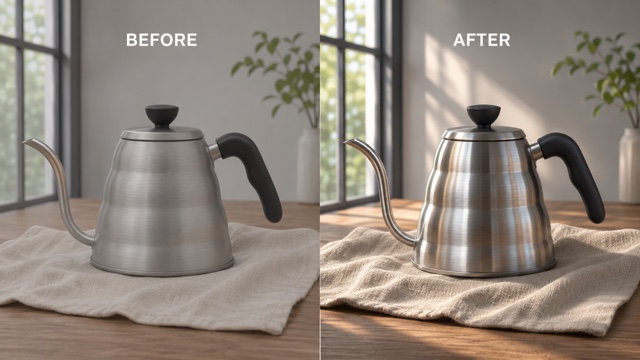
Test Realistic Light With A Seedream 5.5 Generator Free Prompt
Start a Seedream 5.5 generator free comparison with a scene that has both matte and shiny surfaces. Ask the Seedream AI image generator for a steel kettle on a linen cloth beside a bright window. Compare the reflection on the kettle with the diffuse light on the cloth. Look for coherent shadows where the objects meet the table.
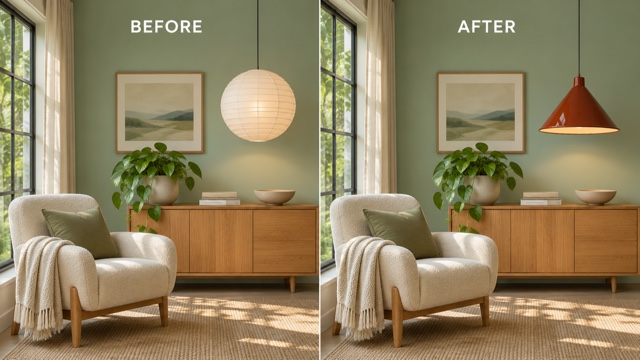
Make One Local Edit At A Time
For a Seedream 5.5 generator free editing test, start with a room image and change the pendant lamp. ByteDance designed the Seedream AI image generator to preserve unedited regions across successive changes. Compare the camera angle, wall color, and furniture edges with the source before requesting a second edit.
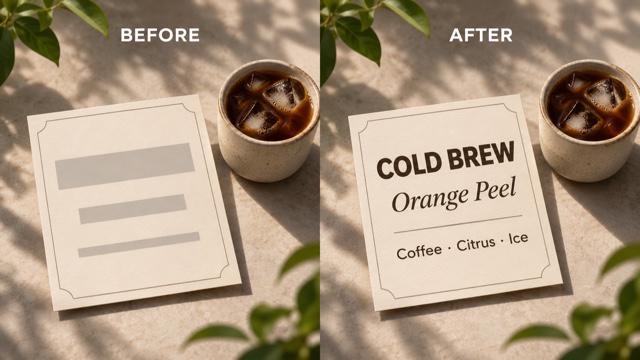
Test Small Type With A Seedream 5.5 Generator Free Layout
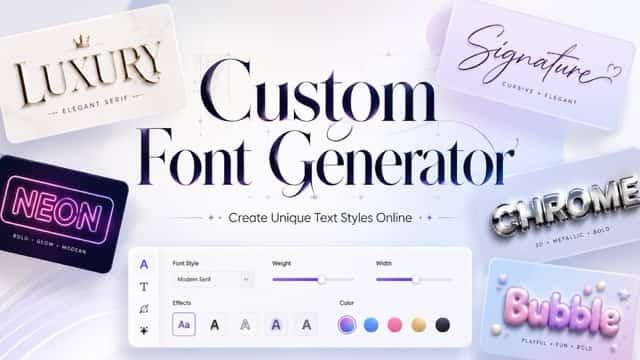
Make your Seedream 5.5 generator free prompt spell out the exact headline, subhead, and short caption. Tell the Seedream AI image generator which line belongs in each region, along with relative type sizes. For a café card, place the drink name above the image and the ingredients below. Read every line at the intended display size.
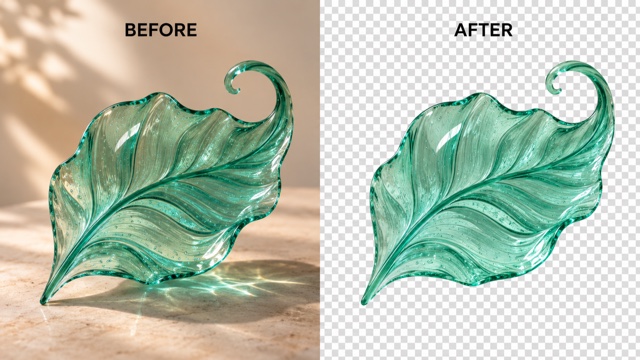
Design Assets With Transparent Backgrounds
If a Seedream 5.5 generator free option exposes alpha output, request a single isolated subject with a transparent background. The Seedream AI image generator supports full and partial transparency at the model level. Try a translucent glass ornament, then inspect the export over both white and dark backgrounds to catch unwanted halos.
Project Ideas For A Seedream 5.5 Generator Free Test
Build the test around a piece of work you need. The Seedream AI image generator can help you compare directions for a product shoot, a campaign layout, an editorial graphic, or a set of reusable illustrations. Give each project a visible constraint you can evaluate.

Product Images For A Storefront
Use a Seedream 5.5 generator free test to explore a new background for a ceramic bottle. Tell the Seedream AI image generator where to place the bottle and describe the reflection you want. Compare the generated silhouette and cap with your reference so the concept stays faithful to the actual product.

Campaign Concepts With A Seedream 5.5 Generator Free Prompt
Plan a Seedream 5.5 generator free prompt for a café launch. Give the Seedream AI image generator a headline, one hero object, a palette, and a clear margin for the date. Compare a bright morning scene with a quieter evening direction using the same layout brief.

Editorial Graphics And Illustrated Explainers
A Seedream 5.5 generator free evaluation can start with a diagram that has three short labels. Ask the Seedream AI image generator to place each label beside the object it describes. Verify the spelling and point of each callout against the source before you send the graphic to an editor. If your Seedream 5.5 generator free result needs longer labels, keep the image and typeset the final copy separately so later revisions stay easy.

Sticker Sets And Reusable Characters
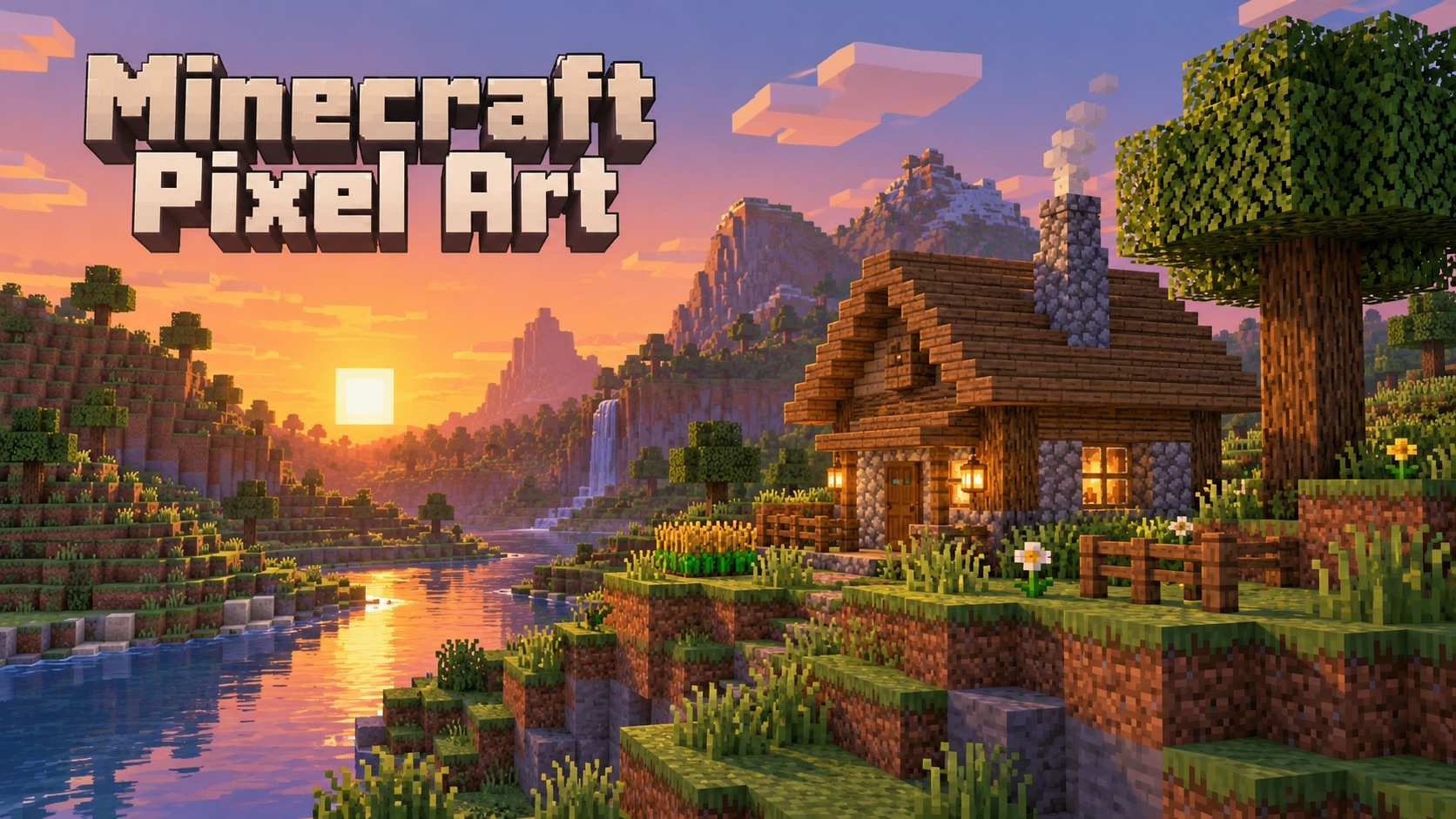
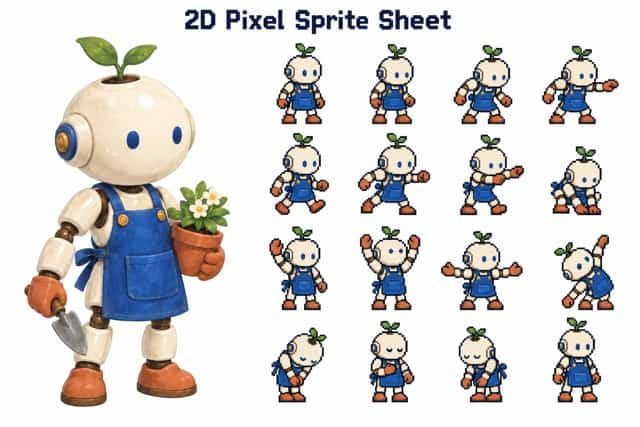
Use a Seedream 5.5 generator free test to plan a mascot set. Give the Seedream AI image generator a reference pose and ask for one new expression at a time. Compare the outline, palette, and proportions before assembling the characters into a sticker sheet or slide deck.
What Creators Might Look For In A First Test
These illustrative perspectives describe what different creators might evaluate during a Seedream 5.5 generator free test.
For a Seedream 5.5 generator free test, I’d look at how the glass and paper label catch the same light. The Seedream AI image generator would need to make both materials convincing in one shot.
I’d bring a real launch brief to a Seedream 5.5 generator free trial. Keeping the same headline and crop would make it easier to compare two visual directions from the Seedream AI image generator.
My Seedream 5.5 generator free test would start with a single caption. With the Seedream AI image generator, I’d check how the type reads in the final crop before adding more copy.
I’d use a Seedream 5.5 generator free editing test to swap one chair in a reference. I’d compare the original walls and window lines with the Seedream AI image generator result before moving on.
I’d ask for two expressions in a Seedream 5.5 generator free test. Comparing both outputs from the Seedream AI image generator would show me which reference details need a clearer prompt.
With Seedream 5.5 generator free access, my first test would leave clear space around the hero object. I’d preview the Seedream AI image generator result at phone size before committing to the composition.



Seedream 5.5 Generator Free Access FAQs
Get clear on model availability, what to include in a test prompt, and how to check the result.
Seedream 5.5 is ByteDance’s model for creating images from descriptions and editing existing images. It improves photographic texture and small text rendering. It also supports generating assets with an alpha channel, which lets parts of an image stay transparent.
Open the generator on this page and check your balance and the displayed credit cost before generating. If your available credits cover the selected settings, you can run a Seedream 5.5 generator free test without buying more credits. Check the cost again before starting a series of edits with the Seedream AI image generator.
ByteDance’s model supports editing existing images. If your chosen interface offers image input, upload a clear photo, point to the specific area you want to edit, and name the elements the Seedream AI image generator should preserve.
The Seedream AI image generator can produce an image with an alpha channel. Export options depend on the interface. Check for an alpha-capable file, then open it over a colored layer to verify that the background is actually transparent.
Pick a task you can judge quickly. Ask the Seedream AI image generator for a notebook on a dark wooden desk with morning light from the left and room for a title above it. Check composition and light before adding more detail.
Change one instruction and compare both images. If a headline looks crowded, tell the Seedream AI image generator where it should sit and which elements should stay fixed. Keep the version that best matches the brief before making another change.
Start Your First Seedream 5.5 Generator Free Test
Pick one image you want to make and write down the detail that will tell you it worked. Check the credits you have available for a Seedream 5.5 generator free test, then bring that brief to the Seedream AI image generator.