More AI Video Generators
Explore our collection of specialized AI video generators designed for different creative needs and styles
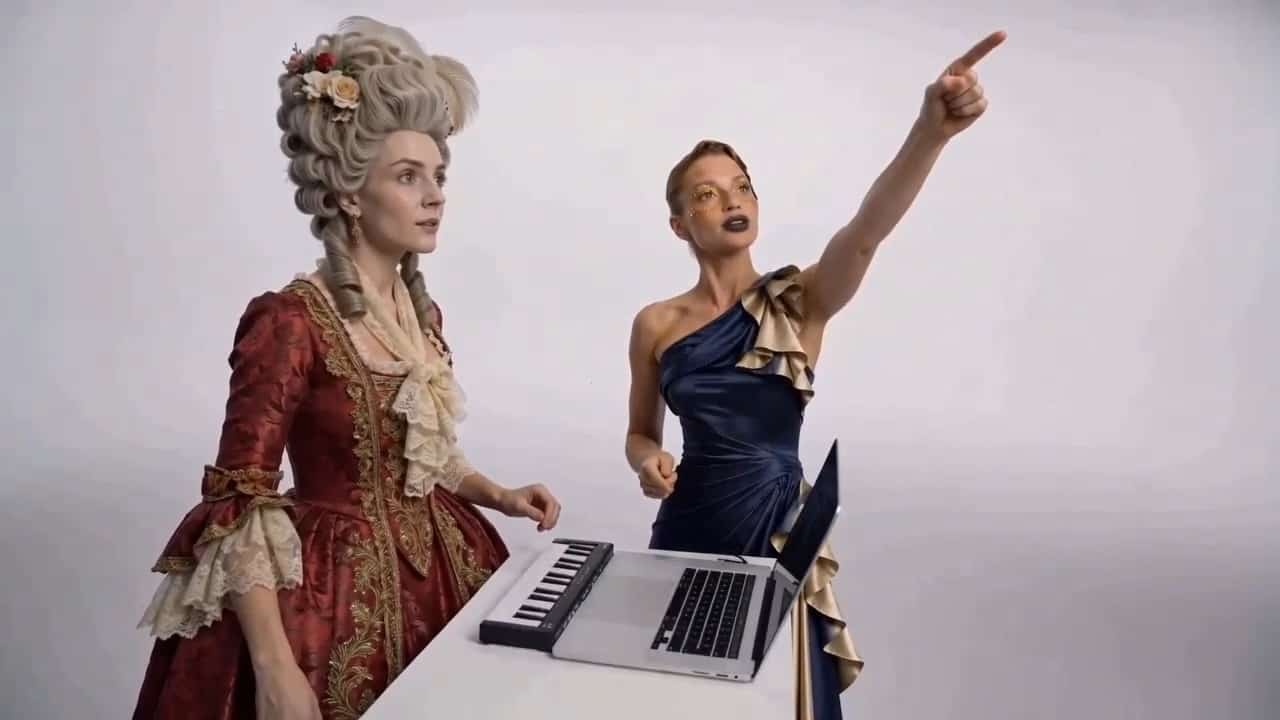


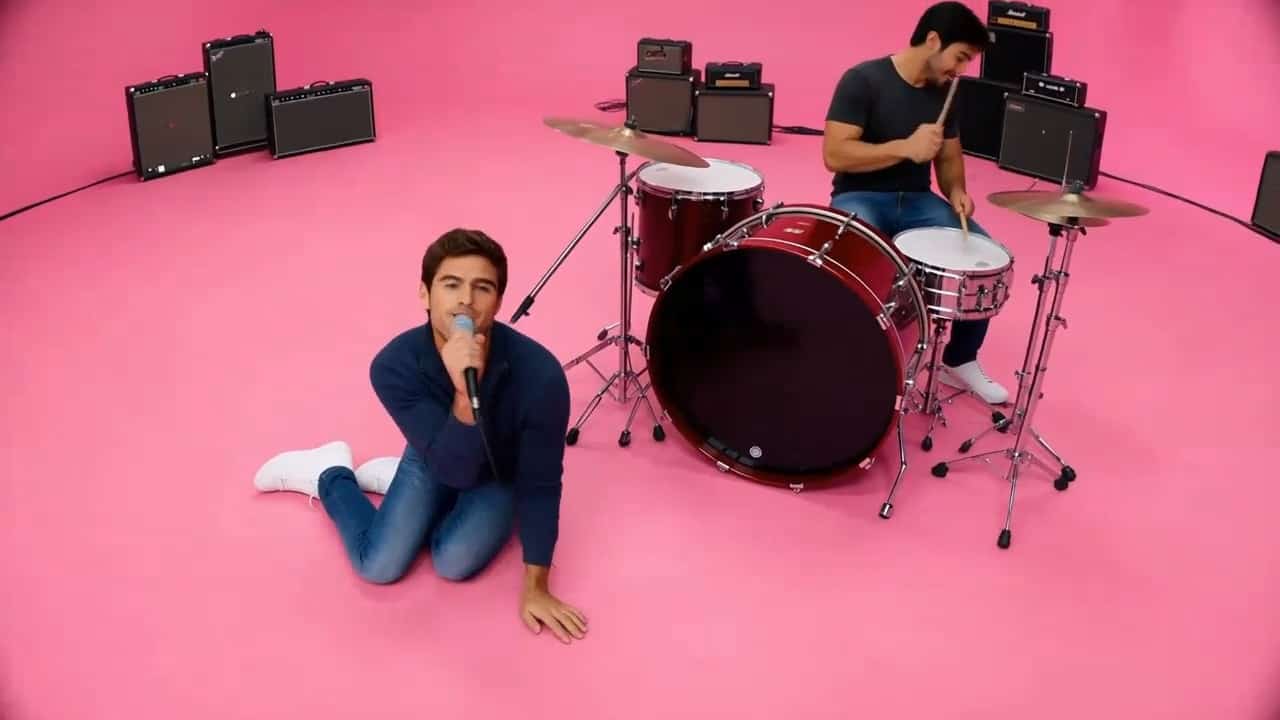
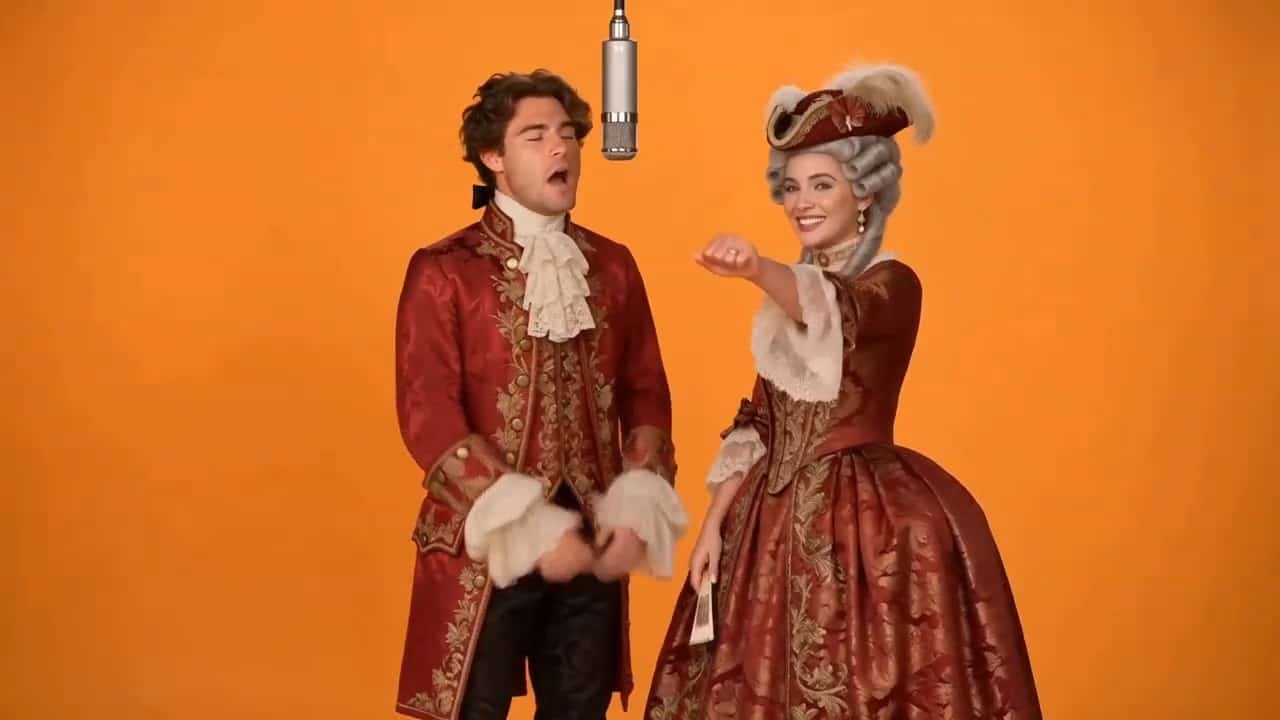
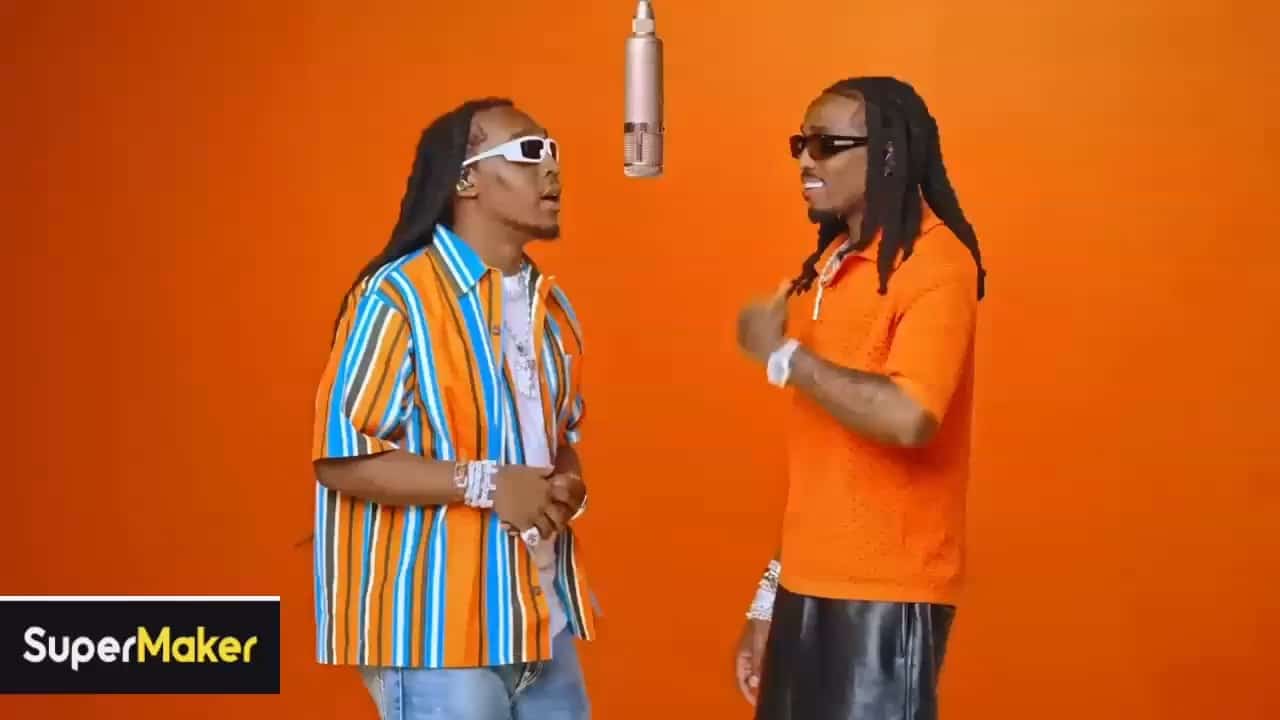
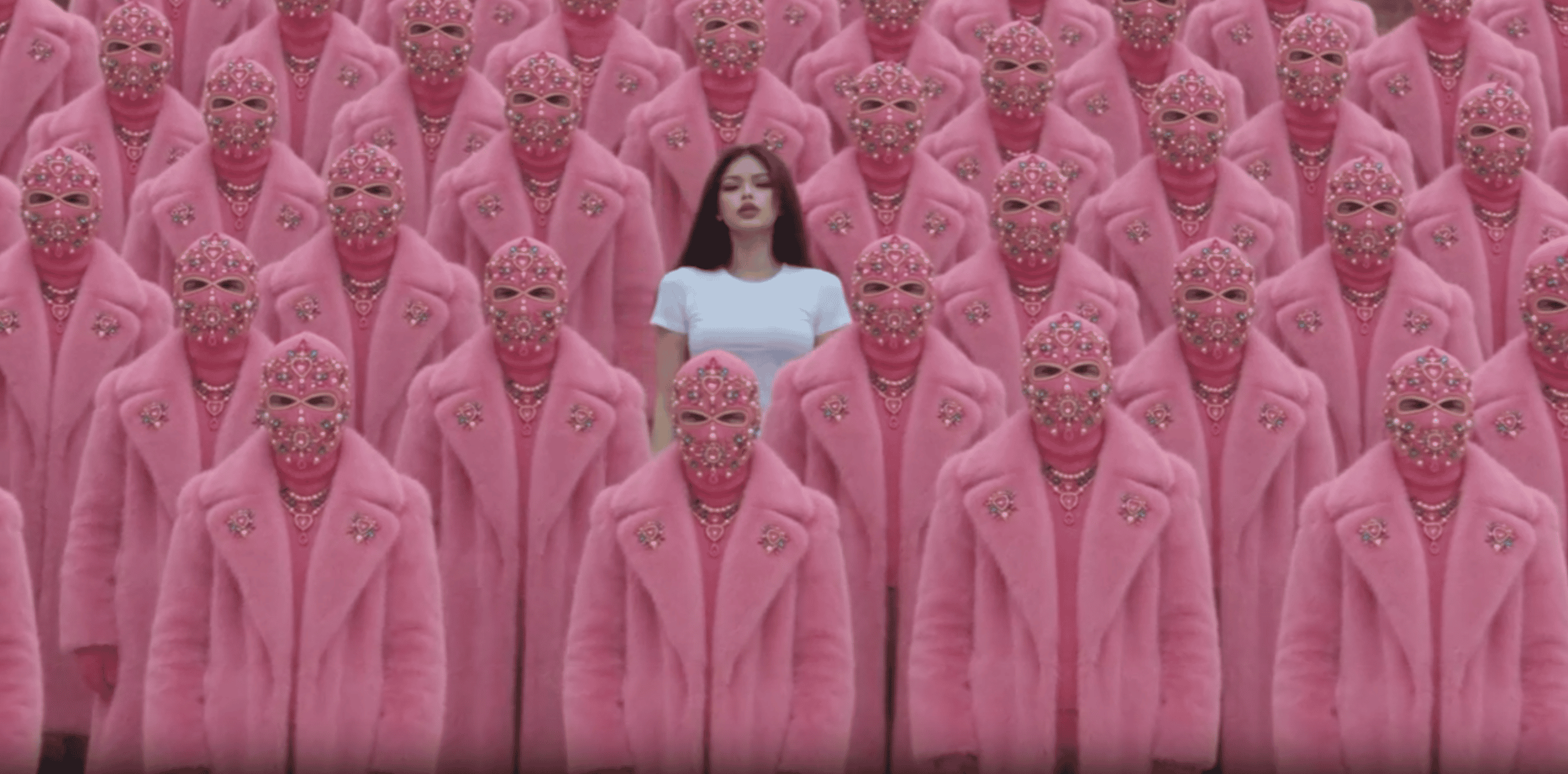

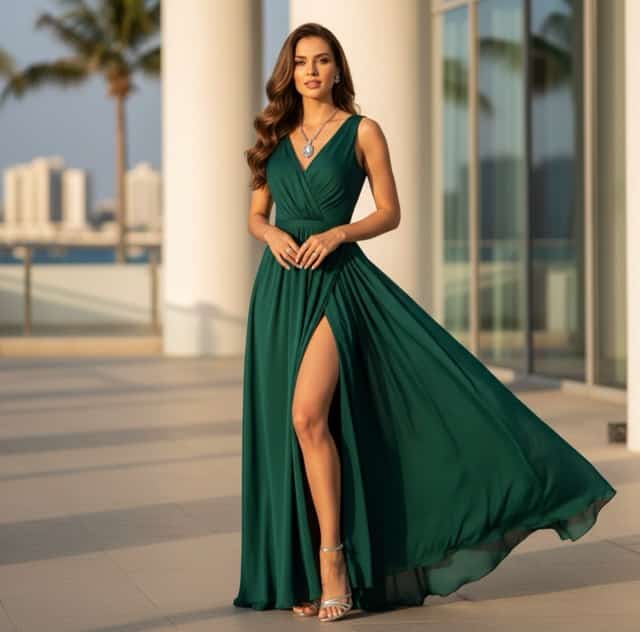
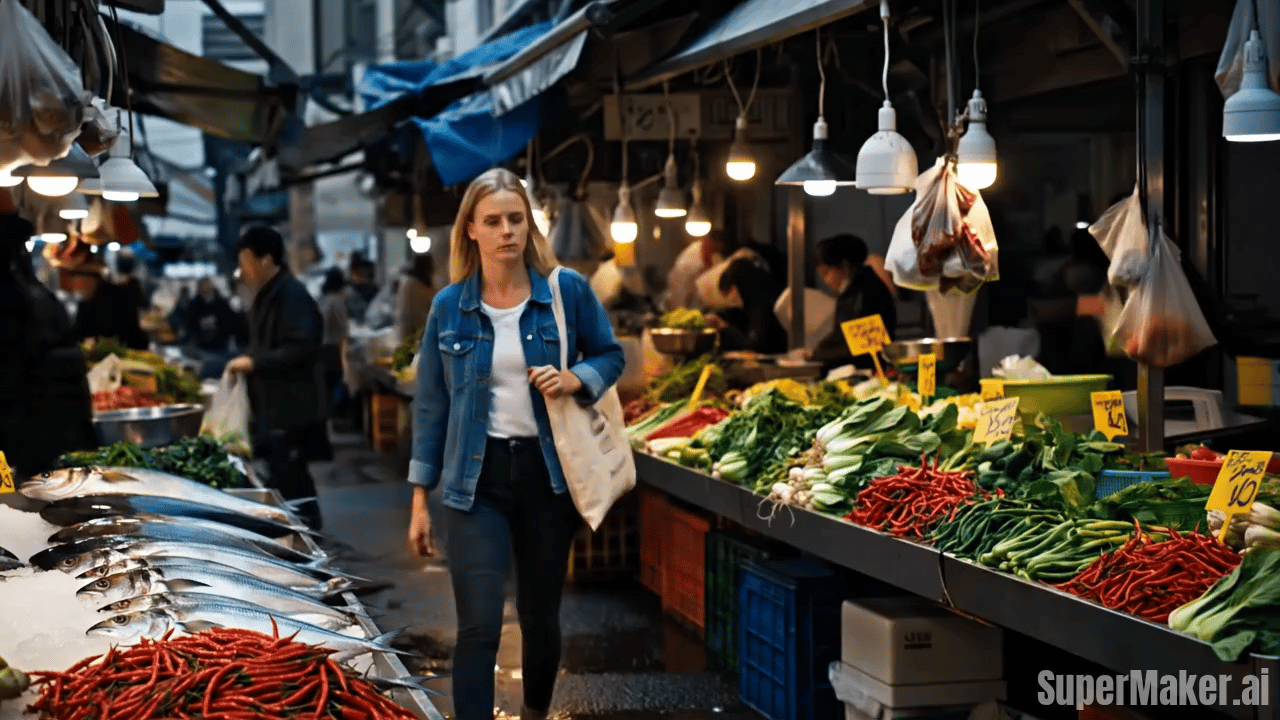
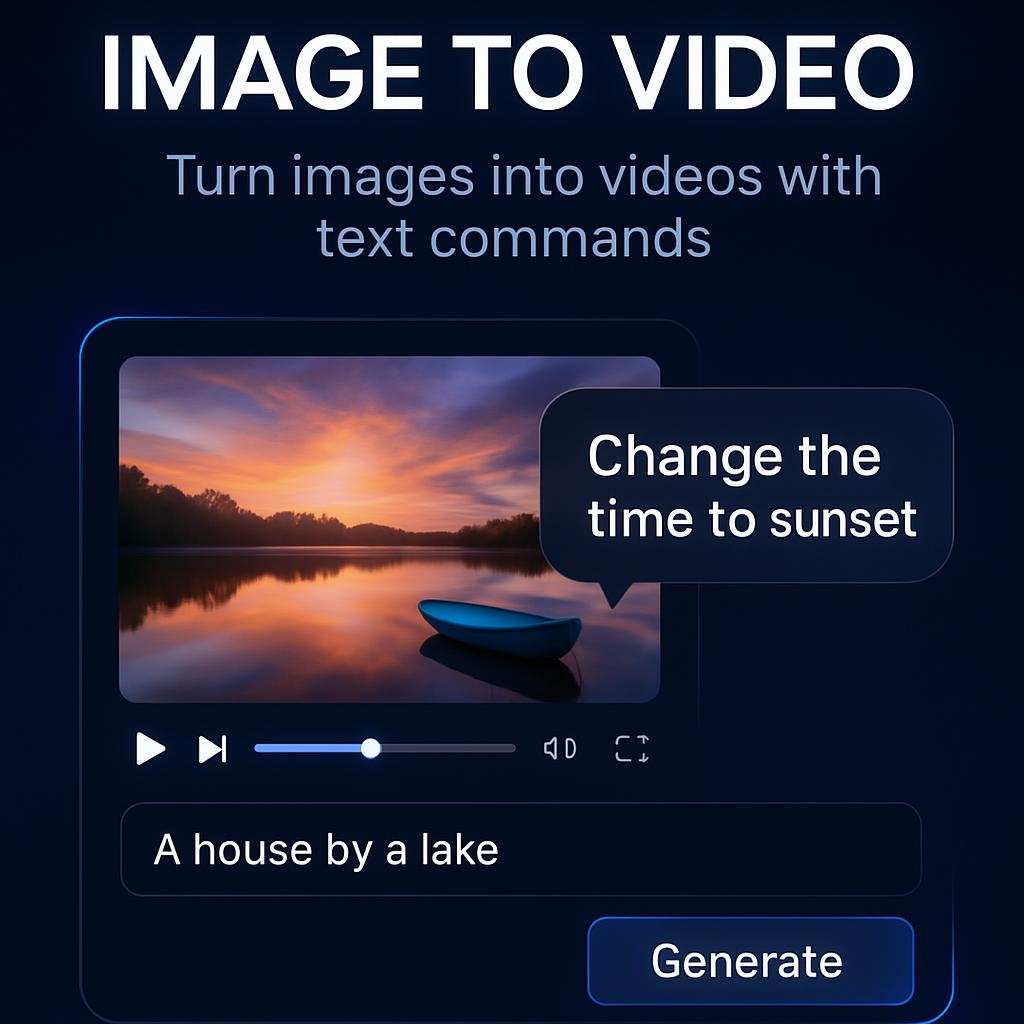
Turn Assets to Video With Reference-Led Control
An asset to video generator for product shots, campaign visuals, character references, and creative source material
Bring assets to video with Wan 3.0 reference mode. Supply focused creative references, guide the intended subject and motion, and use this asset to video generator to explore a coherent video direction you can review and refine.
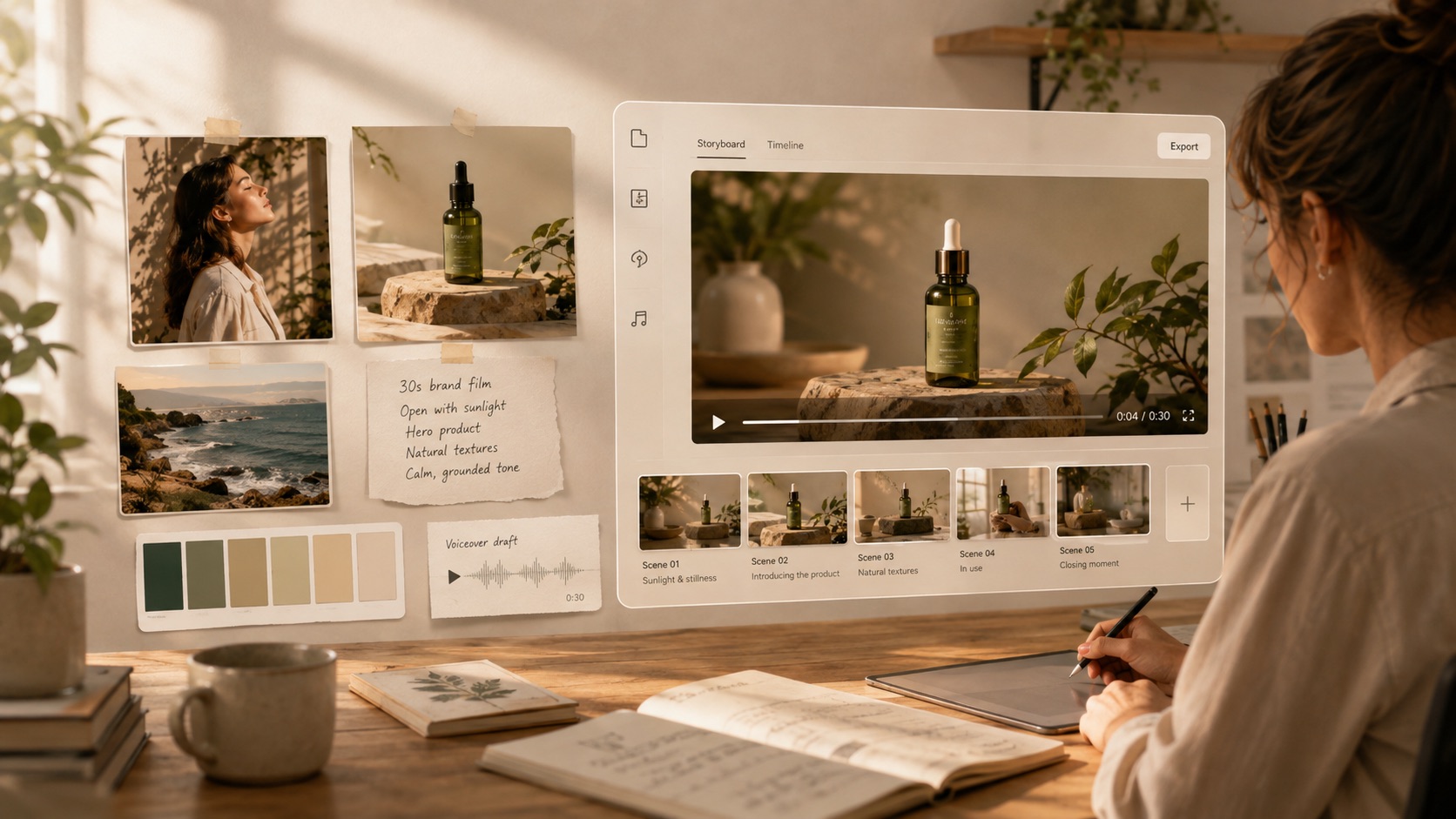
How to Move From Assets to Video in Four Steps
The assets to video workflow connects your reference material with a clear creative goal. Choose relevant sources, describe the intended motion, generate with Wan 3.0, and review the output. This asset to video generator turns reference-led direction into a video concept without asking you to rebuild every idea from scratch.

Choose Focused Reference Assets
Start the assets to video workflow with references that belong to the same creative direction. Choose a clear product shot, character, environment, composition, style cue, or other supported source. A focused set helps the asset to video generator distinguish the subject from background inspiration. When you turn reference images into video, remove duplicates and contradictory cues so the result has a dependable visual anchor. The assets to video process begins with relevance, not volume. Assets to video starts with a coherent source set.

Define Motion and Creative Intent
Tell the assets to video tool what should happen on screen. Name the main subject, action, camera movement, pace, mood, framing, and final moment. The asset to video generator works best when each instruction supports the supplied references. To create video from visual assets, clarify which details must remain recognizable and which elements may change. A specific direction helps assets to video feel planned rather than assembled from unrelated effects. Assets to video responds to deliberate creative priorities.

Generate With Wan 3.0 Reference Mode
Use Wan 3.0 to bring assets to video after your references and direction are ready. The asset to video generator can use reference context to shape subjects, scenes, motion, and visual tone across the clip. This AI video generator with reference images supports guided exploration when a text-only brief would leave too much open to interpretation. Keep the request focused so assets to video can prioritize the creative signals that matter most. Assets to video turns direction into a reviewable clip.

Review, Refine, and Generate Again
Review whether the assets to video result preserves the intended subject, visual cues, motion, pacing, and emphasis. If the opening, camera path, or final frame needs adjustment, revise one clear part of the brief and create another version. The assets to video workflow makes comparison concrete because the reference set can stay stable while your direction becomes sharper. Assets to video works best as an intentional cycle of generation and review. Assets to video supports focused iteration.
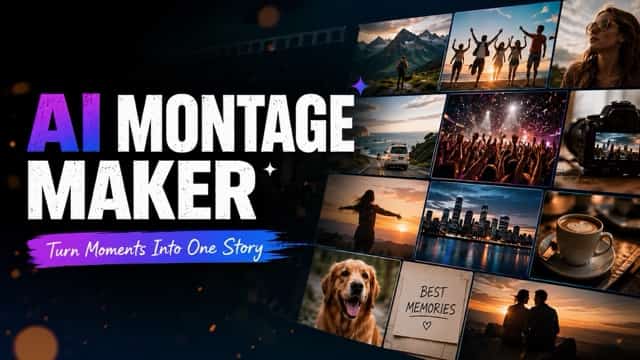
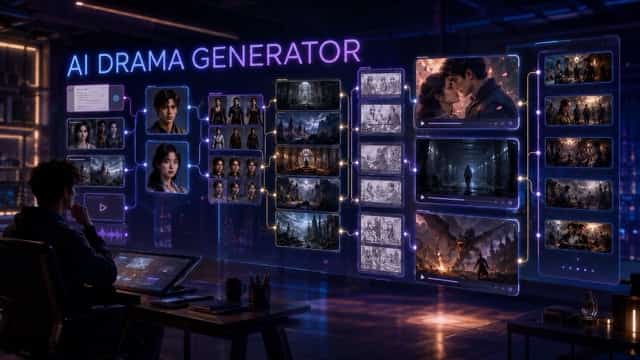
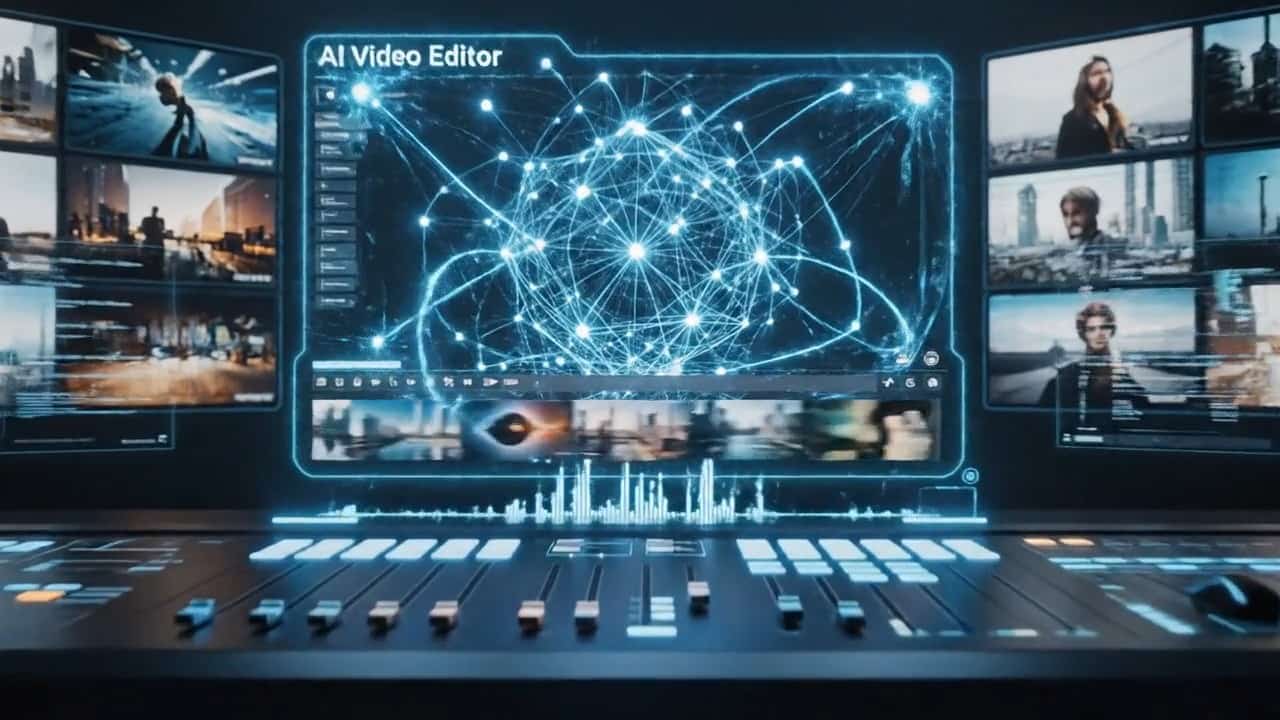
Best AI Video Tools for Creative Projects
Explore creative tools for video, learn tips and tricks, and see how AI can be your assistant in turning concepts into finished projects.







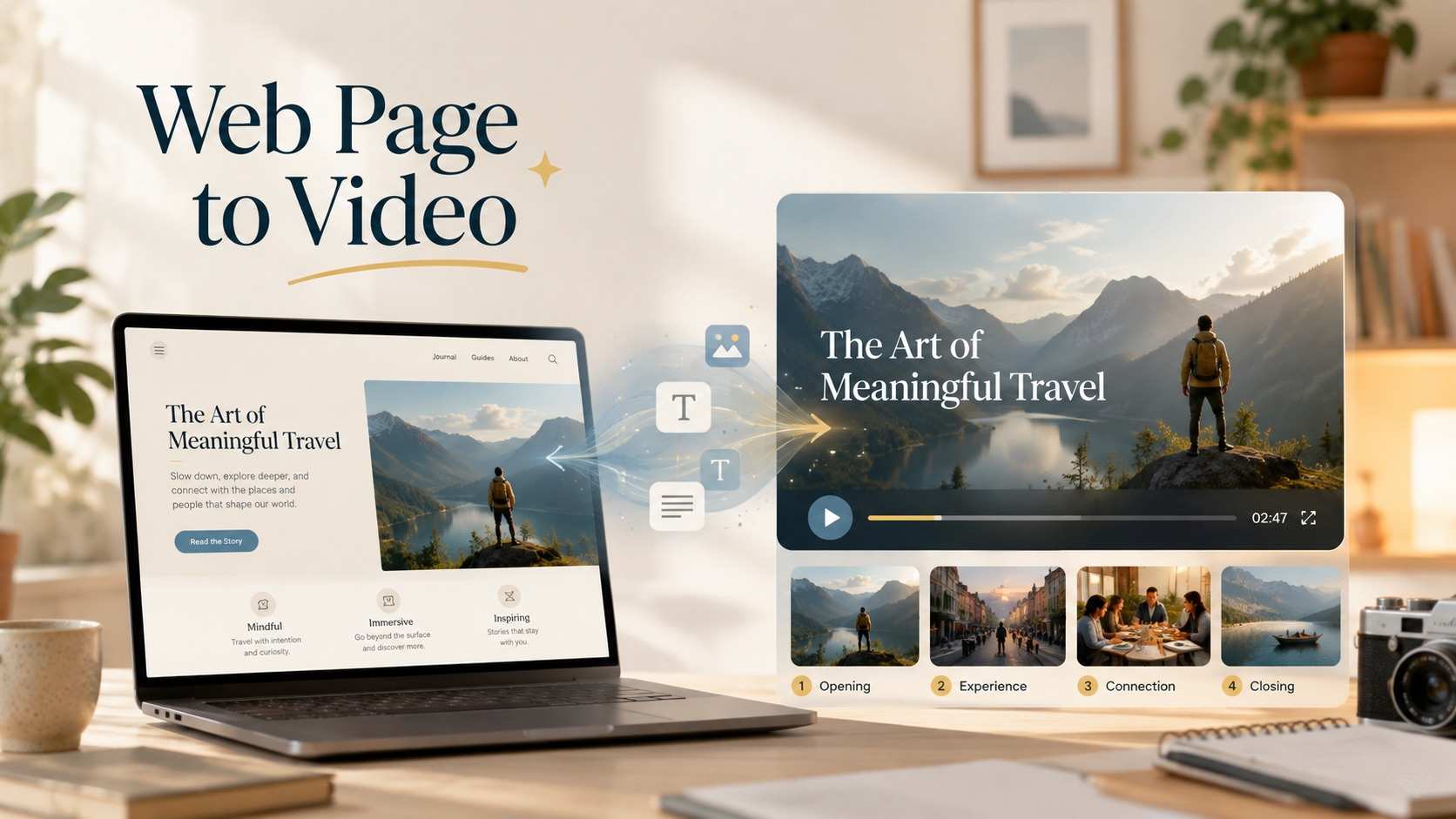






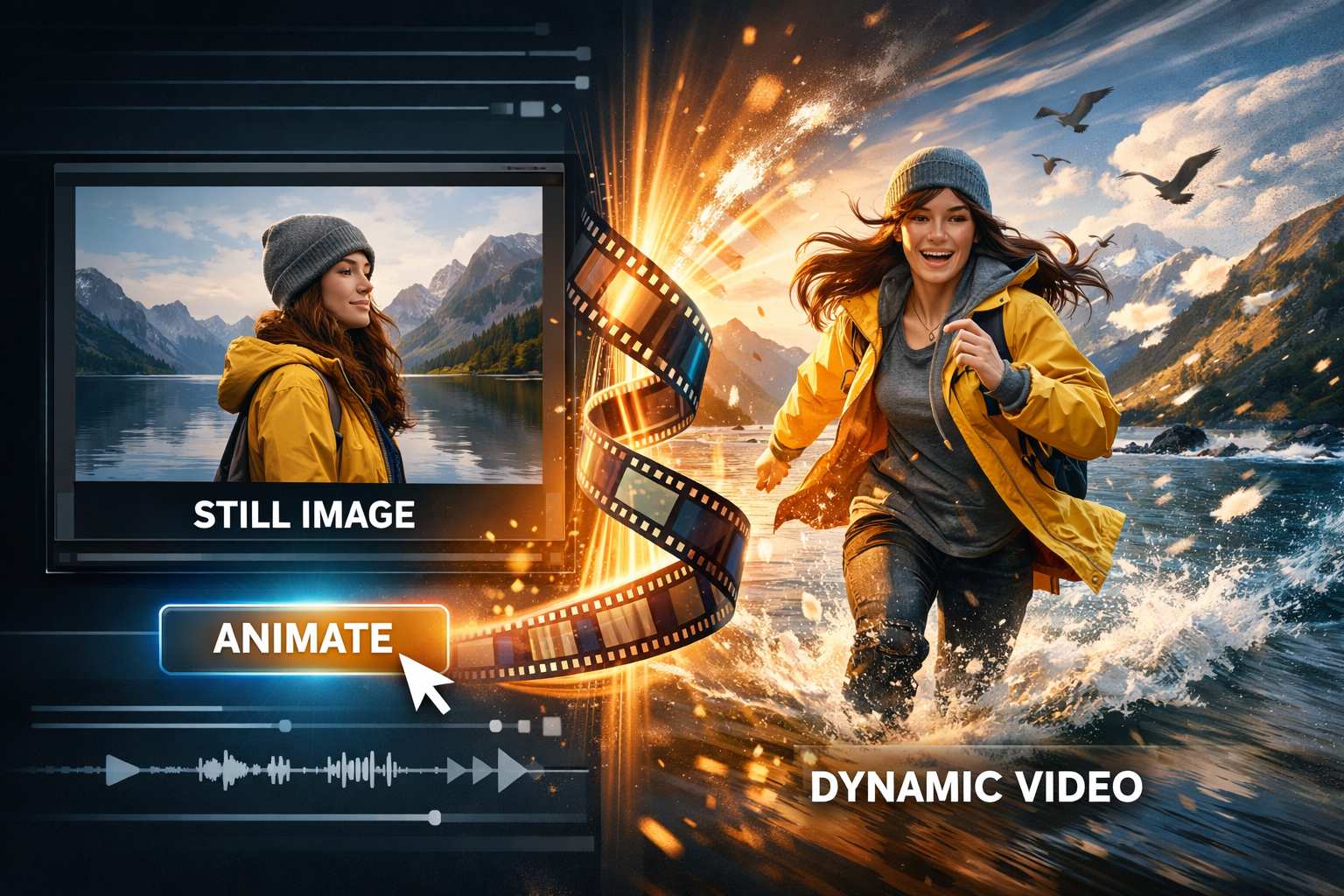
Why Use Reference Assets to Video With Wan 3.0
The assets to video workflow is useful when existing visuals carry information that a prompt alone cannot express efficiently. This assets to video approach combines reference context with your creative direction, helping you explore motion, framing, and scene ideas while keeping the source material central to review.
Keep the Creative Source Visible
Reference material gives an assets to video project a concrete starting point. Instead of describing every color, surface, silhouette, prop, or setting from memory, provide the visual cues that should guide the clip. The asset to video generator can then interpret your references alongside the requested action and camera language. When you turn reference images into video, choose sources that agree on the subject and aesthetic. Assets to video is not a file-stitching promise; it is a generation workflow shaped by reference context. That distinction helps teams review whether the output expresses the intended character, product, scene, or campaign idea. The assets to video result remains a creative draft that should be checked against the source. Assets to video keeps the source central to review.
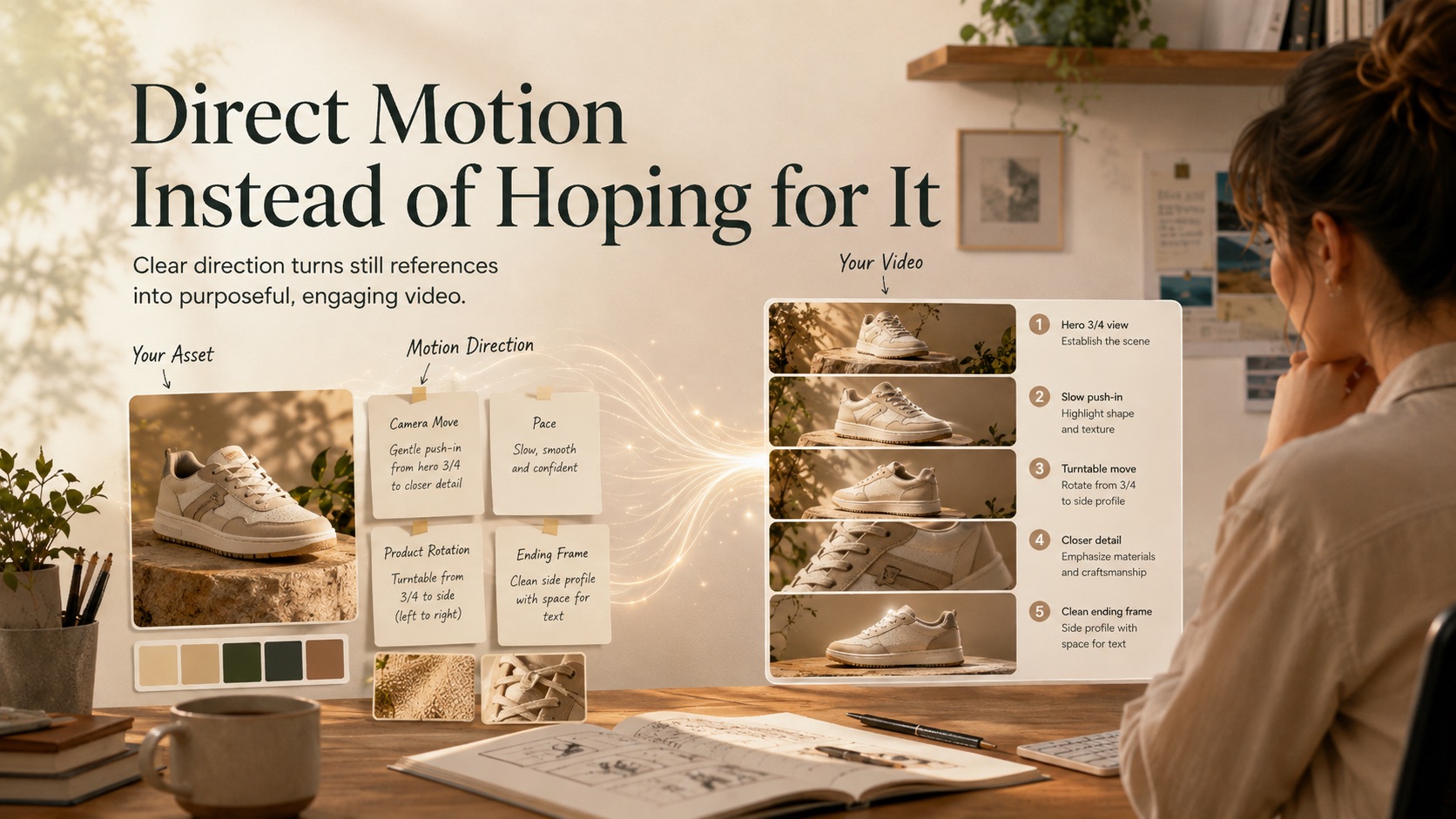
Direct Motion Instead of Hoping for It
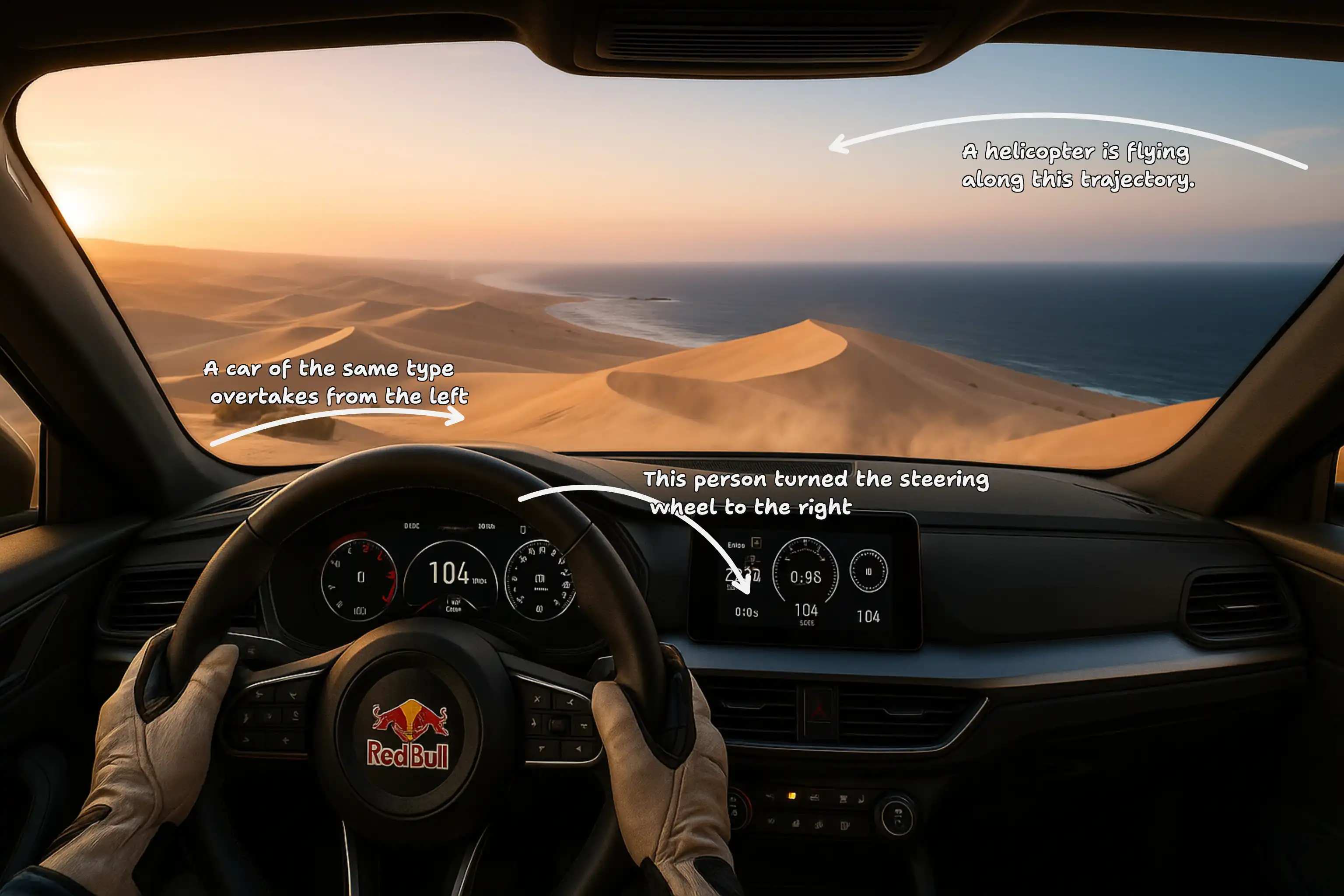
A still reference explains appearance, but motion instructions explain what the audience should experience. Use assets to video with a brief that names the action, camera move, pace, energy, and ending. The asset to video generator can respond more purposefully when a request says which object leads, what remains stable, and how the scene develops. To create video from visual assets, describe a sequence that can fit a short clip rather than a long list of disconnected events. Assets to video becomes easier to evaluate when every movement serves one message. Compare versions by changing one variable at a time, such as camera distance, tempo, or final framing. The assets to video workflow turns those choices into visible alternatives. Assets to video makes motion choices easier to compare.
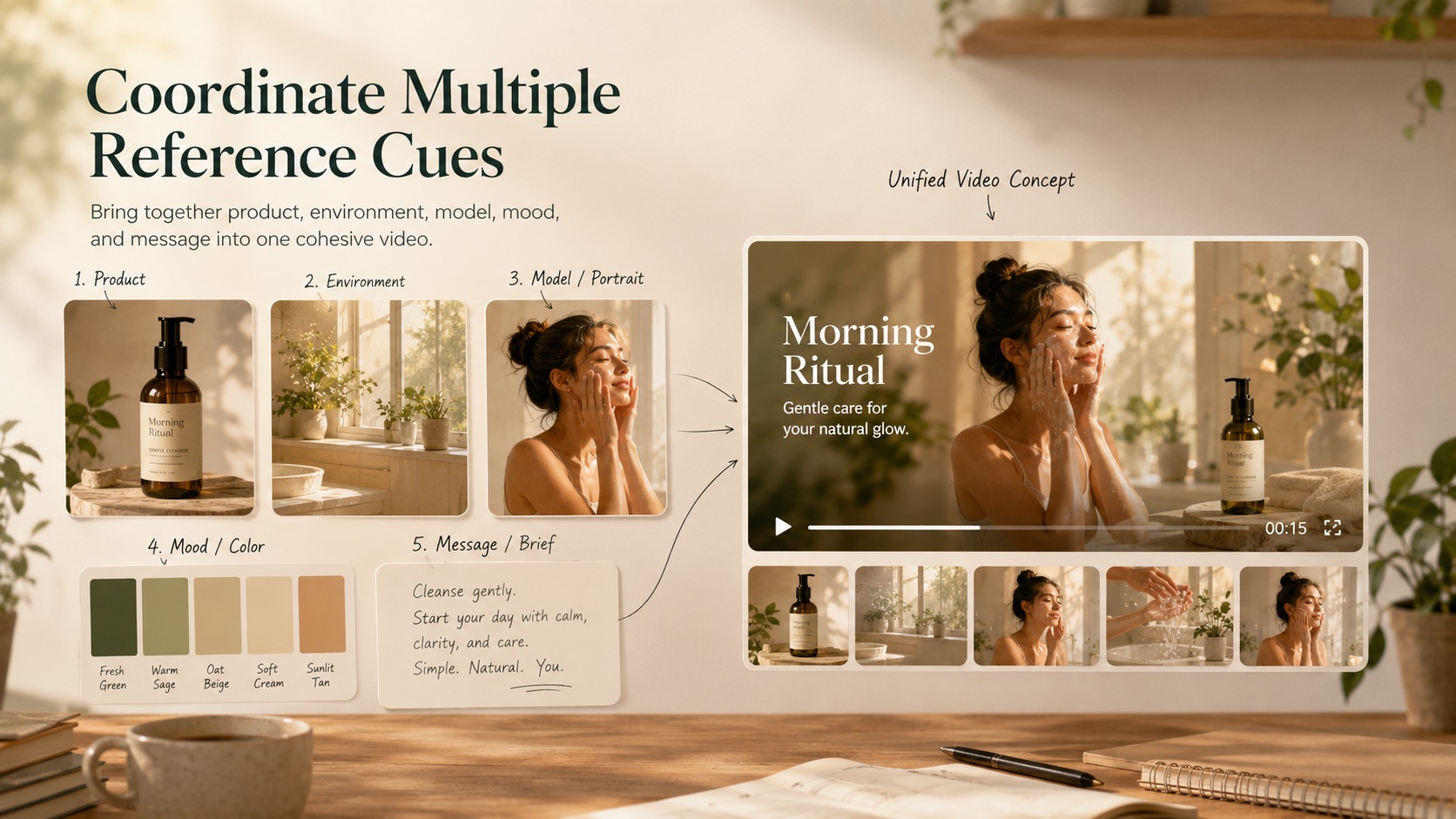
Coordinate Multiple Reference Cues
Some concepts need more than one visual cue. Use assets to video with references that have distinct roles: one may define the product, another the environment, and another the visual mood. The asset to video generator benefits when the brief explains those roles instead of leaving the model to guess. This AI video generator with reference images can support art direction, campaign exploration, and character-led concepts when the sources are consistent. Avoid near-duplicates, conflicting identities, or unrelated style samples. Assets to video should receive a curated set that points toward one outcome. By labeling the desired subject, setting, action, and tone in your direction, you make the assets to video result easier to assess and revise. Assets to video benefits from clearly assigned reference roles.

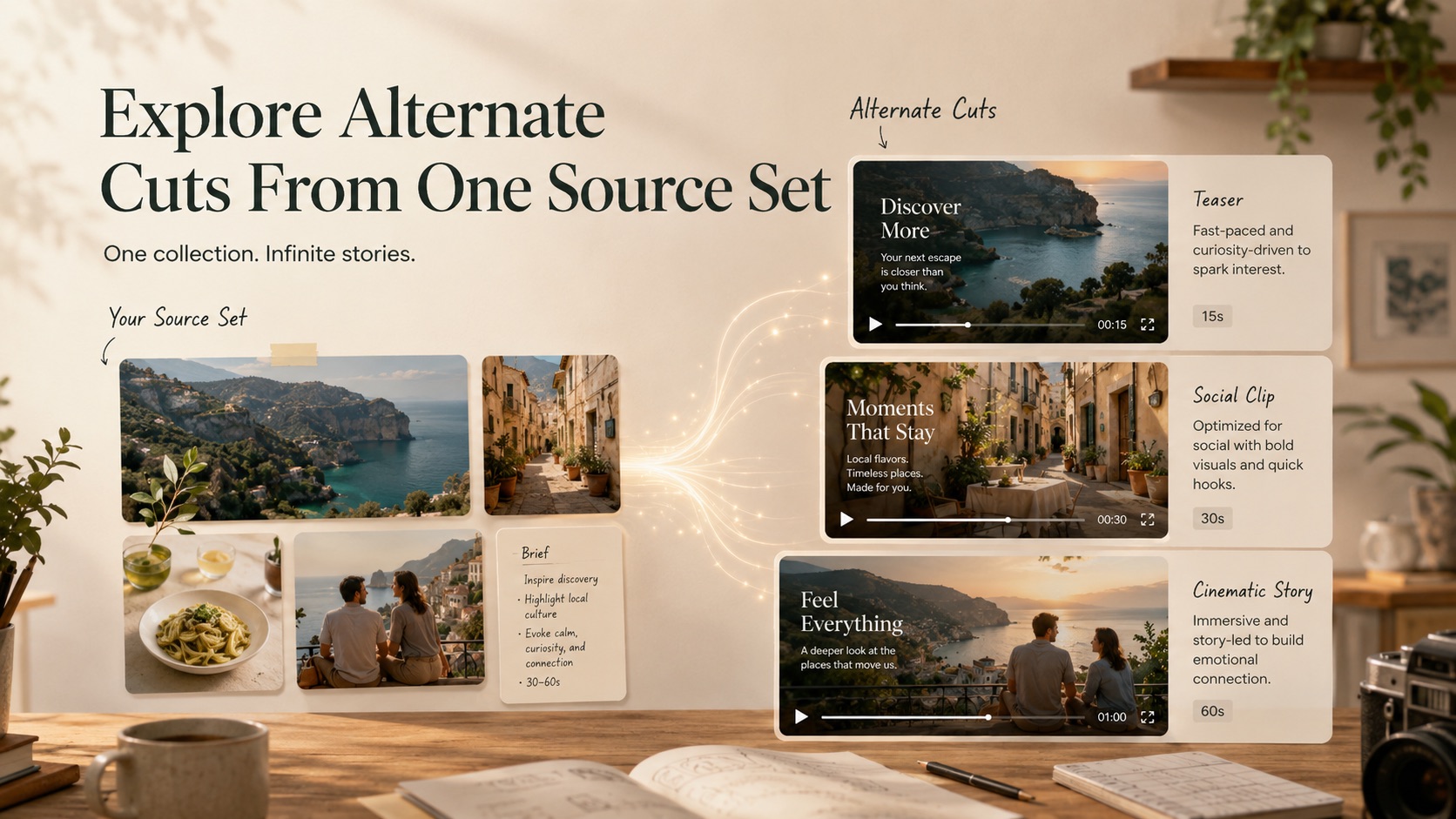
Explore Alternate Cuts From One Source Set
One reference set can support several useful directions. Ask assets to video for a restrained product reveal, a faster social hook, a cinematic atmosphere test, or a clean concept for stakeholder review. Keep the references stable while changing the objective, motion, pacing, or framing. The asset to video generator gives teams something concrete to compare before committing to a larger production path. When you create video from visual assets, treat each result as a creative hypothesis: identify what communicates well, what feels inconsistent, and what the next brief should change. Assets to video makes that discussion specific because feedback can refer to visible scenes and transitions. Use the assets to video workflow to narrow direction through focused iterations.
Practical Assets to Video Use Cases
Use assets to video for product concepts, character motion, campaign exploration, social ideas, and creative review. The assets to video workflow is most effective when each project begins with a focused reference set and a single clear outcome.

Product and Campaign Concepts
Use assets to video to explore how product shots, packaging, campaign artwork, or launch references might move on screen. Tell the asset to video generator which product detail should lead and what the final frame should communicate. When you turn reference images into video, request a focused reveal, demonstration concept, or atmosphere rather than several competing messages. Assets to video gives marketing teams an early visual direction they can review before a broader production decision.
Character and Story Direction
Bring character references into assets to video when appearance, wardrobe, mood, or environment matters to the concept. The asset to video generator can use those cues alongside an action-focused brief. This AI video generator with reference images is most useful when references agree on identity and style. Ask assets to video for one readable character beat, camera move, or scene transition, then review continuity before refining the next version.
Social Video Exploration
Use assets to video to test hooks, pacing, framing, and visual emphasis for a social concept. Tell the asset to video generator the intended platform and whether the idea should feel energetic, informative, polished, playful, or restrained. To create video from visual assets, keep the opening moment simple enough to read quickly. Assets to video helps creators compare directions while the supplied references keep each experiment connected to the same campaign idea.

Creative Review and Previsualization
Use assets to video when a team needs a visible concept before discussing a larger shoot, edit, or campaign. The asset to video generator can turn reference-led direction into a clip that makes feedback more specific. Review subject treatment, scene order, motion, and visual tone rather than assuming the first result is final. Assets to video supports previsualization by giving stakeholders a shared artifact to critique, refine, and compare.
Creative Reactions to Assets to Video
These illustrative reactions show how different roles might use assets to video for early creative exploration. The assets to video workflow makes reference-led ideas visible enough to compare, discuss, and refine before the next production decision.
I used assets to video to test two product-reveal directions from the same references. The assets to video workflow made the differences easy to discuss, and our next brief became much more specific about the opening camera move and final frame.
The assets to video workflow gave our character references a visible motion test before a larger production conversation. Using assets to video helped the team identify which poses, pacing choices, and environmental cues needed clearer direction.
I wanted to create a social concept without rebuilding existing campaign artwork. Assets to video let me preserve the reference direction while exploring a faster hook, and the assets to video workflow gave stakeholders something concrete to review.
For an internal pitch, assets to video turned a small reference set into a useful previsualization. The assets to video workflow did not replace review, but it made our feedback about motion, tone, and scene priority far more precise.




Assets to Video FAQ
Get practical answers about reference selection, motion direction, Wan 3.0, and review before using assets to video or refining another version with the asset to video generator.
Assets to video is a reference-led AI generation workflow that uses supplied visual or supported multimodal material to guide a new video. Add focused references, define the desired motion and scene, then review the generated result. The asset to video generator creates a new concept rather than simply joining files.
Choose references that clearly support the same subject, setting, or style. Remove duplicates and conflicting cues, and use accurate files that you are permitted to provide. Assets to video works best with a curated source set, while the asset to video generator still needs a clear creative direction.
Name the main subject, action, camera movement, mood, pace, framing, and closing moment. Explain which reference details matter most and what should remain stable. Clear priorities help assets to video interpret the source, and the asset to video generator can focus on one coherent outcome.
Yes. To turn reference images into video, choose consistent images and describe the intended movement instead of repeating visual details already present. Keep the sequence achievable for a short clip. Assets to video uses the images as guidance, and every result should be reviewed for subject and scene continuity.
Wan 3.0 supports a reference-led video workflow in SuperMaker. This AI video generator with reference images can interpret supplied cues alongside your direction, but the exact result depends on the references and request. Use assets to video as an iterative creative tool and review each version carefully.
Start with fewer, more consistent references and one clear goal. Explain the subject, movement, camera behavior, and final frame, then change only one or two variables between versions. The asset to video generator becomes easier to evaluate when the assets to video brief avoids unrelated actions and competing styles.
You can create video from visual assets for product ideas, character tests, campaign concepts, and previsualization when the sources are relevant. Review generated subjects, text, claims, transitions, and continuity before sharing. Assets to video supports creative exploration, while final suitability remains a human decision.
Check whether the assets to video result preserves important reference cues, communicates the intended subject, and follows the requested pacing and camera direction. Verify every product detail, person, mark, caption, and claim. The asset to video generator can support iteration, but it does not remove the need for rights and quality review.
Bring Focused Assets to Video
Give assets to video a clear reference set and one creative goal. Use the asset to video generator to explore motion, framing, and scene direction with Wan 3.0, then review the result and refine the brief until the concept communicates what matters. The asset to video generator keeps the next decision visible.