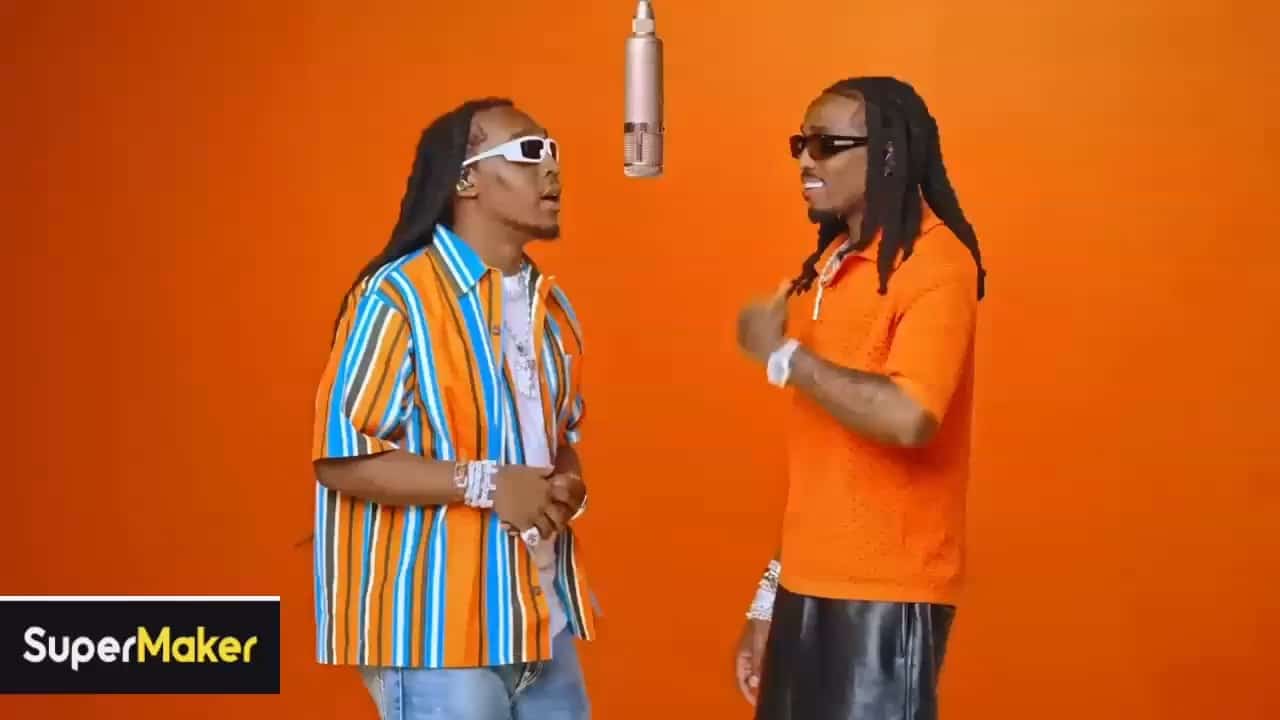
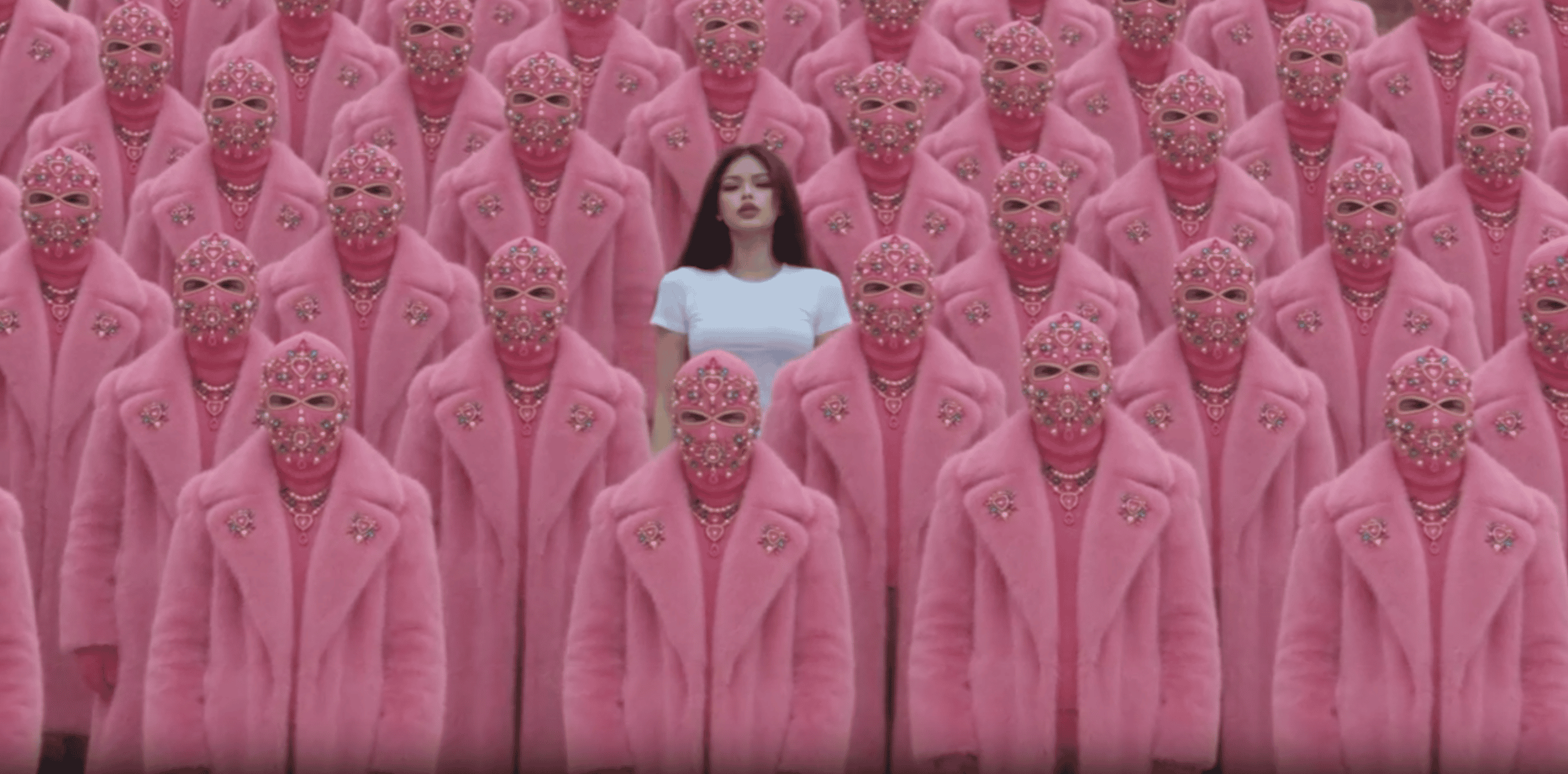
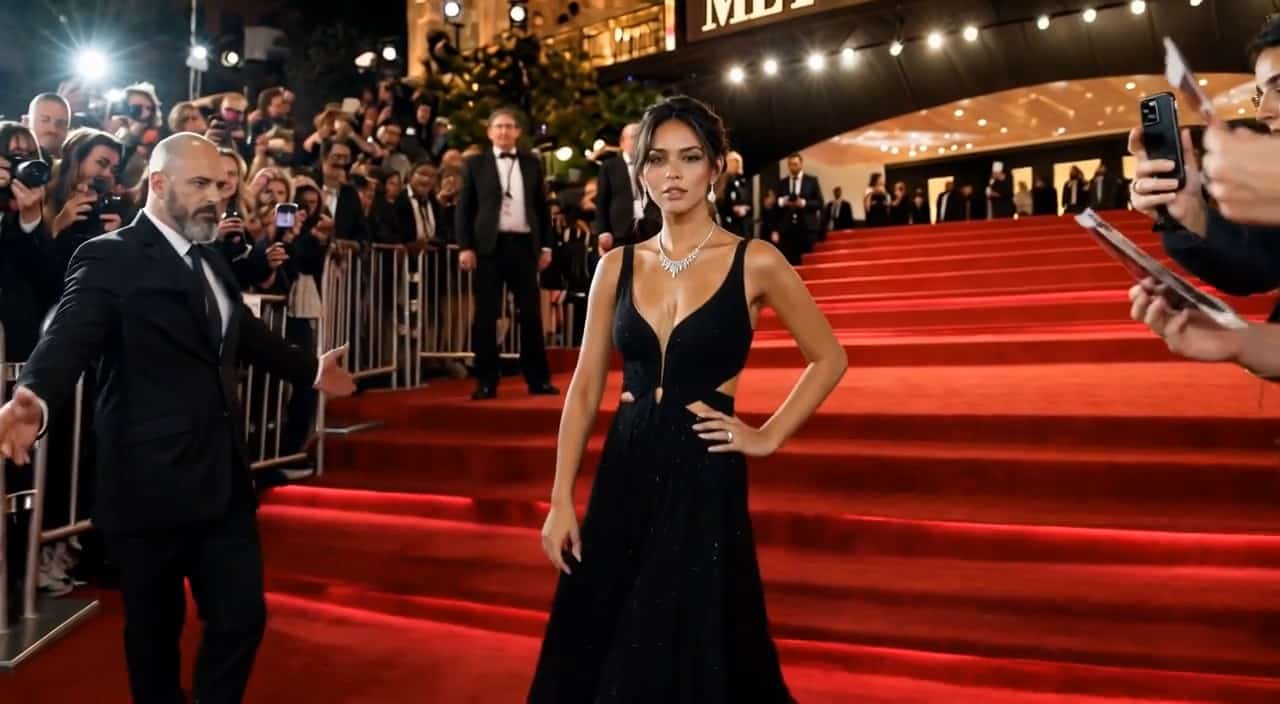
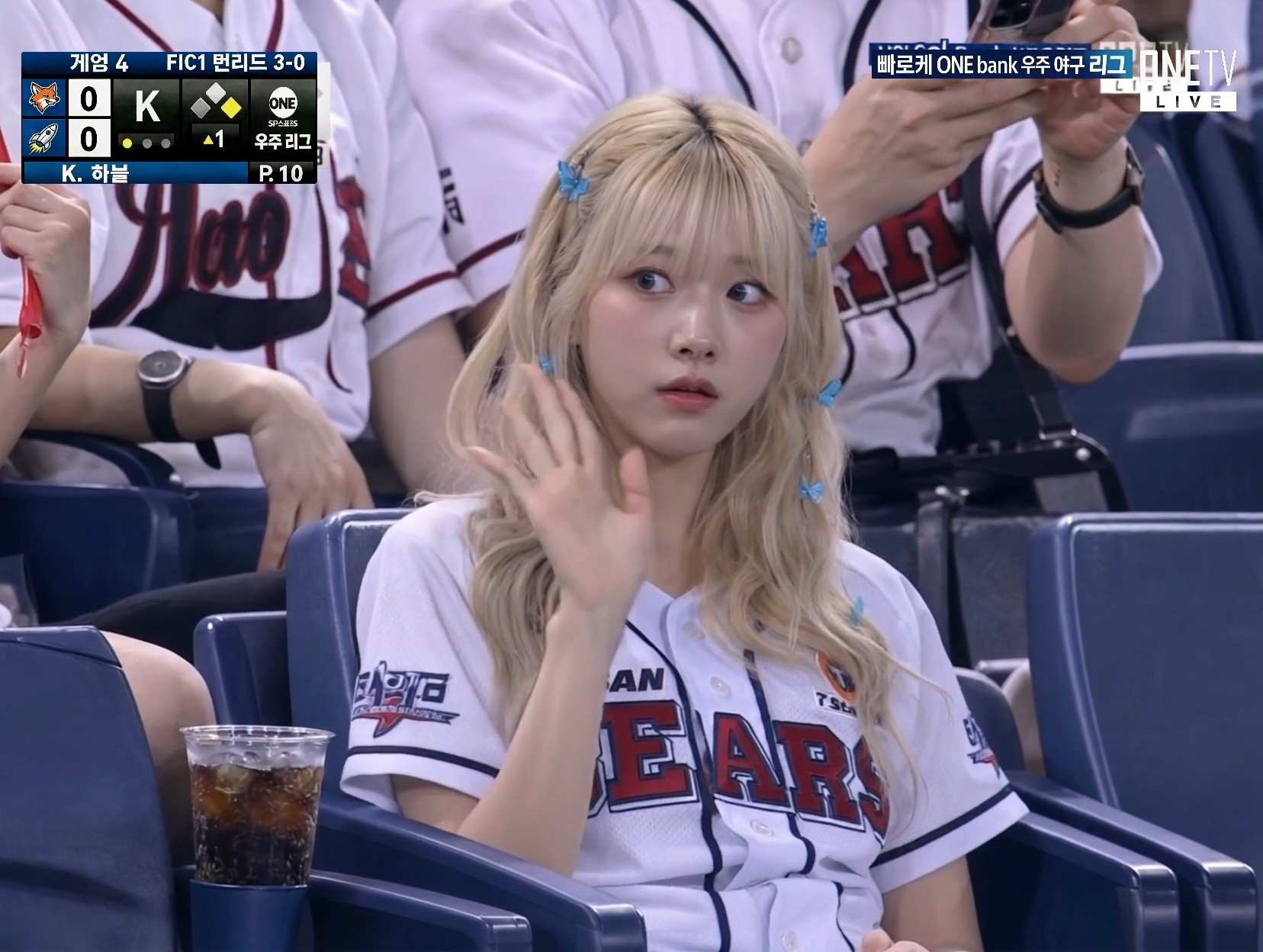


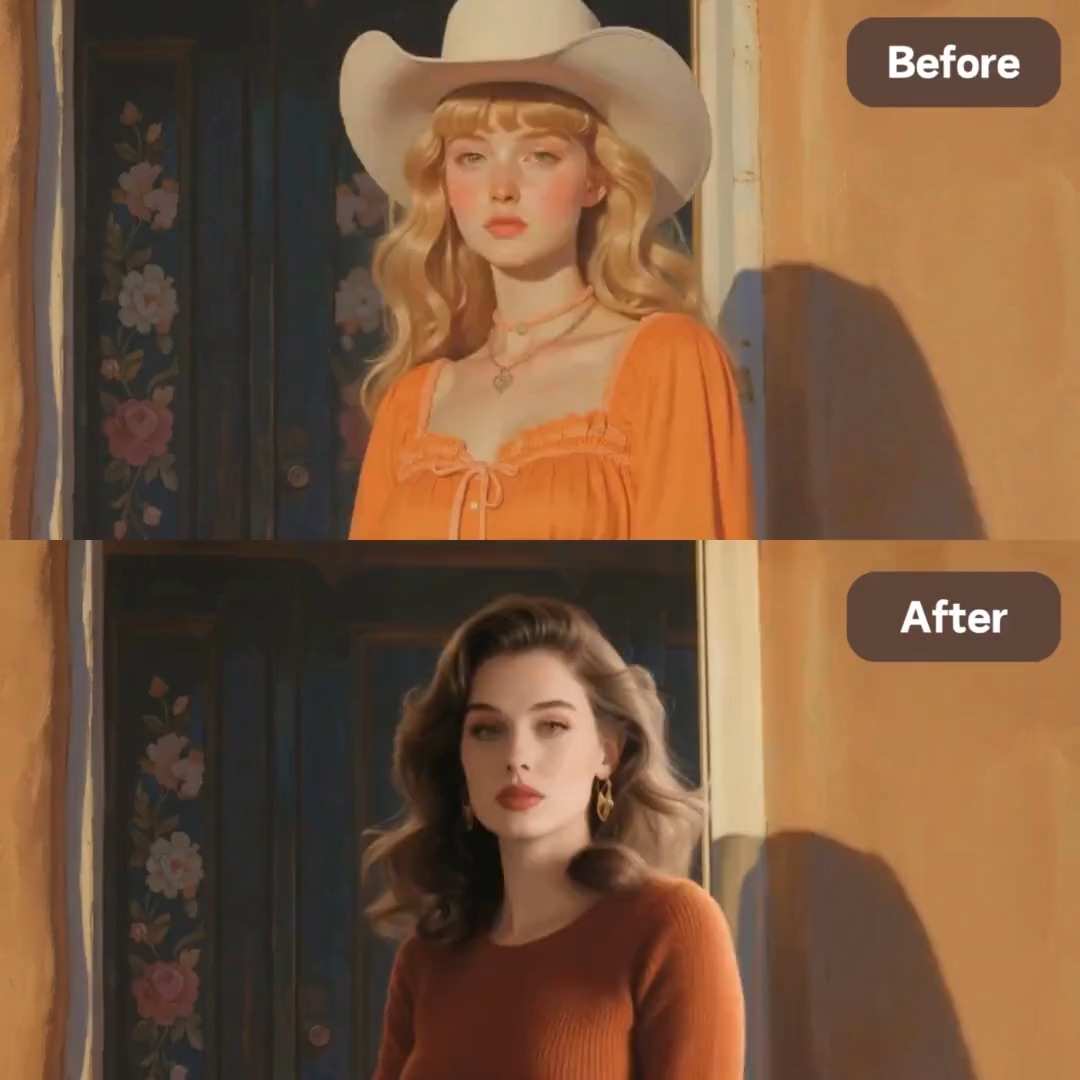
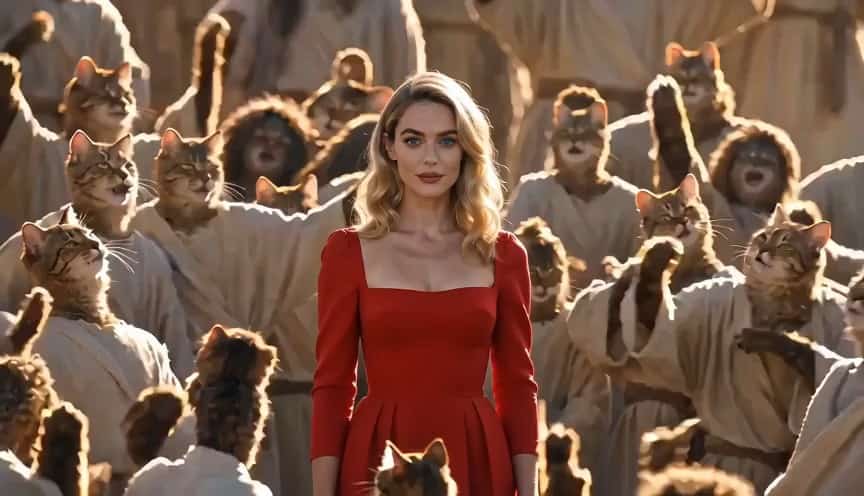
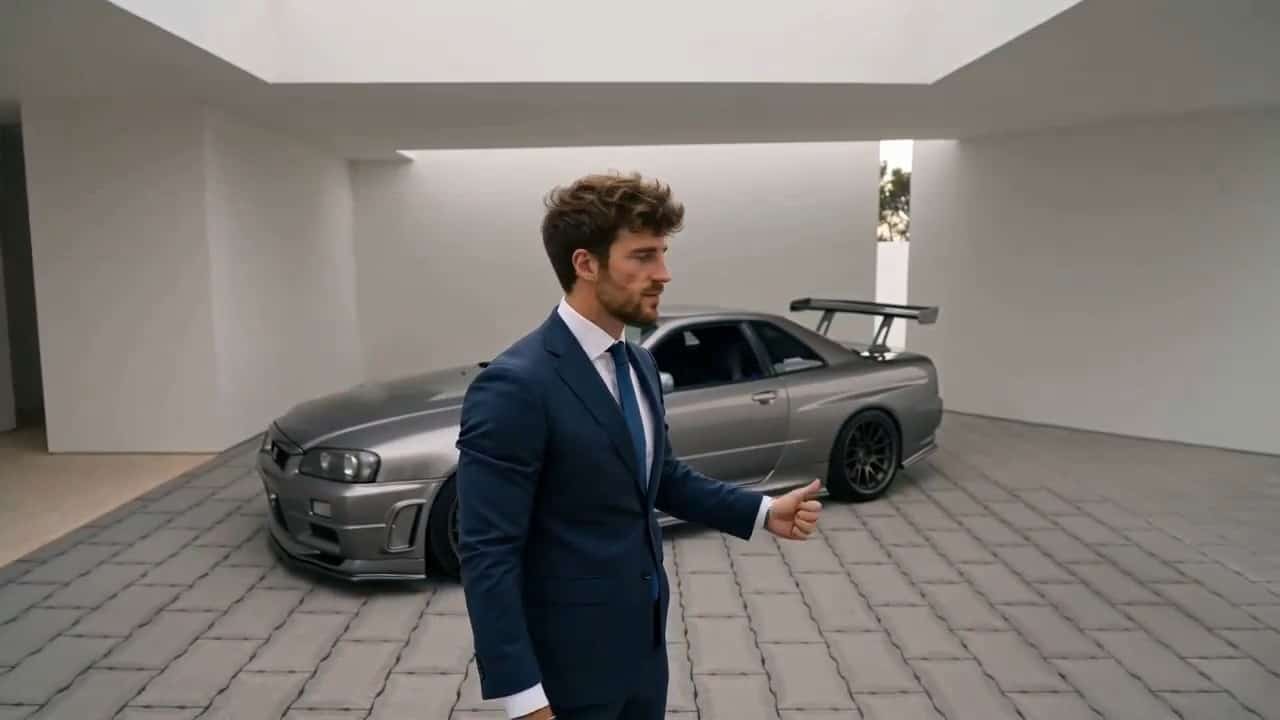
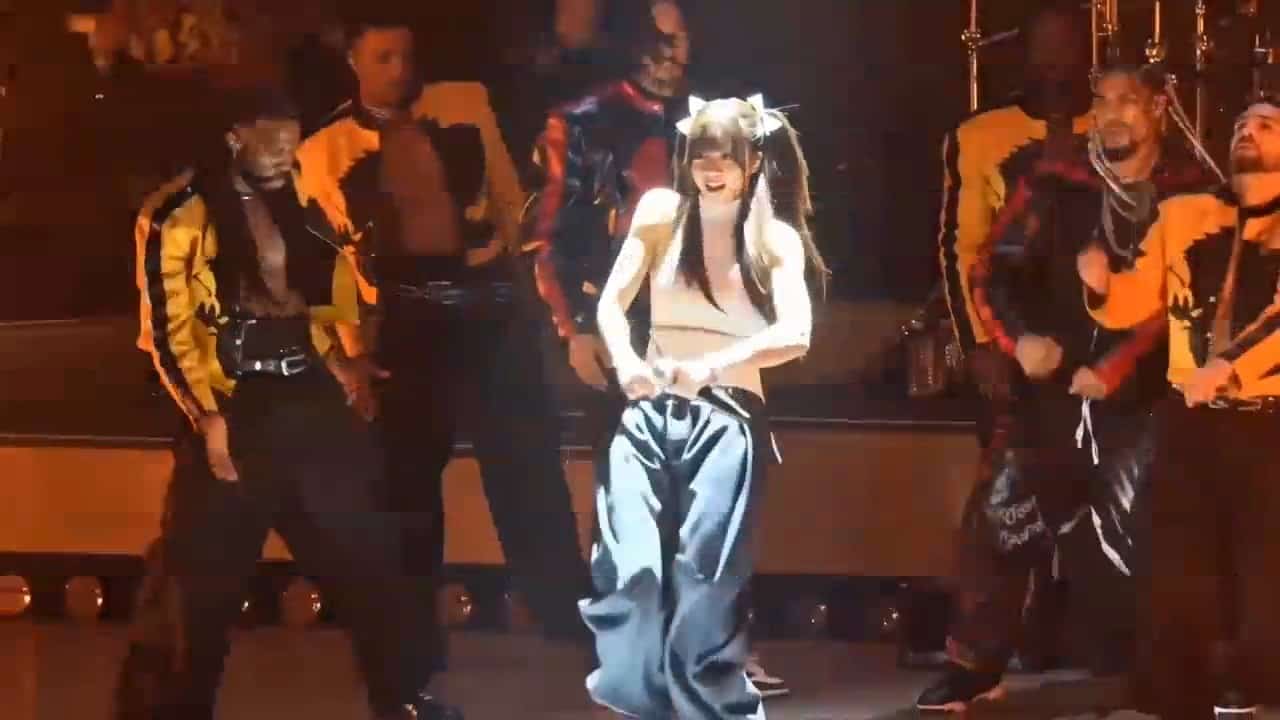
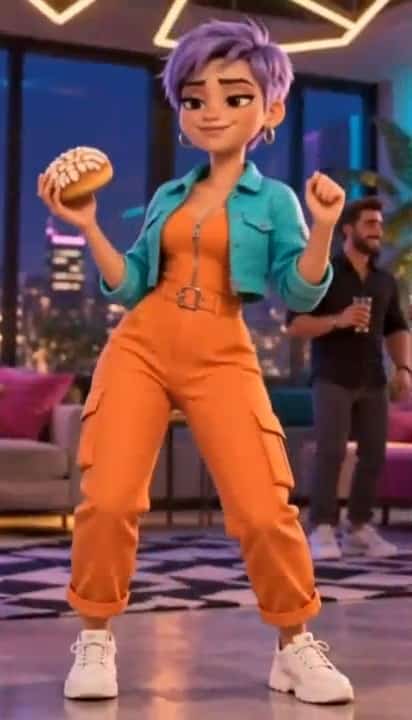
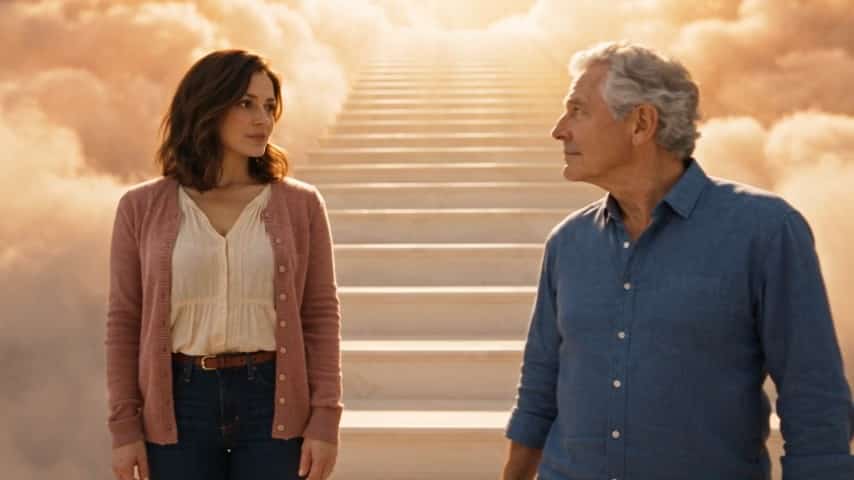
More AI Video Generators
Explore our collection of specialized AI video generators designed for different creative needs and styles
Multi-Shot Video Generator for Directed Visual Stories
Plan connected cuts, preserve the visual thread, and shape multi-angle camera movement from one clear creative brief.
Use the multi-shot video generator to turn a prompt or reference image into a purposeful sequence. The multi-shot video generator helps frame each beat, connect camera changes, and keep the story readable while you direct the action.
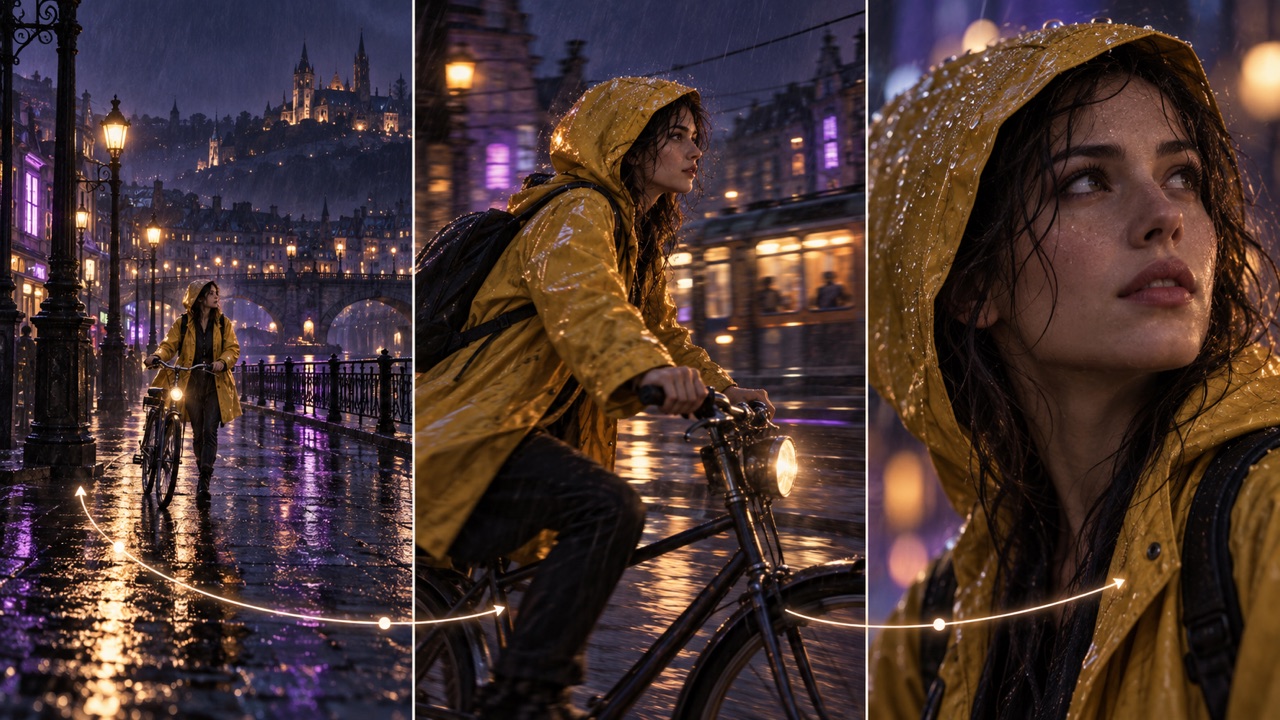
How to Use the Multi-Shot Video Generator
The multi-shot video generator turns a compact story brief into an ordered visual sequence. Give the multi-shot video generator a subject, action, setting, and desired cuts; then review how every angle supports the same narrative moment.

Write the Shot Brief
Start with the story beat, then name each desired view: establishing shot, medium action, close-up, or reveal. Add the subject, environment, lighting, and transition point. For text-to-multi-shot video generation, concise numbered shots help the multi-shot video generator understand order without burying the action in decorative language. Describe multi-angle camera movement only where it changes the viewer's understanding.

Add a Visual Anchor
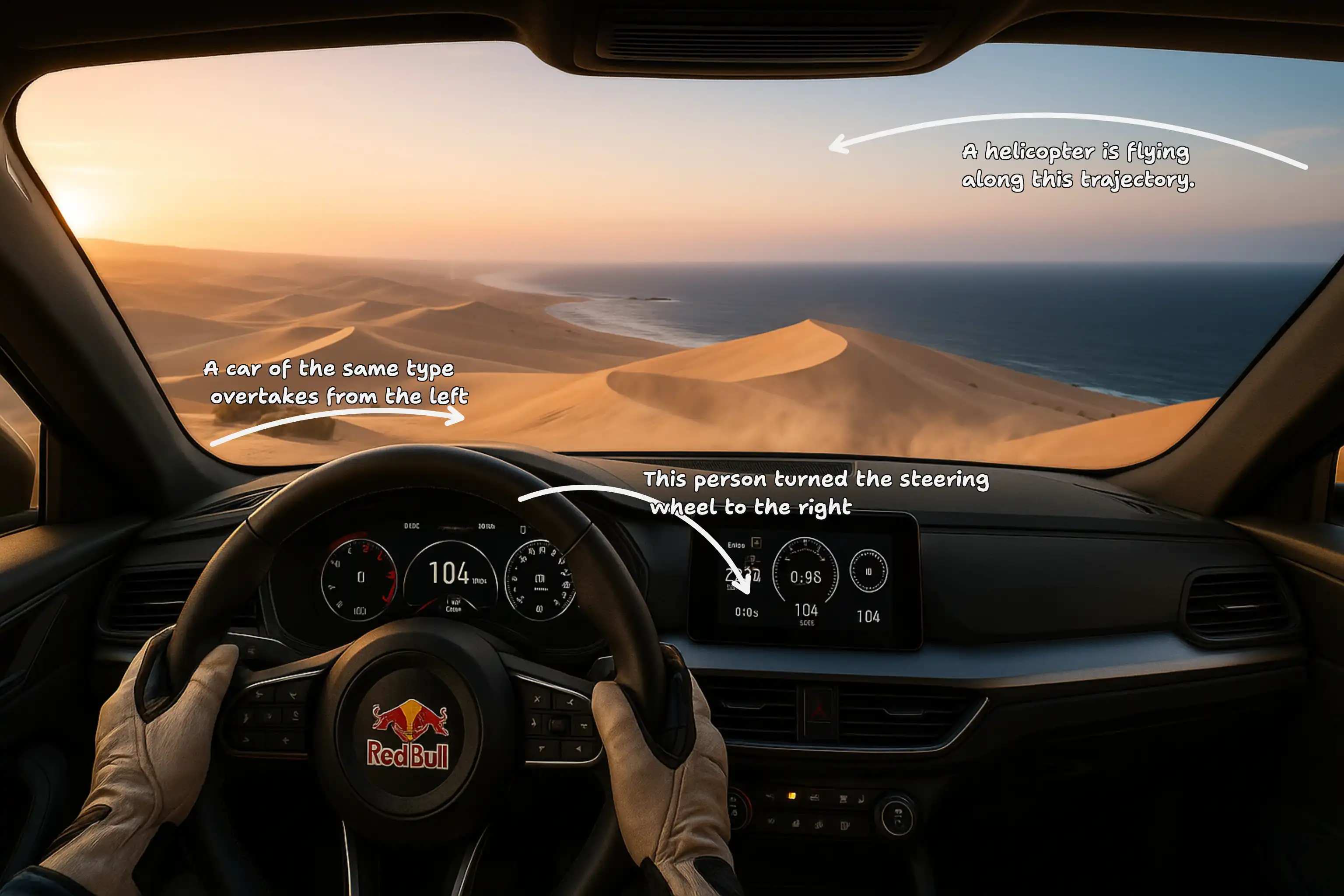
Optionally upload one reference image to anchor a person, product, costume, or location. The multi-shot video generator can use that anchor while changing framing and perspective. Treat it as a visual brief, not a guarantee of pixel-perfect identity. A consistent character video generator prompt should repeat defining traits and protect them during multi-angle camera movement.

Generate and Review the Cuts
Choose Kling 3.0, submit the sequence, and review the result as a connected edit. Check whether the multi-shot video generator preserves subject cues, screen direction, lighting, and action across cuts. If one beat feels unclear, refine that shot description, the transition timing, or the multi-angle camera movement before generating another version with the multi-shot video generator.
Best AI Video Tools for Creative Projects
Explore creative tools for video, learn tips and tricks, and see how AI can be your assistant in turning concepts into finished projects.
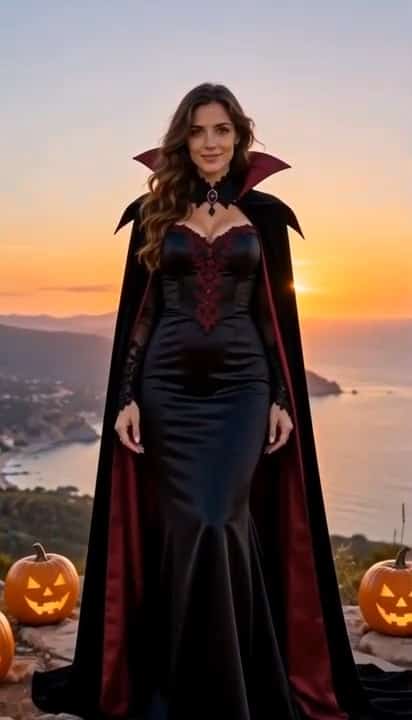
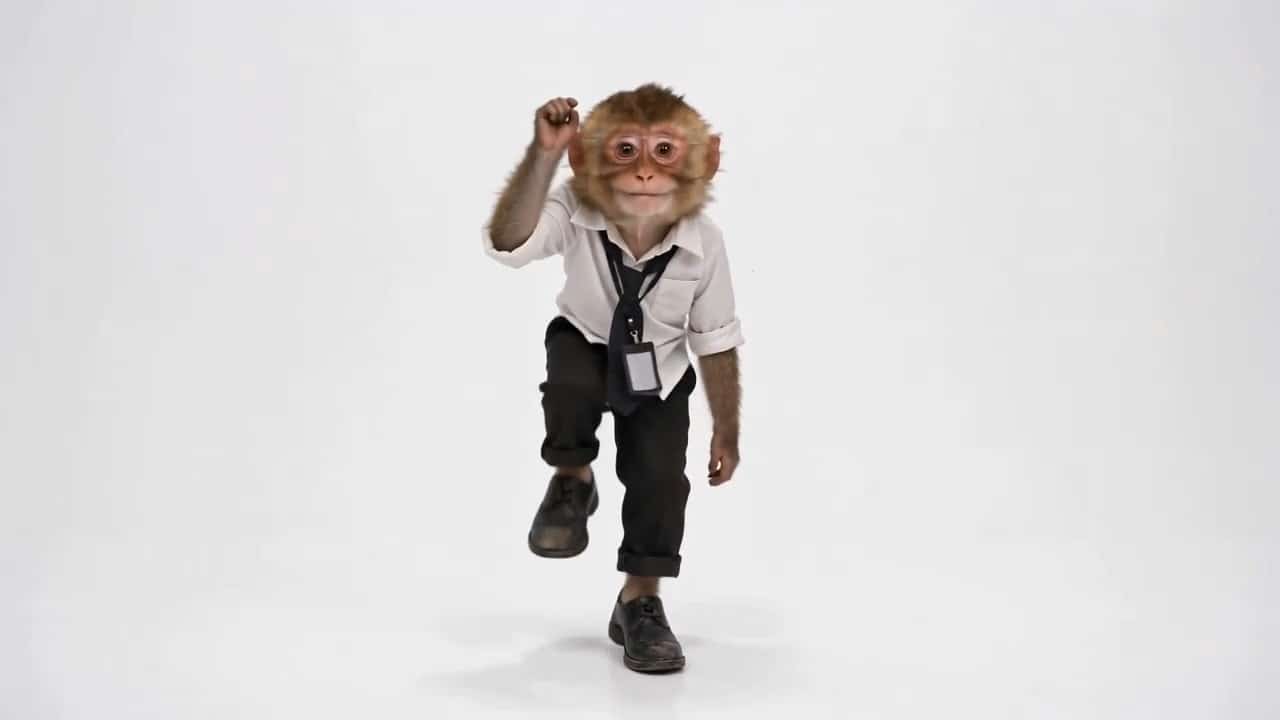
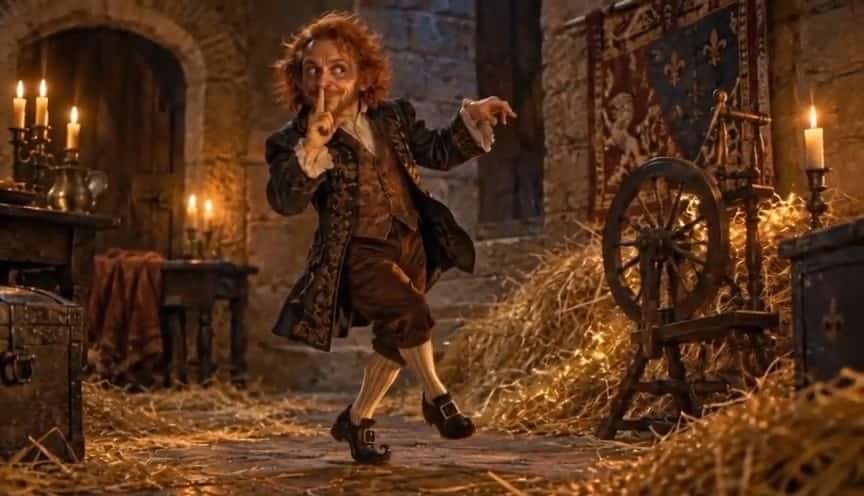


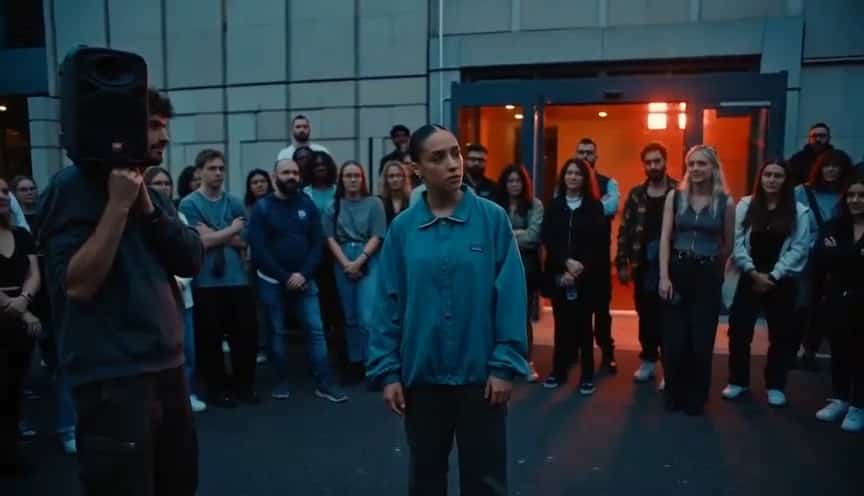



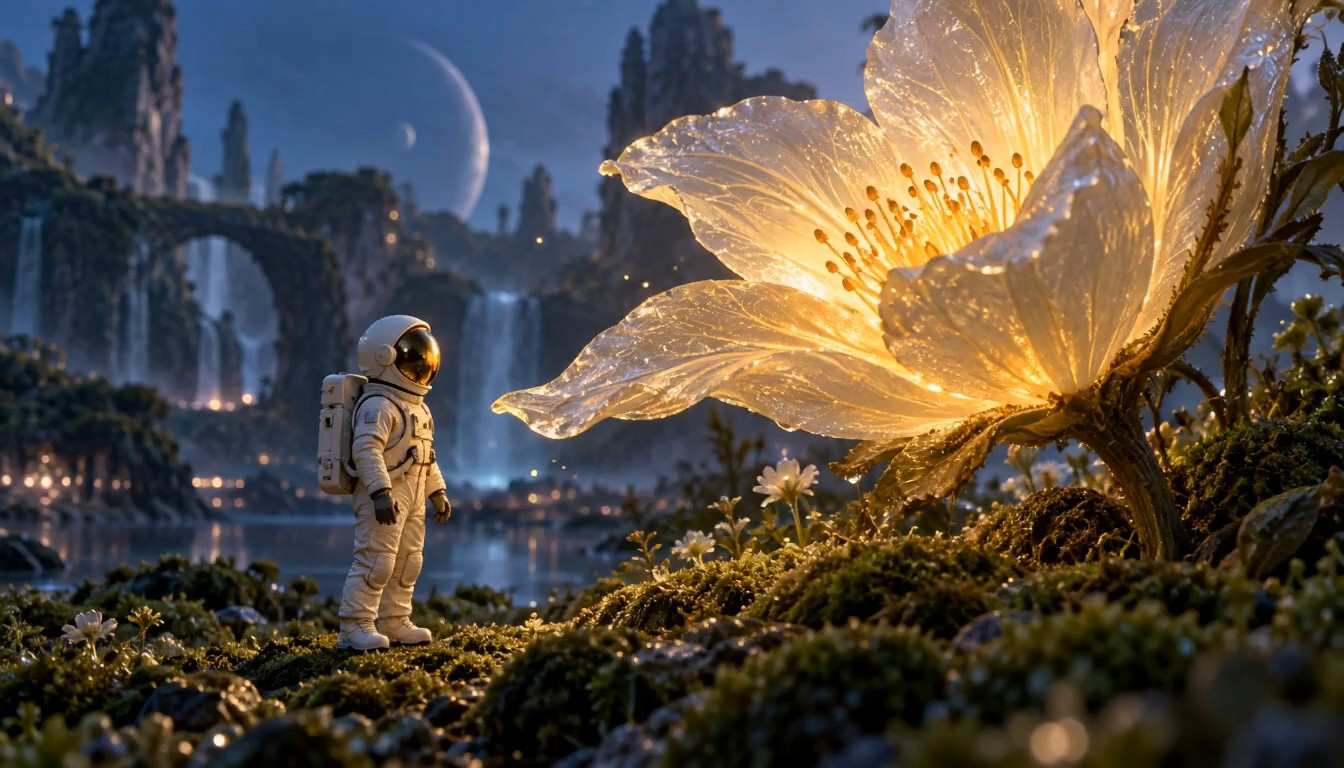
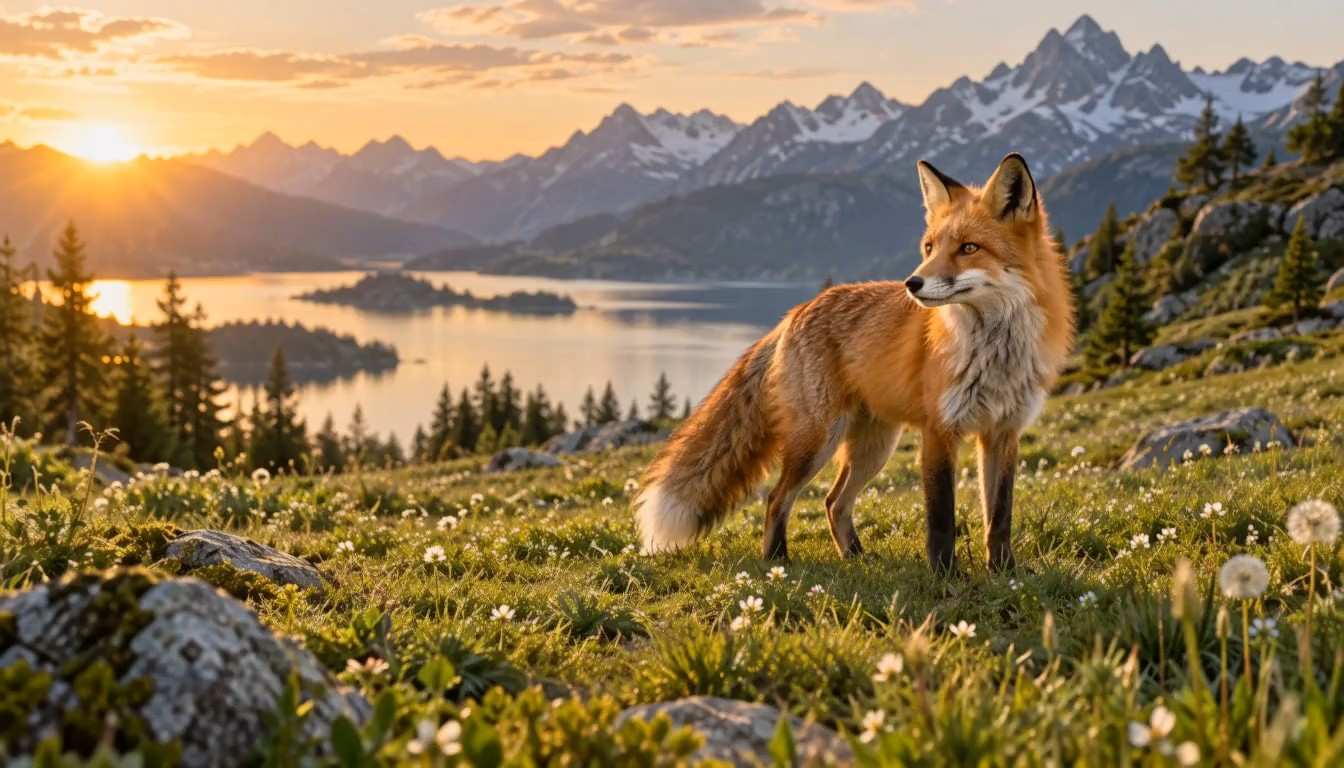
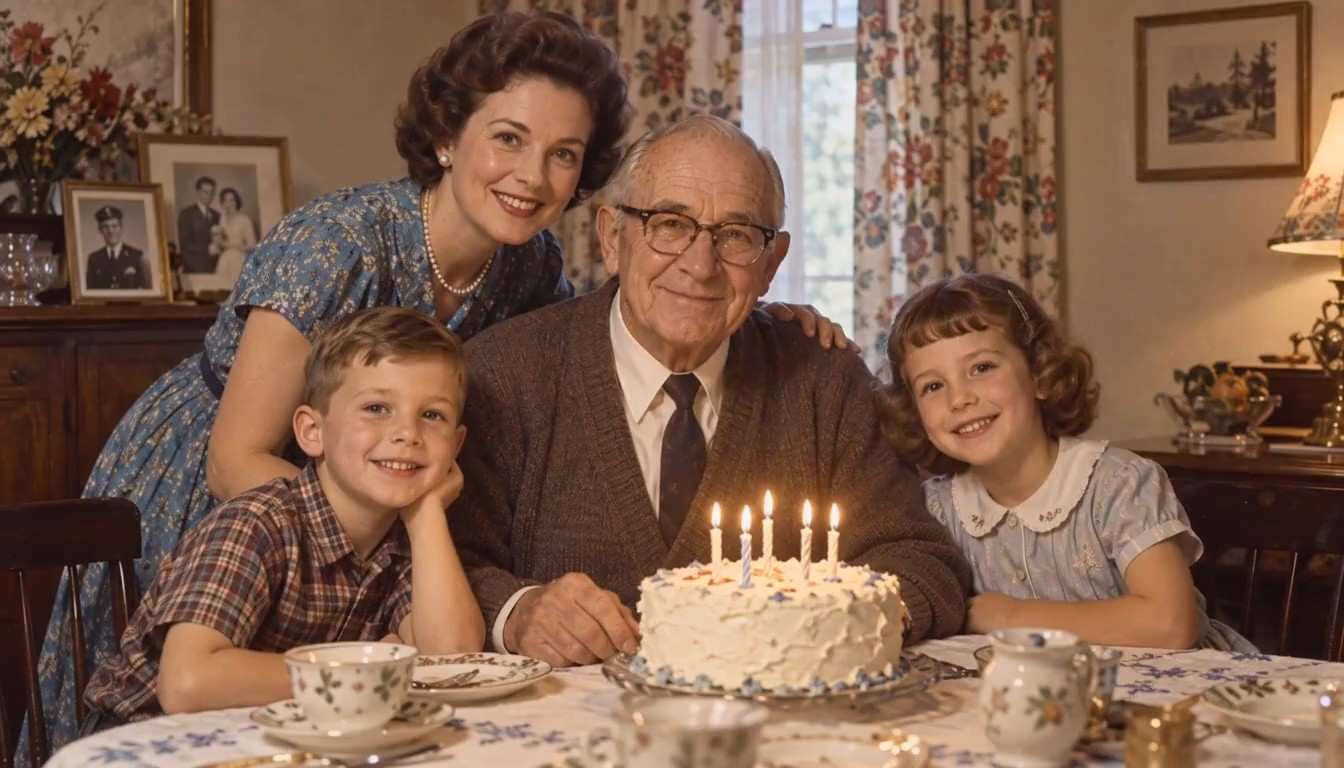





Direct More Than a Single AI Video Shot
A multi-shot video generator is useful when one continuous view cannot carry the full idea. Build visual progression, control emphasis, and guide the audience from context to action to detail with planned cuts and multi-angle camera movement.

Turn One Brief into a Shot Sequence
The multi-shot video generator interprets a connected brief instead of treating every view as an unrelated clip. Introduce the setting in a wide frame, follow the action in a medium shot, then land on a detail that matters. This text-to-multi-shot video generation pattern gives every cut a job. A multi-shot AI video generator works best when shot order, subject action, and transition logic are explicit. Use the multi-shot video generator to explore structure before committing to a larger edit, and keep multi-angle camera movement tied to the story rather than adding motion for its own sake. A strong sequence also names the question each cut answers. The multi-shot video generator can establish where the subject is, show what changes, and reveal why the moment matters. That discipline helps the multi-shot video generator produce an edit.

Shape Camera Angles with Narrative Intent
Use multi-angle camera movement to reveal scale, tension, emotion, or product detail. The multi-shot video generator can move from an overhead establishing view to a lateral track and then a close-up, provided the prompt explains why the view changes. The multi-shot video generator benefits from concrete camera verbs such as pan, orbit, push in, pull back, crane, or handheld follow. This multi-shot AI video generator workflow turns cinematography into instructions you can evaluate. Keep speed, direction, framing, and the cut point readable so multi-angle camera movement feels intentional rather than random. Think about screen direction and subject position from one view to the next. The multi-shot video generator needs those relationships to make a cut understandable. When the move is complex, let the multi-shot video generator execute one clear path per shot instead of stacking conflicting camera commands.
Protect Continuity Across Every Cut
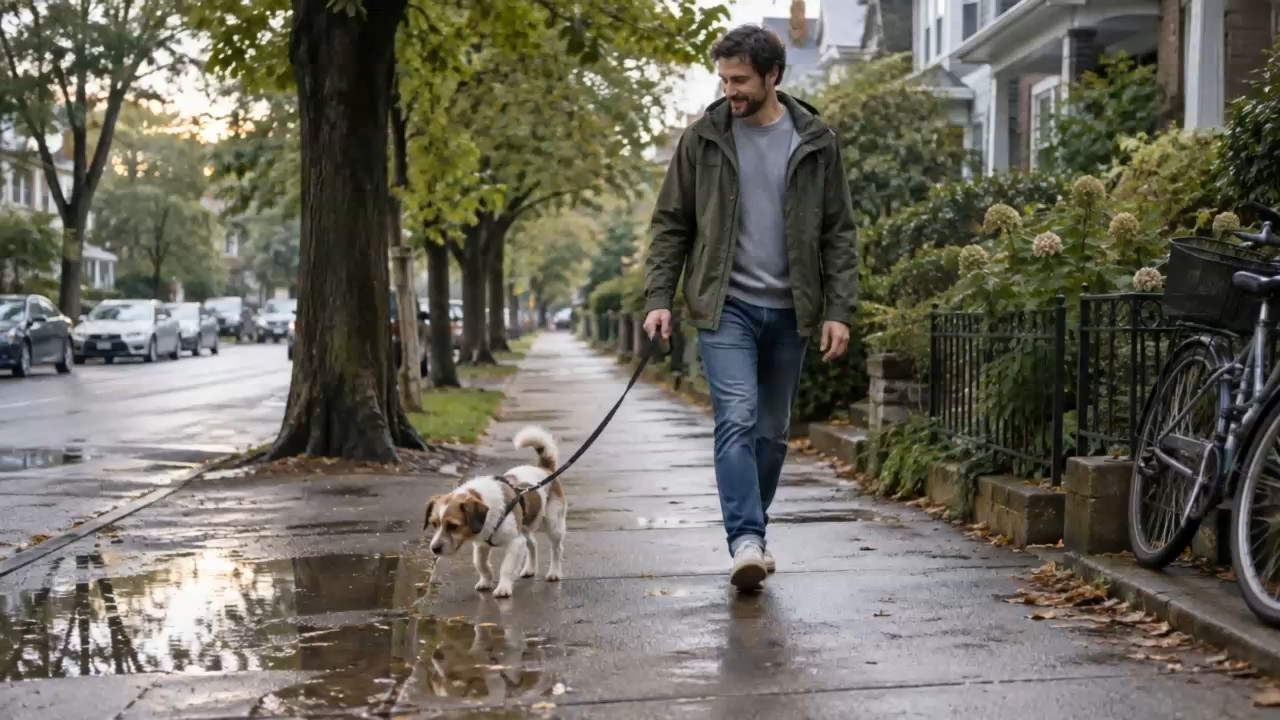
A connected sequence succeeds when the subject, location, light, and action remain understandable after a cut. The multi-shot video generator responds better when you repeat essential visual anchors and avoid changing too many variables at once. Think like a consistent character video generator: define face, hair, wardrobe, key props, and emotional state, then describe what changes in each shot. The multi-shot video generator can explore new views while your prompt protects continuity. Combine those anchors with measured multi-angle camera movement to reduce distracting visual drift between beats. Continuity also includes geography: doors, windows, props, and travel direction should make sense after the edit. Tell the multi-shot video generator which relationships must stay fixed. The multi-shot video generator can then spend its creative range on framing and performance without rewriting the visual world.

Explore Pacing Before the Final Edit
Use the multi-shot video generator as a visual development partner for storyboards, pitch ideas, ads, reels, and previsualization. A multi-scene video generator can help compare how a moment reads when it opens slowly, cuts on action, or ends on a reaction. With the multi-shot video generator, prompt duration and emphasis for each beat, then judge the rhythm of the complete result. Text-to-multi-shot video generation is especially helpful when a written concept needs a concrete sequence for team review. Refine multi-angle camera movement only after the narrative order is clear. Pacing is easier to judge when each beat has one dominant purpose. Ask the multi-shot video generator to hold longer on context or shorten a transition when attention should shift quickly. The multi-shot video generator becomes most useful when revisions are based on a specific editorial observation.
Who Uses a Multi-Shot Video Generator?
The multi-shot video generator supports creators who need more visual logic than a single continuous take. Different teams can use the multi-shot video generator to test camera coverage, narrative clarity, and multi-angle camera movement before a concept moves downstream.

Filmmakers and Previsualization Artists
Directors can use the multi-shot video generator to test coverage for a scene before production. Define the master shot, reaction, insert, and final reveal, then study whether the sequence communicates blocking and emotion. A multi-scene video generator can turn a written beat into a reviewable visual plan, while multi-angle camera movement helps teams discuss lens position, direction, and pacing with a shared reference. The multi-shot video generator also makes omissions visible: if the audience cannot follow an entrance, eyeline, or reveal, the next prompt can add the missing coverage before the shot list hardens.

Marketing and Product Teams
Campaign teams can use the multi-shot video generator to shape a product story from context to demonstration to close detail. The multi-shot AI video generator makes it easier to compare alternative openings and reveals without rewriting the entire concept. Specify product shape, color, placement, and multi-angle camera movement so each shot advances the message while the multi-shot video generator maintains a recognizable visual thread. The multi-shot video generator can also separate functional proof from emotional payoff, helping reviewers decide whether the demonstration, reaction, or final product frame needs greater emphasis.

Social Video Creators
Creators can use the multi-shot video generator to give short-form stories a deliberate beginning, turn, and payoff. Start with a scroll-stopping angle, cut closer when the action changes, and end with a clear visual beat. The multi-shot video generator helps organize that progression, while multi-angle camera movement adds energy without forcing creators to describe separate disconnected clips. The multi-shot video generator can test horizontal or vertical concepts through the chosen aspect ratio, but the strongest framing still comes from naming the subject's position and the intended focal change.

Story and Character Designers
Narrative teams can treat the multi-shot video generator as a consistent character video generator workflow for early scene exploration. Repeat the character's defining traits, protect wardrobe and props, and state the emotional change between shots. The multi-shot video generator can then test how close-ups, reverse angles, and multi-angle camera movement affect the performance while the same story identity remains legible. The multi-shot video generator is also helpful for identifying which character detail must be visible in every angle and which details can remain flexible without confusing the audience.
How Creative Teams Use the Multi-Shot Video Generator
These fictional examples illustrate how the multi-shot video generator can fit different planning and concept-development workflows.
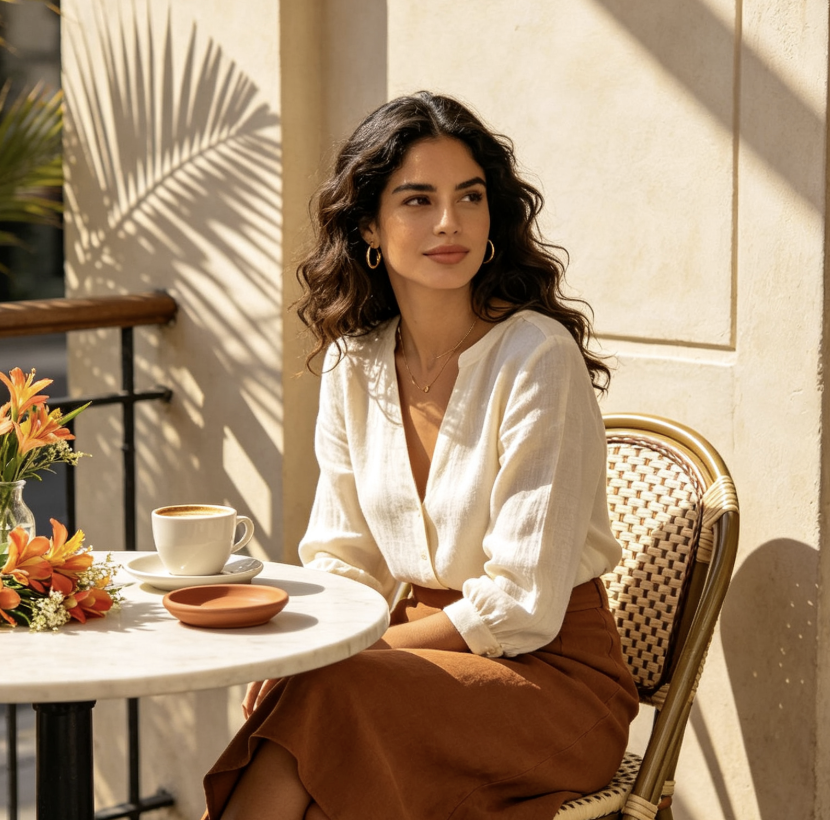
I use the multi-shot video generator to pressure-test a scene before sharing a storyboard. The multi-shot video generator lets me compare an establishing view, a moving medium shot, and a reaction without losing the core beat. Writing multi-angle camera movement directly into the brief makes creative reviews much more specific. The multi-shot video generator gives everyone a concrete sequence to discuss instead of asking them to imagine the same camera coverage from notes.
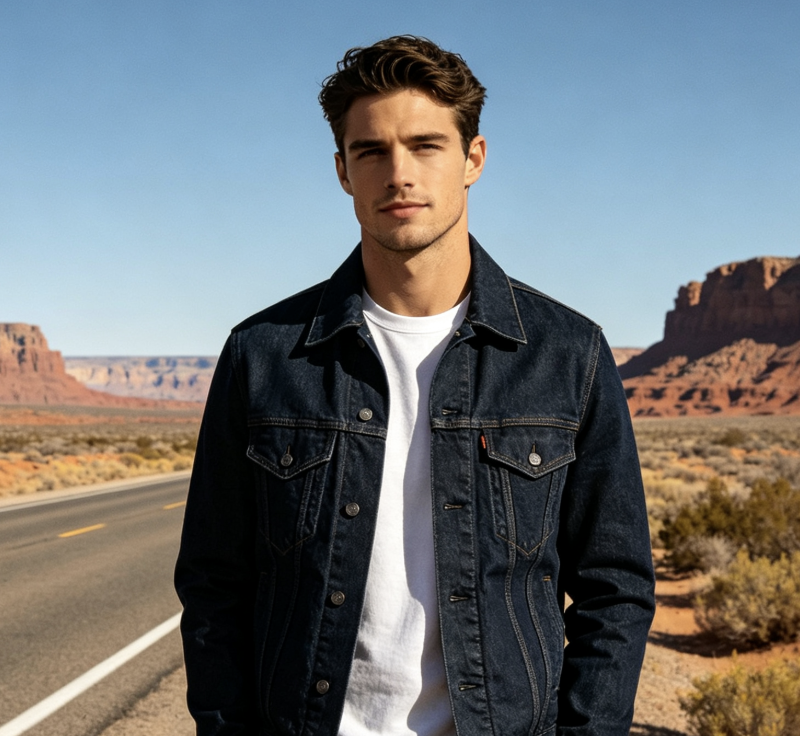
For campaign concepts, the multi-shot AI video generator helps our team move beyond a single beauty shot. We use the multi-shot video generator to test how the product enters, turns, and lands in close-up. It feels like a practical multi-scene video generator for discussing pacing before production begins. The multi-shot video generator helps us separate essential product views from decorative cuts before we commit to a final treatment.
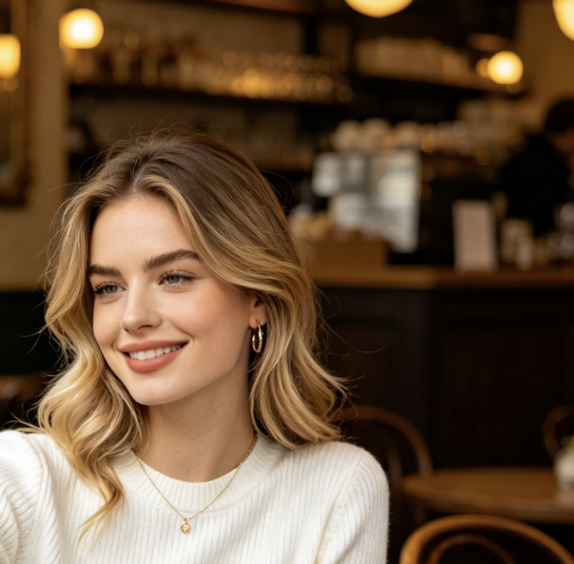
The multi-shot video generator gives my short-form ideas a cleaner arc. I can describe text-to-multi-shot video generation in numbered beats, add multi-angle camera movement where attention should shift, and quickly see whether the close-up arrives at the right moment. The multi-shot video generator keeps the brief organized. The multi-shot video generator also shows me when an opening needs more context or a payoff needs one calmer reaction shot.
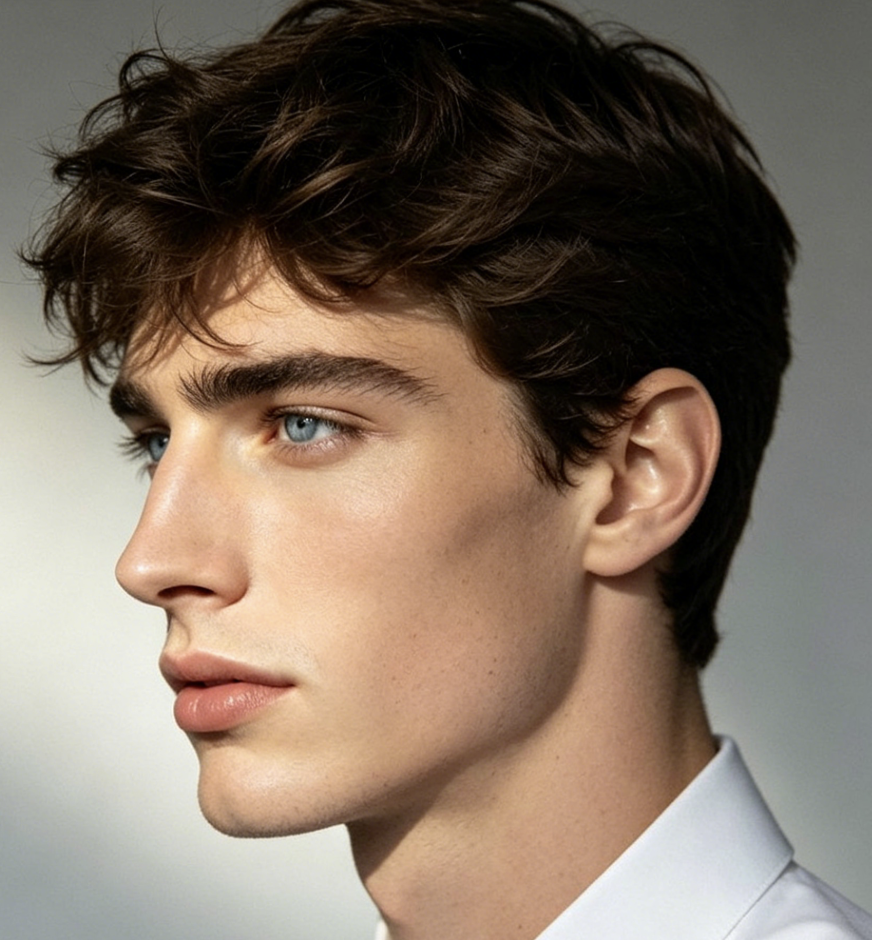
Character continuity is easier to discuss when the whole sequence is visible. I prompt the multi-shot video generator like a consistent character video generator, repeating costume, silhouette, and emotional state. Then I use the multi-shot video generator to test reverse angles and controlled multi-angle camera movement before refining individual beats. The multi-shot video generator makes identity drift easier to spot because every cut can be judged against the same written anchor.
Multi-Shot Video Generator FAQ
Practical answers about prompting the multi-shot video generator, using references, planning cuts, and describing multi-angle camera movement.
A multi-shot video generator creates a connected sequence with more than one camera setup or cut. Instead of describing isolated clips, you give the multi-shot video generator an ordered brief covering subject, setting, action, framing, and transitions so the result reads as one visual idea.
Write numbered shots in chronological order. For each shot, state the framing, subject action, camera behavior, and transition cue. The multi-shot video generator works best when repeated visual anchors stay concise, and multi-angle camera movement is described with concrete verbs such as pan, orbit, track, or push in.
Yes, the page allows one optional reference image alongside the prompt. Use a clear image that represents the subject or visual direction, then repeat essential traits in your text. The multi-shot video generator uses the combined brief to plan views, but you should still review continuity after generation.
Prompt the workflow like a consistent character video generator: repeat the face, hair, wardrobe, props, and emotional state that must remain stable. Tell the multi-shot video generator what changes in each shot and what does not. A clean reference image can strengthen that continuity anchor.
Multi-angle camera movement combines changes in viewpoint with directed motion such as a pan, orbit, track, crane, or push in. In the multi-shot video generator, describe the starting frame, movement direction, speed, subject relationship, and intended cut so each camera choice has a clear narrative purpose.
It can support a multi-scene video generator style of prompt when your sequence moves between connected locations or moments. Keep the story relationship explicit, restate recurring subjects, and make scene changes easy to identify. The multi-shot video generator is strongest when every new setting serves the same concise narrative arc.
Text-to-multi-shot video generation asks the model to plan discrete views and transitions within one brief. A single-shot prompt usually describes continuous action from one camera setup. The multi-shot video generator therefore needs clearer shot order, continuity anchors, and edit logic than a conventional one-view prompt.
This page uses Kling 3.0 because the current SuperMaker backend offers it and its multi-shot features match the workflow. The multi-shot video generator keeps the model choice focused, while the prompt controls subject details, shot order, framing, transitions, and multi-angle camera movement.
The multi-shot video generator can create a connected visual sequence, but it does not replace every editorial decision. Review timing, continuity, sound, and message fit before using an output downstream. Treat the multi-shot video generator as a generation and previsualization tool, then apply any finishing work your project requires.
The page leaves the built-in prompt off so your shot plan stays in control. A fixed hidden instruction could conflict with open-ended stories or camera choices. Instead, the multi-shot video generator provides a visible example placeholder that shows how to structure shots, continuity anchors, and transitions without silently changing your request.
Direct Your Next Sequence with the Multi-Shot Video Generator
Move from one idea to a connected plan. Use the multi-shot video generator to define the story beat, guide multi-angle camera movement, protect continuity, and review how every cut works together before you refine the next version. The multi-shot video generator gives your next concept an intentional visual path from the first frame to the final reveal.