More AI Video Generators
Explore our collection of specialized AI video generators designed for different creative needs and styles






AI Video Upscaler: Enhance Video Quality and Resolution
Improve soft, compressed, or low-resolution footage with AI-powered upscaling. Refine visible detail, strengthen clarity, and prepare existing clips for sharper playback with a focused browser-based enhancement workflow.
AI Video Upscaler helps turn weak source footage into a cleaner, more usable result without a complicated editing process. AI Video Upscaler Online combines Video Quality Enhancer processing with Video Resolution Enhancer controls so you can improve soft details, reduce the impact of compression, and prepare footage for a clearer final presentation.
How to Use AI Video Upscaler in 3 Steps
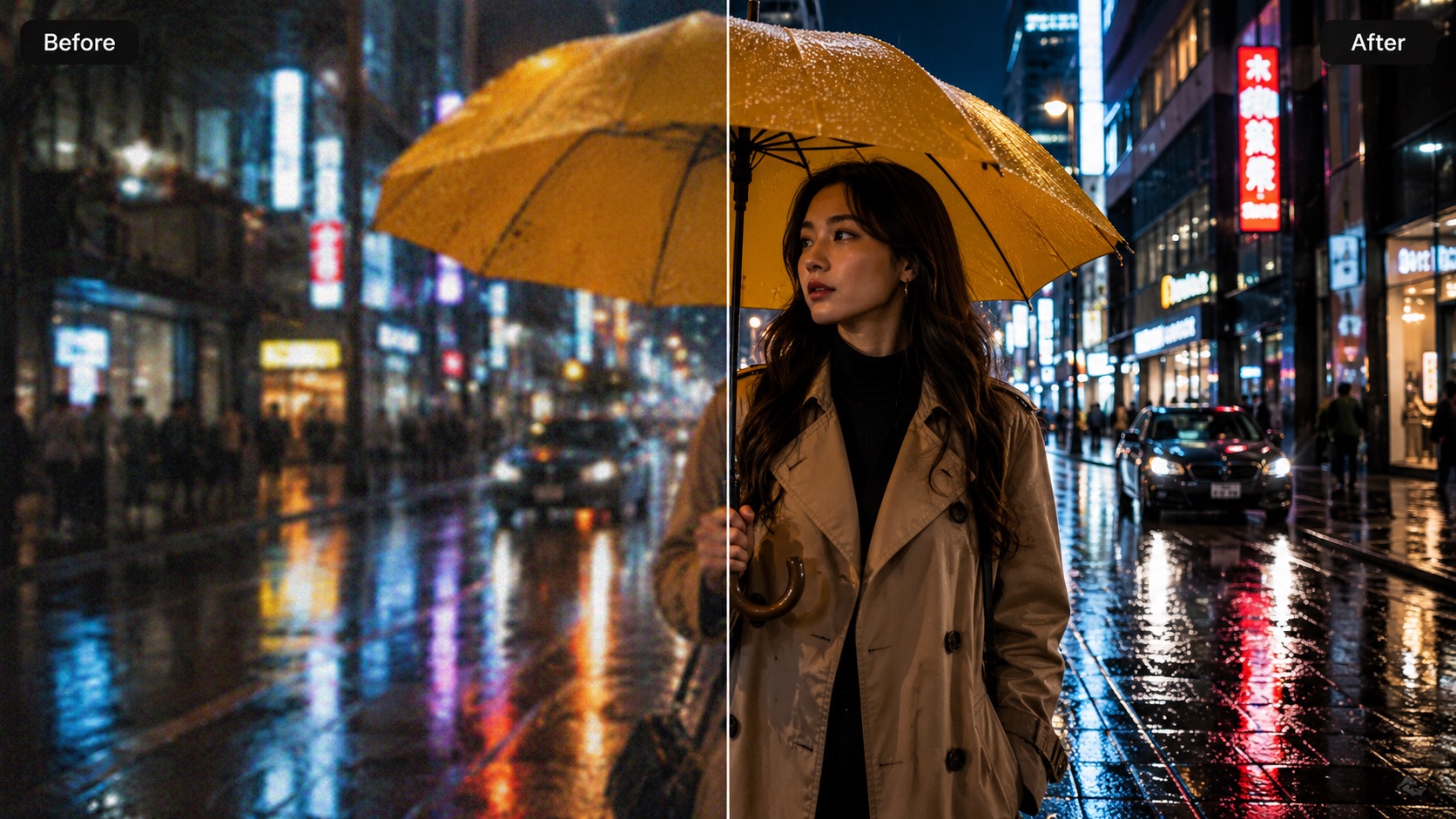
AI Video Upscaler keeps the workflow simple: upload a source clip, choose settings that match the footage, and generate the enhanced version. You can use AI Video Upscaler 4K when a larger output is needed or Upscale Video to 4K Online while keeping scene and frame-rate controls in the same workflow.

Upload Your Source Video
Start AI Video Upscaler by uploading an MP4 source video up to 500 MB. Drag and drop the file, click to select a video, or choose one from your Assets Library. This enhancement workflow works best when the source still contains recognizable faces, edges, textures, and motion. Even when a clip looks soft or compressed, Video Quality Enhancer processing can improve its presentation, while Video Resolution Enhancer controls prepare the enhanced video for your chosen output.

Choose Quality, Scene, Resolution, and Frame Rate
Choose Standard or Pro quality, then select the scene type that best matches your footage: AIGC, Short Drama, UGC, Old Film, or Common. Next, choose 720p, 1080p, 2K, or 4K and set 24, 30, 60, or 120 fps. AI Video Upscaler lets Video Quality Enhancer processing respond to the source type while Video Resolution Enhancer settings define the target output. You can also set Public Visibility before generation.

Generate Your Enhanced Video
Review the settings and click Generate Video. The enhancement process follows your selected quality mode, scene, resolution, and frame rate. Preview the result and keep the version that best fits your project. AI Video Upscaler Online gives users a direct route from low-quality footage to a clearer result, whether the goal is to Enhance Blurry Video, Upscale Blurry Video, or prepare a clip for larger-screen playback.
Best AI Video Tools for Creative Projects
Explore creative tools for video, learn tips and tricks, and see how AI can be your assistant in turning concepts into finished projects.















What AI Video Upscaler Helps You Improve
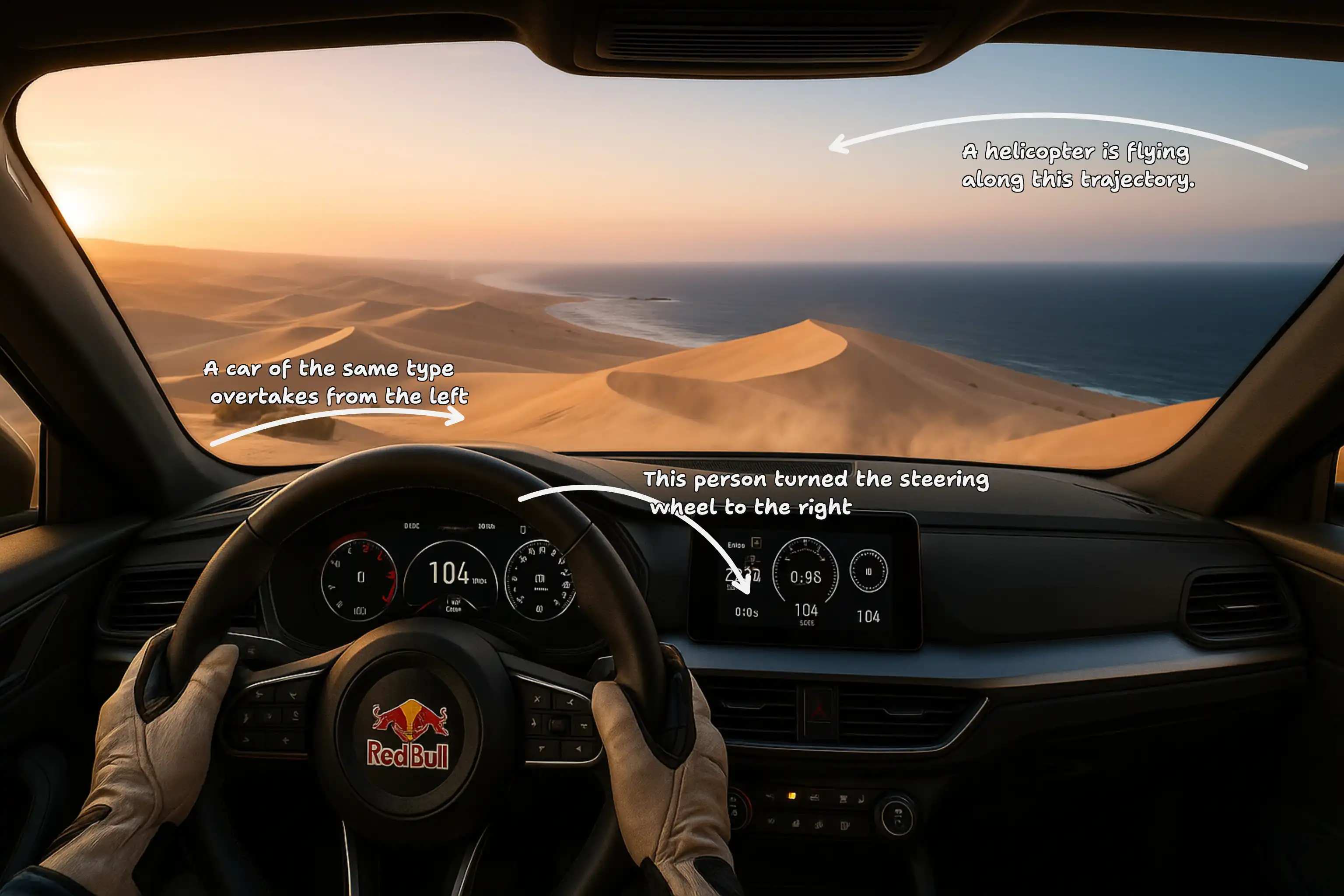
AI Video Upscaler is designed for practical recovery, reuse, and consistency. It can help Enhance Blurry Video, improve compressed material, and prepare older footage for current projects. Video Quality Enhancer processing focuses on how clear the footage looks, while Video Resolution Enhancer controls help define the target output. Together, these functions make AI Video Upscaler useful before editing, publishing, presenting, or archiving a cleaner version.
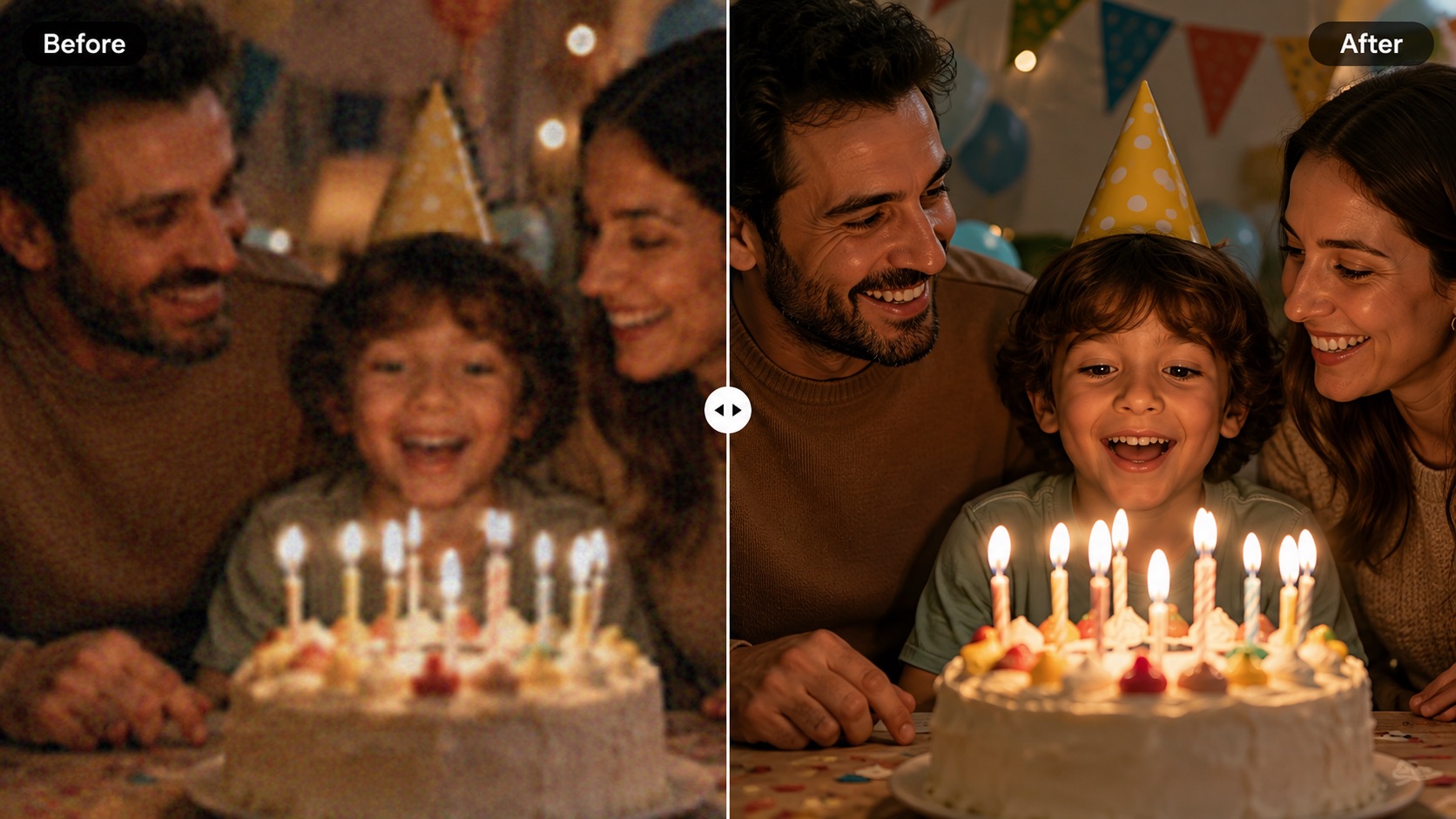
Recover Useful Detail from Soft or Compressed Footage
Repeated exports, messaging apps, social platforms, and older recording devices can leave a video looking soft even when the content is still valuable. AI Video Upscaler helps recover a cleaner visual impression from that footage. Instead of relying on simple enlargement, this workflow uses Video Quality Enhancer processing to strengthen perceived detail and reduce distracting softness. Use it to Enhance Blurry Video when faces, clothing, signs, or background textures need better definition. Video Resolution Enhancer controls can then prepare the result for a larger output. For users searching Video Upscaler Online Free, this workflow offers a practical way to test whether a weak clip can become more useful before replacing or reshooting it.
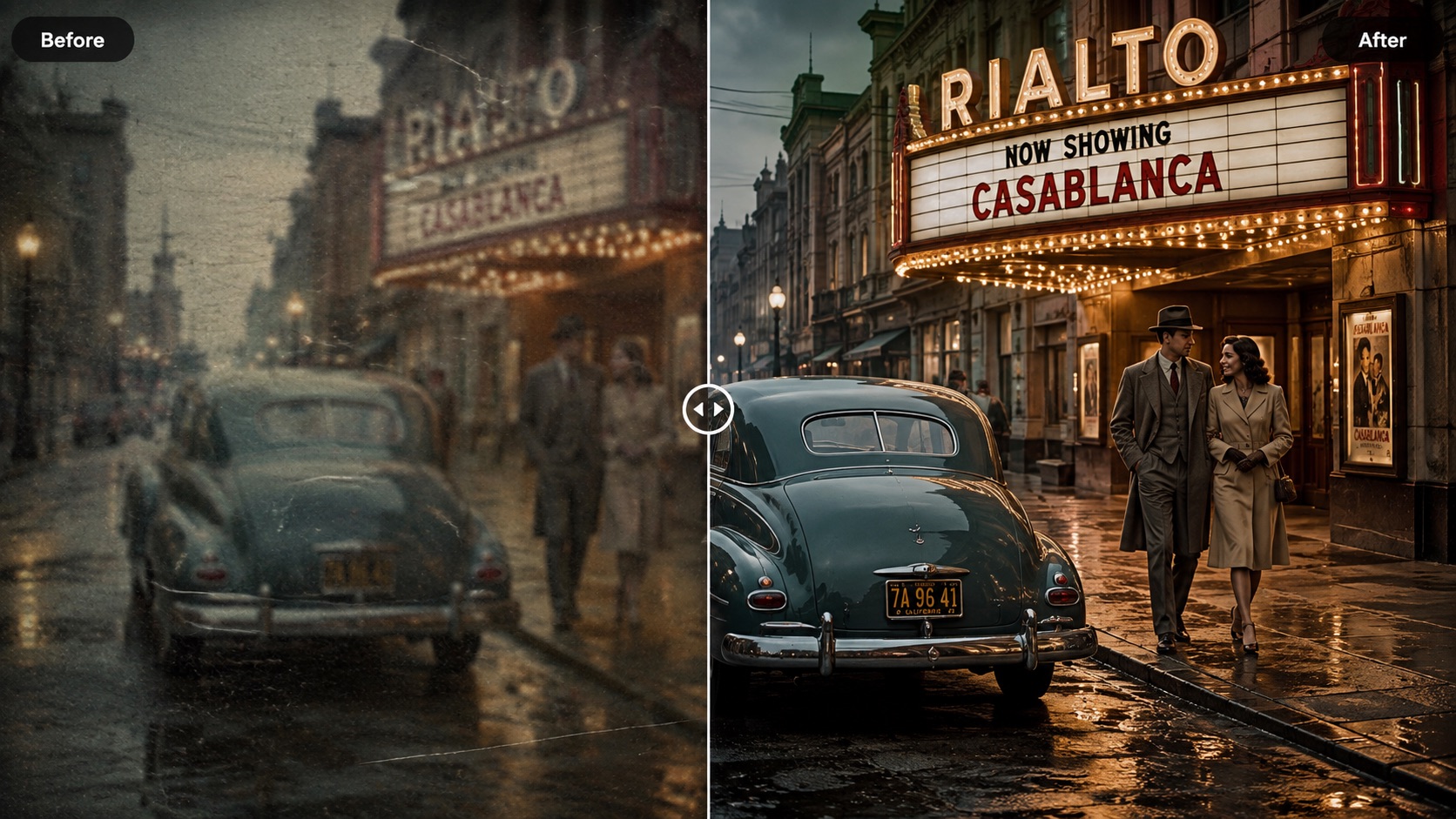
Give Older Footage a Better Second Life
Archived interviews, family recordings, event videos, legacy promos, and early digital footage may still matter even when their original quality feels dated. AI Video Upscaler helps you reuse these clips instead of abandoning them. Choose Old Film when it matches the source, then let Video Quality Enhancer processing improve the viewing experience while Video Resolution Enhancer settings prepare the clip for a newer delivery format. AI Video Upscaler 4K can be useful when the final project is built for larger screens. If the source is noticeably soft, AI Video Upscaler can also Upscale Blurry Video so older material sits more comfortably beside modern footage.
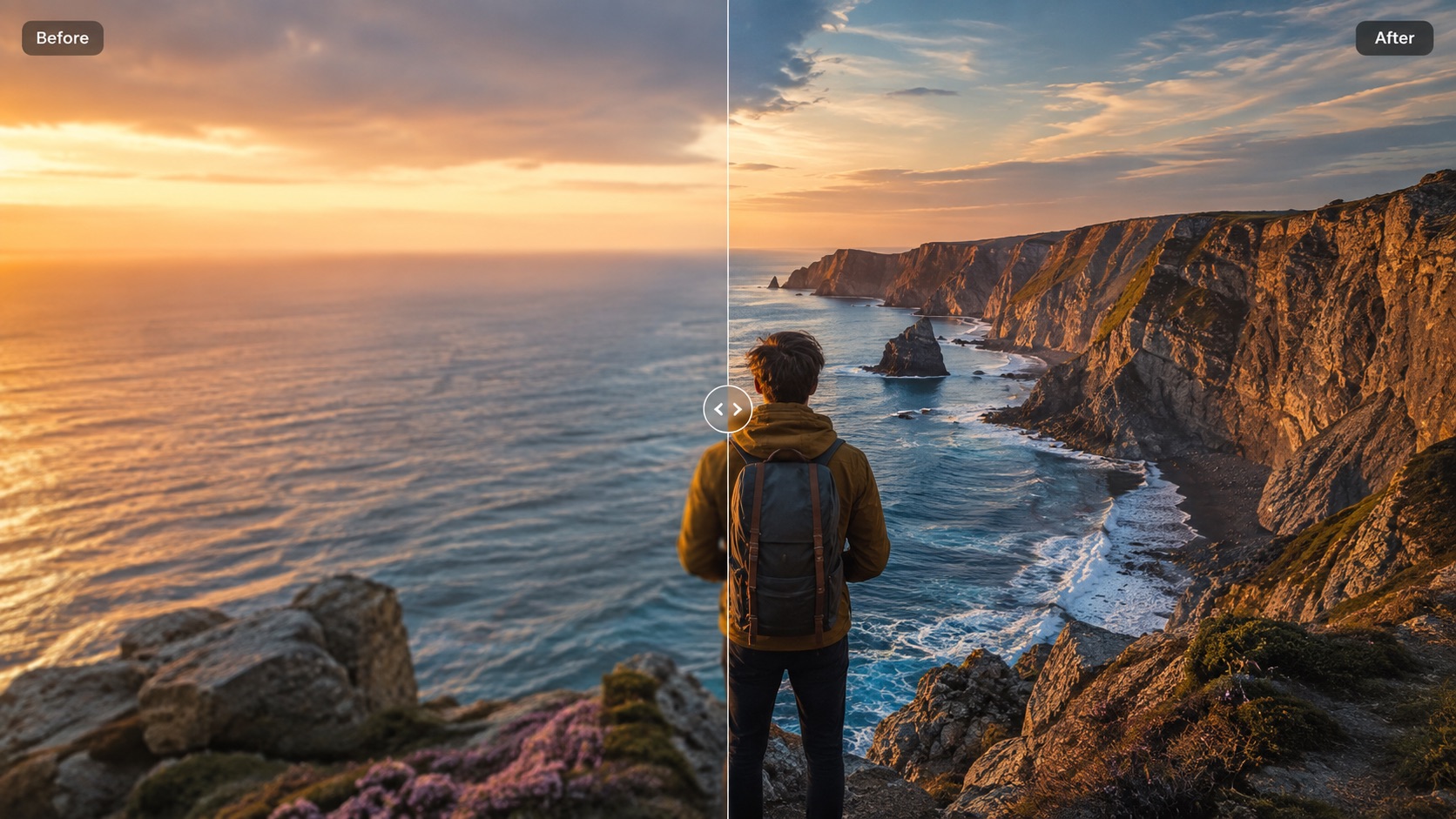
Reduce Quality Gaps in Mixed-Source Projects
A single project may combine phone recordings, downloaded clips, AI-generated scenes, user-generated content, and older footage. When one source looks much softer than the others, the difference can distract viewers. AI Video Upscaler gives editors a way to improve weaker clips before final assembly. Select AIGC, UGC, Short Drama, Old Film, or Common so the processing better reflects the material. Video Quality Enhancer treatment helps reduce visible quality gaps, while Video Resolution Enhancer controls align output with the project target. AI Video Upscaler Online is especially useful when you want a quick enhancement pass without rebuilding the edit around the weakest clip. Video Quality Enhancer processing improves visual consistency, while Video Resolution Enhancer settings keep the enhanced clip aligned with the intended output.
Who Can Benefit from AI Video Upscaler?
AI Video Upscaler supports creators, editors, marketers, teams, and everyday users working with footage that no longer looks good enough for its next use. AI Video Upscaler Online is useful when you want to improve existing clips without a lengthy workflow. Video Quality Enhancer processing can address visible softness, while Video Resolution Enhancer controls help prepare the result for its next destination. Video Upscaler Online Free searches often come from users who want to test enhancement quickly, while Free AI Video Upscaler options can help evaluate a source before a larger job.

Creators Reusing Compressed Social Clips
Downloaded and reposted clips can lose detail after repeated compression. AI Video Upscaler helps creators improve those files before they are used again in shorts, compilations, explainers, reactions, or social edits. Video Quality Enhancer processing can make the source feel less soft, while Video Resolution Enhancer controls let you choose a more suitable output. Users comparing Video Upscaler Online Free options often need exactly this kind of quick rescue workflow. AI Video Upscaler can also Upscale Blurry Video that would otherwise look noticeably weaker beside newer content.

Editors Working with Mixed Camera Sources
Projects frequently combine 720p phone footage, 1080p recordings, screen captures, and newer high-quality clips. AI Video Upscaler helps bring weaker material closer to the visual standard of the rest of the edit. Use Video Quality Enhancer processing where softness is the main problem and Video Resolution Enhancer settings where output size also needs to change. AI Video Upscaler 4K is useful when the project is being finished at 4K. For editors who need to Upscale Video to 4K Online, AI Video Upscaler keeps quality, scene type, resolution, and frame rate in one workflow.

People Improving Personal and Family Videos
A meaningful video can be worth saving even if it was recorded on an older phone or compressed during sharing. AI Video Upscaler gives everyday users a simple way to Enhance Blurry Video before sending, presenting, or archiving the clip. Free AI Video Upscaler access can help you test a short source and compare results. AI Video Upscaler Free options are useful for checking whether a softer clip responds well to enhancement before processing more footage. Video Quality Enhancer treatment improves the viewing experience, while Video Resolution Enhancer settings let you choose an output that suits the way the video will be watched.

Teams Preparing Video for Larger Displays
Low-resolution footage often becomes more noticeable when shown on meeting-room displays, event screens, presentation monitors, or large televisions. AI Video Upscaler helps teams prepare existing footage for those situations. Use Upscale Video to 4K Online when 4K delivery fits the project, or select 1080p or 2K when a smaller output is more appropriate. AI Video Upscaler combines Video Quality Enhancer processing with Video Resolution Enhancer settings so teams can improve clarity and output together. AI Video Upscaler 4K can be especially useful when lower-resolution source material must appear inside a larger 4K presentation.
What Users Say About AI Video Upscaler
Users choose AI Video Upscaler when soft, compressed, or low-resolution footage still has value but needs a better presentation. AI Video Upscaler can fit into personal, creative, and professional workflows, while Video Quality Enhancer processing and Video Resolution Enhancer controls give users practical ways to improve the source before its next use.
I had several clips that looked acceptable on my phone but soft on a desktop monitor. AI Video Upscaler made them easier to reuse in a new project. I tried AI Video Upscaler Online with different outputs and used AI Video Upscaler 4K for the final edit. Video Quality Enhancer processing improved the weak details without making the clip feel aggressively sharpened, and Video Resolution Enhancer controls helped me match the delivery size of the rest of the project.
I needed to Upscale Blurry Video from an older event recording for a presentation. AI Video Upscaler gave me a cleaner result than simply enlarging the clip in my editor. I also liked having Video Quality Enhancer processing and Video Resolution Enhancer controls together. I had been comparing Video Upscaler Online Free pages because I wanted a straightforward workflow. AI Video Upscaler was easy to understand, and I could choose the scene, resolution, and frame rate before generating.
My project combined generated scenes, UGC, and a few lower-quality source videos. AI Video Upscaler let me choose a scene type before processing, which made the workflow more useful for mixed material. I used AI Video Upscaler 4K for the final version. Video Quality Enhancer processing helped the weakest clips fit beside sharper footage, while Video Resolution Enhancer settings made it easier to keep the output consistent. I would use AI Video Upscaler again before editing a project with uneven source quality.
I wanted to Enhance Blurry Video from a family archive without learning complicated editing tools. AI Video Upscaler was simple: upload the clip, choose the settings, and generate. I first tried Free AI Video Upscaler access and compared a few output choices. AI Video Upscaler Free access was useful for testing the source before I committed more footage. Video Quality Enhancer processing made the clip easier to watch, and Video Resolution Enhancer controls helped me avoid choosing a larger output than I actually needed.




AI Video Upscaler FAQs
Learn how AI Video Upscaler Online handles scene selection, resolution, frame rate, blurry footage, and 4K output. Video Quality Enhancer processing supports clearer viewing, and Video Resolution Enhancer controls define the target output. Video Quality Enhancer processing and Video Resolution Enhancer controls are kept in the same AI Video Upscaler workflow so the setup stays easy to follow.
Upload an MP4 video, choose Standard or Pro quality, select AIGC, Short Drama, UGC, Old Film, or Common, set the output resolution and frame rate, then click Generate Video. AI Video Upscaler processes the clip using those choices.
Yes. AI Video Upscaler 4K lets you select 4K as the target resolution. The final result still depends on how much usable detail exists in the original source footage.
AI Video Upscaler can help Enhance Blurry Video when softness comes from low resolution or compression. It can also Upscale Blurry Video for a clearer presentation, but severe motion blur or missing visual information can limit recovery.
Video Quality Enhancer processing focuses on perceived clarity and visible quality. Video Resolution Enhancer controls focus on the target output size. AI Video Upscaler combines both goals in one enhancement workflow.
Choose AIGC for generated footage, Short Drama for narrative scenes, UGC for creator-style clips, Old Film for older material, and Common for general footage. AI Video Upscaler uses your scene choice as part of the processing setup.
Choose 24 or 30 fps for common playback, 60 fps when smoother motion is preferred, and 120 fps when your intended workflow benefits from a higher frame rate. AI Video Upscaler lets you select this before generation.
Improve Existing Footage with AI Video Upscaler
Upload a source clip and let AI Video Upscaler improve its presentation for your next project. Try AI Video Upscaler Free access when available, use Free AI Video Upscaler options to test suitable footage, or Upscale Video to 4K Online when a larger output matches your delivery needs. AI Video Upscaler keeps enhancement focused on the footage you already have.