More AI Video Generators
Explore our collection of specialized AI video generators designed for different creative needs and styles




Turn Documents Into Motion With a PDF to Video Converter
A reference-guided AI PDF to video workflow powered by Wan 3.0
Upload your document as reference context, describe the story you want, and let the PDF to video converter develop a focused visual draft. SuperMaker combines your source, prompt, and output choices in one practical PDF to video converter workflow.
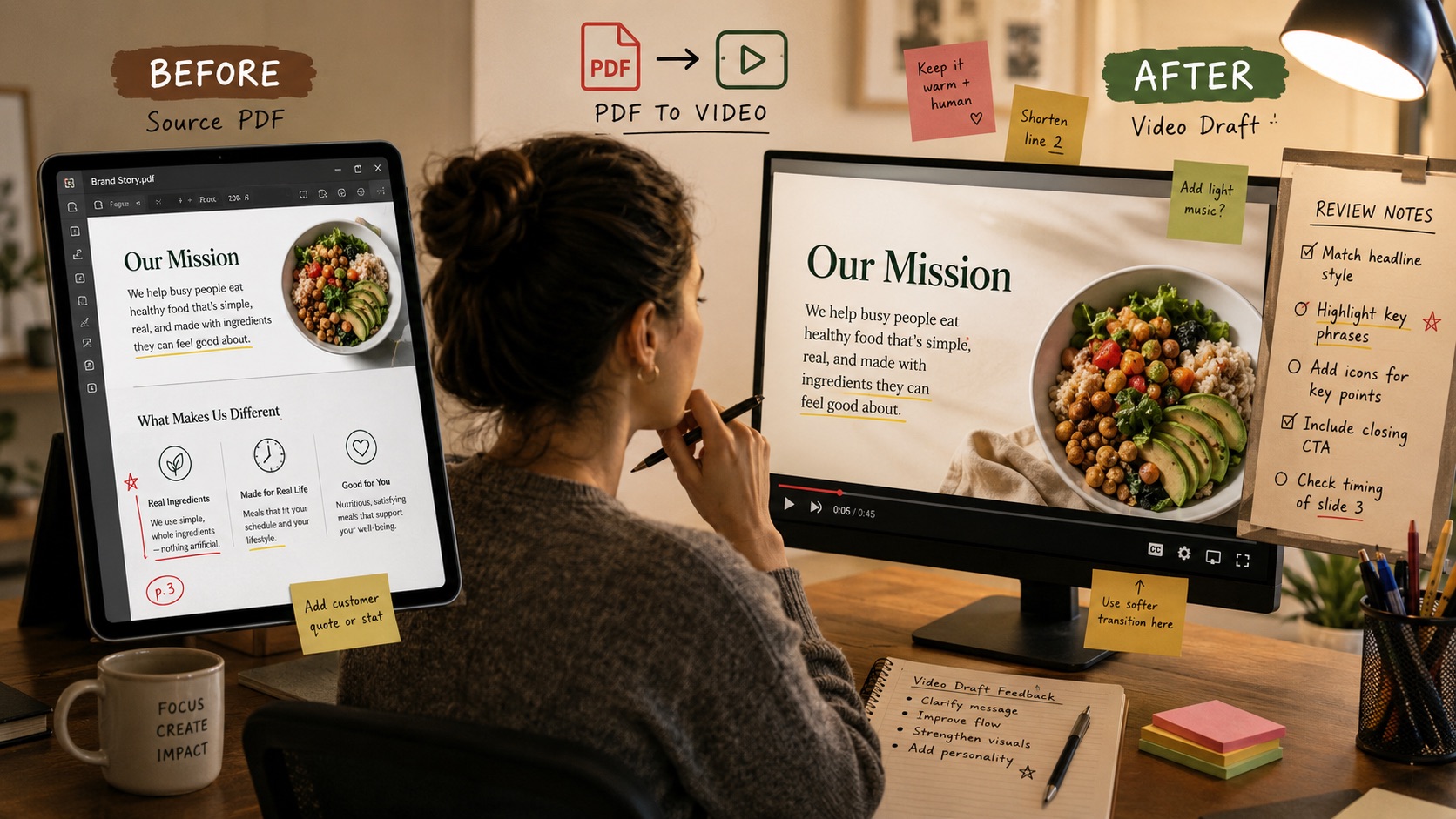
How the PDF to Video Converter Works
The PDF to video converter follows the same reference workflow shown in the generator: provide a source, write a focused prompt, choose the output controls, and generate. This AI PDF to video process keeps your document available as creative context while Wan 3.0 develops the scenes.

Upload the PDF and Supporting References
Open Upload References and add the PDF you want the PDF to video converter to use. If a public page adds useful context, paste it into Reference Webpage. Keep the set focused so the PDF to video converter receives consistent information. This is the first step when you convert PDF to video with AI.

Describe the Video and Call the Source
Use the Prompt box to tell the PDF to video converter what viewers should understand. Type @ when you need to call a particular uploaded document or supporting asset, then define the audience, main message, visual style, pace, and facts that must remain accurate. A specific instruction helps AI PDF to video generation distinguish essential ideas from background detail. When you turn PDF into video, ask for a clear beginning and a small number of meaningful scenes.

Choose PDF to Video Converter Settings
Use Auto Duration when appropriate or set the available Video Duration, then choose 480p, 720p, or 1080p according to the controls shown in your account. Select Adaptive, 16:9, 4:3, 1:1, 3:4, 9:16, or another available aspect ratio. The PDF to video converter also lets you decide whether to generate audio and how many versions to create. These AI PDF to video choices should reflect the destination, review needs, and available credits rather than a one-size-fits-all preset.

Review and Run the PDF to Video Converter
Leave Public Visibility off unless you intentionally want a public result, review the Required Credits displayed for the selected settings, and click Generate Video. Compare the PDF to video converter output with the original document before you share it. Check factual wording, visual interpretation, continuity, pacing, and readable details. If the result misses an important point, refine the prompt or @ reference and run the PDF to video converter again with narrower direction instead of adding unrelated material.
Best AI Video Tools for Creative Projects
Explore creative tools for video, learn tips and tricks, and see how AI can be your assistant in turning concepts into finished projects.







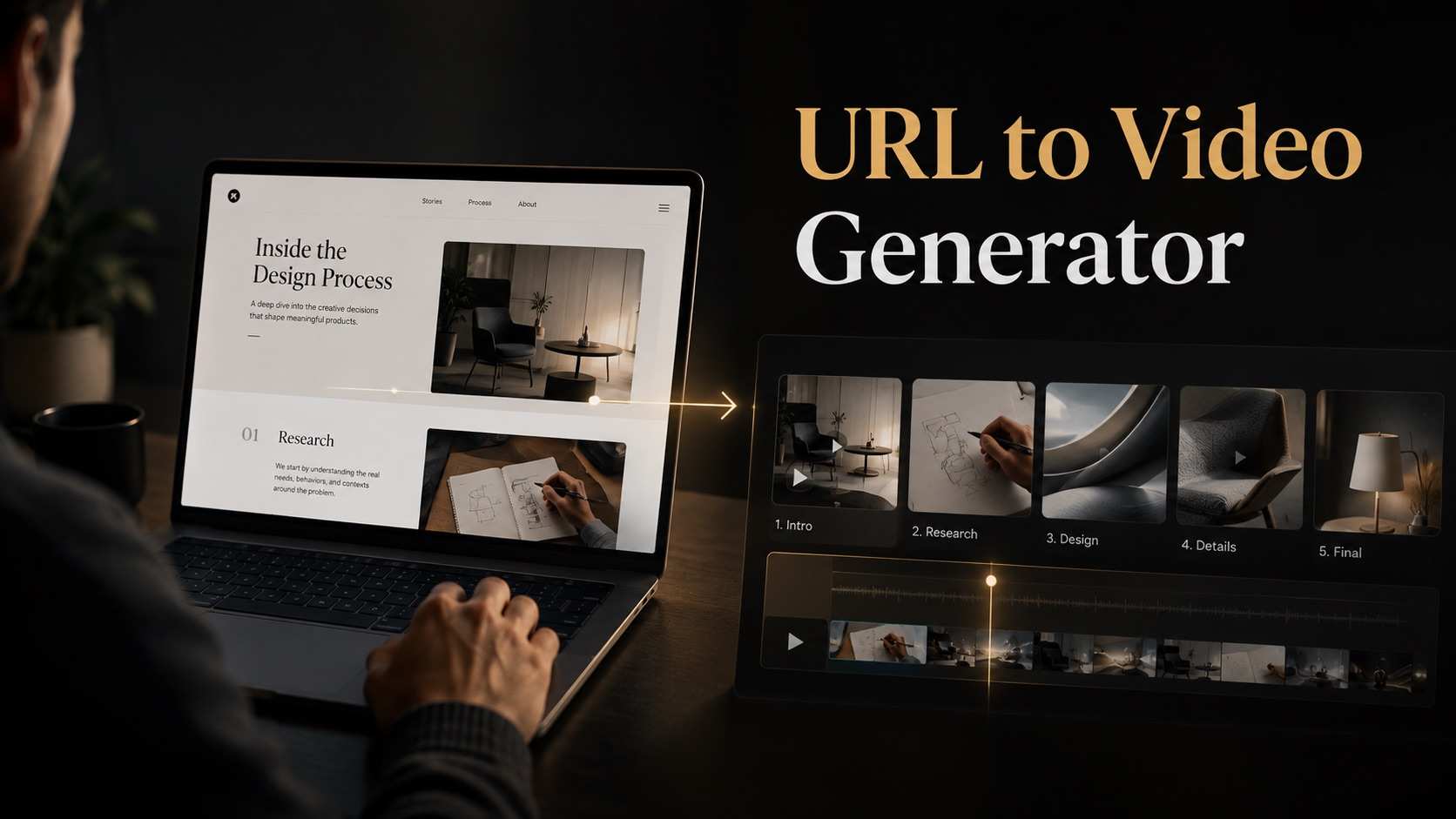

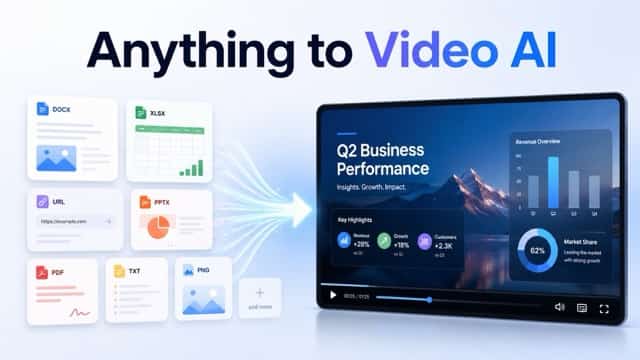
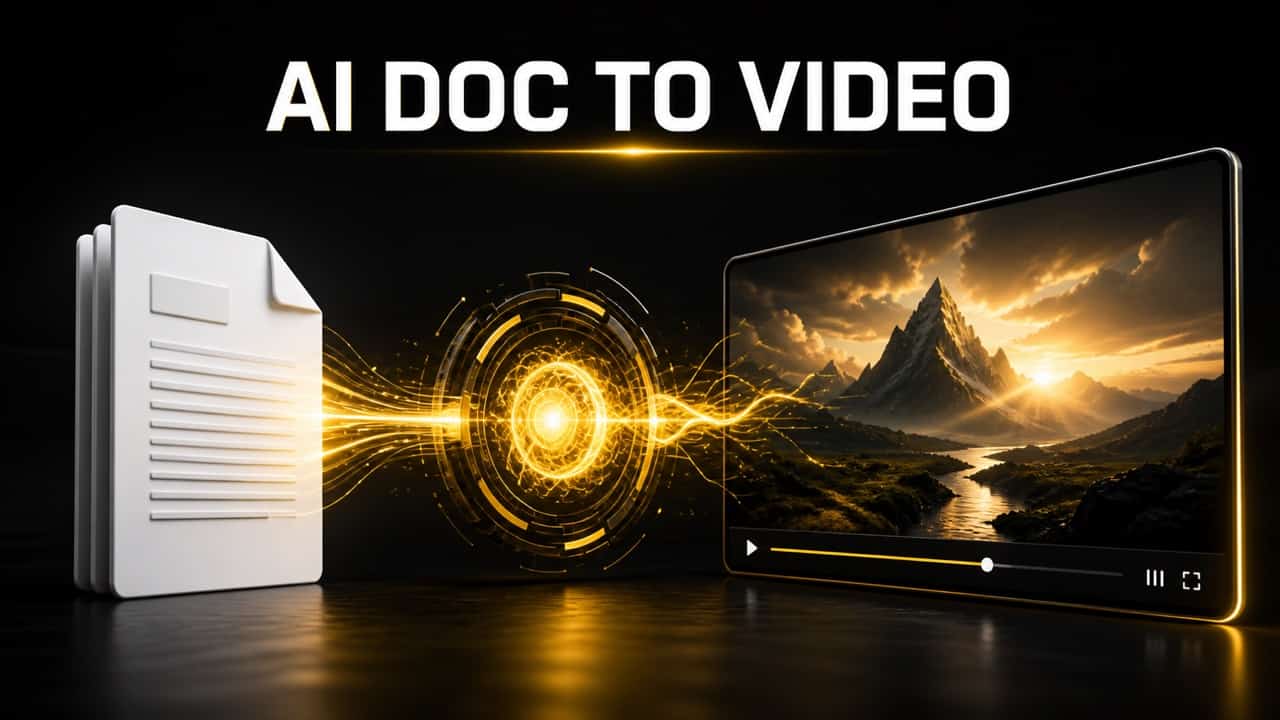



Make the Source Useful With a PDF to Video Converter
A PDF to video converter is most valuable when it supports real communication decisions. SuperMaker's AI PDF to video workflow helps you choose a narrative, connect reference materials, adapt the message for an audience, and compare a generated draft with the document that inspired it.
Find a Clear Story Inside a Dense PDF
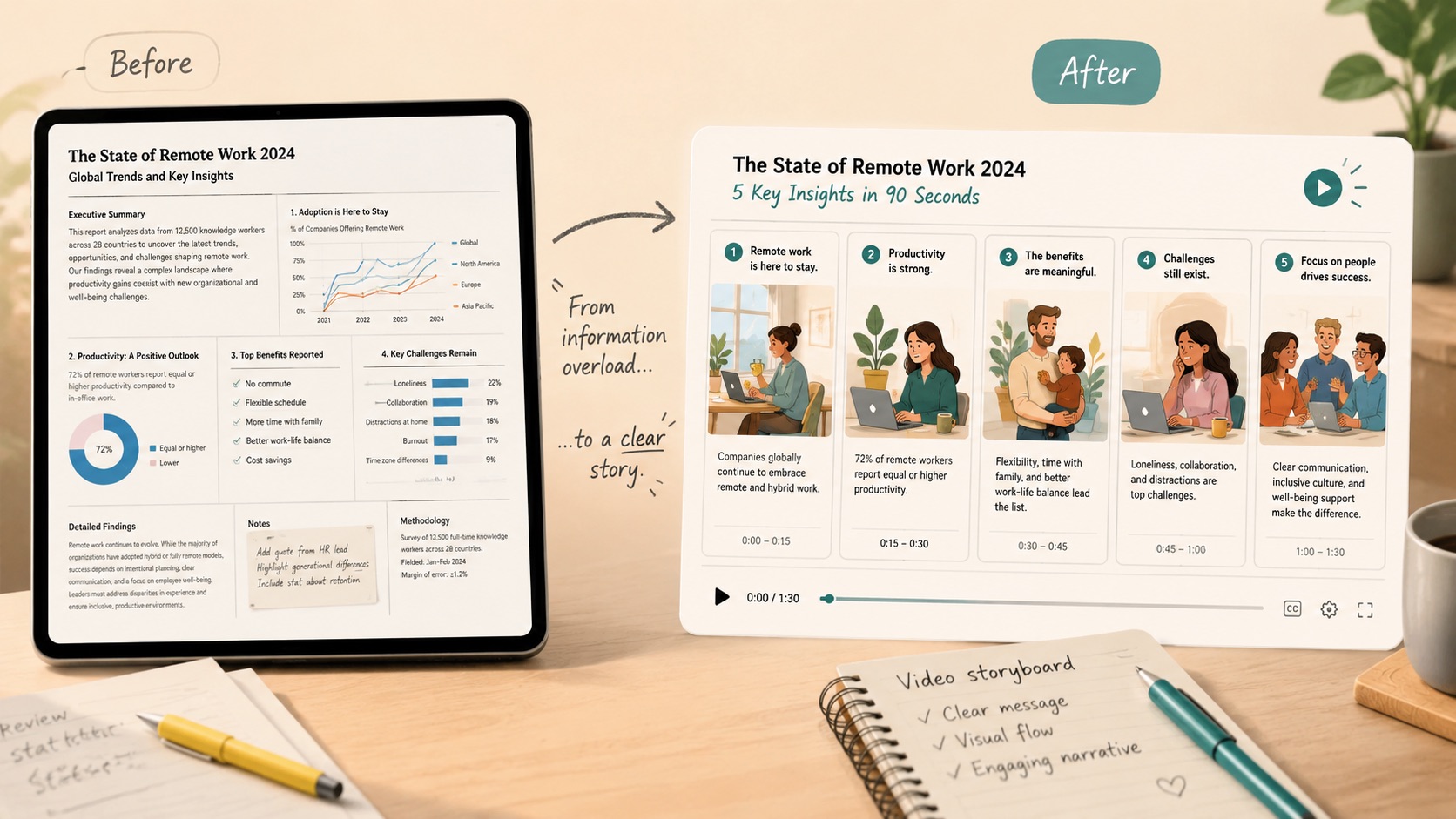
A long report, guide, or presentation often contains more information than one short video can carry. Use the PDF to video converter to identify the central problem, supporting evidence, and useful conclusion before generation. Tell the PDF to video converter which sections deserve attention. This direction helps Wan 3.0 arrange a visual sequence rather than treating every page equally. Teams that convert PDF to video with AI can start with a defined viewer and desired action, then review whether the draft preserves the document's meaning. The PDF to video converter turns selection into a deliberate creative choice.
Combine the PDF With Helpful Context
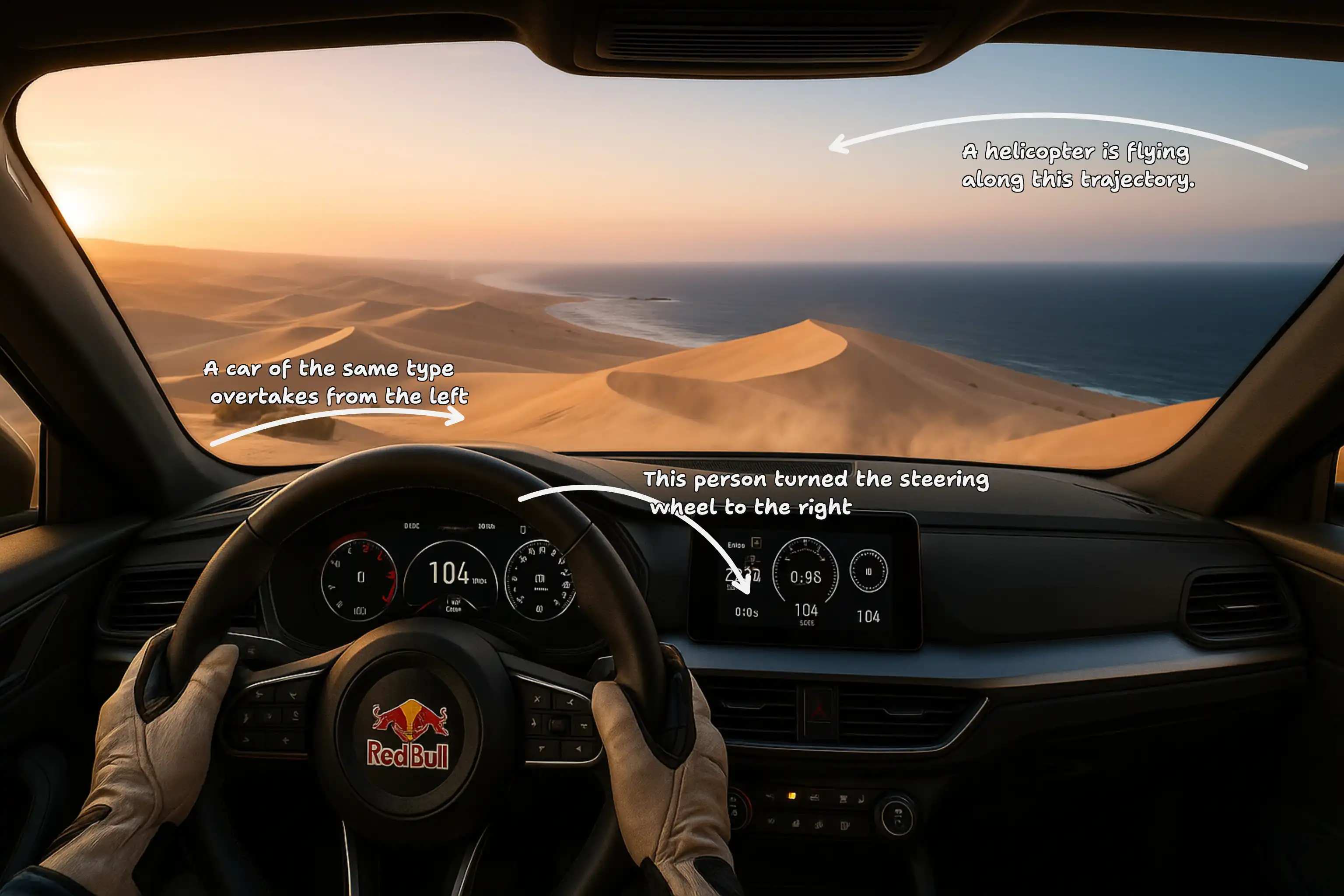
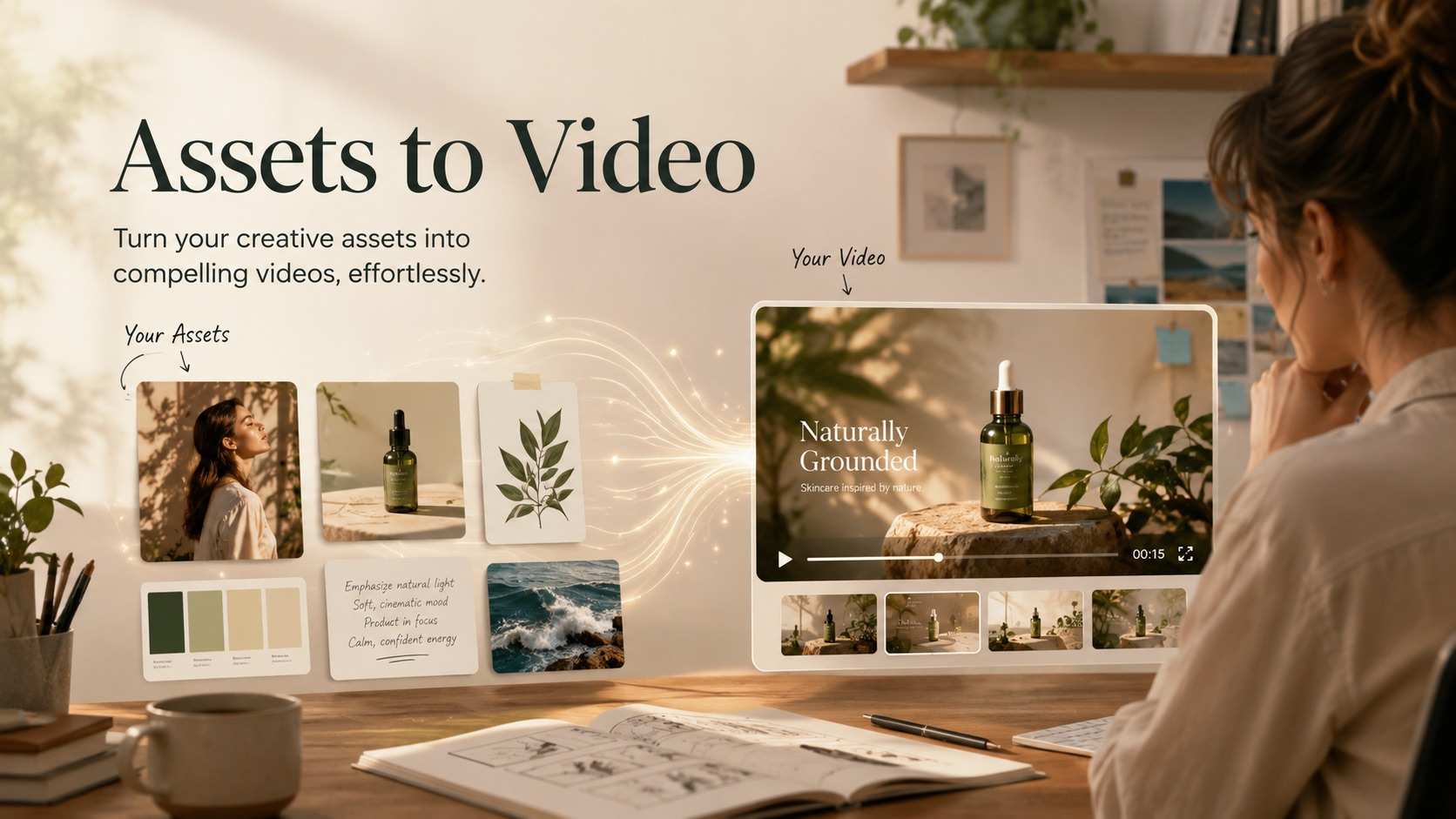
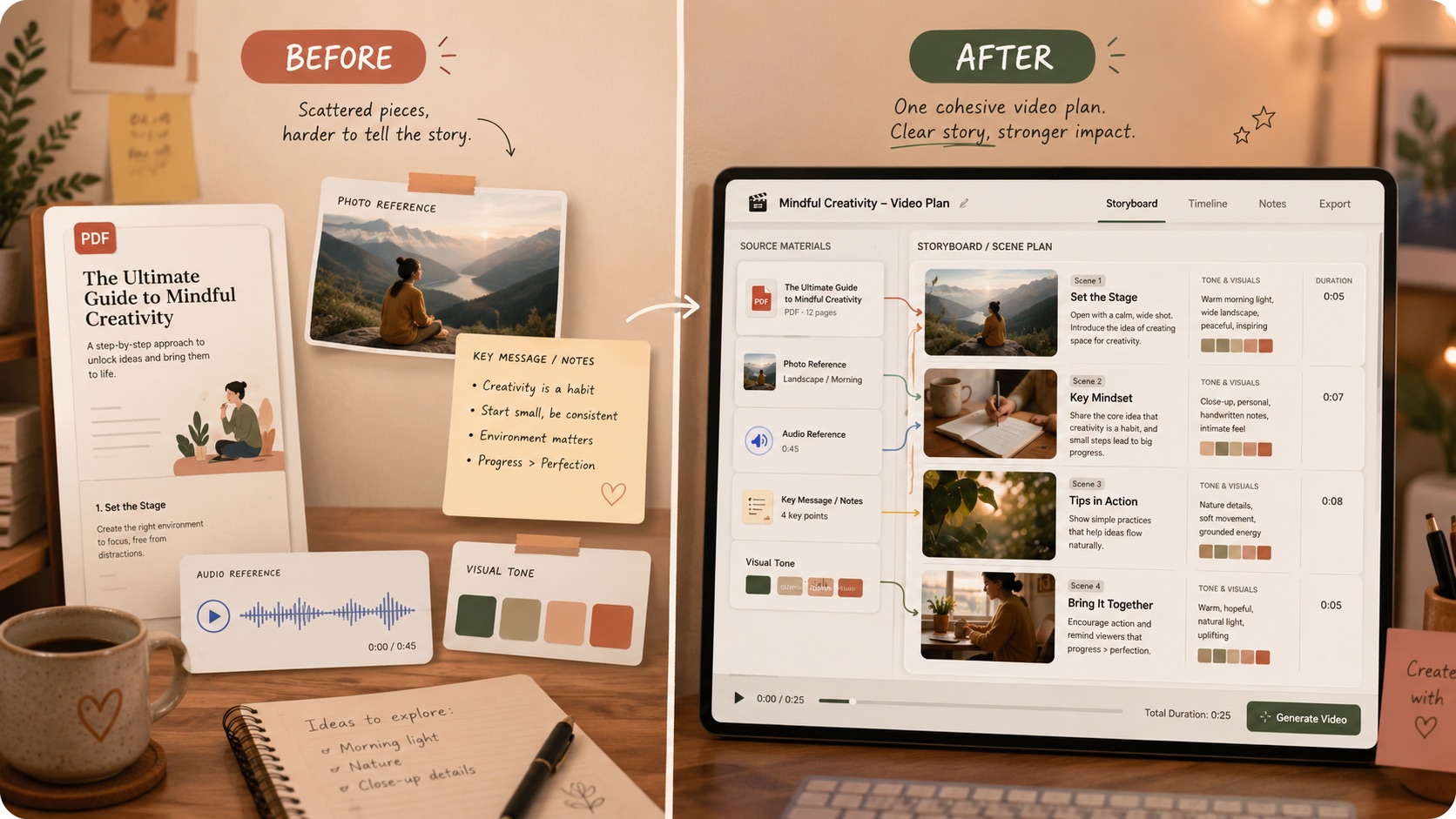
Use the PDF to video converter with references that support the same subject and visual direction. In an AI PDF to video brief, identify the PDF with @ and explain how each additional reference should influence the scenes. The PDF to video converter can then connect written context with recognizable subjects, environments, or examples. A focused set gives the PDF to video converter a stronger foundation than unrelated uploads.
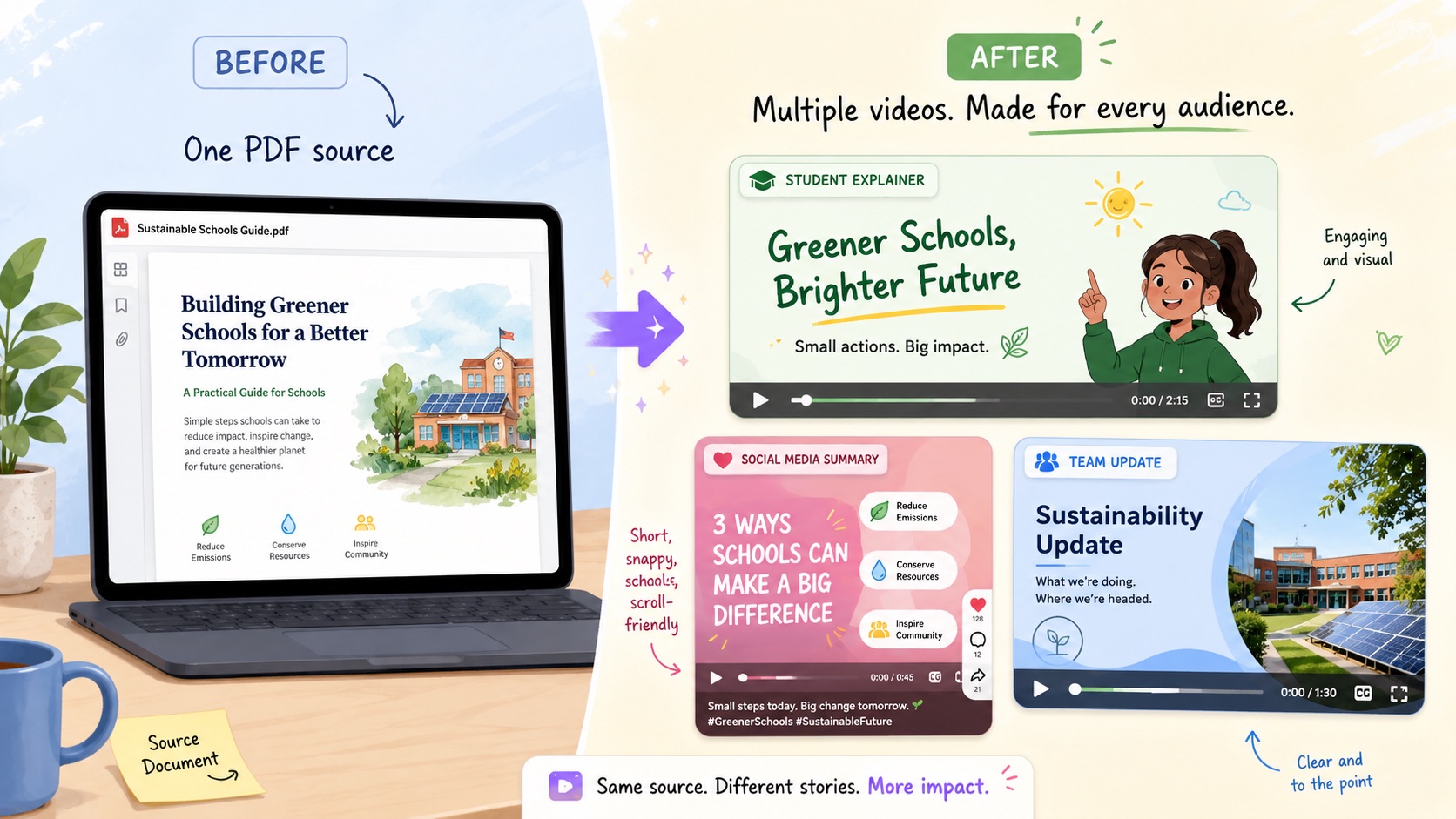
Adapt One Source for a Specific Audience
The same source may need different emphasis for students, customers, colleagues, or social viewers. Ask the PDF to video converter to adjust vocabulary, energy, scene order, and visual examples for one audience at a time while keeping source facts intact. AI PDF to video generation can help a specialist brief become an accessible overview or a formal report become a concise stakeholder update. When you turn PDF into video, name what the viewer already knows and what they should understand next. The PDF to video converter makes alternate directions visible, and the PDF to video converter keeps each draft connected to the original reference.
Review a Visual Draft Against the Document
Generation is the start of review, not proof that every source detail is correct. Place the PDF beside the PDF to video converter result and check names, numbers, claims, sequence, visual cues, and omissions. The AI PDF to video draft can reveal where the story is too broad, where one point needs more context, or where the pacing hides an important conclusion. Refine the prompt with specific corrections, then use the PDF to video converter to explore a tighter version. This review loop helps the PDF to video converter support accountable creative work without pretending that reference-guided generation replaces human judgment.
Practical Uses for a PDF to Video Converter
The PDF to video converter supports people with useful source material who need a visual way to introduce it. Each AI PDF to video use case begins with a document, a defined viewer, and a prompt that explains the intended outcome.

Lessons and Study Guides
Teachers and learning designers can use PDF to video for education to visualize a lesson outline, reading guide, timeline, or concept summary. Tell the PDF to video converter the learner level, objective, essential terms, and examples that must remain accurate. An AI PDF to video draft can make abstract material easier to discuss while the original document remains available for detail. PDF to video for education works best when the prompt narrows each clip to one teachable outcome. The PDF to video converter should support learning, not replace the source or educator review.

Training and Onboarding
Use the PDF to video converter to introduce a handbook, process guide, safety note, or onboarding document with a clearer visual sequence. Ask AI PDF to video generation for a calm, direct explanation. Teams can convert PDF to video with AI to create a reviewable training concept before investing in a larger production. The PDF to video converter helps stakeholders react to scenes and emphasis, while the PDF to video converter keeps the written policy available as the authority.

PDF to Video Converter for Reports
A PDF to video converter can turn the structure of a report into a focused update built around findings, context, risks, and next steps. In the AI PDF to video prompt, specify which figures are essential and instruct the model not to invent missing data. When you turn PDF into video for a leadership audience, lead with the decision the report supports instead of repeating every section. The PDF to video converter can provide a concise visual draft, but reviewers should still compare every claim with the current source.

Product and Service Briefs
Marketing and sales teams can use the PDF to video converter with an approved product brief, proposal, or service overview. Ask the PDF to video converter to organize the problem, approach, evidence, and intended action without expanding claims beyond the document. AI PDF to video generation is useful for testing a benefit-led story, a concise explainer, or a presentation opener. The resulting draft gives collaborators something concrete to review, and the PDF to video converter makes it easier to compare alternative emphasis before final production.

Research and Knowledge Sharing
Researchers and subject experts can use the PDF to video converter to explore how a paper, literature summary, or technical note might become a visual introduction. Define the audience, preserve qualifications, and tell the AI PDF to video workflow which charts or conclusions matter most. The PDF to video converter can suggest a sequence of ideas, but it should not be treated as verification. Check every interpretation against the source, correct oversimplification, and keep citations or follow-up reading available when the topic requires depth.

Social and Campaign Concepts
Creators can use the PDF to video converter to test a short social concept from a report, guide, event pack, or campaign brief. State the platform, aspect ratio, opening hook, tone, and final action. AI PDF to video generation can help transform static material into visual beats while the reference keeps the direction anchored. When you convert PDF to video with AI for a fast-moving feed, select one message rather than compressing the entire document. The PDF to video converter can then prioritize clarity over page-by-page coverage.
How Teams Explore the PDF to Video Converter
These fictional examples show how different roles might use the PDF to video converter during planning and review. Each AI PDF to video workflow starts with existing information and ends with a draft that still needs informed human evaluation.
I used the PDF to video converter with a new-hire guide and asked for a simple sequence around the first week. The AI PDF to video draft helped us see which policies needed more explanation, and the PDF to video converter made feedback much more specific than comments on an outline.
For a quarterly report, the PDF to video converter gave our team a visible way to discuss pacing and emphasis. I could turn PDF into video around three decisions, check the figures against the source, and use the PDF to video converter result to tighten the next creative brief.
PDF to video for education helped me test how a difficult reading could become a short lesson opener. The AI PDF to video workflow kept the document nearby, and the PDF to video converter draft showed exactly where students would need a clearer example or slower explanation.
I used the PDF to video converter with an approved product brief before a launch review. The AI PDF to video result gave design and marketing a shared sequence to critique, while the PDF to video converter kept our discussion connected to the claims we had already approved.



PDF to Video Converter FAQ
Get practical PDF to video converter answers about references, prompts, formats, review, and AI PDF to video planning before generation.
The PDF to video converter uses your uploaded document as reference context for Wan 3.0 generation. Add a prompt that defines the audience, purpose, style, and essential information, choose the available output settings, and review the resulting video against the original PDF.
Upload the PDF in References, identify it with @ when needed, and describe the intended story. To convert PDF to video with AI effectively, specify the viewer, main takeaway, visual direction, duration, aspect ratio, and facts that must remain accurate before starting the PDF to video converter.
This PDF to video converter is designed for reference-guided generation, not guaranteed page-by-page reproduction. Tell the AI PDF to video workflow which sections matter, then verify wording, numbers, and visuals. Use a conventional slideshow or document-rendering tool when literal page fidelity is required.
Tell the PDF to video converter who will watch, what they should understand, which source points to preserve, and how the scenes should feel. Include pacing, format, tone, and exclusions. A strong AI PDF to video prompt gives the model priorities instead of only repeating document text.
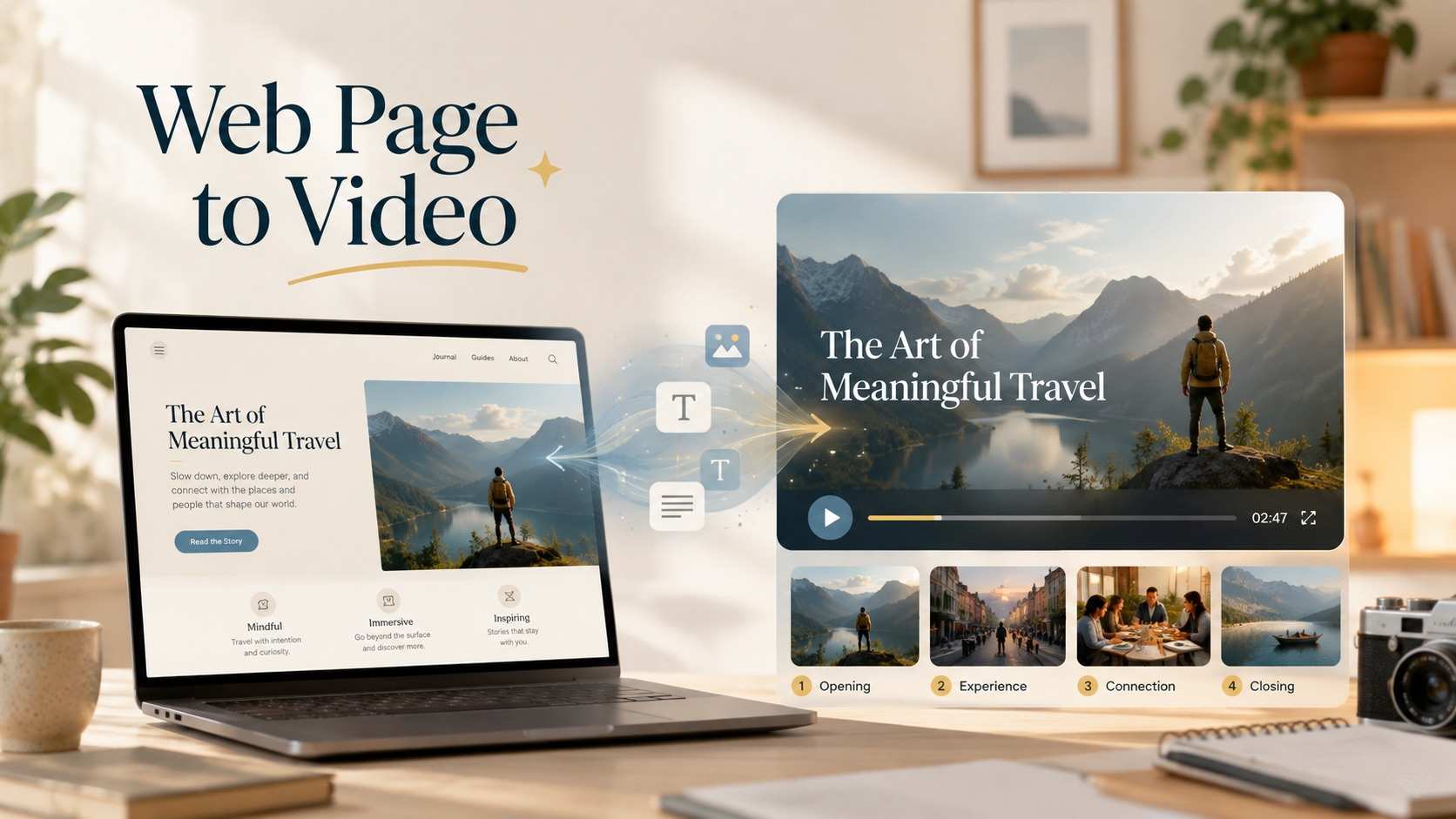
Yes, the reference workflow can include other supported files, images, video, audio, or a webpage when those materials clarify the same story. Explain each source in the AI PDF to video prompt, and keep the set consistent so the PDF to video converter does not receive conflicting visual direction.
PDF to video for education can help teachers and learning teams create a visual introduction to one topic, process, or reading. Set the learner level and objective, preserve essential terms, and review every explanation. The PDF to video converter should complement the full source and educator judgment.
Choose duration, resolution, aspect ratio, audio, and number of videos according to the destination and credits shown in the interface. The PDF to video converter supports the options available in your account. For AI PDF to video experiments, begin with one focused draft before requesting multiple variants.
Compare the PDF to video converter output with the current source. Check names, numbers, claims, omissions, visual meaning, continuity, pacing, legibility, and audience fit. If anything is unclear or unsupported, revise the AI PDF to video prompt and generate a more focused version before sharing.
Create a Visual Draft With the PDF to Video Converter
Bring a focused document, add a clear prompt, and use the PDF to video converter to explore how your source can become a video. SuperMaker's AI PDF to video workflow with Wan 3.0 helps you shape scenes, choose output controls, and review a concrete result against the original PDF.