More AI Video Generators
Explore our collection of specialized AI video generators designed for different creative needs and styles





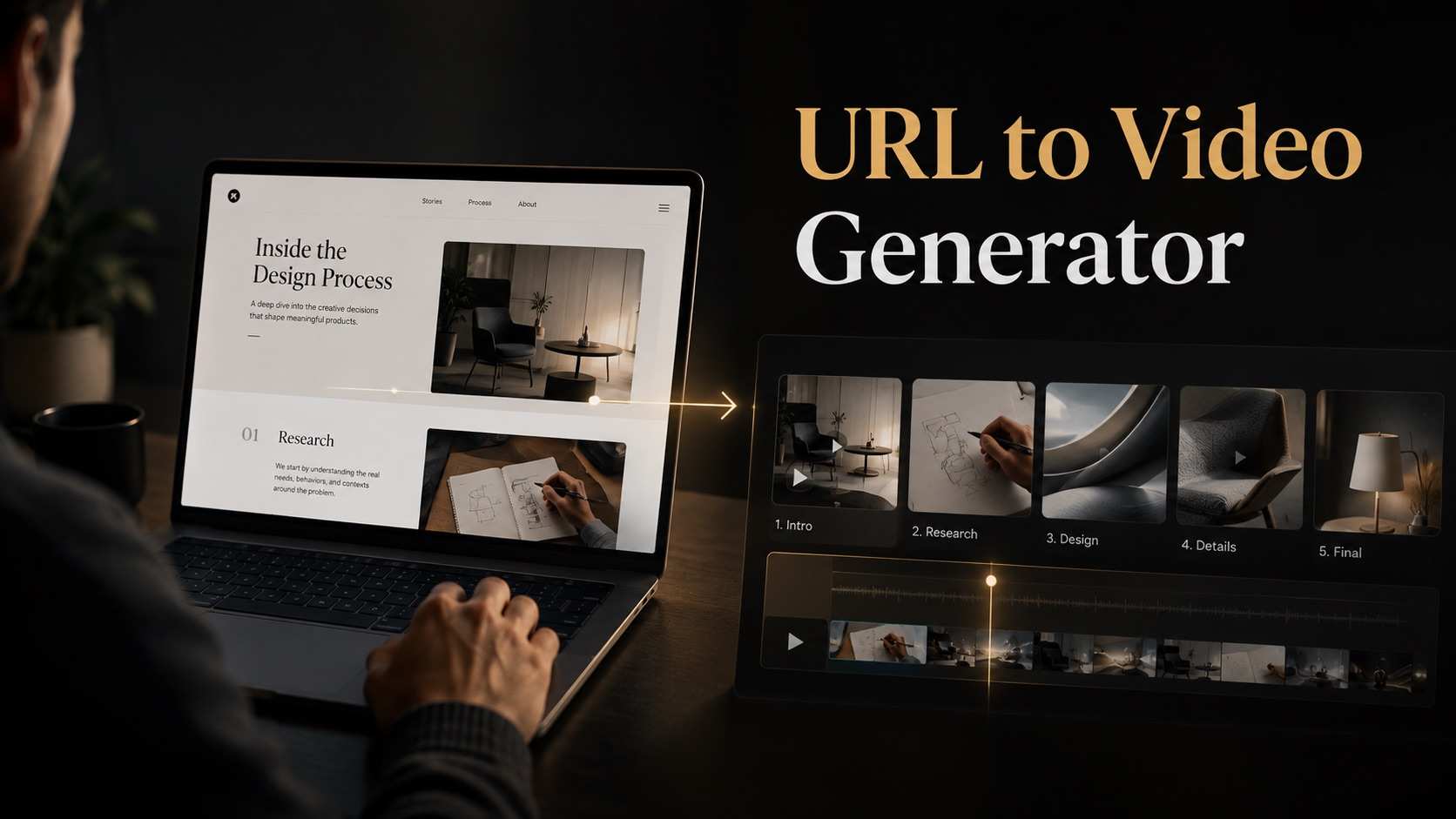
Turn a Website Into a Video With Web Page to Video
Webpage to video AI with a reference-driven website to video generator for guided stories, explainers, and visual recaps
Paste a webpage link, add optional reference assets, and tell Web Page to Video what matters. WAN 3.0 reference mode helps shape the source into a coherent video direction for your audience, platform, and creative goal.
How to Create Video From URL With a Web Page to Video
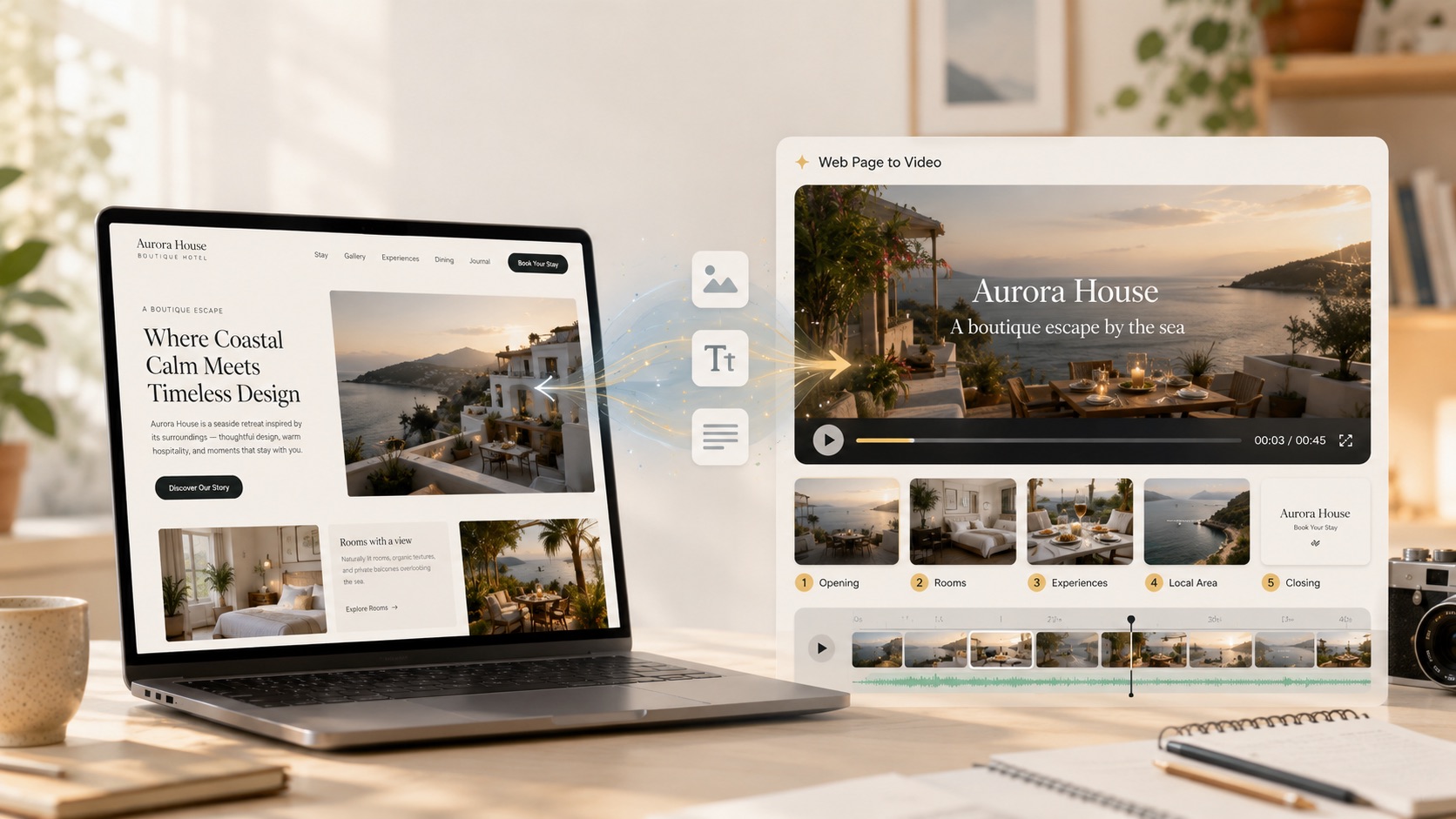
The Web Page to Video connects one public webpage with your creative direction. Instead of rebuilding the page in an editor, use the website to video generator to define the message, choose supporting references, and create a focused first cut in four practical steps.

Turn a Website Into a Video
Paste the public page you want the Web Page to Video to interpret. The URL to video workflow uses the webpage as a reference for visible content, structure, key messages, subjects, and visual cues. Choose a focused page with clear information so the website to video generator has a dependable source rather than a collection of unrelated links. The Web Page to Video stays source-focused.

Guide the Story With a Prompt
Tell the Web Page to Video what the video should accomplish. Name the audience, platform, tone, pace, aspect ratio, scenes to prioritize, and claims to avoid. A specific prompt helps the website to video generator distinguish the central message from secondary page details, while the URL to video workflow keeps your creative purpose connected to the source. The Web Page to Video stays purpose-led.

Generate With WAN 3.0 Reference Mode
Start the Web Page to Video after the webpage and optional assets are ready. WAN 3.0 reference mode lets the website to video generator organize useful source cues into scenes, motion, and transitions. The URL to video workflow follows both the supplied page and your direction, helping the result feel planned instead of assembled from generic visual ideas. The Web Page to Video builds the sequence.

Review, Refocus, and Create Again
Check whether the Web Page to Video emphasized the right facts, benefits, visuals, and tone. Refine the prompt when a scene needs stronger context or a different rhythm. The website to video generator makes alternate directions approachable, and the URL to video workflow lets you revisit the same source without rebuilding every part of the concept. The Web Page to Video supports iteration.
Best AI Video Tools for Creative Projects
Explore creative tools for video, learn tips and tricks, and see how AI can be your assistant in turning concepts into finished projects.












Why Use Webpage to Video AI With Web Page to Video
A useful webpage already contains a message, visual identity, and information hierarchy. The Web Page to Video treats that page as creative context, while your prompt determines what the audience should notice. This website to video generator supports a reference-led workflow for people who need a clear video direction without manually translating every page section. Use the URL to video workflow to move from existing source material to a structured concept you can evaluate and refine.
Web Page to Video That Reads the Source
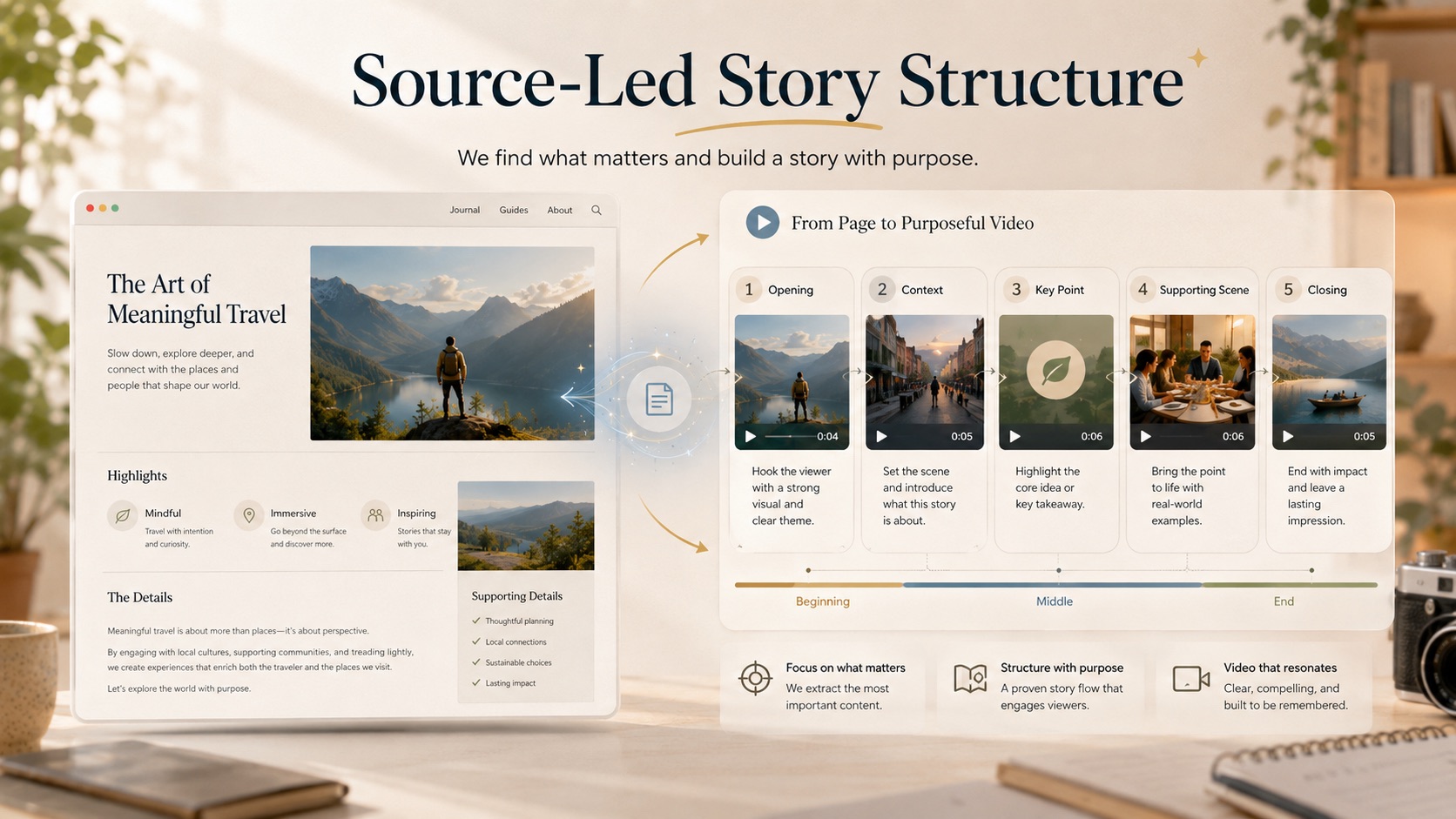
A webpage is more than a headline. The Web Page to Video gives WAN 3.0 reference mode access to its visible context, helping it identify material that may belong in the video. The website to video generator can then organize selected ideas into a beginning, development, and closing moment. Because the URL to video workflow works from the page and your prompt together, you can ask it to emphasize a launch benefit, summarize a service, introduce a campaign, or visualize an article without treating every block as equally important. The Web Page to Video remains guided by your stated audience and purpose. The Web Page to Video stays source-led.
Direct the Web Page to Video With Intent
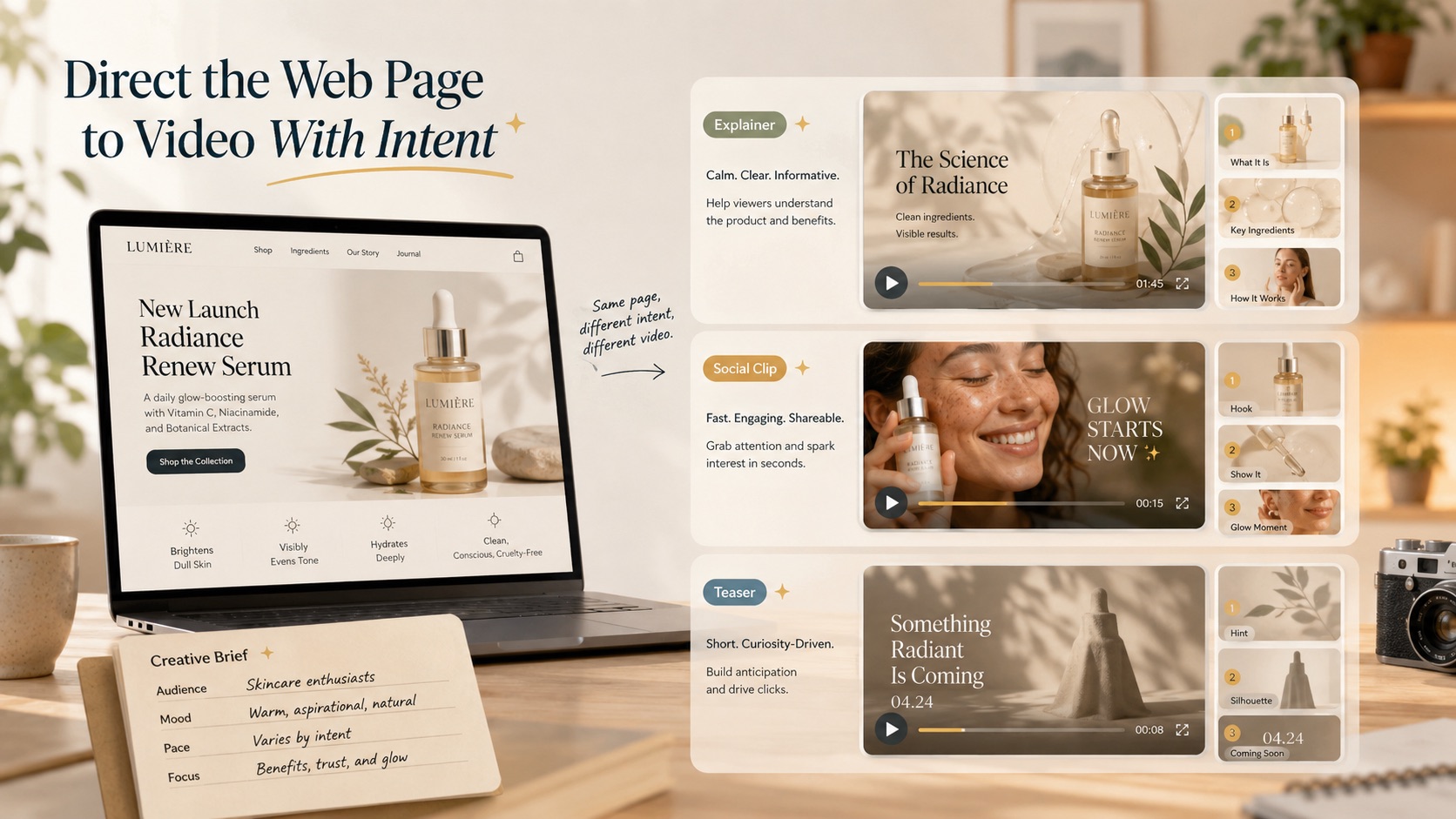
Reference content supplies substance, but direction gives it shape. Tell the Web Page to Video whether you need a concise product teaser, a calm explainer, an energetic social clip, an editorial recap, or a visual concept for internal review. Specify the target viewer, pace, mood, camera language, and page details that should lead. The website to video generator uses those choices to interpret the same URL purposefully. This makes the URL to video workflow useful for comparing creative approaches while keeping the source consistent. The Web Page to Video helps turn an existing page into a directed narrative rather than a literal screen recording. The Web Page to Video stays intent-led.
Combine a Webpage With Optional References
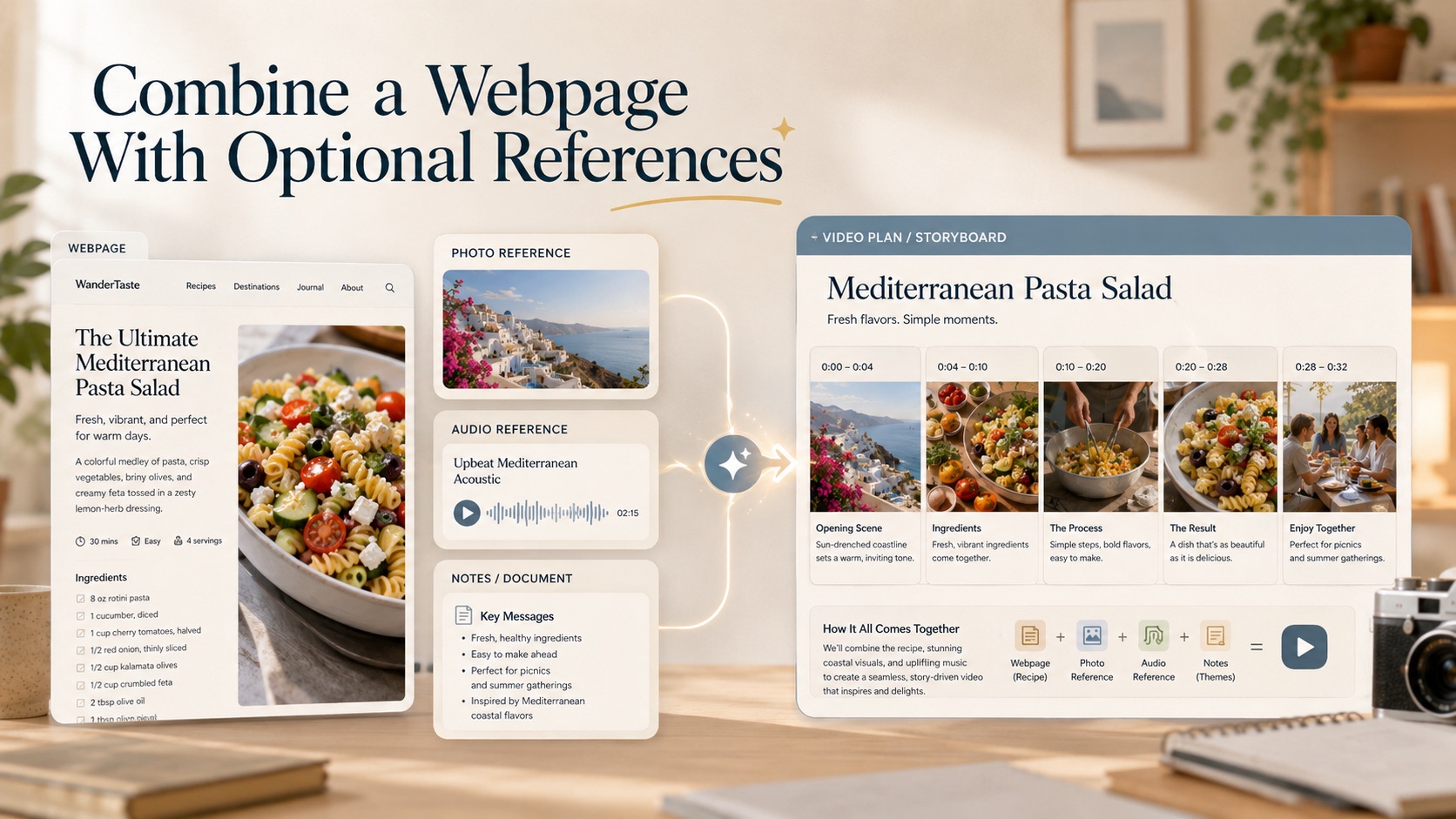
Some stories need more context than one page provides. Add relevant images, clips, audio, or files when the Web Page to Video should preserve a specific subject, supporting visual, spoken cue, or campaign asset. WAN 3.0 reference mode gives the website to video generator a coordinated reference set instead of isolated instructions. Keep each asset relevant and remove contradictory material so the URL to video workflow can connect subjects and ideas across scenes. The Web Page to Video can use the webpage as the informational anchor while extra references clarify tone, appearance, or emphasis. The Web Page to Video connects relevant cues.
Explore Alternate Cuts From One URL
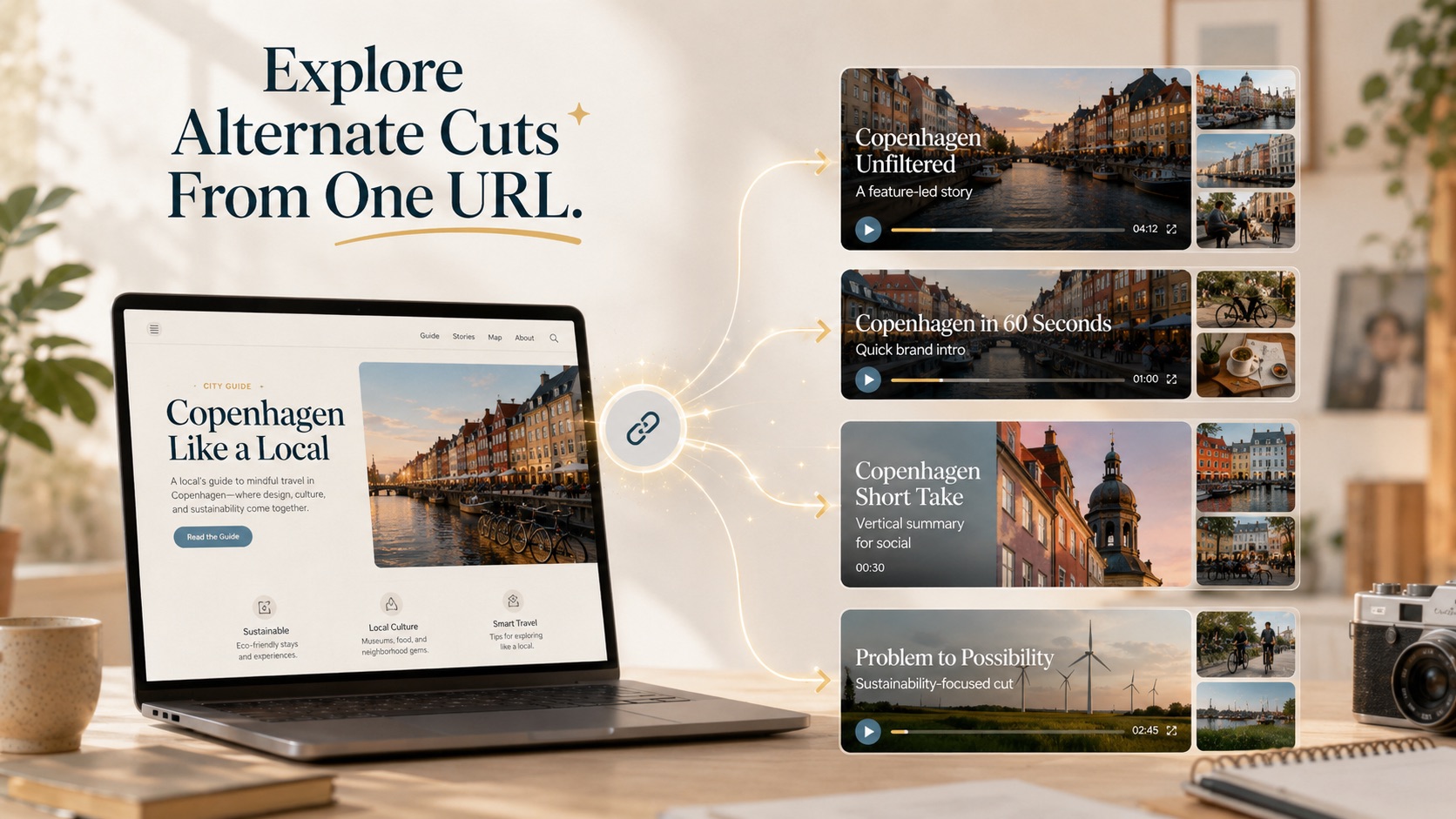
A single source can support several useful stories. Use the Web Page to Video to test a feature-led version, a problem-solution narrative, a short brand introduction, or a platform-specific social concept. Change the prompt while keeping the webpage reference stable, then compare how the website to video generator prioritizes information and pacing. The URL to video workflow gives teams a concrete way to discuss openings, transitions, visual emphasis, and closing actions before committing to a larger production process. Each Web Page to Video result can become a focused creative hypothesis: review what works, clarify what does not, and create another version with a tighter brief. This makes iteration more specific than debating an abstract script alone. The Web Page to Video clarifies each direction.
Webpage to Video AI Use Cases for a Web Page to Video
The Web Page to Video supports webpage-led creative work across marketing, education, product communication, and editorial planning. Give the website to video generator one clear source and a defined goal, then use the URL to video workflow to explore the outcome that fits your audience.

Create Video From URL for Product Pages
Turn a focused product or campaign page into a visual launch concept. The Web Page to Video can reference visible benefits, feature blocks, imagery, and calls to action while your prompt defines the platform and viewer. Use the website to video generator for a concise teaser, product introduction, or benefit-led story. The URL to video workflow is most useful when the page presents accurate, current information and you identify which message should lead. The Web Page to Video follows that message.

SaaS and Service Explainers
Use the Web Page to Video to translate a service page into a more visual explanation of the problem, approach, and outcome. Tell the website to video generator whether the audience is a first-time visitor, prospect, customer, or internal stakeholder. The URL to video workflow can shape a clear sequence from the source, while your prompt prevents the video from becoming a mechanical tour of every page section. The Web Page to Video stays audience-aware.

Article and Resource Recaps
Give the Web Page to Video a public article, guide, or resource page and identify the central takeaway. The website to video generator can use headings, examples, and visible supporting material as reference context for an editorial video concept. With the URL to video workflow, you can request a concise overview, a topic introduction, or a visual summary designed for a specific audience without claiming the source says more than it does. The Web Page to Video stays source-faithful.

Campaign and Social Concepts
Start with a campaign page and ask the Web Page to Video for a platform-aware creative direction. Specify vertical or landscape framing, energy, pacing, audience, and the action the final scene should encourage. The website to video generator can draw from page visuals and message hierarchy, while the URL to video workflow helps teams compare several story angles before deciding which direction deserves further production. The Web Page to Video supports platform choices.
Creative Reactions to the Web Page to Video
These illustrative reactions show how different roles might use the Web Page to Video. The website to video generator can make an existing page easier to discuss in motion, while the URL to video workflow turns creative direction into a visible draft for review.
I used the Web Page to Video on a new product page and asked for a benefit-led social concept. The website to video generator gave our team a concrete sequence to critique, and the URL to video workflow made the next creative brief much more specific. The Web Page to Video made feedback visual.
The Web Page to Video helped me see how a long service page might become a shorter explainer. I could guide the website to video generator toward one audience, then use the URL to video workflow to compare a calmer version with a more energetic cut. The Web Page to Video kept versions connected.
I gave the Web Page to Video an article and a clear editorial angle. The website to video generator surfaced a workable visual flow, while the URL to video workflow made it easier to identify which source details needed stronger emphasis before another version. The Web Page to Video made revision concrete.
For an internal launch review, the Web Page to Video turned our landing page into a visible story concept. The website to video generator kept the discussion anchored to real source material, and the URL to video workflow helped stakeholders react to scenes instead of abstract notes. The Web Page to Video created shared context.




Web Page to Video FAQ
Get practical answers about webpage references, prompts, optional assets, and creative control before using the Web Page to Video.
A Web Page to Video uses a webpage as reference context for an AI-generated video. Paste a public page, add a creative prompt, and optionally supply related assets. It can organize relevant visible information and visual cues into a guided sequence instead of requiring you to rebuild the page manually. The Web Page to Video stays source-led.
The website to video generator can interpret visible page structure, text, imagery, and message hierarchy as reference material. Your prompt tells it which audience, outcome, tone, and details matter. A focused source and specific direction help the Web Page to Video avoid treating every section as equally important. The Web Page to Video prioritizes the main story.
Yes, the reference workflow can accept optional supported assets alongside the webpage field. Add only images, clips, audio, or files that clarify the intended subject, visual identity, or message. The Web Page to Video works best when those references support the page rather than contradict it. The Web Page to Video benefits from consistency.
State the video's purpose, target viewer, platform, format, tone, pace, and the page details to emphasize. You can also identify sections to omit or claims that must remain exact. This direction helps the URL to video workflow transform source context into a deliberate story instead of a generic montage. The Web Page to Video follows named priorities.
The Web Page to Video can support social concepts when you specify the platform, aspect ratio, audience, energy, and intended closing action. Ask for a concise structure and name the page benefit that should lead. Review the result carefully to ensure wording and visuals still match the source. The Web Page to Video tests social directions.
This workflow is designed for reference-driven generation, not a literal screen recording of every interaction. The URL to video workflow can use the page as creative and informational context, while WAN 3.0 reference mode develops new scenes. Describe screen-focused behavior explicitly if it is important to your concept. The Web Page to Video creates rather than records.
Use a clear public page, remove unrelated references, and tell the Web Page to Video exactly what the viewer should understand. Mention essential facts, visuals, tone, pacing, and exclusions. If the first result is too broad, narrow the brief and generate again with fewer priorities. The Web Page to Video responds to focus.
Review every factual statement, visual interpretation, name, product detail, and call to action against the source webpage. Confirm that the Web Page to Video did not introduce unsupported claims or omit required context. Verify pacing, legibility, continuity, and platform suitability before sharing. The Web Page to Video still requires human review.
Turn a Website Into a Video Concept
Give the Web Page to Video one focused webpage and a clear creative direction. Use the website to video generator to shape the source into scenes, then refine the result with the URL to video workflow until the message, pacing, and emphasis fit your goal.