



More AI Video Generators
Explore our collection of specialized AI video generators designed for different creative needs and styles





Black Friday Video Maker For Product Promotions
Bring Your Sale Creative Into Motion
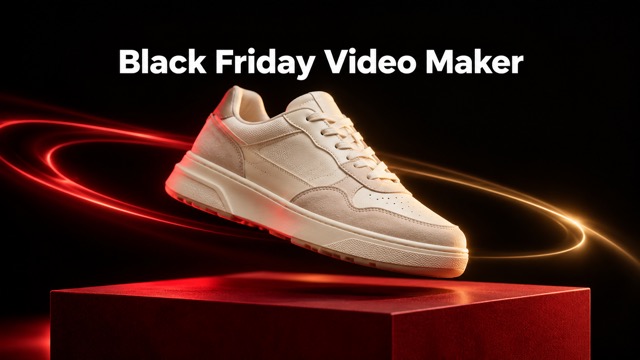
Create a product promotional clip from one photo with SuperMaker’s black friday video maker. Upload the item you want shoppers to notice, then describe a slow camera move, a dramatic reveal, or a festive display. Build a moving showcase for your seasonal campaign without starting with a filmed sequence. Review the generated result, add your final offer details, and prepare the video for your chosen channel.
How To Use The Black Friday Video Maker
Prepare a clear product image and one simple creative direction. This workflow keeps the product central, gives you room to describe the motion, and ends with a clip to review.

Upload Your Photo
Upload one well-lit product photo or a clean promotional image. Keep the main item visible with space around its edges. Choose the exact color and packaging you intend to advertise, since this image provides the starting appearance for your video.

Click Generate
Describe the scene and movement you want, such as a slow push toward a perfume bottle with warm gold lighting. Check the available settings and displayed credit cost, then click Generate. Keep the request focused on one product and one motion.

Download Your Video
Preview the finished clip and inspect product shape, labels, movement, and framing. Download the version that suits your campaign. Add precise prices, discount details, and dates in your usual video editor before sharing, so the final offer stays clear and accurate.
Best AI Video Tools for Creative Projects
Explore creative tools for video, learn tips and tricks, and see how AI can be your assistant in turning concepts into finished projects.
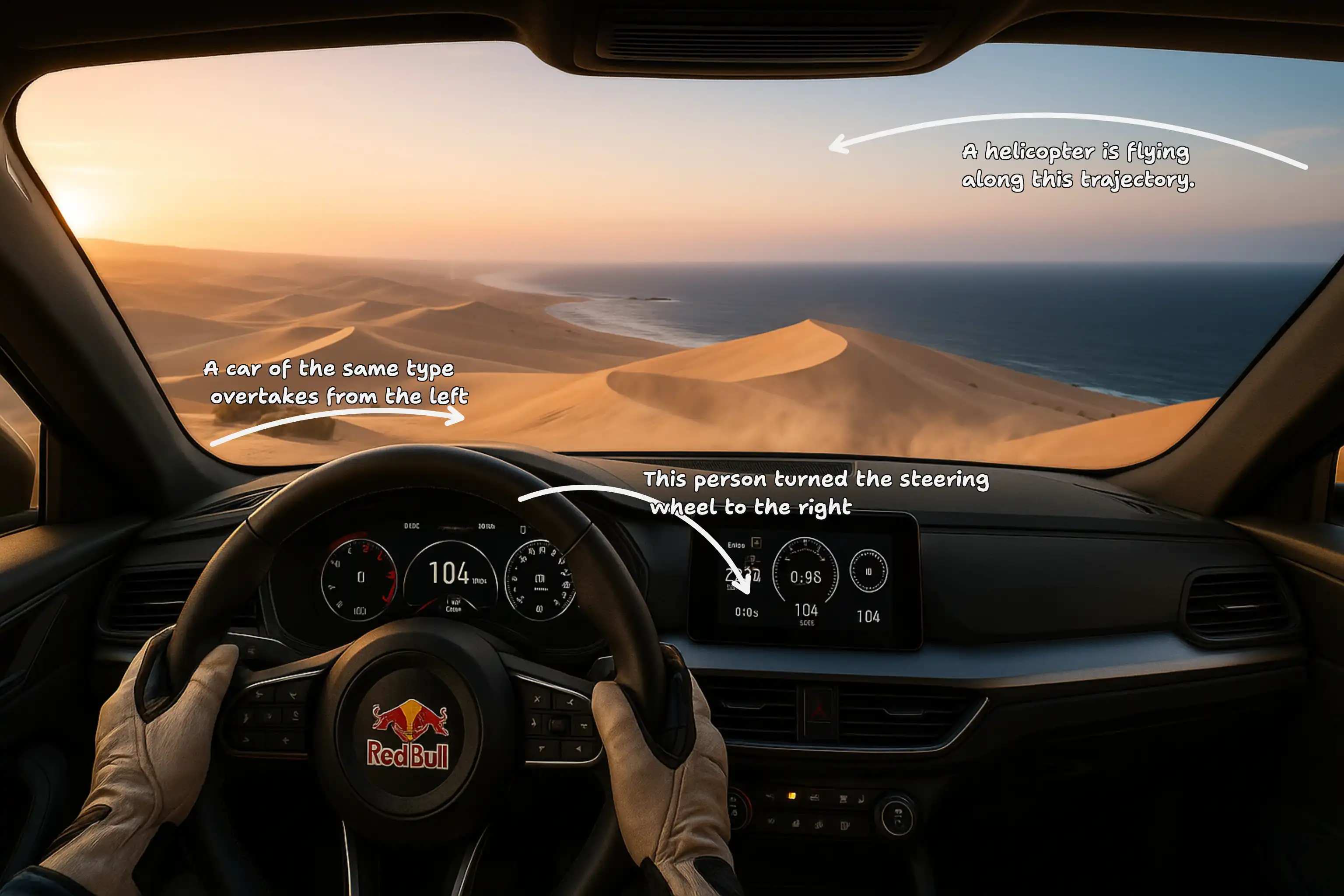





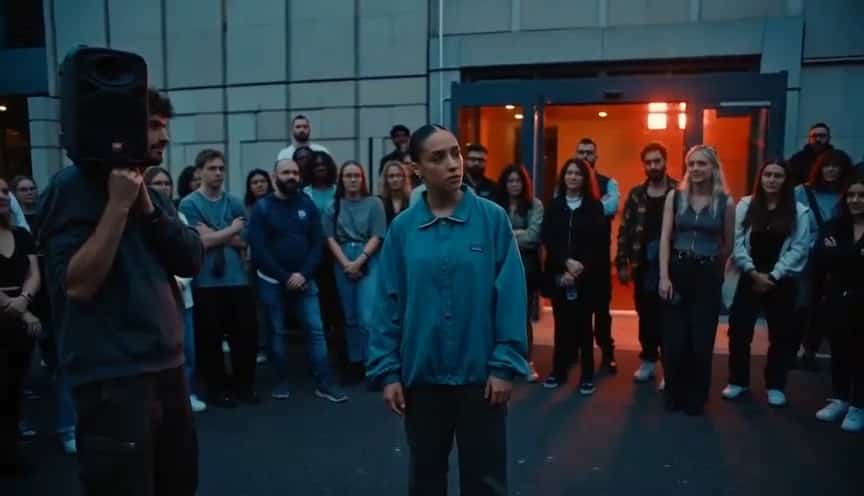






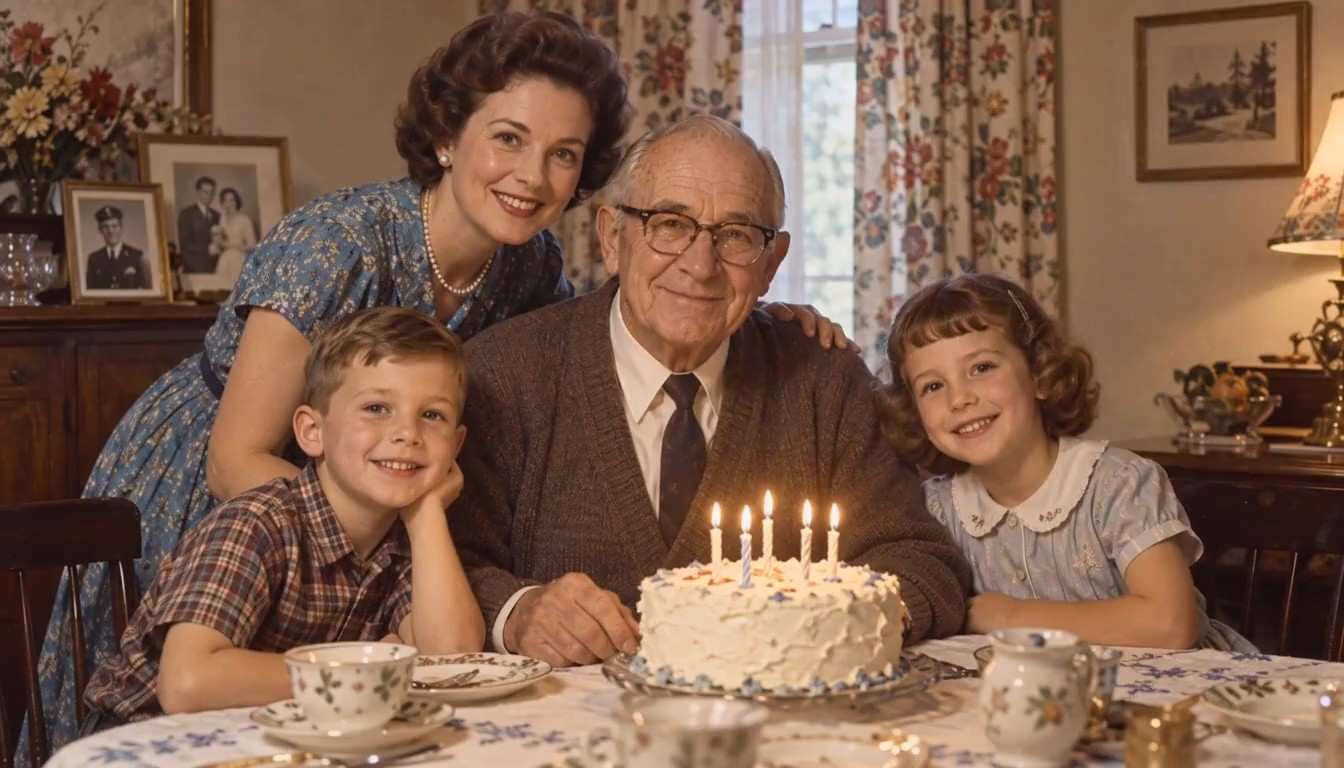
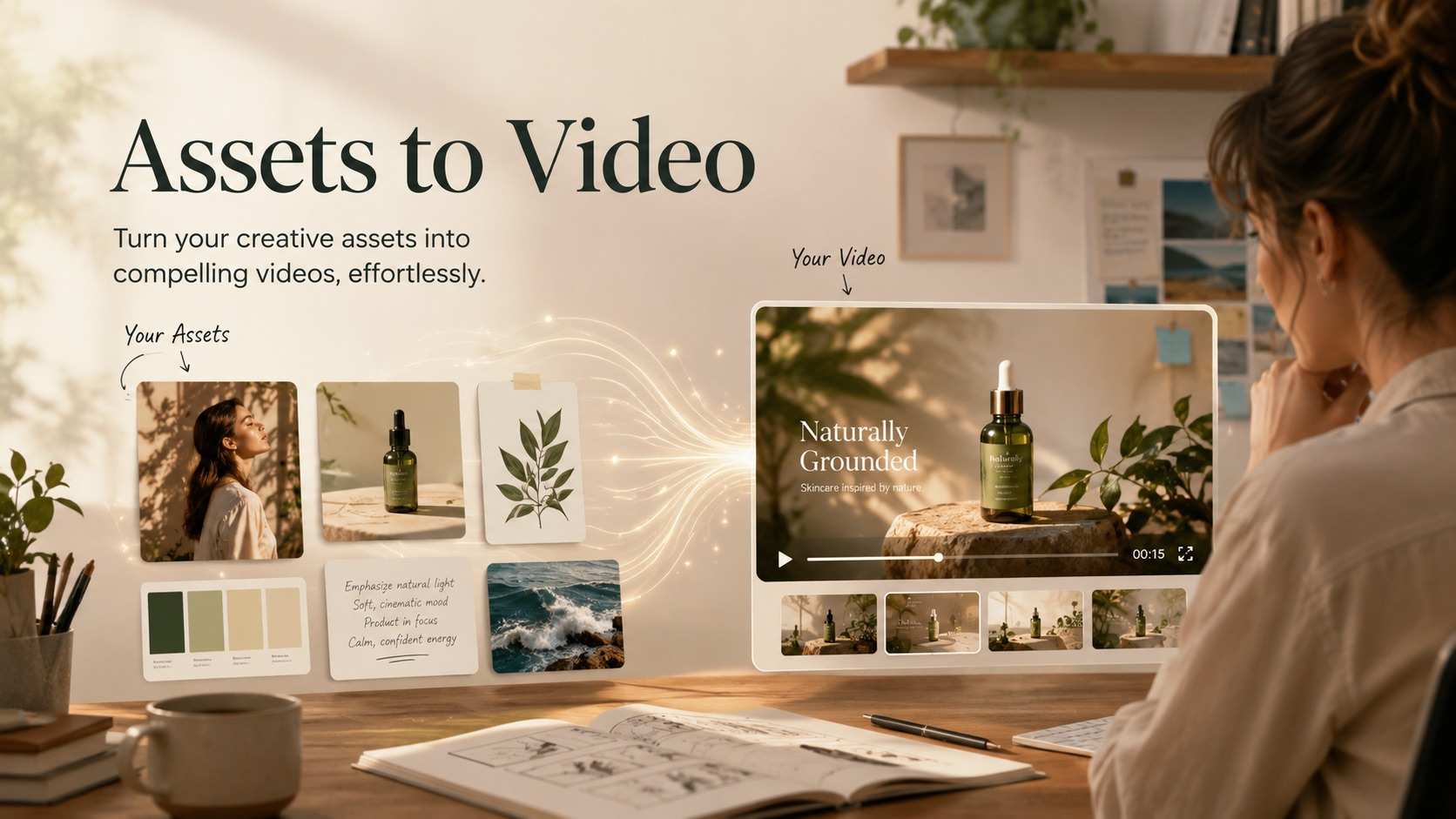
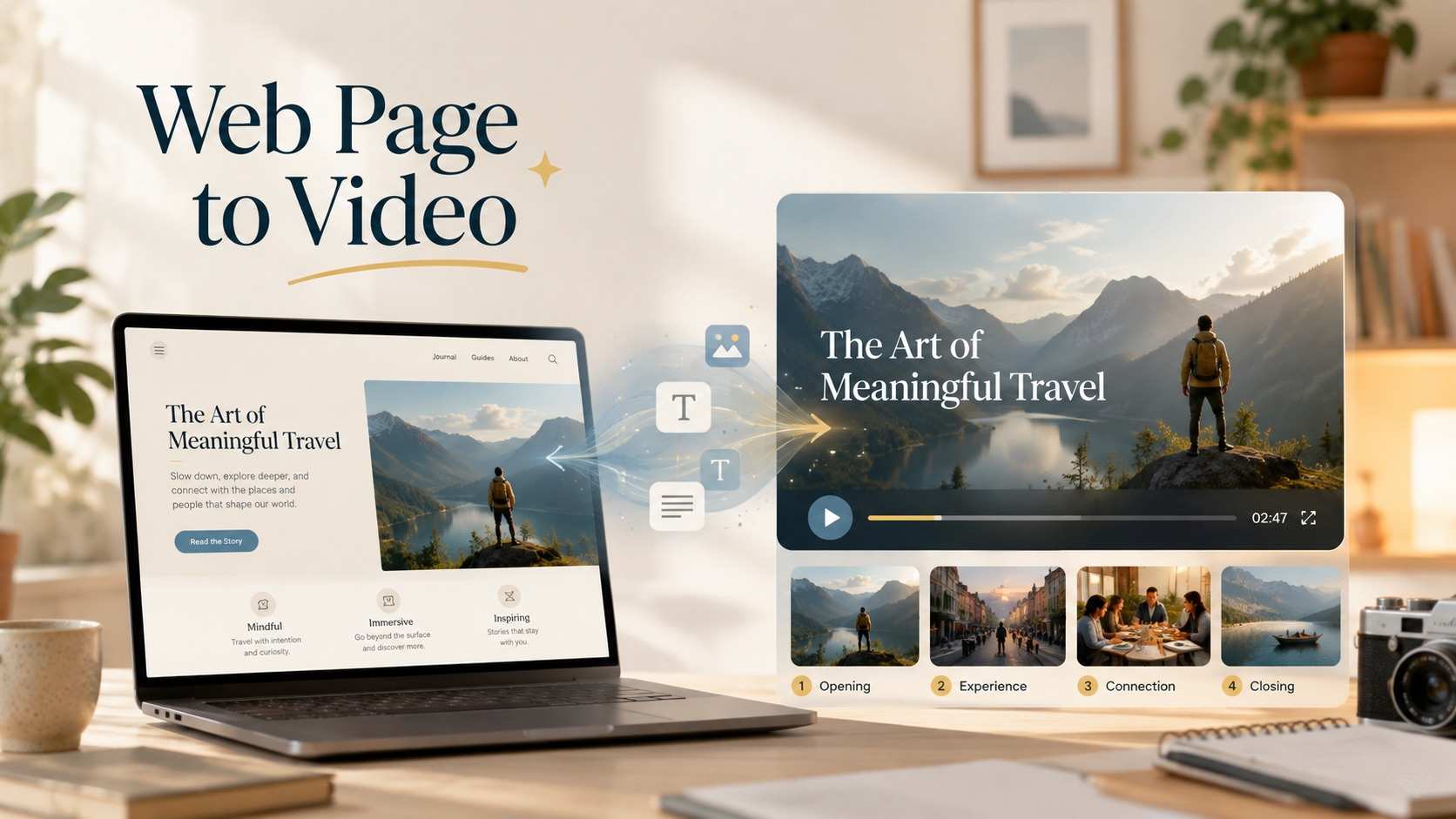



Give Your Black Friday Campaign A Moving Product Story
A strong sale video makes the product easy to recognize and the scene easy to follow. Use your image and a focused prompt to explore these four creative directions, then choose the result that fits your campaign.

Turn A Product Photo Into A Sale Showcase
Start with the product image you already use in your store and give it a moving presentation. Request a gentle camera push, a changing reflection, or a restrained background reveal while keeping the item central. The black friday video maker gives your campaign a visual starting point based on your own merchandise. Review the generated clip against your source photo, then choose the version that best supports your seasonal promotion.

Create A Black Friday Product Reveal Video
Introduce a featured item with a scene that builds attention around the product. For a black friday product reveal video, describe a gradual lighting reveal, a close-up that opens into a wider view, or a gentle camera approach. Keep the movement simple enough for shoppers to understand the item. A dark stage can suit jewelry, while warm lighting can support a gift set. Finish with your confirmed sale details during editing.
Shape The Mood With Your Own Prompt
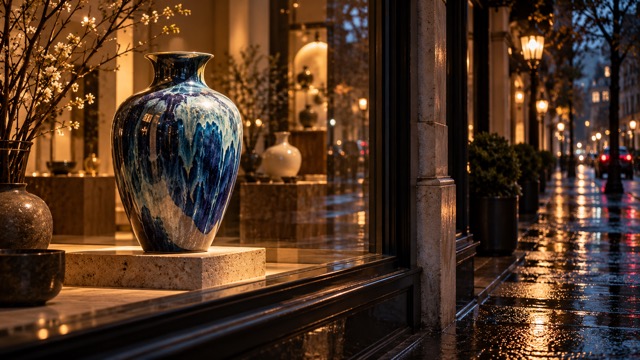
Write the lighting, setting, and camera movement that match your merchandise. A slow close-up can suit a premium watch, while a brighter reveal can introduce a seasonal gift set. This black friday promo video maker combines a built-in product promotion direction with your instructions, giving you a starting point for different campaign moods. Describe one coherent shot and refine the prompt when the result needs a different pace or composition.

Build Video Creative Around One Clear Offer
Use this black friday video ad maker to create the product scene for your promotion. Leave open space in the composition for a headline, then add your confirmed offer in a video editor. Keep the product, palette, and message consistent with the landing page shoppers will visit. The generated clip supplies the moving visual; your finishing process adds exact prices, legible dates, and the call to action that completes the advertisement.
Black Friday Video Ideas For Your Business
Match the scene to what you sell and where shoppers will see it. These practical starting points help small teams plan product clips that complement their sale pages, social posts, and existing promotional artwork.

Online Stores Featuring A Hero Product
For an ecommerce store preparing its main Black Friday promotion, start with the product that anchors the offer. Create a short showcase for the campaign’s social post or product announcement. Keep the same colors and packaging used on the store page, then add the confirmed offer during editing so shoppers can connect the video with the item they see after clicking.

Social Teams Refreshing Seasonal Creative
For social media managers working from a small photo library, use one strong product image to explore a fresh moving scene. Request a subtle reveal for a reminder post or a closer view for a product highlight. The result gives you another creative direction to review alongside static assets, with final framing and captions prepared for the destination channel.

Independent Makers Promoting Gift Collections
For candle makers, jewelry sellers, and craft businesses, show the detail that makes a seasonal product distinctive. A warm display or gentle camera move can support a gift-focused campaign. Use the black friday promo video maker to explore a moving showcase for your featured item, then add your market location, sale dates, or collection details in the final edit.

Small Agencies Planning Campaign Variations
For a small agency developing a client’s sale campaign, use the approved product image and art direction to explore a video concept before a wider rollout. The black friday video ad maker provides a place to start from a focused visual brief. Compare the generated product details with the approved assets, then prepare the selected clip for client review and finishing.
What A Useful Product Promo Workflow Looks Like
These fictional examples illustrate the priorities of different campaign teams. They are not verified customer endorsements; use them as practical perspectives when judging what your own Black Friday video needs to accomplish.
I want the product to stay recognizable while the scene feels seasonal. Starting from our existing photo makes it easier to judge the clip against the item customers will actually buy.
The most useful direction is one clear camera move with room for the offer. That gives our team a focused clip to finish instead of a crowded scene to untangle.
For a small jewelry collection, a restrained close-up feels more appropriate than a busy reveal. I would use the preview to check the silhouette and metal finish before posting the promotion.
I like keeping the product scene separate from the final discount text. It lets us review the visual first and make sure the exact offer is readable in the finished edit.
A clear image and a specific motion request make a practical starting brief. I would compare each result with the approved product photo and keep the strongest version for client review.
Matching the video mood to our static creative matters more than adding every effect. A simple product shot gives us a useful foundation for a campaign with one consistent sale message.

Black Friday Video Maker FAQs
Understand how this video workflow fits your sale campaign, what to upload, and what to check before sharing. The output is a product promotional clip, with final offer details handled during your finishing process.
The black friday video maker generates a promotional clip from an uploaded product image and your creative instructions. Use it to explore a product showcase, a seasonal scene, or a simple reveal. Download and review the result, then add your confirmed offer text and other finishing elements in your video editor.
Choose one clear image with the product fully visible, good lighting, and enough surrounding space for the intended framing. A simple background helps keep the subject understandable. Avoid crowded product grids and tiny labels when possible. Check the uploader for supported files and inspect the result against your original image.
Yes. The page accepts your instructions alongside its built-in product promotion prompt. Describe the scene, lighting, and one main movement, such as a slow push toward a gift set. Keep the request focused and consistent with the source image. Style directions are written in the prompt rather than selected from preset templates.
For accurate sale information, add the final discount, price, date, and call to action in your video editor after generation. AI video can change lettering across frames, especially in dense artwork. Keep the offer short and review every visible claim against your actual promotion before posting or running the clip as an ad.
This page uses an uploaded image and written instructions rather than a selectable library of black friday video templates. A built-in product promotion prompt provides the starting direction. You can describe the scene, lighting, and camera movement you want, then refine those instructions to explore another version of your campaign concept.
Before generation, review the selected settings and displayed credit requirement. Afterward, inspect the product shape, packaging, labels, motion, and cropping. Add any final offer copy and audio in your editing workflow. Preview the completed promotion in its intended placement, and confirm the advertised details match the destination page.
Make Your Black Friday Product Promotion Move
Choose the product shoppers should notice, upload its photo, and describe a focused promotional scene. Start with the black friday video maker, review the generated product details, and finish the clip with your actual offer. Bring a clear product story to your next seasonal campaign.