
More AI Image Generators
Explore our collection of specialized AI image generators designed for different creative needs and styles




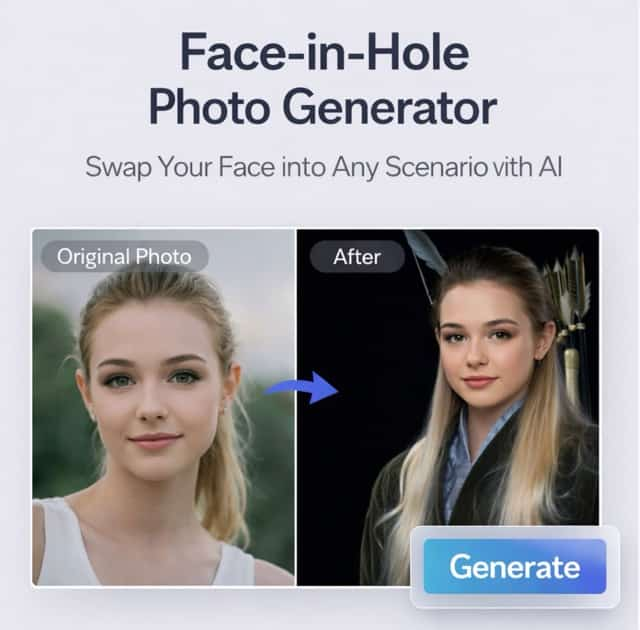


AI Censor Remover For Photos
Replace Overlays With A Natural-Looking Fill
Remove a mosaic, sticker, or text overlay from an image you have permission to edit. Describe the area and AI creates a new fill using the surrounding scene, giving you a cleaner version to review and download.
How To Use AI Censor Remover
Start with an image, tell the tool what you want to remove, and generate an edited version. Review the fill and refine your description as needed before downloading.
Upload Your Image
Select a photo or image you own or have permission to edit. Choose a clear source so the surrounding colors and details can help guide the fill.
Describe What To Remove
Identify the overlay and its location, such as a sticker in the corner or a mosaic over part of the background. Add a little context about what surrounds it.

Generate The Edit
Generate an edited version from your image and instructions. The model uses the visible scene to create a replacement for the area you described.
Review And Download
Compare the edited area with the original and check how well it fits the scene. If needed, refine your description, generate another version, and download the result you prefer.
Best AI Image Tools for Creative Projects
Explore creative tools for image, learn tips and tricks, and see how AI can be your assistant in turning concepts into finished projects.












Remove Overlays From Your Images
From pixelated areas to stickers and captions, describe the overlay you want to replace. AI uses the visible surroundings to generate a fill that suits the rest of your image.
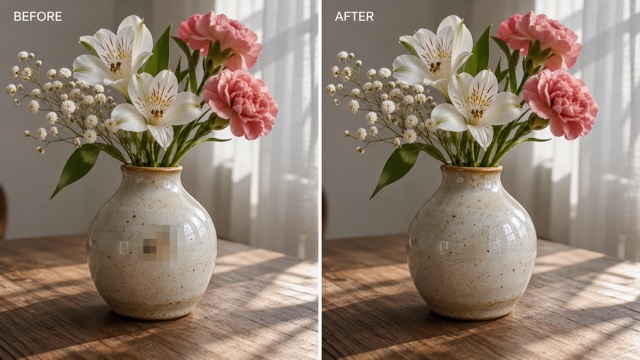
Replace Mosaic And Pixelated Areas
Describe the mosaic or pixelated area you want to replace and where it appears. AI uses nearby visible colors, shapes, and textures to create a plausible fill; it does not recover the original hidden details.
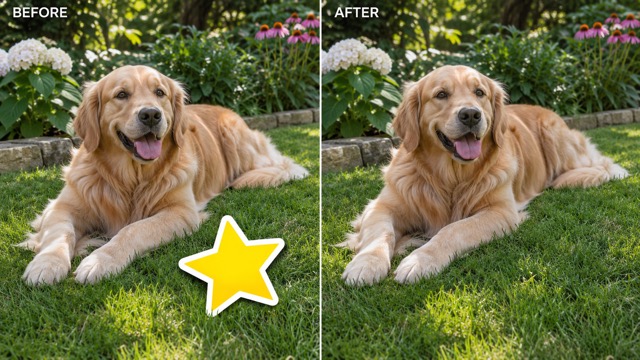
Remove Stickers And Emoji
Point out the sticker or emoji covering part of your photo. The tool creates a new fill from the surrounding scene, helping you give the image a cleaner look without manually painting over the area.
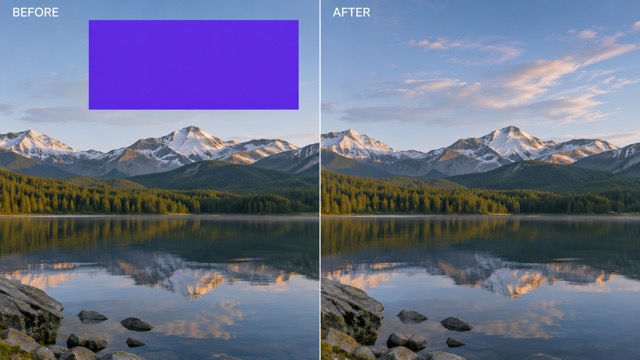
Clean Up Text And Color Blocks
Identify the caption, label, or colored block you want to remove from your own image. Use the surrounding background as a guide for a generated replacement, then review how it fits the composition.
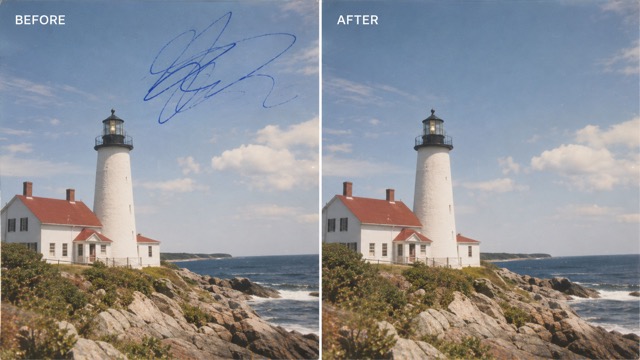
Fill Areas Covered By Marks
Clear a doodle or paint mark by describing its position and the area around it. The generated fill draws on the visible scene, making it useful for small touch-ups to images you have permission to edit.
Ways To Use AI Censor Remover
Give personal photos and creative projects a cleaner starting point. Use images you have permission to edit, then review each generated fill in the context of your original.
Personal Photo Cleanup
Clean up a travel, pet, or everyday photo by replacing a sticker or doodle. Describe the unwanted mark and review the fill alongside the original image.
Creative Mockups
Remove a temporary label or colored block from your own design draft. The cleaned-up image can give you a starting point for testing new text, layouts, or visual elements.
Presentation Images
Prepare an image you have permission to edit for a slide or presentation. Replace an unwanted caption or overlay and check that the result works with the rest of your layout.
Photo Touch-Ups
Give an old photo a small touch-up by describing a mark or covered area. AI can generate a plausible fill from nearby details, though it cannot retrieve lost original information.
AI Censor Remover User Feedback Examples
Illustrative example feedback and fictional profiles for layout review. Replace with verified user feedback and approved identities before publication.
I wanted to remove a sticker from a travel photo without losing the feel of the original scene. Describing the area gave me a straightforward place to start.
For a quick mockup, I can describe a label I want to replace and review the generated fill alongside the rest of the design.
The prompt-based workflow is easy to follow when preparing a presentation image. I can check the edited area before deciding if it fits the slide.
I like being able to specify where an unwanted mark appears and compare the generated version with the original before using it.




AI Censor Remover FAQ
Learn how the tool handles covered areas, what you can describe, and how to review an AI-generated edit before using it.
AI Censor Remover is an image editing tool for replacing overlays such as mosaics, stickers, and text. Upload an image and describe the area; the model generates a fill using the visible surroundings as context.
No. The original details underneath a mosaic are not available to the model. It creates a plausible replacement from the visible context, so the generated result can differ from what was originally there.
You can describe a mosaic, pixelated area, sticker, emoji, caption, colored block, or doodle on an image you have permission to edit. Results depend on the source image and the overlay's size, location, and surrounding detail.
Start with a clear image and say exactly what you want removed and where it appears. Describe the nearby background if that helps clarify your request, then review the result and adjust your wording before generating another version.
Use images you own or have permission to edit. The tool is intended for non-sensitive edits and is not designed to reveal private or intimate content. Check that you have the appropriate rights before editing and sharing an image.
The tool is instructed to preserve the rest of the image, but AI edits can change details outside the requested area. Compare the generated image with your original and review important elements before using the result.
Give Your Image A Cleaner Look
Upload an image you have permission to edit, describe the overlay and its location, and generate a cleaner version. Review the AI-created fill and download the result you prefer.