
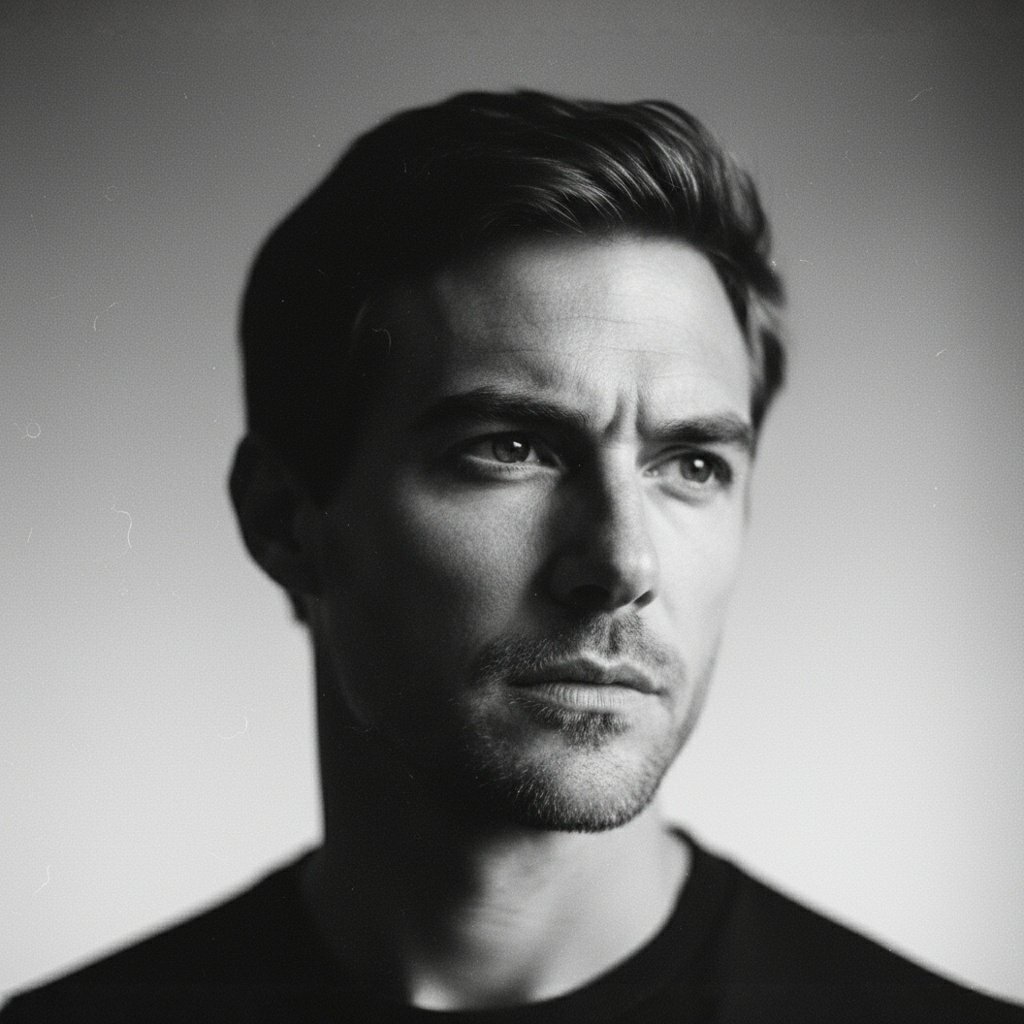
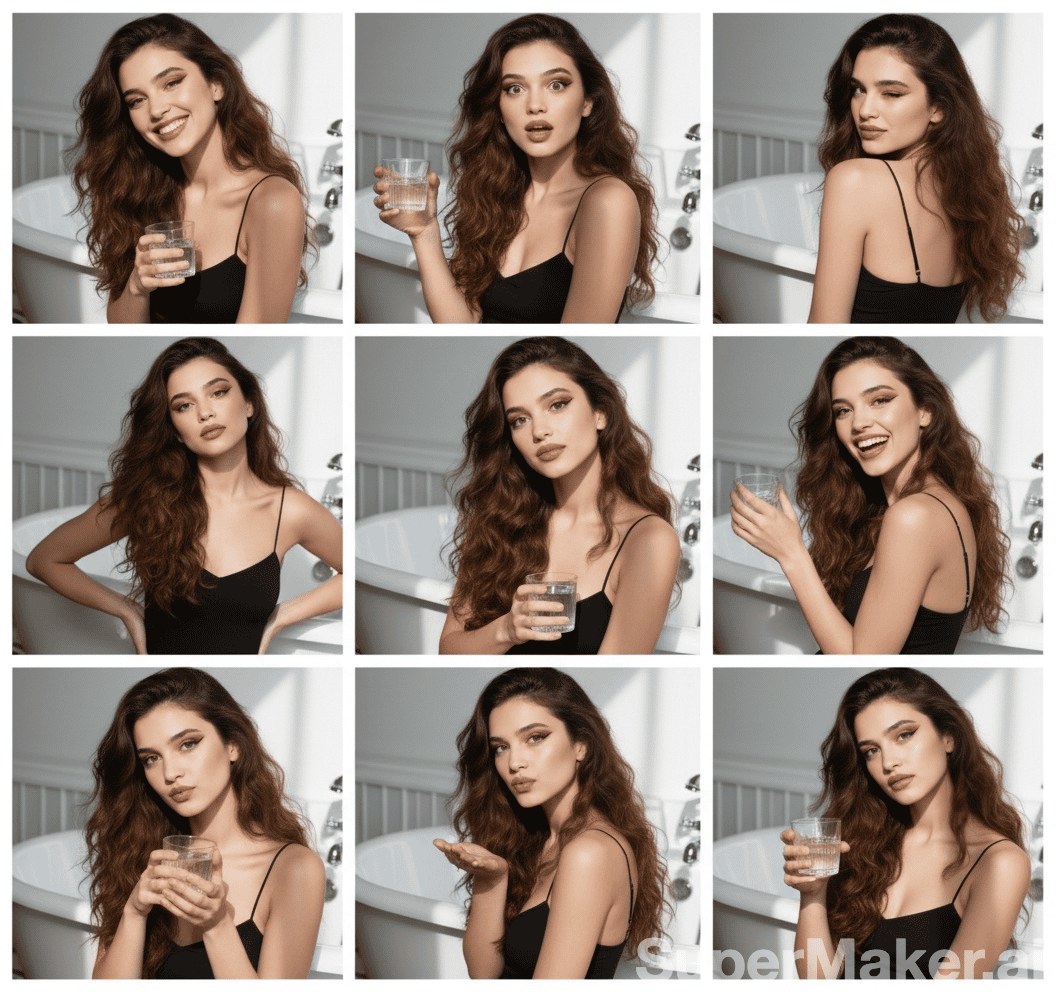
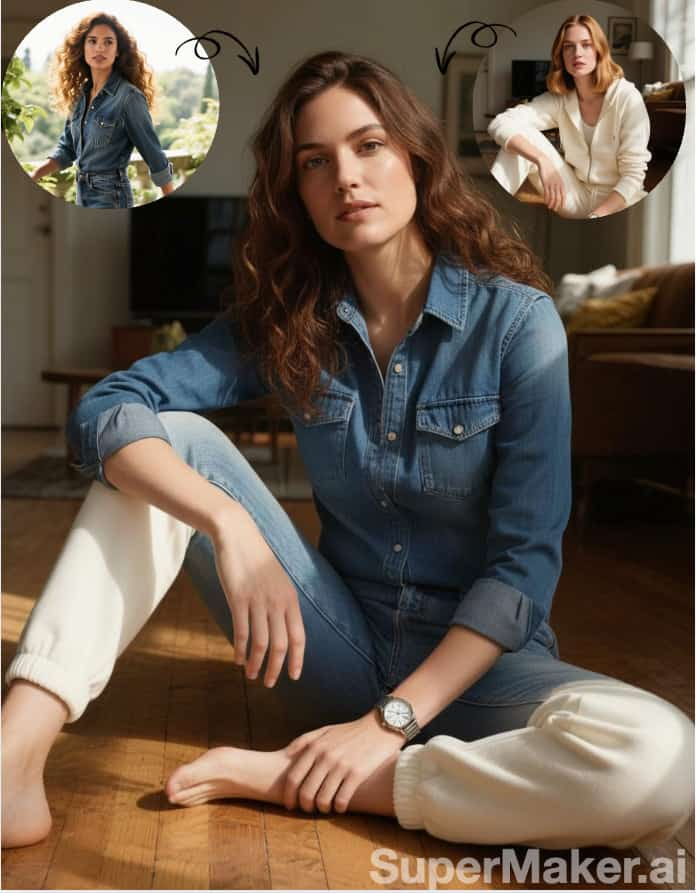
More AI Image Generators
Explore our collection of specialized AI image generators designed for different creative needs and styles







Beauty Filter For Natural-Looking Portraits
AI Beauty Filter For Your Photos
Give a portrait a polished look with a portrait edit that keeps the person at the center of the image. Upload a photo and use the portrait tool to create a softly retouched version.
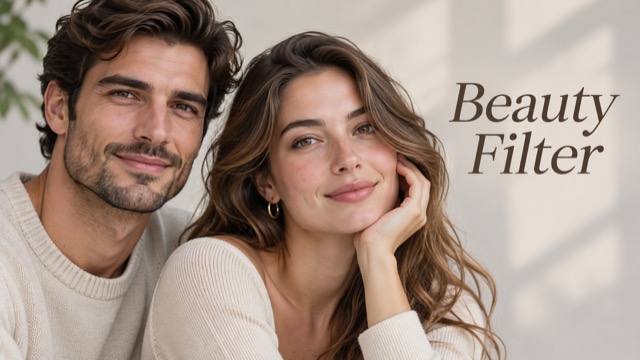
How To Use The Beauty Filter
Start with a clear portrait and create an edited image in a few steps. The portrait tool works from the photo you provide.

Choose A Beauty Filter Photo
Pick a selfie or portrait with a visible face and even lighting. A clear source gives the portrait edit more detail to work with.

Upload Your Portrait
Add your image to the portrait tool. The uploaded photo provides the starting point for the portrait edit edit.

Generate Your Beauty Filter Result
Start generation and let the portrait tool apply a soft portrait treatment. The portrait edit is designed to preserve your recognizable features.

Review Your Beauty Filter Image
Compare the finished image with your original. If you want a different result, try the portrait tool with another photo.
Best AI Image Tools for Creative Projects
Explore creative tools for image, learn tips and tricks, and see how AI can be your assistant in turning concepts into finished projects.
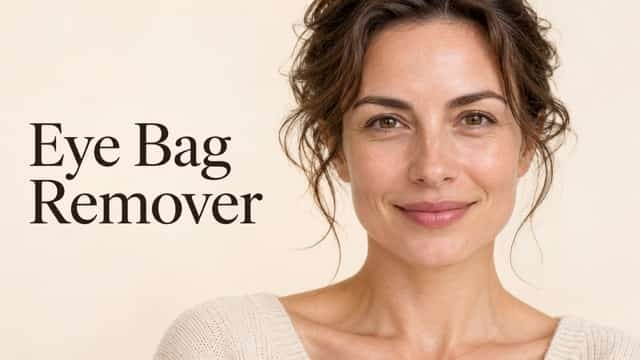











What The Beauty Filter Can Do
The portrait edit focuses on portrait finishing, from soft skin to a balanced overall look. Use the AI beauty filter as a starting point for a polished image.
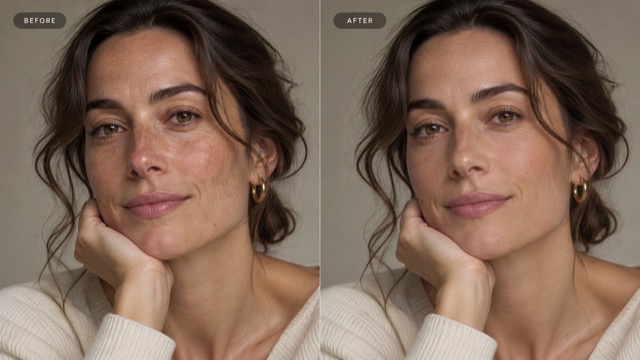
Beauty Filter For Soft Skin
The portrait edit aims for a smoother appearance while retaining natural skin texture. The AI beauty filter can soften small visual distractions without asking you to manually edit each area. A well-lit source photo helps the portrait edit work from visible detail.
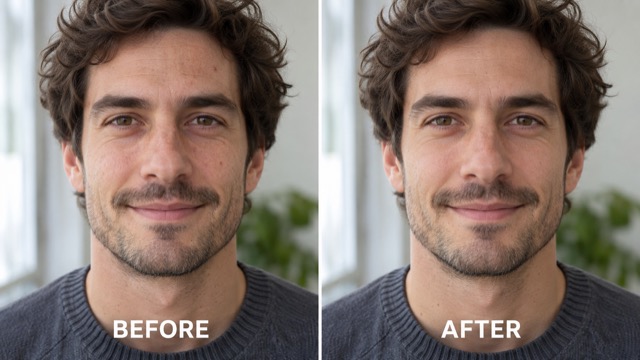
AI Beauty Filter For Recognizable Features
Your face and expression make a portrait personal. The AI beauty filter is prompted to preserve identity, facial structure, and skin tone while applying a gentle finish. Review the portrait edit result alongside your original to see how the details compare.
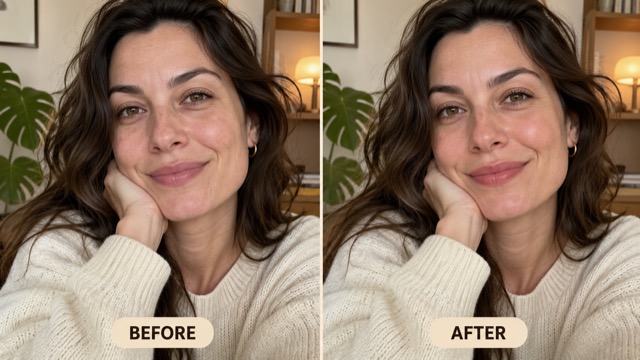
Beauty Filter For A Polished Selfie
Turn an everyday selfie into a portrait with a softer, more cohesive finish. The portrait edit works from your uploaded image, including its pose and composition. Use the AI beauty filter when you want to explore a refined version of a photo you already have.
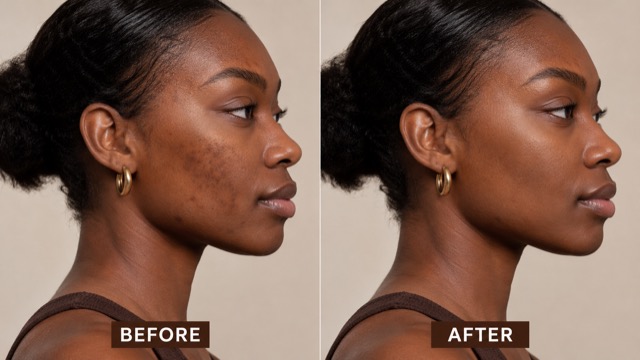
AI Beauty Filter For Your Own Photos
Start with a portrait that suits your purpose, from a casual snapshot to a profile photo. The AI beauty filter applies the same editing direction to your source image. Each portrait edit result depends on the lighting, angle, and detail in the photo you choose.
Beauty Filter Ideas For Everyday Photos
Use the portrait edit to explore different portrait-ready versions of your own images.
Beauty Filter For Selfies
Give a favorite selfie a soft finish. The AI beauty filter can be a useful starting point when you want a refreshed version of a casual photo.

AI Beauty Filter For Profile Pictures
Try the AI beauty filter on a clear headshot for a profile image. Compare the portrait edit result with your original before choosing the one you prefer.

Beauty Filter For Creative Portraits
Use the portrait edit to prepare a portrait for a personal creative project. The AI beauty filter keeps the source photo as the basis of the edit.

Beauty Filter For Photos To Share
Make a new version of a photo for a message or social post. The portrait edit gives you another way to present a moment you like.
Beauty Filter Inspiration
Explore ways a portrait edit can fit into different portrait projects.
I like starting with a simple selfie and seeing how a portrait edit changes its overall feel.
The AI beauty filter gives me another portrait version to consider for my profile.
A portrait edit is a convenient starting point when I want a softer finish on a personal photo.
I use an AI beauty filter to explore a polished look while keeping my original photo for comparison.
The portrait edit helps me experiment with a different presentation for a portrait.
I enjoy trying the AI beauty filter on photos taken in different lighting.

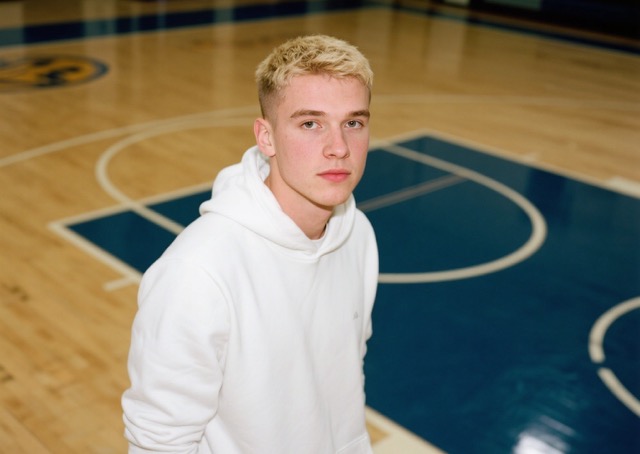
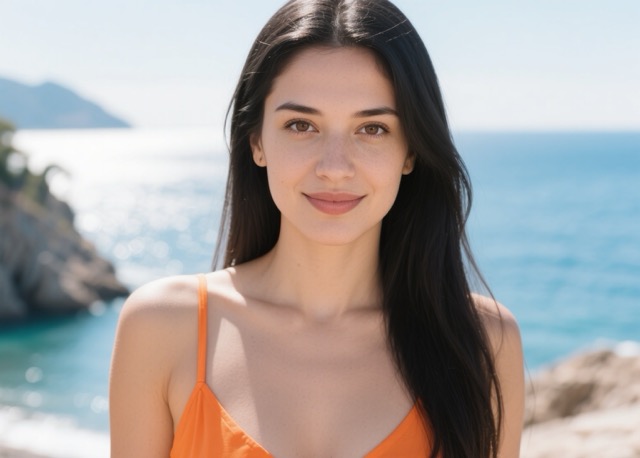
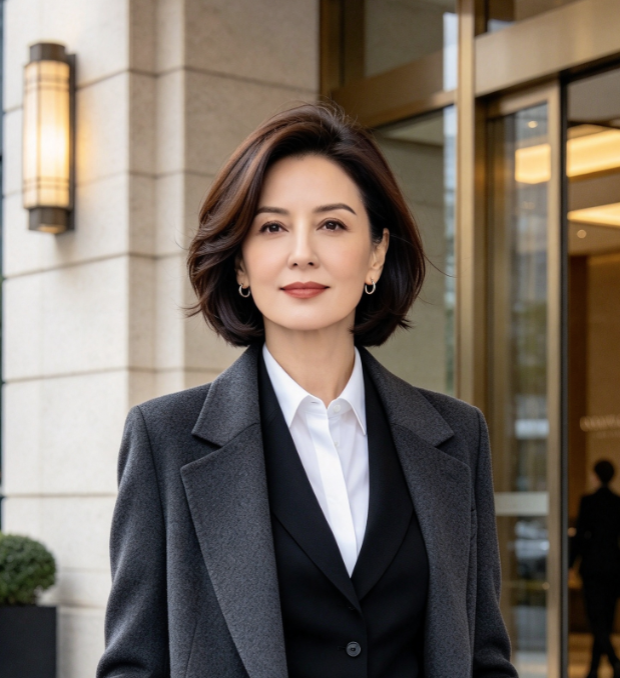
Beauty Filter Questions
Learn how to start with the portrait edit and choose a suitable photo.
A portrait edit edits a portrait to give it a polished appearance. This AI beauty filter uses your uploaded image as the source for a soft portrait treatment.
Upload a portrait, start generation, and review the resulting image. Choose a clear photo so the portrait edit has visible facial detail to work from.
A well-lit selfie or portrait with a clearly visible face is a useful starting point. The portrait edit result can vary with the angle, lighting, and quality of your source image.
The AI beauty filter is prompted to preserve identity, facial structure, and skin tone. Generated results can vary, so compare the portrait edit image with your original.
You can try the portrait edit on your own portrait and decide if the resulting image fits your intended profile. The AI beauty filter creates an edited version of the photo you upload.
Yes. Choose another source image and run the AI beauty filter again. Different lighting and angles can give the beauty filter a different starting point.
Try The Beauty Filter On Your Portrait
Choose a photo and use the AI beauty filter to create a softly polished portrait. See how the beauty filter transforms your starting image.