More AI Image Generators
Explore our collection of specialized AI image generators designed for different creative needs and styles






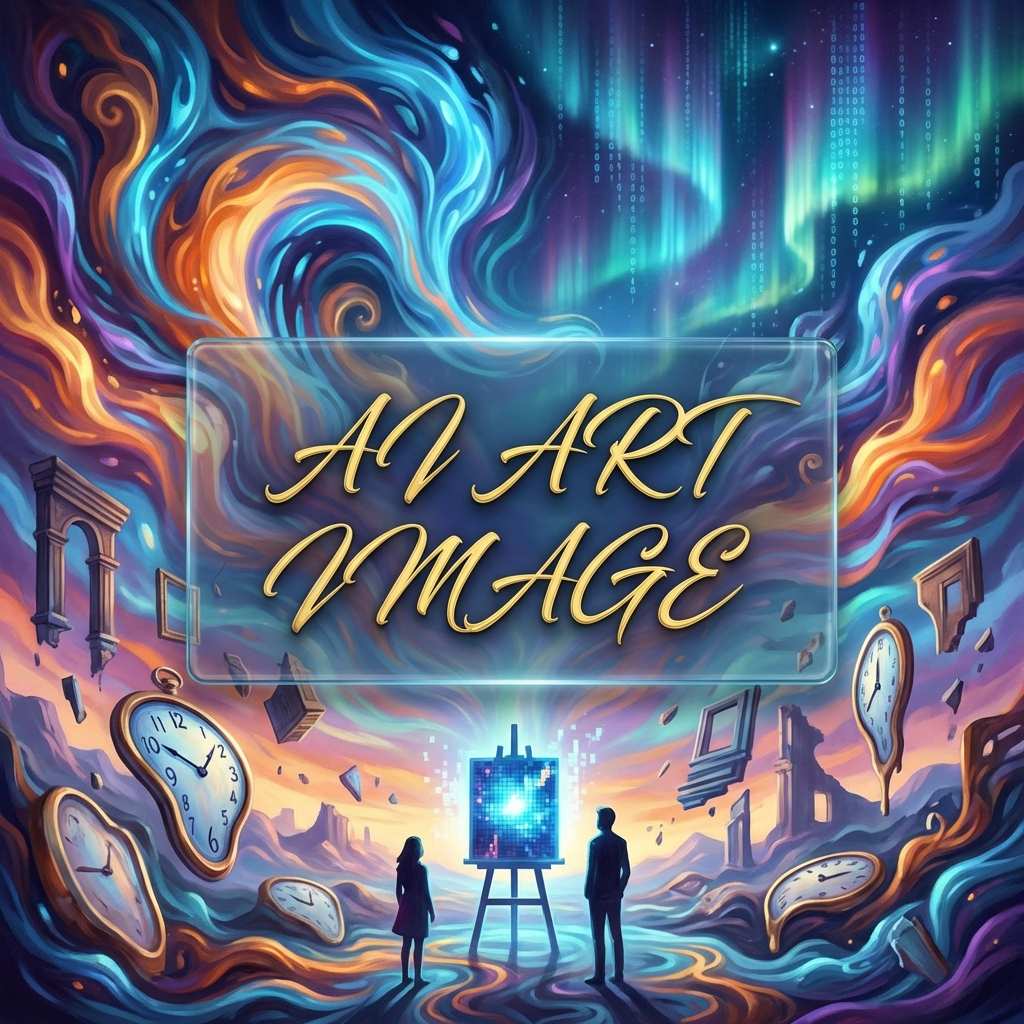



Seedream 5.0 Flash AI Image Generator for Creative Images
Create new visuals from text and reshape existing photos with Seedream 5.0 Flash Image Editor. Explore fresh concepts, clearer compositions, and reference-guided changes without a complicated workflow.
Turn a rough idea into an image you can evaluate, share, or refine. Seedream 5.0 Flash helps you describe subjects, arrange scenes, and explore visual variations. Start with an original composition or work from a reference photo when a specific detail needs changing.

How to Use Seedream 5.0 Flash Online in Three Steps
Start with a prompt or existing image, review available settings, and generate your result. This straightforward process lets newcomers use Seedream 5.0 Flash AI Image Generator while giving photo editors a clear path into Seedream 5.0 Flash Image Editor.

Choose a Mode and Enter Your Prompt
Open Seedream 5.0 Flash Online and choose Text to Image for a new scene or Image to Image when starting with an existing picture. In the prompt field, describe the subject, setting, action, lighting, and overall mood. For photo edits, add your reference image where the editor allows it and state exactly what should change. Seedream 5.0 Flash AI Image Generator works best with specific instructions, while Seedream 5.0 Flash Image Editor benefits from explicit directions about what must remain unchanged. For example, request a warmer window light but keep the person, clothes, and camera angle consistent.

Check the Available Generation Settings
Review the options shown in the generation panel before submitting your request. If available, select an aspect ratio, an output quality setting, and the number of images you want to create. Keep the composition aligned with its purpose: a wide scene for a story illustration or a tighter arrangement for a portrait. For Seedream 5.0 Flash AI Image Generator, a clear prompt usually matters more than stacking every possible setting. With Seedream 5.0 Flash Image Editor, make sure the uploaded source is the right version before you proceed.

Generate, Review, and Refine
Select Generate Image and review the result after processing. Look for correct subjects, readable text where requested, realistic lighting, and consistency with your reference. If something is off, revise one instruction at a time rather than rewriting the entire idea. Seedream 5.0 Flash AI Image Generator makes it practical to explore alternatives, while Seedream 5.0 Flash Image Editor helps you explain focused improvements. Download a result when you are satisfied with the visual direction and check all details before publishing it.
Best AI Image Tools for Creative Projects
Explore creative tools for image, learn tips and tricks, and see how AI can be your assistant in turning concepts into finished projects.




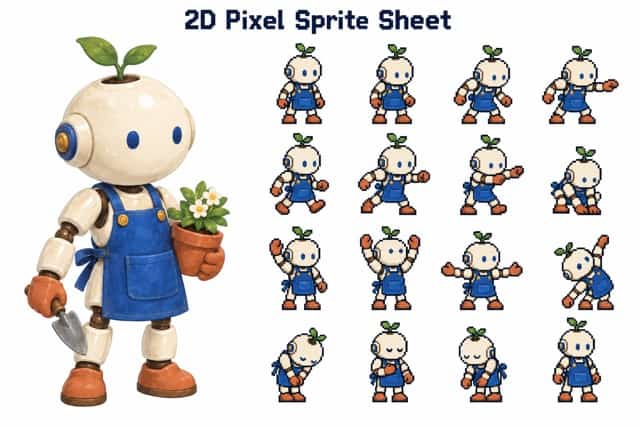








What You Can Create with Seedream 5.0 Flash
Explore three useful workflows: invent a scene, revise an existing photo, or develop an image using visual references. Seedream 5.0 Flash AI Image Generator is suited to starting from words, while Seedream 5.0 Flash Image Editor focuses on changes grounded in existing images.

Build Detailed Visual Scenes from a Short Brief
A creative brief may describe a location, character, and mood without providing a finished picture. Seedream 5.0 Flash AI Image Generator turns those details into a starting visual, whether you need a quiet bookshop interior, a dramatic fashion setting, or an illustrated historical street. Include the subject's position, the time of day, the camera viewpoint, and the details that communicate the story. Seedream 5 Flash AI Image Generator is also useful when you have several competing ideas and need images to compare before committing to one. Once a concept works, you can revise color, atmosphere, or framing without rebuilding the entire brief. The goal is not simply to produce something attractive. It is to make a specific visual decision easier, with Seedream 5.0 Flash AI Image Generator supporting quick exploration of alternative directions.
Change a Photo Without Losing Its Original Story
Sometimes the source photograph is almost right: the room feels too dim, an object distracts from the subject, or the background needs a different atmosphere. Seedream 5.0 Flash Image Editor lets you describe the desired change while asking the model to preserve important details. Specify the object to replace, the surface or color to adjust, and the elements that should stay intact. For example, change a table lamp into a ceramic vase while keeping the furniture placement and afternoon light. Seedream 5.0 Flash Image Editor gives editors a practical way to propose several versions before choosing one. Use the original and the generated picture side by side to inspect unintended changes; AI editing can alter small details even when the instructions are clear.

Combine Visual References into One Coherent Direction
A single inspiration image rarely contains everything needed for a project. You may like the clothing in one reference, the environment in another, and the lighting in a third. The model behind Seedream 5.0 Flash Image Editor supports reference-guided image creation, making this approach useful for composing a new scene from existing visual ideas. Describe the role of each source instead of simply asking the model to merge the images. Seedream 5.0 Flash AI Image Generator can also help establish the composition first, before reference details are introduced. For best results, avoid conflicting instructions about camera direction, scale, or time of day. Then review whether important features remain recognizable. This reference-guided workflow is especially useful for early concept development where consistency matters more than copying a reference literally.
Who Can Use Seedream 5.0 Flash Online?
From editorial teams to independent artists, visual work often begins with experiments. Seedream 5.0 Flash AI Image Generator supports exploratory drafts, and Seedream 5.0 Flash Image Editor offers a route for revising selected images without starting from a blank prompt.

Editorial Illustrations and Article Covers
An article often needs an image that expresses an argument rather than a generic stock-photo cliché. Use Seedream 5.0 Flash AI Image Generator to create a purposeful scene for a travel guide, design essay, or technology explainer. Describe the central idea, then choose objects that support it: a handwritten itinerary, a sunlit train carriage, or a desk arranged for an interview. Seedream 5.0 Flash Online helps explore different visual metaphors before an editor selects the clearest one. If a generated image is close but the background distracts, Seedream 5.0 Flash Image Editor can be used to request a simpler setting. Confirm that any image presented as factual reportage is genuinely documentary, not generated. Visual storytelling works best when imaginative illustrations are labeled and grounded in the article's purpose.

Campaign Concepts and Social Posts
Campaign planning usually begins with competing creative directions. One approach may be warm and playful; another may be minimal and architectural. Seedream 5.0 Flash AI Image Generator can produce concept visuals that help a team discuss what each direction communicates. Use concise prompts that name the focal point, desired feeling, and background treatment. If a draft includes an unwanted prop or color conflict, Seedream 5.0 Flash Image Editor provides a way to describe a targeted revision. For creators researching Seedream 5.0 Flash free access, check the current credit requirements before planning a large batch of concepts. Treat generated examples as mockups, and verify product appearance, text, and factual claims before using any image in public advertising. The generator is most valuable here as a tool for comparing ideas, not as a substitute for campaign review.

Character Studies and Storyboarding
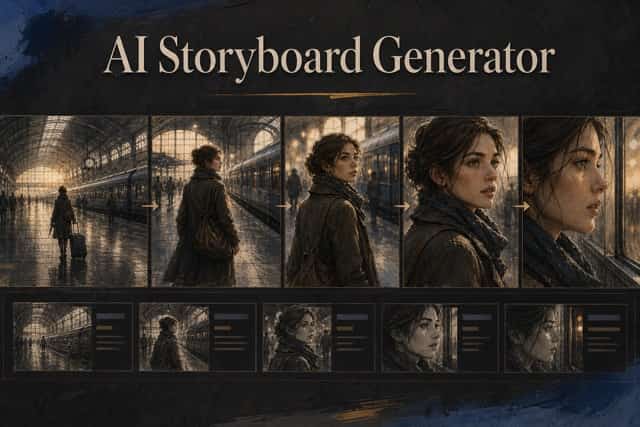
Writers, filmmakers, and illustrators often need to see a character in more than one setting before finalizing a scene. Start with Seedream 5 Flash AI Image Generator to explore a costume, expression, or environment. Keep distinguishing character features in the prompt, then provide relevant reference material when generating another scene. Seedream 5.0 Flash Image Editor can help revise a pose, adjust the time of day, or change an element that conflicts with the story. Use Seedream 5.0 Flash AI Image Generator to explore camera framing, such as an overhead view of a workshop or a low-angle street scene. Compare results carefully rather than assuming every detail will remain identical across generations. Good storyboards communicate sequence, spatial relationships, and mood without pretending AI outputs are final production frames.

Visual Lessons, Posters, and Presentation Ideas
A visual explanation can make an abstract subject easier to understand. Seedream 5.0 Flash AI Image Generator can help produce an illustrated analogy, a classroom scene, or a presentation concept that puts information into context. Explain the relationship between objects and identify where labels or empty spaces belong. Seedream 5.0 Flash Image Editor can then help restyle a visual example or request cleaner separation between elements. People looking for Seedream 5.0 Flash free image creation should review the available account options and usage conditions instead of assuming every generation has no cost. Because small text and factual diagrams can contain mistakes, proofread every label and verify all numbers. Use AI image creation for creative visualization, with human fact-checking before the material reaches an audience.
Creator Perspectives on Seedream 5.0 Flash
These four illustrative statements demonstrate potential workflows for Seedream 5.0 Flash AI Image Generator and Seedream 5.0 Flash Image Editor. They are sample copy, not verified user reviews; replace them with genuine, permissioned testimonials before publishing.
For a long-form feature, I would start with Seedream 5.0 Flash AI Image Generator to explore a handful of visual angles before choosing an illustration concept. If the overall scene felt right but the background competed with the subject, I would use Seedream 5.0 Flash Image Editor to request a quieter composition. What matters to me is being able to discuss a concrete image with an editor instead of trying to describe everything in words. I would still inspect details and label the final visual appropriately.
I would use Seedream 5 Flash AI Image Generator to explore visual themes for an early pitch: a coastal marketplace, an industrial kitchen, or a period interior. After selecting a direction, Seedream 5.0 Flash Image Editor could help test a different material or lighting treatment. Seedream 5.0 Flash AI Image Generator would be most useful before detailed design work begins, when the team needs something concrete to respond to. The advantage would be faster feedback on the idea, not a promise that every generated detail is already production ready.
For a content calendar, I would use Seedream 5.0 Flash AI Image Generator to test several moods for an educational campaign. Once a concept stood out, Seedream 5.0 Flash Image Editor could be used to remove a distracting object while retaining the core message. If I searched for Seedream 5.0 Flash free options, I would check the current credits before estimating how many drafts I could make. I would also confirm any text and ensure the final graphic accurately reflects the subject it represents.
I would approach Seedream 5.0 Flash Online as a place to test lighting and color before drawing a finished scene myself. Seedream 5.0 Flash AI Image Generator could suggest alternate compositions, and Seedream 5.0 Flash Image Editor could help explore how a single adjustment changes the mood. For instance, I might compare a cool morning interior against a warm evening version while keeping the same focal point. That kind of visual comparison could make decisions clearer without replacing the personal style of the final illustration.



Seedream 5.0 Flash Questions and Answers
Find straightforward guidance on prompts, photo editing, image references, and access. Use Seedream 5.0 Flash Online to explore the workflow, and review settings before producing an image.
Seedream 5.0 Flash AI Image Generator creates visuals from text prompts. Describe a subject, style, lighting, and composition, then generate and refine the result.
Yes. Seedream 5.0 Flash Image Editor supports reference-guided edits. Upload an image where available, specify the change, and explain what must remain the same.
The underlying model supports multi-reference image creation. Seedream 5.0 Flash Image Editor can help guide a scene with separate sources, subject to the reference-upload options shown on this page.
Start with a precise subject, setting, and camera direction. Seedream 5.0 Flash AI Image Generator performs best when your instructions are clear rather than contradictory.
Seedream 5 Flash AI Image Generator is an alternate search name for the Flash model. The complete name is Seedream 5.0 Flash; available generation options depend on the page settings.
If you searched for Seedream 5.0 Flash free, check the credits or access terms displayed before generating. Availability can vary by account and current offers.
Start Creating with Seedream 5.0 Flash
Bring your next illustration, concept scene, or photo revision into focus. Open Seedream 5.0 Flash AI Image Generator to start from a prompt, or use Seedream 5.0 Flash Image Editor to work from an existing visual. Check current usage terms, choose a direction, and create your first draft.