


More AI Video Generators
Explore our collection of specialized AI video generators designed for different creative needs and styles
FLUX 3 Max AI Video Generator
Fast Video Ideas With Cinematic Motion
Explore FLUX 3 Max AI Video Generator for expressive characters, convincing camera movement, and richly detailed scenes. Developed by fal Research with Black Forest Labs, FLUX 3 Max combines text and image workflows with optimized inference. Discover how prompt adherence, motion coherence, and visual fidelity can shape a cinematic brief. This page introduces the official model’s capabilities; direct FLUX 3 Max generation on SuperMaker has not been confirmed.
Turn Your Idea Into A Video
Plan a FLUX 3 Max AI Video Generator brief, generate from text or images, and review.

Enter Your Prompt Or Upload An Image
Describe your subject, action, lighting, and camera direction, or upload a clear image. Keep your FLUX 3 Max concept focused.

Click Generate
Check settings and cost, then click Generate. FLUX 3 Max benchmark timing is a reference; processing and service conditions affect waiting time.
Download Your Video
Preview motion, identity, and background stability. Download your preferred clip, or refine one prompt detail and generate again before editing.
Best AI Video Tools for Creative Projects
Explore creative tools for video, learn tips and tricks, and see how AI can be your assistant in turning concepts into finished projects.
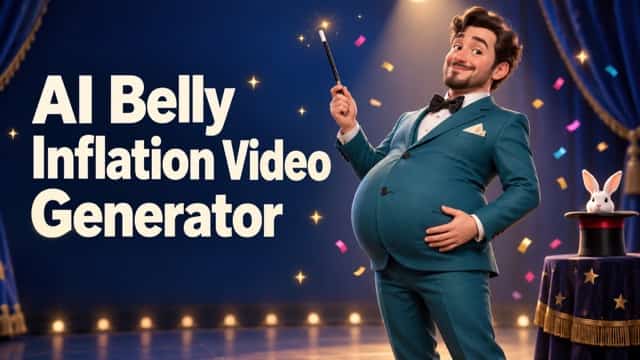


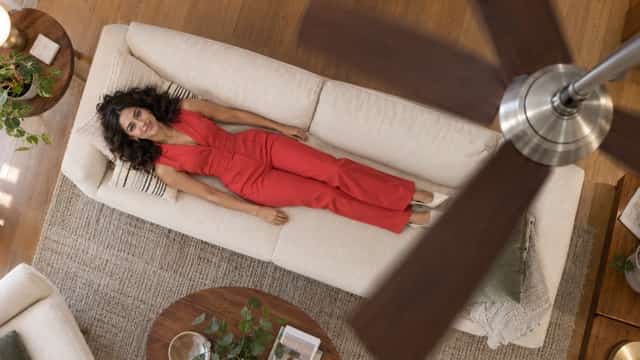
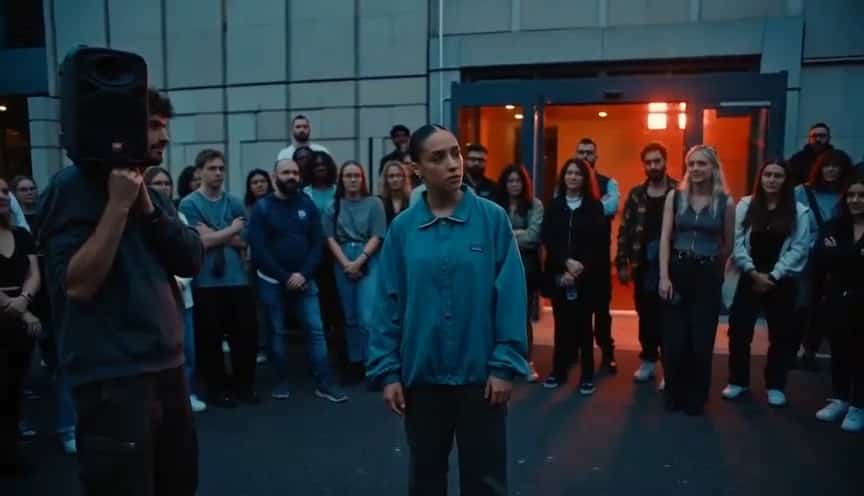




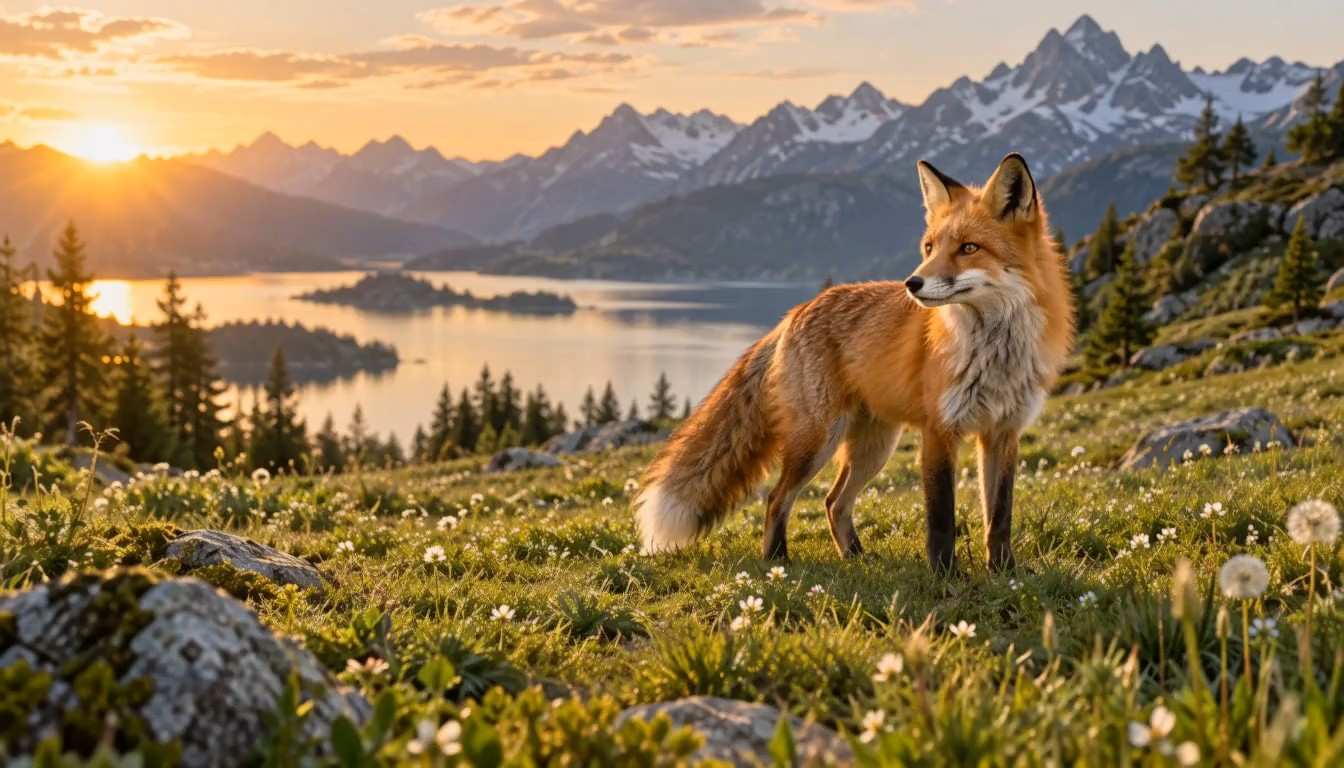





From A Clear Brief To Cinematic Motion
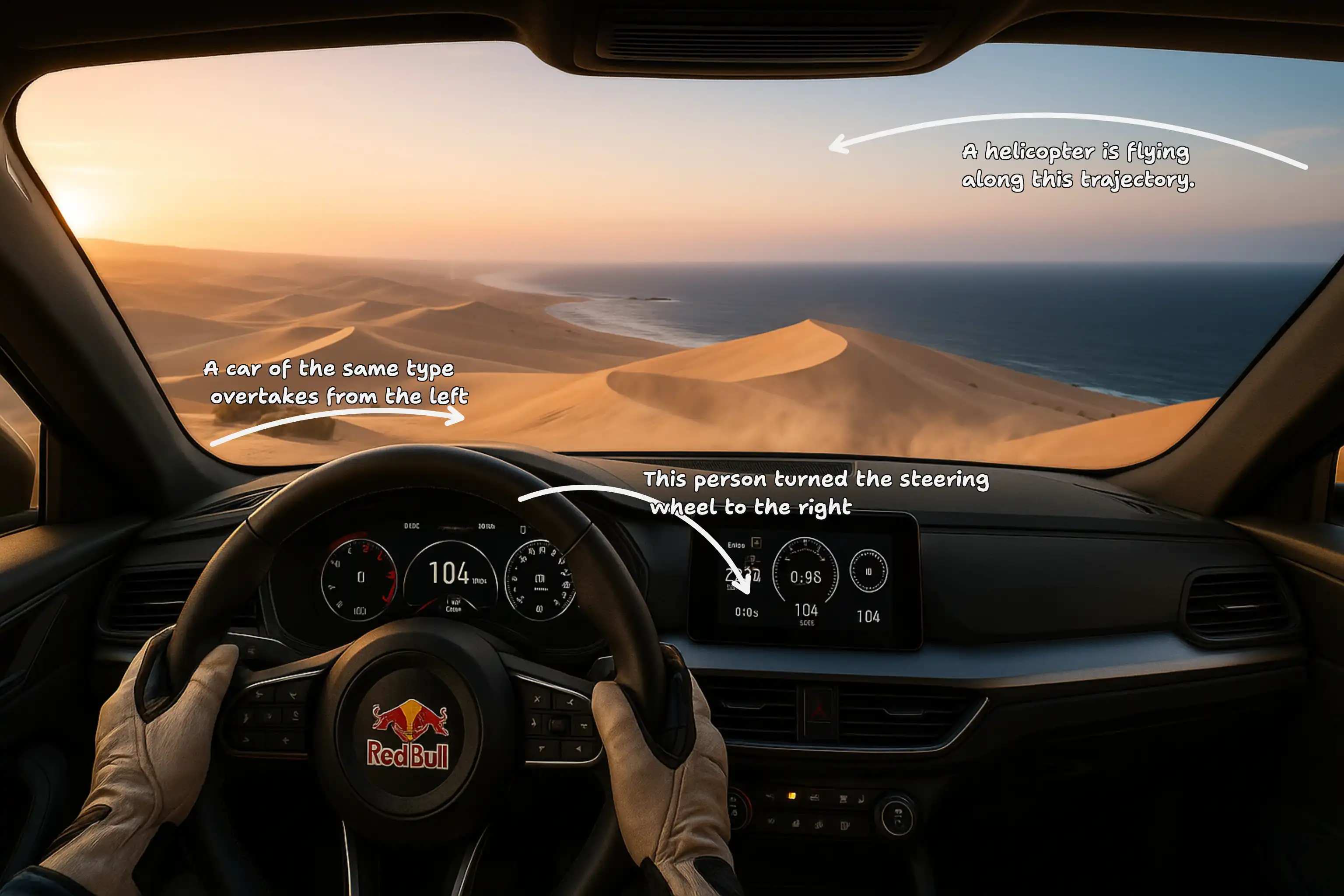
Explore FLUX 3 Max AI Video Generator through clear shot direction, controlled motion, cinematic composition, and detailed visuals.
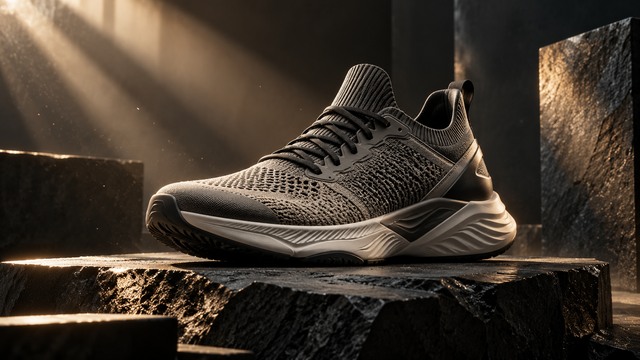
Fast Iteration And Product Detail
FLUX 3 Max AI Video Generator supports faster creative iteration. fal reports 12.45 seconds for a ten-second clip under its published benchmark conditions; this is not a SuperMaker delivery promise. Processing, queueing, and upload can affect waiting time.
For advertising, plan one lighting change and a camera move. Describe sneaker texture, controlled reflections, or a shadow crossing the product. FLUX 3 Max AI Video Generator briefs work best with a recognizable silhouette and clear material detail. Add packaging text during editing, and review available settings and price before generating.
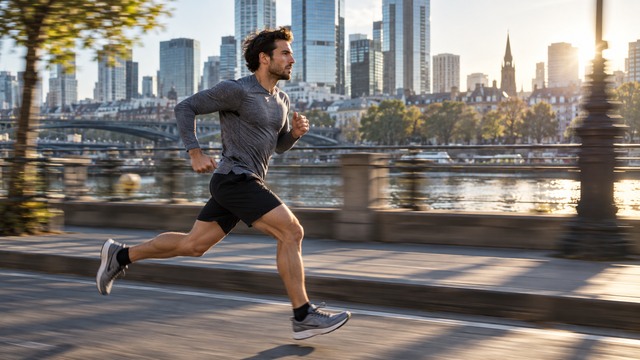
Text Direction And Natural Character Motion
FLUX 3 Max AI Video Generator connects subject, action, setting, and camera movement in a written prompt. Describe an adult runner moving through a morning street while the camera tracks beside him and a breeze shifts his jacket.
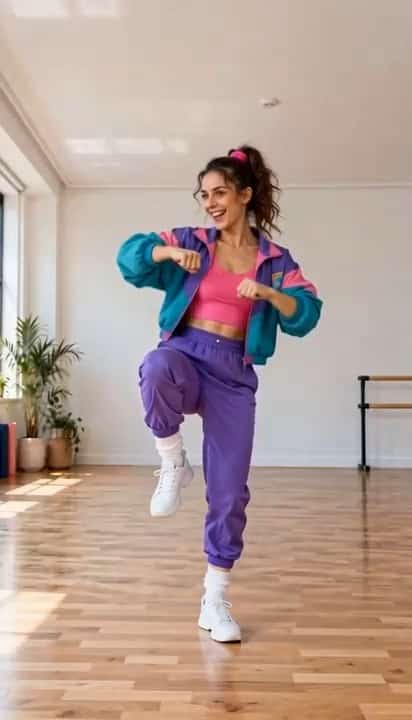
FLUX 3 Max post-training targets prompt adherence, visual fidelity, and motion coherence. Begin character animation with a walk, gentle turn, or simple interaction. Use FLUX 3 Max AI Video Generator briefs to define a readable beginning and ending, then check foot contact, hand shape, and facial continuity in each take.

Image Animation And Cinematic Camera Work
FLUX 3 Max AI Video Generator supports image-to-video officially. An initial image establishes the composition; your prompt directs movement. Request drifting mist in a landscape or a gentle head turn and hair movement in a portrait.
A FLUX 3 Max Image to Video brief should fit the visible frame. Choose one camera path: a slow dolly, lateral track, or gentle orbit. For FLUX 3 Max AI Video Generator shot planning, keep a consistent focal point and describe how camera and subject move together.

Visual Fidelity For Imaginative Scenes
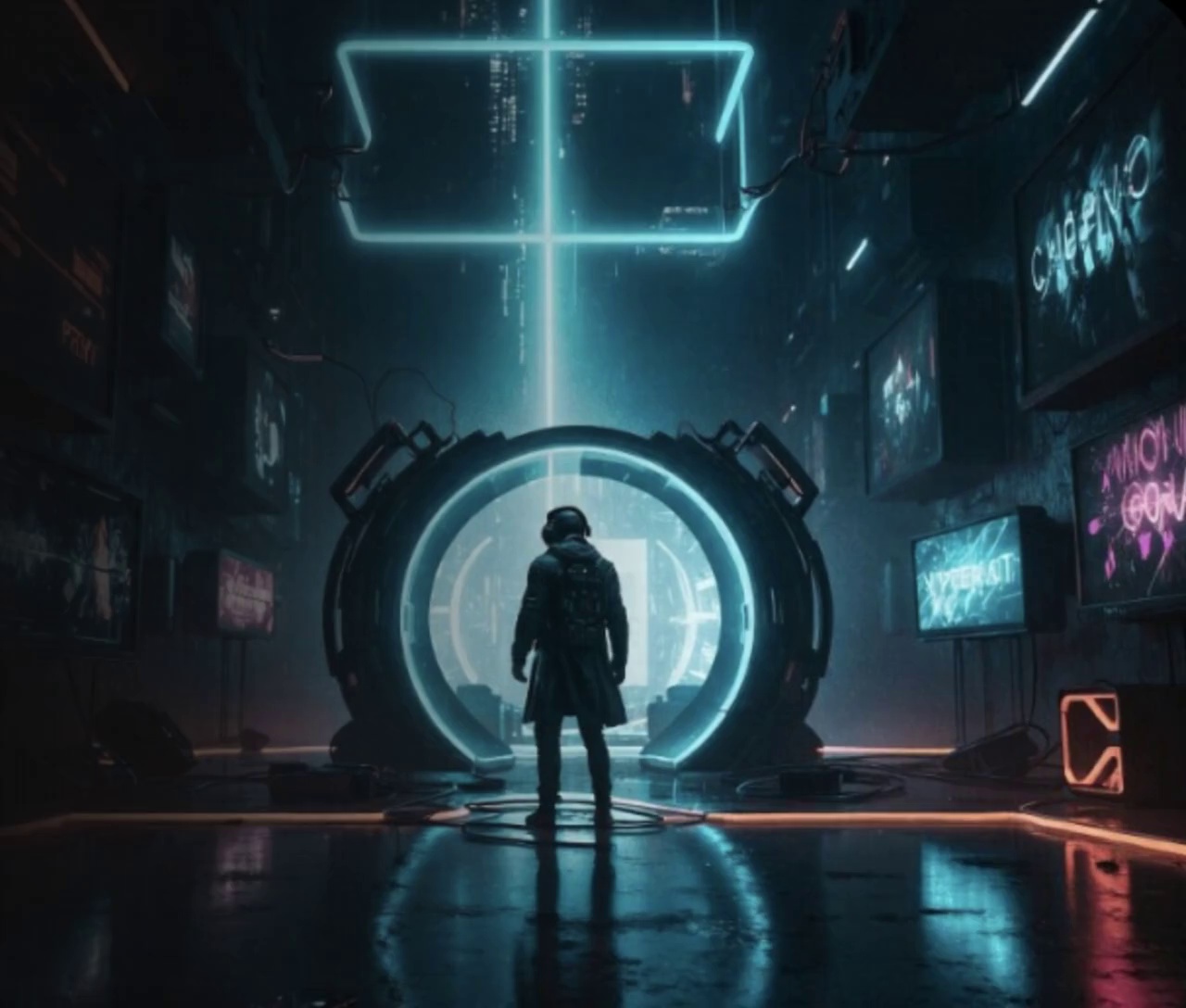
FLUX 3 Max AI Video Generator helps develop imaginative cinematic scenes. An explorer approaching architecture can combine a foreground character, textured stone, and atmospheric light in a clear composition.
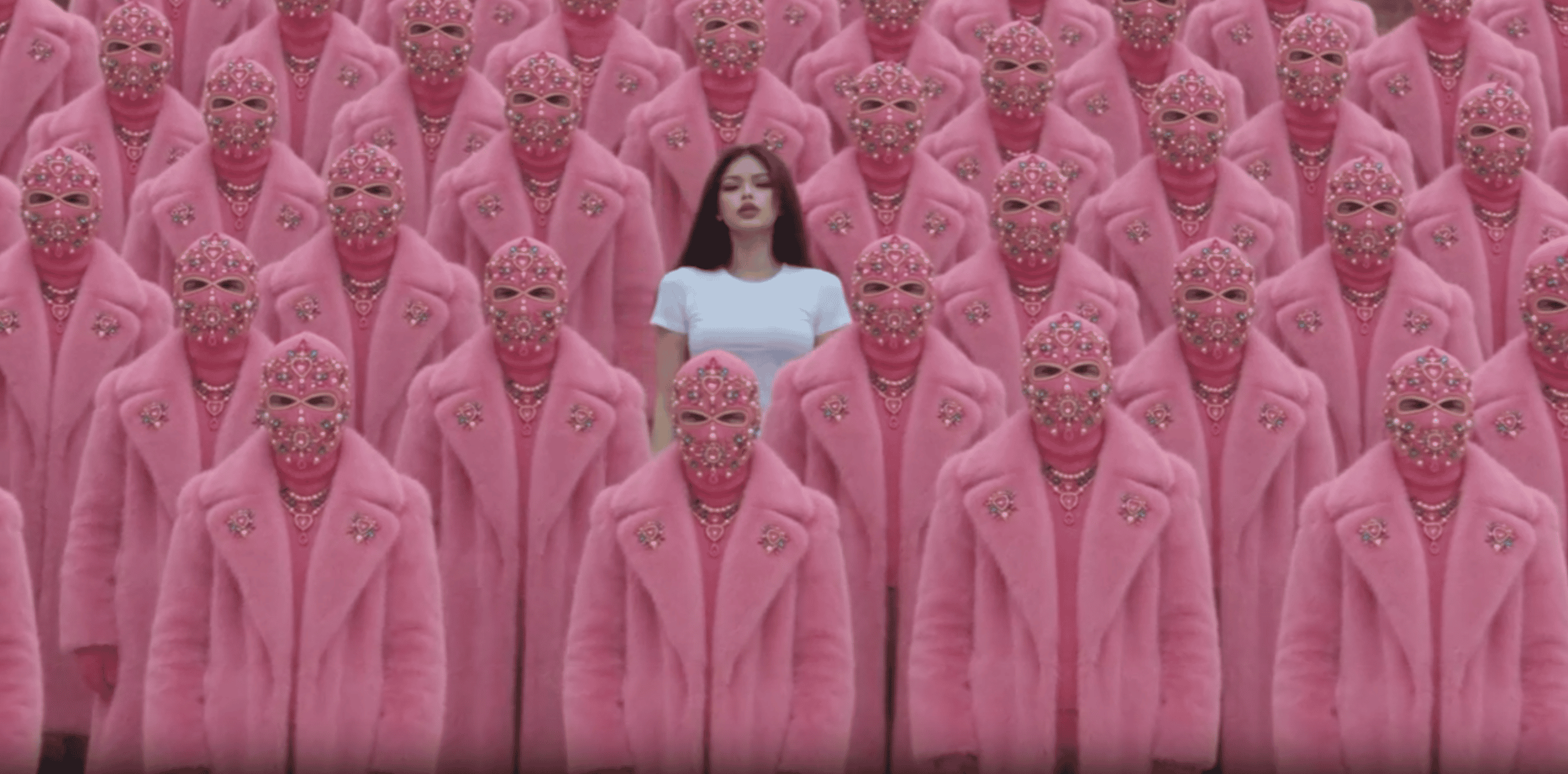
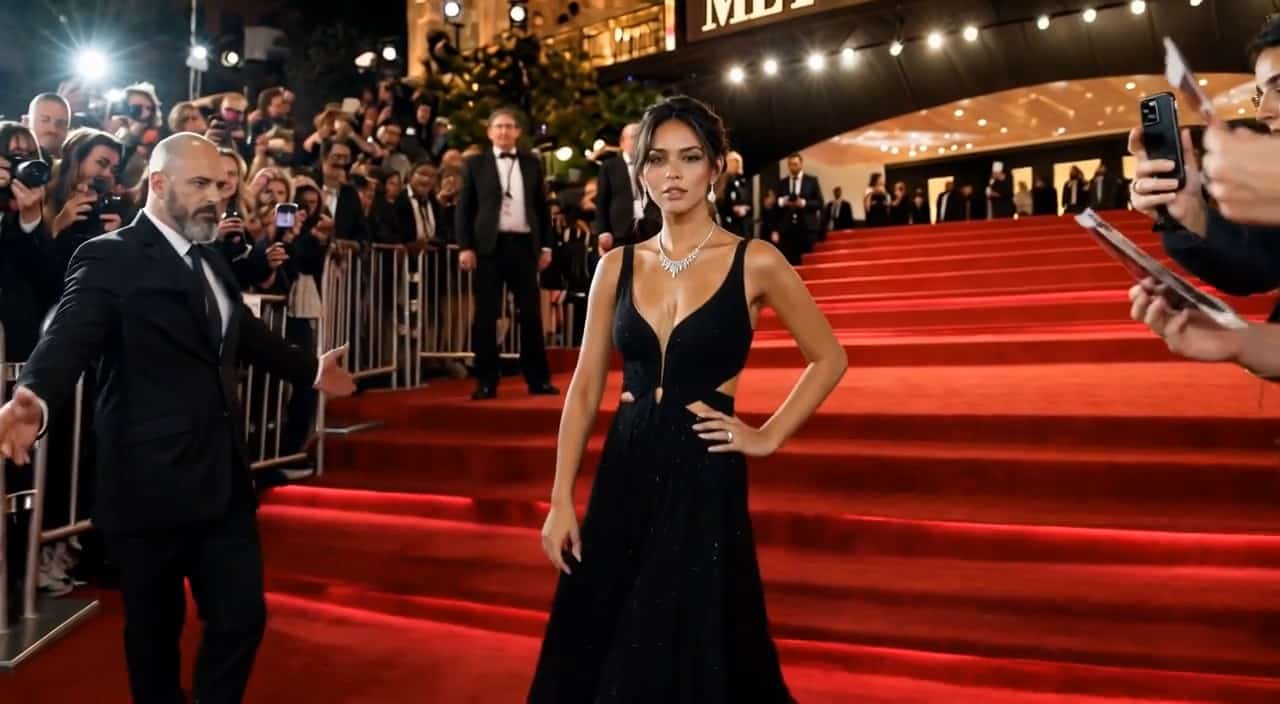
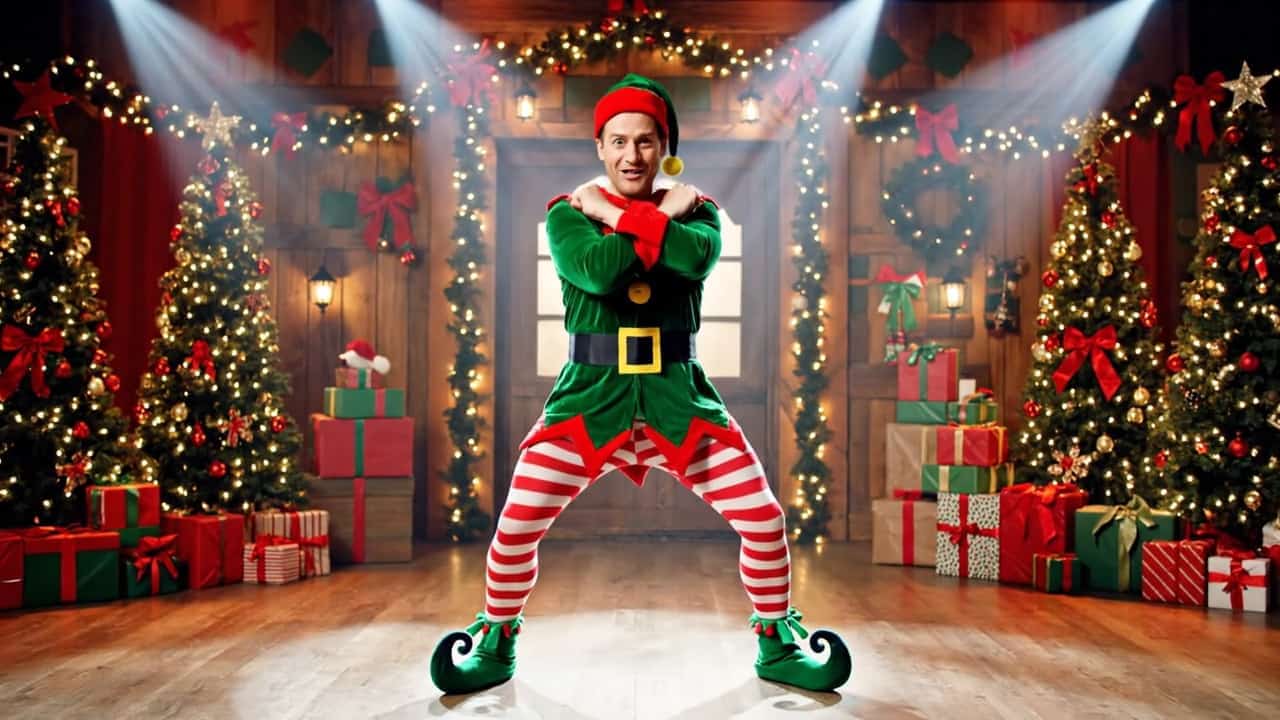
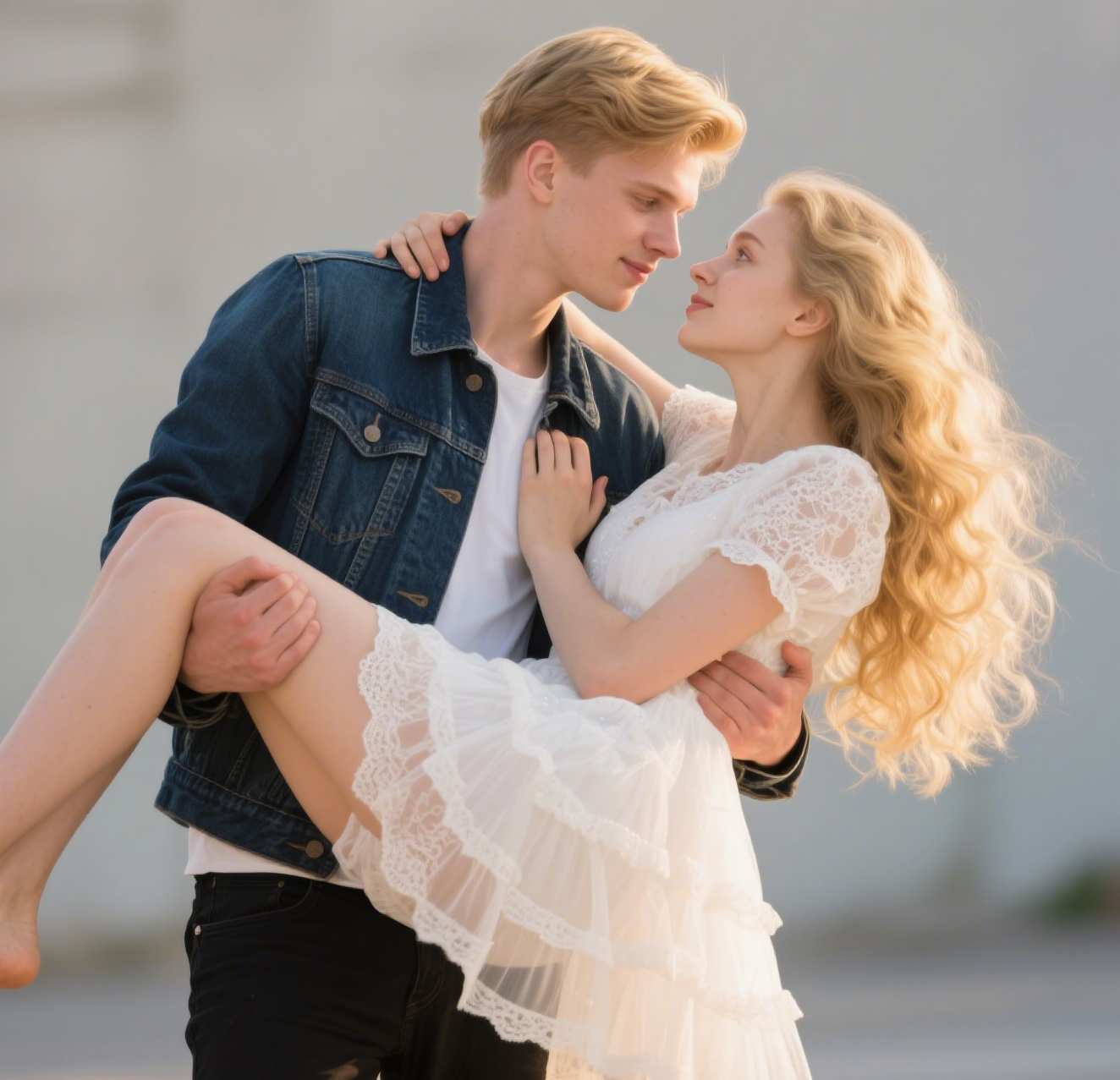
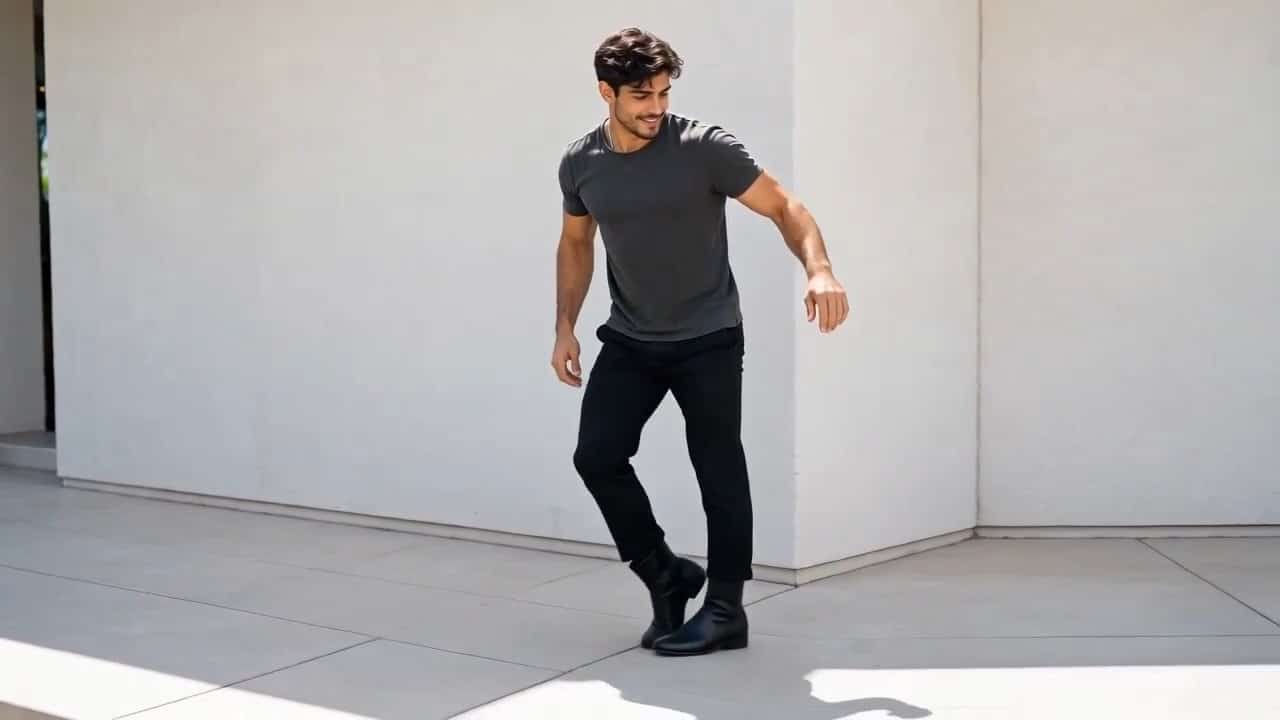
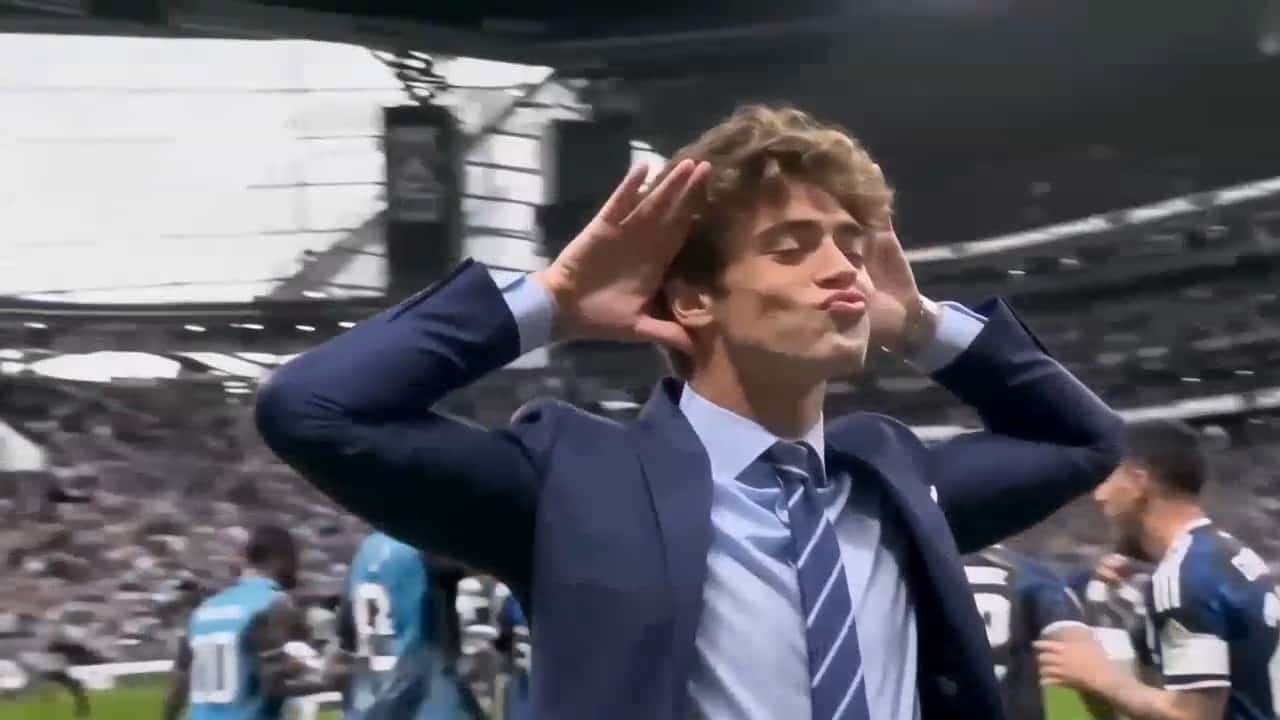
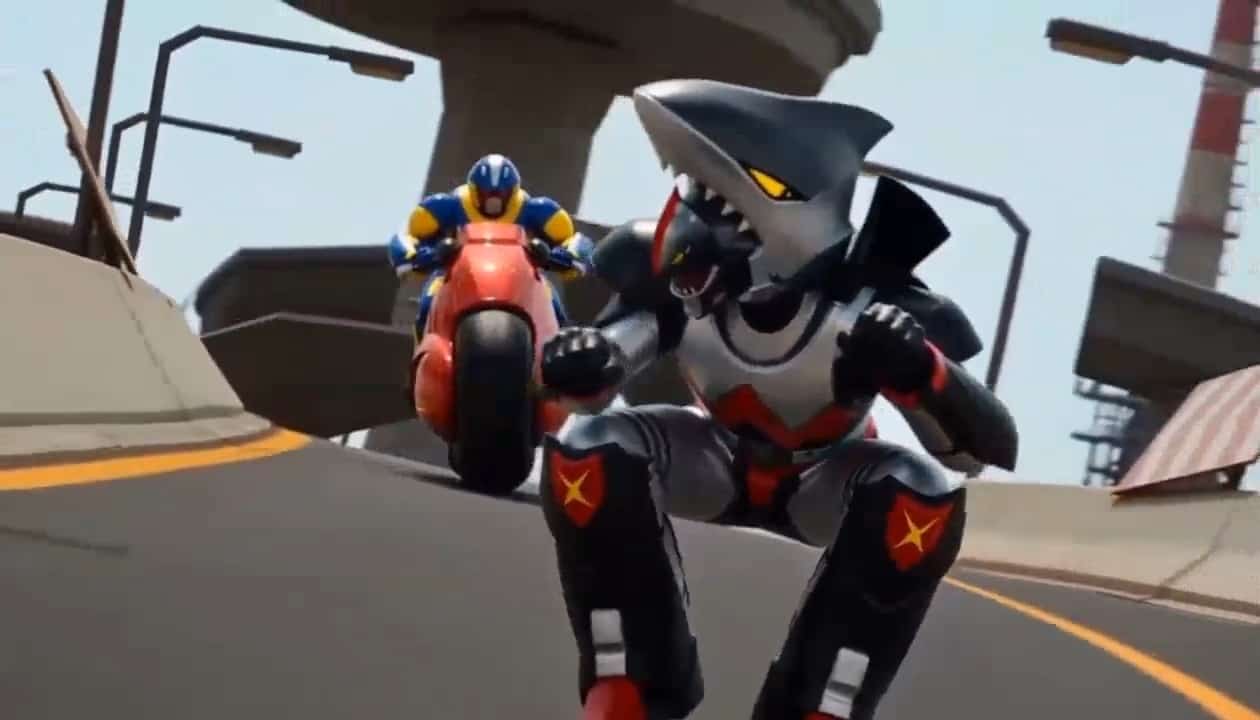
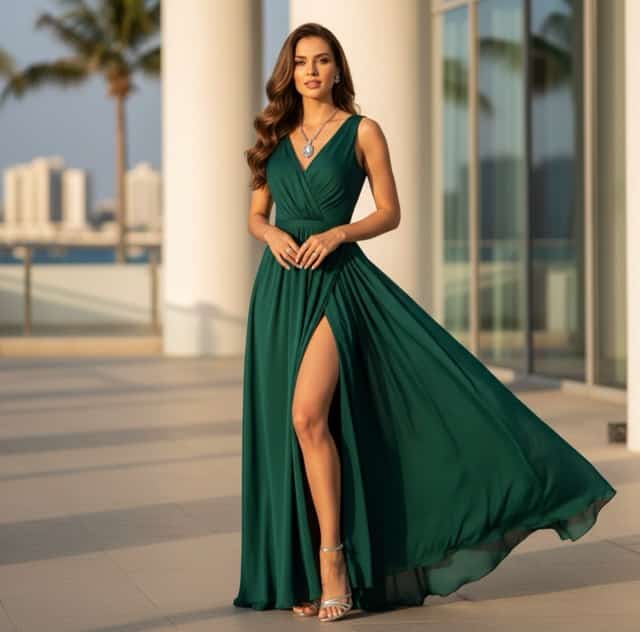
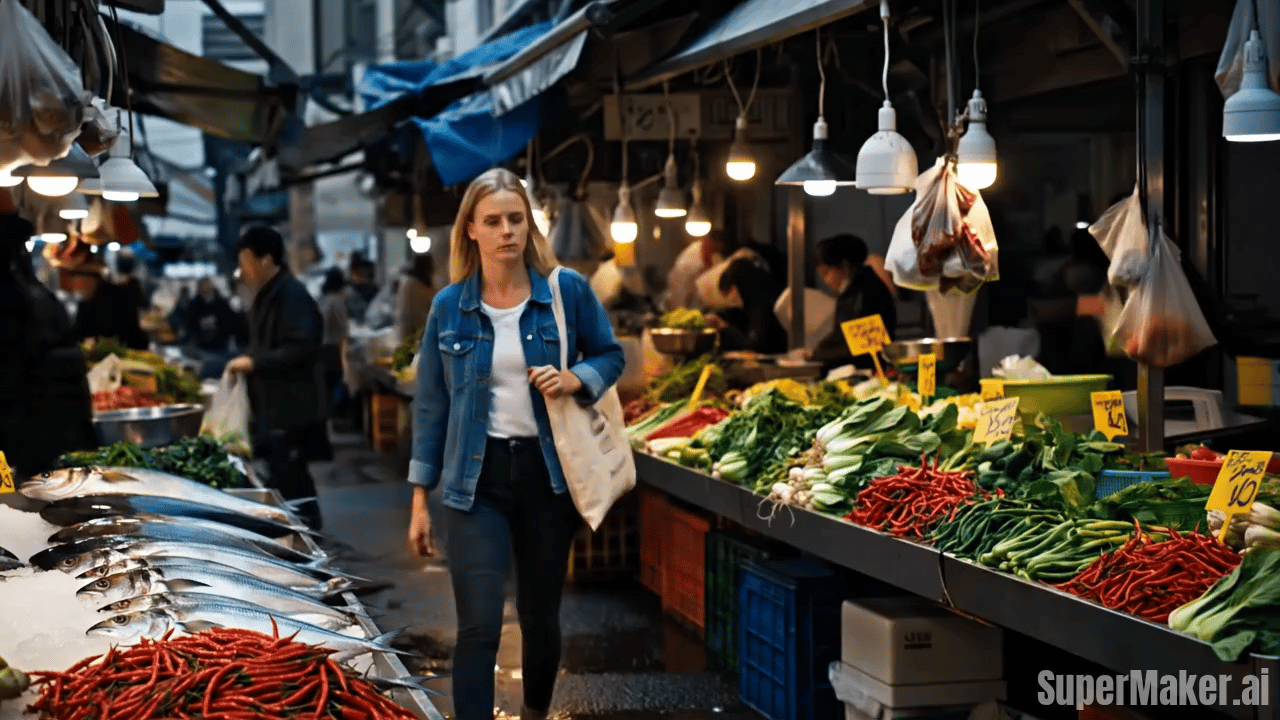
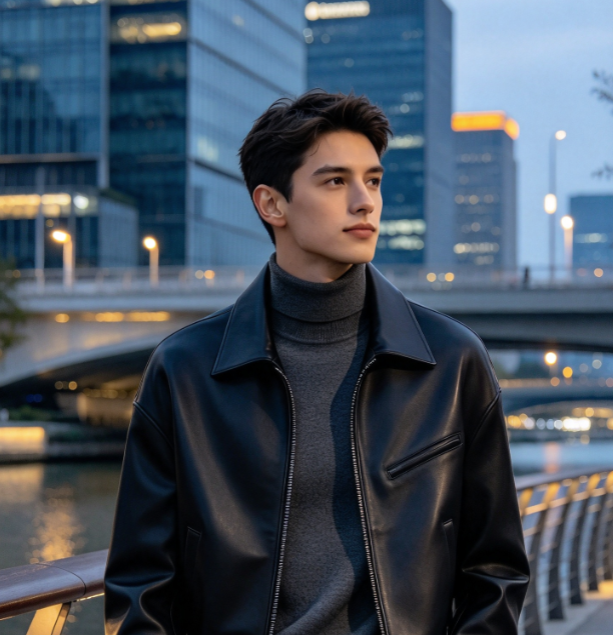
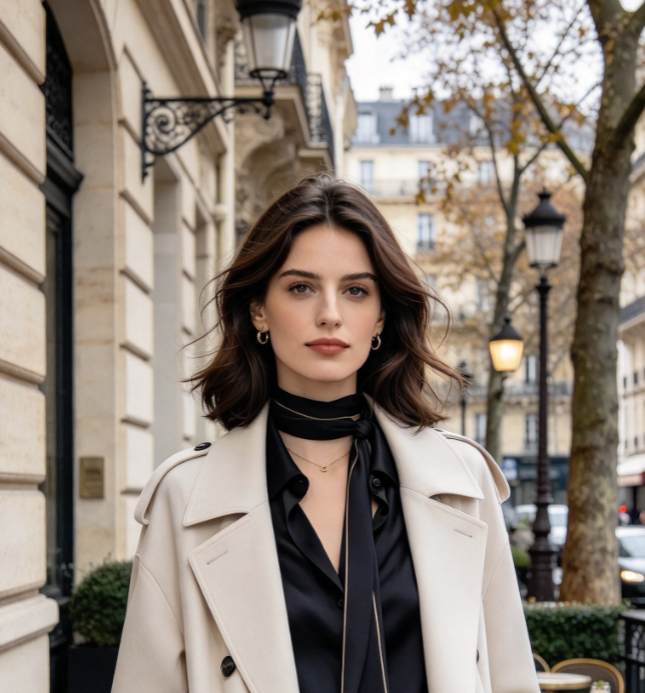
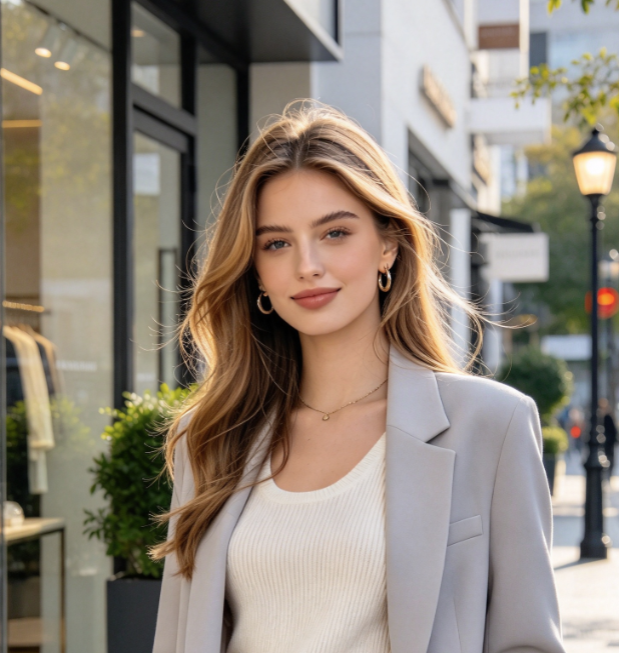
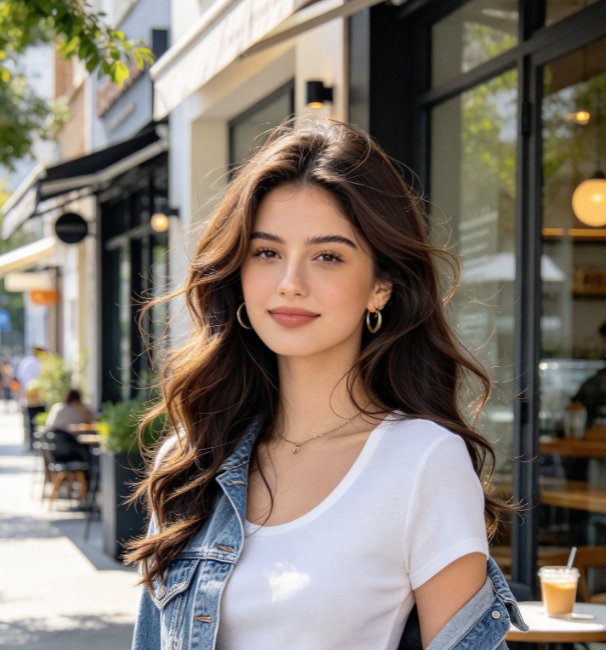
Describe the light source, camera movement, and details that reveal scale. FLUX 3 Max post-training focuses on visual quality, coherent motion, and prompt following. Use a restrained action in your FLUX 3 Max AI Video Generator brief, then inspect geometry, identity, and motion. Page images are illustrative artwork, not verified FLUX 3 Max video frames or benchmark evidence.
Video Ideas For Creative Work
Turn a FLUX 3 Max brief into a practical shot list for advertising, character work, travel, and social content. Adapt the subject, setting, lighting, and movement to the story you want to tell.

Product Advertising And Ecommerce
Use FLUX 3 Max AI Video Generator research to plan a concise product reveal: establish the silhouette, move the camera, then reveal a material detail. Ecommerce sellers and advertising designers can test alternative lighting or angles before editing a campaign. Add exact logos or purchase information during final editing.

Portrait Animation And Fashion
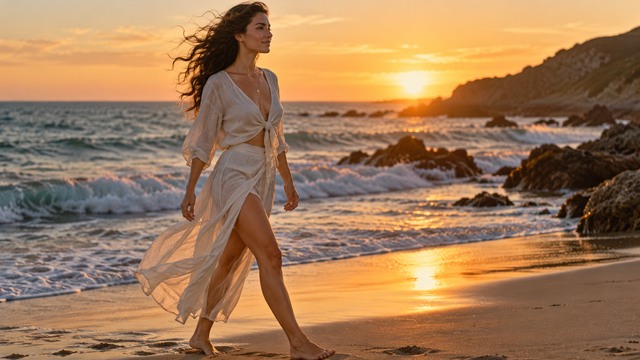
Build a FLUX 3 Max Video concept around expression, posture, and fabric movement. Photographers and fashion creators can plan a restrained smile, a turn toward camera, or an elegant walk. Keep the background stable. Review the clip for changing facial features and outfit details before including it in a portfolio or mood film.
Film Storyboards And Travel Stories
For filmmakers, FLUX 3 Max AI Video Generator can inform shot briefs for establishing views, landscape transitions, and imaginative environments. Describe foreground, distance, light, and one camera path. Travel creators can plan a lake approach or a coastal street moment. Use generated footage as clearly understood creative material, and inspect continuity before connecting several shots into a sequence.

Social Campaigns And Short Videos
Apply FLUX 3 Max AI Video Generator shot-planning ideas to TikTok, Instagram Reels, YouTube Shorts, and brand campaigns. Begin with a visible action that reads quickly, then leave room for your edit. Choose only the ratios available in the current generator. Add platform-specific captions and final sound after checking the exported clip against your creative brief.
Creator Feedback Awaiting Verification
No verified customer testimonials have been supplied for this FLUX 3 Max AI Video Generator guide. The cards below are clearly marked editorial placeholders for future approved feedback, not customer endorsements or reported generation results.
Placeholder only. Verified feedback is pending. No customer endorsement or performance result is claimed.
Placeholder only. Verified feedback is pending. No customer endorsement or performance result is claimed.
Placeholder only. Verified feedback is pending. No customer endorsement or performance result is claimed.
Placeholder only. Verified feedback is pending. No customer endorsement or performance result is claimed.
Placeholder only. Verified feedback is pending. No customer endorsement or performance result is claimed.
Placeholder only. Verified feedback is pending. No customer endorsement or performance result is claimed.
FLUX 3 Max Questions Answered
Get clear answers about FLUX 3 Max AI Video Generator capabilities, text and image workflows, published inference timing, native audio, and practical ways to write a stronger cinematic video prompt.
FLUX 3 Max is a video generation model developed by fal Research with Black Forest Labs. Its post-training focuses on visual fidelity, motion coherence, prompt adherence, and inference performance. The FLUX 3 Max AI Video Generator supports creative video briefs built around text or image input, from natural character actions to cinematic environments and carefully directed camera movement.
Yes. The official FLUX 3 Max text-to-video endpoint generates video from a written prompt. Describe a subject, action, setting, lighting, and camera movement in a natural paragraph. For a FLUX 3 Max AI Video Generator brief, begin with one clear action and a consistent visual style, then refine the shot based on the details you want to emphasize.
Yes. The official model includes an image-to-video endpoint. A clear portrait, product, animal, or landscape image can establish the shot while a prompt directs movement. The FLUX 3 Max AI Video Generator guide recommends simple motion that fits the source composition. SuperMaker’s image workflow uses its current generator; upload an image and describe the desired action in English.
fal reports 12.45 seconds on average for a ten-second video in its published comparison, described as approximately twelve seconds. Its comparison uses 16:9 video at 720p/768p across models. FLUX 3 Max inference timing is not a SuperMaker completion estimate. Queueing, prompt processing, decoding, upload, settings, and the active model can all affect actual turnaround.
The official FLUX 3 Max documentation lists 720p and 1080p output options; the published speed comparison has its own lower-resolution conditions. Quality varies with the shot and prompt. On this FLUX 3 Max AI Video Generator guide, SuperMaker resolution, duration, aspect ratio, audio settings, and cost must come from the current generator controls. Review details and motion before using a result.
Yes. The official API describes video with audio and includes a generate_audio setting enabled by default. AI Video with Native Audio is therefore an official model capability. It does not establish audio availability in this SuperMaker generator. Use audio only when the current model’s controls explicitly support it, and preview the returned sound before incorporating it into your edit.
Start with a concrete subject and one action. Add the setting, light, camera direction, and style in that order. For example, describe an adult traveler walking along a coastal street while a camera tracks smoothly beside them. For uploaded portraits, request a gentle turn and stable identity. Avoid contradictory movements and refine one variable between attempts with a Fast AI Video Generator workflow.
Give FLUX 3 Max one main subject, one readable action, and one camera direction. Establish the lighting and setting without asking for unrelated scene changes. FLUX 3 Max shot planning can begin with a brief establishing view, a controlled character action, or a simple product reveal. Refine movement, framing, and detail separately so each revision has a clear purpose.
Create Your Next Video On SuperMaker
Bring a focused prompt or clear image to SuperMaker’s current video generator. Use this FLUX 3 Max AI Video Generator guide to plan movement, lighting, and composition, then check the active model and available settings before generating. Preview your clip, refine the direction, and download the take that fits your project.