










More AI Video Generators
Explore our collection of specialized AI video generators designed for different creative needs and styles
GTA 5 Goodbye Generator: One Last Sunset In Los Santos
Create A Personal Farewell Video
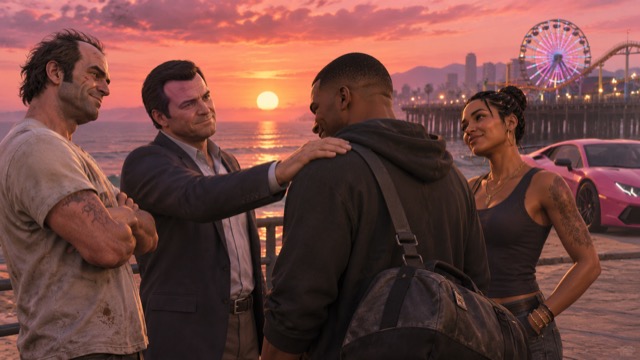
Bring a personal farewell scene to life with the GTA 5 Goodbye Generator. Begin with a prepared image or describe the moment you want to see: friends gathered on a sunset pier, a reassuring shoulder pat, or a final drive along the coast. Shape a GTA 5 Goodbye AI Video around the memories and details that matter to you.
How To Use The GTA 5 Goodbye Generator
The GTA 5 Goodbye Generator helps you develop a scene one shot at a time. For a GTA 5 Goodbye AI Video with multiple moments, prepare and review each shot separately before combining the clips in an editor.

Prepare A Scene For The GTA 5 Goodbye Generator
Choose a clear starting image that already shows the people, setting, and composition you want to animate. For a personalized GTA 5 Goodbye AI Video, first create or edit a farewell image using a compatible image tool. Check faces, clothing, hands, and the sunset pier before proceeding.

Describe Motion In The GTA 5 Goodbye Generator
Upload the prepared scene to the GTA 5 Goodbye Generator and describe one readable action: a gentle shoulder pat, a small nod, or a slow camera push. A focused GTA 5 Goodbye AI Video prompt gives the model fewer competing movements to interpret.

Generate A GTA 5 Goodbye Generator Clip
Review the available settings and displayed credit cost, then generate your shot with the GTA 5 Goodbye Generator. Watch the GTA 5 Goodbye AI Video for natural expressions and recognizable details; revise the prompt if the action is too busy.

Review And Assemble GTA 5 Goodbye Generator Shots
Create a separate starting image for a car departure and animate it in the GTA 5 Goodbye Generator. Review both clips, then combine them in a video editor. Add your own caption and audio you have permission to use to complete the GTA 5 Goodbye AI Video.
Best AI Video Tools for Creative Projects
Explore creative tools for video, learn tips and tricks, and see how AI can be your assistant in turning concepts into finished projects.







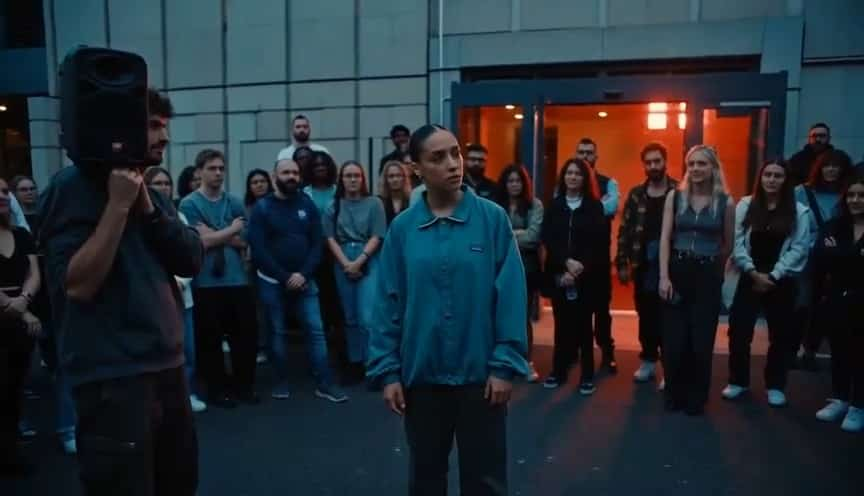










GTA 5 Goodbye Generator Features For A Personal Farewell
Explore a sunset pier, a quiet farewell, and a final drive with a GTA 5 Goodbye AI Video.
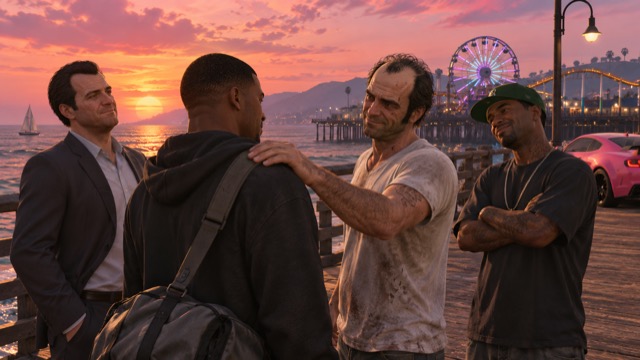
Set The Scene With The GTA 5 Goodbye Generator
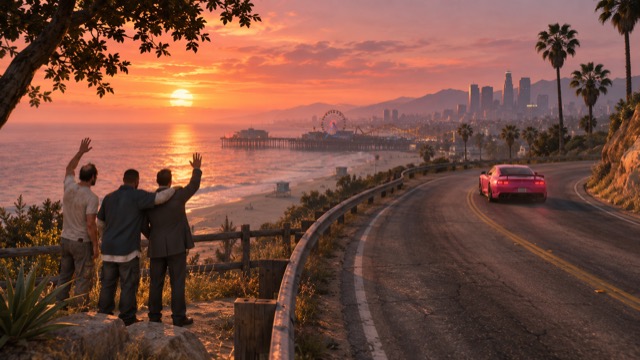
A sunset pier, the ocean, a distant Ferris wheel, and a pink sports car can establish the farewell mood. Use the GTA 5 Goodbye Generator to animate a prepared scene or describe a new composition. Keep the people and background clearly separated so the GTA 5 Goodbye AI Video remains easy to follow.
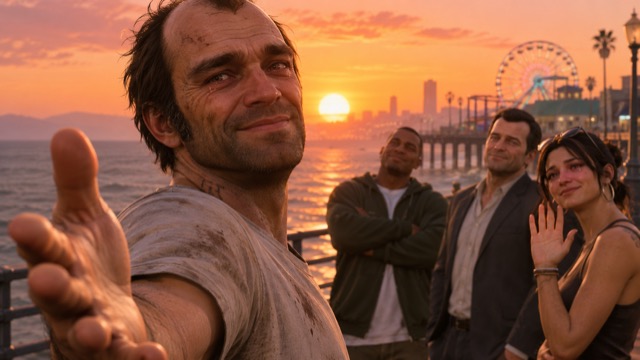
Create A Shoulder Pat With The GTA 5 Goodbye Generator
A small gesture can carry the emotional center of a scene. Ask the GTA 5 Goodbye Generator for one gentle shoulder pat and a grateful nod while the other people remain mostly still. Review the GTA 5 Goodbye AI Video for natural hand contact and consistent faces.
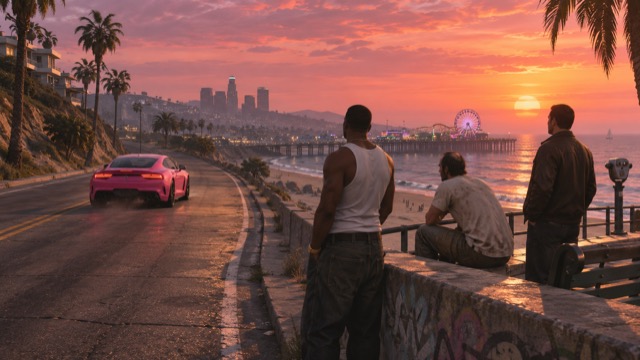
Capture A Close-Up With The GTA 5 Goodbye Generator
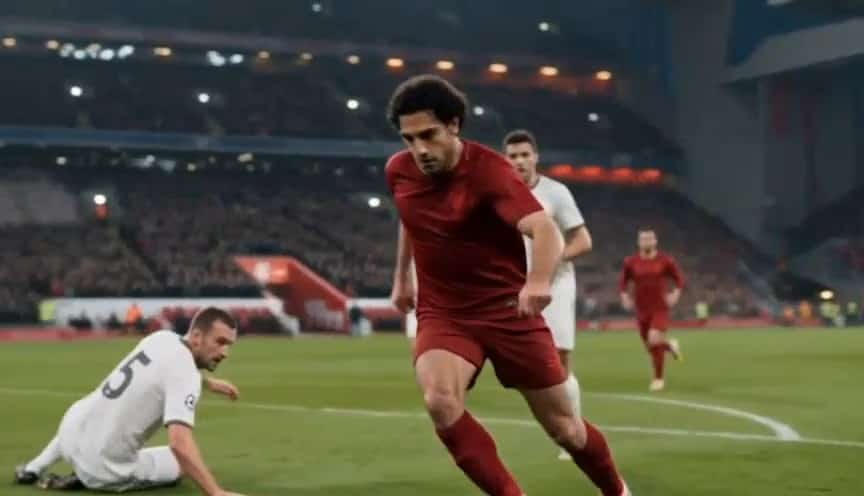
Use the GTA 5 Goodbye Generator to explore a quiet reaction: a soft smile, a breath, and a slow camera move. Start with a close-up image that already frames the person you want to feature. A GTA 5 Goodbye AI Video may interpret facial details differently between generations, so inspect each result before editing.

Plan A Final Drive With The GTA 5 Goodbye Generator
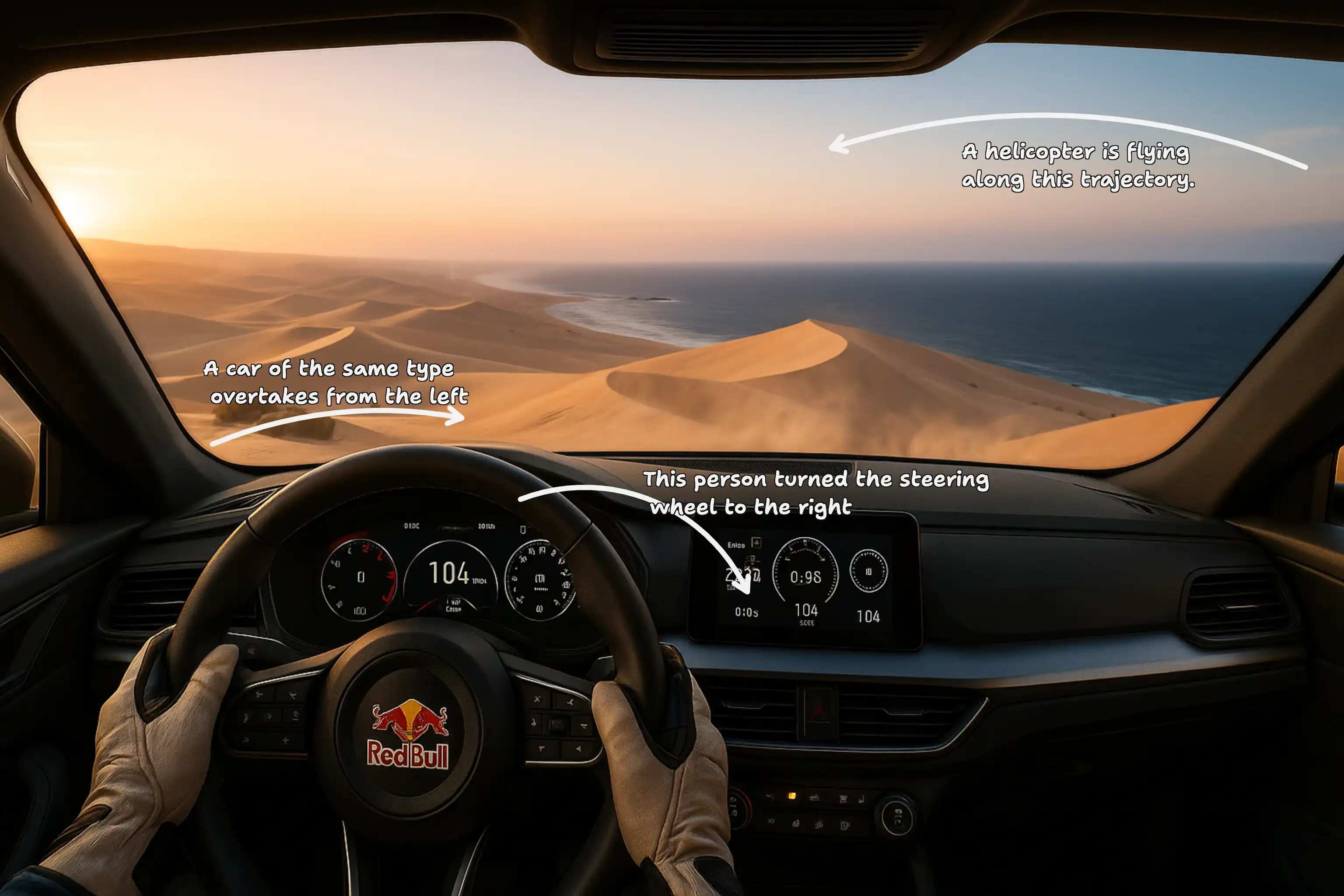
Create a departure image with the driver already seated and a clear road ahead. In the GTA 5 Goodbye Generator, describe the car moving slowly away while the friends stay beside the road. Check the GTA 5 Goodbye AI Video for stable vehicle shape, wheel contact, and consistent lighting.
GTA 5 Goodbye Generator Ideas For Your Next Project
Explore your next GTA 5 Goodbye AI Video with these creative starting points.

GTA 5 Goodbye Generator For Fan Tributes
Use the GTA 5 Goodbye Generator to imagine a farewell inspired by your favorite moments in Los Santos. Build a GTA 5 Goodbye AI Video from short scenes and add a personal caption in your editor.

GTA 5 Goodbye Generator For Social Videos
Plan a focused scene for a short post with the GTA 5 Goodbye Generator. Check the framing before adding text, and preview your GTA 5 Goodbye AI Video on the platform where you intend to share it.

GTA 5 Goodbye Generator For Storyboards
Try a wide establishing shot and an emotional close-up with the GTA 5 Goodbye Generator. Compare each GTA 5 Goodbye AI Video shot to decide which view best communicates your story beat.

GTA 5 Goodbye Generator For Creative Experiments
Change one detail at a time in the GTA 5 Goodbye Generator: the time of day, the camera angle, or the final gesture. Compare the GTA 5 Goodbye AI Video results and keep the version that matches your direction.
GTA 5 Goodbye Generator Prompt Examples
Use these starting points in the GTA 5 Goodbye Generator and adjust each prompt to match the prepared image.
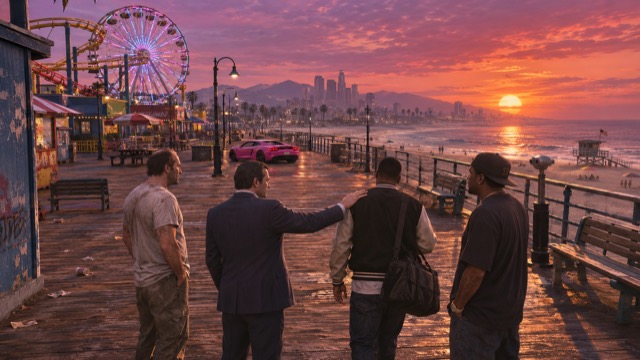
Sunset Pier Prompt For The GTA 5 Goodbye Generator
“Animate this prepared sunset pier image as a single cinematic shot. Keep the four people, their clothing, and the pink car consistent. One friend gently pats the departing person's shoulder; the departing person takes a breath and gives a small grateful nod. The camera slowly moves closer. Natural hands, subtle expressions, no extra people or sudden cuts.”
Final Drive Prompt For The GTA 5 Goodbye Generator
“Animate the prepared departure image. The pink sports car moves slowly forward along the coastal road while the friends stand safely behind it. The camera gently pulls back. Keep the car's shape, the sunset lighting, and the road consistent. No sudden turns or scene changes.” Use these as starting points in the GTA 5 Goodbye Generator and adapt the motion to what is visible in your source image. For a GTA 5 Goodbye AI Video, separate scenes usually give you more control over the sequence.
GTA 5 Goodbye Generator Frequently Asked Questions
Find answers about the GTA 5 Goodbye Generator and your GTA 5 Goodbye AI Video workflow.
The GTA 5 Goodbye Generator is a creative starting point for short AI-generated farewell scenes. You can describe a shot or upload a prepared image, then review the generated GTA 5 Goodbye AI Video and refine your direction.
The GTA 5 Goodbye Generator accepts an image starting point. To appear in the scene, first prepare an image that places you in the desired composition using a compatible image editor. Then upload that scene to create a GTA 5 Goodbye AI Video; the video generator does not automatically build a complete multi-shot tribute from a portrait.
A single GTA 5 Goodbye Generator shot does not guarantee the full sequence. Prepare the farewell and departure as separate images, animate each one, and assemble your GTA 5 Goodbye AI Video in an editor. Reference-video character replacement requires a compatible workflow and is not configured on this page.
Give the GTA 5 Goodbye Generator a clear subject, setting, action, and camera direction. Keep each shot simple and describe details that should remain consistent. Review your GTA 5 Goodbye AI Video for faces, hands, vehicles, and unwanted movement.
Simplify the action or camera movement in the GTA 5 Goodbye Generator prompt, then try another generation. Use a clearer starting image and compare the GTA 5 Goodbye AI Video clips before choosing the best fit.
The GTA 5 Goodbye Generator creates AI-generated scenes for creative fan tributes. The GTA 5 Goodbye AI Video is not footage captured from the game. GTA and its characters belong to their respective owners.
Create Your Farewell With The GTA 5 Goodbye Generator
Start with a scene, choose one meaningful action, and explore the GTA 5 Goodbye Generator. Turn your idea into a GTA 5 Goodbye AI Video and refine each moment for your story.