

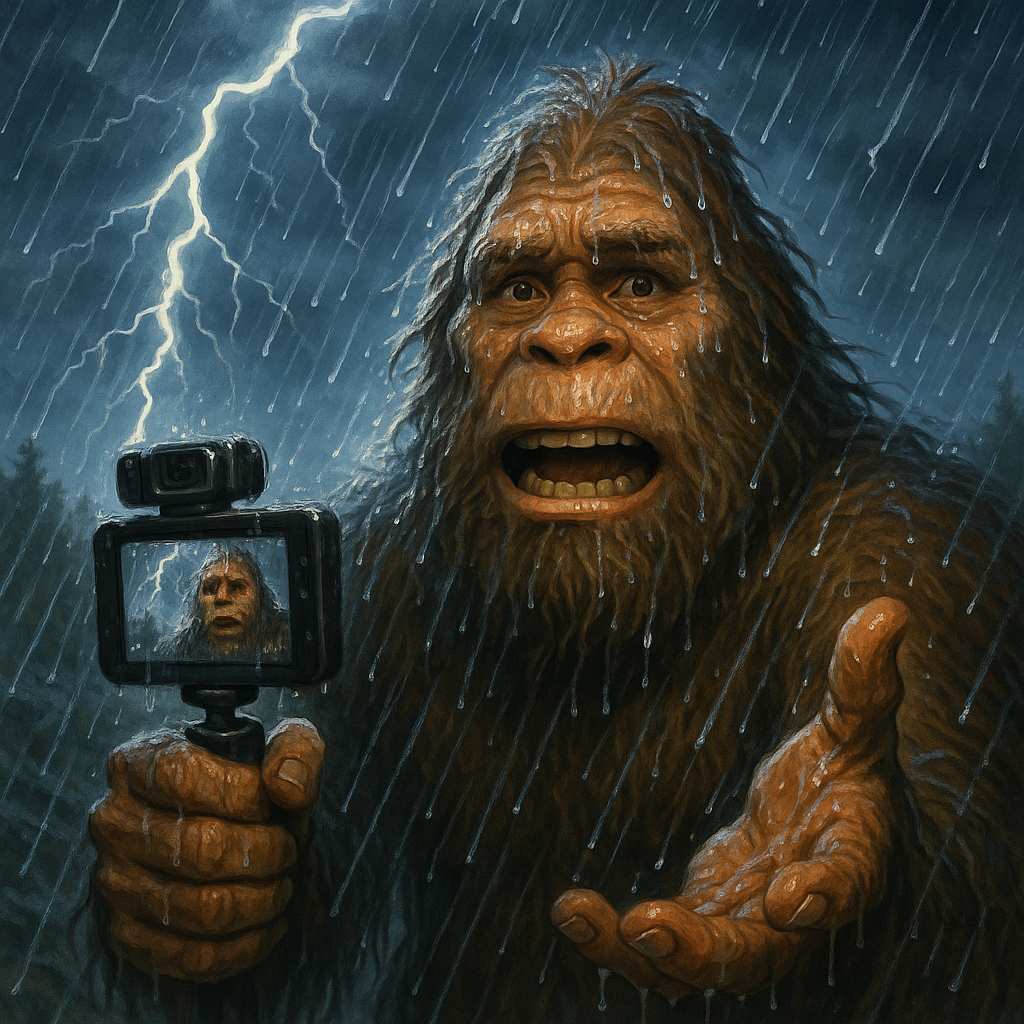
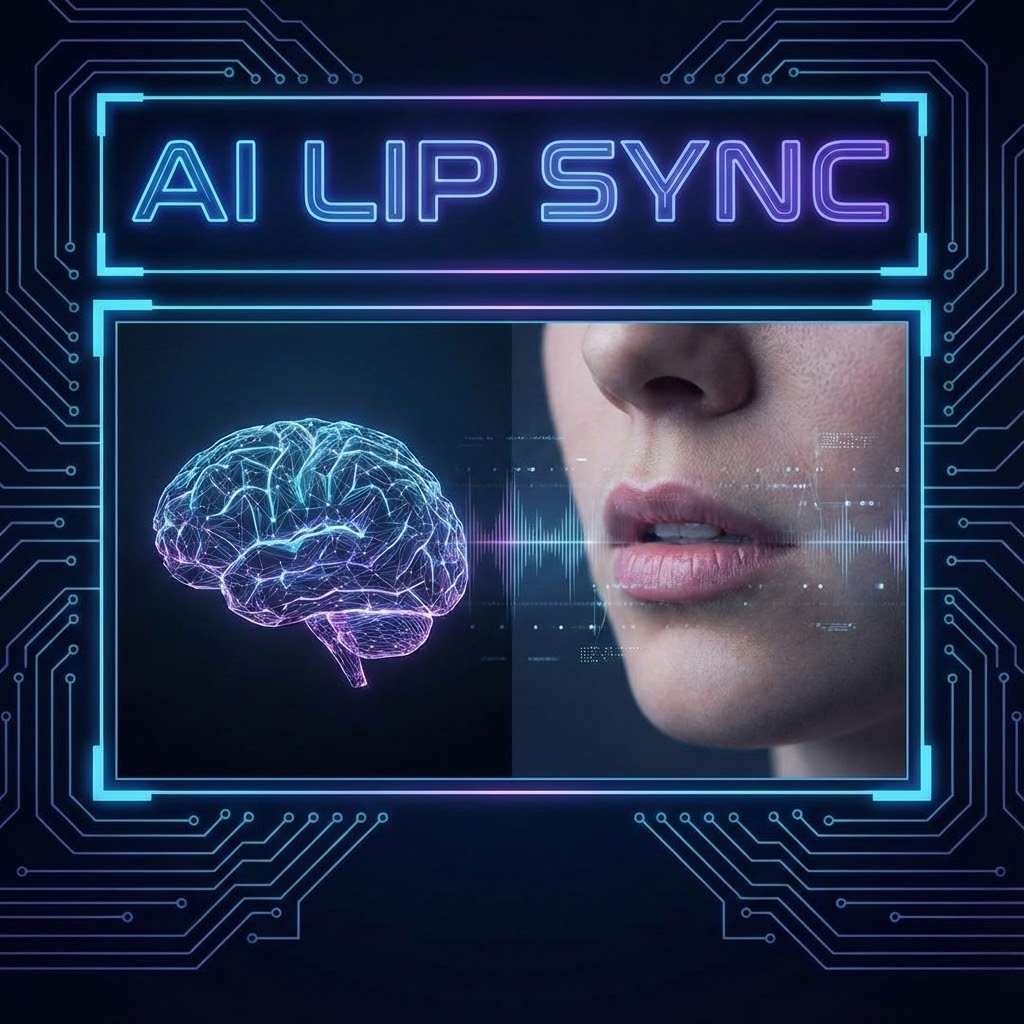
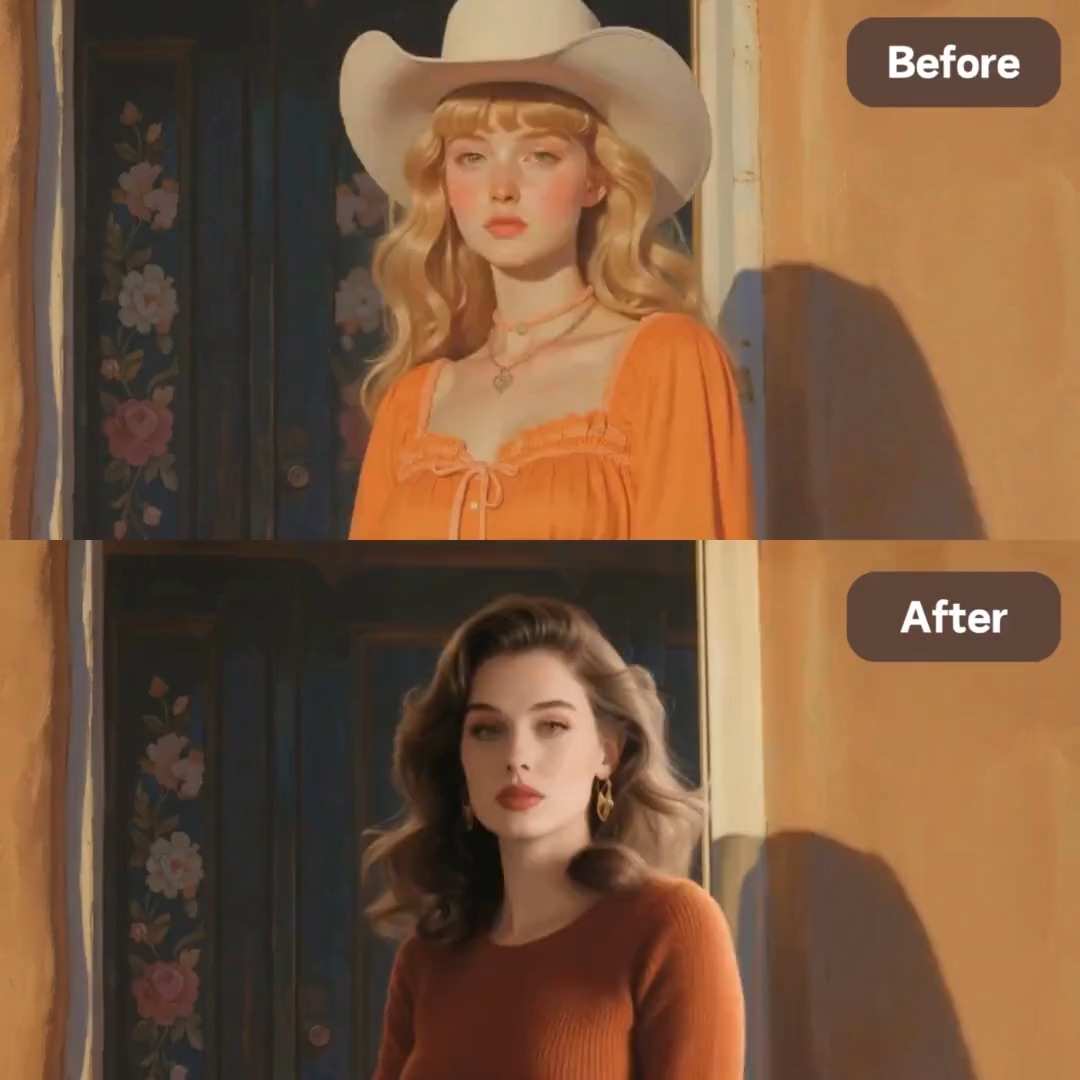
More AI Video Generators
Explore our collection of specialized AI video generators designed for different creative needs and styles
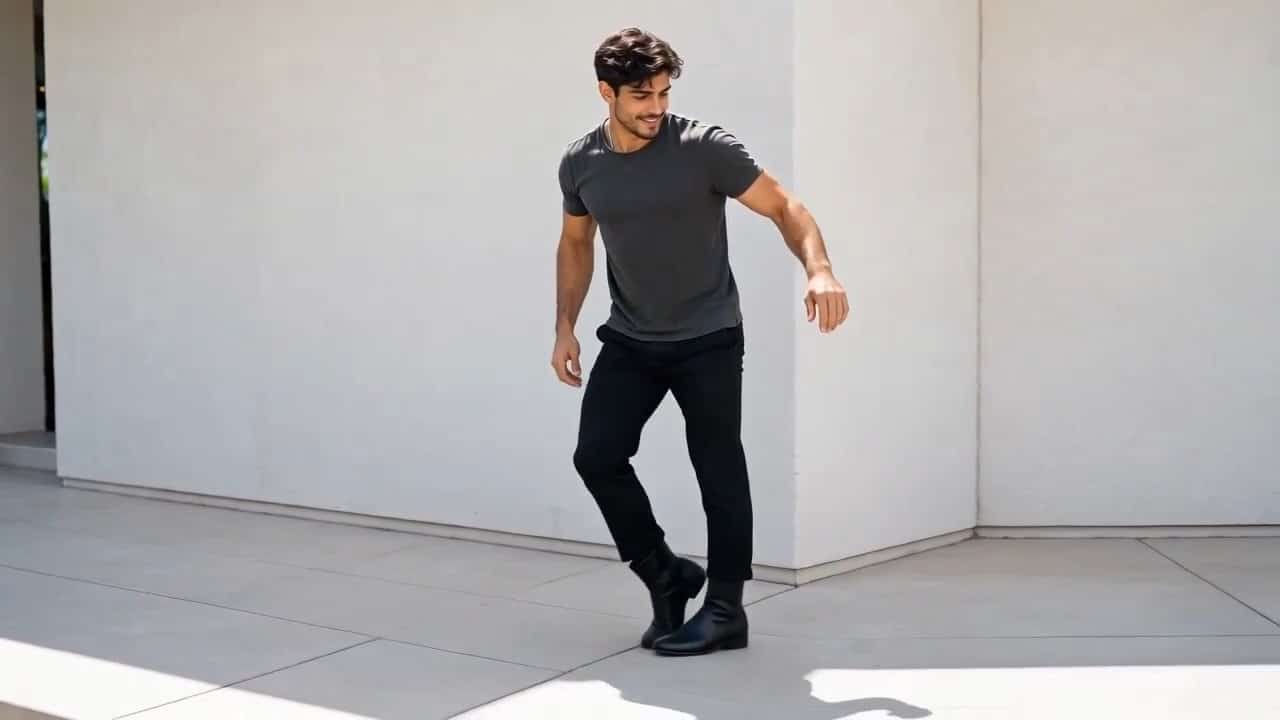
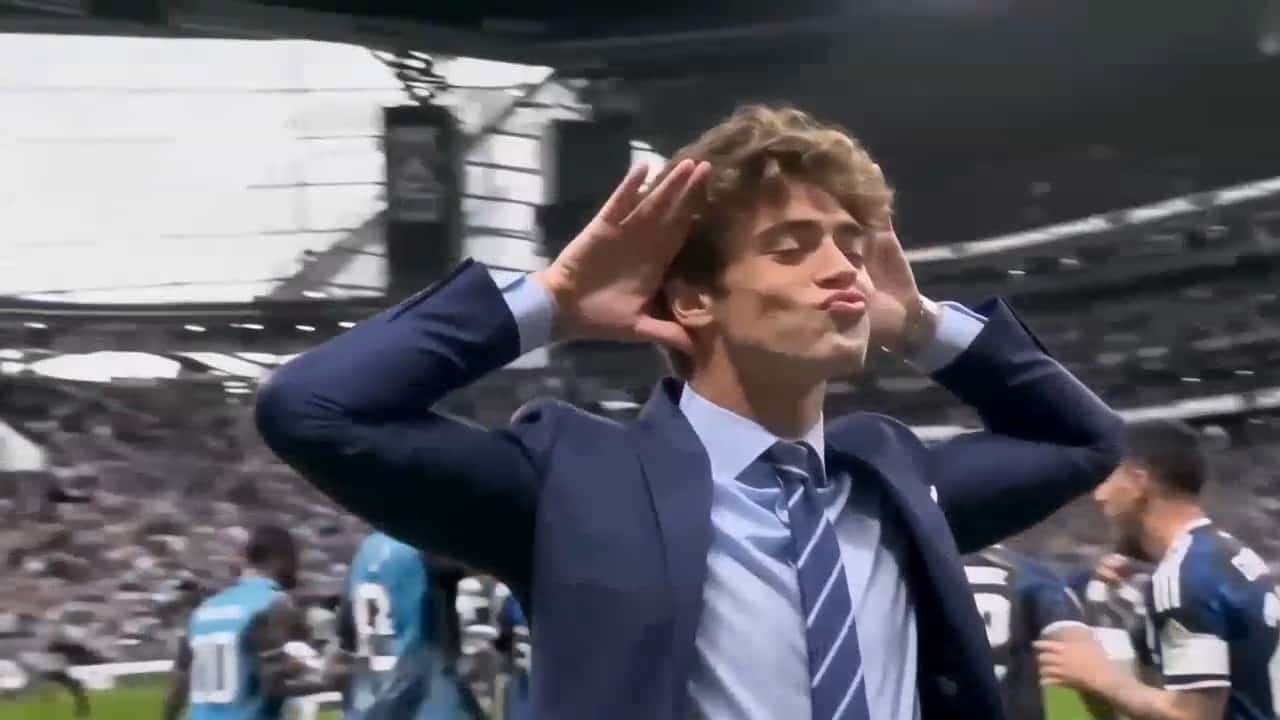
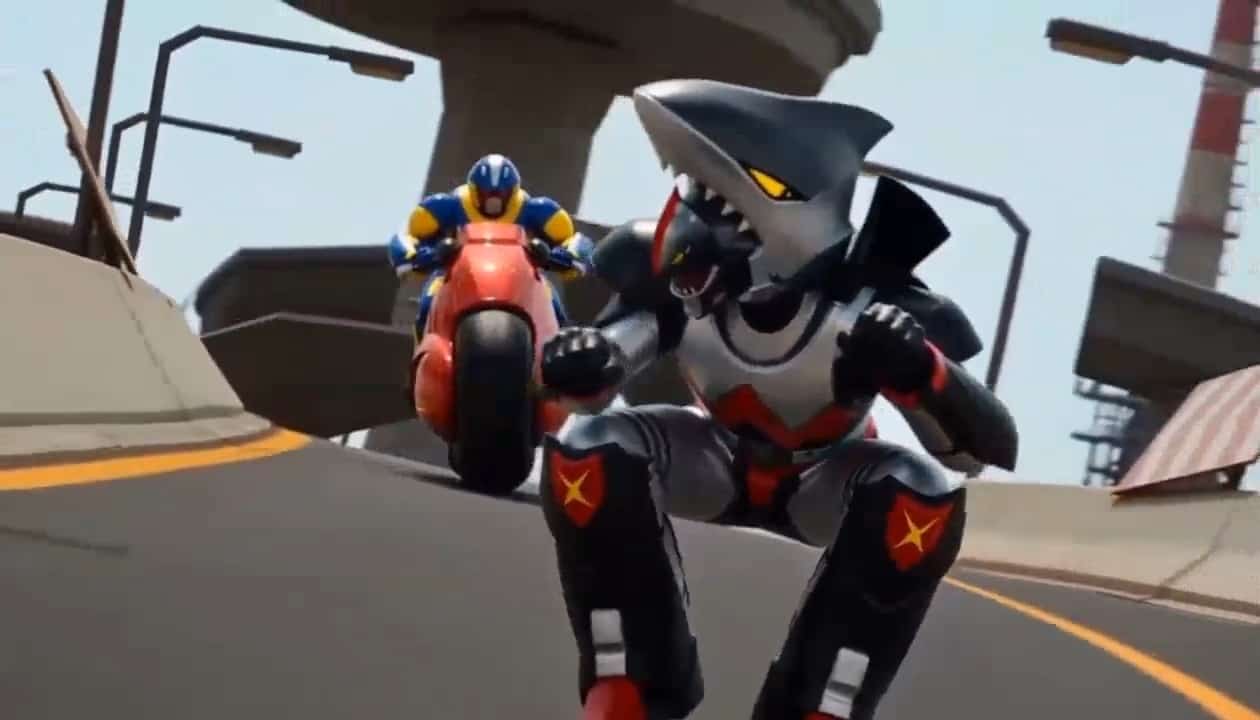
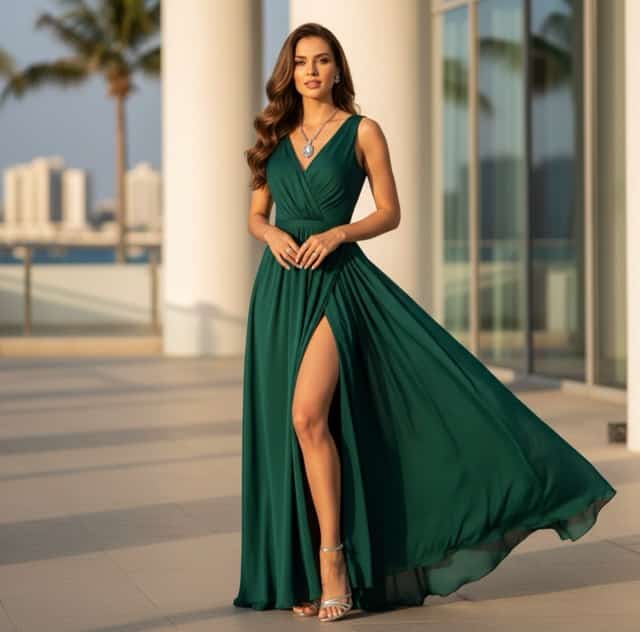
PixVerse V6 Max AI Video Generator
Text And Image To Video With Cinematic Detail
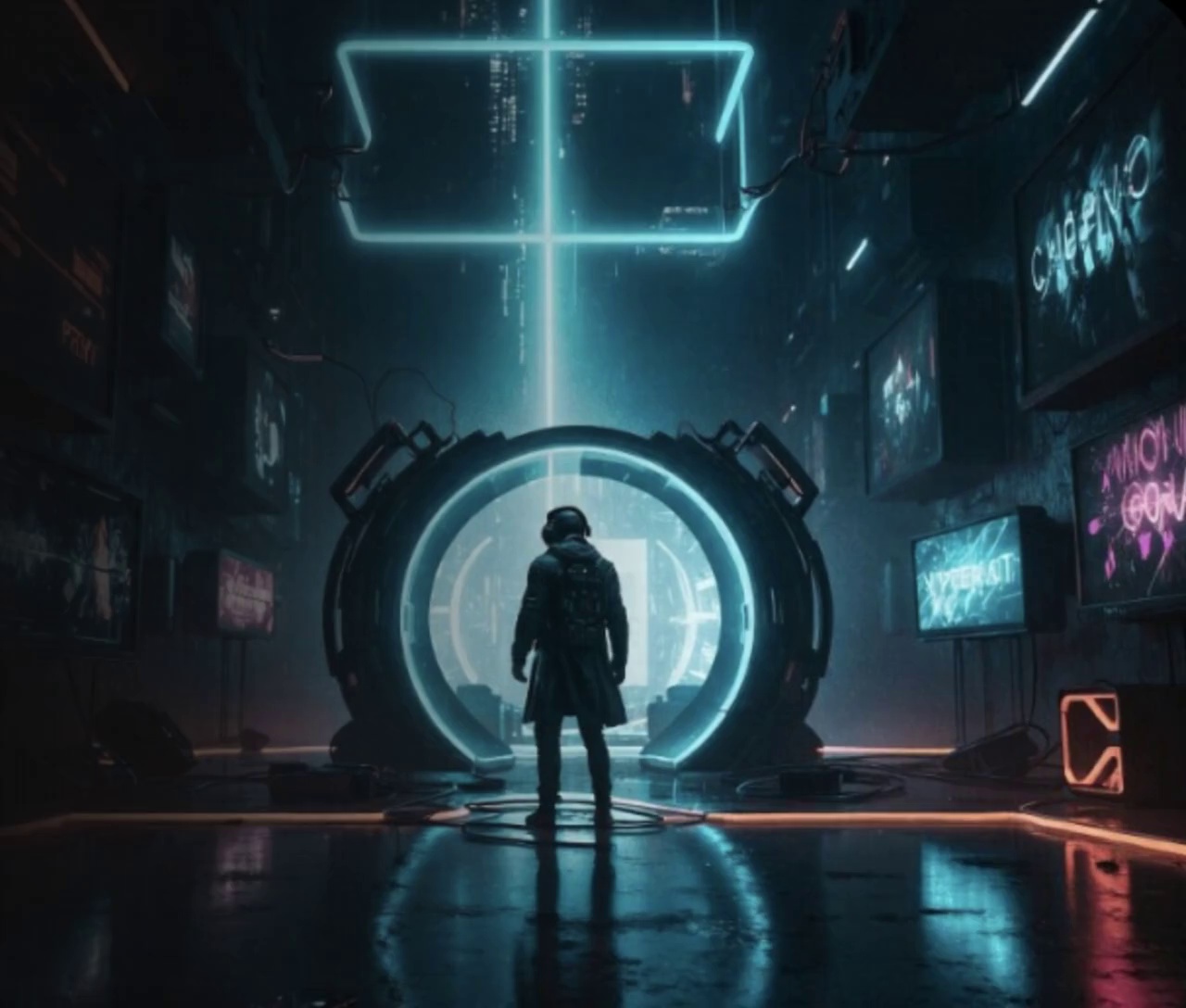
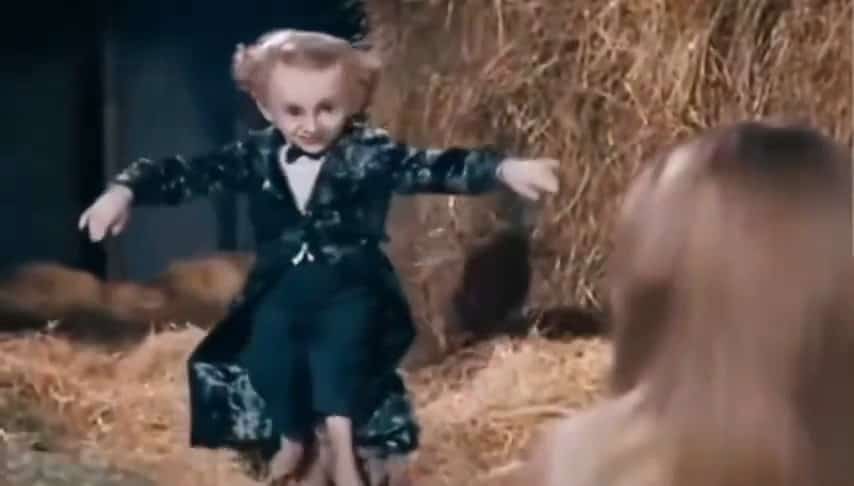
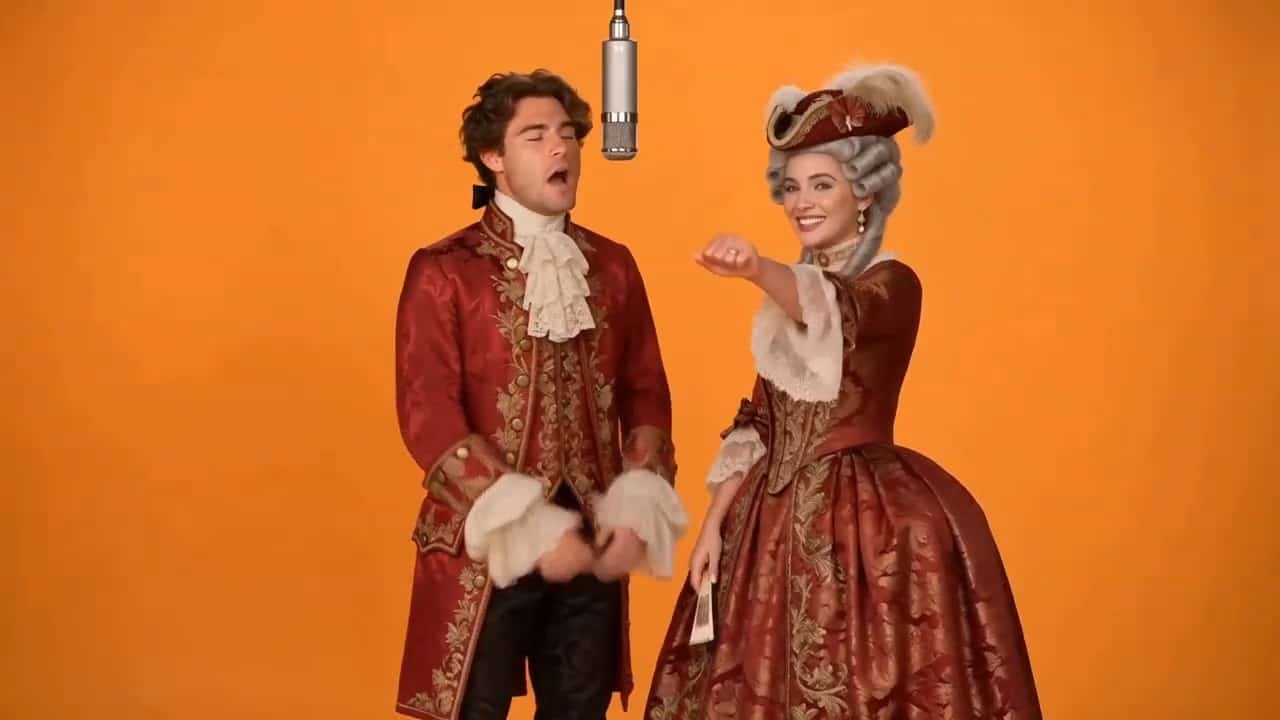
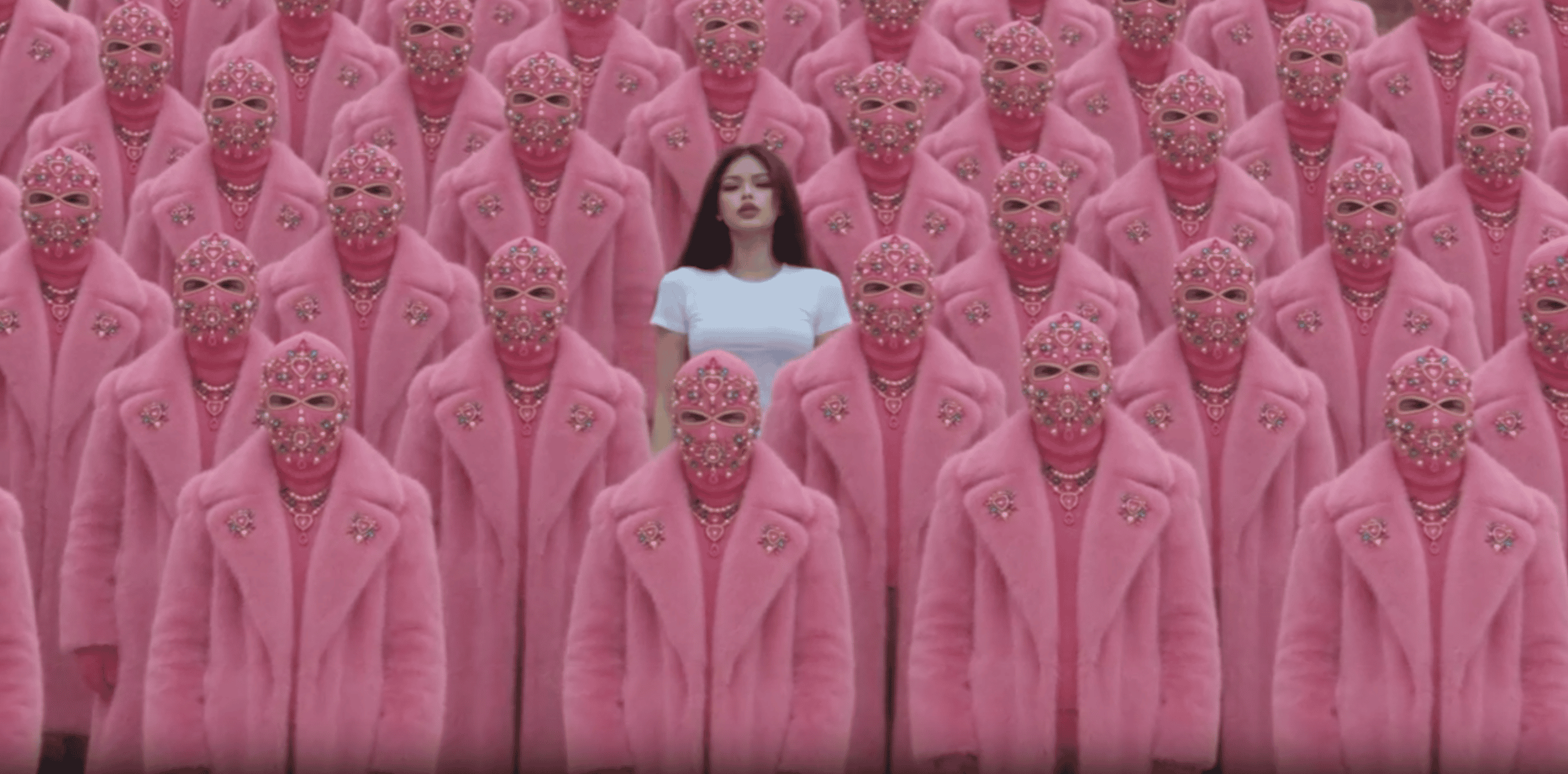
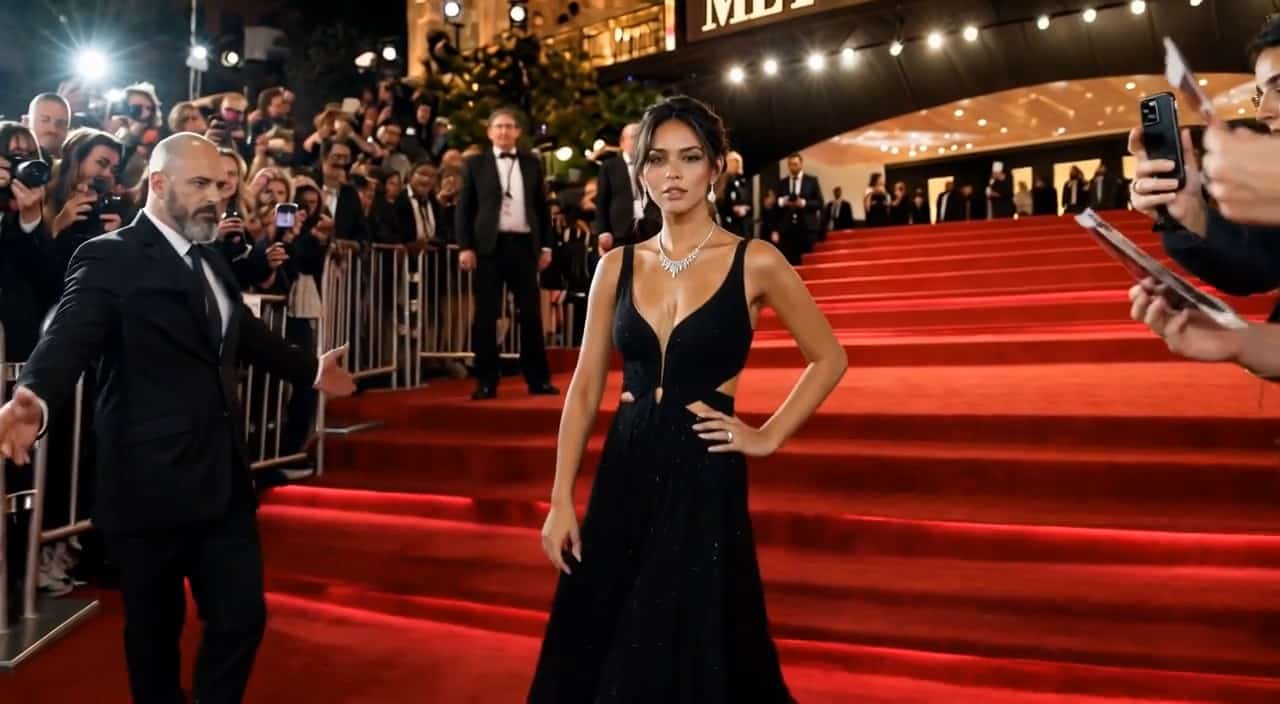
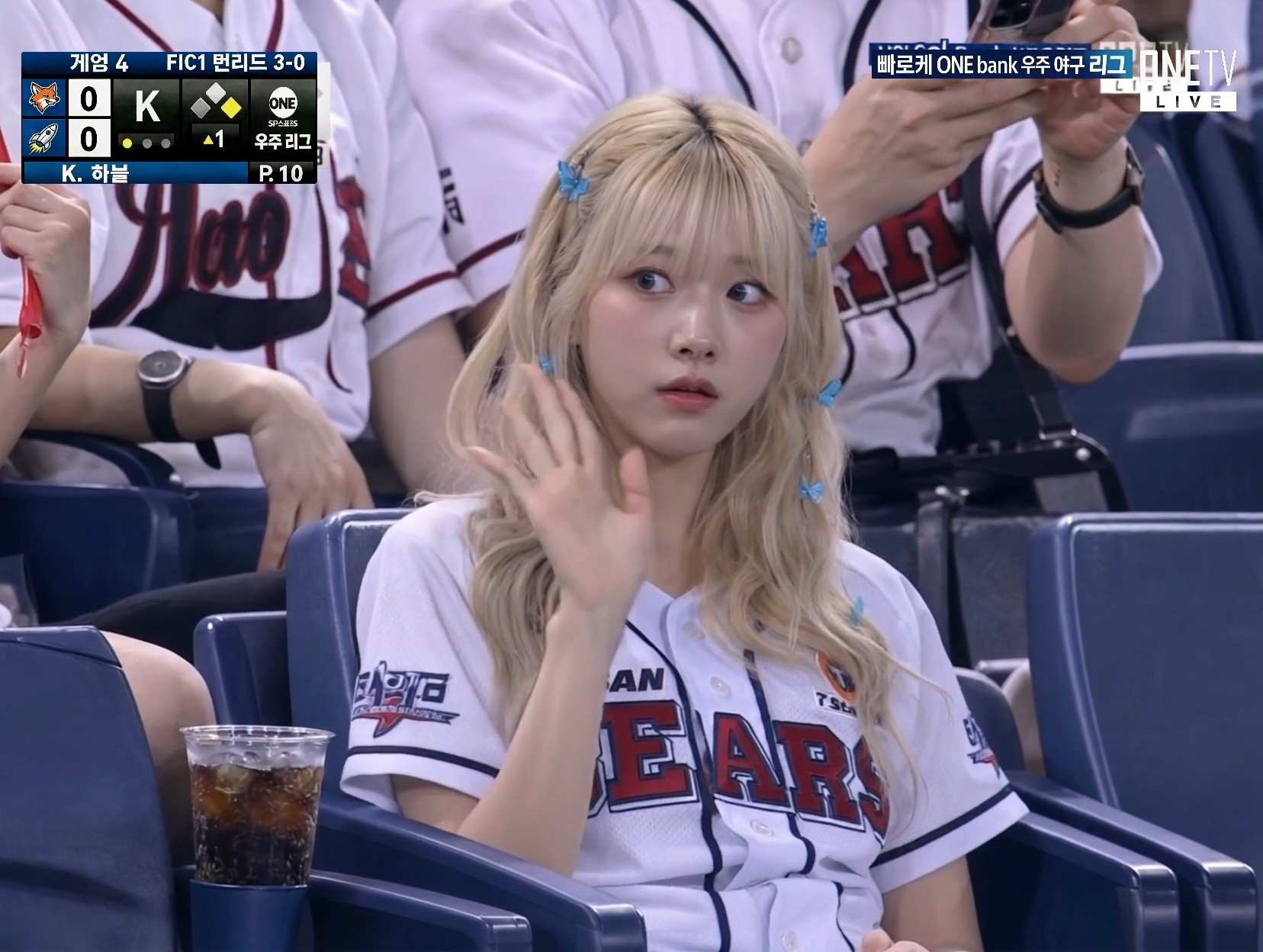
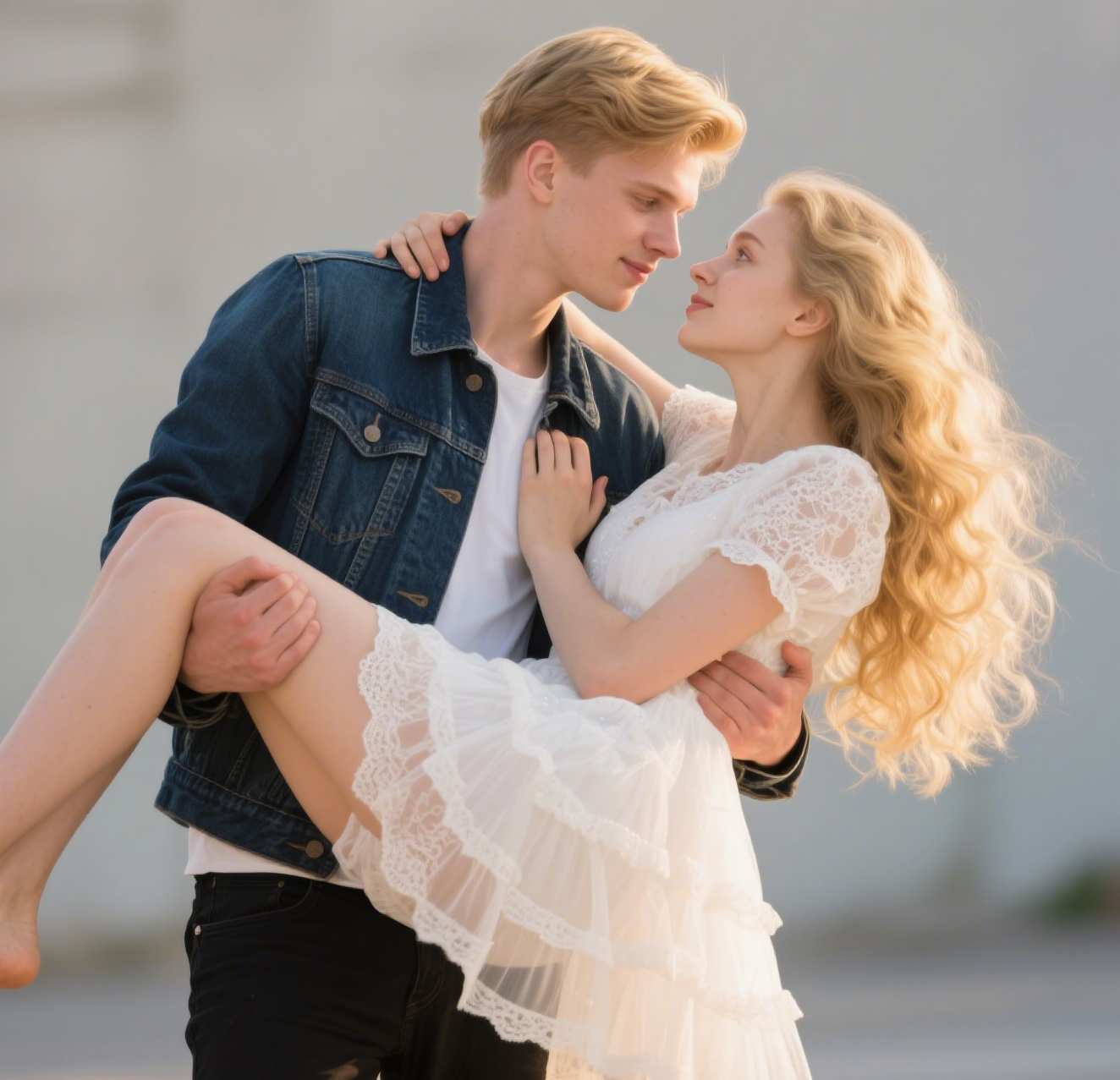
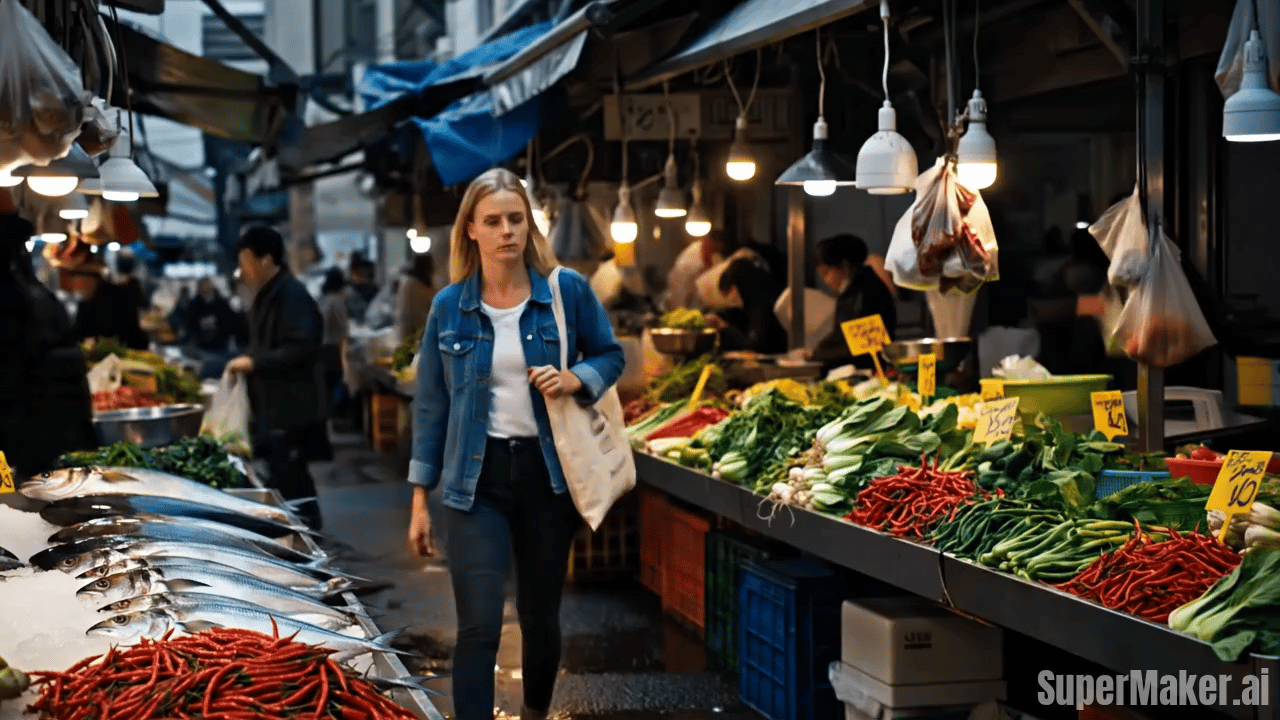
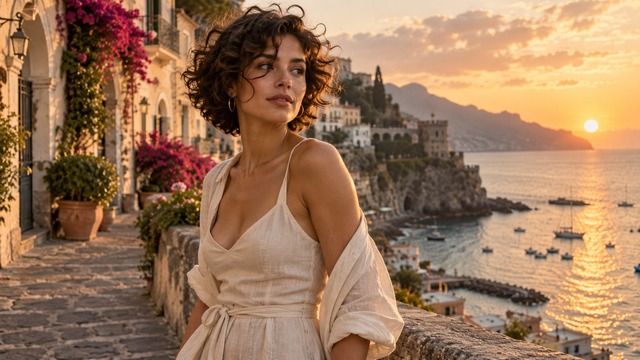
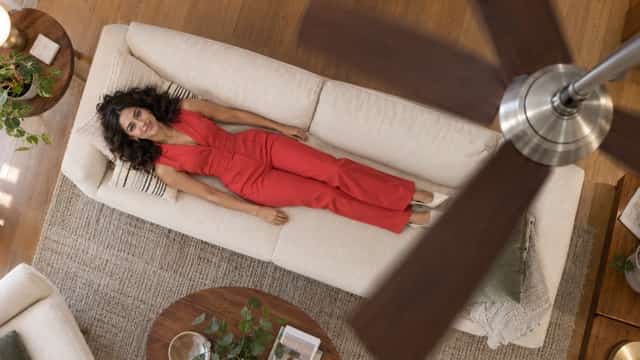
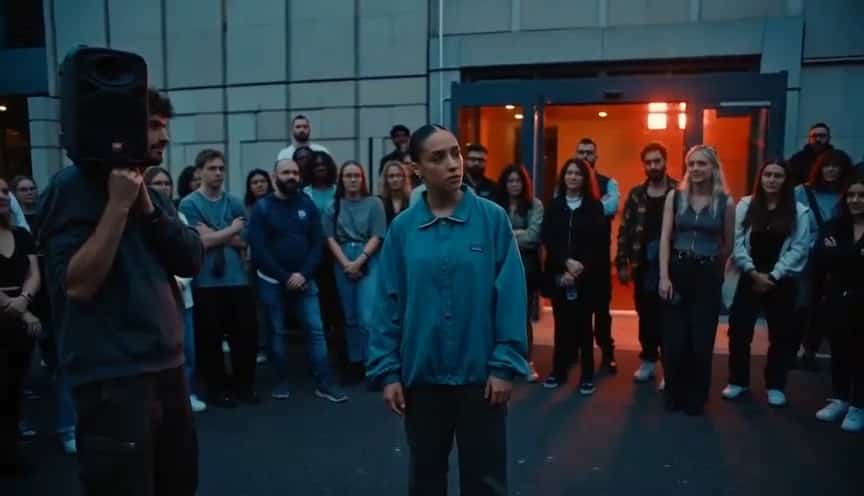
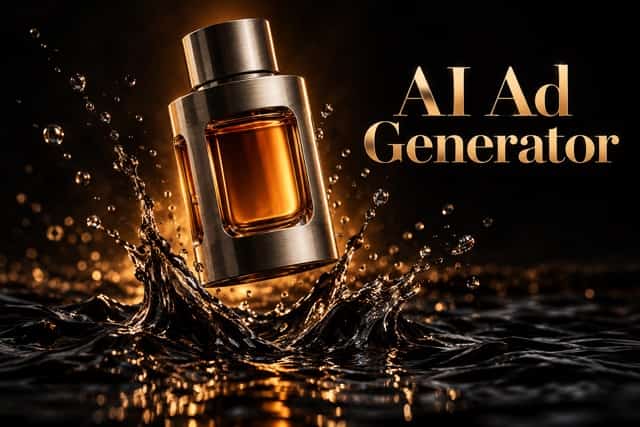
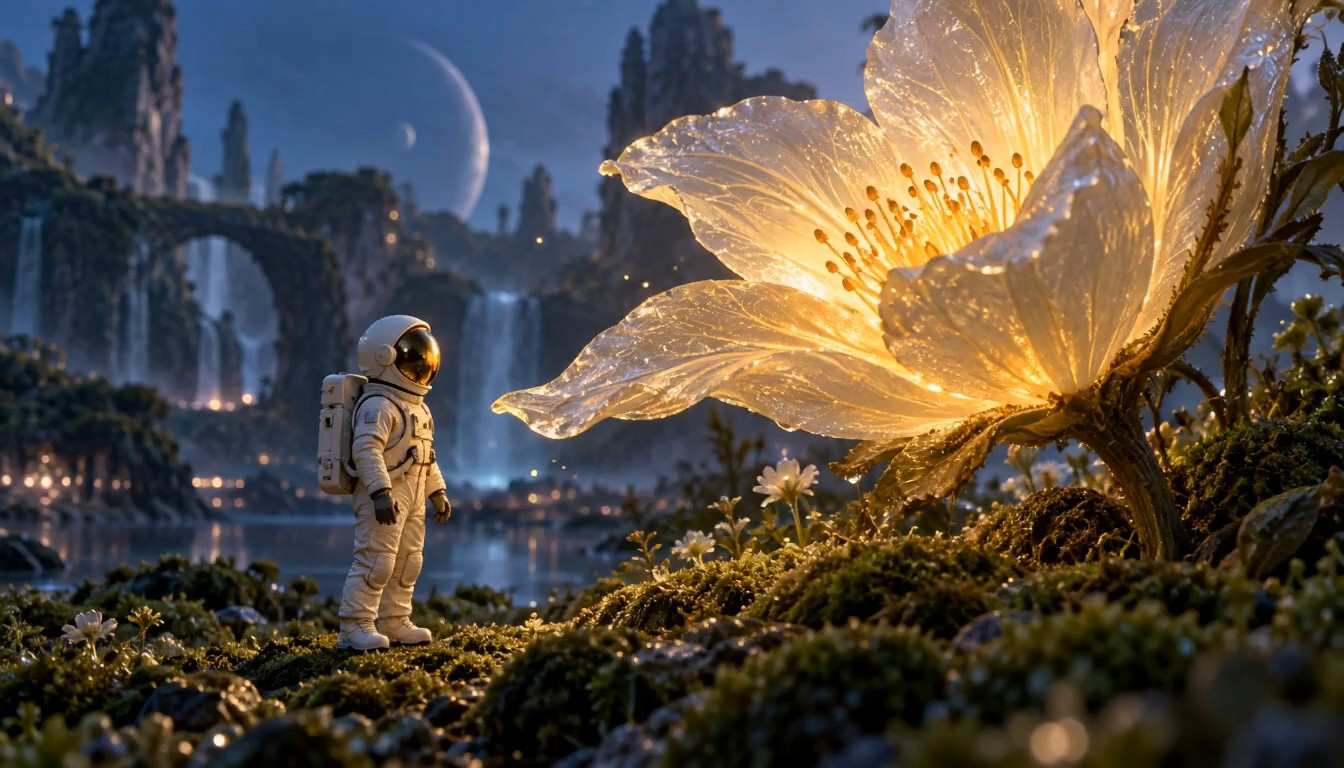
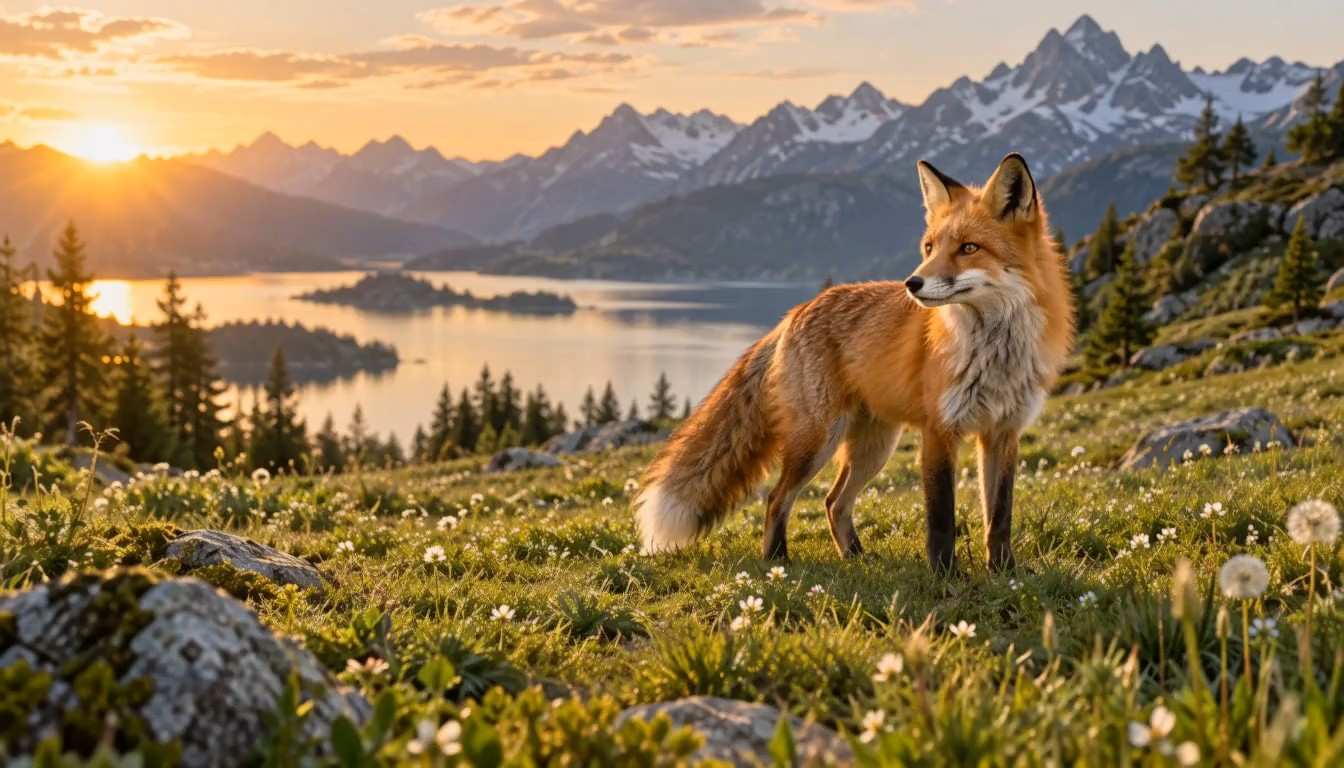
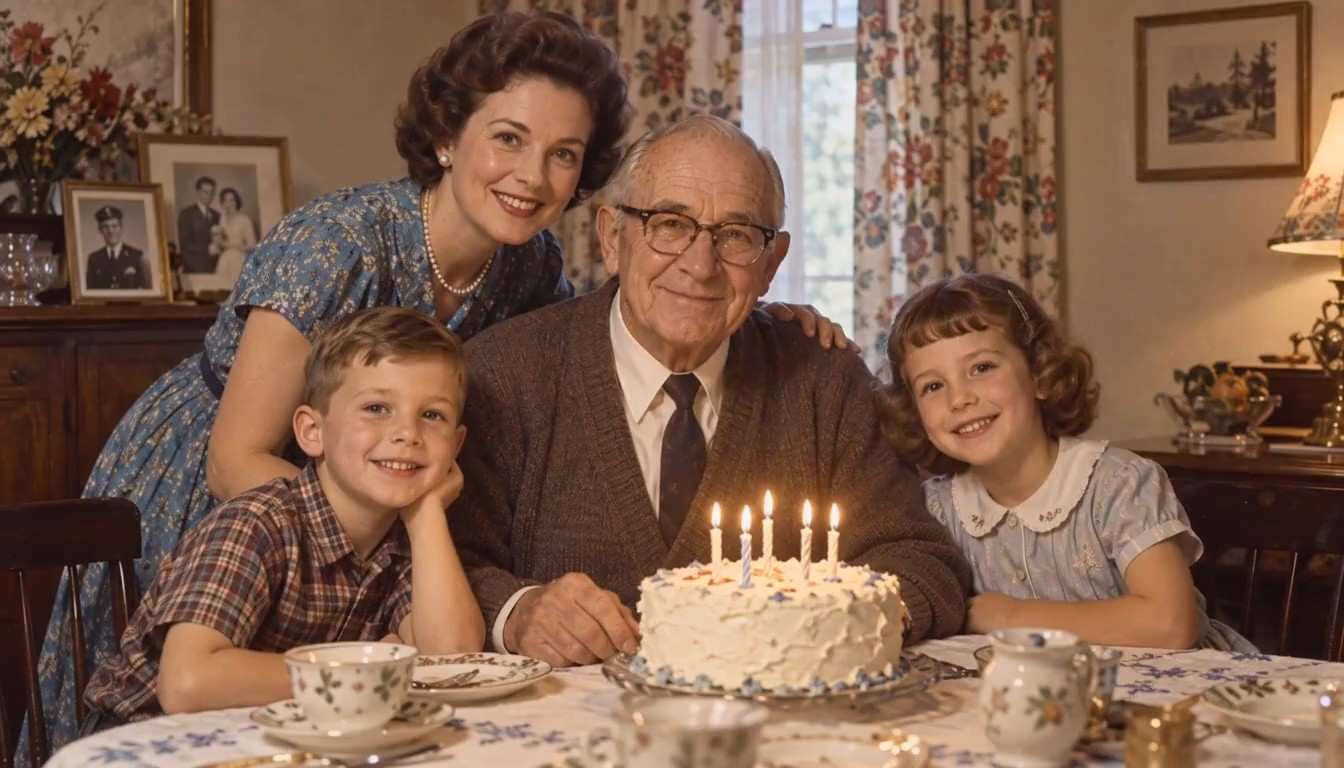
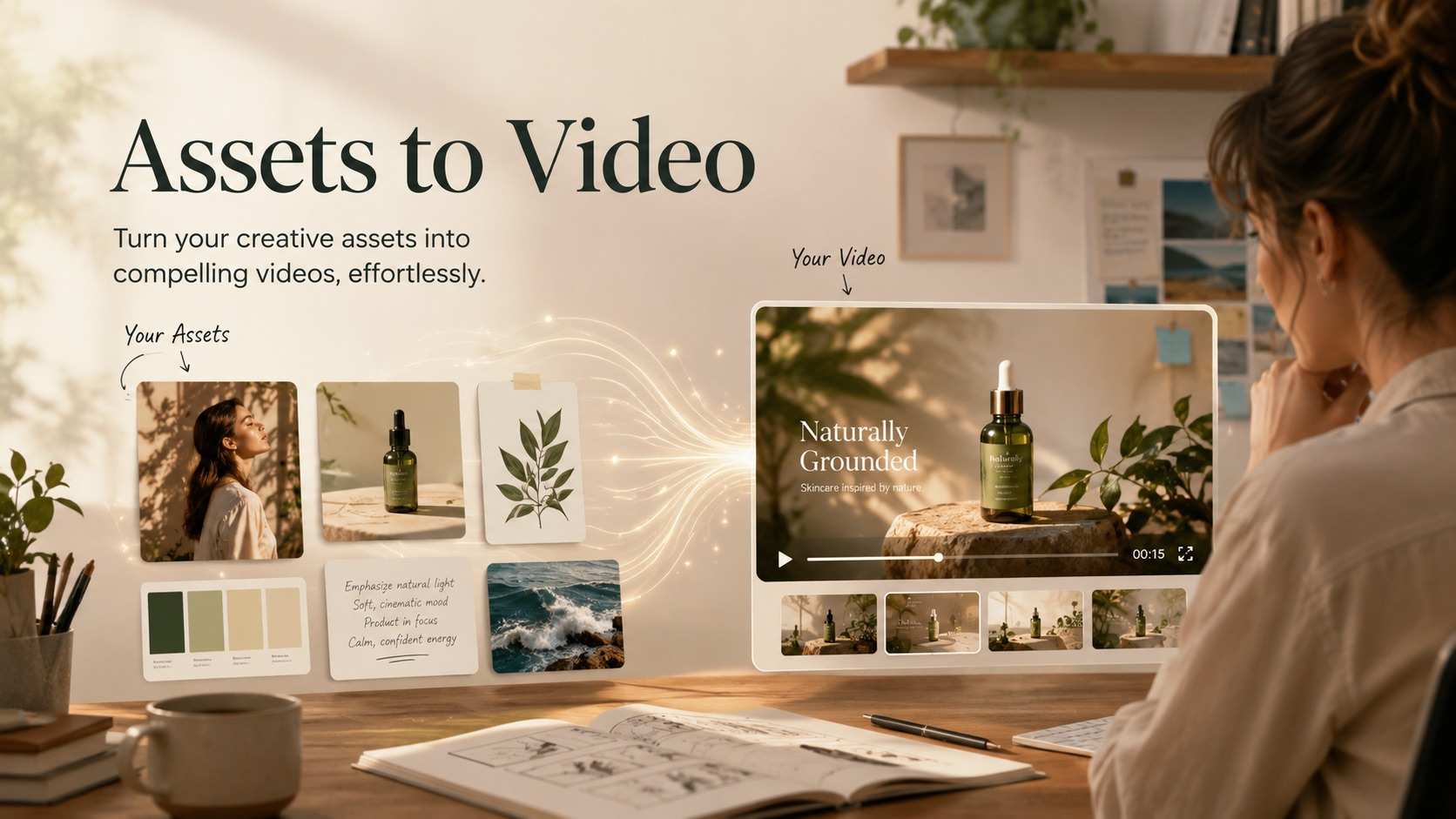
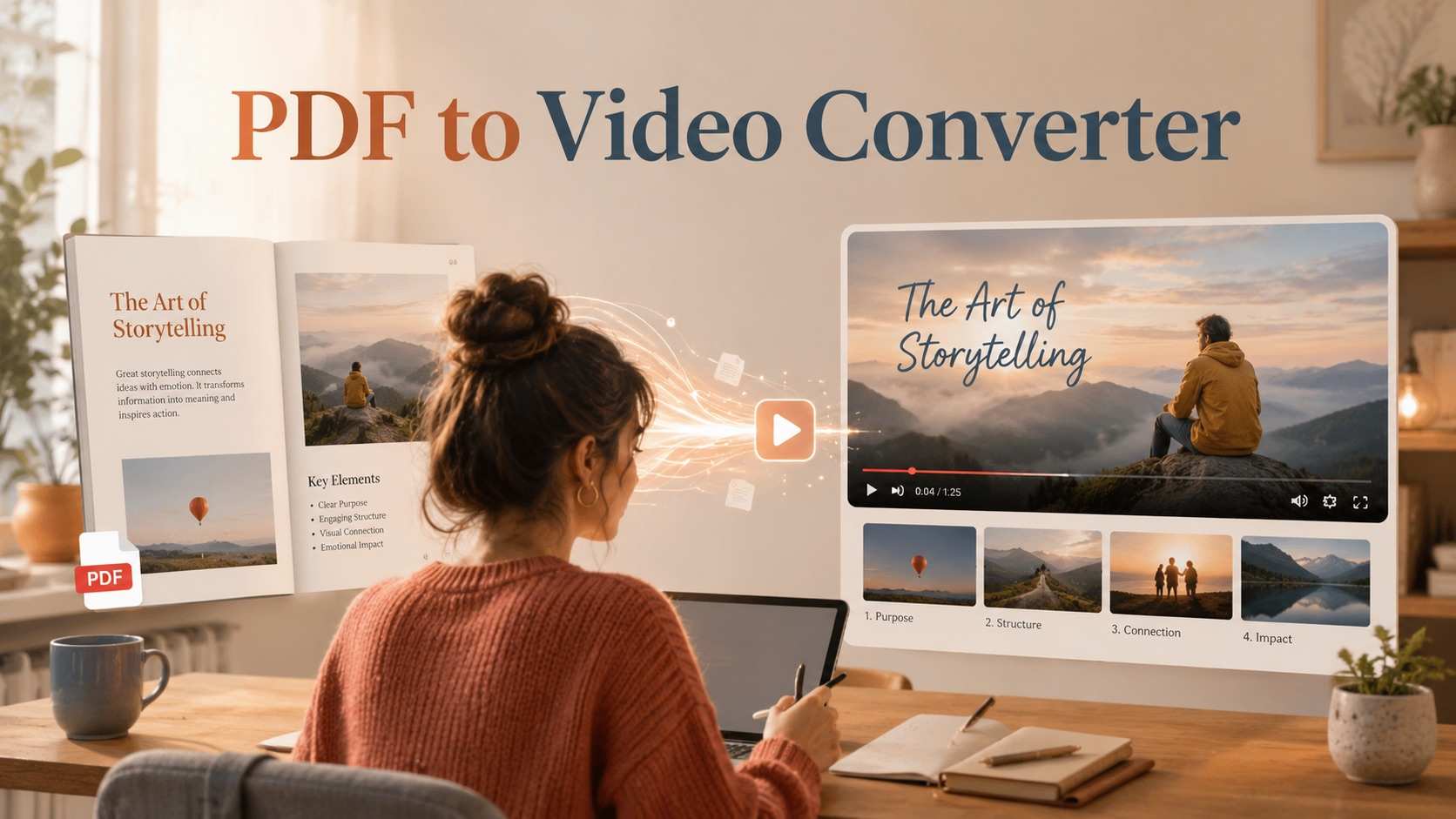
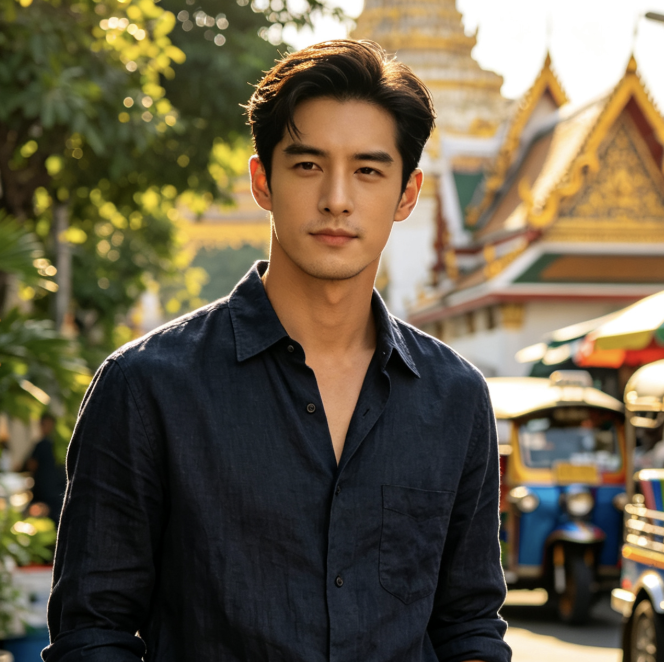
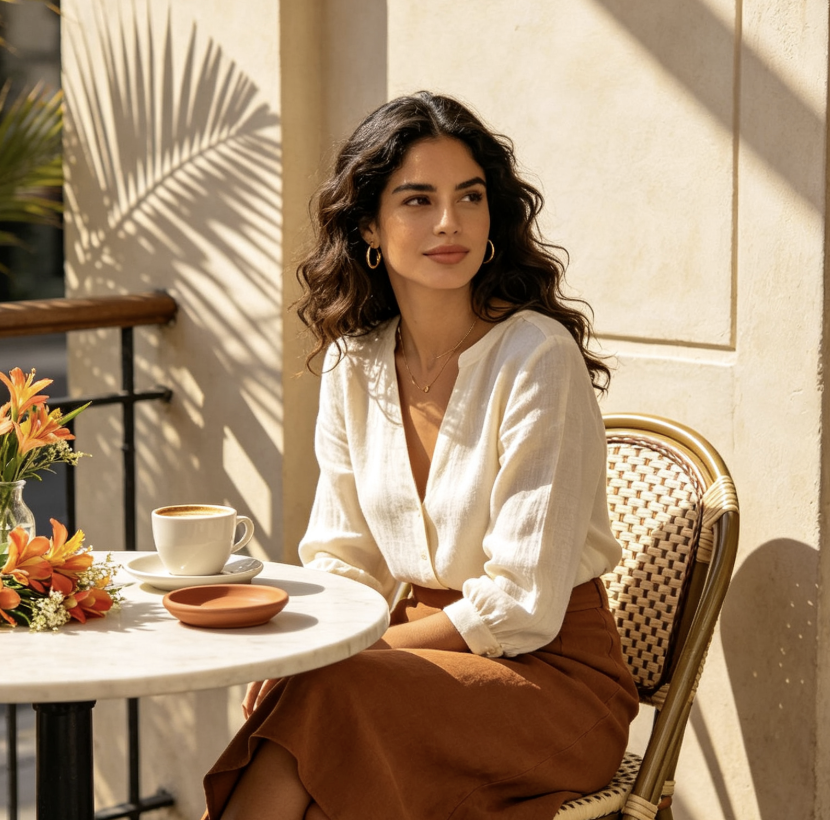
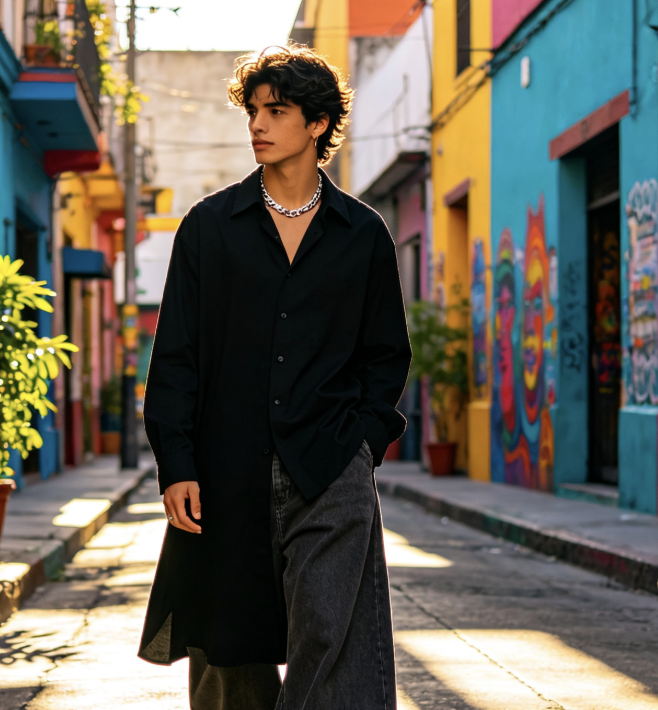
PixVerse V6 Max AI Video Generator turns written scenes and starting images into short cinematic videos. Shape a coastal character moment, a product reveal, or a dialogue scene with deliberate lighting, camera movement, and expressive performance. The model is designed for filmmakers, marketers, and social creators who want more visual direction. Current generator: PixVerse V6, not V6 Max. V6 Max is not yet available on SuperMaker. The Max capabilities below describe the published model, while the generator above uses ordinary V6. Artwork shows AI-generated scene concepts, not verified V6 Max outputs.
How To Generate Videos
The generator on this page uses ordinary PixVerse V6. Follow these steps for the available text and image workflow; the Max overview below describes a separate model.

Enter Your Prompt Or Upload An Image
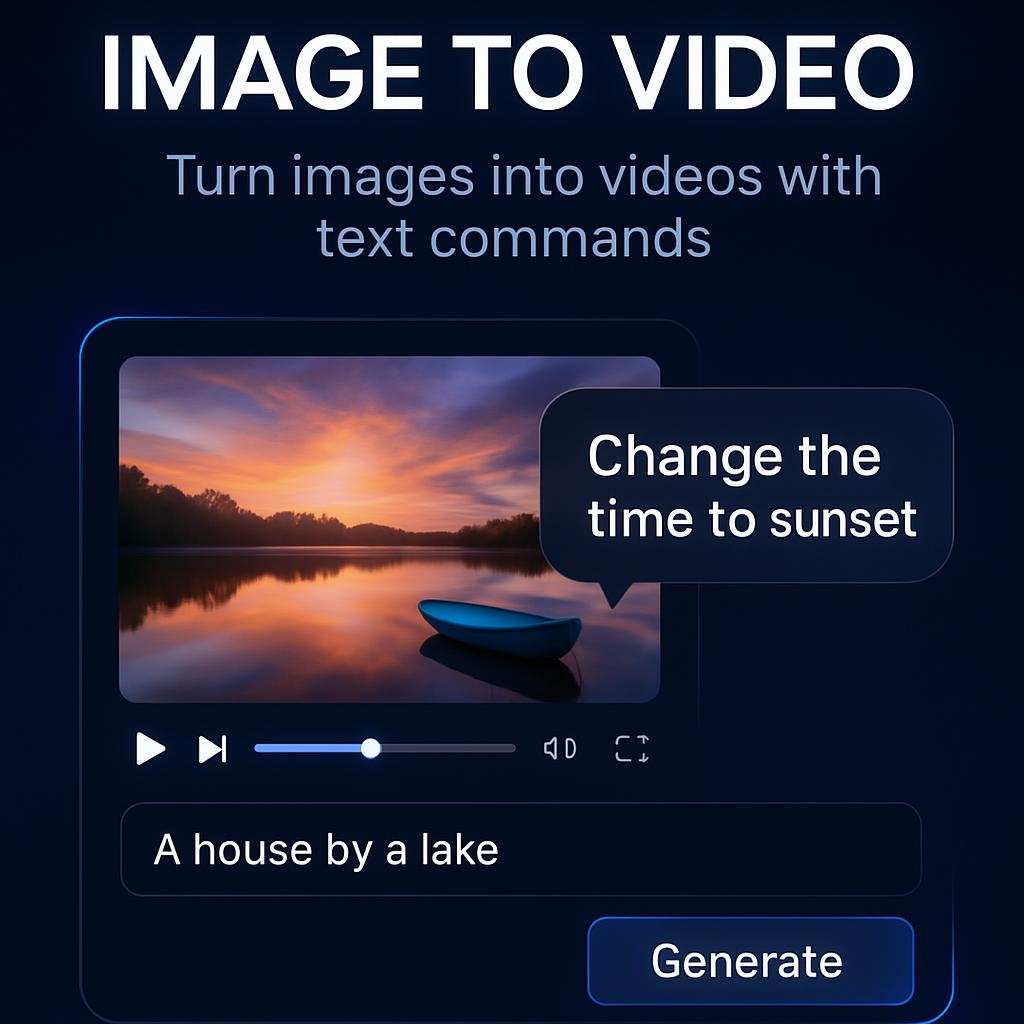
Describe your subject, action, setting, lighting, and camera direction, or upload a clear image you have permission to use. The current generator uses ordinary V6. PixVerse V6 Max Text to Video is described below for comparison and is not available in this generator.

Click Generate
Select the ratio, duration, and resolution offered by the current PixVerse V6 generator, then click Generate. Use only controls visible for your chosen input mode. This PixVerse V6 Max AI Video Generator overview does not add Max audio or multi-shot switches to ordinary V6.

Download Your Video
Review the ordinary V6 clip for facial identity, motion, product details, and audio timing. Use the result’s download control after processing completes. If details drift, simplify the action or adjust the prompt before trying again; keep original exports for your editing and delivery workflow.
Best AI Video Tools for Creative Projects
Explore creative tools for video, learn tips and tricks, and see how AI can be your assistant in turning concepts into finished projects.







Key Video Generation Features
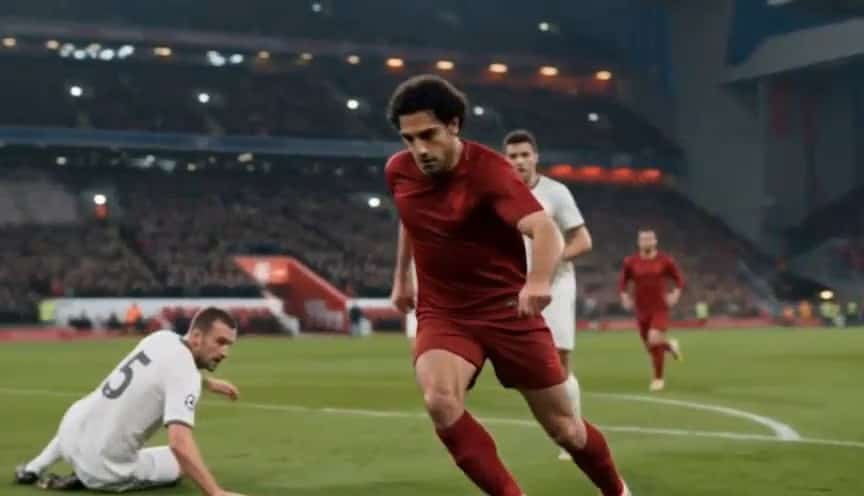
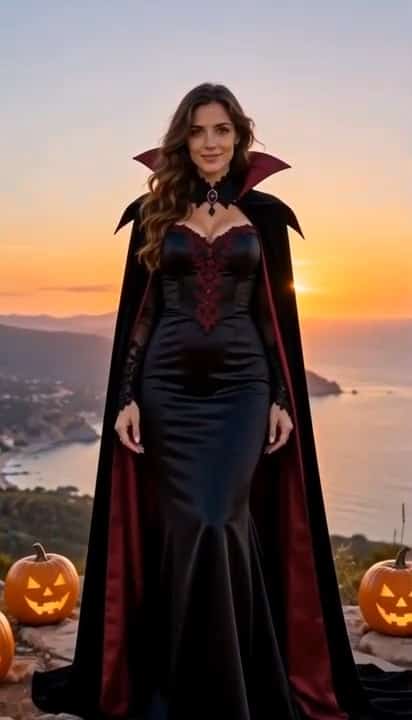
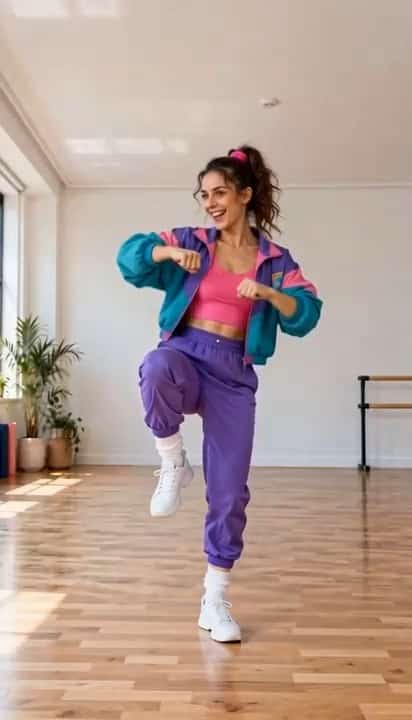
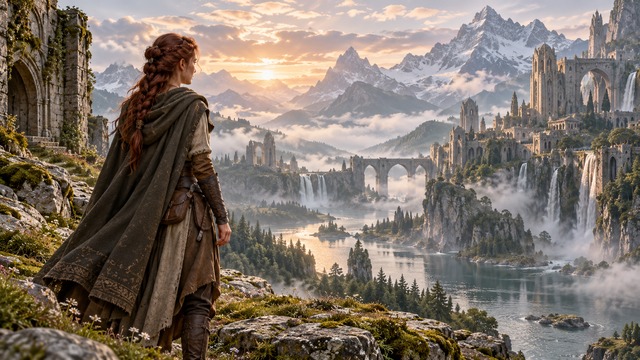
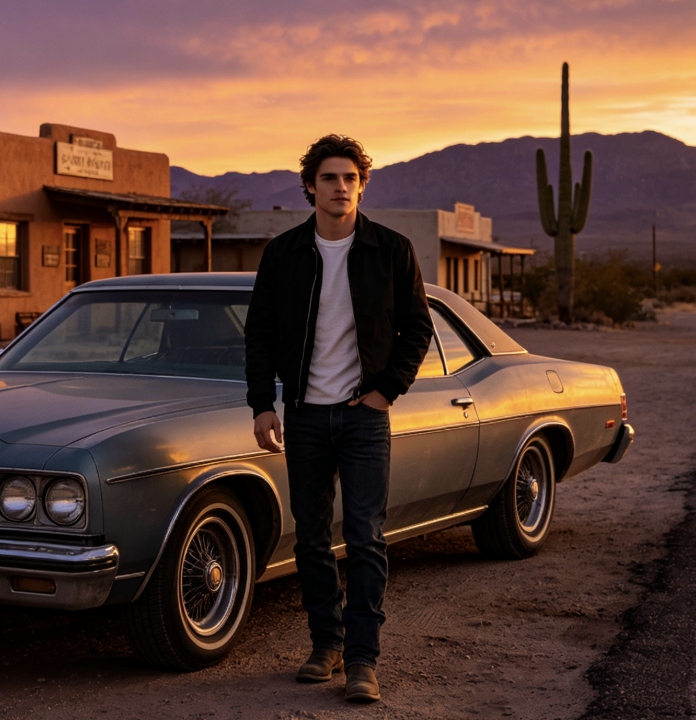
What Is PixVerse V6 Max? It is a quality-focused V-series model for short professional video. These published capabilities are separate from SuperMaker availability. All scene images are illustrative concepts generated with another image model.
Text To Video Generation
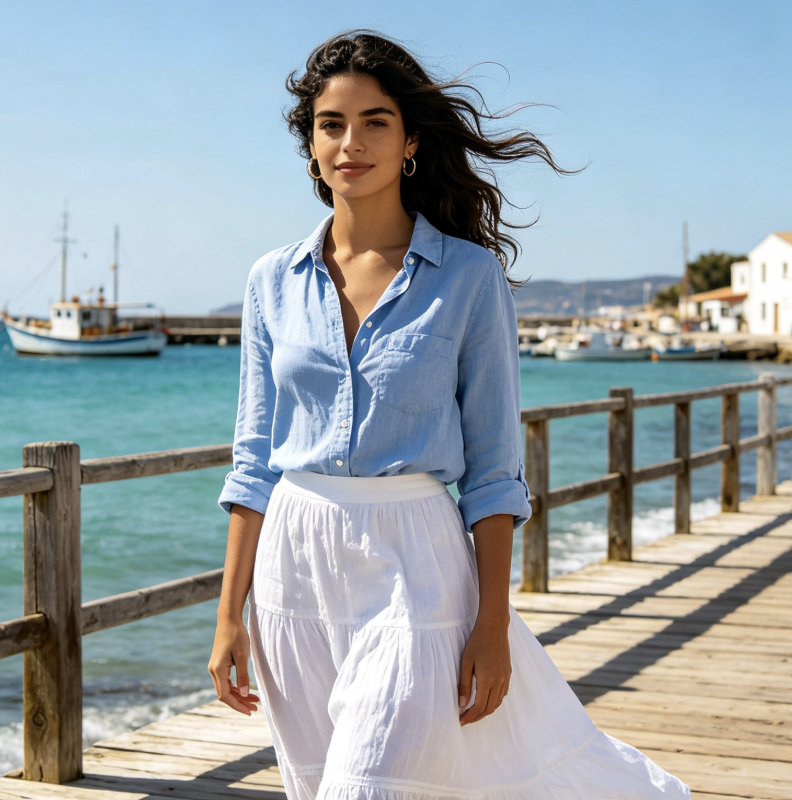
PixVerse V6 Max AI Video Generator starts with an idea rather than footage. Describe an original adult character walking toward a waterfront, then specify the setting, warm evening light, and a restrained tracking shot. Clear priorities give the model a coherent direction.
PixVerse V6 Max Image To Video
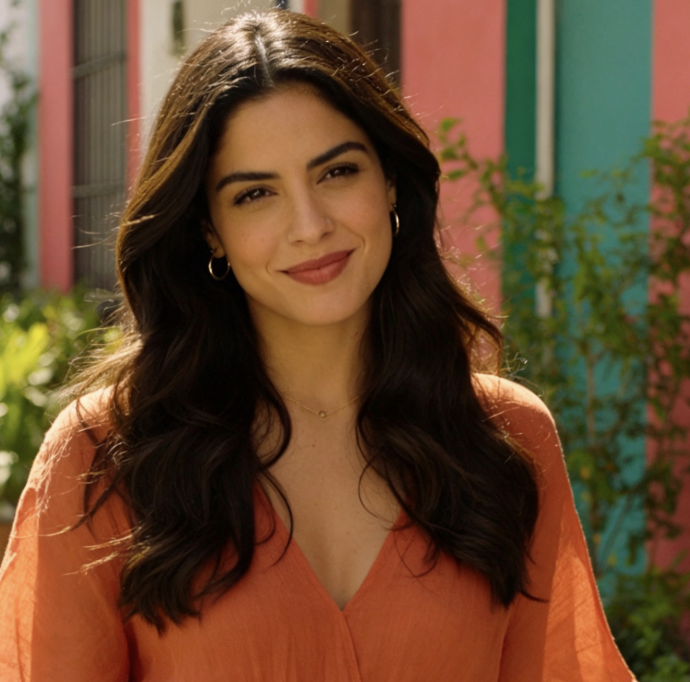
PixVerse V6 Max AI Video Generator uses a starting image to anchor the composition. A portrait can gain a slow head turn, gentle eye contact, and a subtle breeze; a product photograph can become a controlled reveal. In the published model, image-based output follows the source aspect ratio, so prepare the framing before generation.
Cinematic Camera Movement
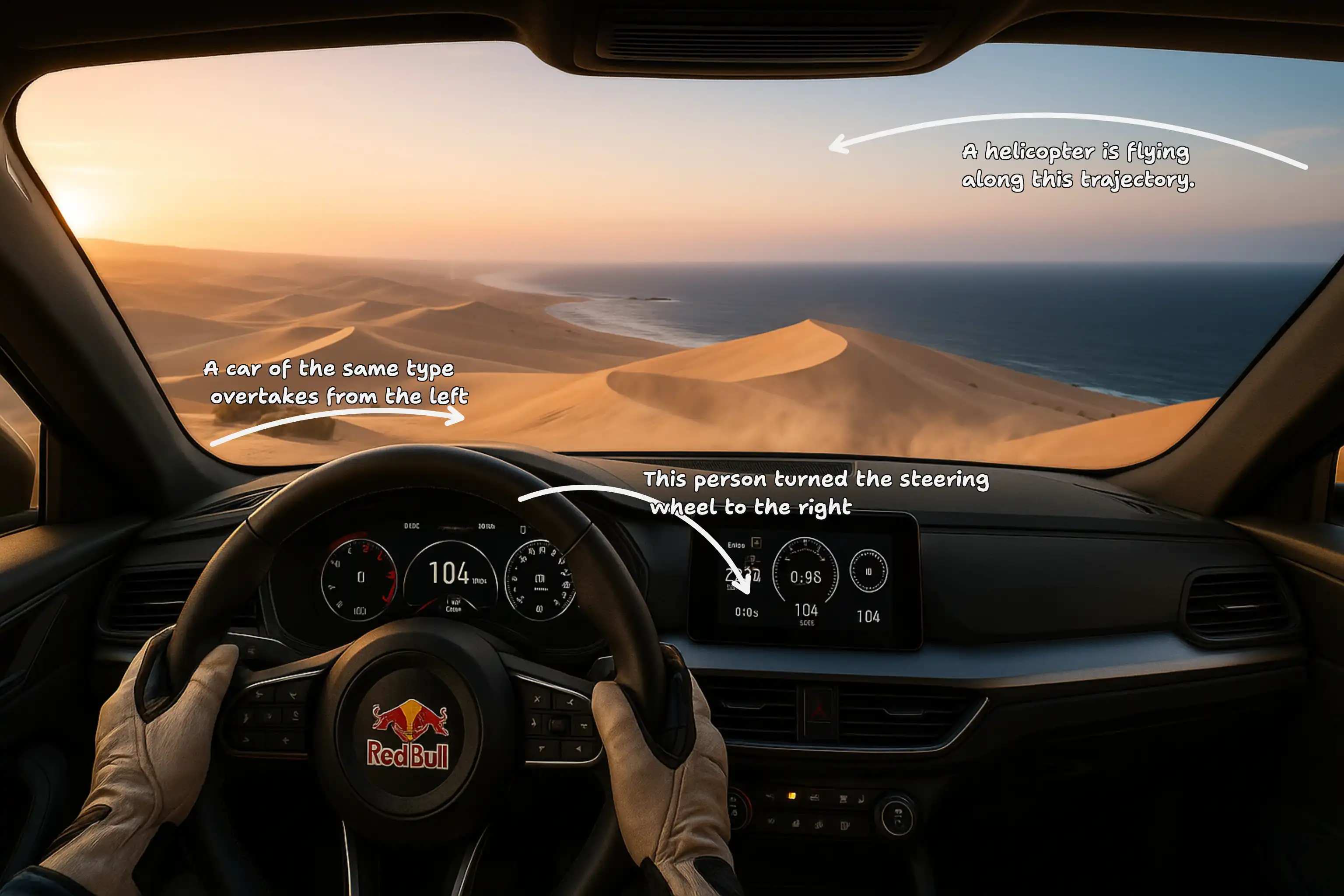
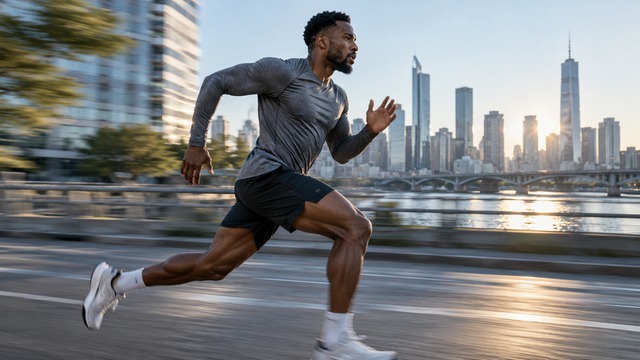
Use PixVerse V6 Max AI Video Generator to describe the relationship between subject and camera. A slow push-in emphasizes a reaction, while a side tracking shot follows a runner without losing the environment. Specify one dominant movement per shot and a clear endpoint.
Native Audio Generation
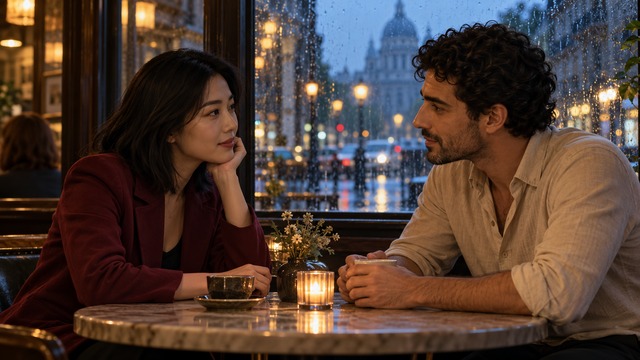
PixVerse V6 Max Native Audio can accompany the image with synchronized sound, including ambience, effects, background music, and dialogue. Audio is optional in the published model. Listen for timing and speaker assignment, and inspect the available service controls before assuming a dedicated audio switch exists.
Multi-Shot Storytelling
PixVerse V6 Max Multi-Shot supports sequences described as several shots and cuts. Introduce a location with a wide view, follow the subject at medium distance, and finish on a close-up. The published multi-clip option is separate from a storyboard-style prompt; SuperMaker has not yet verified an equivalent Max control.
Character Consistency
PixVerse V6 Max Character Consistency aims to keep identity, clothing, and appearance coherent as shot size or angle changes. Define a small set of recognizable details and repeat them across the sequence. Continuity still needs review: faces, accessories, hands, and garment details can vary, so treat the first result as a creative iteration.
Realistic Motion
PixVerse V6 Max AI Video Generator is positioned around more natural textures, performance, and physical movement. Describe a runner’s direction, the pace of a turn, or fabric responding to a gentle breeze. Watch for sliding feet, unstable hands, and implausible object interactions, particularly in complex scenes with multiple moving subjects.
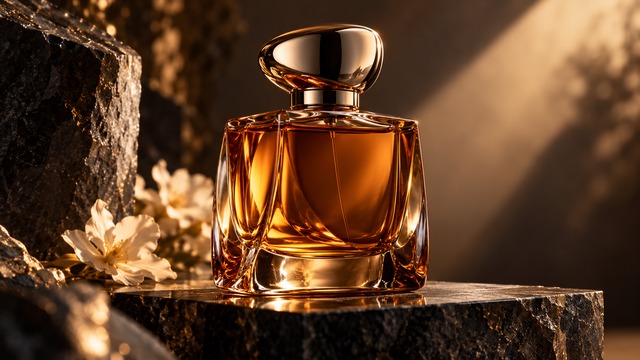
Product Advertising Videos
PixVerse V6 Max AI Video Generator can develop product-led shots with controlled reflections, close-ups, and changes in viewing angle. The model documentation highlights product and short-text continuity, but legibility is not guaranteed. Check packaging and brand details frame by frame, then add essential legal or sales copy in editing.
Creative Use Cases
Text And Image To Video can serve different creative goals. Choose the input that best preserves your subject, then adapt the scene to the intended audience and format.

Cinematic Short Films
Build a compact emotional scene around one decision or reaction. PixVerse V6 Max AI Video Generator can help independent filmmakers explore shot order, performance, and atmosphere before planning a production.

Product Advertising With PixVerse V6 Max Video Generator
Develop a premium reveal from a product photograph or a detailed description. PixVerse V6 Max AI Video Generator can support concept testing for ecommerce sellers and advertising designers. Specify the surface, lighting, and desired camera path, then check the silhouette and packaging before using the result in a campaign.

Social Media Videos
Create an opening visual with a clear subject and immediate movement. PixVerse V6 Max AI Video Generator supports vertical text-to-video framing in its published interface, making it relevant to TikTok, Reels, and Shorts concepts.

Fashion Video Production
Turn a styling concept into a short editorial moment with fabric movement, a controlled walk, or a glance toward camera. Describe the outfit’s cut and color alongside the setting.
Character Animation
Explore personality through posture, breathing, eye movement, and a restrained expression. PixVerse V6 Max AI Video can help creators test how an original character behaves in a scene. Keep identity cues consistent and make each speaker’s role explicit, then evaluate facial detail and dialogue alignment throughout the output.
Nature And Travel Videos
Develop a landscape sequence around mist, water, foliage, and deliberate camera movement. Conceptual travel scenes can support moodboards or fictional storytelling, but generated locations and events should not be presented as documentary footage or evidence of a real trip.
Creative Marketing
Use PixVerse V6 Max AI Video Generator to explore the visual language of a campaign: intimate lifestyle, polished studio, or atmospheric fantasy. Agencies can compare concepts before choosing a production direction.
Storyboarding And Concept Videos
Translate a written brief into a small sequence of visual beats. PixVerse V6 Max AI Video Creation is useful for discussing framing, mood, and transitions with a team. Treat these clips as creative proposals, then refine the strongest direction with practical feedback on continuity, pacing, and the intended audience.
Illustrative Creator Perspectives
The names and reactions below are fictional placeholders describing creative priorities, not verified customer endorsements or evidence of hands-on V6 Max use.
I value a clear emotional beat more than constant spectacle. A restrained camera move and a readable expression are the qualities I would evaluate first.
A product concept needs convincing materials and a stable silhouette. I would check those details before judging the polish of a dramatic reveal.
For social content, I want the opening moment to communicate immediately. Strong framing and a simple action make an idea easier to understand.
Continuity matters when a scene changes angle. Consistent clothing and recognizable character details help a short sequence feel like one intentional story.
I like the possibility of developing sound and image together. I would still listen closely to timing and speech before sharing a finished clip.
A concept video helps a team discuss atmosphere and pacing. I see the strongest value in testing an idea before committing to final production.
PixVerse V6 Max FAQ
Check model capabilities, practical limits, and the current integration status before choosing your video workflow.
PixVerse V6 Max AI Video Generator is the quality-focused top model in PixVerse’s V series, according to its official Replicate listing. It generates short videos from text or a starting image, with optional synchronized audio and an emphasis on cinematic detail, expressive performance, and continuity.
An exact public launch date is not independently confirmed by the reviewed model listing. This page therefore does not present October 20, 2026 as an established announcement date. The earlier V6 launch and V6 Max availability are separate events.
The Max listing emphasizes prompt following, realistic materials and lighting, and more consistent characters and products across shots. PixVerse V6 Max vs V6 also involves capability differences: Max does not support first/last-frame transitions.
Yes. The published model accepts a text prompt with landscape, portrait, or square framing. PixVerse V6 Max AI Video Generator prompts can describe subjects, actions, camera direction, and shot design.
Yes. Provide a starting image and a prompt describing the motion. The published interface follows the input image’s aspect ratio.
Yes. The model listing includes optional synchronized audio for music, effects, and dialogue through generate_audio_switch. Describe the desired sound and identify speakers clearly. This published option does not mean SuperMaker currently exposes a V6 Max audio control.
Yes. Its published generate_multi_clip_switch option supports several shots and cuts. Write a short ordered sequence with consistent subjects and clear transitions. The presence of a multi-shot capability in model documentation is separate from its availability in any particular website’s generator.
Published duration options are 5, 8, 10, and 15 seconds. SuperMaker’s future integration may expose a subset; do not assume a 30-second option or unlimited continuous generation.
Published resolutions are 360p, 540p, 720p, and 1080p. PixVerse V6 Max 1080p Video refers to the top listed model output, not a 4K claim. Resolution selection and its cost must be checked in the actual service before starting a generation.
The published text-to-video interface supports 9:16, alongside 16:9 and 1:1. Image-to-video follows the source image’s ratio, so begin with a vertical image when appropriate.
No. The reviewed listing explicitly excludes first/last-frame transitions and directs users to ordinary V6 for that workflow. Do not interpret a starting-image input as paired endpoint control, or apply V6’s reference and extension features to Max without separate documentation.
Repeat identity cues, hairstyle, clothing, and key proportions in each shot description. Keep actions manageable and distinguish multiple speakers. A starting image can provide visual grounding, but consistency remains an aim rather than a guarantee; inspect faces and details across the entire clip.
V6 Max is not currently listed on SuperMaker. This page’s generator uses ordinary PixVerse V6 with ID pixverse-v6-video, not Max. The PixVerse V6 Max Online overview explains the separate model’s published capabilities without claiming that the generator is running it.
No free-access claim is verified for SuperMaker. The external model host publishes paid usage, but those rates are not SuperMaker prices. Check the actual provider’s current credits, cost, and terms before generating; this draft does not promise free or unlimited use.
After an ordinary V6 job finishes in the generator above, open its result and use the available download control. Review the exported file before delivery. The result is a PixVerse V6 video; this page does not offer Max generation or Max downloads.
Create With PixVerse V6 While Exploring Max
Use this PixVerse V6 Max AI Video Generator overview to plan a scene and understand the published limits. The generator here uses ordinary PixVerse V6, not Max. Open the existing V6 page for the available model, and review the actual settings and credit cost before creating.