



More AI Video Generators
Explore our collection of specialized AI video generators designed for different creative needs and styles
Elf On The Shelf AI Video
Bring Your Christmas Elf Photo To Life
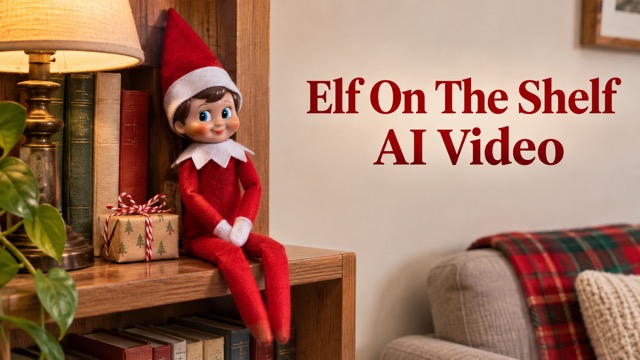
Give your Christmas shelf scene a small surprise with Elf on the Shelf AI Video. Start with a photo of your own elf doll and turn that still moment into a short animated clip. A gentle head turn or little wave becomes the focus, with your familiar room as the starting point. Create a festive moment for family messages, holiday stories, or your December photo collection.
How To Make An Elf On The Shelf AI Video
A clear photo gives the animation a useful starting point. Set up your favorite elf scene, use the prepared effect, and review the finished clip before choosing how to share it.

Upload Your Photo
Choose a well-lit photo with one elf doll clearly visible. Include its face, arms, and surrounding shelf or tabletop, leaving a little room for movement. A simple scene with the toy in focus makes the intended subject easier to identify.

Click Generate
Check the available video settings and displayed credit cost, then click Generate. The prepared prompt requests a small head turn and friendly wave while keeping the toy and setting recognizable. You can start without writing a detailed animation prompt yourself.

Download Your Video
Play the finished clip and check the elf's face, hands, and background throughout the movement. Download the version you like for your holiday collection or sharing app. If something looks unusual, simplify the original setup before trying another generation with that photo.
Best AI Video Tools for Creative Projects
Explore creative tools for video, learn tips and tricks, and see how AI can be your assistant in turning concepts into finished projects.













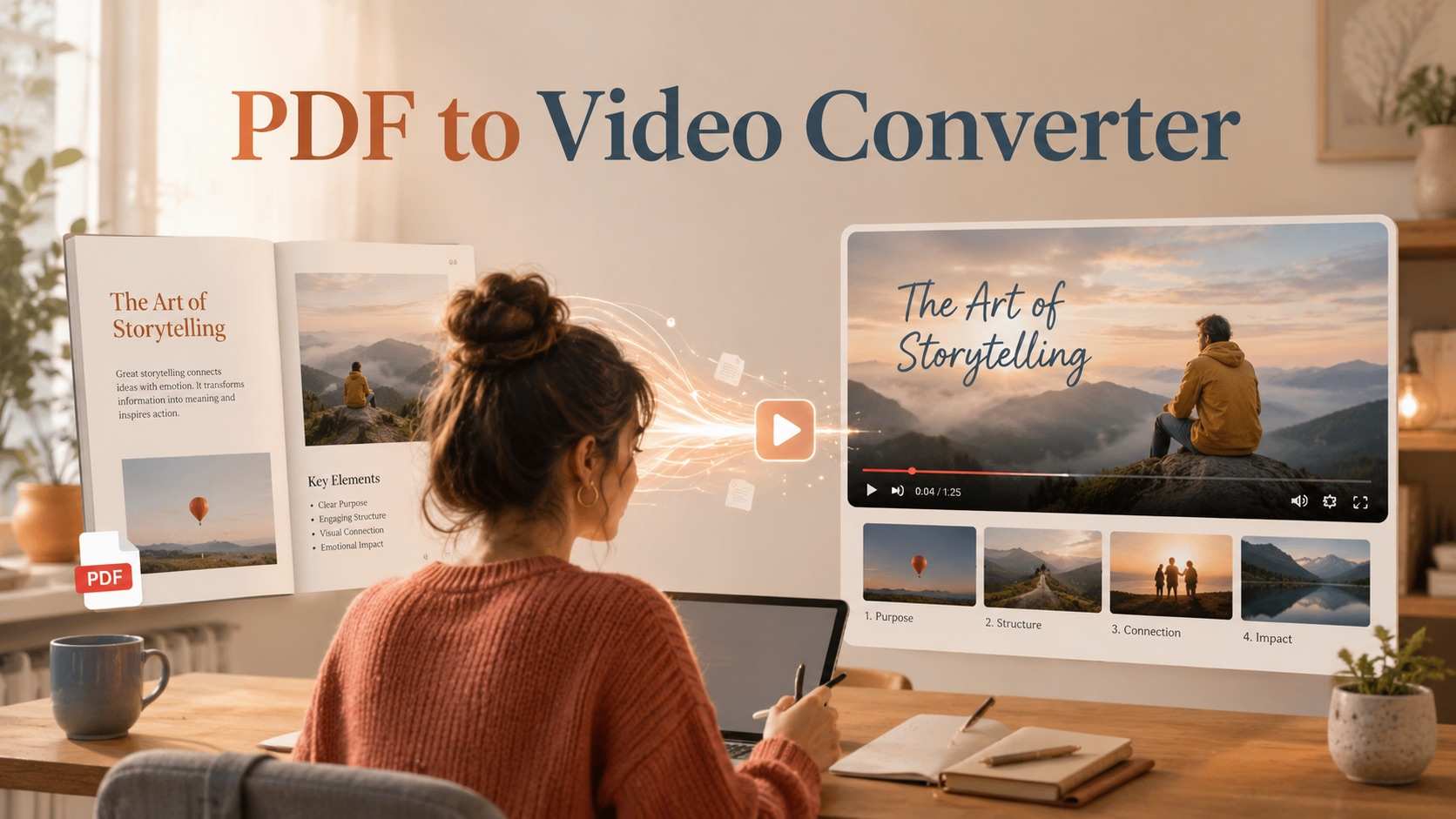




Elf On The Shelf AI Video: Small Moves, Familiar Scenes
The appeal is in a tiny change to something you already recognize. This effect is built around a single elf photo, a restrained movement sequence, and the setting you chose for it.
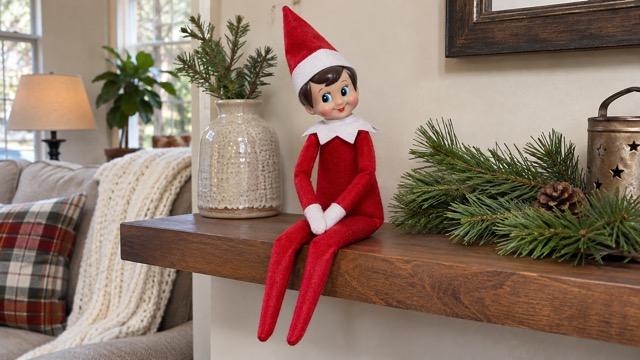
Start With The Elf You Already Own
Your own doll gives the clip its personal connection. Photograph the elf on a bookshelf, mantel, or table, with its outfit and face easy to see. The uploaded image supplies the starting appearance and composition, so you do not need to describe every detail of the toy. Keep the whole figure visible when possible, especially the arm that will move, and remove objects that hide its silhouette.
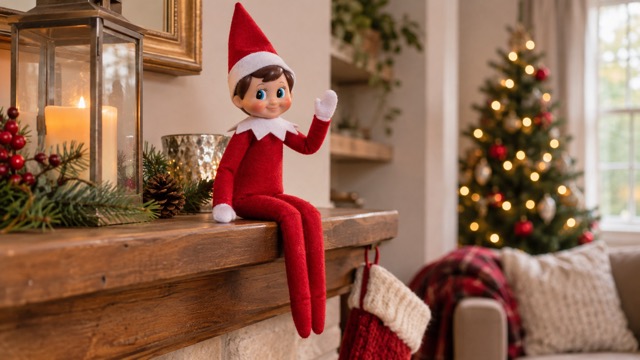
Give A Still Toy A Gentle Wave
A small gesture can carry the whole moment. The prepared animation direction asks the elf to glance slightly to one side, raise one hand in a short wave, then settle back into a still pose. This keeps the idea focused on a playful shelf surprise. It also gives you a clear sequence to check when reviewing the result, instead of judging a busy scene with several competing actions.
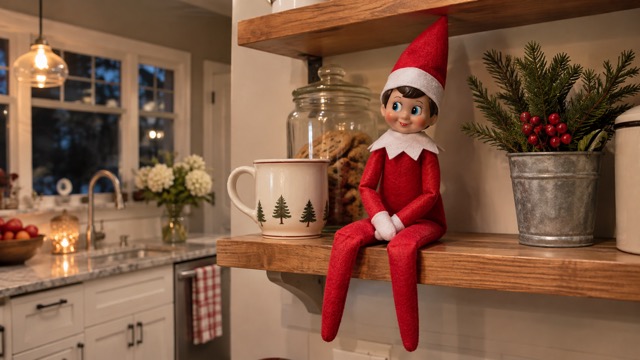
Use Your Room As The Starting Scene
The shelf, decorations, and household light help make the video feel connected to your December routine. The prompt asks for a fixed camera and a stable background, using your uploaded photo as the visual reference. Choose a quiet composition with space around the elf rather than a crowded display. After generation, check the nearby objects as well as the doll, because small background changes can distract from the gesture.
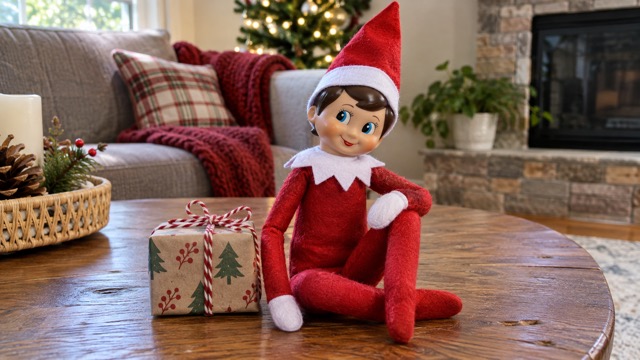
Create A Clip For Your Holiday Story
Use an animated elf moment as one small part of a larger Christmas story. You might pair the downloaded clip with a family message, place it beside the original photo in a December album, or add it to a seasonal video in your usual editor. The scene stays focused on the toy, leaving you room to choose the surrounding message and decide how it fits your own holiday tradition.
Elf On The Shelf AI Video Ideas For Christmas
Build the scene around the people who will enjoy it. A familiar shelf, favorite decoration, or small wrapped gift can make the same simple animation feel personal to your household and holiday plans.

Family Christmas Countdown
Parents planning a December countdown can photograph the elf in a different spot and animate a favorite setup. A brief wave makes a small addition to the day's story without requiring a stop-motion shoot. Save the original photo alongside the clip, then choose a few highlights to revisit together when the holiday season is over.

Messages To Relatives
Families sharing Christmas moments from different homes can send a short elf clip with their own greeting. Use a recognizable decoration or the shelf everyone remembers to give the video a personal setting. Download it, add your message in your usual chat app, and share a little of your home rather than another generic seasonal image.

Seasonal Social Posts
Creators preparing a holiday post can build a simple visual hook around a still toy beginning to move. Keep the elf large enough to read on a phone, and leave space around the figure when taking the source photo. Add captions or music in your preferred editor after downloading, with the gesture as the central moment.

December Memory Albums
Holiday scrapbook makers can mix photographs with a few animated highlights in a digital family album. An Elf on the Shelf AI Video adds movement to a favorite display without changing the subject of the collection. Keep the source image and finished clip together so the decoration, room, and small details remain part of the memory.
Creative Perspectives On Elf On The Shelf AI Video
These fictional example evaluations illustrate different creative priorities, from keeping a familiar setting to making a short family greeting. They are not verified customer reviews.
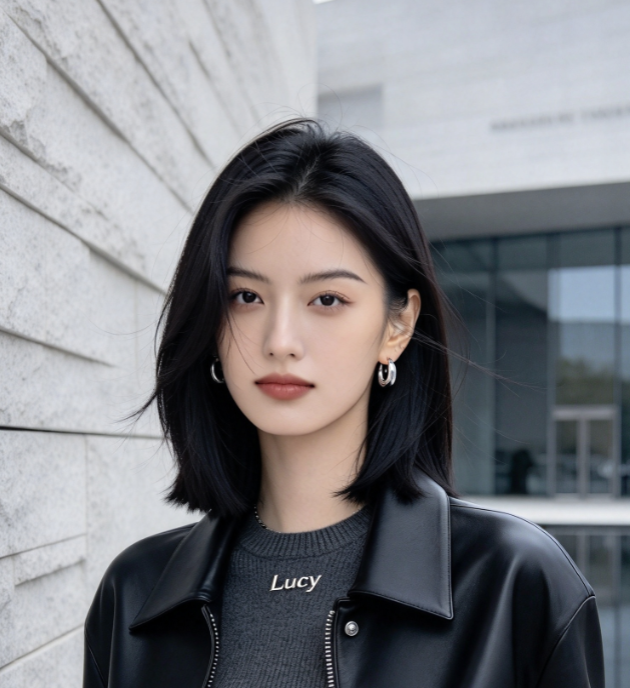
I like the idea of making our familiar elf the center of a small Christmas story. A gentle wave feels more suited to our shelf setup than a big dance.
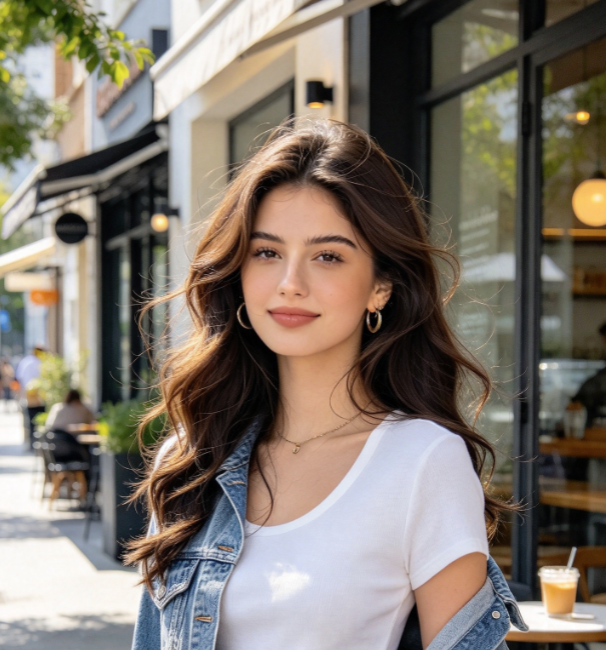
Keeping the original photo beside an animated version gives a digital album a nice change of pace. The room and decorations matter as much to me as the elf itself.
A single clear gesture gives a short holiday post a useful focal point. I would build the caption around that moment and keep the rest of the edit simple.
A scene from our own living room feels personal enough for a Christmas message. I prefer a recognizable toy and a small movement that relatives can notice right away.
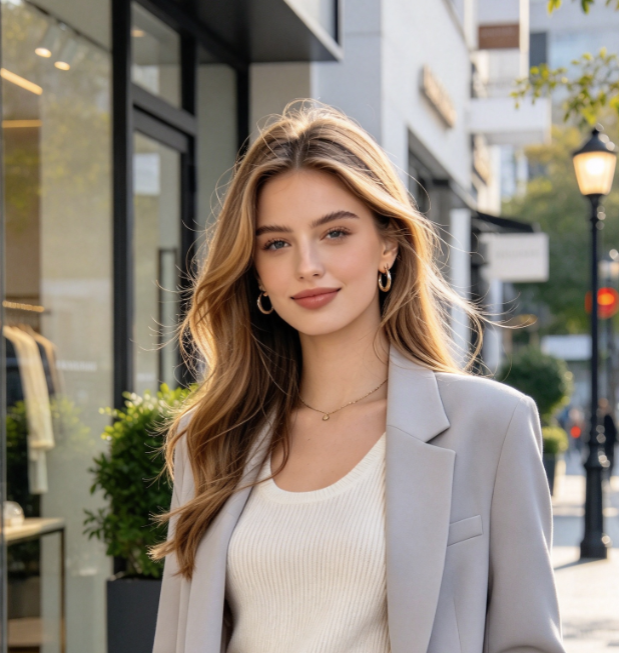
The best part of this idea is starting with a display I already arranged. I would keep the lighting soft and leave enough space around the elf for its wave.
Having a short movement sequence makes the result easier to review. I would watch the hands and nearby decorations before deciding which clip belongs in the finished family video.

Elf On The Shelf AI Video Questions
Start with the right photo and realistic expectations for a generated clip. These answers cover the prepared effect, input choices, reviewing results, and what to check before spending credits.
It is a photo-to-video effect for animating a Christmas elf doll in its existing setting. You upload one photo, and the prepared prompt requests a restrained sequence with a small head turn and wave. The result is a generated holiday clip that you can review and download.
Use a clear photo containing one elf doll, with its face and arms visible and the body separated from surrounding decorations. A shelf or tabletop scene with steady lighting is a practical starting point. Avoid heavy blur, tiny subjects, or objects covering the hand you want to see move.
No. This page uses a built-in animation prompt for the prepared elf effect, so the photo is your main creative input. It requests a fixed camera, a recognizable toy, and a small gesture. The page does not offer a custom action selector or a free-text prompt field.
The prompt asks the model to preserve the doll's appearance, lighting, and surrounding scene, but generated frames can still change small details. Review the complete clip, especially the face, moving hand, and nearby objects. A clear image and a simple arrangement make those details easier to inspect.
The configured Kling 2.5 image-to-video model supports 5-second and 10-second durations. Check the options and credit cost shown in the generator before submitting your photo. Pricing and available account credits should be read there; this page does not promise free, unlimited, or immediate generation.
Check the source photo first. Try a closer view of a single doll, make both arms visible, and reduce clutter around the figure. Review any new generation before sharing it. If you want captions, music, or a longer sequence, add the downloaded clip to your preferred video editor.
Create Your Elf On The Shelf AI Video
Choose your favorite elf setup and turn one still photo into a small holiday moment. Start with a clear view of the toy, check the generation settings, and see how a gentle wave fits your Christmas story. Your next festive clip starts with your own shelf.