













More AI Video Generators
Explore our collection of specialized AI video generators designed for different creative needs and styles

Gemini Omni 1.2 Flash AI Video Generator
Create Longer Clips With More Consistent Control
Gemini Omni 1.2 Flash turns written ideas, images, and reference footage into video, with room to refine the result through conversation. Use Gemini Omni 1.2 Flash to explore a campaign concept, animate a product image, or work out the movement in a short story.

How To Create With Gemini Omni 1.2 Flash
A useful Gemini Omni 1.2 Flash workflow starts with a clear shot, continues with a careful review, and ends with a focused edit. Decide what matters most in the scene before you generate.

Add Your Prompt Or Visual
Give Gemini Omni 1.2 Flash a subject, an action, and a setting, then describe how the camera should move. Add an image if appearance matters, or a short reference video if you need to communicate motion. Explain which details should stay recognizable and which are open to interpretation.

Generate A First Video
Generate an initial clip with Gemini Omni 1.2 Flash and watch it from beginning to end. Check whether the action reads clearly, the subject stays recognizable, and the camera supports the scene. Gemini Omni 1.2 Flash can create videos up to 15 seconds; choose a duration that suits the action rather than stretching every idea to the limit.

Refine And Export Your Clip
When a take is close, give Gemini Omni 1.2 Flash one specific follow-up instruction, such as warming the light or changing the background. Review the revised clip against the same brief, then use the available export controls when you are happy with the direction.
Best AI Video Tools for Creative Projects
Explore creative tools for video, learn tips and tricks, and see how AI can be your assistant in turning concepts into finished projects.
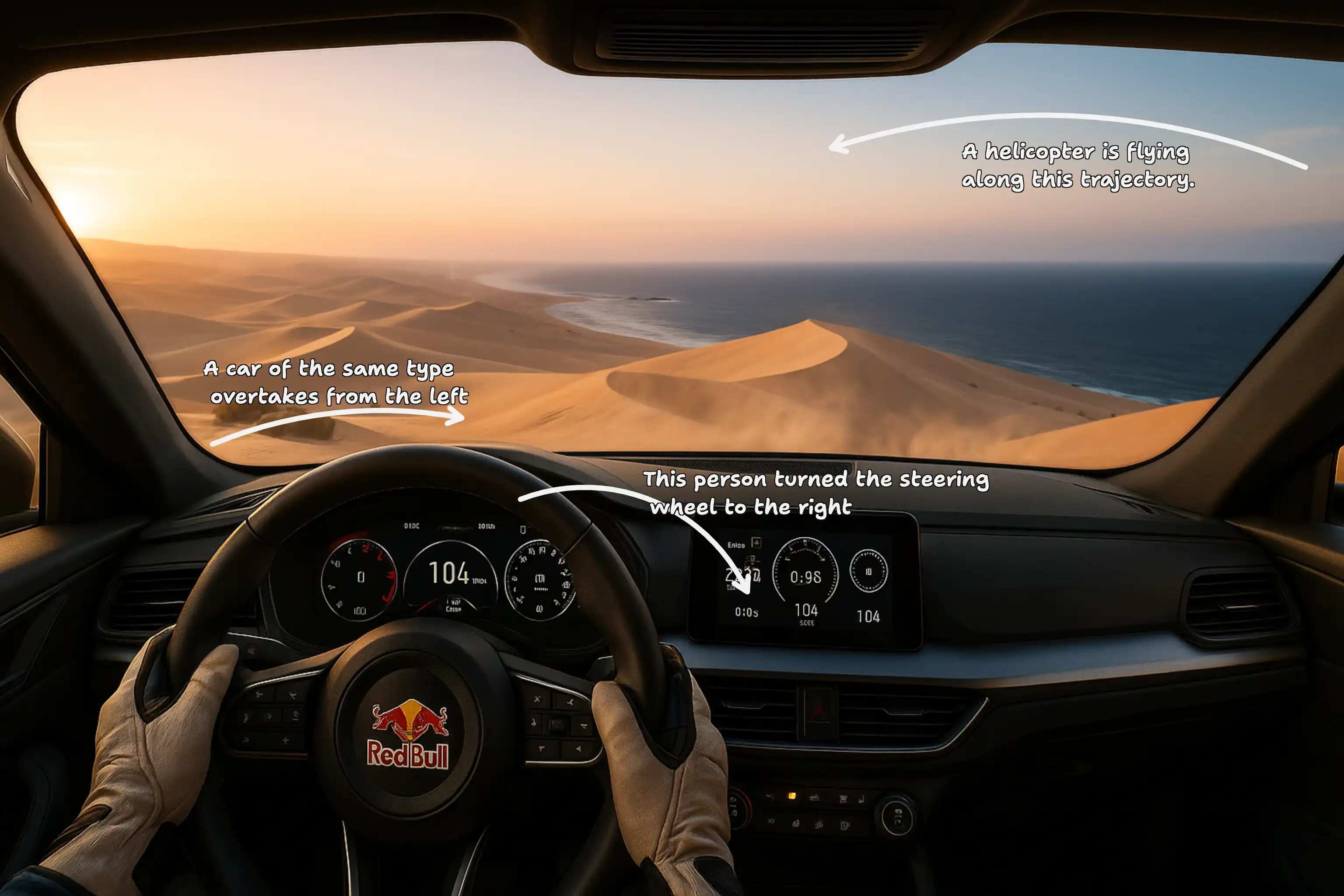




















Explore The Creative Controls In Gemini Omni 1.2 Flash
Gemini Omni 1.2 Flash brings generation, visual references, and conversational editing into one workflow. The sections below show how to put Gemini Omni 1.2 Flash to work at each stage.

Create From Text, Images, And Reference Video
Choose the starting point that carries the most useful information. Text gives Gemini Omni 1.2 Flash a scene to interpret; an image can establish a product, person, location, or visual style. A reference video adds context for motion and camera behavior. The model card for Gemini Omni 1.2 Flash lists text, image, audio, and video inputs, while this SuperMaker workflow exposes text, image, and reference-video modes.
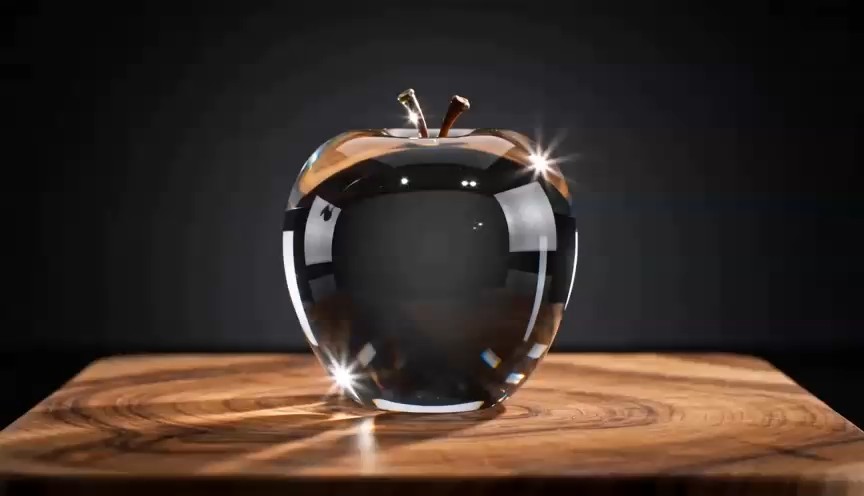
Generate Longer Clips With Stronger Continuity
A reveal needs time for the viewer to notice what changes. Gemini Omni 1.2 Flash supports video creation and editing up to 15 seconds, extending the previous 10-second limit. That leaves more room for a camera move, a brief character action, or a product entering the light. Google also reports stronger reference adherence for Gemini Omni 1.2 Flash, helping important details remain more consistent as the shot develops.
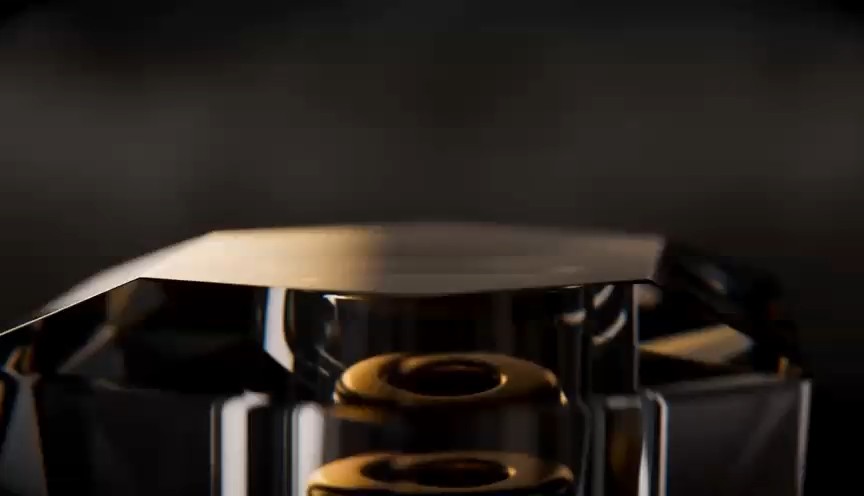
Edit The Same Clip Through Conversation
Keep developing a promising take with a specific note. Ask Gemini Omni 1.2 Flash to change the weather, replace a product, adjust the lighting, or alter the camera direction, and name the details you want to preserve. An instruction such as 'Keep the bottle and framing; change the background to a softly lit kitchen' makes the intended edit explicit. With Gemini Omni 1.2 Flash, conversational editing gives you a way to work through those decisions in sequence.
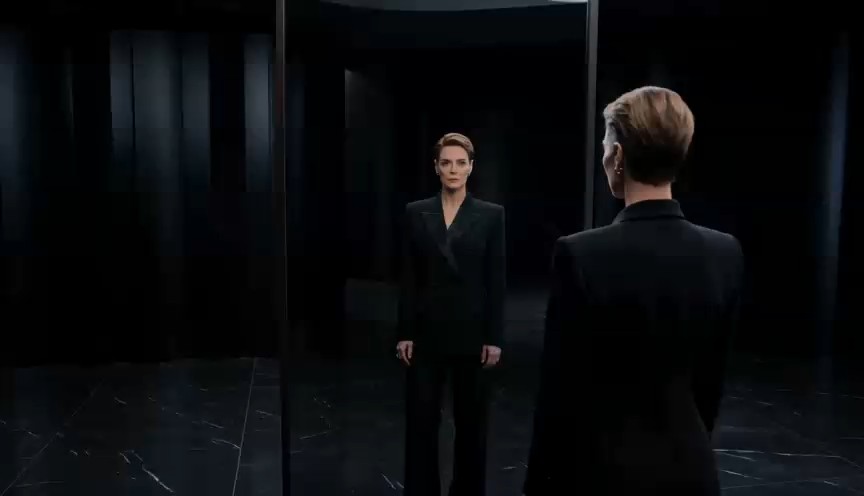
Move From Fast Drafts To Higher-Resolution Delivery
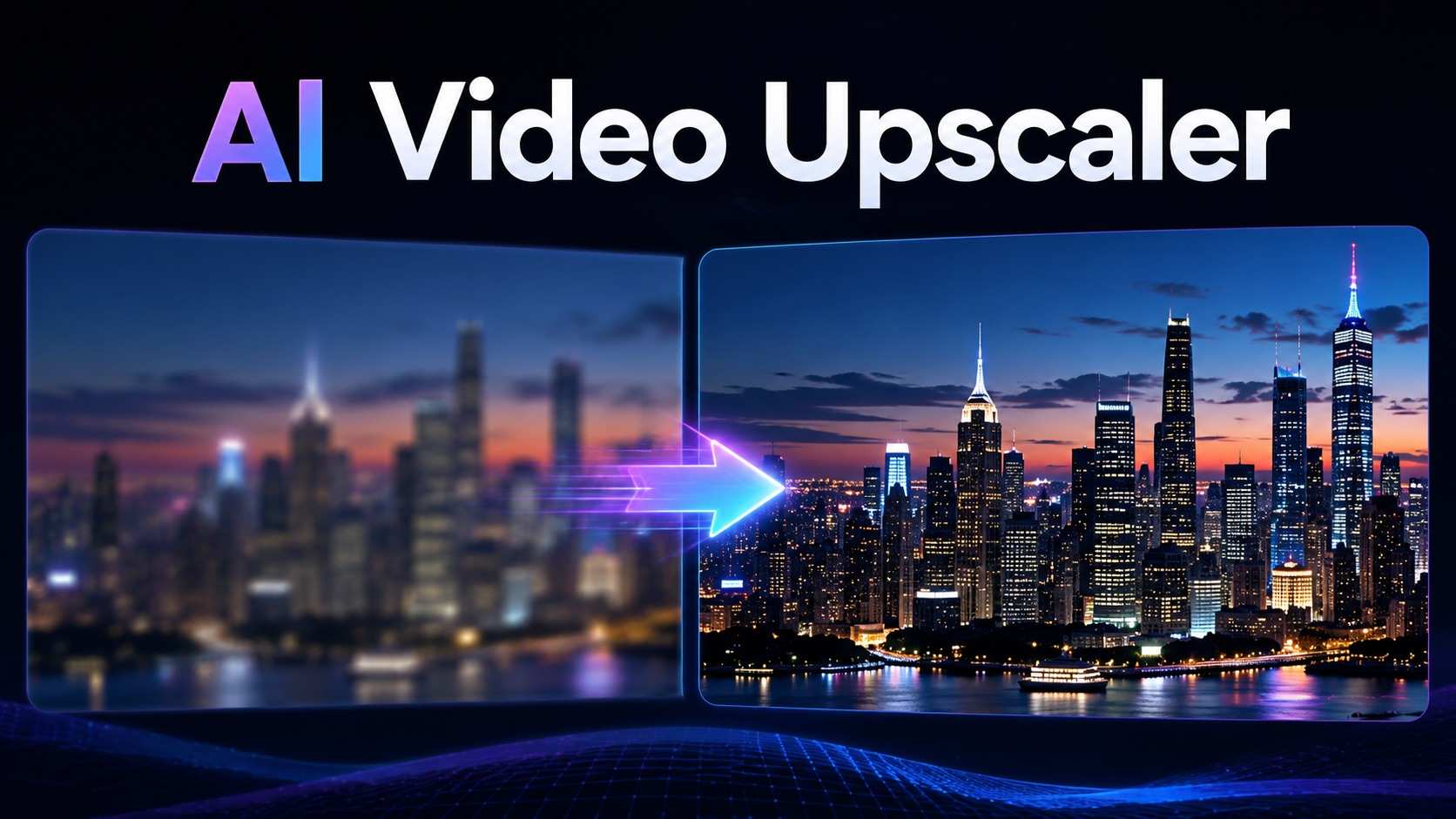
Settle the composition and movement before choosing a higher-resolution finish. Google describes draft options for Gemini Omni 1.2 Flash at 360p or 720p, with upscaling to 1080p or 4K in supported workflows. Once the creative direction works, check the resolution options available in your current workflow. Treat higher resolution as a finishing decision: a higher-resolution Gemini Omni 1.2 Flash output still needs a clear subject, readable action, and suitable pacing.
What You Can Create With Gemini Omni 1.2 Flash
Use Gemini Omni 1.2 Flash when you need to see an idea in motion before deciding where to take it. The right starting point depends on the job: a product photo, a scene description, or footage that captures the movement you have in mind.

Product And Ecommerce Videos
Turn a product photograph into a motion concept with Gemini Omni 1.2 Flash. You might explore a slow packaging reveal, a change of setting, or a camera move that brings a design detail into view. Use the reference image to establish appearance and describe the action separately. The stronger reference following reported for Gemini Omni 1.2 Flash can help preserve product shape and brand details, but review labels, packaging, and proportions before choosing a take for further production.

Social Media Content
Build a short social concept around one moment that viewers can understand quickly. Gemini Omni 1.2 Flash can help you explore a visual hook, a character reaction, or a simple product action for TikTok, Reels, and Shorts. Put the key event early enough to register, then use a follow-up edit to try different framing or a new setting. A clip from Gemini Omni 1.2 Flash can be up to 15 seconds, though a brief idea may work better with less time.

Cinematic Previsualization
Use Gemini Omni 1.2 Flash to make a planned shot easier to discuss before production. Describe where the camera begins, how it travels, and what it should reveal, then add visual references for the intended look. A director could use the result to discuss whether a move establishes the location clearly or distracts from the character. Gemini Omni 1.2 Flash concepts give collaborators something concrete to respond to while the shot is still being developed.

Video Editing And Creative Variations
Explore alternatives when the central idea works but the treatment needs attention. Ask Gemini Omni 1.2 Flash for a different atmosphere, lighting setup, or product context, and specify what should stay recognizable. For example, a team might compare a bright studio setting with a warm evening scene before deciding on a campaign direction. Give each Gemini Omni 1.2 Flash variation a purpose so the review leads to a decision instead of an ever-growing collection of takes.

Educational Explainers
Use Gemini Omni 1.2 Flash to explore a short visual example for a lesson, presentation, or training module. A scene showing a seedling emerging from soil, for instance, could introduce a discussion of plant growth. Keep each clip focused on one idea so the action is easy to follow. Review Gemini Omni 1.2 Flash outputs for factual accuracy before including them in teaching materials, and add any precise labels or explanations during your final edit.

Music And Event Visuals
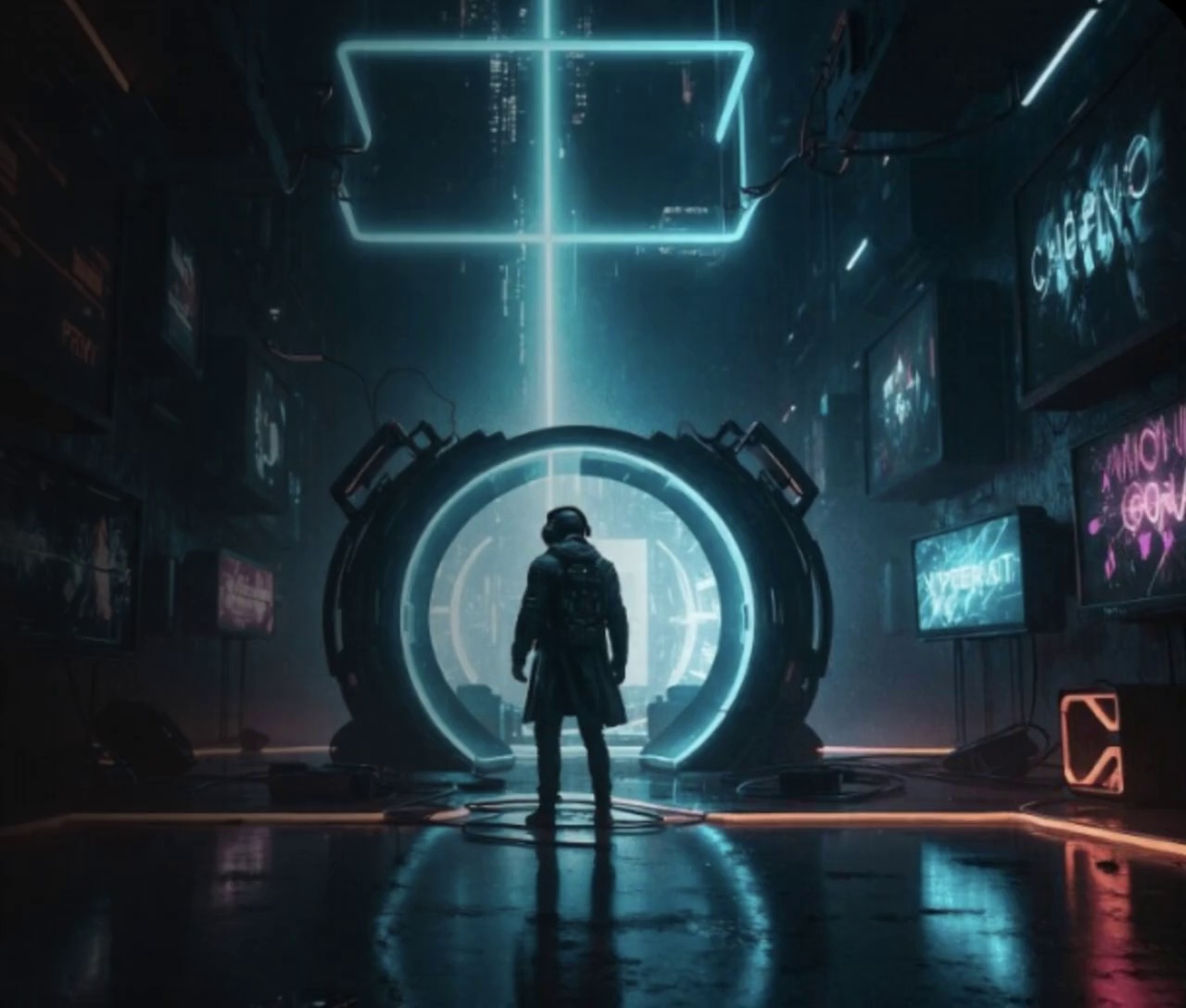
Explore the mood of a performance or event with Gemini Omni 1.2 Flash before committing to a visual treatment. A musician might try rain-soaked city lights for a song teaser, while an event designer could develop an atmospheric scene for an opening sequence. Describe the colors, movement, and pacing that suit the occasion. Use Gemini Omni 1.2 Flash concepts to discuss the look with collaborators, then select clips that fit the wider edit or presentation.
Why Creators Prefer A More Iterative Video Workflow
These illustrative perspectives show how different teams might approach a Gemini Omni 1.2 Flash workflow. They are not verified customer endorsements.
I can start with a product image, test a few movements, and keep refining the same idea instead of rebuilding every version. That makes the early creative stage much easier to manage.
The reference workflow gives me a clearer way to communicate the visual direction before we commit to a full shoot. I can show the team a moving concept instead of describing every detail in words.
For short social videos, I care more about iteration than one perfect prompt. Being able to adjust the same clip helps me test hooks and framing without losing the parts that already work.
Our team often has strong reference images but no finished video direction. A multimodal workflow helps us explore scenes and camera movement before deciding which concept deserves more production time.
Conversational editing feels closer to directing than repeatedly rolling the dice on unrelated generations. I can give one specific note, review the result, and keep moving toward the intended shot.





Gemini Omni 1.2 Flash Frequently Asked Questions
Learn what Gemini Omni 1.2 Flash accepts, how its longer clips and conversational edits fit into a creative process, and where the model is most useful.
Gemini Omni 1.2 Flash is Google's multimodal model for creating and editing video. Google describes support for different input types and conversational edits that let you refine a clip with follow-up instructions. Its model card lists text, images, audio, and video files as inputs, with high-quality video with audio as the output. The modes available on this page depend on the SuperMaker controls shown.
Yes. Give Gemini Omni 1.2 Flash a still image to establish a product, person, place, or composition, then describe the movement you want. A useful prompt explains what the subject does and how the camera behaves. If the image already captures the look you want, focus your instructions on the action and on any details that should remain recognizable. SuperMaker provides this workflow through its image input mode.
Yes. SuperMaker includes a reference-video mode for Gemini Omni 1.2 Flash. Use it when an example communicates motion or timing more clearly than text alone, and explain which parts of the reference should guide the result. The current configuration accepts a reference video up to 30 seconds and 100 MB, subject to the page's upload controls and the supported workflow.
Google says Gemini Omni 1.2 Flash can generate and edit videos up to 15 seconds, compared with 10 seconds in the previous version. That extra time can accommodate a longer camera move or a more complete product moment. Match the duration to the action: a simple reveal may need only a few seconds, while a short scene may benefit from more room.
Give Gemini Omni 1.2 Flash a follow-up instruction about an existing clip, such as changing the background or making the light softer. State what should change and which details you want to keep. One focused request is easier to evaluate than several unrelated changes at once. After the edit, watch the entire clip to check both the requested adjustment and the continuity of the scene.
The Gemini Omni 1.2 Flash model card lists audio as an input and describes high-quality video with audio as an output. SuperMaker currently exposes text, image, and reference-video inputs on this page. If your project depends on a particular audio input or output behavior, check the current model and platform documentation and the controls available in your session before planning around it.
Tell Gemini Omni 1.2 Flash who or what is in the scene, what happens, and where it takes place. Then add camera movement, lighting, timing, and visual style where they matter. For example: 'A ceramic cup sits beside a rainy window. The camera slowly moves closer as steam rises in soft morning light.' If you attach a reference, explain what it should control rather than leaving that relationship unstated.
Google describes Gemini Omni 1.2 Flash draft options at 360p or 720p, with upscaling to 1080p or 4K in supported workflows. Availability depends on the platform and the options offered in your session. Review the shot at draft quality first so you can resolve composition and motion before choosing a higher-resolution output.
Google reports stronger reference adherence for Gemini Omni 1.2 Flash, which can help products, characters, clothing, and other details stay more consistent. Use a clear reference and name the features that matter most. Consistency still needs review: check the subject throughout the clip, especially during camera movement or changes in framing, before deciding the result is ready.
For a first Gemini Omni 1.2 Flash project, choose one subject and one visible action. A product turning toward the camera or a character stepping into the light gives you a clear result to judge. Once the basic shot works, make a targeted edit to the lighting or setting. This keeps the initial brief manageable and helps you learn which instructions affect the result.
Create Your Next Video With Gemini Omni 1.2 Flash
Start with a scene you want to see, then use Gemini Omni 1.2 Flash to explore how it looks in motion. Bring a product image, describe a short action, or add a reference video to guide the movement. Review the first take, choose the detail that matters most, and refine it with a focused instruction. Gemini Omni 1.2 Flash gives you a practical way to develop the idea one creative decision at a time.