






More AI Video Generators
Explore our collection of specialized AI video generators designed for different creative needs and styles
Goodbye 2026 Welcome 2027 With You At The Summit
One Photo, A Climb, A New Beginning
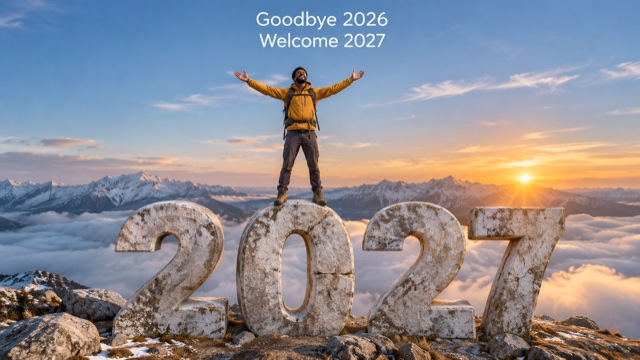
Turn your photo into a Goodbye 2026 Welcome 2027 AI video with a climb worth watching. Your character pulls onto the giant stone 0, stands at the summit and opens both arms as the camera reveals 2027 above the clouds. The sunrise, mountain setting and climbing sequence are already prepared. Bring one clear photo and create a personal opening for the year ahead, without building a scene or writing a prompt.
How To Make Your Goodbye 2026 Welcome 2027 Video
Create your Goodbye 2026 Welcome 2027 video from one photo, with the mountain scene and action direction ready to use.

Upload One Clear Photo
Choose a well-lit photo of one person with a clear face and visible clothing. Avoid sunglasses, heavy filters and tightly cropped faces so the model has useful identity and outfit details.

Review Your Video Settings
The effect uses a 10-second, vertical 9:16 video. Choose your available resolution, audio setting and number of videos, then check the current credit estimate before generating.

Generate Your Summit Scene
Select Generate Video to start the prepared climb. Your photo guides the character, while the built-in reference guides the pull-up, standing pose, open arms and final camera reveal.

Check Your Finished Clip
Watch the full clip before downloading. Check the face, hands, foot placement and 2027 digits, then add a personal greeting or music in your usual editor if you want.
Best AI Video Tools for Creative Projects
Explore creative tools for video, learn tips and tricks, and see how AI can be your assistant in turning concepts into finished projects.

















What Makes Your Goodbye 2026 Welcome 2027 Video
A personal character, a complete climbing sequence and a wide sunrise reveal give your New Year video a clear beginning and ending.
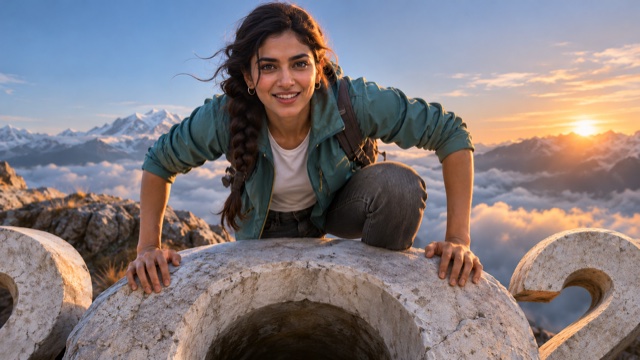
Your Character Leads The Climb
Put yourself at the center of Goodbye 2026 Welcome 2027. Your uploaded photo guides the character's face, hairstyle and outfit as they climb onto the stone 0. Start with a clear portrait that shows clothing as well as the face, so the model has more detail to work with throughout the movement.
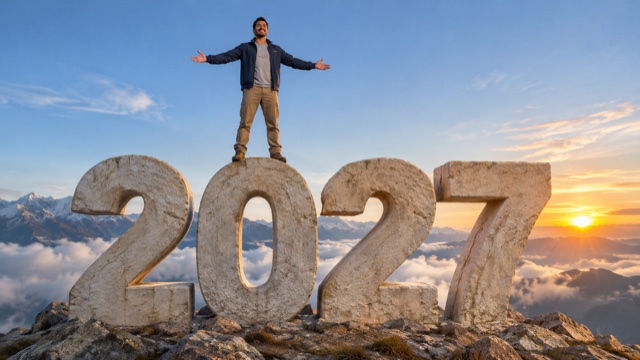
A Climb With A Clear Finish
Give your New Year reveal a sense of achievement. The prepared sequence moves from gripping the stone edge to pulling up, standing and opening both arms. That progression makes the summit pose feel like the finish of a climb, with a distinct moment to lead into your greeting.
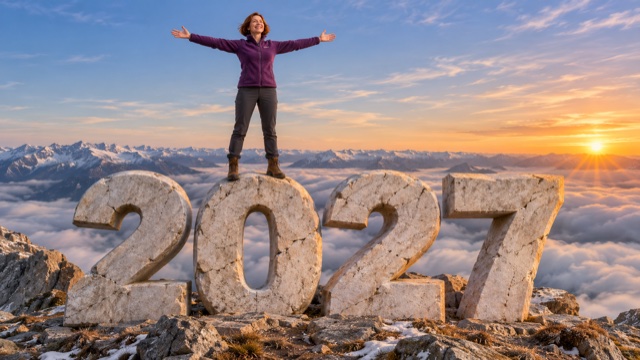
Giant 2027 Above The Clouds
The Goodbye 2026 Welcome 2027 setting combines giant pale stone numerals with a rocky mountain peak, clouds and warm sunrise. The character stands on the 0 while the final wide view reveals the complete year. Check that all four digits stay readable in your generated clip.
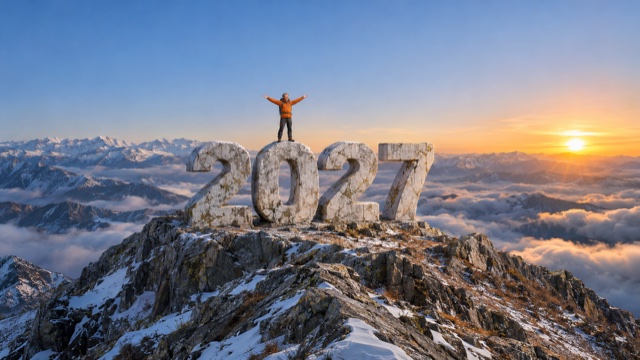
A Pull-Back That Reveals The Scene
Let the setting unfold after the character reaches the top. The camera pulls back from the summit pose to show the scale of the mountain and stone numbers. Use this wider ending to close a 2026 recap or introduce a resolution, travel plan or first post of 2027.
Give Your New Year Post A Personal Ending
Make Goodbye 2026 Welcome 2027 part of a post with a message of your own. The vertical format works as a starting clip for short social videos and personal greetings.

Your First Post Of 2027
Start your January feed with a Goodbye 2026 Welcome 2027 sunrise reveal. Add a short caption about what you are looking forward to, and let the final mountain view introduce the year.

A Year-End Reflection
Place the climbing clip after a selection of your 2026 photos or memories in your usual video editor. The move from effort to open arms gives the recap a forward-looking ending.

A Personal Goal Announcement
Pair the summit moment with one specific goal for 2027, such as learning a skill or completing a personal project. Add your message after generation so you control its wording and placement.

A New Year Greeting
Create a greeting featuring yourself or someone whose photo you have permission to use. Download the finished video, add your own message and share it with friends or family.
Goodbye 2026 Welcome 2027 FAQ
Answers to practical questions about your photo, the video settings, credits and the finished result.
Upload one clear photo in Upload Your Photo, review the available settings and credit estimate, then select Generate Video. The climbing reference and scene direction are already configured. You do not need to upload your own reference video or write a prompt.
Choose a sharp, well-lit photo of one person with the face unobstructed and some clothing visible. Avoid group photos, heavy filters, sunglasses and extreme face crops. A portrait with more of the upper body gives the model more outfit detail than a tightly cropped selfie.
Your photo is used to guide the character's face, hairstyle and clothing. Similarity can vary as the person climbs and the camera moves. Use a clear photo, then review the face and outfit across the full clip. If they change noticeably, try a cleaner photo before generating another version.
This effect is configured for one uploaded photo and one lead climber. Use a single-person image for this sequence. For separate greetings featuring different people, create an individual clip for each person.
Generation uses SuperMaker credits. Check the Required Credits amount for your selected settings and the balance available in your account before starting. The estimate can change with resolution, audio and the number of videos, so do not assume a fixed price for every clip.
The effect is configured for a 10-second video in vertical 9:16 format. That shape suits vertical social posts such as Reels, TikTok and Shorts. Download and review your clip, then add captions or trim it in your preferred editor before uploading.
The generator has a Generate Audio setting that you can review before starting. A specific song or written greeting is not part of the prepared visual sequence. Add your chosen music and message in your usual editor after generation if you want control over the track, text and timing.
Watch the whole clip, especially the pull-up and final wide view. If the face changes, try a clearer source photo. If hands, feet or digits distort, you may need another generation; a retry uses the credit amount shown before you start. Only share a version whose movement and year numerals you are happy with.
The preview shows the intended mountain scene, climb and camera reveal. Your photo changes the character, and generated details can vary between runs. Look for the same sequence: climb onto the 0, stand, open both arms and reveal the complete 2027.
Yes. Use the Download action on your finished result in My Videos, then open the clip in your preferred video editor. Add a New Year message, music or footage from your year-end recap before sharing the finished edit.
Make Your Goodbye 2026 Welcome 2027 Moment
Start with one clear photo and create a Goodbye 2026 Welcome 2027 video for your year-end recap, New Year greeting or first post of January.