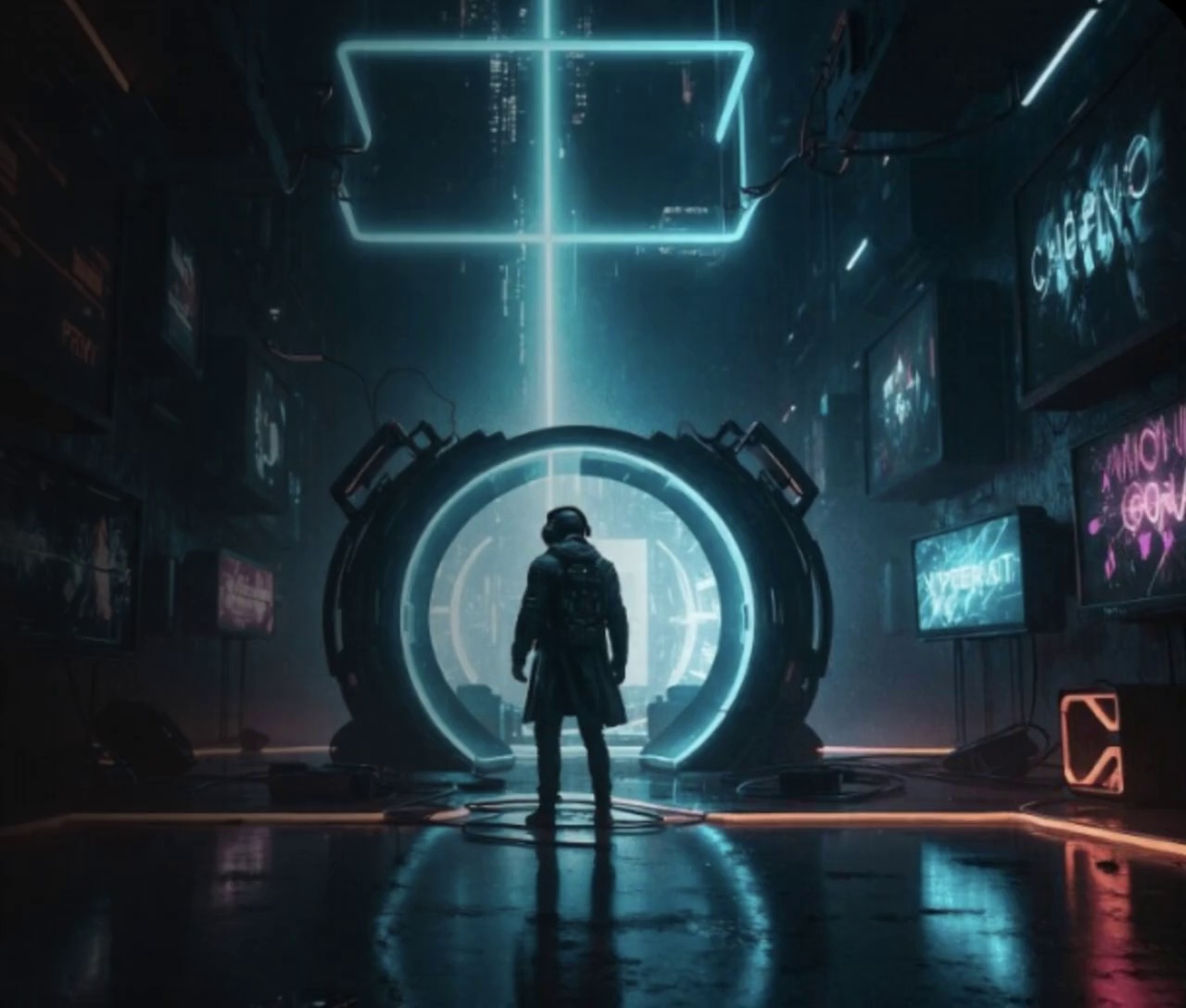

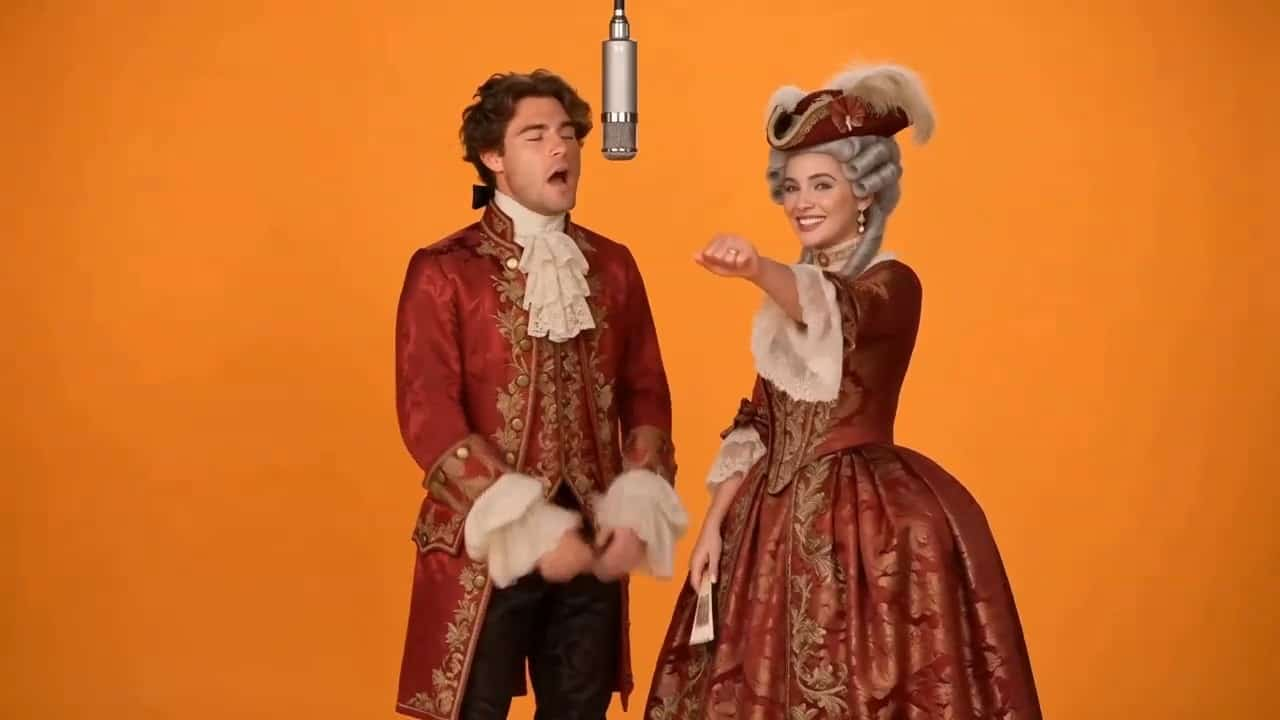

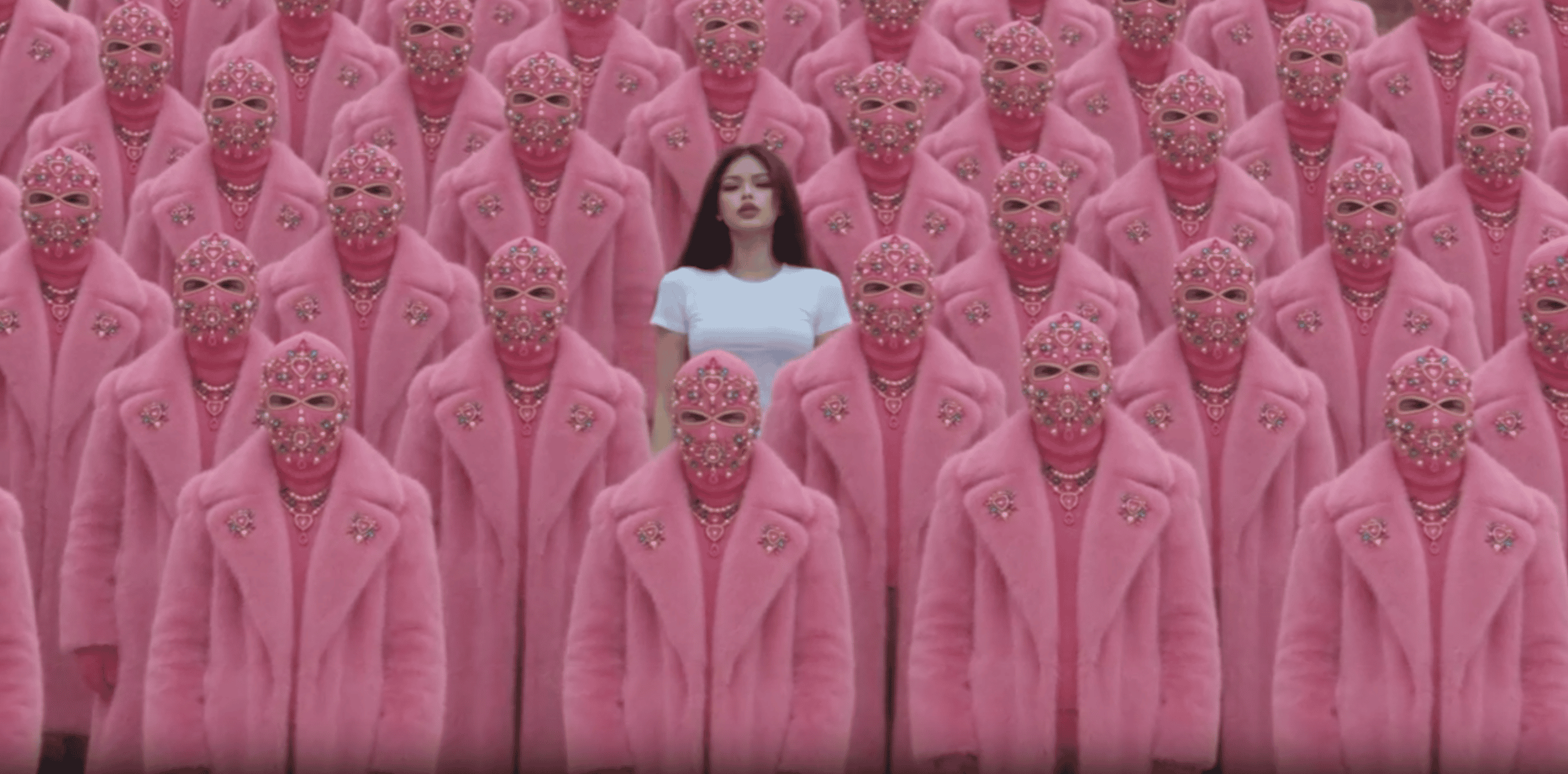
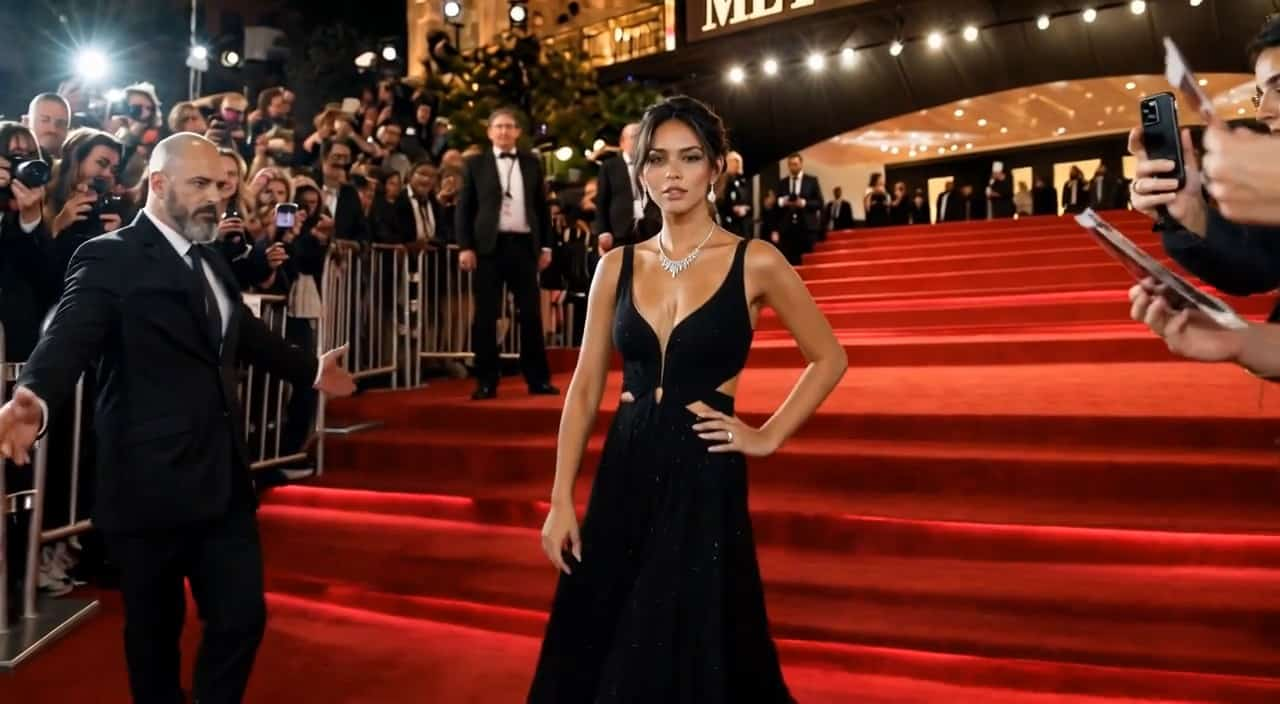









More AI Video Generators
Explore our collection of specialized AI video generators designed for different creative needs and styles
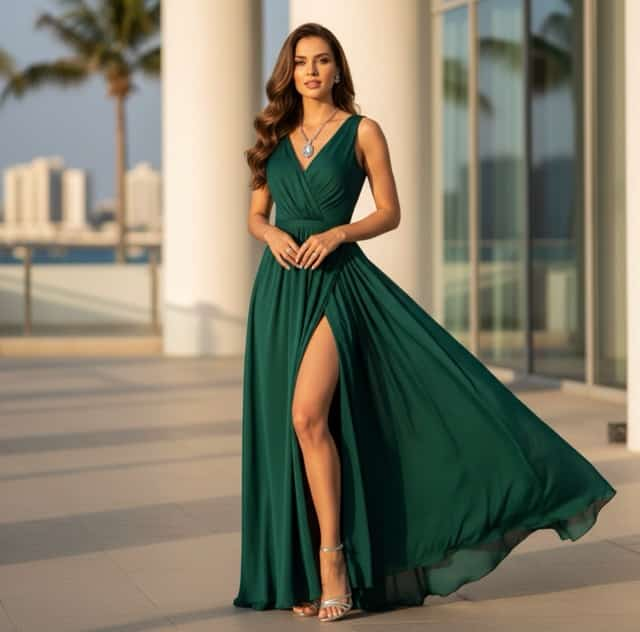
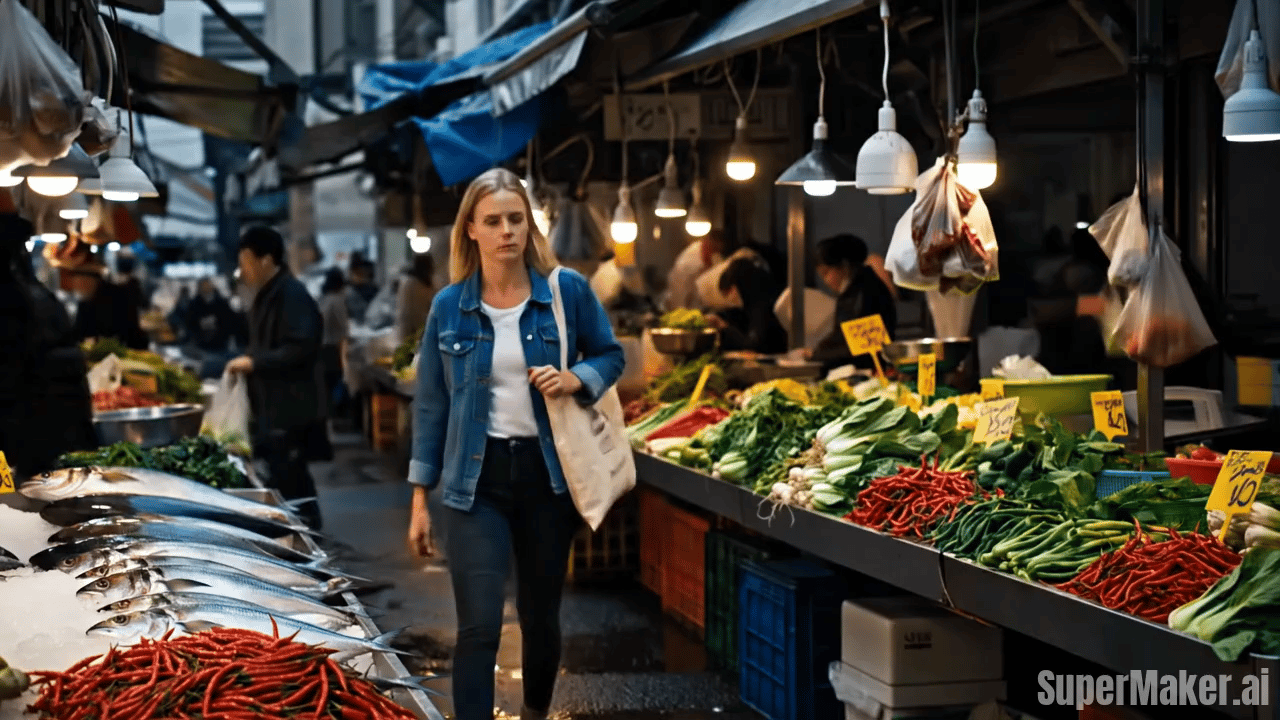
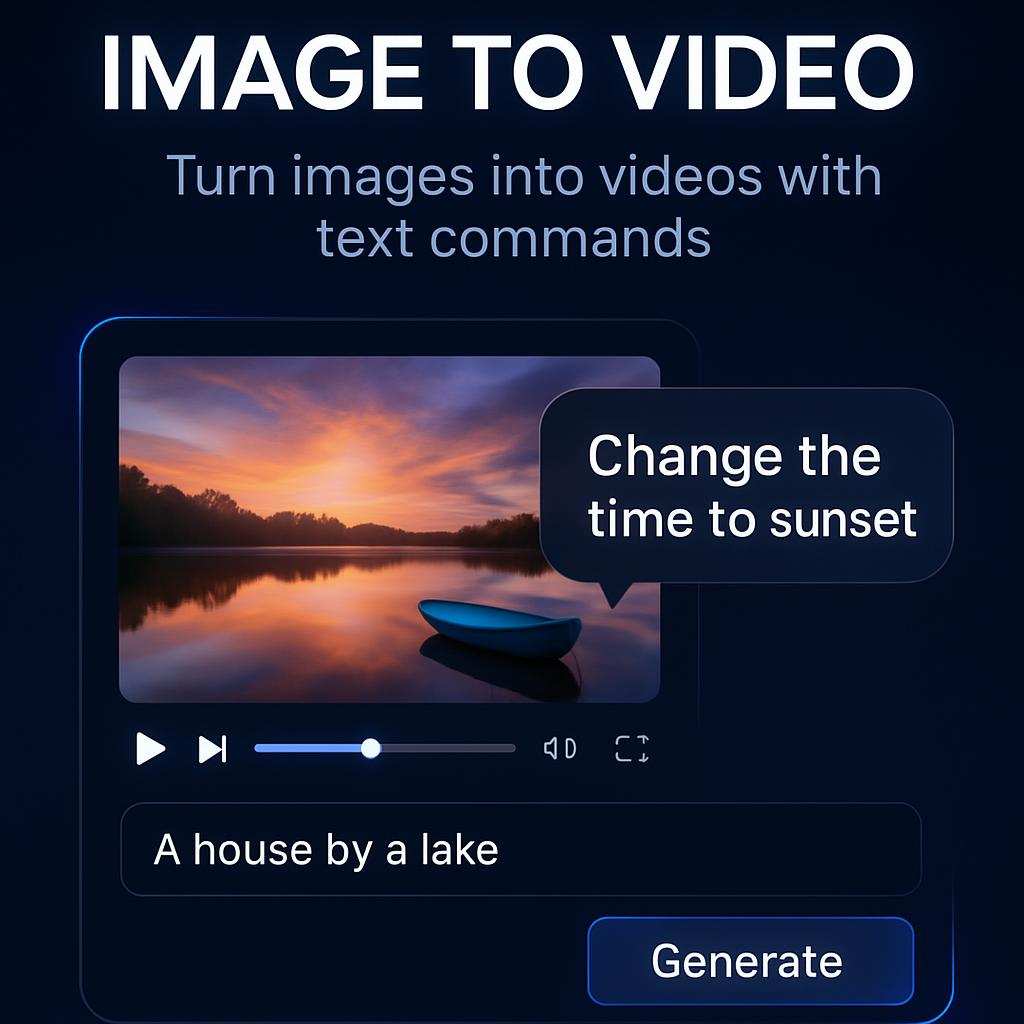
Seedance 2.5 Flash AI Video Generator
Turn Creative Briefs Into Moving Scenes
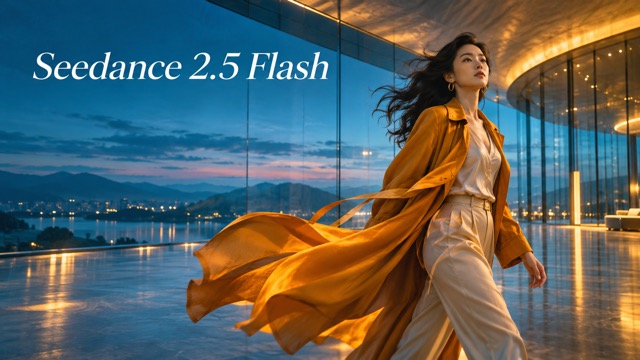
Build a scene around a clear idea with Seedance 2.5 Flash. Start with text, animate a still image, or use references to guide the visual direction. The model gives creators several ways to explore a shot before committing to a finished edit. Describe the subject, movement, camera, and sound, then review the result against your brief.
How To Create With Seedance 2.5 Flash
Give the model one clear scene to work with. Choose the starting material, explain the movement, and review the output before building a longer sequence around it.

Write Your Prompt Or Upload Your Image
Start Seedance 2.5 Flash with a short scene description or a clear source image. For text to video, name the subject, setting, and main action. For image to video, explain how the existing scene should move while preserving its visual direction.

Generate And Review Your Scene
Check the selected model, available settings, and credit cost before generating. Give Seedance 2.5 Flash a focused prompt rather than several competing actions. Watch the whole result, checking the opening, subject movement, camera behavior, and ending against the scene you intended to create.

Refine And Download Your Video
Adjust one instruction at a time when refining a Seedance 2.5 Flash concept. Keep the starting material consistent so differences are easier to judge. Download the version that fits your brief, then assemble it with other shots, captions, or finishing edits as needed.
Best AI Video Tools for Creative Projects
Explore creative tools for video, learn tips and tricks, and see how AI can be your assistant in turning concepts into finished projects.







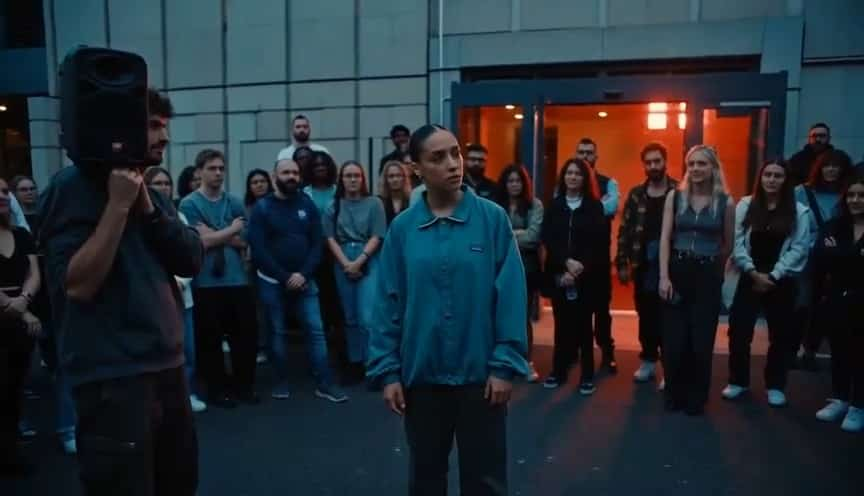














Explore The Creative Range Of Seedance 2.5 Flash
Choose a starting point that suits the shot. The model connects written direction with visual and audio references, helping you describe more than appearance alone. Use the simplest input that communicates your idea clearly.

Seedance 2.5 Flash For Text To Video
Turn a written concept into a scene with Seedance 2.5 Flash. Describe a subject, a location, one main action, and a camera movement, then add the mood you want. This text to video workflow suits early concepts when you do not have a source image. Use the AI video generator to explore framing and pacing before developing the idea into a longer sequence.

Seedance 2.5 Flash For Image To Video
Give a still image a clear motion brief with Seedance 2.5 Flash. A product photo, character illustration, or landscape can provide the starting composition while your prompt describes what happens next. The image to video approach is useful when the look is already defined. Ask Seedance 2.5 Flash for a restrained camera move or a single subject action first, then assess how the motion relates to the original image and the intended mood.
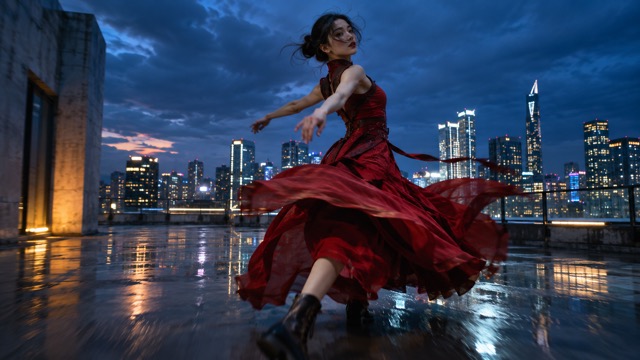
Seedance 2.5 Flash For Reference To Video
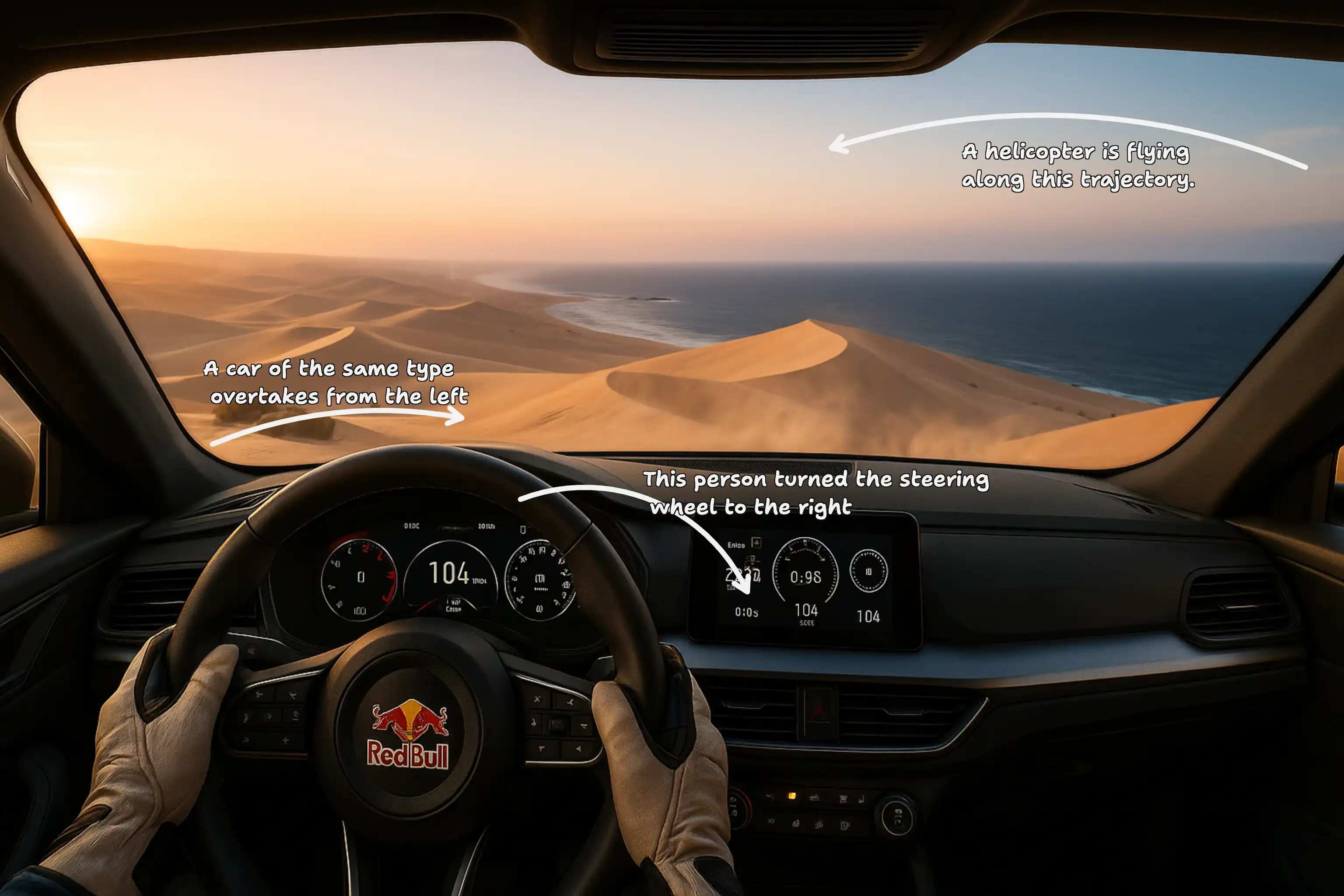
Use reference to video when words alone do not fully communicate your idea. Seedance 2.5 Flash supports multimodal reference inputs, so images, video, and audio can carry different parts of the brief. State which asset defines the subject, which suggests movement, and which guides sound. With Seedance 2.5 Flash, a smaller, well-explained reference set is often a clearer starting point than an unstructured collection.
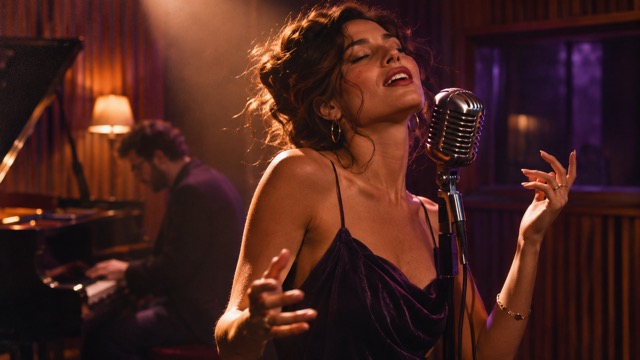
Shape Sound And Motion With Seedance 2.5 Flash
Think about the listening experience as you plan a Seedance 2.5 Flash scene. Describe the dialogue, ambient sound, or musical mood alongside the visual action rather than treating audio as an afterthought. This AI video generator supports audiovisual creation, giving you a way to explore how a scene feels as a whole. Review speech, timing, and background sound carefully, and use Seedance 2.5 Flash iterations to refine the parts that need a different emphasis.
What You Can Create With Seedance 2.5 Flash
Use the model to develop individual shots with a clear purpose. Start with the audience, decide what the scene needs to communicate, and choose an input method that helps express that message.

Social Video Concepts
Social media creators can use Seedance 2.5 Flash to explore an opening moment, a visual joke, or a short atmospheric scene. Start with text to video when the idea is still taking shape, then compare different actions or camera directions. Keep each Seedance 2.5 Flash brief focused on one readable moment so the clip has a clear role in the final post.

Product Motion Studies
Small brand teams can use Seedance 2.5 Flash to explore how a product might appear in motion before planning a larger campaign. An image to video brief can describe a gentle push-in, changing background atmosphere, or an object moving through the scene. Review Seedance 2.5 Flash results for product shape, label accuracy, and visual continuity before selecting a concept for further editing.

Storyboard And Shot Exploration
Filmmakers and independent directors can use Seedance 2.5 Flash to examine how a proposed shot reads in motion. Try reference to video when a visual example communicates the camera direction or atmosphere better than a written note. Treat each Seedance 2.5 Flash result as material for discussion: compare the staging, timing, and movement, then use that feedback to clarify the next creative brief.

Music And Visual Mood Studies
Musicians and visual artists can explore a scene's atmosphere with Seedance 2.5 Flash before building a complete sequence. Describe lighting, movement, and the intended relationship between sound and imagery. The AI video generator can help turn an abstract mood into something collaborators can discuss. Use Seedance 2.5 Flash to test individual moments, then select and edit the results into a coherent visual direction.
Creative Perspectives On Seedance 2.5 Flash
These illustrative evaluations describe different creative priorities for these workflows; they are fictional examples, not verified customer testimonials. Use them to consider what you would look for when reviewing your own results.
For a social concept, I want one clear visual idea. The appeal of Seedance 2.5 Flash is being able to explore that moment and judge the movement before expanding the brief.
I care about how closely motion follows the source composition. An image-led Seedance 2.5 Flash workflow gives me a concrete starting point for deciding what should move and what should stay stable.
A useful concept clip makes creative feedback more specific. With Seedance 2.5 Flash, I would focus my review on camera direction, staging, and the moment the shot needs to communicate.
I like a brief that gives every reference a purpose. For Seedance 2.5 Flash, that means separating the subject, movement, and atmosphere instead of expecting one image to explain everything.
Sound changes how I read an image. The audiovisual direction in Seedance 2.5 Flash interests me because I can think about the mood of a scene while planning its visual action.
I prefer to compare small, deliberate changes between concepts. A focused Seedance 2.5 Flash brief would help me discuss a specific action or framing choice with collaborators instead of vague preferences.
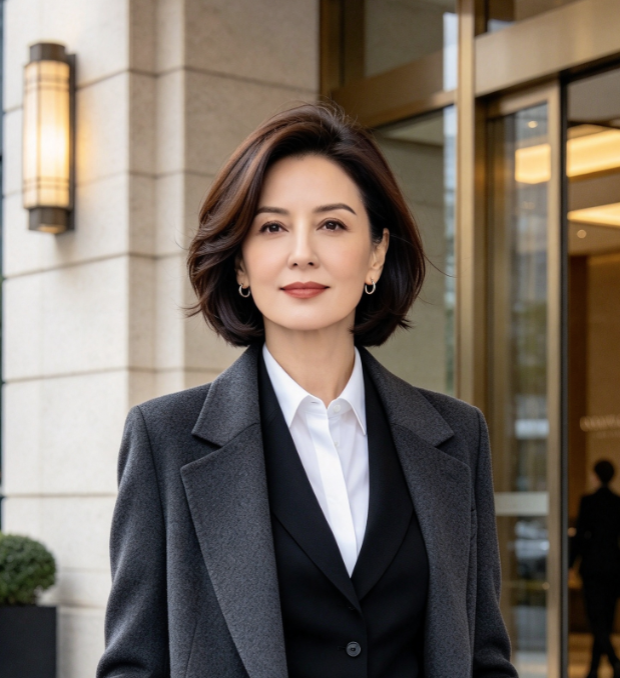

Seedance 2.5 Flash Questions And Answers
Understand the model's creative workflows before starting a project. Keep the selected generator's settings and displayed cost in view when deciding how to approach your next shot.
Seedance 2.5 Flash is a video generation model in ByteDance's Seedance family. Its documented workflows include generating scenes from text, using starting images, and guiding output with multimodal references. For creators, the practical starting point is a clear scene brief: identify the subject, describe the movement, and decide what the finished shot should communicate.
Give Seedance 2.5 Flash a subject, setting, main action, and camera direction. For example, describe a ceramic cup beside a sunlit window while the camera slowly moves closer and steam rises. Add sound or atmosphere when relevant. Keep the first attempt focused, then change one element after reviewing the result.
Choose a written brief when you want Seedance 2.5 Flash to develop a scene without an existing starting image. It is useful for exploring settings, actions, and compositions early in a project. Be concrete about what appears on screen, and avoid asking for many unrelated events in the same shot.
Use a source image when your composition or subject appearance is already important to the idea. Tell Seedance 2.5 Flash what motion to add instead of redescribing every visible detail. Begin with a single action or camera movement, then inspect the output for changes to shapes, identity, and background continuity.
Assign a clear role to each reference you give Seedance 2.5 Flash. One asset might guide the subject, another the camera movement, and another the sound. Reference to video works best as a directed brief rather than a collection of unrelated material. Check the selected model's upload controls before preparing your assets.
Watch the complete clip and compare it with your original brief. Check subject appearance, movement, camera behavior, audio, and the ending. Seedance 2.5 Flash results may need another iteration or finishing edits. Decide what matters most for the intended use, then revise the instruction responsible for the clearest mismatch.
Develop Your Next Scene With Seedance 2.5 Flash
Bring one visual idea to Seedance 2.5 Flash and give it a clear creative direction. Start from a written brief, a still image, or relevant references. Use the AI video generator to explore the shot, review the details, and choose the next revision with a specific result in mind.